Yes! You can use AI to fill out 2026 Payroll Deduction Form for HSA Contribution

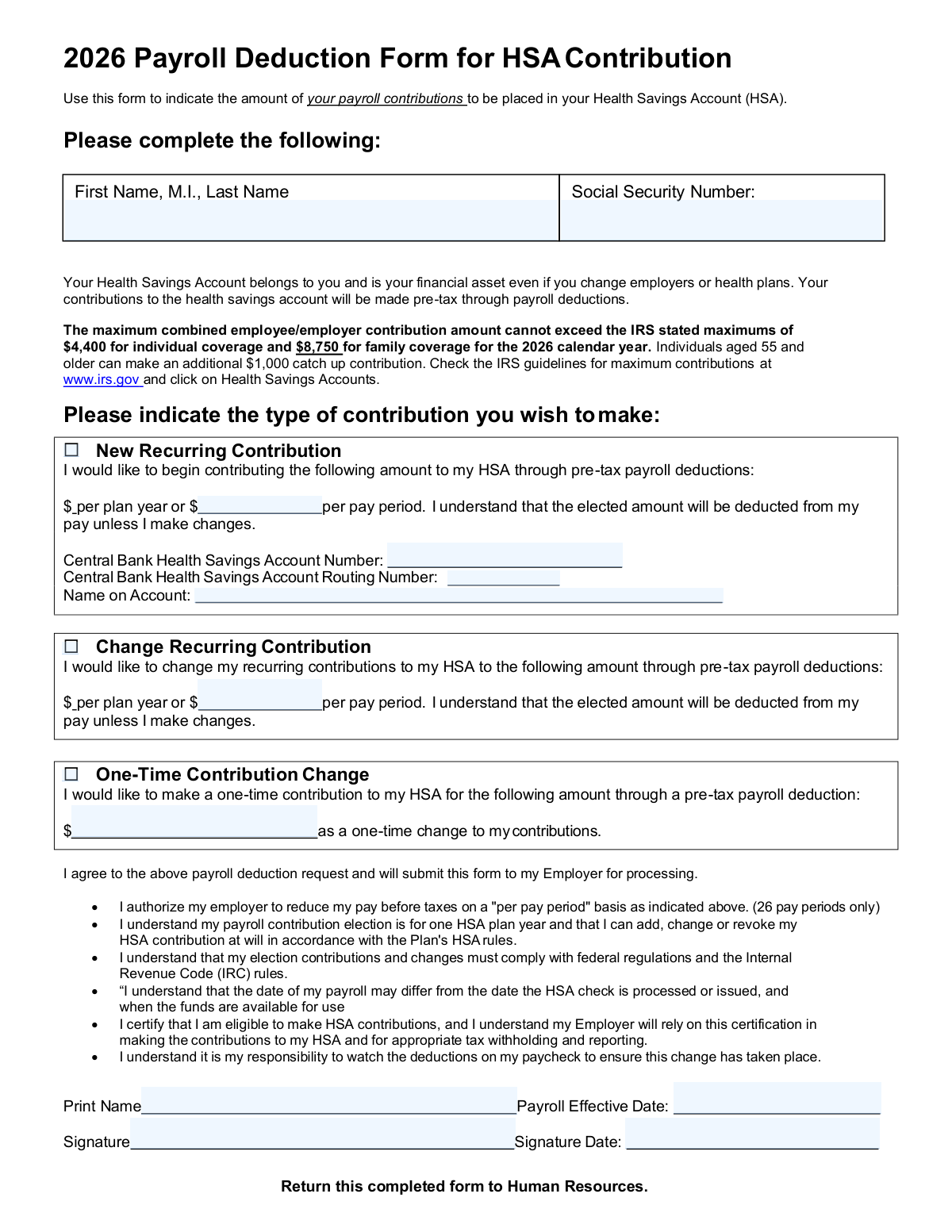
The 2026 Payroll Deduction Form for HSA Contribution is used by employees to specify the amount of their pre-tax payroll deductions for their Health Savings Account (HSA). This form is crucial for managing HSA contributions and ensuring compliance with IRS limits. Today, this form can be filled out quickly and accurately using AI-powered services like Instafill.ai, which can also convert non-fillable PDF versions into interactive fillable forms.

Form specifications

Form name: 2026 Payroll Deduction Form for HSA Contribution
Number of fields: 15
Number of pages: 1
Filled form examples: HSA Payroll Deduction Form Examples
Language: English
Our AI automatically handles information lookup, data retrieval, formatting, and form filling.
It takes less than a minute to fill out HSA Payroll Deduction Form using our AI form filling.
Securely upload your data. Information is encrypted in transit and deleted immediately after the form is filled out.
Preview of 2026 Payroll Deduction Form for HSA Contribution

Instafill Demo: How to fill out PDF forms in seconds with AI

How to Fill Out HSA Payroll Deduction Form Online for Free in 2026

Are you looking to fill out a HSA PAYROLL DEDUCTION FORM form online quickly and accurately? Instafill.ai offers the #1 AI-powered PDF filling software of 2026, allowing you to complete your HSA PAYROLL DEDUCTION FORM form in just 37 seconds or less.
Follow these steps to fill out your HSA PAYROLL DEDUCTION FORM form online using Instafill.ai:
  1. 1 Navigate to Instafill.ai and upload or select the '2026 Payroll Deduction Form for HSA Contribution'.
  2. 2 Instafill.ai will automatically identify and extract all the necessary fields from the form.
  3. 3 Provide your personal details, including your full name, Social Security Number, and HSA account information.
  4. 4 Specify your desired contribution type: new recurring, change recurring, or a one-time contribution, and enter the corresponding amounts.
  5. 5 Enter the payroll effective date, your printed name, and sign the form electronically.
  6. 6 Review all entered information for accuracy and submit the completed form through Instafill.ai.

Our AI-powered system ensures each field is filled out correctly, reducing errors and saving you time.

Why Choose Instafill.ai for Your Fillable HSA Payroll Deduction Form Form?

Speed

Complete your HSA Payroll Deduction Form in as little as 37 seconds.

Up-to-Date

Always use the latest 2026 HSA Payroll Deduction Form form version.

Cost-effective

No need to hire expensive lawyers.

Accuracy

Our AI performs 10 compliance checks to ensure your form is error-free.

Security

Your personal information is protected with bank-level encryption.

Frequently Asked Questions About HSA Payroll Deduction Form

This form is used to specify the amount of your payroll contributions that will be directed into your Health Savings Account (HSA). It allows you to set up or modify pre-tax payroll deductions for your HSA.

Any employee who wishes to make pre-tax payroll contributions to their Health Savings Account (HSA) needs to fill out this form. This includes setting up new contributions, changing existing ones, or making a one-time contribution.

You will need your full name, Social Security number, HSA account number, HSA routing number, and the name on your HSA account. You also need to decide on the contribution amount and the effective date.

Contributions are made pre-tax through payroll deductions. You authorize your employer to reduce your pay before taxes on a per-pay-period basis as indicated on the form.

For 2026, the maximum combined employee/employer contribution is $4,400 for individual coverage and $8,750 for family coverage. Individuals aged 55 and older can make an additional $1,000 catch-up contribution. Always check IRS guidelines for the most current information.

Yes, you can add, change, or revoke your HSA contribution at any time in accordance with your plan's HSA rules. You can select 'Change Recurring Contribution' or 'One-Time Contribution Change' on the form.

Contributing 'per plan year' means you are stating the total amount you want to contribute over the entire plan year. Contributing 'per pay period' means you are specifying the amount to be deducted from each individual paycheck.

The Payroll Effective Date is the date when you want your payroll deduction for your HSA contribution to begin or take effect. Your employer will use this date to start the deductions from your pay.

You should return the completed form to your Human Resources department for processing. They will handle the payroll deductions based on your authorization.

The form states that the date of your payroll may differ from when the HSA check is processed or issued and when funds are available. It's your responsibility to watch your paycheck deductions to ensure the change has taken place.

Yes, AI-powered services like Instafill.ai can help you fill out this form accurately and efficiently. These tools can auto-fill form fields, saving you time and reducing the chance of errors.

You can upload the PDF to Instafill.ai, and its AI will identify the fields. You can then input your information, and Instafill.ai will generate a completed, fillable version of the form for you to download and submit.

If the PDF is a flat, non-fillable document, Instafill.ai can convert it into an interactive, fillable form. This allows you to type directly into the fields before saving and submitting the completed form.

By signing the form, you certify that you are eligible to make HSA contributions. Your employer relies on this certification for making contributions and for correct tax withholding and reporting.

Compliance HSA Payroll Deduction Form
Validation Checks by Instafill.ai

1
Ensures Employee Full Name is Provided
Validates that the 'Employee Full Name' field is not empty. This is crucial for identifying the employee making the contribution request. If this field is missing, the request cannot be processed accurately.
2
Validates Social Security Number Format
Checks if the 'Social Security Number' is entered in a valid format (e.g., XXX-XX-XXXX or XXXXXXXXX). This ensures data integrity and helps prevent errors in tax reporting. An invalid format may lead to rejection of the form.
3
Ensures at Least One Contribution Type is Selected
Verifies that the user has selected at least one of the contribution types: 'New Recurring Contribution', 'Change Recurring Contribution', or 'One-Time Contribution Change'. This ensures the user's intent for the contribution is clear. Failure to select a type means the form is incomplete.
4
Validates New Recurring Contribution Amount Format
Checks if the 'Recurring Contribution Amount (Per Pay Period)' is a valid positive numerical value when 'New Recurring Contribution' is selected. This ensures the payroll deduction can be processed correctly. An invalid or missing amount will prevent the new recurring contribution from being set up.
5
Validates HSA Account Number Format
Ensures the 'HSA Account Number' is entered in a valid format and is a positive numerical value when 'New Recurring Contribution' is selected. This is essential for directing funds to the correct account. An incorrect account number will result in failed deposits.
6
Validates HSA Routing Number Format
Checks if the 'HSA Routing Number' is entered in a valid format (typically 9 digits) when 'New Recurring Contribution' is selected. This is critical for the electronic transfer of funds. An invalid routing number will cause the contribution to fail.
7
Ensures Name on HSA Account Matches Employee Name
Validates that the 'Name on HSA Account' field is provided and ideally matches the employee's full name or is a recognizable variation when 'New Recurring Contribution' is selected. This helps confirm ownership of the HSA. Mismatches could lead to account rejection by the bank.
8
Validates New Recurring Contribution Per Pay Period Amount
Checks if the 'New recurring contribution per pay period' is a valid positive numerical value when 'Change Recurring Contribution' is selected. This ensures the updated payroll deduction can be processed correctly. An invalid or missing amount will prevent the recurring contribution from being updated.
9
Validates One-Time Contribution Amount Format
Ensures the 'One-Time HSA Contribution Amount' is a valid positive numerical value when 'One-Time Contribution Change' is selected. This is necessary for processing the single payroll deduction. An invalid or missing amount will prevent the one-time contribution.
10
Validates Payroll Effective Date Format
Checks if the 'Payroll Effective Date' is entered in a valid date format (e.g., MM/DD/YYYY) and is not in the past. This ensures the payroll deduction starts on an appropriate date. An invalid or past date may cause processing delays or errors.
11
Ensures Printed Name Matches Employee Full Name
Validates that the 'Printed Name' field is completed and matches the 'Employee Full Name' provided at the top of the form. This is a security measure to ensure the person authorizing the deduction is the employee. A mismatch could invalidate the authorization.
12
Validates Signature Date Format
Checks if the 'Signature Date' is entered in a valid date format (e.g., MM/DD/YYYY) and is not in the future. This confirms the date of authorization. An invalid or future date may render the authorization invalid.
13
Ensures Employee Signature is Provided
Verifies that the 'Employee Signature' field is completed. This is a mandatory authorization for the payroll deduction. Without a signature, the form is not legally valid and cannot be processed.
14
Checks Contribution Amount Against IRS Maximums
Validates that the total elected contribution amount (considering recurring and one-time contributions, and potential employer contributions if applicable) does not exceed the IRS stated maximums for the year, including any catch-up contributions for individuals aged 55 and older. This ensures compliance with federal regulations. Exceeding the limit will result in rejection or adjustment of the contribution.
15
Ensures Only One Contribution Type is Active
If multiple contribution types (New Recurring, Change Recurring, One-Time) are selected, this validation ensures that only one is active or that the combination is logically permissible. For example, a user shouldn't be setting up a new recurring contribution and a one-time contribution simultaneously without clear intent. This prevents conflicting instructions.

Common Mistakes in Completing HSA Payroll Deduction Form

Incorrect or Incomplete Employee Name

Employees may forget to include their middle initial or write their name in the wrong order (e.g., Last Name, First Name). This can lead to discrepancies in HR records and payroll systems. Always ensure you enter your full name exactly as required, including first name, middle initial, and last name. AI-powered tools can help by standardizing name formats.

Missing or Incorrect Social Security Number (SSN)

Forgetting to enter the SSN or entering it with incorrect formatting (e.g., including dashes or spaces when not required, or omitting them) is a common error. The SSN is crucial for tax reporting and identification. Double-check that your SSN is entered accurately and in the correct format (usually without dashes). Tools like Instafill.ai can pre-fill and validate SSNs.

Ambiguity in Contribution Amount (Per Plan Year vs. Per Pay Period)

The form allows for specifying contributions per plan year or per pay period, but users might only fill one or fill both incorrectly, leading to confusion about the intended deduction amount. Clearly decide whether you want to specify the total annual contribution or the amount deducted each pay period and fill only the relevant field accurately. AI tools can help clarify these options.

Incorrectly Selecting Contribution Type

Employees might check both 'New Recurring Contribution' and 'Change Recurring Contribution' or fail to check any box, leading to uncertainty about their intent. Ensure you select only one option that accurately reflects your desired action (starting, changing, or making a one-time contribution). If the form is a non-fillable PDF, Instafill.ai can convert it to a fillable version to prevent such selection errors.

Omitting or Incorrectly Entering HSA Account/Routing Numbers

When setting up a new or changing a recurring contribution, failing to provide the correct Central Bank HSA account number or routing number will prevent funds from being deposited correctly. Always verify these numbers with your bank statement or HSA provider. AI tools can help by securely storing and auto-filling these sensitive details.

Mismatched Name on HSA Account

The 'Name on Account' field must exactly match the name registered with Central Bank for the HSA. Discrepancies, even minor ones (e.g., middle initial vs. full middle name), can cause processing delays or rejections. Ensure the name entered precisely matches the official account holder's name. Instafill.ai can help by ensuring exact matches from stored data.

Incorrect or Missing Payroll Effective Date

Entering a date in the past, a date too far in the future, or leaving the 'Payroll Effective Date' blank can cause confusion or delays in when the payroll deductions actually begin. Ensure the date entered is a valid future date that aligns with payroll processing cycles. AI tools can help validate date formats and suggest appropriate dates.

Forgetting to Sign or Date the Form

The 'Employee Signature' and 'Signature Date' are critical for authorizing the payroll deduction. Failing to sign or date the form renders it invalid and will prevent processing. Always review the form to ensure both your signature and the current date are provided in the designated fields.

Not Verifying IRS Contribution Limits

Employees might elect a contribution amount that exceeds the IRS-stated maximums for individual or family coverage, or the catch-up contribution for those 55+. This can lead to rejected contributions or tax issues. Always check the current IRS guidelines for HSA contribution limits before filling out the form. The form itself references www.irs.gov for this information.

Entering Contribution Amount in Wrong Field

When making a 'One-Time Contribution Change', users might mistakenly enter the amount in the 'per pay period' field or vice-versa, or enter it in the recurring contribution section. Carefully read the instructions for each section and ensure the one-time contribution amount is placed in the correct field designated for single contributions.
Saved over 80 hours a year

“I was never sure if my IRS forms like W-9 were filled correctly. Now, I can complete the forms accurately without any external help.”

Kevin Martin Green

Your data stays secure with advanced protection from Instafill and our subprocessors

Robust compliance program

Transparent business model

You’re not the product. You always know where your data is and what it is processed for.

ISO 27001, HIPAA, and GDPR

Our subprocesses adhere to multiple compliance standards, including but not limited to ISO 27001, HIPAA, and GDPR.

Security & privacy by design

We consider security and privacy from the initial design phase of any new service or functionality. It’s not an afterthought, it’s built-in, including support for two-factor authentication (2FA) to further protect your account.

Fill out HSA Payroll Deduction Form with Instafill.ai

Worried about filling PDFs wrong? Instafill securely fills 2026-payroll-deduction-form-for-hsa-contribution forms, ensuring each field is accurate.