Yes! You can use AI to fill out Client Monthly Budget Worksheet

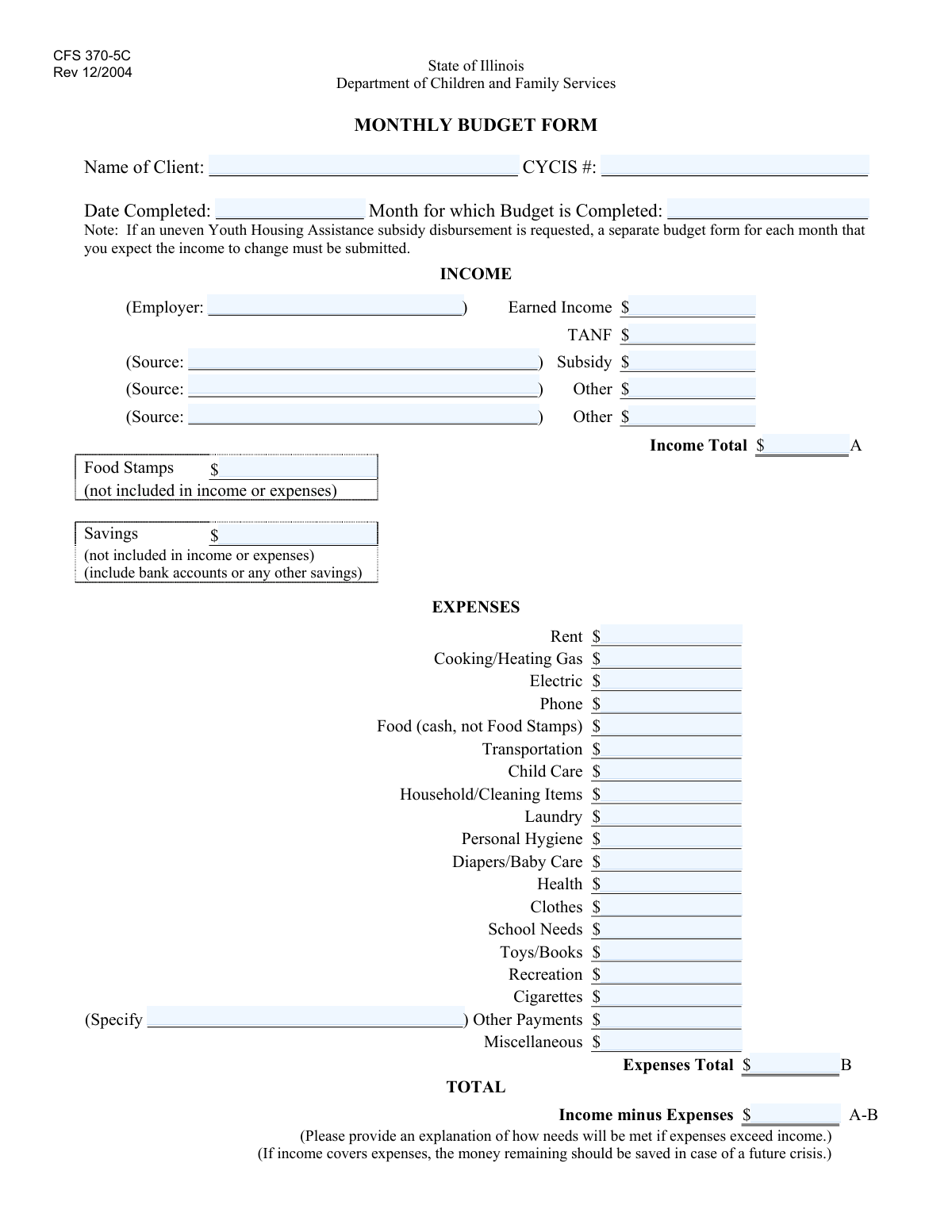
The Client Monthly Budget Worksheet is a comprehensive document used to track and calculate a person's or household's monthly income against their total monthly expenses. It provides a clear snapshot of financial health, helping individuals manage their money and enabling social service agencies to assess financial need for assistance programs. Today, this form can be filled out quickly and accurately using AI-powered services like Instafill.ai, which can also convert non-fillable PDF versions into interactive fillable forms.
Our AI automatically handles information lookup, data retrieval, formatting, and form filling.
It takes less than a minute to fill out Client Budget Worksheet using our AI form filling.
Securely upload your data. Information is encrypted in transit and deleted immediately after the form is filled out.

Form specifications

Form name: Client Monthly Budget Worksheet
Number of fields: 38
Number of pages: 1
Filled form examples: Form Client Budget Worksheet Examples
Language: English
main-image

Instafill Demo: How to fill out PDF forms in seconds with AI

How to Fill Out Client Budget Worksheet Online for Free in 2026

Are you looking to fill out a CLIENT BUDGET WORKSHEET form online quickly and accurately? Instafill.ai offers the #1 AI-powered PDF filling software of 2026, allowing you to complete your CLIENT BUDGET WORKSHEET form in just 37 seconds or less.
Follow these steps to fill out your CLIENT BUDGET WORKSHEET form online using Instafill.ai:
  1. 1 Navigate to Instafill.ai and upload the Client Monthly Budget Worksheet or select it from the template library.
  2. 2 Provide your personal details in the 'Client Information' section, including your name, CYCIS number, and the date.
  3. 3 Use the AI assistant to accurately list all sources of monthly income, such as earned wages, TANF, and subsidies, in the designated income sections.
  4. 4 Enter all your monthly expenses, from rent and utilities to food, transportation, and personal care. The tool will guide you through each category.
  5. 5 Review the automatically calculated totals for your income and expenses. Instafill.ai ensures accuracy and prevents manual calculation errors.
  6. 6 Verify the final 'Income Minus Expenses' figure to understand your monthly budget balance.
  7. 7 Once you've confirmed all information is correct, securely download, print, or share your completed budget worksheet.

Our AI-powered system ensures each field is filled out correctly, reducing errors and saving you time.

Why Choose Instafill.ai for Your Fillable Client Budget Worksheet Form?

Speed

Complete your Client Budget Worksheet in as little as 37 seconds.

Up-to-Date

Always use the latest 2026 Client Budget Worksheet form version.

Cost-effective

No need to hire expensive lawyers.

Accuracy

Our AI performs 10 compliance checks to ensure your form is error-free.

Security

Your personal information is protected with bank-level encryption.

Frequently Asked Questions About Form Client Budget Worksheet

This form is used to document your total monthly income and expenses. It helps provide a clear financial picture for a specific budget period, often for a social service or financial assistance program.

The CYCIS Number is your unique Client Identification Number. You can usually find it on official letters or documents from the agency, or you can ask your case manager for it.

No, you only need to provide an employer name if you are reporting an amount in the 'Earned Income Amount' field. If you have no earned income, you can leave both fields blank.

In the 'Cash Food Expense' field, only enter the amount of money you spend on food out-of-pocket. Do not include the value of your Food Stamps, which should be listed separately in the 'Food Stamps Amount' field.

If you do not have any expenses for a particular category, such as 'Child Care Expense', you can simply leave that field blank or enter '0'.

Yes, you are expected to add up all your individual income sources for the 'Income Total' and all your expenses for the 'Expenses Total'. You must also calculate the final 'Income Minus Expenses' balance.

Use this section for significant expenses that do not fit into any other listed category, such as loan payments or other financial obligations. Be sure to provide a clear description of the payment.

It is helpful to gather your recent pay stubs, benefit award letters for TANF or Food Stamps, bank statements, and any bills or receipts for your monthly expenses to ensure accuracy.

The form requires you to specify a 'Budget Month', which indicates it needs to be completed on a monthly basis. Please confirm the exact submission deadline with your case manager.

'Income Total' is the money you received during the specific budget month. 'Savings Amount' is the total accumulated money you have saved, for example in a bank account, at the time of completing the form.

Yes, services like Instafill.ai use AI to auto-fill form fields accurately and save time. This can be especially helpful for forms you need to complete regularly.

To fill this form online, upload the PDF to Instafill.ai. The platform will make the fields interactive, allowing you to click and fill them with your securely stored information or type in new details.

If your PDF is not fillable, you can use a tool like Instafill.ai. It can convert flat, non-fillable PDFs into interactive forms that you can easily complete on your computer.

Compliance Client Budget Worksheet
Validation Checks by Instafill.ai

1
Income Total Calculation Accuracy
This validation verifies that the 'Income Total' field is the correct sum of all individual income sources (Earned, TANF, Subsidy, First Other, Second Other). It is a critical check to ensure the financial summary is accurate and prevents manual calculation errors. If the total is incorrect, the form submission will be rejected, and the user will be prompted to review and correct the income amounts or the total itself.
2
Expenses Total Calculation Accuracy
This check ensures the 'Expenses Total' field accurately reflects the sum of all listed expense items, from rent to miscellaneous costs. This is vital for a correct budget assessment and to understand the client's financial outflows. A mismatch will trigger an error, requiring the user to verify all expense entries and recalculate the total before the form can be processed.
3
Budget Balance Calculation Accuracy
This validation confirms that the 'Income Minus Expenses' field is precisely equal to the 'Income Total' minus the 'Expenses Total'. This final calculation represents the client's monthly surplus or deficit and is the ultimate summary of the budget. An incorrect value would invalidate the entire purpose of the form, so a failure will block submission until the discrepancy is resolved.
4
Valid and Logical Completion Date
This check ensures that the 'Date Completed' field contains a validly formatted date (e.g., MM/DD/YYYY) and that the date is not in the future. This prevents data entry errors and ensures the form's timestamp is logical and accurate for record-keeping. If the date is invalid or set in the future, the system will display an error message and require the user to enter a current or past date.
5
Mandatory Client Identification
This validation ensures that both the 'Client Name' and 'CYCIS Number' fields are filled out. These two fields are essential for uniquely identifying the client and correctly associating the budget information with their case file. If either field is left blank, the form cannot be submitted, and the user will be notified that this core information is missing.
6
Non-Negative Monetary Values
This rule verifies that all fields representing monetary amounts (e.g., 'Earned Income Amount', 'Rent Amount', 'Savings Amount') contain only positive numbers or zero. Negative financial values are not logical in this context and indicate a data entry error. Any field with a negative number will be flagged, and the user must correct the entry to a valid, non-negative amount.
7
Conditional Employer Name Requirement
This check enforces that the 'Employer Name' field must be completed if the 'Earned Income Amount' field has a value greater than zero. This ensures that the source of any earned income is properly documented, which is crucial for verification and program eligibility. If income is entered but the employer is missing, the user will be prompted to provide the employer's name.
8
Conditional TANF Source Requirement
This validation ensures that if a 'TANF Income Amount' is entered, the corresponding 'TANF Income Source' field must also be filled out. Documenting the source of TANF income is necessary for auditing and compliance purposes. A failure to provide the source when an amount is listed will result in an error, preventing submission until the source information is supplied.
9
Conditional Other Payment Description
This rule checks that if an amount is entered into the 'Other Payments Amount' field, the 'Other Payments Description' field must not be empty. This provides necessary context for uncategorized expenses, ensuring clarity and completeness in the budget. If an amount is specified without a description, the submission will be halted with a message asking the user to describe the expense.
10
CYCIS Number Format Validation
This check validates that the 'CYCIS Number' conforms to a predefined format, such as being a specific length and containing only numeric digits. This maintains data integrity within the system and prevents errors from typos or incorrectly formatted identification numbers. If the entered number does not match the expected format, an error message will explain the required format to the user.
11
Logical Budget Month and Date
This validation checks for logical consistency between the 'Date Completed' and the 'Budget Month'. The 'Budget Month' should not be a future month relative to the completion date, ensuring the budget reflects a current or past period. For example, a budget completed in February cannot be for March. An illogical entry would prompt the user to review and correct the budget period.
12
Conditional Subsidy Source Requirement
This validation ensures that if a 'Subsidy Amount' is entered, the 'Subsidy Income Source' field must also be completed. Knowing the source of a subsidy is essential for program administration and verifying the client's eligibility for different types of aid. The form will be considered incomplete and rejected if an amount is provided without its corresponding source.

Common Mistakes in Completing Client Budget Worksheet

Incorrectly Calculating Totals

Manually summing the long lists of income and expenses for the 'Income Total', 'Expenses Total', and 'Income Minus Expenses' fields is highly prone to arithmetic errors. A simple miscalculation can render the entire budget summary inaccurate, leading to flawed financial planning and assessment. To avoid this, use a calculator and double-check all totals before finalizing the form. AI-powered tools like Instafill.ai can prevent this by performing calculations automatically as you enter data.

Missing Dependent Information for Amounts

The form requires a source or description for certain entries, such as providing an 'Employer Name' for 'Earned Income Amount' or a description for 'Other Payments Amount'. People often enter the monetary value but forget to provide the required context in the corresponding text field. This omission makes it difficult for reviewers to verify the information and can lead to follow-up questions or form rejection. Form-filling tools can enforce these rules by prompting the user for the missing information.

Using Inconsistent Timeframes

The form requires monthly budget figures, but people frequently enter income or expenses based on different pay periods (e.g., weekly pay, bi-weekly bills) without converting them to a monthly total. For example, entering a weekly pay amount instead of multiplying it by 4.33 will significantly understate monthly income. This skews the entire budget and provides an inaccurate financial picture. Always convert all figures to their monthly equivalent for consistency.

Mishandling Food Stamp Expenses

The 'Cash Food Expense' field explicitly asks for food costs paid in cash, *excluding* expenses covered by food stamps. A very common mistake is to enter the total grocery bill in this field, which incorrectly inflates cash expenses and makes the budget seem tighter than it is. To avoid this, carefully subtract the value of food stamps used from the total food bill to determine the correct out-of-pocket amount.

Omitting Key Identifiers

Forgetting to enter the 'CYCIS Number' or entering it with a typo is a frequent and critical error. This number is the primary identifier used to link the budget form to the correct client file in the system. Its absence or inaccuracy can cause significant processing delays, misfiling of documents, or the inability to locate the client's record, requiring the form to be resubmitted.

Incomplete Income Reporting

Users often focus on their primary 'Earned Income' and forget to include all other sources, such as 'TANF Income', 'Subsidy Income', or other forms of assistance. This leads to an understated 'Income Total' and a misleadingly negative 'Income Minus Expenses' calculation. It is crucial to review all potential income categories on the form and include any applicable amounts to create an accurate financial snapshot.

Using Guesstimates Instead of Actuals

For variable expenses like 'Electric Expense', 'Cooking/Heating Gas Amount', or 'Transportation Amount', people often provide a rough guess instead of consulting recent bills or bank statements. These guesstimates can be significantly different from the actual costs, undermining the accuracy and purpose of the budgeting exercise. Taking the time to find precise figures results in a more realistic and useful budget.

Vague or Missing Expense Descriptions

When an amount is entered in the 'Other Payments Amount' field, a clear explanation is required in the 'Other Payments Description' field. Users frequently leave the description blank or enter a vague term like 'bills' or 'miscellaneous'. This lack of detail prevents reviewers from understanding what the expense is for, potentially leading to it being disallowed or requiring further clarification.

Incorrect Budget Period

A common point of confusion is the 'Budget Month' field. A user might complete the form at the end of May for their upcoming June budget but mistakenly enter 'May' as the budget month. This misaligns the entire financial document, making it appear as if the projected income and expenses are for the current month rather than the intended future period. Always ensure the 'Budget Month' reflects the period the budget covers, not when the form was filled.

Entering Data in a Non-Fillable PDF

Often, forms like this are only available as flat, non-fillable PDFs, forcing users to print them out and fill them in by hand. This leads to illegible handwriting, calculation errors, and an inability to easily save or share the document. To avoid these issues, AI-powered tools like Instafill.ai can convert non-fillable PDFs into interactive, fillable forms, making the process cleaner, more accurate, and entirely digital.
Saved over 80 hours a year

“I was never sure if my IRS forms like W-9 were filled correctly. Now, I can complete the forms accurately without any external help.”

Kevin Martin Green

Your data stays secure with advanced protection from Instafill and our subprocessors

Robust compliance program

Transparent business model

You’re not the product. You always know where your data is and what it is processed for.

ISO 27001, HIPAA, and GDPR

Our subprocesses adhere to multiple compliance standards, including but not limited to ISO 27001, HIPAA, and GDPR.

Security & privacy by design

We consider security and privacy from the initial design phase of any new service or functionality. It’s not an afterthought, it’s built-in, including support for two-factor authentication (2FA) to further protect your account.

Fill out Client Budget Worksheet with Instafill.ai

Worried about filling PDFs wrong? Instafill securely fills client-monthly-budget-worksheet forms, ensuring each field is accurate.