Yes! You can use AI to fill out Compensation and damages (Mod C)
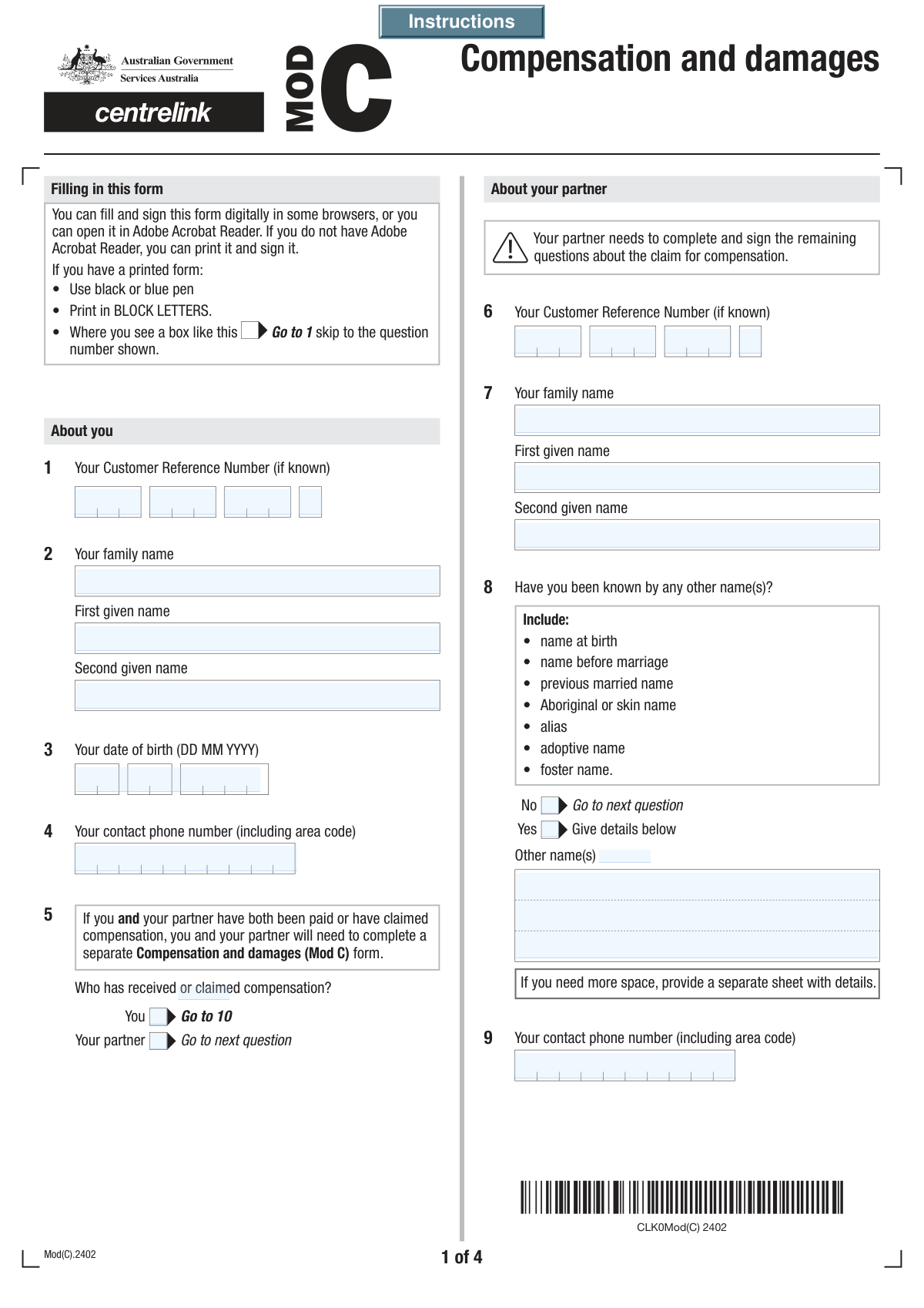
The Compensation and damages (Mod C) form is a document required by Services Australia (Centrelink) for individuals who have received or are in the process of claiming compensation for an injury or illness. This form gathers detailed information about the compensation claim, including payment details, to assess its impact on your social security payments and prevent incorrect payments. Today, this form can be filled out quickly and accurately using AI-powered services like Instafill.ai, which can also convert non-fillable PDF versions into interactive fillable forms.
Our AI automatically handles information lookup, data retrieval, formatting, and form filling.
It takes less than a minute to fill out Mod C using our AI form filling.
Securely upload your data. Information is encrypted in transit and deleted immediately after the form is filled out.
Form specifications
| Form name: | Compensation and damages (Mod C) |
| Number of fields: | 118 |
| Number of pages: | 6 |
| Language: | English |
Instafill Demo: How to fill out PDF forms in seconds with AI
How to Fill Out Mod C Online for Free in 2026
Are you looking to fill out a MOD C form online quickly and accurately? Instafill.ai offers the #1 AI-powered PDF filling software of 2026, allowing you to complete your MOD C form in just 37 seconds or less.
Follow these steps to fill out your MOD C form online using Instafill.ai:
- 1 Navigate to Instafill.ai and upload the Compensation and damages (Mod C) form or select it from their library.
- 2 Use the AI assistant to automatically fill in your personal details, including your name, date of birth, and Customer Reference Number.
- 3 Provide information about the injury or illness, including the date, location, and type of compensation claim (e.g., worker's compensation, motor vehicle).
- 4 Enter details about the compensation payer, and specify any periodic or lump sum payments you have received or expect to receive.
- 5 If you have legal representation, provide your solicitor's contact information and details.
- 6 Review all the information for accuracy, use the checklist to gather and attach required documents like insurance policies or settlement letters.
- 7 Digitally sign and date the form before submitting it to Services Australia as instructed.
Our AI-powered system ensures each field is filled out correctly, reducing errors and saving you time.
Why Choose Instafill.ai for Your Fillable Mod C Form?
Speed
Complete your Mod C in as little as 37 seconds.
Up-to-Date
Always use the latest 2026 Mod C form version.
Cost-effective
No need to hire expensive lawyers.
Accuracy
Our AI performs 10 compliance checks to ensure your form is error-free.
Security
Your personal information is protected with bank-level encryption.
Frequently Asked Questions About Form Mod C
This form is used to provide details about compensation you or your partner have received or claimed for an injury or illness. This information helps the relevant agency assess your situation and any related entitlements or obligations.
You must complete this form if you or your partner have received, claimed, or intend to claim any form of compensation. This includes worker's compensation, motor vehicle accident payments, public liability, or income protection insurance.
Your Customer Reference Number is a unique identifier provided by the government agency you are dealing with. You can typically find it on letters or statements they have sent you, or by logging into your online account with that agency.
Yes, if your partner has also received or claimed compensation, you must provide their personal details, Customer Reference Number, and information about any other names they have used.
The 'Date of Injury' is when the incident occurred or the illness was diagnosed. The 'Start Date of Lost Wages' is the first day you lost income because you were unable to work, which may be a later date.
The checklist section indicates you may need to provide documents like your insurance policy, letters of claim acceptance, settlement documents, or letters advising when payments started or stopped. Only attach documents that are relevant to your specific claim.
Periodic payments are regular, ongoing payments, such as weekly wage replacement. A lump sum is a single, one-off payment made to settle a claim.
Provide as much information as you can, such as the payer's name and your claim number. The form includes a 'Do not know' option for the compensation payer type if you are unsure.
If a solicitor is acting for you, you must provide their name, firm name, address, phone number, and the date they started representing you in this matter.
The form can be signed using a digital signature if you are filling it out electronically. Alternatively, you can print the completed form, sign it by hand, and submit it as instructed by the agency that requested it.
Yes, services like Instafill.ai use AI to accurately auto-fill form fields, which can save you time and help reduce errors. This is especially helpful for complex forms with many fields.
Simply upload the form to the Instafill.ai platform. The AI will analyze the fields and automatically populate them with your saved information, which you can then review, edit, and finalize.
If you have a non-fillable or 'flat' PDF, you can use a service like Instafill.ai. It can convert the non-fillable PDF into an interactive, fillable form that you can easily complete on your computer.
If your injury or illness occurred overseas, you must check the 'Outside Australia' box. You will then need to provide additional details, including the country where it happened and more specific information about the location.
Compliance Mod C
Validation Checks by Instafill.ai
1
Customer Reference Number Completeness
This check ensures that all four parts of the 'Customer Reference Number' are filled out. The reference number is a key identifier for the customer's account, and an incomplete number will prevent the system from locating the correct record. If any part is missing, the form submission will be blocked, and the user will be prompted to complete all four fields.
2
Date of Birth Logical Validity
This validation verifies that the 'Date of Birth' is a valid date and is in the past. It also checks that the date is reasonable, for example, not more than 120 years ago, to prevent data entry errors. An invalid or future date would compromise identity verification and eligibility calculations, so the user must correct it before proceeding.
3
Conditional Requirement for Partner Details
This check is triggered if the 'Your partner' checkbox is selected under 'Compensation Recipient'. It validates that the partner's essential details, including 'Partner's Family Name', 'Partner's First Given Name', and all parts of the 'Partner's Customer Reference Number', are provided. This information is crucial for processing claims involving a partner, and failure to provide it will result in an error message requiring the fields to be completed.
4
Date of Injury vs. Date of Birth Chronology
This validation ensures a logical timeline by checking that the 'Date of Injury or Illness' is after the claimant's 'Date of Birth'. An injury date preceding the birth date is impossible and indicates a significant data entry error. If this validation fails, the user will be alerted to review and correct one or both of the dates to ensure the claim's timeline is accurate.
5
Start Date of Lost Wages Conditional Logic
This check validates the 'Start Date of Lost Wages' field based on its preceding checkbox. If the 'Same date as question 10' box is unchecked, this validation ensures a date is entered in the 'Start Date of Lost Wages' field. Furthermore, it confirms the provided date is on or after the 'Date of Injury or Illness', as lost wages cannot precede the event that caused them.
6
Mandatory Injury Location Selection
This validation ensures that if 'You' is selected as the compensation recipient, at least one checkbox under 'Injury Location' is selected. The location of the injury is a critical piece of information that determines jurisdiction and applicable laws for the compensation claim. If no location is selected, the form cannot be submitted, and the user will be prompted to specify where the injury occurred.
7
Conditional Requirement for 'Outside Australia' Details
If the 'Outside Australia' checkbox is selected for the injury location, this validation ensures that both the 'Outside Australia Location Details' and 'Country of Injury/Illness' fields are filled. This specific information is necessary for handling international claims, which follow different procedures. Failure to provide these details will prevent submission and prompt the user to elaborate on the international location.
8
Specification for 'Other' Claim Type
This check is activated when the 'Other' checkbox is selected under 'Compensation Claim Type'. It verifies that the corresponding text field, 'Other Claim Type', is not empty. This ensures that when a predefined category does not fit, the user provides a specific description, which is essential for correctly categorizing and processing the claim. An empty field will trigger an error, requiring the user to specify the claim type.
9
Conditional Requirement for Employer Details
When the 'At work' checkbox is selected, this validation confirms that all mandatory employer details are provided, including 'Employer's Business Name', 'Employer's Street Address Line 1', 'Employer's Suburb/City', and 'Employer's Postcode'. This information is vital for verifying the claim with the employer and processing a worker's compensation case. Missing information will block submission until the employer's details are completed.
10
Periodic Payment Date Chronology
This validation checks the logical sequence of periodic payment dates. If a 'Cessation Date' is provided, it must be on or after the 'Payment Start Date'. A cessation date that occurs before the start date is a logical impossibility and indicates a data entry error. The system will flag this inconsistency and require the user to correct the dates before the form can be processed.
11
Conditional Requirement for Solicitor Details
If the user checks 'Yes' for having solicitor representation, this validation ensures that the solicitor's key details are filled out, including 'Solicitor Name', 'Solicitor's Firm Name', 'Solicitor Address Line 1', and 'Solicitor Postcode'. This information is necessary for official correspondence and legal processing of the claim. The form will be considered incomplete if these fields are left blank after indicating solicitor involvement.
12
Declaration Date Validity
This check ensures the 'Declaration Date' is a valid date and is not in the future. It also cross-references this date against other key dates in the form, such as the 'Date of Injury' and 'Lump Sum Payment Date', ensuring the declaration is not dated prior to the events it describes. This maintains the legal integrity of the declaration, and an invalid date will require correction.
13
Australian Postcode Format
This validation applies to all postcode fields on the form, including for the compensation payer, employer, and solicitor. It checks that the entered value is exactly four digits long and contains only numbers. Correctly formatted postcodes are essential for mail delivery and address verification, and any invalid entries will be flagged for correction.
14
Contact Phone Number Format
This check verifies that the 'Contact Phone Number' and 'Partner's Contact Phone Number' fields adhere to a standard Australian phone number format (e.g., 10 digits including area code). A valid phone number is crucial for communication regarding the claim. The validation prevents the submission of incomplete or incorrectly formatted numbers, ensuring the agency can contact the claimant.
Common Mistakes in Completing Mod C
The form requires the Customer Reference Number to be entered across four separate fields. Applicants often make mistakes by entering the entire number into the first box, incorrectly dividing the number, or transposing digits between the boxes. This leads to a data mismatch in the system, making it impossible to link the form to the correct customer file and causing significant processing delays. To avoid this, carefully enter each part of the number into its corresponding field as it appears on your documentation.
Applicants frequently enter the same date for both the 'Date of Injury or Illness' and the 'Start Date of Lost Wages', even when they are different. This is especially common for illnesses that develop over time or injuries where the person continued to work for a period. This error can negatively impact the calculation of compensation periods and benefits, so it is crucial to differentiate between the date the incident occurred and the actual first day you lost wages, using the provided checkbox if the dates are indeed the same.
This form contains many fields that are conditional, meaning they should only be filled out if a specific answer was given in a previous question (e.g., providing solicitor details only if 'Yes' was selected). A common error is either skipping required conditional sections or filling out sections that are not applicable. This results in an incomplete submission, requiring follow-up and delaying the claim. AI-powered tools like Instafill.ai can help by automatically showing or hiding relevant sections based on your answers, ensuring you fill out exactly what is required.
The form explicitly asks for the 'Gross Payment Amount' and 'Gross Lump Sum Amount' before tax. However, individuals often mistakenly enter the net amount that was deposited into their bank account after tax and other deductions. This incorrect financial data can lead to miscalculation of benefits and will require correction, delaying the finalization of the claim. Always refer to official payment advice or settlement documents to find the correct gross figure before any deductions are made.
The form asks for details of both the 'Compensation Payer' (e.g., an insurance company) and the 'Employer'. Applicants sometimes confuse these two entities, especially in worker's compensation cases, and may enter the employer's details in the compensation payer section or vice versa. This mistake sends the processing agency looking for information in the wrong place, leading to verification failures and delays. Carefully distinguish between the entity paying the compensation and the employer at the time of the incident.
When required to provide a partner's other names (such as a name at birth, previous married name, or alias), applicants often provide an incomplete list or forget this section entirely. Omitting legally recognized previous names can hinder identity verification and background checks, which are often a critical part of the assessment process. This can stall the claim until the correct information is provided and verified, so ensure you list all names your partner has been known by.
Throughout the form, there are 'Other' checkboxes that require the user to provide a written explanation in a subsequent field (e.g., 'Other Claim Type'). A frequent mistake is to check the 'Other' box but then fail to provide a clear, detailed explanation. This leaves the reviewer with a critical information gap, making it impossible to categorize or process the claim correctly without further contact. If you select 'Other', always provide a comprehensive description in the space provided.
One of the most common and delay-causing mistakes is failing to submit all the required supporting documents indicated in the final checklist. Applicants often overlook the need to attach items like a signed settlement document, a letter of claim acceptance, or a copy of an insurance policy. Submitting the form without the necessary evidence means the claim cannot be processed and will be put on hold. Always use the checklist to gather all required attachments before you submit the form.
The form requires numerous dates, and applicants often enter them in an inconsistent or incorrect format (e.g., MM/DD/YYYY instead of DD/MM/YYYY). This can lead to ambiguity and data entry errors, for example, misinterpreting July 8th (07/08) as August 7th (08/07), which can affect eligibility and timelines. To avoid this, pay close attention to any specified format. AI form-filling tools like Instafill.ai can help by automatically validating and formatting dates correctly based on the form's requirements.
The final declaration requires a signature and date to be legally valid. Applicants may fill out the entire form but forget to sign it, or they may use a digital version without a valid digital signature, rendering the submission invalid. An unsigned form has no legal standing and will be returned, halting the entire process. If the form is a non-fillable PDF, tools like Instafill.ai can convert it to a fillable version where a digital signature can be more easily applied.
Saved over 80 hours a year
“I was never sure if my IRS forms like W-9 were filled correctly. Now, I can complete the forms accurately without any external help.”
Kevin Martin Green
Your data stays secure with advanced protection from Instafill and our subprocessors

Robust compliance program
Transparent business model
You’re not the product. You always know where your data is and what it is processed for.
ISO 27001, HIPAA, and GDPR
Our subprocesses adhere to multiple compliance standards, including but not limited to ISO 27001, HIPAA, and GDPR.
Security & privacy by design
We consider security and privacy from the initial design phase of any new service or functionality. It’s not an afterthought, it’s built-in, including support for two-factor authentication (2FA) to further protect your account.
Fill out Mod C with Instafill.ai
Worried about filling PDFs wrong? Instafill securely fills compensation-and-damages-mod-c forms, ensuring each field is accurate.