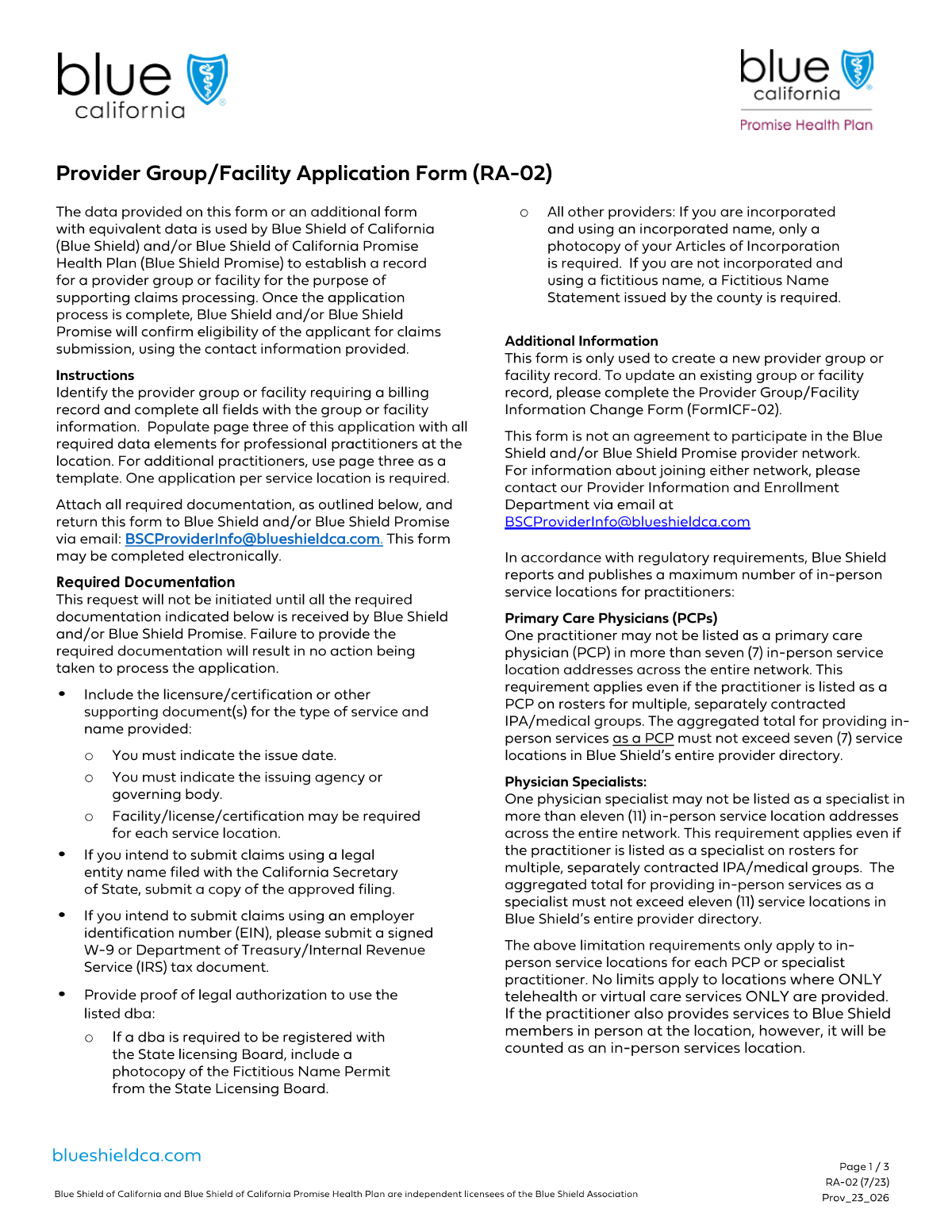
Yes! You can use AI to fill out Group/Facility Provider Information Form

This form is a comprehensive document for healthcare provider groups and facilities to enroll with or update their information with insurance companies and other payers. It captures essential data including legal and licensing details, service locations, billing contacts, accessibility features, and a detailed roster of individual practitioners, which is crucial for credentialing and payment. Today, this form can be filled out quickly and accurately using AI-powered services like Instafill.ai, which can also convert non-fillable PDF versions into interactive fillable forms.
Our AI automatically handles information lookup, data retrieval, formatting, and form filling.
It takes less than a minute to fill out Provider Information Form using our AI form filling.
Securely upload your data. Information is encrypted in transit and deleted immediately after the form is filled out.

Form specifications

Form name: Group/Facility Provider Information Form
Number of fields: 146
Number of pages: 3
Language: English
main-image

Instafill Demo: How to fill out PDF forms in seconds with AI

How to Fill Out Provider Information Form Online for Free in 2026

Are you looking to fill out a PROVIDER INFORMATION FORM form online quickly and accurately? Instafill.ai offers the #1 AI-powered PDF filling software of 2026, allowing you to complete your PROVIDER INFORMATION FORM form in just 37 seconds or less.
Follow these steps to fill out your PROVIDER INFORMATION FORM form online using Instafill.ai:
  1. 1 Navigate to Instafill.ai and upload or select the Group/Facility Provider Information Form.
  2. 2 Use the AI assistant to automatically fill in the provider group's legal information, such as EIN, NPI, legal name, and primary specialty.
  3. 3 Enter the service location address, contact details, and office hours, letting the AI pre-populate information from your business profile.
  4. 4 Provide billing contact information and details for your Electronic Remittance Advice (ERA) vendor or clearinghouse to ensure proper payment setup.
  5. 5 Complete the detailed roster for each practitioner, including their NPI, license number, patient acceptance policies, and any supervisory information.
  6. 6 Indicate the facility's accessibility features, available languages, and patient visit options like telehealth.
  7. 7 Review all the auto-filled and entered information for accuracy, make any final corrections, and then download, print, or electronically submit the completed form.

Our AI-powered system ensures each field is filled out correctly, reducing errors and saving you time.

Why Choose Instafill.ai for Your Fillable Provider Information Form Form?

Speed

Complete your Provider Information Form in as little as 37 seconds.

Up-to-Date

Always use the latest 2026 Provider Information Form form version.

Cost-effective

No need to hire expensive lawyers.

Accuracy

Our AI performs 10 compliance checks to ensure your form is error-free.

Security

Your personal information is protected with bank-level encryption.

Frequently Asked Questions About Form Provider Information Form

This form is used to collect detailed information about a healthcare provider group or facility for credentialing, network participation, or updating provider directories. It should be completed by an authorized representative of the provider group or facility.

You will need your organization's legal name, EIN/TIN, and NPI, as well as service and billing addresses. You will also need detailed information for each practitioner, including their individual NPI, license number, and patient acceptance policies.

No, you only need to complete the billing address section if your billing address is different from your primary service location address. If they are the same, you can leave those fields blank.

The roster sections are for providing detailed information about each individual licensed practitioner working at your facility. You must complete a separate section for each practitioner, including their NPI, license number, and patient acceptance policies.

An ERA (Electronic Remittance Advice) vendor or clearinghouse is a third-party service that processes electronic payments from payers. This information is required to ensure that your practice receives payments and remittance details correctly and efficiently.

You should provide supervisor information for any practitioner who requires clinical supervision as part of their licensure or scope of practice, such as a Physician Assistant (PA) or a Nurse Practitioner (NP) in some states. If a practitioner practices independently, you can leave these fields blank.

Yes, the form specifies that you must attach a copy of the provider’s license or certification document. Ensure you have a clear, current copy for each practitioner you list on the roster.

Enter the operating hours using a format like '9:00 AM - 5:00 PM'. If the office is closed on a particular day, simply enter 'N/A' in the corresponding field.

The 'Legal entity name' is the official name registered with the government for tax purposes. The 'Provider name' or 'DBA' is the public-facing name your practice uses, which may be different from the legal name.

A 'hospital-based' practitioner is one who primarily provides services within a hospital setting, rather than an outpatient office or clinic. This information helps clarify the practitioner's main practice environment.

Yes, services like Instafill.ai use AI to accurately auto-fill form fields with your saved information, which can save a significant amount of time and reduce errors. This is especially helpful for lengthy forms that require repetitive data entry.

Simply upload the form to the Instafill.ai platform. The AI will analyze the fields, allowing you to use your saved profile information to automatically populate required data like your provider NPI, address, and practitioner details with just a few clicks.

You can use a service like Instafill.ai to make it interactive. Instafill.ai can convert flat, non-fillable PDFs into fillable forms, allowing you to type your information directly into the fields online.

Submission instructions are typically provided by the organization that requested the form. After submission, processing times can vary, but you can usually expect a confirmation of receipt and a follow-up if any information is missing.

Compliance Provider Information Form
Validation Checks by Instafill.ai

1
NPI Format and Structure Validation
This check verifies that the National Provider Identifier (NPI) for both the organization and each rostered practitioner is a 10-digit numeric value. The NPI is a critical unique identifier used for billing and regulatory purposes, and an incorrect format can lead to claim rejections and processing delays. If the NPI does not meet the 10-digit numeric format, the form submission will be blocked until a valid NPI is entered.
2
EIN/TIN Format Validation
This validation ensures the Employer Identification Number (EIN) or Taxpayer Identification Number (TIN) is entered in the correct 9-digit format (e.g., XX-XXXXXXX). This number is essential for tax reporting and legal entity verification. An invalid format can cause significant issues with financial and regulatory compliance, so the system will reject submissions with an improperly formatted EIN/TIN.
3
Mutually Exclusive Patient Acceptance Status
For each practitioner, this check ensures that only one of the patient acceptance options ('Current patients only' or 'New and existing patients') is selected. A practitioner cannot simultaneously be accepting new patients and not accepting new patients. If both or neither are selected for a given practitioner, an error message will prompt the user to choose exactly one option to clarify the practitioner's status.
4
Mutually Exclusive Gender Limitation Selection
This validation confirms that for each practitioner, only one of the gender limitation options ('Female only', 'Male only', 'N/A') is checked. Selecting multiple options creates a logical contradiction about which patients the practitioner accepts. If more than one option is selected, the form will display an error and require the user to make a single, definitive choice.
5
Conditional Requirement for Handicap Accessibility Features
This check enforces the rule that handicap accessibility feature checkboxes (e.g., 'Parking', 'Exam room', 'Internal handicap accessible') can only be selected if the 'Wheelchair access? Yes' box is also checked. This prevents illogical data where specific accessibility features are claimed for a location that is not wheelchair accessible. If this rule is violated, the user will be notified to either uncheck the specific features or affirm that the location has wheelchair access.
6
Conditional Requirement for Hospital Affiliation
This validation ensures that the 'Hospital affiliation name(s)' field for a practitioner is only filled out if their 'Degree' is listed as 'MD' or 'DO', as specified by the form instructions. This maintains data integrity by linking affiliations to the appropriate professional credentials. If an affiliation is listed for a non-MD/DO practitioner, the submission will be flagged with an error requiring correction.
7
Patient Age Range Logical Consistency
This check verifies that for each practitioner, the 'Lowest patient age accepted' is less than or equal to the 'Highest patient age accepted'. An inverted or equal-value range where the lowest age is greater than the highest is illogical and represents a data entry error. If the lowest age is higher than the maximum age, the system will prevent submission and prompt the user to correct the age range.
8
Office Hours Format and Time Logic
This validation ensures that all daily office hours fields are entered in the specified format (e.g., '9:00 AM - 5:00 PM') or as 'N/A'. It also checks that for any entered time range, the start time is chronologically before the end time. This prevents nonsensical data like '5:00 PM - 9:00 AM' and ensures data consistency for public directories. An invalid format or time logic will trigger an error.
9
Conditional Completeness of Billing Address
This check is triggered if any one of the billing address fields ('Billing street address', 'Billing city', 'Billing state', 'Billing ZIP code') is filled. It then validates that all of these billing address fields are completed. This prevents incomplete address data when the user intends to provide a billing address that is different from the service location address, which could lead to misdirected mail. An incomplete set of fields will result in a validation error.
10
Email Address Format Validation
This check confirms that all email address fields, such as 'Provider group/facility business email' and 'ERA technical contact email address', adhere to a standard email format (e.g., '[email protected]'). Valid email addresses are crucial for all electronic communications, including portal notifications and technical support. An invalid format will prevent form submission and require the user to enter a correctly structured email address.
11
Supervisor Information Consistency Check
This validation ensures that if a 'Supervisor's NPI' is provided for a practitioner, the 'Supervisor's name' field is also filled out, and vice versa. These two fields are intrinsically linked, and providing one without the other results in incomplete and unusable data for supervision verification. If only one of the two fields is completed, the system will prompt the user to provide the missing information.
12
Website URL Format Validation
This check verifies that the 'Website URL' field contains a value that conforms to a valid URL structure, such as starting with 'http://' or 'https://' and containing a domain name. A valid URL is necessary to ensure that links to the provider's website work correctly in directories and patient portals. If the entry does not look like a valid URL, the user will be asked to correct it before proceeding.
13
Required Visit Type Selection
This validation ensures that at least one of the patient visit options ('In-person visits' or 'Telehealth visits') is selected. A provider group must offer at least one method for seeing patients to be considered active. If neither option is checked, the form cannot be submitted, prompting the user to specify how the provider interacts with patients.
14
Mutually Exclusive Wheelchair Access Selection
This check ensures that the 'Wheelchair access? Yes' and 'Wheelchair access? No' checkboxes are mutually exclusive. A location cannot be both accessible and not accessible at the same time, so selecting both options is a logical contradiction. If a user checks both boxes, an error will be displayed, requiring them to select only one to accurately describe the facility.

Common Mistakes in Completing Provider Information Form

Confusing Individual NPI with Organization NPI

The form requires the organization’s National Provider Identifier (NPI), but users often mistakenly enter a specific practitioner's individual (Type 1) NPI. This error occurs because staff may have easier access to individual NPIs. This leads to immediate validation failures, claim rejections, and delays in the credentialing process, as the submitted NPI will not match the organization's legal name and TIN. To avoid this, always use the Type 2 NPI assigned to the provider group or facility, which can be verified in the official NPI Registry.

Incorrectly Using Legal vs. DBA Names

Users frequently confuse the 'Legal entity name' with the 'Provider name / Doing business as (DBA)' or use them interchangeably. The legal name is the official name registered with the government and tied to the EIN/TIN, while the DBA is the operating name known to the public. Entering the wrong name in either field can cause mismatches during tax and insurance verification, leading to contract and payment delays. Always refer to official W-9 forms for the legal name and marketing materials for the DBA name.

Inconsistent or Ambiguous Office Hour Formatting

The form requests office hours in a specific format (e.g., '9:00 AM - 5:00 PM') and requires 'N/A' for closed days, but users often enter inconsistent formats like '9-5' or leave closed days blank. This creates ambiguity and requires manual data cleaning, which can lead to incorrect information being published in provider directories. To prevent this, strictly adhere to the specified format for all days of the week, ensuring consistency and clarity.

Ignoring Conditional Logic for Dependent Fields

This form contains several fields with conditional logic, such as filling out the billing address only if it's different from the service location. Users often miss these instructions and either fill in redundant information or fail to provide necessary details. This can lead to processing errors, such as mail being sent to the wrong address or incomplete accessibility information. To avoid this, carefully read all instructions, especially those containing words like 'if different' or 'Fill only if'.

Mixing Up Data in Roster Practitioner Sections

With multiple, nearly identical sections for each practitioner on the roster, it is extremely common to enter information in the wrong practitioner's block. For example, a user might input Practitioner 3's license number into the field for Practitioner 2. Such errors can lead to serious credentialing issues, incorrect directory listings, and claim assignment problems. To avoid this, complete one practitioner's section in its entirety before moving to the next, using the practitioner's name as a constant reference point.

Ambiguous Patient Acceptance Status

For each practitioner, the form provides separate options for 'New and existing patients' and 'Current patients only'. A common mistake is to check both boxes, or neither, leaving the practitioner's status unclear. This ambiguity is a major issue for provider directories and patient referral systems, leading to frustrated patients and unnecessary administrative follow-up. To prevent this, ensure that exactly one of the two options is selected for each practitioner to clearly define their status.

Omitting Required Supervisor Information

For practitioners like Nurse Practitioners or Physician Assistants, providing supervisor information (name and NPI) is often mandatory for billing and compliance, but the '(if applicable)' note can be misinterpreted. Users may not know when it is applicable and omit this critical data. This omission can halt the credentialing process or lead to widespread claim denials. Always verify the supervision requirements for each practitioner's license type and state regulations before filling out the form.

Transposing Digits in Critical ID Numbers

Fields like 'EIN/TIN' and 'NPI' require long strings of numbers that are highly susceptible to simple data entry errors, such as transposing two digits. A single incorrect digit will cause the ID to fail validation, leading to an immediate rejection of the form and significant delays in enrollment and payment setup. To avoid this, use copy-paste from a verified source document. If typing manually, have a second person review the numbers or read them aloud against the source document.

Omitting Suite or Unit Numbers in Addresses

When entering the 'Practice street address', users frequently forget to include the suite, floor, or unit number, especially for offices located in large medical buildings or complexes. This seemingly small omission can cause mail to be returned, credentialing site visits to fail, and patients to get lost. Always provide the complete, mail-deliverable address as recognized by the postal service to ensure accurate delivery and location services.

Failure to Attach Required Documents

The 'License/Certification Number' field contains a critical instruction in parentheses: '(attach a copy of the document)'. Users often focus on filling out the fields and overlook such instructions, submitting the form without the necessary attachments. This renders the submission incomplete and stops the verification process entirely until the documents are provided, causing significant delays. Before submitting, perform a final review of the form specifically to find and fulfill all requests for attachments. AI-powered tools like Instafill.ai can help by bundling attachments with the form data automatically.

Contradictory Checkbox Selections for Accessibility

The form presents 'Wheelchair access? Yes' and 'Wheelchair access? No' as separate checkboxes. Users sometimes make errors by checking both boxes or leaving both unchecked, creating a logical contradiction. This invalidates the response and requires follow-up to clarify the location's accessibility status, which is critical information for patients. To avoid this, carefully select only one of the mutually exclusive options. If the form is a non-fillable PDF, tools like Instafill.ai can convert it into a smart, fillable version where such options can be configured as radio buttons to prevent this error.
Saved over 80 hours a year

“I was never sure if my IRS forms like W-9 were filled correctly. Now, I can complete the forms accurately without any external help.”

Kevin Martin Green

Your data stays secure with advanced protection from Instafill and our subprocessors

Robust compliance program

Transparent business model

You’re not the product. You always know where your data is and what it is processed for.

ISO 27001, HIPAA, and GDPR

Our subprocesses adhere to multiple compliance standards, including but not limited to ISO 27001, HIPAA, and GDPR.

Security & privacy by design

We consider security and privacy from the initial design phase of any new service or functionality. It’s not an afterthought, it’s built-in, including support for two-factor authentication (2FA) to further protect your account.

Fill out Provider Information Form with Instafill.ai

Worried about filling PDFs wrong? Instafill securely fills groupfacility-provider-information-form forms, ensuring each field is accurate.