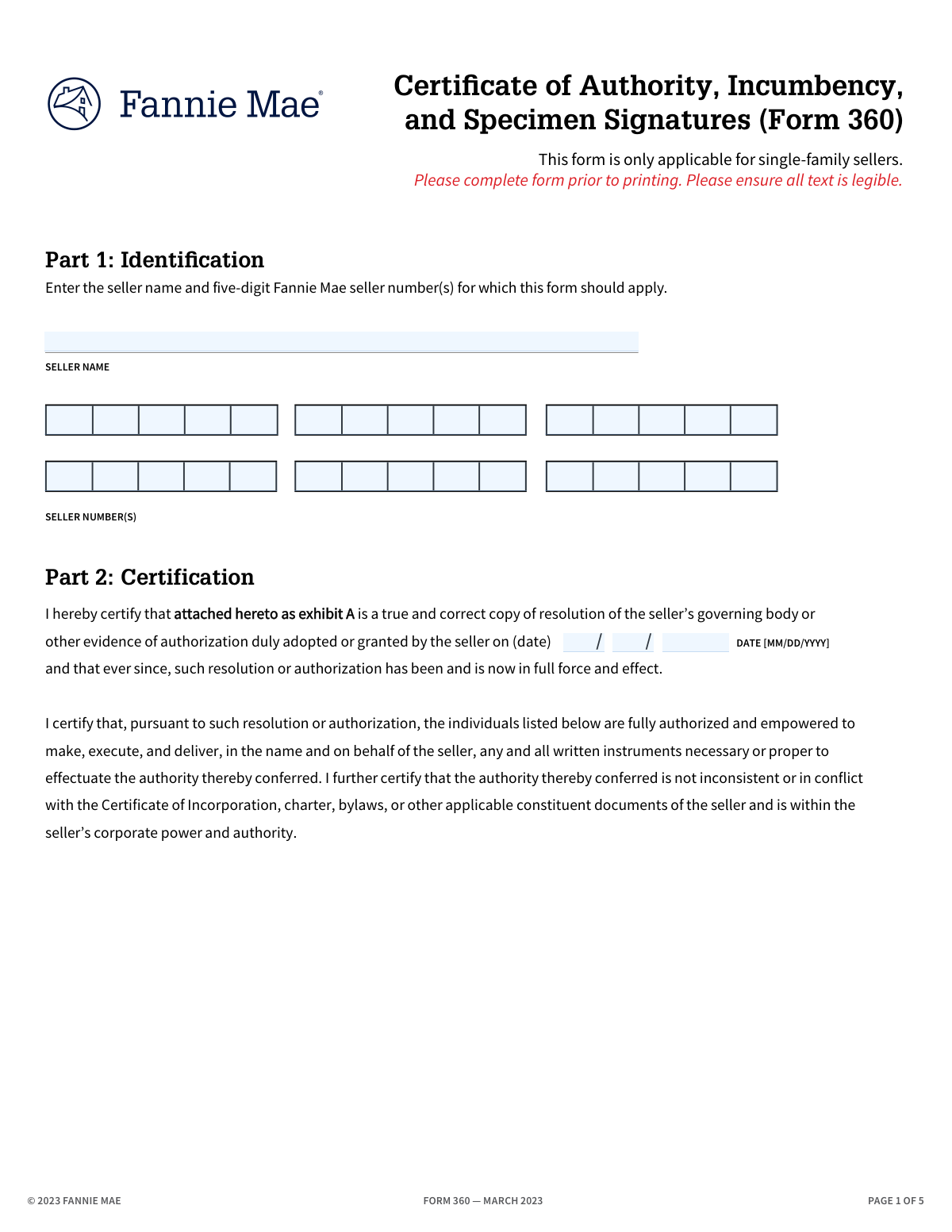
Yes! You can use AI to fill out Fannie Mae Form 10, Authorized Individuals Form

Fannie Mae Form 10, also known as the Authorized Individuals Form, is a critical document for mortgage sellers and servicers doing business with Fannie Mae. It officially lists the names and titles of individuals who have the authority to execute contracts and other legal documents on behalf of the company, ensuring all transactions are properly authorized. Today, this form can be filled out quickly and accurately using AI-powered services like Instafill.ai, which can also convert non-fillable PDF versions into interactive fillable forms.
Our AI automatically handles information lookup, data retrieval, formatting, and form filling.
It takes less than a minute to fill out Fannie Mae Form 10 using our AI form filling.
Securely upload your data. Information is encrypted in transit and deleted immediately after the form is filled out.

Form specifications

Form name: Fannie Mae Form 10, Authorized Individuals Form
Number of fields: 60
Number of pages: 5
Language: English
Categories: Fannie Mae forms
main-image

Instafill Demo: How to fill out PDF forms in seconds with AI

How to Fill Out Fannie Mae Form 10 Online for Free in 2026

Are you looking to fill out a FANNIE MAE FORM 10 form online quickly and accurately? Instafill.ai offers the #1 AI-powered PDF filling software of 2026, allowing you to complete your FANNIE MAE FORM 10 form in just 37 seconds or less.
Follow these steps to fill out your FANNIE MAE FORM 10 form online using Instafill.ai:
  1. 1 Navigate to Instafill.ai and upload your Fannie Mae Form 10 or select it from the template library.
  2. 2 Enter the seller's legal name and all applicable five-digit Fannie Mae seller numbers as prompted by the AI assistant.
  3. 3 Provide the date the authorization was adopted or granted, including the day, month, and year.
  4. 4 Systematically list the full name and official title for each individual (up to ten) being authorized to act on the company's behalf.
  5. 5 Review all entered information, including names, titles, and seller numbers, to ensure complete accuracy before proceeding.
  6. 6 The designated signer (e.g., a corporate officer) should provide their name, title, and electronically sign the form in the appropriate section.
  7. 7 Finalize and download your completed Fannie Mae Form 10, ready for submission to Fannie Mae.

Our AI-powered system ensures each field is filled out correctly, reducing errors and saving you time.

Why Choose Instafill.ai for Your Fillable Fannie Mae Form 10 Form?

Speed

Complete your Fannie Mae Form 10 in as little as 37 seconds.

Up-to-Date

Always use the latest 2026 Fannie Mae Form 10 form version.

Cost-effective

No need to hire expensive lawyers.

Accuracy

Our AI performs 10 compliance checks to ensure your form is error-free.

Security

Your personal information is protected with bank-level encryption.

Frequently Asked Questions About Form Fannie Mae Form 10

This form is used by a seller entity to officially authorize specific individuals to execute documents and act on its behalf in transactions involving Fannie Mae.

This form should be completed by a seller institution that does business with Fannie Mae and needs to designate or update its list of authorized individuals.

It is a unique five-digit number assigned to your institution by Fannie Mae. You can find this number on previous correspondence or by contacting your organization's primary Fannie Mae liaison.

You will need your company's full legal name, your Fannie Mae seller number(s), and a list of the full names and official titles for each individual you wish to authorize.

The form allows you to list up to ten authorized individuals. If you have fewer than ten, simply leave the extra fields blank.

This refers to the date that your company's governing body officially adopted the resolution granting the specified individuals their authority. This date should match your internal corporate records.

This section must be signed by an officer of the seller entity (e.g., Corporate Secretary, CEO, President) who has the authority to certify the information and authorizations provided on the form.

Authorized Individuals are the people being granted the power to sign documents on behalf of the company. The 'Signer' is a company officer who is certifying that this list of individuals is correct and officially authorized.

The form provides space for four seller numbers. If you have more, you may need to submit a separate form for the additional numbers or contact Fannie Mae for specific instructions.

Yes, services like Instafill.ai use AI to help you accurately auto-fill form fields from your saved profiles, which saves time and helps prevent errors.

Simply upload the form to the Instafill.ai platform. It will automatically identify the fields, allowing you to type in your information, add digital signatures, and download the completed document.

You can use a tool like Instafill.ai, which can convert flat, non-fillable PDFs into interactive forms. This allows you to easily type your information directly into the fields online.

This section serves as a summary declaration, reiterating the seller's legal name and the individuals or titles that are being granted authority, as certified by the signer.

Compliance Fannie Mae Form 10
Validation Checks by Instafill.ai

1
Seller Number Format and Length
This check verifies that each provided Fannie Mae seller number (Seller Number 1 through 4) consists of exactly five digits. It is important to ensure the number is a valid identifier in the system. If the field contains non-numeric characters or has a length other than five, the submission should be rejected with an error prompting the user to enter a valid five-digit number.
2
At Least One Seller Number Required
Validates that at least 'Seller Number 1' is filled out. The form is intended to apply to one or more seller numbers, so at least one must be provided for the form to have a subject. If 'Seller Number 1' is empty, the form submission should be blocked until a valid number is entered.
3
Seller Name Consistency Across Sections
This validation compares the 'Seller Name' field from the top of the form with the 'Seller Legal Name' field in the 'Resolution/Evidence of Authorizations' section. These two fields must be an exact match to ensure the authorization is being applied to the correct legal entity. A mismatch could indicate a data entry error or an incorrect document, and the user should be prompted to correct the discrepancy.
4
Valid and Historical Authorization Date
Ensures that the combination of 'Authorization Month', 'Authorization Day', and 'Authorization Year' forms a valid calendar date. Furthermore, it checks that this date is not in the future, as an authorization cannot be granted for a future date. If the date is invalid or in the future, the user must correct the date components before proceeding.
5
Valid Signature Date
This check confirms that the 'Date Signed (Month)', 'Date Signed (Day)', and 'Date Signed (Year)' fields combine to form a valid calendar date. This prevents impossible dates, such as February 30th, from being entered. An invalid date would invalidate the signature, so the user must correct it.
6
Logical Date Sequence
Verifies that the 'Date Signed' is on or after the 'Date of Authorization'. A document cannot be legally signed before the authority to sign has been granted. If the signature date precedes the authorization date, it represents a logical impossibility, and the user must correct one or both of the dates.
7
Signer Information Completeness
This check ensures that the 'Signer Name', 'Signer Title', and 'Signature Field 11' are all filled out. These fields are critical for identifying the person executing the form and their authority to do so. Missing any of this information would render the document legally incomplete and should prevent submission.
8
Authorized Individual Data Integrity
For each authorized individual (1 through 10), this validation checks that if a name is provided, the corresponding title and signature fields are also filled. For example, if 'Second Authorized Individual Name' is present, 'Second Authorized Individual Title' and 'Signature Field 2' must not be empty. This prevents incomplete records for authorized persons and ensures all required data for an individual is captured together.
9
Contact Email Address Format
Validates that the value entered in the 'Contact Email' field follows the standard format for an email address (e.g., '[email protected]'). This is crucial for ensuring that any questions regarding the form can be directed to a reachable person. If the format is invalid, the user should be alerted to correct the email address.
10
Contact Phone Number Format
This check verifies that the 'Contact Phone Number' field contains a valid phone number format. The validation should be flexible enough to accept common formats, including digits, dashes, parentheses, and spaces. A valid contact number is essential for communication, so an invalid format should trigger an error.
11
Primary Seller Name Line Requirement
Ensures that the 'Seller Name Line 1' field is not empty. This field is designated as the first line of the seller's name as it should appear on the form, making it a required element for proper document generation. If this field is left blank, the form cannot be properly rendered and the submission should be halted.
12
Resolution Individual Data Cross-Reference
This check validates that the data in the 'Authorized individuals and/or titles' section (e.g., 'Authorized Individual 1') is consistent with the detailed information provided earlier (e.g., 'First Authorized Individual Name' and 'Title'). The summary list in the resolution section must accurately reflect the individuals who have been granted authority. A mismatch would require user correction to ensure document consistency.

Common Mistakes in Completing Fannie Mae Form 10

Inconsistent or Incomplete Seller Name

The form has multiple fields for the seller's name ('Seller Name', 'Seller Name Line 1/2', 'Seller Legal Name'), which can lead to users entering different variations like 'ABC Corp.' vs. 'ABC Corporation, Inc.' This redundancy often causes confusion and mismatches. Any inconsistency in the legal entity name can cause the document to be rejected for compliance reasons, leading to significant processing delays. To avoid this, carefully enter the full, official legal name as registered, ensuring it is identical in all corresponding fields across the document.

Incorrect Fannie Mae Seller Number Format

Users might accidentally enter a number with more or fewer than the required five digits, include non-numeric characters, or transpose digits due to manual data entry errors. An incorrect seller number will fail system validation, causing the submission to be rejected immediately. This requires correction and resubmission, delaying the entire authorization process. Always double-check that each seller number is exactly five digits and contains only numbers before submitting.

Transposing Date Fields (Month/Day)

The form separates dates into distinct Month, Day, and Year fields, which is a common source of error. Users, especially those accustomed to international date formats (DD/MM/YYYY), may accidentally enter the day in the month field and vice-versa. An incorrect authorization or signature date can invalidate the document, as the timing is a critical legal component, requiring the form to be re-signed and re-submitted. Pay close attention to the field labels or use an AI form-filling tool that correctly structures the date based on the form's requirements.

Mismatching Authorized Individuals with Titles and Signatures

The form lists fields for up to ten individuals, each requiring a name, title, and signature. With so many fields, it's easy to enter a name in one slot but the wrong title, or have the wrong person sign in that signature block, especially given the non-sequential field order. Misaligned information can invalidate an individual's authorization, leading to compliance issues and rejection of transactions they attempt to perform. To prevent this, methodically fill out all information for one individual at a time before moving to the next.

Missing Signatures or Titles for Authorized Individuals

On a form with up to 10 signature lines and corresponding title fields, it is common for users to overlook one or more required entries. They may fill in a name but forget the associated title or miss a signature box entirely, especially on a multi-page document. An incomplete form is invalid and will be returned, halting the process until all information is provided correctly. Before submitting, perform a final review specifically to check that every listed individual has a corresponding title and signature.

Confusion Between 'Signer' and 'Authorized Individual'

The form has a distinct 'Signer Information' section separate from the list of 'Authorized Individuals.' Users may mistakenly believe any authorized individual can sign, when the signer must be a corporate officer with the legal authority to certify the list itself (e.g., a Corporate Secretary or President). If the form is signed by someone without the proper authority, the entire document is legally void, leading to serious repercussions. Always verify who has the corporate authority to attest to the information and ensure they are the one to sign in the 'Signer Information' section.

Providing Ambiguous Information in the Resolution Section

The final section asks for 'Authorized individuals and/or titles,' which is an ambiguous instruction that users interpret differently. Some may provide only a name, while others provide only a title, leading to incomplete data. This ambiguity can lead to requests for clarification, delaying approval. Despite the 'and/or' wording, the best practice is to always provide both the full name and the full title for each individual to ensure maximum clarity and avoid rejection.

Typos in Contact Email or Phone Number

A simple but frequent data entry error is a typo in the contact email or phone number, often caused by typing too quickly. A single wrong character (e.g., '[email protected]') or a transposed digit renders the contact information useless. If the form processor has a question, they will be unable to reach the contact person, causing the form to be rejected when a quick call could have resolved the issue. AI form-filling tools like Instafill.ai can help by saving and accurately auto-filling validated contact information.

Entering Data in Non-Sequential Fields

The form's underlying field structure appears non-sequential (e.g., listing fields for the first, then third, then second authorized individual). This confusing layout makes it highly probable that a user will manually enter information into the wrong field. This leads to a jumbled and inaccurate record that will be rejected, requiring a painstaking correction and resubmission process. To avoid this, use a tool like Instafill.ai that can present the fields in a logical order while mapping the data correctly in the background.

Forgetting to Sign the Form

With 11 separate signature fields spread across the document, it is very common for at least one required signature to be missed. This is especially true if the form is printed and passed between multiple people for physical signatures. An unsigned or partially signed form is legally incomplete and will be rejected immediately, forcing the entire signing process to start over. If the form is a non-fillable PDF, a tool like Instafill.ai can convert it to a fillable version with clearly marked signature fields to ensure none are missed.
Saved over 80 hours a year

“I was never sure if my IRS forms like W-9 were filled correctly. Now, I can complete the forms accurately without any external help.”

Kevin Martin Green

Your data stays secure with advanced protection from Instafill and our subprocessors

Robust compliance program

Transparent business model

You’re not the product. You always know where your data is and what it is processed for.

ISO 27001, HIPAA, and GDPR

Our subprocesses adhere to multiple compliance standards, including but not limited to ISO 27001, HIPAA, and GDPR.

Security & privacy by design

We consider security and privacy from the initial design phase of any new service or functionality. It’s not an afterthought, it’s built-in, including support for two-factor authentication (2FA) to further protect your account.

Fill out Fannie Mae Form 10 with Instafill.ai

Worried about filling PDFs wrong? Instafill securely fills fannie-mae-form-10-authorized-individuals-form forms, ensuring each field is accurate.