Yes! You can use AI to fill out Out-of-Home Care Provider Incident Report
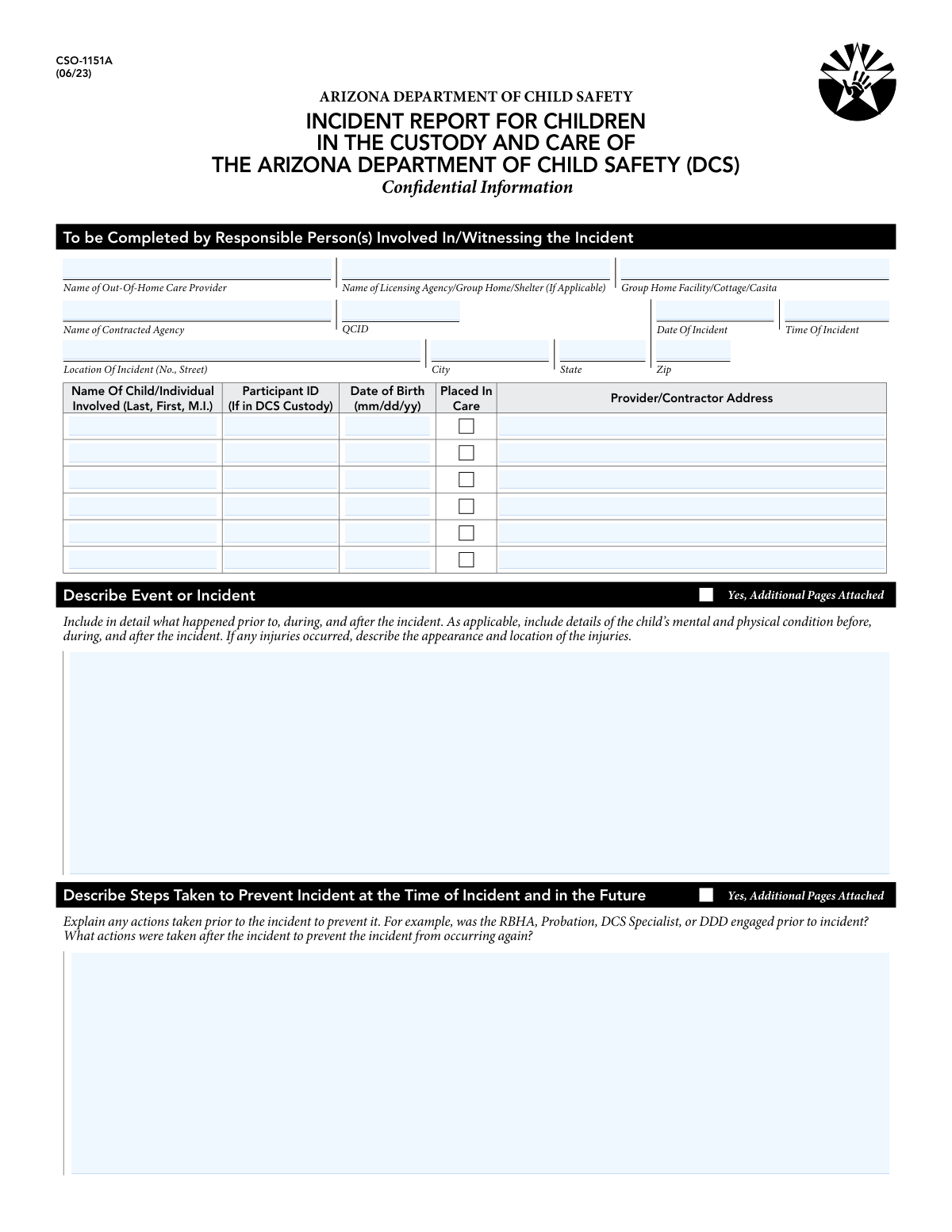
The Out-of-Home Care Provider Incident Report is a formal document used by social services agencies, group homes, and other care providers to report any notable incident involving a child under their supervision. This form is vital for ensuring transparency, accountability, and the safety of the child, as it captures comprehensive details about the event, individuals involved, and notifications made to authorities like the Department of Child Services (DCS) and law enforcement. Today, this form can be filled out quickly and accurately using AI-powered services like Instafill.ai, which can also convert non-fillable PDF versions into interactive fillable forms.
Out-of-Home Care Incident Report is part of the
CAR forms, incident report forms and L.A. Care forms categories on Instafill.
Our AI automatically handles information lookup, data retrieval, formatting, and form filling.
It takes less than a minute to fill out Out-of-Home Care Incident Report using our AI form filling.
Securely upload your data. Information is encrypted in transit and deleted immediately after the form is filled out.
Form specifications
| Form name: | Out-of-Home Care Provider Incident Report |
| Number of fields: | 138 |
| Number of pages: | 4 |
| Language: | English |
More forms in CAR forms
Instafill Demo: How to fill out PDF forms in seconds with AI
How to Fill Out Out-of-Home Care Incident Report Online for Free in 2026
Are you looking to fill out a OUT-OF-HOME CARE INCIDENT REPORT form online quickly and accurately? Instafill.ai offers the #1 AI-powered PDF filling software of 2026, allowing you to complete your OUT-OF-HOME CARE INCIDENT REPORT form in just 37 seconds or less.
Follow these steps to fill out your OUT-OF-HOME CARE INCIDENT REPORT form online using Instafill.ai:
- 1 Navigate to Instafill.ai and upload or select the Out-of-Home Care Provider Incident Report form.
- 2 Enter the provider/agency information and the specific date, time, and location of the incident.
- 3 Provide the personal details for each child or individual involved, including their name, date of birth, and placement status.
- 4 Write a clear and detailed narrative describing the event, what led to it, and the actions taken during and immediately after.
- 5 List any witnesses and document all notifications made to authorities, such as the Child Abuse Hotline, law enforcement, or a DCS supervisor, including dates, times, and contact names.
- 6 Review all entered information for accuracy, then electronically sign and date the report to certify its contents.
- 7 Download, save, or securely share the completed incident report as required by your agency's policies.
Our AI-powered system ensures each field is filled out correctly, reducing errors and saving you time.
Why Choose Instafill.ai for Your Fillable Out-of-Home Care Incident Report Form?
Speed
Complete your Out-of-Home Care Incident Report in as little as 37 seconds.
Up-to-Date
Always use the latest 2026 Out-of-Home Care Incident Report form version.
Cost-effective
No need to hire expensive lawyers.
Accuracy
Our AI performs 10 compliance checks to ensure your form is error-free.
Security
Your personal information is protected with bank-level encryption.
Frequently Asked Questions About Form Out-of-Home Care Incident Report
This form is used to officially report an incident involving a child or multiple children who are in out-of-home care. It documents the details of the event, the individuals involved, witnesses, and all required notifications made to agencies.
The out-of-home care provider, agency, or contractor who was responsible for the child at the time the incident occurred is required to fill out and submit this form.
QCID stands for Quality Control/Agency Identifier. It is a unique code assigned to your provider or agency, which you can typically find in your agency's official records or by asking an administrator.
The Participant ID is an identification number assigned by the Department of Child Safety (DCS) to a child in its custody. You must provide this ID for any child involved in the incident who is currently placed in care.
Provide a complete narrative of what happened before, during, and after the incident. Be sure to include the child's condition, any injuries, who was present, and any other facts relevant to the event.
The form provides space for six children. If more were involved, complete the information for the first six and attach additional pages with the same details for the other children, making sure to check the 'Yes, Additional Pages Attached' box.
No, you only need to enter the provider or contractor's address for a child if you have checked the 'Placed In Care' box for that specific individual.
If you run out of room in a text field, you can continue your description on a separate page. Simply check the 'Yes, Additional Pages Attached' box for that section to indicate that more information is included.
You must document if and when you notified the Child Abuse Hotline for any incident involving allegations of abuse or neglect. Similarly, you must record any notifications made to law enforcement and provide details like the officer's name and report number if available.
If no verbal notifications were made to any of the listed contacts, you can check the box that says 'Select if No Information Found'. Otherwise, you must detail each verbal contact made, including the person's name, date, and time of the call.
Yes, services like Instafill.ai use AI to auto-fill form fields with your saved information, such as provider details and contact lists. This can save significant time and help ensure accuracy on complex reports.
You can use a service like Instafill.ai to complete this form digitally. Upload the form to the platform, and it will become an interactive document that you can type into, save, and manage online.
If you have a non-fillable or 'flat' PDF, tools like Instafill.ai can convert it into an interactive, fillable form. This allows you to easily type your information into the fields directly on your computer.
Compliance Out-of-Home Care Incident Report
Validation Checks by Instafill.ai
1
Incident Date and Time Chronology
This check ensures that the 'Date of Incident' and 'Time of Incident' are not in the future. It validates that the entered date and time are on or before the current system date and time. This is critical for maintaining the logical integrity of the report, as an incident cannot be reported before it has occurred. If validation fails, the user will be prompted to correct the date and time.
2
Child's Date of Birth vs. Incident Date
This validation confirms that each child's 'Date of Birth' is chronologically before the 'Date of Incident'. A child cannot be involved in an incident that occurred before they were born. This check prevents logical impossibilities and ensures data accuracy for age-related assessments. A failure would require the user to review and correct one or both of the dates.
3
Conditional Requirement for 'Placed In Care' Details
For each child listed, if the 'Placed In Care' checkbox is checked, this validation ensures that the 'Participant ID' and 'Provider/Contractor Address' fields are not empty. The form explicitly requires this information to identify the child within the DCS system and associate them with the correct provider. If the box is checked but the fields are empty, the submission will be blocked until the required information is provided.
4
At Least One Child/Individual Required
This check verifies that the details for at least the 'First Child/Individual Involved' have been completed. An incident report is fundamentally about an event affecting one or more individuals, so a report without a subject is incomplete. This validation ensures the report has a primary subject, preventing the submission of an empty or invalid report.
5
Conditional Hotline Notification Details
This validation is triggered if the 'Yes' option is selected for 'Child Abuse Hotline Notification'. It confirms that the 'Hotline Notification Date', 'Hotline Notification Time', and 'DCS Intake Specialist Name' fields are all filled out. This ensures that when a hotline notification is claimed, all necessary supporting details for verification are captured. A failure would prompt the user to complete the required notification details.
6
Conditional Law Enforcement Details
If the 'Yes' box is checked for 'Law Enforcement Notified', this check ensures that the 'Officer Name', 'Law Enforcement Agency Name', and 'Police Report Number' fields are completed. This rule enforces the capture of critical information needed to link the incident report to official law enforcement records. Failure to provide these details would result in a validation error, requiring the user to complete the information.
7
Verbal Notification Group Completeness
For each verbal notification type (e.g., DCS Specialist, Licensing Agency), if the corresponding checkbox is checked, this validation verifies that all associated detail fields (Contact Name, Phone Number, Date, Time) are filled. This prevents the creation of partial, unusable notification records where a contact is indicated but the details are missing. The form will be considered incomplete if a box is checked without the corresponding details.
8
Notification Date Consistency
This check ensures that all notification dates entered on the form (e.g., 'Hotline Notification Date', 'Date of Contact') occur on or after the 'Date of Incident'. It is logically impossible to notify someone about an incident before it has happened. This validation maintains the chronological integrity of the event timeline and prevents data entry errors.
9
Mutually Exclusive Selection Enforcement
This validation applies to radio button groups like 'Child Abuse Hotline Notification' (Yes/No/N/A) and 'Law Enforcement Notified' (Yes/No/N/A). It ensures that only one option within each group can be and is selected. This prevents contradictory or ambiguous data, such as selecting both 'Yes' and 'No' for the same question, ensuring data clarity.
10
Required Incident Narrative
This check validates that the 'Event/Incident Description' field is not empty and meets a minimum character length. This narrative is the most critical part of the report for understanding what happened. This rule ensures that a substantive description is provided, preventing submissions with missing or insufficient context. A validation failure would require the user to provide a more detailed description.
11
Standard Phone Number Formatting
This validation verifies that all fields intended for phone numbers (e.g., 'Witness Phone Number', 'Licensing Agency Contact Phone') adhere to a standard format, such as 10 digits with optional special characters. This is essential for ensuring that the contact information is accurate, usable, and can be parsed correctly by the system for communication or follow-up. An invalid format would trigger an error message requesting correction.
12
Valid ZIP Code Format
This check ensures the 'ZIP Code' field for the incident location contains a valid 5-digit or 9-digit (ZIP+4) postal code. Accurate location data is crucial for reporting, analysis, and potential on-site follow-up. This validation prevents errors from typos or incorrectly formatted data and improves the reliability of address information.
13
Child Record Integrity
For any child section (e.g., 'Second Child/Individual Involved'), this validation ensures that if a 'Name' is entered, the corresponding 'Date of Birth' and 'Placed In Care' status are also provided. Entering a name implies the involvement of an individual, and their date of birth and care status are minimum required data points for proper record-keeping. This prevents the creation of incomplete child records within the report.
14
Witness Information Completeness
This validation ensures that if a 'Witness Full Name' is provided in any of the witness slots, the corresponding 'Witness Phone Number' and 'Relationship to Child(ren)' fields are also completed. An identified witness is only useful if they can be contacted and their relationship to the event is understood. This check prevents incomplete witness entries, making the provided information actionable.
Common Mistakes in Completing Out-of-Home Care Incident Report
Many sections, such as 'Name of Child/Individual' and 'Witness Full Name', explicitly request the format 'Last, First, M.I.'. Users often default to 'First Last' out of habit, which can cause significant data entry and record-matching errors in databases. To avoid this, carefully read the field label and enter the name exactly as requested. AI-powered tools like Instafill.ai can help by parsing names and automatically placing them in the correct format.
The form contains many fields that should only be filled if a specific condition is met, such as entering a 'Participant ID' only if the 'Placed In Care' box is checked. Filling in these fields incorrectly, or leaving them blank when required, creates conflicting and unreliable data that can delay processing. Intelligent form fillers like Instafill.ai can manage these dependencies, showing or hiding fields based on your answers to prevent such errors.
The 'Event/Incident Description' field requires a detailed account, including events prior to, during, and after the incident, as well as the child's condition. Submitting a brief or vague summary is a common mistake that leads to follow-up requests and delays in addressing the situation. Be as thorough as possible, covering all points mentioned in the field description to create a complete record.
If you attach supplementary documents for the incident description or steps taken, it is critical to check the corresponding 'Yes, Additional Pages Attached' box. Reviewers may not know to look for extra pages if this box is unchecked, leading them to evaluate an incomplete report. This simple oversight can result in crucial information being missed entirely.
In sections for notifying Law Enforcement, the Child Abuse Hotline, or other agencies, users often check 'Yes' but fail to provide the mandatory follow-up details like officer name, date, time, or report number. An affirmative check without the supporting data is incomplete and may be considered invalid for official records. Ensure that if you select 'Yes', you also fill out all associated fields to create a verifiable log of communication.
Fields like 'Out-of-Home Care Provider Name' and 'Contracted Agency Name' require the full, official legal name of the organization. People frequently use common abbreviations or acronyms, which can cause the form to be misfiled or fail automated record-matching systems. To prevent this, use the complete and official name. AI tools like Instafill.ai can help by suggesting official names from a database as you type.
Fields for dates and times are prone to errors like ambiguous formats (e.g., MM/DD/YY vs. YYYY-MM-DD) or forgetting to specify AM/PM for the time. This ambiguity can create confusion about the incident's timeline, which is critical for investigation. Using a consistent, clear format is essential, and tools like Instafill.ai can automatically format dates and times correctly to ensure accuracy.
The 'QCID' (quality control/agency identifier) is a unique code used for tracking and is often overlooked or left blank if not immediately known. Entering an incorrect QCID or omitting it can prevent the report from being correctly associated with the provider's file, causing significant administrative delays. It is crucial to locate and enter the correct QCID; if this form is a non-fillable PDF, a tool like Instafill.ai can convert it to a fillable version to make data entry easier.
The form is structured to capture detailed information for up to six children in separate, dedicated sections. A common error is to list multiple children in the first section or in the narrative, rather than filling out a section for each child involved. This practice complicates individual tracking and reporting, and may result in missing data for some of the children. Always use the provided repeating sections for each individual.
This form distinctly asks for the 'Location of Incident (Street Address)' and the 'Provider/Contractor Address' for each child. Users sometimes mistakenly enter the provider's main office address as the incident location, even if the event occurred off-site. This creates an inaccurate record of where the incident actually happened, which can impede investigations and risk analysis. Double-check that the address entered in the 'Incident Date/Time and Location' section is the physical location of the event itself.
Saved over 80 hours a year
“I was never sure if my IRS forms like W-9 were filled correctly. Now, I can complete the forms accurately without any external help.”
Kevin Martin Green
Your data stays secure with advanced protection from Instafill and our subprocessors

Robust compliance program
Transparent business model
You’re not the product. You always know where your data is and what it is processed for.
ISO 27001, HIPAA, and GDPR
Our subprocesses adhere to multiple compliance standards, including but not limited to ISO 27001, HIPAA, and GDPR.
Security & privacy by design
We consider security and privacy from the initial design phase of any new service or functionality. It’s not an afterthought, it’s built-in, including support for two-factor authentication (2FA) to further protect your account.
Fill out Out-of-Home Care Incident Report with Instafill.ai
Worried about filling PDFs wrong? Instafill securely fills out-of-home-care-provider-incident-report forms, ensuring each field is accurate.