Yes! You can use AI to fill out Critical Incident Report
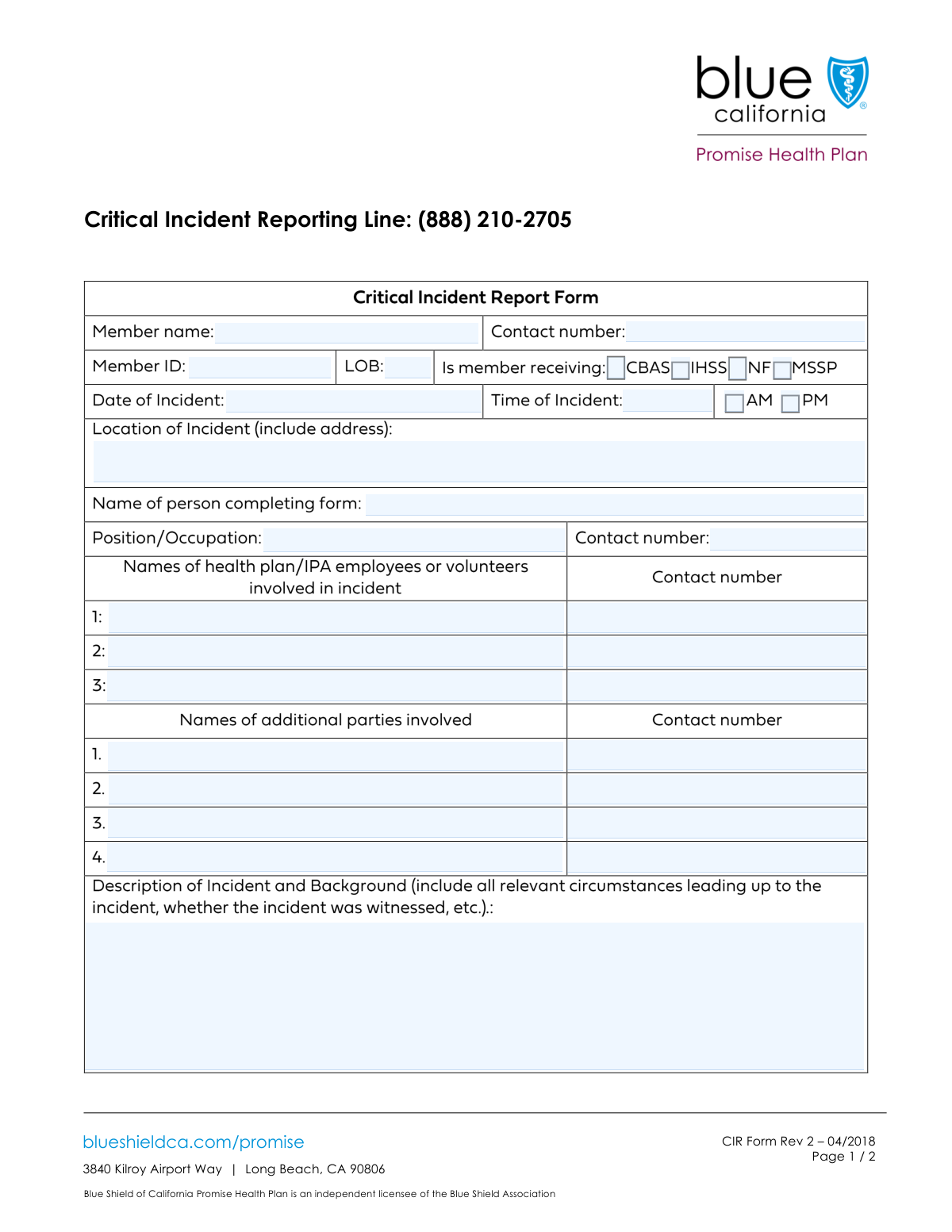
A Critical Incident Report (CIR) is a formal document used to record the details of any unexpected event that causes or has the potential to cause harm to a member, staff, or visitor within a healthcare or social service environment. It is vital for ensuring transparency, facilitating investigation, implementing corrective actions, and meeting regulatory requirements to improve safety and care quality. Today, this form can be filled out quickly and accurately using AI-powered services like Instafill.ai, which can also convert non-fillable PDF versions into interactive fillable forms.
Our AI automatically handles information lookup, data retrieval, formatting, and form filling.
It takes less than a minute to fill out CIR using our AI form filling.
Securely upload your data. Information is encrypted in transit and deleted immediately after the form is filled out.
Form specifications
| Form name: | Critical Incident Report |
| Number of fields: | 39 |
| Number of pages: | 2 |
| Language: | English |
Instafill Demo: How to fill out PDF forms in seconds with AI
How to Fill Out CIR Online for Free in 2026
Are you looking to fill out a CIR form online quickly and accurately? Instafill.ai offers the #1 AI-powered PDF filling software of 2026, allowing you to complete your CIR form in just 37 seconds or less.
Follow these steps to fill out your CIR form online using Instafill.ai:
- 1 Navigate to Instafill.ai and upload your Critical Incident Report form, or select it from a template library.
- 2 Provide the complete member information, including their name, ID number, and any relevant service programs like CBAS or IHSS.
- 3 Enter the specific details of the incident, such as the date, time, location, and a thorough description of the event.
- 4 Identify all parties involved, including health plan employees, witnesses, and any other individuals, along with their contact information.
- 5 Document the immediate actions taken in response to the incident and outline the planned follow-up procedures.
- 6 Complete the form by providing the name of the person completing the report, and have the responsible employee and manager review and sign the document.
- 7 Securely save, download, or share the completed report directly from the platform for your records and necessary distribution.
Our AI-powered system ensures each field is filled out correctly, reducing errors and saving you time.
Why Choose Instafill.ai for Your Fillable CIR Form?
Speed
Complete your CIR in as little as 37 seconds.
Up-to-Date
Always use the latest 2026 CIR form version.
Cost-effective
No need to hire expensive lawyers.
Accuracy
Our AI performs 10 compliance checks to ensure your form is error-free.
Security
Your personal information is protected with bank-level encryption.
Frequently Asked Questions About Form CIR
This form is used to document the details of any critical incident involving a health plan member. It captures information about the event, the people involved, and the actions taken to ensure a thorough review and appropriate follow-up.
The form should be completed by the person reporting the incident, such as a health plan employee, volunteer, or another party who witnessed or has direct knowledge of the event. Their details are entered in the 'Person Completing Form' section.
These are types of services a member may receive: Community-Based Adult Services (CBAS), In-Home Supportive Services (IHSS), Nursing Facility (NF), and Multipurpose Senior Services Program (MSSP). Check the box for any service the member is enrolled in.
You must provide the member's full name, their unique Member ID, a contact number, and their Line of Business (LOB) code. It is also important to indicate which special services they receive by checking the appropriate boxes.
Provide a detailed, factual account of the incident, including the circumstances leading up to it, a description of what happened, and whether it was witnessed. Be as specific as possible to create a clear record of the event.
The form has space for several employees and additional parties. If more individuals were involved, list their names and contact information in the 'Incident Description' section or attach a separate sheet with the additional details.
'Actions Taken to Date' documents the immediate response to the incident. 'Follow-up Actions Planned' outlines the future steps that will be taken to resolve the issue, support the member, and prevent recurrence.
The employee who reviewed the report must sign and date it. A manager must also provide their signature and the date of their review to confirm the report has been reviewed and finalized.
Yes, services like Instafill.ai use AI to help you accurately auto-fill form fields with your saved information. This can save time and reduce the chance of errors, especially for sections with repetitive data.
You can use a service like Instafill.ai to complete the form online. Simply upload the document, and the platform will make it fillable, allowing you to type directly into the fields and save your progress.
If you have a non-fillable or 'flat' PDF, you can use Instafill.ai to convert it into an interactive, fillable form. Upload the file, and the AI will automatically identify the fields so you can fill it out on your computer.
Enter the primary contact number for the member. If the member is unable to be contacted directly, you may use the number of their primary caregiver or legal guardian.
In this section, list the names of any individuals or organizations that were notified about the incident. This includes official agencies like Adult Protective Services (APS) or the police, as well as the member's family or emergency contacts.
Compliance CIR
Validation Checks by Instafill.ai
1
Ensures Incident Date is Not in the Future
This check validates that the 'Incident Date' is not a future date. Reporting an incident that has not yet happened is a logical impossibility and indicates a data entry error. If a future date is entered, the form submission will be rejected, and the user will be prompted to enter a valid date that is on or before the current date.
2
Validates Contact Number Format
This validation ensures that all contact number fields (for the member, person completing the form, employees, and other parties) adhere to a standard 10-digit phone number format. This is crucial for ensuring that the provided numbers are reachable for follow-up communication regarding the incident. A failed validation will prompt the user to correct the format before submission.
3
Requires Essential Fields for Submission
This check verifies that critical fields such as 'Member Name', 'Member ID', 'Incident Date', 'Incident Time', 'Incident Location Address', and 'Incident Description' are not empty. These fields are fundamental to identifying the member and understanding the context of the incident. The form cannot be submitted until all these mandatory fields are completed.
4
Ensures Logical Chronology of Signature Dates
This validation confirms that the 'Manager Signature Date' is on or after the 'Employee Signature Date', which in turn must be on or after the 'Incident Date'. This rule enforces the correct procedural workflow, ensuring the incident occurred before it was reviewed and the manager's sign-off happened after the employee's review. An invalid date sequence will prevent submission and require correction.
5
Validates Mutual Exclusivity of AM/PM Selection
This check ensures that for the 'Incident Time', either 'AM' or 'PM' is selected, but not both. It also requires that one of them must be selected if a time is entered. This prevents ambiguity in the incident timeline, which is critical for accurate investigation and reporting.
6
Conditional Requirement for Paired Name and Contact Fields
This validation rule ensures that if a name is entered for any involved party (e.g., 'First Health Plan Employee Name'), the corresponding contact number field must also be filled out, and vice-versa. This prevents incomplete records for individuals who may need to be contacted during the investigation. A submission will fail if a name is present without a contact number, prompting the user to complete the information.
7
Verifies Member ID Format and Existence
This check validates that the 'Member ID' conforms to a predefined format (e.g., specific length, character type, or pattern). It may also perform a lookup against a database to confirm that the ID belongs to an active member. This is essential for correctly linking the incident report to the right member record and ensuring data integrity.
8
Enforces Minimum Length for Description Fields
This validation ensures that text fields like 'Incident Description and Background', 'Actions Taken Details', and 'Planned Follow-up Actions' meet a minimum character count. This prevents users from submitting vague or unhelpful information, encouraging detailed and thorough reporting necessary for proper review and resolution. If the text is too short, the user will be prompted to provide more detail.
9
Validates Line of Business (LOB) Code
This check verifies that the entered 'Line of Business (LOB)' code is a valid code from a predefined list or database. Using a valid LOB code is critical for correct routing, reporting, and statistical analysis of incidents within the organization. An invalid code would result in a validation error, requiring the user to select or enter a correct code.
10
Requires Sequential Entry for Involved Parties
This rule ensures that involved parties are entered in sequence. For example, the 'Second Health Plan Employee Name' field cannot be filled if the 'First Health Plan Employee Name' field is empty. This maintains data organization and prevents sparse, non-sequential records, making the report easier to read and process.
11
Validates Incident Time Format
This check ensures the 'Incident Time' field is entered in a valid time format, such as HH:MM. Correct time formatting is essential for establishing a precise and unambiguous timeline of events for the incident report. An incorrectly formatted time will trigger an error message, guiding the user to correct the entry before proceeding.
12
Requires 'Person Completing Form' Information
This check mandates that the 'Name of Person Completing Form' and their 'Contact Number' are provided. This information is crucial for accountability and allows the review team to contact the reporter directly for clarification or additional details. The form submission will be blocked until these fields are properly filled.
Common Mistakes in Completing CIR
Users often enter the time in the 'Incident Time' field but then forget to check the corresponding 'AM' or 'PM' box, or they check the wrong one. For example, writing '2:00 PM' but checking the 'AM' box. This ambiguity can cause significant confusion when reconstructing the timeline of events. To avoid this, always double-check that the time entered matches the AM/PM selection, or use a 24-hour format if permitted.
The 'Incident Description' field is frequently filled with subjective language or lacks critical details. People often forget to include the background circumstances leading to the event or fail to state whether the incident was witnessed. A vague description like 'Member was upset' hinders a proper investigation and risk assessment. It's crucial to provide a factual, chronological account of what happened, who was present, and what was said or done.
When detailing 'Actions Taken to Date', users commonly provide general statements like 'Contacted the family' without the required specifics. The form explicitly asks for the date, time, names, contact numbers, and the member's response for each action. Omitting these details makes it impossible to verify that appropriate steps were taken and creates a poor audit trail. To prevent this, document each action as a separate, complete entry with all requested information.
The 'Member ID' is a critical field for correctly identifying the individual involved, yet it's prone to typos and transposition errors. An incorrect ID can link the incident to the wrong person, causing significant administrative delays and potential privacy breaches. Always double-check the Member ID against an official source document before submission. AI-powered tools like Instafill.ai can help by validating data formats to catch potential errors.
It's surprisingly common for the person filling out the report to leave their own contact information blank, especially when they are not directly involved in the incident. Without the reporter's name and contact number, it becomes extremely difficult for reviewers to ask clarifying questions, leading to an incomplete or stalled report. Always complete this section fully before submitting the form.
In the 'Follow-up Actions Planned' section, many users enter non-committal phrases like 'Will monitor' or 'Follow up as needed.' These statements are not actionable and do not constitute a clear plan. A proper entry should detail specific steps, assign responsibility, and include timelines, ensuring accountability and a clear path forward.
The 'Incident Location Address' is often submitted with missing components, such as the zip code, city, or even the street number. This can occur when the reporter is unfamiliar with the location or is rushing to complete the form. An incomplete address makes it difficult to assess environmental factors or conduct a proper site investigation. Always provide the full, complete address.
The form includes checkboxes for services like 'CBAS', 'IHSS', 'NF', and 'MSSP', which provide crucial context about the member's care plan. Users often overlook these boxes, assuming the information is known elsewhere. Failing to check these services can lead to an incomplete understanding of the member's situation and may impact the investigation and follow-up plan. It is essential to review the member's file and accurately check all services they are receiving.
A frequent error is missing signature dates or entering a date that is inconsistent with the incident timeline, such as a signature date that precedes the incident date. This undermines the credibility of the report and can cause it to be rejected during an audit. Always ensure that both the employee and manager signatures are accompanied by the correct date of signing. AI-powered form fillers like Instafill.ai can help by auto-populating dates and flagging inconsistencies.
The form has separate sections for 'Health Plan Employee Involved' and 'Additional Party Involved.' A common mistake is to list individuals in the wrong section, for example, putting a family member in the employee section. This misclassification complicates the review process, as different protocols may apply to employees versus external parties. Carefully read the section headers and place each individual in the correct category.
Saved over 80 hours a year
“I was never sure if my IRS forms like W-9 were filled correctly. Now, I can complete the forms accurately without any external help.”
Kevin Martin Green
Your data stays secure with advanced protection from Instafill and our subprocessors

Robust compliance program
Transparent business model
You’re not the product. You always know where your data is and what it is processed for.
ISO 27001, HIPAA, and GDPR
Our subprocesses adhere to multiple compliance standards, including but not limited to ISO 27001, HIPAA, and GDPR.
Security & privacy by design
We consider security and privacy from the initial design phase of any new service or functionality. It’s not an afterthought, it’s built-in, including support for two-factor authentication (2FA) to further protect your account.
Fill out CIR with Instafill.ai
Worried about filling PDFs wrong? Instafill securely fills critical-incident-report forms, ensuring each field is accurate.