Visual PDF Editor
Review, edit, and correct AI-filled forms directly in your browser - no PDF software needed
Overview
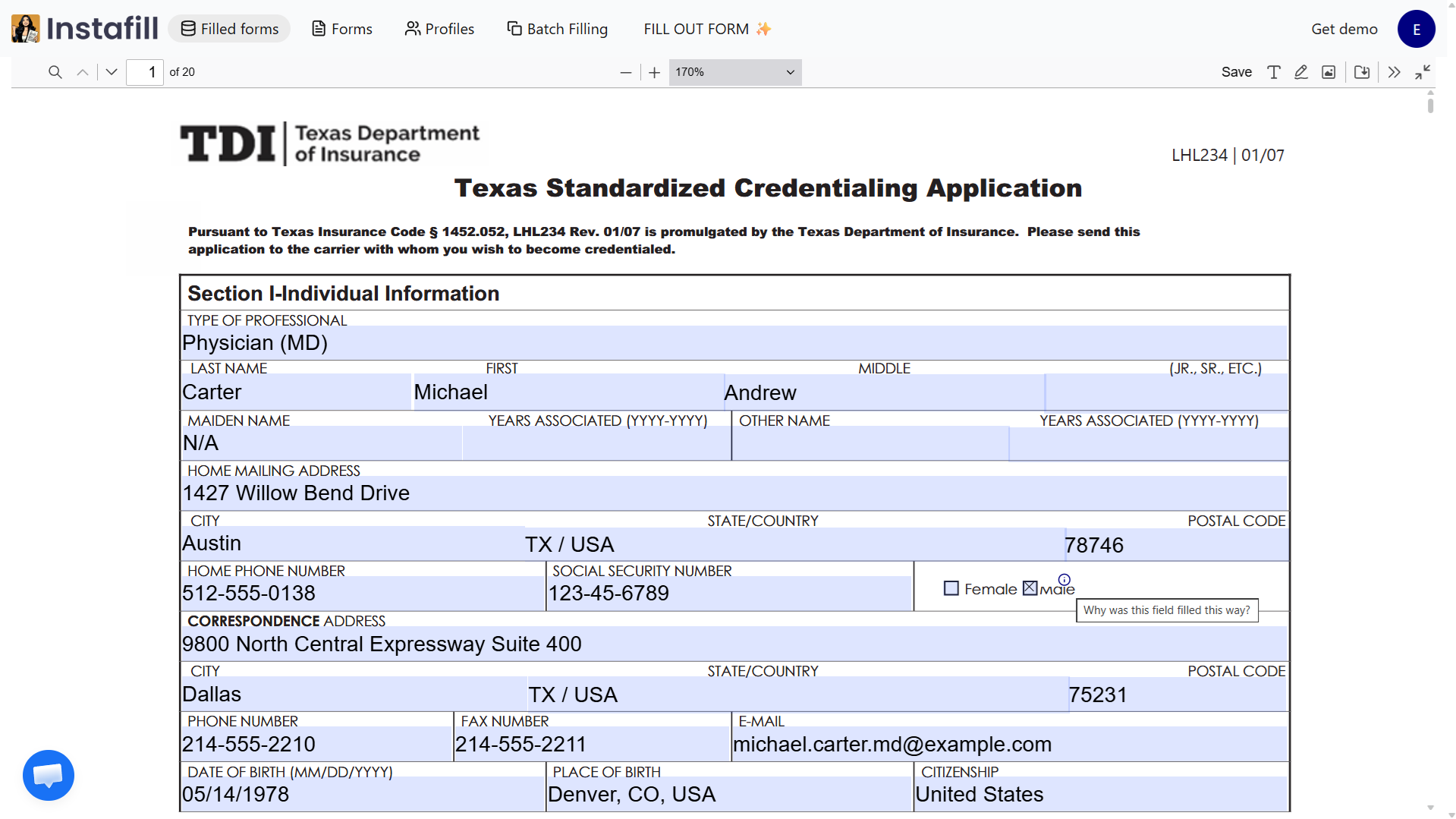
After AI autofill fills your form, the Visual PDF Editor is where you review the result before it goes anywhere. It opens your filled form in the browser, places each field exactly where it sits in the original document, and lets you correct anything inline - without restarting the session.
Every field appears at its correct position on the page. You see the form exactly as it will print or download. Click any field to edit it, toggle a checkbox, or pick from a dropdown. Tab through fields for a quick sequential review. Color-coded borders show you status at a glance: green for AI-filled fields, yellow for anything you have edited, red for required fields that are still empty.
When everything looks right, finalize and download - or move on to e-signature. The editor is the step between AI fill and a finished, submittable document.
It works for all form types in Instafill.ai, including documents converted from flat PDFs through the flat-to-fillable conversion pipeline.
Key Capabilities
| Capability | What it means |
|---|---|
| Direct field editing | Click any field to modify text, toggle checkboxes, select dropdown options, or change values inline |
| All field types | Text fields, checkboxes, radio buttons, dropdowns, date pickers, and number fields |
| Color-coded status | Green (AI-filled), yellow (manually edited), red (empty required field) |
| Multi-page navigation | Page thumbnail sidebar, jump-to-page, and arrow keys to move through long documents |
| Zoom and pan | Zoom slider from 50% to 200%, or Ctrl + scroll wheel |
| Undo/redo | Full undo history within the session |
| Keyboard navigation | Tab through fields for fast sequential review |
| Auto-save | Changes save continuously - there is no save button to forget |
| Mobile support | Works on tablets and phones in modern browsers |
| Revision history | Per-user change log with timestamps and before/after values (Enterprise) |
How It Works
1. AI fills the form first
Start a form filling session, supply your source data, and the AI form filler populates all detected fields. The editor opens after this step.
2. The editor loads
Once autofill finishes, the editor loads. The PDF renders as a background layer and each form field appears as an editable overlay, positioned exactly where it sits on the page. You see the filled form at full size and fidelity.
3. Scan for issues
Green borders confirm what the AI filled. Red borders flag empty required fields. Scroll through and focus on the fields that matter for your submission.
4. Edit inline
Click any field to edit. Text fields accept direct typing. Checkboxes toggle on click. Radio buttons switch within their group. Dropdowns open their available options. Date fields open a date picker or accept typed input. Changes write back in real time.
5. Finalize and download
Once everything looks correct, click Finalize. The system assembles the final PDF with all changes applied and offers a download - or forwards you to signature capture if the document needs to be signed first.
Use Cases
| Industry | How the editor fits in |
|---|---|
| Legal | Attorneys review AI-filled client intake forms and court filings before sending. In a real estate law practice, the editor is the last checkpoint before each closing statement goes to the table |
| Healthcare and credentialing | Healthcare teams verify credentialing packets before submission. Errors in these forms can delay enrollment or contracting. See how Hawkeye Physicians cut credentialing time from 3-4 hours to under 30 minutes |
| Immigration law | Immigration attorneys review multi-page USCIS applications before filing. The editor makes it fast to scan 18 pages of an I-485 and fix the two fields that need adjustment, rather than re-running the full session |
| HR and compliance | Teams reviewing records from a batch fill job open individual rows in the editor to check them before including them in the final download |
| Government and permits | Operators filling permit applications across multiple locations review each form individually before submission |
For a full look at the fill, review, and finalize workflow in practice, see the Real Estate Law Firm case study - a solo attorney using this workflow for closing statements, eviction orders, and courthouse-specific forms.
Flag an Error Directly from the Editor
If you spot something the AI filled incorrectly, you can report it without leaving the editor. Click "Flag incorrect fields" at the bottom-right of the screen, draw a box over the problem area, type a comment explaining what went wrong, and submit.
The Instafill.ai team reviews the flag and fixes it. The same mistake will not repeat on future fills of that form type. Your original form is never touched - a temporary encrypted copy is created for the review and deleted automatically once the issue is resolved.
Your flagged requests appear on your Improvement requests page with a status of Open, In Progress, or Resolved.
Full walkthrough with screenshots: Introducing field flagging and accuracy improvement in Instafill.ai.
Benefits
- No PDF software needed Works in any modern browser - no Adobe Acrobat, no plugins, no downloads
- Faster than starting over Fix individual fields in seconds rather than re-running the full fill session
- Catches errors before they matter Human review sits between AI fill and final submission
- Works with all form types Including forms converted from flat PDFs, not just natively fillable documents
- Auto-save keeps your work Close the tab by accident and your edits are still there when you return
- Connects the full workflow Autofill to review to e-signature - all in one place
Security
All editing sessions run over TLS. Form data is scoped to your workspace and cannot be accessed by other workspaces or users outside it. Each editing session accesses only its own data.
For Enterprise customers, the revision history log captures every field change with the user, timestamp, and before/after values. Logs are immutable and meet HIPAA, SOX, and GDPR audit requirements.
Once a form is signed, it is locked. The PDF cannot be modified after signing, which preserves the integrity of the electronic signature.
Full details at instafill.ai/security.
Common Questions
Can I edit a form after it has been signed?
No. Once a form is signed through Instafill.ai's signature capture, the PDF is finalized and locked. This is by design - it protects the document's integrity and satisfies e-signature regulations (ESIGN Act, eIDAS).
If you find an error after signing, create a new filling session with the corrected data and sign the new version. Enterprise administrators can unlock signed forms for compliance purposes, and that action is logged in the audit trail.
What happens if I close the editor without finishing?
Your work is not lost. The editor saves changes continuously as you type or edit - there is no manual save button to forget. If you close the tab or lose your connection, return to the form and the session restores with all previous changes intact.
The form stays in "Draft" status until you explicitly finalize it. It is not submitted or shared until you do.
Can multiple people review the same form?
On standard plans, editing is sequential. One user fills and edits, then passes the form to a reviewer using the "Pass to Reviewer" option. The reviewer opens the same form, sees the filled values, and can make edits or approve.
Enterprise plans support simultaneous editing with real-time collaboration and per-user cursor indicators.
The most common workflow is sequential: assistant fills and reviews, attorney checks and approves, client receives the final version.
Does the editor work on mobile?
Yes. The editor is touch-optimized and works in modern browsers on phones and tablets. For dense or complex forms, a desktop gives you a better experience.
Does it work offline?
No. An internet connection is required. Form data is not stored in local browser storage - it stays on the server to protect sensitive information and ensure your whole team always sees the current version.
How does the editor handle forms with conditional fields?
The editor respects conditional logic. If you change a field that controls whether other fields appear - for example, switching "Are you married?" from Yes to No - dependent fields hide or show accordingly. Hidden fields are excluded from required-field validation. Values you entered in hidden fields are preserved if you toggle back.