Field Management & Editing
Review, correct, and configure every field in your PDF forms - directly in the Instafill.ai interface
Overview
When you upload a form to Instafill.ai, our AI PDF filler fine-tunes itself to understand the form's structure, field types, and logical layout. That process handles most cases well. But for complex forms - long government applications, industry-specific credentialing packets, multi-page documents with unusual layouts - the initial fine-tuning may not be perfect.
The Field Editor gives you direct control over how Instafill.ai processes your forms. You can review every field the AI detected, correct names and types, group related fields together, configure per-group AI settings, and exclude fields that should stay blank. Changes take effect on the next fill session - no re-uploading required.
Field Editor is available by request for advanced users, technical teams, and partners. Read the full introduction: Introducing Instafill.ai's Field Editor - Power tool for advanced users
How It Works
1. Open the field list
Go to your Forms library, click a form to open the viewer, then select "Form fields" in the top-right corner. This option is part of the Field Editor, which is available by request - contact [email protected] to enable it for your workspace.
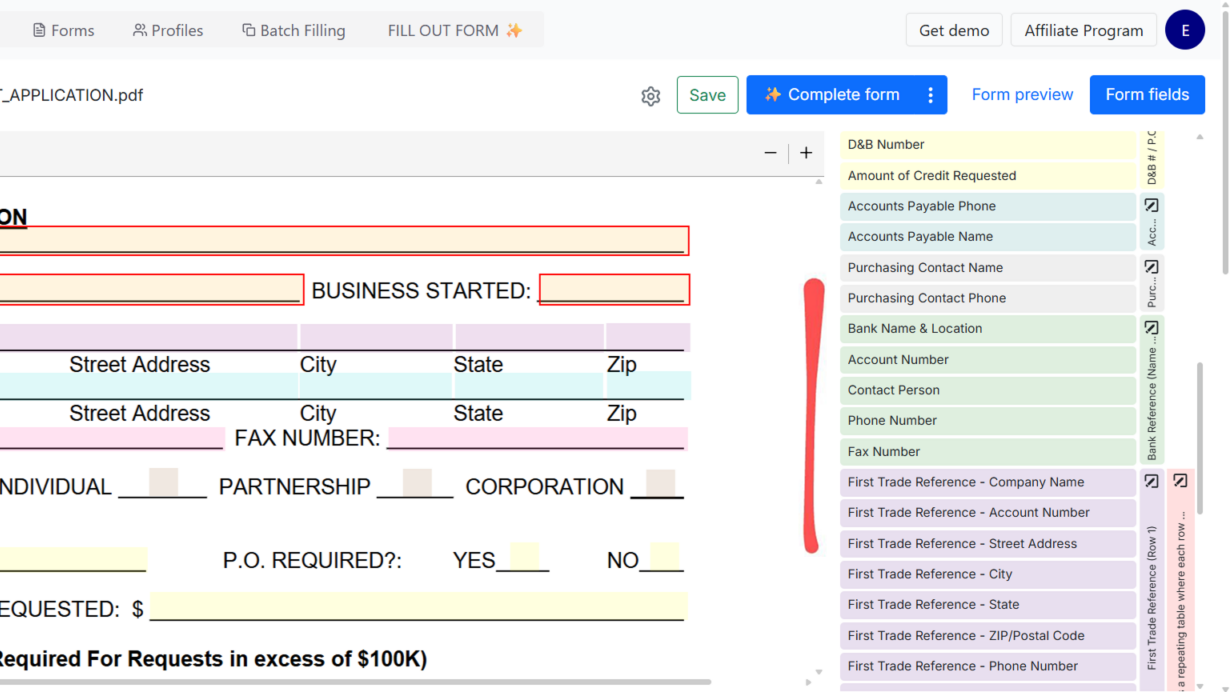
Your form renders on the left; the complete list of detected fields appears on the right. Clicking any field in the preview highlights it in the list, and vice versa. Fields are color-coded by group so you can see how the AI organized them at a glance.
2. Edit field properties
Click any field to open its editing panel. You can change:
- Name - give the field a clearer label that helps the AI understand what information it's asking for
- Description - add context beyond the field name; more detail here directly improves fill accuracy for ambiguous fields
- Group - move a field into the correct logical group if the AI placed it in the wrong section
- Section - organize fields by form section for better structure
- Dependencies - define relationships between fields (for example, a date that should be copied to multiple locations on the same form)
- Ignore this field - toggle to exclude a field from filling entirely; useful for fields that should always stay blank or be filled manually
Click Save after any change. The update applies immediately to the next fill session.
3. Configure group-level AI settings
The most impactful settings in the Field Editor are at the group level. Each group of fields can have its own AI configuration:
- AI Model - choose a lighter model for simple groups (names, addresses) and a more capable model for complex sections (tables, conditional logic)
- AI Reasoning Effort - set low for straightforward fields to process faster, medium or high for sections that require more careful interpretation
- Custom Instructions - add plain-text guidance specific to that group. For example: "Format phone numbers as (XXX) XXX-XXXX", "Use the billing address if no shipping address is provided", or "Add only the first three digits of the ZIP code"
- Ignore all fields in this group - exclude an entire section from filling with one toggle
These group-level settings let you tune AI behavior section by section for the same form - tighter control where accuracy matters most, lighter processing where it doesn't.
4. Multi-select editing
For long forms with hundreds of fields, editing one at a time is slow. Select multiple fields using Ctrl+click (Cmd+click on Mac) and a control bar appears at the bottom of the page. From there you can toggle "Ignore when filling out" for all selected fields at once, run fine-tuning on just those fields, batch-edit group assignments, or create a table from a selected set of fields on the same page.
Multi-select editing is part of the Field Editor and activates with the same access request.
Key Capabilities
- Field name and description editing - clarify what each field is asking for to improve AI accuracy
- Field type correction - switch between text, checkbox, radio button, date, number, and combobox types
- Group management - create, rename, and reassign field groups; configure AI settings per group
- Custom AI instructions per group - add plain-text rules for how the AI should handle each section
- AI model and reasoning effort per group - balance accuracy and speed section by section
- Ignore toggle - exclude individual fields or entire groups from filling
- Dependency mapping - link fields that share the same value across a form
- Multi-select batch editing - apply changes to many fields at once with Ctrl/Cmd+click
- Regenerate fine-tuning - re-run the latest AI algorithms on any existing form with one click, preserving all your manual edits
- Auto fine-tune for new fields - when you add fields to a form, only those new fields get fine-tuned automatically without touching the rest
Use Cases
Healthcare credentialing - Physician credentialing packets often have ambiguous field labels across 20+ pages. Renaming fields like "Board #" to "Board Certification Number" and adding a description with the expected format gives the AI the context it needs to fill them correctly every time. Group-level custom instructions can enforce how dates, license numbers, and NPI information should be formatted.
Government and immigration forms - USCIS forms like the I-485 and I-765 have complex conditional sections. Ignoring fields that don't apply to a specific applicant type, and setting higher reasoning effort for sections with interdependent questions, reduces errors without requiring manual review of every fill.
Construction prequalification packets - Subcontractors receiving bid packets from multiple general contractors use the Field Editor to configure each GC's form once and then reuse it. Custom instructions handle non-standard abbreviations and how to format bonding and safety fields specific to each GC's template.
Case Study: AI Automation for Subcontractor Prequalification Forms
Fender Strategic Group used field configuration alongside profiles to reduce prequalification form completion from 15-60 minutes per packet to 30-60 seconds. The same profile now powers dozens of different GC templates after one-time per-form field setup.
High-volume batch workflows - Teams running batch processing across hundreds of rows benefit from taking time to configure fields correctly upfront. Getting field types, names, and group instructions right means the entire batch produces accurate output without per-row corrections.
Prepopulate Static Fields
A related feature worth knowing about: you can save static values directly into any form field - your company name, office address, license number, or any information that never changes between fills. The AI will not modify or overwrite these saved values and focuses only on the remaining fields.
This is useful when the same organizational details appear on every form you fill. You enter them once, and every future fill - individual or batch - starts with those fields already populated.
For setup instructions, see: How to prepopulate PDF form fields with static data in Instafill.ai
Regenerate Fine-Tuning and Auto Fine-Tune
Two features that keep your forms accurate over time without manual rework:
Regenerate fine-tuning re-runs the current version of Instafill.ai's fine-tuning pipeline on any existing form. If you uploaded forms months ago, they were fine-tuned against an older version of the processing pipeline. Regenerating applies improvements to table handling, repeatable sections, and cross-page field structures - while preserving all your manual edits. Field names, descriptions, groups, dependencies, and ignored fields stay exactly as you configured them.
Auto fine-tune for new fields runs automatically when you add fields to a form using the layout editor. The system detects which fields are new, fine-tunes only those, and leaves existing fields untouched. A missing field can be added and ready for filling within seconds.
Both are available to all users on paid plans.
Benefits
- Corrections persist across all future sessions - edits apply to the form template, so every fill and batch job benefits without repeating the same adjustments
- Group-level AI control - tune the model and reasoning effort per section rather than applying one setting to the entire form
- Custom instructions replace guesswork - plain-text rules for specific groups eliminate recurring fill errors without requiring a new form upload
- Multi-select saves time on long forms - batch operations on hundreds of fields take seconds instead of hours
- Regenerate keeps accuracy improving - as Instafill.ai ships AI improvements, you can apply them to existing forms with one click
Security & Privacy
All field configurations are workspace-scoped. Changes made in one workspace do not affect any other workspace, even for forms that share the same template. Only workspace members with the appropriate role can access the Field Editor. Field names, descriptions, and custom instructions are stored within your workspace and never shared across accounts.
Common Questions
Do field changes affect sessions that are already in progress?
No. Changes apply to new sessions only. Any session started before you made edits continues using the field definitions from when it was created. In-progress work is not disrupted.
How do I get access to the Field Editor?
Field Editor is available by request. It is designed for technical teams, high-volume users, partners, and organizations working with specialized or complex forms. Contact [email protected] to enable it for your workspace. Standard users get everything they need from the regular workflow and the Flag incorrect fields feature.
What does "Regenerate fine-tuning" actually do?
It re-runs the current version of Instafill.ai's fine-tuning pipeline on your form. The AI has improved significantly in how it handles tables, repeatable sections, and cross-page structures. Regenerating lets forms uploaded months ago benefit from those improvements. Your manual edits - field names, descriptions, groups, dependencies, ignored fields - are all preserved. Only fields you haven't manually modified get updated.
Can I configure different AI settings for different parts of the same form?
Yes. Group-level settings let you assign a different AI model and reasoning effort to each section of a form. A group of simple address fields can use a lighter, faster model. A group with complex conditional logic or table structures can use a more capable model with higher reasoning effort. Custom instructions can also be set per group, so different sections get different filling rules.
What happens if I ignore a field?
The field is excluded from filling entirely. The AI will not attempt to populate it, and it will remain blank in the output PDF. You can toggle this on or off at any time. The ignore setting applies to all future sessions for that form.
What is the difference between the Field Editor and prepopulated static fields?
The Field Editor controls how the AI understands and processes each field - its name, type, group, and instructions. Prepopulated static fields let you save fixed values directly into specific fields so the AI skips them entirely on every fill. They solve different problems: use the Field Editor to improve accuracy, and use static prepopulation for fields whose values never change.