Form Filling Sessions
Upload your documents, let the AI fill the form, review the fields, download your PDF - in under 2 minutes
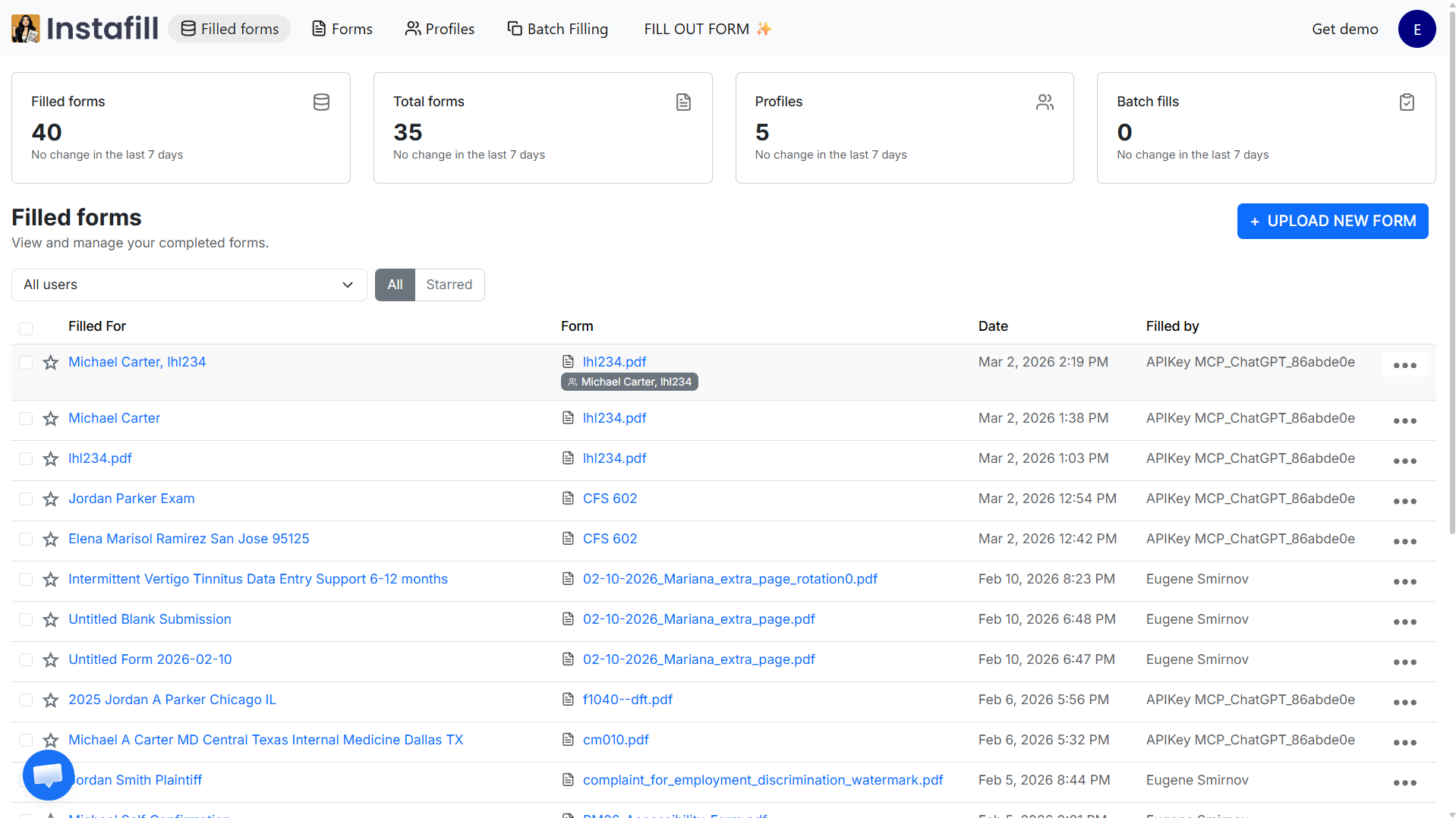
Overview
A form filling session is how you fill a single form with AI document filler. You select a form from your library or the catalog, attach the documents that contain your data - a resume, a prior application, an insurance card, a bank statement, a client intake form - and the AI extracts the relevant information and places it into the correct fields.
When the fill completes, the form opens in the visual editor. You can review the filled form, make necessary corrections if needed, optionally add a signature, and download the final PDF.
Sessions save automatically. Come back later, share with a teammate for review, or reference the audit trail showing which source document populated which field.
For filling the same form many times from a spreadsheet, see batch processing. For storing and reusing client or employee data across many different form types, see profile management.
Key Capabilities
| Capability | What it means |
|---|---|
| Any form type | Fillable PDFs, flat or scanned PDFs converted on first upload, forms up to 200+ pages with 500+ fields |
| Multiple source types | PDF, Word, Excel, images (with OCR), pasted text, and profile data - all usable in one session |
| Field explanations | Click any filled field to see exactly which part of your source document the AI used and why it chose that value |
| Signature capture | Draw, type, or upload a signature and place it in signature fields without leaving the session |
| Flexible export | Download as a filled PDF, a flattened non-editable PDF, or push the result via webhook to a document system |
| Auto-save | Sessions save automatically - come back and resume at any point |
How It Works
1. Select a form
Upload a PDF or pick one from the 44,000+ form catalog. On the first upload, the AI processes the form to extract its full field list - every field's name, type, page, and available options. On all future fills of the same form, this is reused with no reprocessing.
Flat or scanned PDFs are converted to fillable automatically on upload. Once converted, the fillable version is saved and reused for every subsequent session.
2. Attach source documents
Add the documents that contain the data you need. You can mix sources in one session:
- Upload PDF, Word, or Excel files
- Paste text directly
- Pull in a saved profile (stored client or employee data)
- Receive source data via webhook
3. AI fills out the form
Independent field groups fill in parallel, so form size does not proportionally increase fill time. A 100-field mortgage application with independent sections fills at roughly the same speed as a 20-field intake form.
Source content is matched to the pages where it belongs before the fill starts - the AI filling page 3 only sees text relevant to page 3. This prevents cross-contamination on long multi-section documents.
Table and repeating fields - employment history rows, medication lists, address history - go through a dedicated pass that structures source data into rows before populating the cells.
For most standard forms, the AI fill takes 10-45 seconds.
4. Review in the visual editor
The filled form opens in the visual editor.
For any field, click the info icon to see a field explanation: which source document the AI used, which passage it pulled from, and why it chose that value. This makes review fast - instead of re-reading the whole source document, you confirm or correct the specific fields that need attention.
Corrections are logged in the session audit trail.
5. Download
Click "Download filled form" to get your completed document. Three options are available:
- Download PDF - fields remain editable in any PDF viewer
- Download PDF (flat) - check "Make form flat" before downloading and all field values are baked into the page, making the document non-editable. Use this for final submissions where the receiving system expects a static file
- Download Word (DOCX) - exports the filled form as a Word document
Use Cases
| Industry | How sessions are used |
|---|---|
| Immigration law | Each USCIS case requires 3-4 forms with the same client data entered repeatedly. Hong LLC fills I-485, I-765, I-130, and G-1145 from one client profile. What took 3-4 hours per case now takes 45-60 minutes - a 75-80% reduction |
| Healthcare credentialing | Each hospital system has its own credentialing packet with different field names for the same physician data. Hawkeye Physicians fills packets for multiple hospitals from the same source documents - 3-4 hours per packet reduced to under 30 minutes |
| Legal - guardianship and estate planning | Massachusetts Probate Court forms (MPC 720, MPC 801, MPC 825) must be completed with handwritten intake data from clients. Mariscal Special Needs Law fills these court forms including conditional sections that only apply in specific case types - 30-60 minutes per form reduced significantly |
| Insurance claims | An adjuster fills a first notice of loss from a policyholder statement and the declaration page. Both sources feed into a single session - no toggling between documents |
| HR onboarding | New hire documents (W-4, I-9, direct deposit) filled from the same employee file in separate sessions, or from a stored employee profile |
Field Explanations
When AI fills a form, it makes hundreds of small decisions - which value goes in which field, what to pull from each source, when to leave a field empty. Field explanations make those decisions visible.
Click the info icon next to any filled field and you see: what value was placed and why, which source document it came from, which passage the AI relied on. If a field was left empty, the explanation tells you why.
This is particularly useful when reviewing complex forms with dozens of fields, or when training new staff on how the AI interprets different source documents.
Full details: Introducing field explanations in Instafill.ai.
Note: field explanations are not available for sessions filled with "Remove files immediately" mode enabled, since source documents are not retained after processing.
Privacy Options
Standard mode: Source documents are retained in your workspace and can be reused in future sessions. Retention follows your workspace's configured data cleanup schedule.
Remove files immediately: Check this option before submitting, and all uploaded source files and generated PDFs are permanently deleted from Instafill.ai's servers as soon as the fill completes. Nothing is retained. You will need to re-upload sources for any future fill.
This option is designed for workflows involving PHI, financial data, or other sensitive content where zero retention is required. Full details: Remove files immediately after processing.
Benefits
- Under 2 minutes for most forms From source upload to downloaded PDF, vs. 15-60 minutes of manual copy-paste
- Works from any source combination SSN from a scan, employment history from a resume, salary from a pay stub - all in one session
- Conditional fields handled automatically Sub-fields that should stay blank because the parent answer was "No" don't get accidentally filled
- Full audit trail Which source documents, which fields were AI-filled, which were manually corrected, who made corrections, and when the PDF was downloaded
Security
Session data is encrypted using workspace-scoped keys. Source text is encrypted so content from one session cannot be accessed in another. Role-based access controls restrict session visibility to users with workspace permissions.
The audit trail records every source document added, every field fill event, every user correction, and every download - sufficient for HIPAA, SOC 2, and legal compliance requirements.
Full details at instafill.ai/security.
Common Questions
How accurate is the AI fill?
Accuracy depends on how well the source documents match the form's information requirements.
When sources directly contain the data the form needs - for example, using a prior completed application to fill a similar new form - most forms come back with 98-99% of fields correct. Review typically means correcting 1-2 fields.
When sources only partially match - for example, a resume used to fill a government application that asks for information no resume contains - the AI fills what it can find and leaves the rest blank. It does not guess.
Scanned sources match native PDF accuracy at 300 DPI or higher.
Confidence scoring tells you in advance where the AI was uncertain. High-confidence fields are almost always correct. Low-confidence fields are flagged before you even start reviewing.
What file formats work as source documents?
PDF (text-based and scanned), Word (.docx, .doc), Excel (.xlsx, .xls), images (JPG, PNG, TIFF, HEIC), plain text pasted directly, and saved profile data. Multiple sources can be attached to a single session - the AI combines information from all of them.
What happens if the AI fills a field incorrectly?
Click the field in the visual editor and type the correct value. The correction takes a few seconds and is logged in the session audit trail.
If a particular field type consistently fills incorrectly on a specific form, submit the form for AI fine-tuning to improve accuracy on all future fills of that form.
Can I save a session and come back to it?
Yes. Sessions save automatically. Close the browser mid-session and everything is preserved - source documents, filled fields, and any corrections you made. You can also share the session with a teammate for them to complete the review step, controlled by workspace role permissions.
What is the difference between a session and batch processing?
A session fills one form from your source documents. Use it when you have one set of data and one form to fill.
Batch processing fills the same form many times from a spreadsheet - one row per output PDF. Use it when you need 50 or 500 copies of the same form with different data in each.
What does "Remove files immediately after processing" do?
When this option is enabled, all uploaded source files and the filled PDF are permanently deleted from Instafill.ai's servers as soon as the fill completes. Nothing is retained. This is designed for workflows with PHI or other sensitive data where zero retention is required. Field explanations are not available for these sessions since source documents are not kept.