Email Integration
Forward an email containing client data to a dedicated Instafill.ai address. Minutes later, receive the completed PDF form back in your inbox.
Overview
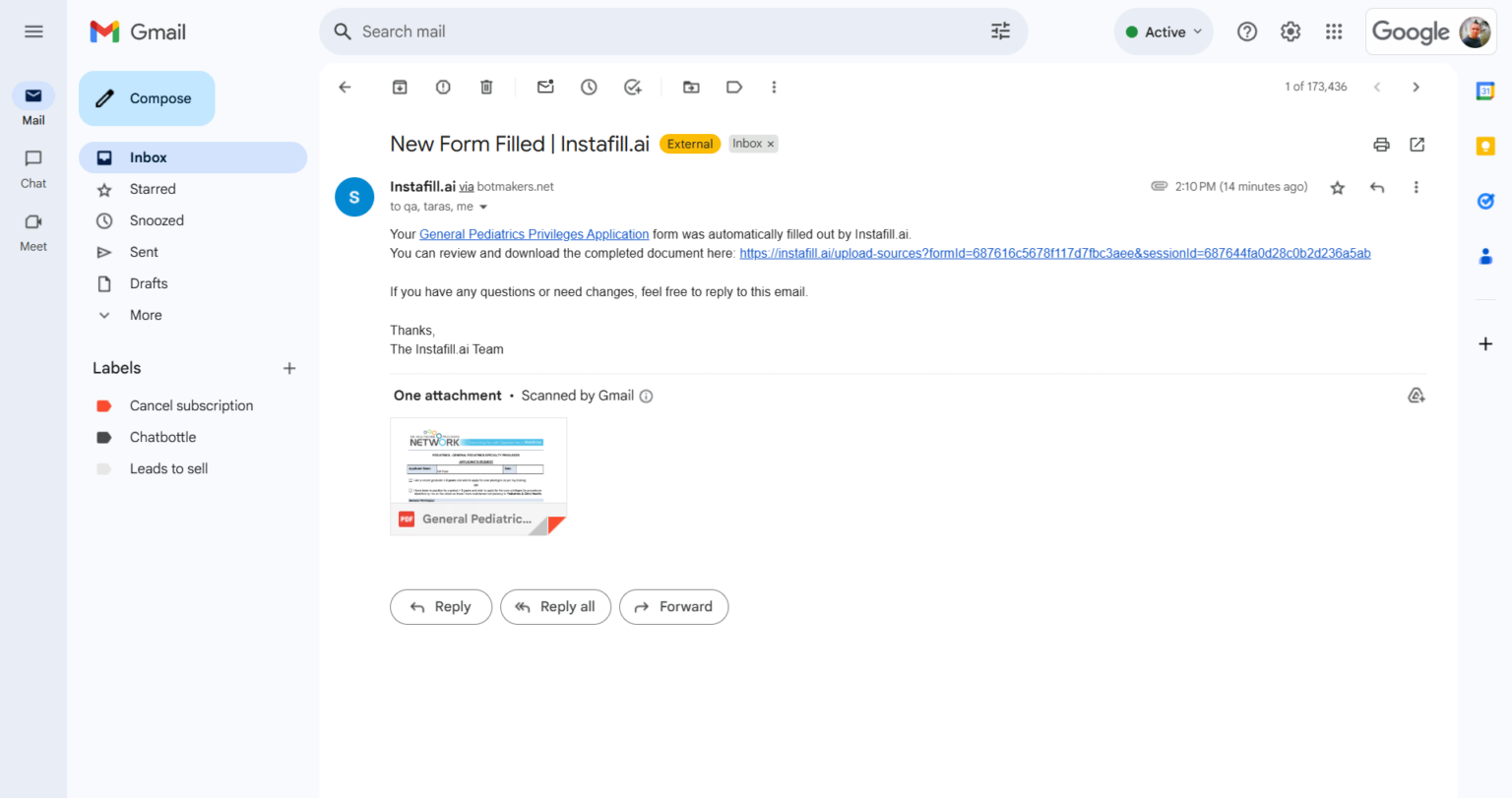
Email Handler lets you fill out PDF forms by forwarding emails to a dedicated Instafill.ai address - with attachments as source data - and receiving completed PDFs back, all without logging into the platform. Each form in your account is assigned a unique email address (e.g., [email protected]). Send or forward an email containing client data in the body or as attachments (PDFs, Word docs, images), and the AI extracts the information, fills the form, and replies with the completed PDF attached - along with a link to the session in your dashboard where you can review or edit the result.
This is particularly useful for mobile workflows (forward a resume from your phone to fill a job application), email-heavy industries like legal and real estate where documents already flow through inboxes, automating form-based processes triggered by incoming client emails, and providing a simple interface for non-technical team members who prefer email over logging into a web platform.
If you collect client data through Cognito Forms, Google Forms, JotForm, or any system that sends submission emails, you can forward those emails directly to Instafill.ai. There's no API integration required. It fits into existing workflows without changing how your team or clients currently work.
Key Capabilities
| Capability | Description |
|---|---|
| Unique email addresses | Each form gets a unique inbound email address |
| Email-triggered sessions | Forward email with attachments → auto-create form filling session |
| Attachment processing | AI extracts data from email attachments (PDFs, Word, images) |
| Email body parsing | Extract data from email text itself |
| Template selection | Specify form template via subject line or email body |
| Automated reply | Receive filled PDF via email reply |
| Workflow integration | Trigger multi-step workflows from email |
| CC/BCC support | Include team members in email workflow |
| Email notifications | Receive alerts when forms completed, errors occur |
| SMTP/IMAP support | Integrate with corporate email systems |
How It Works
1. Instafill assigns a unique email address to your form
Each form gets its own dedicated email address. Contact [email protected] to request setup - the Instafill team assigns the address and configures the automation for your form.
2. Send or forward email with the data
Compose an email or forward an existing submission email (from Cognito Forms, JotForm, Google Forms, Notion, or any other source) to the form's dedicated address. Include the data in the email body, as attachments (PDFs, Word docs, images), or both. The AI reads the email content and attachments, interprets even unstructured text, and maps it to the form's fields.
3. Receive the filled PDF
Instafill.ai replies to your email with:
- The completed PDF form attached
- A link to the filling session in your Instafill.ai dashboard (for review or editing)
- A summary of interpreted fields and any flagged issues
Processing typically takes 1-2 minutes from send to receive.
Full walkthrough: Instafill.ai Introduces Email Handler covers the setup and workflow in detail.
When Email Is the Better Fit
Instafill.ai also supports webhook integration for real-time, fully programmatic automation. Email is the better choice when:
You need zero technical setup. Email forwarding takes minutes to configure - no developer resources, no API keys, no webhook URLs. One law firm was fully operational in under five minutes using a single forwarding rule.
Your team needs a manual fallback. Any team member can email a client application (attachments included) to the dedicated address whenever needed - useful for one-off cases that don't come through your standard intake system.
You want platform independence. Email works with any form provider. If you switch from Cognito Forms to JotForm or another platform, the setup doesn't change - just forward the new submission emails to the same address.
When Email Integration Saves Time
Email integration works best for mobile professionals and high-volume intake workflows. Real estate agents and field workers can forward documents from their phones and receive completed PDFs back within minutes, while law firms and HR departments route incoming client or new-hire emails through an alias so forms are auto-filled before a staff member ever needs to review them - reducing 15-minute manual processes to 2-minute approvals.
Real-world example: Employment law firms have implemented email-based intake automation where discrimination complaint forms are automatically filled when clients forward intake documents via email.
| Workflow | How email helps | Example |
|---|---|---|
| Form provider submissions | Forward Cognito Forms, JotForm, or Google Forms submission emails directly to Instafill.ai. No API integration needed. | Legal intake, HR onboarding |
| Notion-based intake | When a client submits data in Notion, the system sends you an email. Forward it to Instafill.ai and receive a completed PDF back. | Multi-state onboarding |
| Mobile workflows | Forward a client email from your phone. Receive the filled form back without opening a laptop. | Field workers, traveling professionals |
| Non-technical team members | No platform login or training needed. Anyone who can forward an email can trigger form filling. | Office staff, paralegals |
Team Notifications
Separately from Email Handler, Instafill.ai can notify your entire team by email whenever a filled PDF is generated - whether the fill was triggered by email, the dashboard, API, or batch processing. All organization members with access to the form receive an email containing the processing time, the number of processed fields, and a direct link to the filled PDF.
How to turn it on: Settings → Organization → Notifications → check "Notify members when a form is filled." Full guide: How to notify your team when a filled PDF is ready.
Current Limitations
| Limitation | Detail |
|---|---|
| One form per email | Each email fills a single form. To fill multiple forms, send separate emails. |
| Setup by Instafill team | Email addresses are assigned by the Instafill team, not self-service. Contact [email protected] to get started. |
Common Questions
Can I use my own email domain?
Yes, via email forwarding. We'll set up a forwarding rule from your inbox to the dedicated Instafill.ai address - clients and intake systems send emails to your own domain, and the forwarding rule routes them to Instafill automatically. No special DNS records are required - just a standard forwarding rule in your email system.
Note that replies come from Instafill.ai's address, not your domain.
What systems work with Email Handler?
Any system that sends email. Cognito Forms, Google Forms, and JotForm are commonly used. Any platform that generates submission emails can forward those emails to Instafill.ai - including Notion, Typeform, and custom CRM systems. You can also compose and send emails manually.
What does the reply email contain?
The reply includes the completed PDF form as an attachment, a link to the filling session in your Instafill.ai dashboard (where you can review fields or make edits), and a summary of how fields were interpreted. If the AI flagged any issues - missing data, inconsistencies, or fields it couldn't fill with confidence - those are noted in the reply as well.
How long does processing take?
Processing typically takes 1-2 minutes from sending the email to receiving the completed PDF. Exact time depends on form complexity and the amount of data in the email.
How is Email Handler different from webhook integration?
Email Handler requires no technical setup - you forward emails and receive filled PDFs back. Webhook integration sends structured JSON data directly to the Instafill.ai API when a form provider submission occurs, and returns the filled document programmatically. Webhooks are better for fully automated pipelines; email is better for teams that want simplicity and manual flexibility.
Can I get team notifications when forms are filled?
Yes. This is a separate setting from Email Handler. Go to Settings → Organization → Notifications, and check "Notify members when a form is filled." All organization members with access to the form will receive an email whenever a new filled PDF is generated - regardless of whether the fill was triggered by email, the dashboard, API, or batch processing.