Table & List Field Processing
Fill tables and repeating sections in PDF forms automatically from spreadsheets, documents, or profiles - row by row, with each value placed in the correct column
Overview
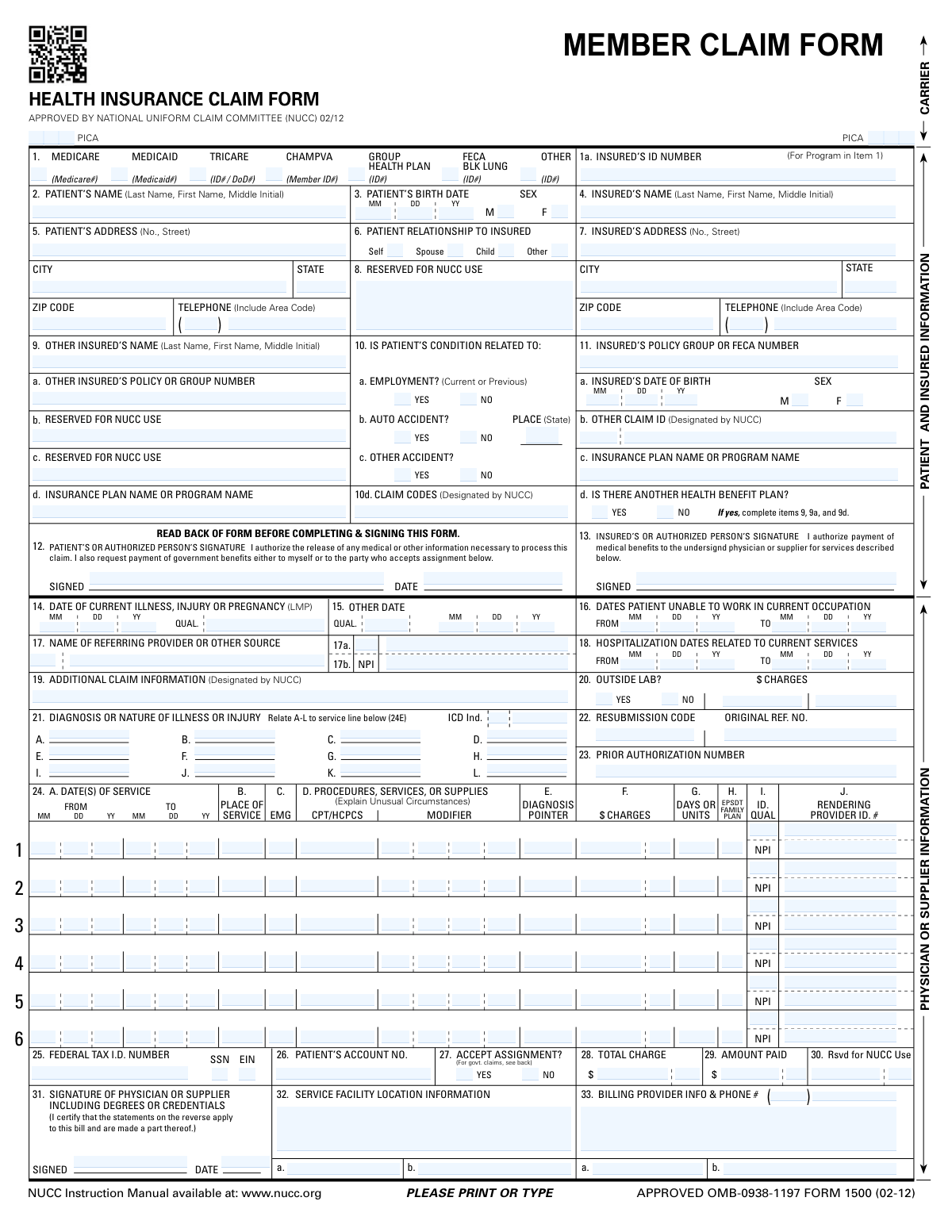
Many PDF forms contain tables or lists for entering multiple items: CMS-1500 service lines, Schedule D capital gains transactions, ETA-9089 employment certification entries, medication lists, contractor license application sections, or expense report line items. Filling these manually from existing records means copying data row by row from a spreadsheet or document into the form - slow, repetitive, and easy to get wrong.
Instafill.ai is an AI form filler that detects table structures inside PDF forms and fills each row from your source data automatically. Tables are filled row by row, with the AI reading column headers, understanding the table structure, and mapping each value to the correct cell. Lists are treated as a separate data type - each item maps to the correct line, and only rows with actual data get filled, so you don't end up with phantom entries in empty rows. Filling tables row by row is a concrete thing a chatbot doesn't do - it sees an undifferentiated list of fields. See how Instafill.ai compares to ChatGPT and Claude.
The system auto-detects whether a group of fields is a table or a list. If the detection isn't right for a specific form, you can override it manually using the field editor.
When forms can't fit all your data - for example, a government form with only 4-6 rows per page - Instafill generates supplemental attachments as separate PDFs and inserts the correct "See Attachment" references into the main form. This is especially common with agriculture compliance forms, tax schedules, and credentialing packets where the volume of line items regularly exceeds what the form provides.
For a detailed look at how table and list processing was improved, see Instafill.ai core technology update: what changed since August 2025.
Key Capabilities
| Capability | What it means for you |
|---|---|
| Row-by-row filling | Each table row is filled individually. The AI reads column headers, understands the structure, and places each value in the correct cell - no more mixing up which value goes where in wide tables |
| Tables vs. lists | The system distinguishes between table fields (rows and columns) and list fields (sequential items). Each type uses a different extraction approach for better accuracy |
| Auto-detection | Form fields are analyzed to determine which ones belong to a table and which are standalone. Manual override is available through Field Management if needed |
| Repeating sections | Forms that repeat the same block of fields across pages - like officer information or dependent blocks - are detected automatically and filled with distinct data per section |
| Overflow handling | When data exceeds the form's available rows, the system generates supplemental attachments and inserts references into the main form |
| Multiple source types | Pull table data from CSV files, Excel spreadsheets, uploaded documents, or profile data |
| Column mapping | The AI matches your source column headers to the form's table column labels automatically. You can review, adjust, and save mappings as reusable templates |
How It Works
1. Upload a form with tables
Upload your PDF form to Instafill.ai. The system analyzes the form layout and identifies which fields belong to table rows and which are standalone fields. This works on any PDF - digitally created or converted from a flat scan - as long as the fields are arranged in a recognizable row structure.
2. Provide your table data
You can supply data in several ways:
- CSV or Excel file - One row per table entry. Column headers are matched to the form's table column labels. This is the most common approach for batch processing workflows.
- Uploaded documents - The AI extracts row data from PDFs, Word files, or images. Structured sources (like bank statements with transaction rows) and list-format sources (like a physician's medication list in a clinical note) are both supported.
- Profile data - Employment history, dependents, education entries, or other repeating data stored in a profile can be used directly as table source data.
- Manual entry - Enter rows directly in the visual editor.
3. Review column mapping
The AI proposes how your source columns map to the form's table columns. This mapping handles cases where names don't match exactly - for instance, your spreadsheet column might say "Employer Name" while the form's column header says "Company." You can adjust any mapping before filling, and save it as a named template to skip this step on future sessions with the same form.
4. Fill and review
Rows are processed and written to the form. After filling, review the completed table in the visual editor. If rows need to be reordered, corrected, or removed, make changes directly before downloading the final PDF.
For forms where the table data exceeds the available rows, check the generated supplemental attachments alongside the main form.
Use Cases
Healthcare: CMS-1500 service line tables
Billing teams populate service line tables - procedure codes, dates of service, diagnosis pointers, and charges - from practice management system exports. Instead of entering each line manually, upload the export file and let the AI fill the table rows. Instafill.ai supports the CMS-1500 health insurance claim form used by most medical billing workflows, as well as the full range of CMS forms required for Medicare and Medicaid billing.
Agriculture and compliance: forms with strict row limits
Government compliance forms often have limited rows per page (typically 4-6 line items). When the actual data has 20+ entries, Instafill generates supplemental tables as separate PDFs and inserts "See Attachment" references into the main form.
Case Study: How a Hemp Farm Automated Compliance PDF Forms with Instafill.ai - Terpene Belt Farms automated 95+ SARFs per season. Each form required cultivar data across multiple table rows, with supplemental attachments generated automatically when rows exceeded the form's capacity.
Legal and immigration: employment and asset history
Legal teams fill employment certification tables in immigration forms, asset schedules in estate planning documents, and beneficiary designation lists from financial records. Data that's already organized in a spreadsheet or prior document maps directly to the form's table structure.
Tax preparation: Schedule D and expense tables
Tax preparers fill capital gains tables from brokerage trade confirmations and expense tables from accounting exports. Each transaction row maps to the correct cell without entering each line individually.
Construction: permit applications in batch
Contractors and subcontractors who file the same permit form across multiple jurisdictions can combine table filling with batch processing - uploading a spreadsheet where each row produces a complete form with its own table data filled.
Related: Batch Filling NJ ST-8 Tax Forms for Construction Bookkeeping
Repeating Sections
Some forms don't use formal tables but repeat the same group of fields across multiple pages. A contractor license application might have three identical "Explanation" blocks on consecutive pages. An insurance application might repeat a "Dependent Information" block for each family member. A corporate filing form might ask for Officer #1's details on page 2, Officer #2 on page 3, and Officer #3 on page 4.
Instafill.ai detects these repeating structures automatically during the fine-tuning process. During filling, it maps distinct source data to each repetition instead of copying the same values everywhere. This eliminates the common problem where every section ends up filled with the first entry's data.
No configuration is needed - the AI identifies repeating sections during fine-tuning and uses them for all future fills of that form.
Benefits
- Correct column placement: The AI reads column headers and maps each value to the right cell, eliminating the most common error in manual table filling - putting data in the wrong column
- Tables and lists handled differently: Structured row data and sequential list data are processed with separate approaches, so each type gets the extraction logic it needs
- Overflow handled automatically: When your data has more rows than the form provides, supplemental attachments are generated with the correct references inserted into the main form
- Repeating sections detected: Identical field blocks that repeat across pages are filled with the right data per section, not duplicated from the first entry
- Reusable column mappings: Save how your source columns map to a form's table columns. Apply the same mapping to future sessions with the same form type - no remapping needed
- Works with batch processing: Combine table filling with batch processing to fill hundreds of forms - each with its own table data - from a single spreadsheet
Security & Privacy
All table data is workspace-scoped. Table row data extracted from sources or entered manually is encrypted with workspace-scoped keys stored in Azure Key Vault. No table data is accessible outside the workspace that created the session.
For details on how Instafill.ai handles data isolation across workspaces, see Workspace Data Isolation.
Common Questions
What if the table has more rows than the form provides?
When data exceeds the form's available rows, the system generates supplemental attachments as separate PDFs and inserts references (like "See Attachment A") into the main form. This is common with government compliance forms, tax schedules, and any form with a fixed number of rows per page.
If you need to limit the output to specific rows, you can select which rows to include from the preview before generating the final PDF.
How does the AI know which fields belong to a table?
The system analyzes the layout of the form and groups fields that are arranged in a row structure. It distinguishes between table fields (rows and columns) and list fields (sequential items). If the detection isn't correct for a specific form, you can override it manually in the field editor. The detection runs automatically during fine-tuning and is stored for all future fills.
Can I fill tables from unstructured documents like invoices or receipts?
Yes. The AI can extract row data from both structured sources (like a bank statement with transaction rows) and unstructured sources (like a physician's medication list in a clinical note, or a set of receipt images). The extraction approach adapts based on how the data is organized in your source.
For best results with document-based sources, use the autofill from sources workflow and attach your documents as session sources.
How do I handle tables with different column names across forms?
Different forms use different labels for the same data - one form calls a column "Description", another calls it "Item", a third calls it "Expense Description." Save a column mapping template per form type. On future sessions with the same form, apply the saved template and skip the mapping step entirely.
The AI also proposes mappings based on column name similarity and data type matching, which reduces the manual work for new form types.
Can I fill forms with tables using batch processing?
Yes. Each spreadsheet row fills one complete form, including any table fields within that form. For forms with table sections, the batch row must contain the table data as well - either encoded in multiple columns (e.g., item_1_desc, item_1_amount, item_2_desc, item_2_amount) or handled by the table field processing logic.
See Batch Processing for the full workflow.
What about repeating sections that aren't formal tables?
Repeating sections - identical field blocks that appear across multiple pages - are detected automatically during fine-tuning. The AI fills each repetition with the correct data from your sources instead of duplicating the first entry. No configuration is needed. See our blog post on repeatable section detection for details.
Can I improve how the AI fills tables for a specific form?
Yes. If the AI consistently maps a column incorrectly or misinterprets a field, use AI Training to provide examples that demonstrate the correct mapping. You can also regenerate fine-tuning for the form to pick up the latest improvements to how Instafill.ai processes tables and repeating sections.