Profile Management
Create reusable data profiles for clients, patients, or employees. Enter their information once and apply it across any form - W-4, I-9, I-485, credentialing packets, and more.
Overview
Every time you fill out a PDF form, you're entering the same name, address, date of birth, SSN, and employer information you typed into the last form. For professionals handling multiple clients across multiple form types, this repetition adds up fast - an immigration attorney filling I-485, I-765, I-130, and G-1145 for the same client is entering the same biographical data four times.
Profiles eliminate this. A profile stores structured data for a person, business, or client - name, contact details, employment history, financial information, and any custom fields your workflow requires. When you start a form filling session, select a profile, and the AI maps the stored data to the form's fields automatically. The same profile works across any form in your account.
A profile differs from a source document. Source documents are unstructured files (PDFs, Word docs, images) that the AI must parse and interpret. A profile is already structured data that maps directly to form fields. In practice, most sessions use both - a profile supplies the standard identity fields while source documents supply case-specific details like a prior-year tax return or employment verification letter.
You can apply up to 2 profiles to a single form - for example, one for the client and another for their employer or attorney. The AI combines information from both and maps it to the corresponding fields.
How It Works
1. Create a profile
Go to the Profiles section in your dashboard and click "Create New Profile." Give it a descriptive name - for example, "Michael Carter, Ihl234" or "ABC Company - Tax Forms."
2. Add information
Each profile has two ways to provide data:
- Profile information - a free-text field where you type or paste the entity's details in any format. For example: "Last Name, Carter / First Name, Michael / Type of Professional, Physician (MD)" or a full block of structured text copied from your intake system.
- Files - upload documents (PDFs, Word docs, CSVs, images) containing the information the AI should use when filling forms. Resumes, prior tax returns, employment verification letters, licenses, certifications - anything relevant.
You can use either or both. A profile with only uploaded files works just as well as one with only text. The AI reads both when filling.
3. Apply to any form
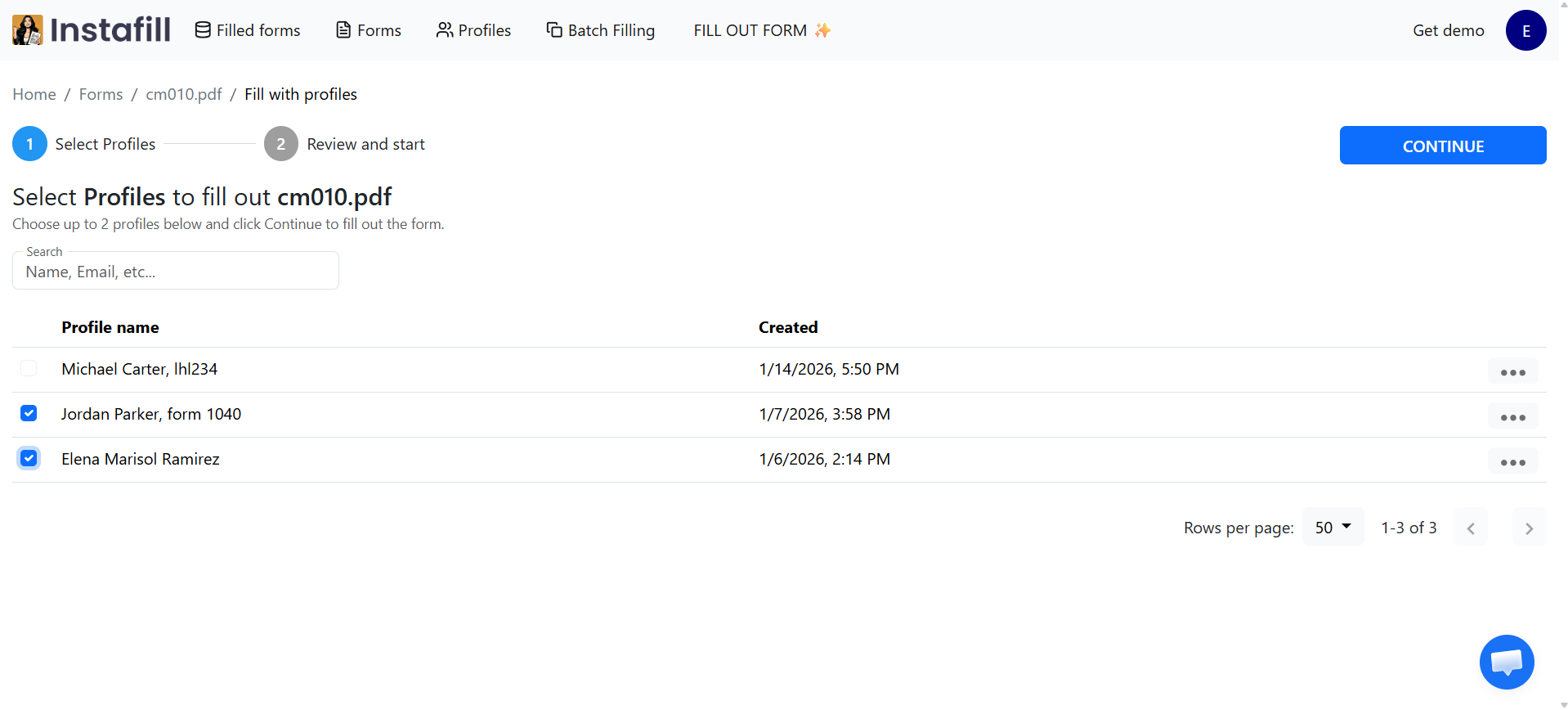
Go to Forms, click the three-dot menu (⋮) on the form you want to fill, and select "Fill out form with profiles." Choose up to 2 profiles (for example, one for the client and one for their employer), then click Continue. The AI maps profile data to form fields automatically. Review the results and adjust if needed.
Detailed walkthrough: How to use Profiles in Instafill.ai covers the full process with screenshots and a video guide.
Key Capabilities
| Capability | What it means |
|---|---|
| One profile, any form | Create a profile once. Apply it to W-4, I-9, I-485, credentialing packets, tax forms - any form in your account. |
| Up to 2 profiles per form | Select up to 2 profiles when filling a form. Example: one for the client and one for their employer. |
| Text or files or both | Add profile information as free text, upload supporting documents, or both. A profile with only files works just as well as one with only text. |
| Partial coverage | A profile doesn't need to cover every field on the form. It fills what it can, and the session handles the rest from sources or manual input. |
| Team sharing | All team members in a workspace can access shared profiles. No per-seat fees for profile access. |
| API access | Create and apply profiles programmatically via the REST API. |
When Profiles Save the Most Time
Profiles are most valuable when you fill multiple form types with the same entity data over time. Here's where they make the biggest difference, based on published case studies.
| Industry | How profiles are used | Example |
|---|---|---|
| Immigration law | One client profile stores name, address, DOB, SSN, contact info. The same profile fills I-485 (18 pages), I-765 (13 pages), I-130 (12 pages), and G-1145 (1 page) for a single case - 3-4 forms from the same data. | Hong LLC - 75-80% time reduction |
| Teleradiology credentialing | Master physician profiles store work history, licensure, board certification, malpractice history, CME records, and references. The same profile fills credentialing packets for every hospital the physician contracts with. | Hawkeye Physicians - 3-4 hours to under 30 minutes per packet |
| Construction | Subcontractor profile stores company info, insurance, EMR, bonding capacity, safety records, references. Every API call references the form ID + profile ID. 60-100 forms/month from a single maintained profile. | Fender Strategic Group - 15-60 min to 30-60 seconds per form |
| Food service permits | Franchise unit profiles store location-specific business data. Same profile fills state permit forms across multiple locations. | Kona Ice - 250+ permits/year |
| Multi-state onboarding | Client or organization profiles applied across state-specific forms. Some states require one form, others (like California) require six - all filled from the same profile. | Multi-state onboarding guide |
Profiles + Prepopulated Static Fields
Some fields on a form never change between sessions - your company name, office address, attorney bar number, EIN. For these, Instafill.ai offers a separate feature: prepopulated static fields.
Static fields are saved directly in the form template. The AI will not modify or overwrite them, focusing only on the remaining fields during filling. This is different from profiles, which provide data at session time.
When to use each
| Use prepopulated static fields for... | Use profiles for... |
|---|---|
| Company name, EIN, office address | Client name, SSN, date of birth |
| Attorney bar number, license number | Case-specific details |
| Standard disclosures or boilerplate text | Transaction amounts and dates |
| Information that's the same on 90%+ of submissions | Information that changes per client or case |
Using both together
The most efficient workflow combines both:
- Prepopulate the form template with all static organizational data (company name, address, EIN)
- Create profiles that contain only per-client variable data (name, DOB, SSN, case details)
- Start a session from the prepopulated template and apply the client profile
- Static fields are already present. The profile fills the dynamic fields. The form is complete.
This means profiles carry fewer fields, and your organization's identifying information is guaranteed consistent across every document.
Best Practices
| Tip | |
|---|---|
| ✓ | Use descriptive profile names. "John Smith - Personal 2024" or "ABC Corp - Tax Info" is better than "Profile 1." This matters when your team manages dozens of client profiles. |
| ✓ | Create purpose-specific profiles. Rather than one comprehensive profile, create targeted ones: "Client - Personal Tax," "Client - Immigration," "Company - HR Forms." |
| ✓ | Combine profiles with source documents. Use the profile for standard identity fields (~70% of most forms). If the form also needs case-specific details (employment verification letters, prior-year tax returns), you can add those as source documents during the review step. |
| ✓ | Apply 2 profiles to complex forms. For forms requiring data about two people (applicant + employer, client + attorney), select both profiles when filling. The AI combines them. |
| ✓ | Update profiles when information changes. Edit the profile and save. All future sessions use the updated data. Historical sessions and the PDFs they produced are not altered - they captured the data as it existed when they ran. |
| ✓ | Attach supporting documents to profiles. Licenses, certifications, CME records, and other reference documents stored with the profile are automatically included in every session - no need to re-upload each time. |
Common Questions
What's the difference between profiles and source documents?
Profiles store structured data (name, address, SSN) that maps directly to form fields. Source documents are unstructured files (PDFs, Word docs, images) that the AI must parse and interpret before mapping.
Use profiles for repetitive identity data that appears on many forms. Use source documents for complex, case-specific information scattered across documents. Most sessions use both - the profile handles the ~70% of fields that are repetitive, and sources handle the remaining 30%.
Can I create profiles for clients or family members?
Yes. Create one profile per entity. Common patterns: separate profiles for yourself, spouse, and children (for healthcare or financial forms), one profile per client (for attorneys, accountants, insurance agents), or separate profiles for each business entity (parent company, subsidiaries).
All profiles are private by default within your workspace. Share a profile with specific workspace members by granting them access.
Can I apply more than one profile to a form?
Yes. When filling a form with profiles, you can select up to 2 profiles. Apply your primary profile (e.g., client information) and then add a secondary profile (e.g., attorney or company details). The AI combines information from both profiles and maps it to the correct fields.
How do I update a profile without affecting old forms?
Edit the profile and save. The updated values apply to all future sessions. Historical sessions and the PDFs they produced are not altered - they captured the profile data as it existed when those sessions ran.
Example: A client moves in April. Update their address in the profile, and all sessions from April onward use the new address. Forms filled in January through March still show the original address.
Can I import data to create profiles automatically?
Yes. You can upload files (CSV, Excel, text documents) when creating a profile, and the AI extracts data to pre-fill profile fields. You can also create profiles programmatically via the REST API for integration with your HRIS, CRM, or other data sources.
Do profiles handle repeating data like employment history?
Yes. Profiles support repeating data structures - multiple jobs (each with employer, title, dates), multiple dependents (each with name, DOB, relationship), multiple addresses (current, previous, mailing). When the AI encounters a form with an employment history table, it maps the first job to the first row, the second to the second, and so on.
How do profiles work with batch processing?
Batch processing fills the same form many times from spreadsheet rows. Profiles complement this: a batch job can draw on a profile for fields that are constant across all rows (e.g., employer information) while taking employee-specific fields from the spreadsheet columns. This eliminates the need to include redundant employer data in every row.
What's the difference between profiles and prepopulated static fields?
Profiles provide data at session time - you select a profile when filling a form. Prepopulated static fields are saved directly in the form template and appear automatically on every fill. Use static fields for data that never changes (company name, EIN). Use profiles for data that varies per client or case. Learn more about static fields.