Word Document Filling
Upload a .doc or .docx file as a form to fill or as a data source. Instafill.ai converts it to a fillable PDF automatically, detects fields, and lets you fill it with AI - no manual export, no field placement by hand.
Overview
Word documents are everywhere in professional workflows - HR packets, intake questionnaires, legal agreements, permit applications, credentialing checklists. The problem is that most of these files are flat. You cannot type into them digitally, and converting them to fillable PDFs by hand is slow work.
Instafill.ai is an ai form filler that handles this in two ways. First, you can upload a .doc or .docx file directly as the form you want to fill. The system converts it to PDF, detects all the fields automatically, and walks you through a quick review before you fill it with AI. Second, you can attach Word documents as source data when filling any PDF form - the AI reads the content and maps it to the target form's fields, the same way it reads any PDF or spreadsheet.
Both paths use the same AI pipeline. Once a Word-based form is converted and saved, it becomes a permanent template in your account - you never convert it again.
You can also convert any Word or PDF document into a fillable form using the Create fillable PDF tool, which includes additional controls for page selection, confidence level, image resolution, and processing speed.
How It Works
Uploading a Word File as the Form to Fill
This is the main use case: you have a Word-format form and want to fill it with AI.
1. Upload the file
Go to your Forms dashboard and upload the .doc or .docx file directly. The Create Fillable PDF tool is also available if you want more control over conversion settings before saving the template. Both accept .doc, .docx, and .docm formats.
Once uploaded from the dashboard, conversion starts automatically. You will see a progress bar in your form list while it runs. A standard document typically converts in 15-30 seconds. Longer documents with many pages complete in under a minute in most cases.
2. Review the detected fields
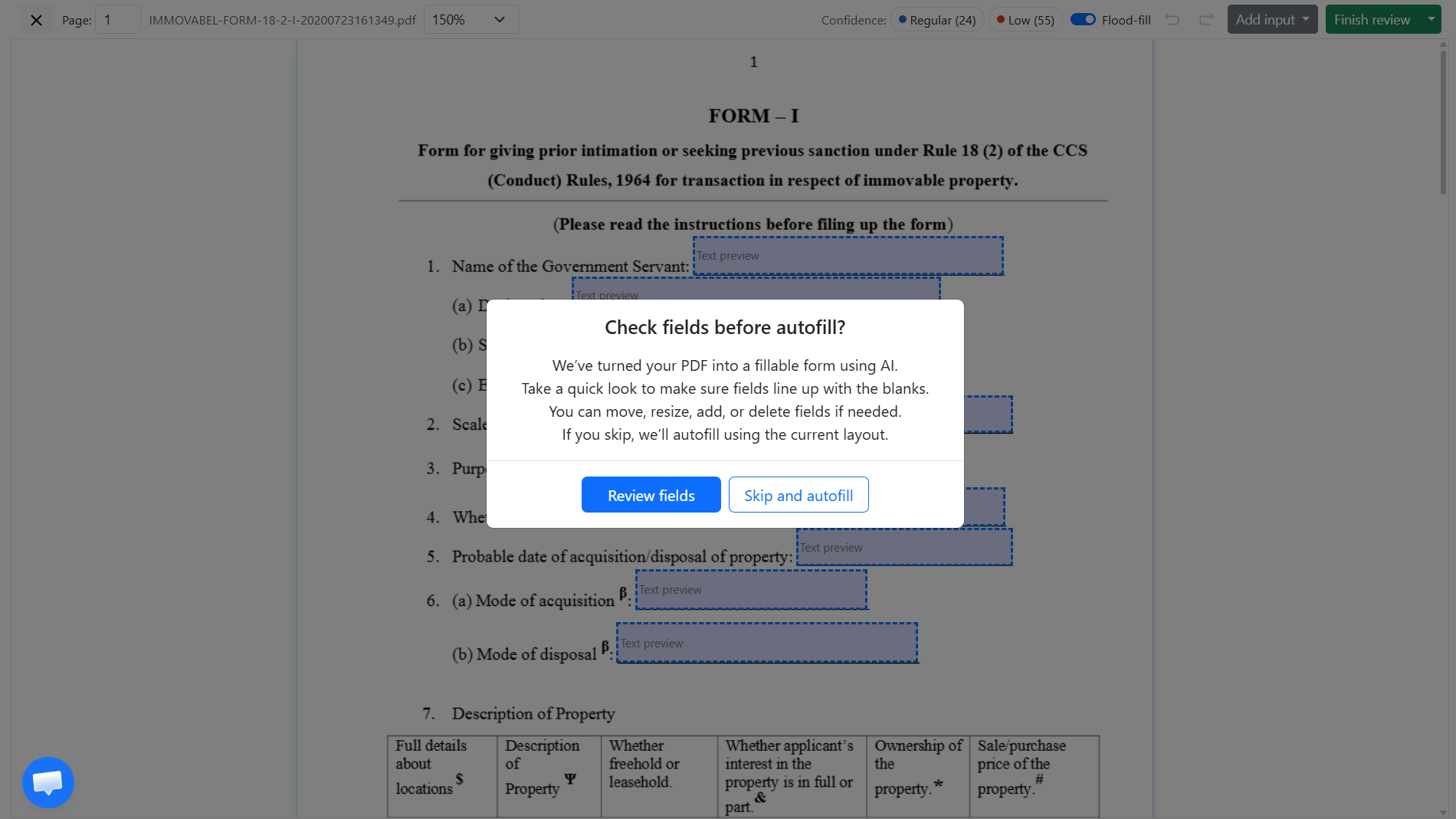
When conversion is complete, the form status changes to "Ready for Review." A review screen opens showing every detected field overlaid on the document as a blue dashed box. Confidence indicators at the top show how many fields were detected with high confidence (Regular) and which may need a closer look (Low).
At this point you have two options: click "Review fields" to check the layout before filling, or click "Skip and autofill" to go straight to the fill session. Most users review the first time they upload a new form type.
In review mode you can move, resize, add, or rename fields using the field editor. You can also download the converted fillable PDF directly from the "Finish review" dropdown if you only need the template without running a fill.
3. Fill with AI
Once you click "Finish review," the form opens in a fill session. Paste the data you need in the Input tab, or attach source documents (PDFs, Word files, spreadsheets, images) in the Files tab. Click Submit and the AI fills the form.
The converted template is saved permanently in your account. Every future fill of the same form reuses it - no re-conversion needed.
For a step-by-step guide to converting flat documents into fillable forms, see How to create fillable PDF forms automatically with Instafill.ai.
Using the Create Fillable PDF Tool for More Control
The Create Fillable PDF tool is a free standalone converter that works with both flat PDFs and Word documents (.doc and .docx). It gives you additional settings that are not available in the standard dashboard upload flow:
| Setting | What it does |
|---|---|
| Pages to convert | Convert the full document or select specific pages only (e.g., "1,3-5"). Useful for long documents where only certain pages contain form fields. |
| Confidence | Controls field detection sensitivity (range: 0.005 to 1). Lower values detect more fields but may include false positives. The default is 0.01. |
| Image resolution | Set between 440 and 3000. Higher resolution improves detection accuracy on poor-quality documents but increases processing time. Default is 1600. |
| Speed mode | Fast mode trades some accuracy for speed and runs in roughly half the time. Default mode is more thorough. |
| Cache mode | When enabled, the conversion reuses cached page data to improve speed on previously processed documents. |
After conversion, the tool lets you review the detected fields, move or remove any that are incorrect, and download the fillable PDF. Once you have a clean template, upload it to your Instafill.ai account to use it with AI autofill, batch processing, or the API.
No signup is required to use the tool.
Uploading a Word File as Source Data
When filling a PDF form, you can attach Word documents in the Files tab of any fill session. The AI reads the content page by page - paragraphs, tables, lists - and maps relevant data to the target form's fields. This works the same way it reads PDFs, images, or spreadsheets.
This is useful when your data lives in Word documents: a client intake form the client filled in Word, a physician CV, an employee information sheet. Instead of copying values manually, attach the Word file and let the AI extract what it needs.
A paralegal, for example, receives a 6-page form alongside Word-based intake notes. Instead of copying field values one by one, they attach the intake notes as a source and the AI fills the PDF form from them automatically.
Word source files work alongside other source types in the same session. Attach a .docx alongside a scanned insurance card and a prior PDF application - the AI draws from all of them together and flags any conflicts for your review.
Key Capabilities
| Capability | Detail |
|---|---|
| Three Word formats | .doc, .docx, and .docm - all accepted as both form uploads and source files |
| Automatic conversion | Word files uploaded as forms are converted to PDF automatically - no manual export step |
| Conversion tool with advanced settings | The Create Fillable PDF tool adds page selection, confidence, resolution, speed mode, and cache controls |
| Field detection after conversion | The AI detects fields in the converted PDF the same way it handles flat PDFs - typically 70-100% of fields detected automatically |
| Review before autofill | A visual review step lets you check, add, or remove detected fields before filling |
| Skip to autofill | If you trust the field detection, skip the review and go straight to the fill session |
| Download the converted PDF | Available from the Finish review dropdown - useful if you only need the fillable template |
| Word as source data | Attach .doc or .docx files as sources in any fill session - the AI reads them page by page and maps data to form fields |
| One-time conversion | Once converted, the template is saved permanently and reused for every future fill, batch job, or API call |
| Combine with other sources | Word source files work alongside PDFs, images, spreadsheets, and pasted text in the same session |
Use Cases
HR onboarding and employee forms
HR teams often receive employee-provided documents in Word format - personal data sheets, signed acknowledgments, emergency contact records. Uploading these as source files means the data flows into the target PDF form (a benefits enrollment packet, a W-4, an I-9) without anyone retyping names, addresses, or dates by hand.
If your onboarding packet is a Word-format template, upload it directly. The AI converts it, detects the fields, and saves it as a reusable form. Every new hire's packet fills from that same template.
Legal and contracts
Law firms maintain Word-based client intake questionnaires, prior matter documents, and engagement letters. When a court form or regulatory filing needs to be completed, attaching the relevant Word file as a source means the AI extracts party names, dates, and case details and maps them to the target form - no copy-paste, no manual field comparison.
See how one law firm automated their entire intake workflow: Legal AI Case Study: How GHNY Law Automated Client Intake Using Instafill.ai
Healthcare credentialing
Physician CVs, clinical privilege letters, and referral documents frequently arrive as Word files. Attaching them as sources when filling credentialing packets extracts education history, license numbers, board certifications, and procedure lists without manual transcription.
See how a teleradiology company reduced credentialing time from 3-4 hours to under 30 minutes per packet: Hawkeye Physicians case study
Legacy document archives
Organizations with years of completed records stored as .doc or .docx files can use those archives as source data for filling current-format forms. .doc files from Word 97-2003 work the same way as modern .docx - no resaving or IT intervention needed.
Benefits
- No manual Word-to-PDF export step - upload the .doc or .docx directly and the conversion happens automatically
- Convert once, reuse permanently - the template is saved in your account and works with every future fill, batch job, or API call
- Field detection typically covers 70-100% of a document's fields automatically - the review step handles the rest
- Word source files are read page by page, so content spread across a long document is fully extracted
- Works alongside other source types - attach a Word file and a PDF in the same session and the AI combines them
- The free Create Fillable PDF tool gives you extra conversion controls when you need them - confidence sensitivity, resolution, page selection, and speed settings
Security & Privacy
Word documents uploaded to Instafill.ai are handled with the same security controls as all other source documents:
- Workspace-scoped access: Files are accessible only to users authenticated within the originating workspace.
- Encrypted storage: All stored data is encrypted at rest with AES-256. All connections use TLS.
- No AI training: Word documents you upload are processed only for your specific filling session. They are never used to train or fine-tune AI models.
- Configurable retention: Source documents follow the workspace retention policy and can be configured for automatic deletion after a defined period.
- Stateless option: For highly sensitive documents - privileged legal files, medical records, financial statements - enabling "Remove files immediately after processing" deletes all source content from Instafill.ai's servers as soon as the form is filled.
Common Questions
Which Word formats are supported?
Three formats are supported:
- .docx - Modern Word (Office 2007 and later). Text is read directly from the XML structure, capturing paragraphs, table cells, and list items.
- .doc - Legacy binary format (Word 97-2003). Most content is recovered, though some heavily formatted layouts may lose structure.
- .docm - Macro-enabled Word documents. Treated identically to .docx for text extraction and conversion. Macros are not executed during processing.
.dotx and .dotm (Word template formats) are not currently supported as direct uploads - save these as .docx before uploading.
Do I need to export my Word file to PDF before uploading?
No. Upload the .doc or .docx directly. Instafill.ai converts it to PDF automatically when you upload it as a form. If you are using the Word file as source data, just attach it as-is in the Files tab of any fill session.
What happens during the review step?
After conversion, the form opens in a review screen showing every detected field overlaid on the document as a blue dashed box. Fields detected with high confidence are marked Regular; fields where detection was less certain are marked Low.
You can move, resize, rename, add, or remove fields using the editor. When you are done, click "Finish review." If you want to skip the review entirely, click "Skip and autofill" when the review screen appears. You only need to review once per form type - future fills reuse the saved template.
Can I download the converted form without filling it?
Yes. In the review screen, open the dropdown on the "Finish review" button and select "Download PDF." This gives you the fillable PDF version of your Word document without running a fill session.
The standalone Create Fillable PDF tool at instafill.ai/tools/create-fillable-pdf also lets you convert and download without needing a dashboard account.
How accurate is field detection on a converted Word document?
Accuracy depends on how clearly the document's layout signals where fields are. Documents with labeled blank lines, underscores, or table cells convert cleanly and typically reach 70-100% automatic detection.
A good practice for Word documents you plan to use repeatedly: add underscores where fields should appear before uploading (for example, "Name: __________"). The AI recognizes these as fillable field locations.
For documents without clear field signals, use the review step to add or adjust fields before saving the template. The Create Fillable PDF tool also lets you lower the Confidence setting to detect more fields, which is useful for documents with subtle or non-standard field indicators.
Is a Word document read as accurately as a PDF when used as a source?
For source files, Word documents are read page by page and text is extracted directly from the file structure - not from a rendered image or scan. This means the content is clean and complete, without OCR quality issues that can affect scanned PDFs.
For Word files used as form templates (converted to PDF), accuracy depends on how clearly the document communicates field positions. See the August 2025 core algorithm update for details on how Word source reading was improved - including page-by-page extraction that ensures content from long documents is fully captured.
Can I use a Word file alongside other source types in one session?
Yes. In a fill session, attach a .docx alongside a PDF, a scanned image, or a spreadsheet. The AI reads all of them and maps data to the form fields. If the same field value appears in multiple sources with different values, it is flagged for your review in the visual editor rather than filled silently.
Can I fill Word-based forms in batch?
Yes. Once a Word-based form has been converted and saved as a template, it works with batch processing the same way any PDF form does. Upload a CSV or spreadsheet with one row per fill, and the system generates one completed PDF per row.
What is the file size limit?
Both the dashboard upload and the standalone Create Fillable PDF tool accept files up to 10 MB. For files over 10 MB, contact [email protected].