Download Filled Forms as PDF or Word
Download every filled form in the format the next step of your workflow actually requires - editable PDF, flat PDF, merged batch PDF, or Word.
Overview
A filled form that cannot be delivered in the right format is not actually done. A government agency that rejects fillable PDFs, a client who needs to adjust a field before signing, a legal team that requires a Word copy for redlining, a compliance department combining 80 submissions into one file - each scenario has a different output requirement, and none of them are edge cases.
Instafill.ai is an ai pdf filler that gives you explicit control over how filled documents leave the platform. After a form filling session completes, you click Download, enter a filename, and choose your format: an editable PDF with interactive fields still intact, a flat PDF with fields baked permanently into the page, or a Word (.docx) file for organizations that need to keep editing in Microsoft Word. For batch jobs, all filled forms can be merged into a single flat PDF for consolidated delivery.
The format choice does not change the content - field values, checkbox states, and signatures are preserved identically across all formats. The choice determines what the recipient can do with the file after they receive it.
Output Formats
Editable PDF (Default)
The default output of every filled session is an editable PDF - the filled form with its interactive fields still active. Field values are populated, but the recipient can open it in Adobe Acrobat, Preview, or any standard PDF viewer, click into a field, and make changes.
Before downloading, you can also edit field values directly inside Instafill.ai. After autofill completes, the filled form is shown with all values visible. Click into any field, correct a value, adjust a checkbox, or update text - changes are saved automatically. Whatever values are in the form when you click Download are what appear in the downloaded file.
Use editable PDF when:
- You are delivering a pre-filled form to a client or applicant who will review and optionally modify it before submitting
- Your workflow includes a signature step and you want the recipient to complete it themselves
- The form requires review and approval with potential corrections from multiple parties
- You want the recipient to be able to export the field data programmatically
Flat PDF (Print-Ready, Tamper-Proof)
A flat PDF has no interactive fields. When you check "Make form flat" in the download dialog, all field values are stamped permanently into the page. The document looks exactly like the filled form but cannot be edited in any PDF viewer. There are no interactive elements, no field borders, and no form layer of any kind.
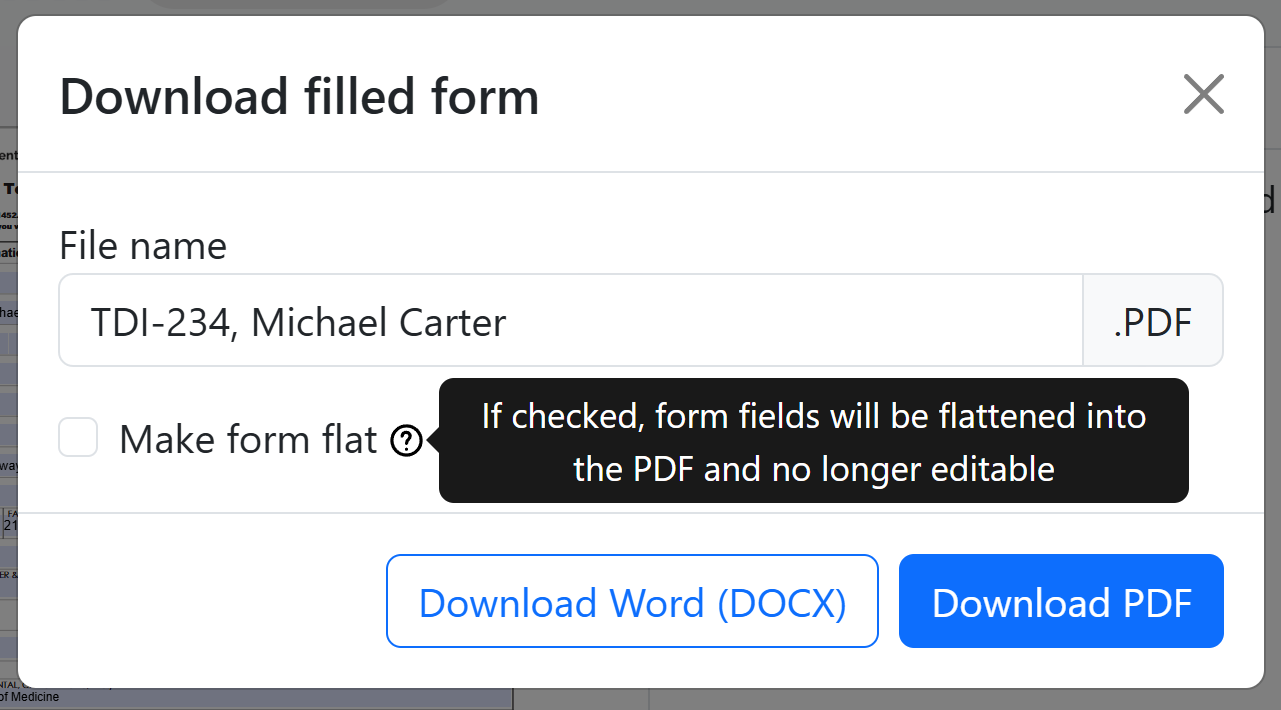
The tooltip in the download dialog puts it plainly: "If checked, form fields will be flattened into the PDF and no longer editable."
Use flat PDF when:
- Submitting to government agencies or portals that reject fillable PDFs (USCIS, CMS, state agencies, court systems)
- Archiving completed documents - flat PDFs cannot be accidentally modified
- Printing and physical filing - no field borders or highlighting artifacts in printed output
- Sending to parties who should not be able to alter values after the fact
- Any workflow where the document needs to be locked at the point of delivery
Word (.docx) Export
Filled forms can be exported as Word documents for organizations that need to continue working with the content in Word - adding commentary, tracking changes, adjusting layout, or feeding into a downstream Word-based workflow.
Click "Download Word (DOCX)" in the download dialog. The filled content is converted into Word format while preserving the values AI placed in each field.
Use Word export when:
- The filled document needs further editing that is easier in Word than in a PDF editor
- Downstream systems consume Word files (contract management platforms, document assembly tools, HRIS)
- Legal or compliance teams require a Word copy alongside the PDF for review and annotation
- The organization's standard for completed documents is Word, not PDF
Merged Batch PDF
When batch filling produces the same form for many records - 100 insurance renewals, 50 onboarding packets, 200 compliance certifications - the individual filled PDFs can be merged into a single flat PDF for consolidated delivery.
Select the completed rows you want to include, click "Merge into flat PDF," and adjust the page range if needed (the default is the full form). Instafill.ai creates one flat PDF and opens it in the viewer. Click Save to download. The merged output is always flat - all field values are baked into the page so the result is a standard, non-interactive document.
Use merged batch PDF when:
- Submitting a batch of completed forms to an agency or client in one file
- Creating a consolidated archive of all records processed in a batch run
- Printing a full batch in one job rather than downloading and printing 100 separate files
- Generating a combined report where all filled forms appear as sequential pages
For a full walkthrough of the batch merge and e-sign workflow, see How to bulk fill PDF forms automatically using an AI form filler.
How the Download Dialog Works
After AI fills a form, the Results panel shows the processing time and a Download button. Click it and the "Download filled form" modal opens with three controls:
File name - An editable text field with the filename pre-populated (typically the form name plus any identifying data like a client name). Change it before downloading if you need a specific naming convention.
Make form flat - An unchecked checkbox. When you check it, the tooltip confirms: "If checked, form fields will be flattened into the PDF and no longer editable." Leave it unchecked for an editable PDF. Check it for a flat, submission-ready PDF.
Two download buttons - "Download Word (DOCX)" on the left and "Download PDF" on the right. Both apply the current "Make form flat" state. You can download the same session multiple times in different formats without re-running the fill.
Use Cases
Government and regulatory submissions
Many federal and state agencies - USCIS, CMS, state licensing boards, court systems - require flat PDF submissions. Fillable PDFs are rejected by portal validators or flagged by automated compliance checks. After filling immigration forms, CMS enrollment forms, or permit applications, checking "Make form flat" before downloading ensures the submission passes portal requirements without manual processing.
A real estate attorney handling Cook County closings and court filings converted flat court forms into reusable templates and downloads flat PDFs for every filing: Case Study: How a Real Estate Law Firm Turned Flat PDFs into a Reusable Form Library with AI
Client delivery with editing latitude
Mortgage brokers, insurance agents, and benefits administrators frequently pre-fill forms on behalf of clients, then deliver a partially completed form for client review. Editable PDF is the right format here - the client receives a form with their information already filled in, can verify each value, correct anything wrong, and sign. No retyping from scratch.
Legal document finalization
Law firms that fill court filings, discovery forms, and regulatory submissions need flat PDF for anything going to opposing counsel, courts, or agencies. Word export serves the internal workflow - partners reviewing a pre-filled agreement draft can track changes in Word before the final version is flattened for delivery.
See how a law firm automated their entire intake and delivery workflow: Legal AI Case Study: How GHNY Law Automated Client Intake Using Instafill.ai
Batch insurance and compliance processing
An insurance back-office running nightly batch jobs to fill 500 renewal forms needs one merged flat PDF per carrier, not 500 individual downloads. The batch merge feature produces a single consolidated PDF with all renewals sequenced, ready for bulk submission. After merging, you can add a signature directly in Instafill.ai before downloading. See how to e-sign PDF documents with AI form filler for a walkthrough.
HR onboarding packet delivery
HR teams using batch processing to fill onboarding packets for new hire classes need different output for different parties: editable PDFs go to new hires who sign digitally, flat PDFs go to the HRIS for archival, and Word exports go to the HR business partner who tracks amendments. Multiple format downloads from the same filled session serve all three without refilling anything.
Benefits
- No manual flattening - no more opening each filled PDF in Acrobat, printing to PDF, and saving. Check "Make form flat" and download
- One filled form, multiple delivery formats - download the same session as editable PDF for the applicant and flat PDF for submission without re-running autofill
- Batch consolidation removes the problem of 100-file downloads - a 200-row batch produces one merged PDF ready for submission or printing
- Correct format on first delivery - submitting a fillable PDF to a portal that requires flat means rejection and resubmission delay. The checkbox removes this failure mode
- Word export for teams that stay in Word - no rebuilding the document in Word manually after filling
- Rename the file before downloading - the filename field in the dialog is editable, so you set the naming convention before the file hits your downloads folder
Security & Privacy
Export and download operations follow the same access controls as the rest of the platform:
- Workspace-scoped access: Only users with permissions for the originating session can download output files.
- Encrypted storage: Output files are encrypted at rest with AES-256. All connections use TLS.
- No AI training: Files you fill and download are never used to train or fine-tune AI models.
- Configurable retention: Downloaded files remain accessible for the workspace retention period. Automatic deletion after a configured window prevents indefinite retention of sensitive completed documents.
- Flat PDF privacy: Flat PDF export removes the interactive field layer entirely - the output contains no extractable field structure that could expose field names or form schema to downstream recipients.
Learn more on the Security page.
Common Questions
Can I edit field values inside Instafill.ai before downloading?
Yes. After autofill completes, the filled form is shown with all field values populated. Click into any field directly to correct a value, update text, or change a checkbox state. Changes are saved to the session automatically. When you download in any format, the file reflects the current field values including any edits you made after autofill.
This is the recommended step before flattening or sharing: review the AI-filled values, make any corrections needed, then export in your chosen format.
Can I choose the output format after filling, or do I set it before?
Format selection happens at download time, after filling completes. You fill the form once. The output format is determined when you click Download and choose whether to check "Make form flat" and which button to click. This means you can download the same session as an editable PDF for one recipient and a flat PDF for another without re-running the fill.
Does flattening change the visual appearance of the form?
No. The filled values, checkbox states, and layout remain visually identical. The difference is structural, not visual.
What changes in a flat PDF: no clickable fields, no tab navigation between fields, no field highlights when hovered. What stays the same: all text values appear exactly as filled, checkboxes render as marked or unmarked, the page layout is preserved. Flat PDFs often render more consistently across PDF viewers because they do not depend on the viewer's form-rendering engine.
Which government agencies require flat PDF submissions?
Requirements vary by agency and portal, but flat PDF is commonly required by:
- USCIS e-filing portals: Many immigration forms must be submitted as flat PDFs, not fillable
- CMS enrollment portals: Medicare/Medicaid enrollment submissions often require non-interactive PDFs
- State licensing boards: Medical, legal, and professional licensing boards frequently specify flat PDF
- Federal court systems (CM/ECF): Court filing systems may reject PDFs with interactive elements
- State DMVs and motor carrier authorities: Vehicle and carrier registration forms
When in doubt, check "Make form flat" before submitting to any government portal. Flat PDFs are universally accepted, while fillable PDFs are sometimes rejected.
Can I flatten a PDF that was filled outside of Instafill.ai?
Yes. The Instafill.ai API accepts any pre-filled PDF and returns a flattened version. You do not need to have filled the form through Instafill.ai - you can upload a pre-filled PDF from any source and flatten it programmatically. See the API documentation for details on the flatten endpoint.
Is there a page limit for batch merges?
There is no hard page limit on batch merges. The merge processes all selected rows. Very large merges (thousands of pages) may take longer and produce large file sizes. For extremely high-volume batches, consider merging in segments by date range, region, or record type, and downloading multiple consolidated files rather than one very large PDF.
Does the Word export preserve form field structure?
Word export converts the filled document content into Word format for further editing. It is intended for workflows where the filled content needs to continue as an editable document, not as a structured form. If you need programmatic access to field names and values as data rather than a formatted document, the API returns a structured JSON of field IDs, labels, and values for each filled session. See the API documentation for details.
Can I sign the merged PDF before downloading?
Yes. After merging, the PDF opens in the viewer and you can add a signature directly in Instafill.ai - type, draw, or upload an image of your signature. Save the changes and download the signed flat PDF. No external e-signature tool needed. See how to e-sign PDF documents for a step-by-step walkthrough.