PDF Field Extraction & Detection
Upload a PDF form and Instafill.ai reads every field automatically - names, types, positions, character limits, dropdowns, checkboxes, and tables. One-time analysis, then instant fills forever.
Overview
Before an AI form filler can fill out a form, it needs to understand the form. Which fields exist, what type each field is, how fields relate to each other, where tables and repeating sections appear, and which labels map to which inputs.
That's what PDF Field Extraction does. When you upload a fillable PDF to Instafill.ai, the platform runs a one-time analysis called fine-tuning. It reads every field in the document - text fields, checkboxes, radio buttons, dropdowns, date fields - and builds a complete map of the form's structure. This typically takes 5-20 minutes (depends of the form) and runs in the background. You get an email when it's done.
Once fine-tuning is complete, the form is ready for automated filling. Every form filling session, batch fill, and API call uses the extracted field map. You never wait for extraction again - it runs once, and results are stored permanently.
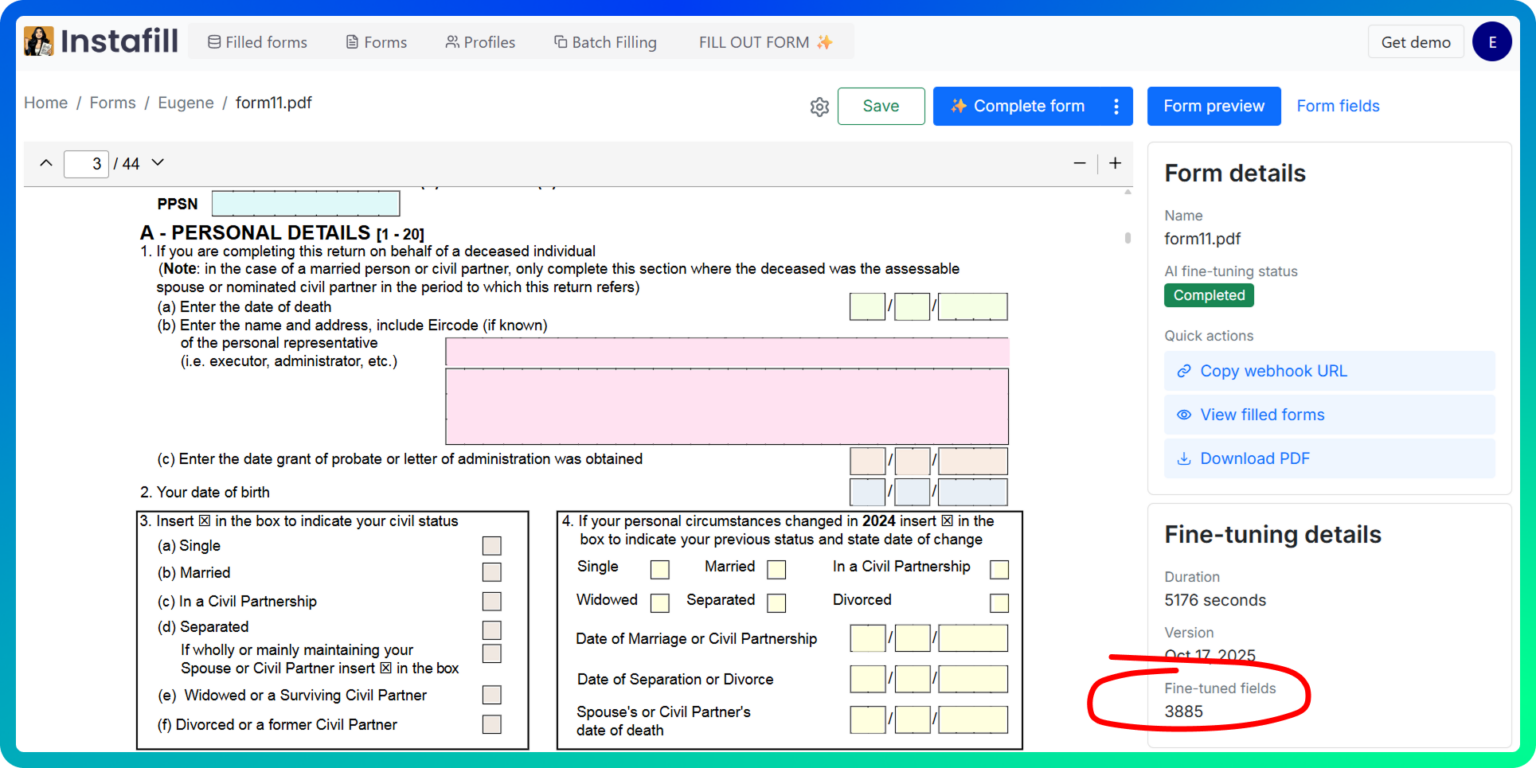
This process has been tested on forms ranging from a 1-page USCIS e-notification to a 44-page Irish tax return with 3,885 fields. MLS real estate forms with over 1,200 fields extract at 95-97% accuracy. One client scaled from 100 to 5,000 government forms per month using the same extraction infrastructure.
What the AI Extracts
For every field in the PDF, the AI reads and records:
| Property | What it means |
|---|---|
| Field name | The internal identifier used by the PDF (e.g., "Applicant_First_Name") |
| Field type | Text, checkbox, radio button, dropdown, date, number, or time |
| Field label | The visible label or tooltip associated with the field |
| Page number | Which page the field appears on |
| Character limit | Maximum characters allowed (when set by the form author) |
| Current value | Any pre-filled data already in the field |
| Dropdown/radio options | List of allowed choices for dropdown menus and radio button groups |
Beyond reading individual fields, the AI also performs structural analysis:
Split-field merging. Government forms frequently split a single logical field across multiple narrow boxes. A date field on a USCIS form might be three separate inputs for month, day, and year. A name field on an IRS form might span three boxes for last, first, and middle initial. The AI detects these patterns and groups them so filling treats them as a single unit - populating "01/15/1985" across three adjacent widgets from a single date value.
Table detection. Dense grids of fields - like the service line section on CMS-1500 claim forms or IRS schedule rows - are identified as tables with row and column structure. This lets batch operations map tabular data directly to table rows without manual column mapping.
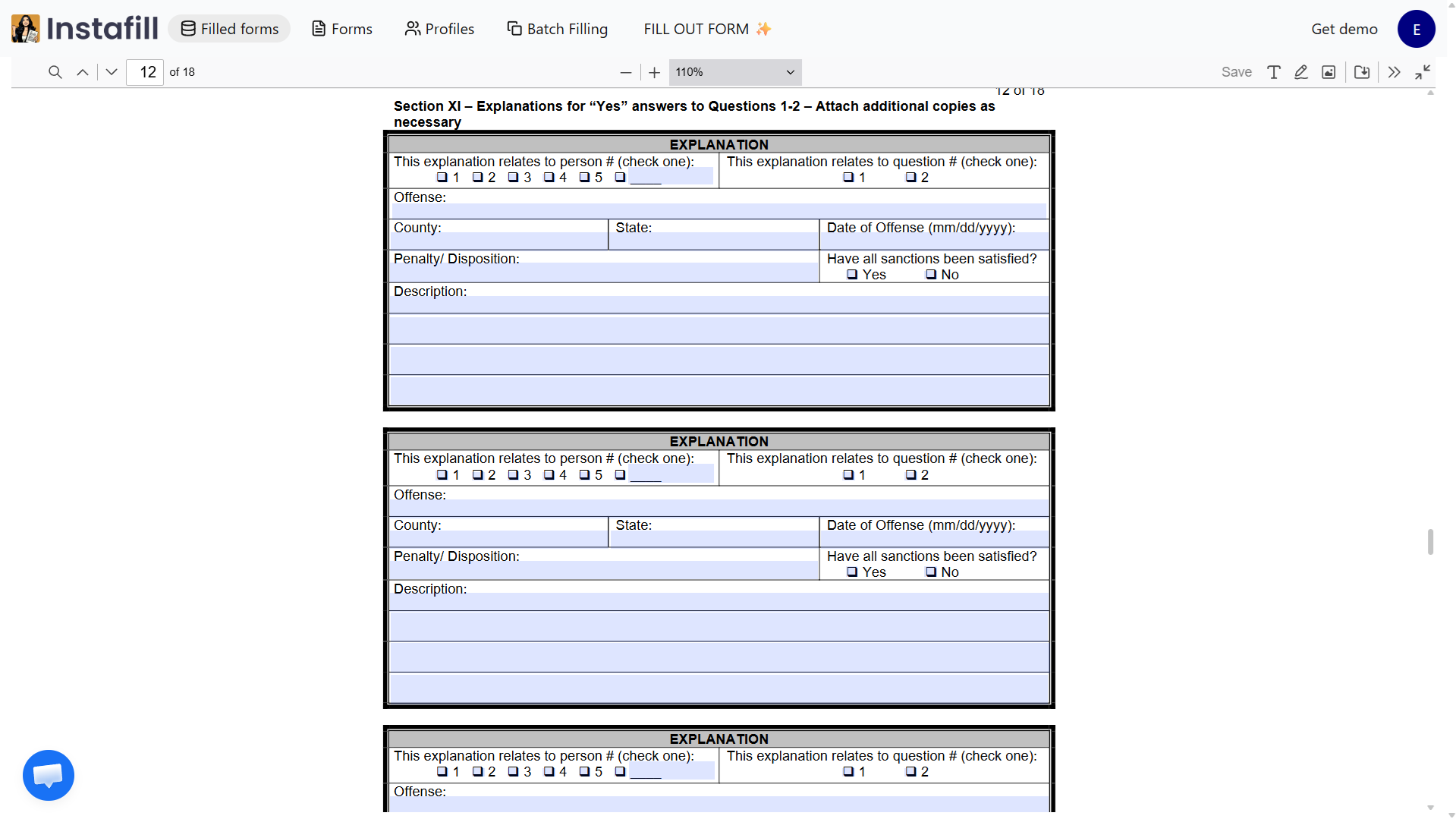
Repeatable section detection. Multi-page forms often repeat the same field group across pages. For example, the Florida DBPR CILB 6-B contractor license application repeats an identical "Explanation" section three times on consecutive pages. The AI recognizes each as a distinct instance, preventing data from being duplicated or placed in the wrong section.
How It Works
1. Upload your form
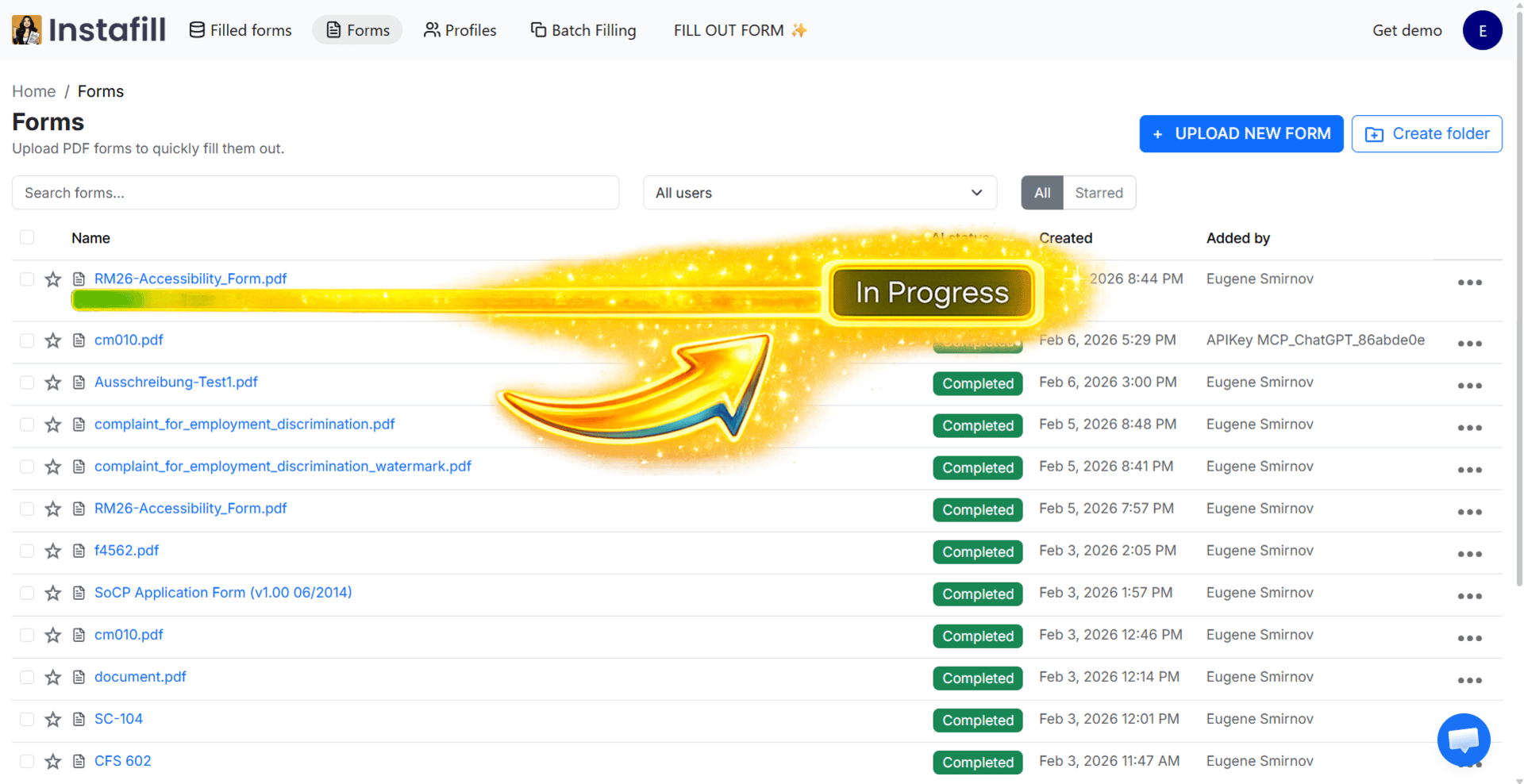
Upload a PDF in the Forms section. If your document is a flat (non-fillable) PDF or a Word template, convert it to a fillable form. Alternatively, if you upload a flat document in your dashboard, Instafill.ai detects it automatically and starts conversion.
2. Fine-tuning runs automatically
The AI reads every field in the document and builds a complete structural map: field names, types, positions, character limits, dropdown options, field groups, table layouts, repeating sections, and split-field relationships. This takes 5-20 minutes for most forms. You'll receive an email when fine-tuning starts and when it finishes.
If the form was already fine-tuned previously, this step is skipped entirely.
3. Review and adjust (optional)
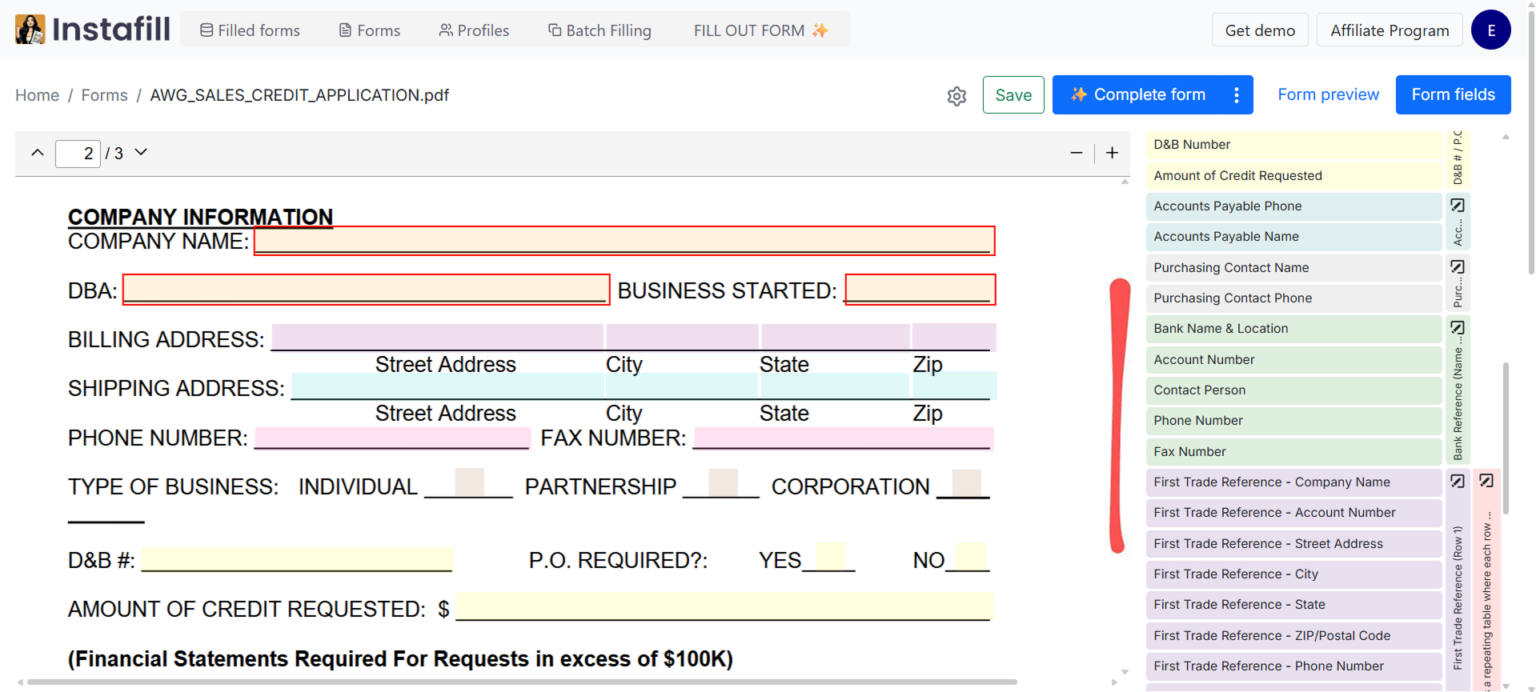
After fine-tuning, you can review the extracted fields in the Field Editor. From there you can:
- Rename fields to clarify their purpose
- Adjust field groupings (e.g., group all address fields together)
- Set dependencies between fields (e.g., a date field copied to multiple locations)
- Add custom instructions for specific field groups
- Choose AI model and reasoning effort per group (lighter for simple fields, more advanced for complex tables)
- Ignore fields that should stay blank
All edits are saved permanently and apply to every future fill.
4. Fill with confidence
The form is now ready. Every session, batch operation, and API call uses the extracted field map. Filling a typical 3-6 page form takes 15-20 seconds.
Detailed walkthrough: How Instafill.ai Works covers the full process from upload to filled PDF with screenshots.
Field Extraction Challenges by Form Type
Not all PDFs are created equal. Here's how field extraction handles the specific challenges that come up in real-world forms.
Split fields on government forms
USCIS immigration forms (I-485, I-765, I-130) and IRS tax forms split dates and names across multiple narrow boxes - three separate inputs for month, day, year, or last name, first name, middle initial. The AI detects horizontally aligned fields on the same baseline and groups them so the fill layer treats them as a single unit.
Hong LLC, an immigration law practice in Minnesota, uses this to fill complete USCIS packets (I-485 at 18 pages, I-765 at 13 pages, I-130 at 12 pages) from a single client profile. The same client data populates consistently across 3-4 forms per case, with split-field dates and names handled automatically. Read the full case study
Forms with 1,200+ fields
MLS Data Information Forms used in Ontario real estate transactions contain over 1,200 fields per document - property measurements, features, parking details, zoning information, and hundreds of checkboxes and dropdowns. A Toronto-based brokerage processes approximately 15 unique form types per transaction, and the AI extracts all of them at 95-97% first-pass accuracy. Processing time dropped from 20-40 minutes manual to under 2 minutes per form. Read the full case study
Word templates converted to fillable PDFs
ABA therapy practitioners often work with Word document templates - 20-30 page assessment reports from providers like Wonderway ABA, Accomplish ABA, and Shining Star ABA. Each provider uses a slightly different template format. Instafill.ai converts these Word documents to fillable PDFs, then fine-tunes them. One independent BCBA reduced report completion time from 2.5-3.5 hours to approximately 2 minutes per report, with 99% accuracy after fine-tuning. Read the full case study
Flat (non-fillable) PDFs
Most government forms, real estate documents, and compliance forms arrive as flat PDFs with no interactive fields. These must go through flat-to-fillable conversion before field extraction can run. The conversion creates the interactive field layer, and then fine-tuning reads and maps every field. Ireland's Form 11 (Tax Return) is the largest example: the original had no interactive fields, and Instafill.ai converted it into a fully fillable PDF with 3,885 fields across 44 pages. Read the milestone post
Repeatable sections across pages
Multi-page government and licensing applications often repeat identical field groups on consecutive pages. The Florida DBPR CILB 6-B application for Certified Building Contractor is an 18-page form with an Explanation section repeated three times. Before the AI could detect these patterns, data could be duplicated across sections or mapped to the wrong instance. Now the AI identifies each repetition as a distinct entry during fine-tuning and fills only the correct instance. Read the update
Tables and structured grids
CMS-1500 healthcare claim forms, IRS schedules, and financial applications contain dense grids of fields arranged in rows and columns. The AI identifies table structures during extraction and assigns row and column metadata to each field. This means batch operations can map tabular source data (CSV rows, spreadsheet columns) directly to the correct table cells without manual column mapping.
Forms from multiple providers
Many professionals work with the same type of form from different issuers, each with its own field layout. ABA practitioners manage templates from 4+ therapy companies. Immigration attorneys handle USCIS forms that get updated periodically. Real estate brokerages process forms from different MLS boards and jurisdictions. Construction consultants receive prequalification forms from dozens of general contractors, each with a unique format. Field extraction handles each variant independently - fine-tune once per form, then fill any number of times.
Proven Scale
Field extraction has been tested across a wide range of form sizes and volumes:
| Metric | Proven range |
|---|---|
| Smallest form | 1-page G-1145 (USCIS e-notification) |
| Typical form | 6-20 pages (I-485, CMS-1500, W-4, OREA Form 100) |
| Largest form | 44 pages, 3,885 fields (Ireland Form 11 Tax Return) |
| Most fields per form | 1,200+ (Ontario MLS Data forms, 95-97% accuracy) |
| Highest monthly volume | 5,000 forms/month (Government Forms) |
| Fine-tuning time | 10-20 minutes for most forms, runs once |
| Fill time after extraction | 15-20 seconds for typical 3-6 page forms |
Industry Results
Field extraction is the foundation for every fill. Here's how it performs across industries, with published case study data.
| Industry | Forms | Extraction challenge | Result | Case study |
|---|---|---|---|---|
| ABA therapy | Word templates from Wonderway ABA, Accomplish ABA, Shining Star ABA. 20-30 page assessment reports. | Word-to-PDF conversion + fine-tuning. Multiple provider templates. | 3 hours to 2 minutes per report. 99% accuracy. | Independent BCBA |
| Immigration law | USCIS I-485 (18p), I-765 (13p), I-130 (12p), G-1145 (1p). 3-4 forms per case. | Split-field dates and names. Cross-form data consistency. | 75-80% time reduction per form. 2-3x more cases. | Hong LLC |
| Real estate | MLS Data forms (1,200+ fields), OREA Form 100, FINTRAC Form 630. ~15 forms per transaction. | 1,200+ fields. Many arrive as flat PDFs. | 95-97% accuracy. Under 2 min per form. 40+ hours saved monthly. | Toronto brokerage |
| Healthcare credentialing | Credentialing applications across SFHP, GCHP, Blue Shield Promise, Central California Alliance. | Multiple health plan forms, each with different layout. | Automated credentialing across CA Medi-Cal plans. | Raya Health |
| Construction | Subcontractor prequalification forms from SDB Inc, Vision Builders, Emerson Construction. DBPR applications. | Different GC form per project. Repeatable sections. | Standardized extraction across varying contractor forms. | Fender Strategic Group |
| Financial services | HTK Recommendation forms, Account Agreements, EquiTrust Annuity applications. | Multi-page financial documents with complex field logic. | Automated annuity and compliance paperwork. | 1847Financial |
| Tax | IRS 1040, W-4, state returns. Ireland Form 11 (44 pages, 3,885 fields). | Largest field count ever processed. Flat PDF converted to fillable. | 96% time reduction (4-6 hours to under 10 minutes). | Form 11 milestone |
| Government benefits | UK government benefits forms at high volume. | Scale: 100 to 5,000 forms/month. | Same team handles 50x volume increase. | Silverwings Benefits |
| Legal (guardianship) | MA Probate Court petitions, treatment plans, bonds, estate planning. 50+ forms. | Court-specific forms with legal terminology. | Automated guardianship and estate planning forms. | Mariscal Special Needs Law |
| Veterans services | VA Disability Benefits Questionnaires (DBQs) for multiple body systems. | High-volume, multi-system medical questionnaires. | Automated DBQ processing for neck, back, hip, knee. | Operation Veterans Edge |
Keeping Extraction Accurate
| Feature | |
|---|---|
| ✓ | One-time extraction, permanent results. Fine-tuning runs once per form. Results are cached and reused for every fill. |
| ✓ | Regenerate fine-tuning. As the AI improves weekly, click one button to re-extract with the latest algorithms while preserving all your manual edits (renamed fields, descriptions, dependencies, ignored fields stay intact). |
| ✓ | Field Editor for corrections. If extraction gets a field wrong, fix it yourself. Rename fields, adjust groupings, set dependencies, choose AI model per field group, add custom instructions. All edits apply to every future fill. |
| ✓ | Flag incorrect fields. Don't have Field Editor access? Flag any field as incorrect, and the Instafill.ai team will investigate and fix it - typically within 24 hours. |
| ✓ | Auto fine-tune new fields. Add fields using the layout editor, and they're automatically fine-tuned. No need to re-process the entire form. |
| ✓ | Character limit enforcement. Character limits from the PDF are surfaced in the field map, so filling logic truncates or warns before exceeding them. |
| ✓ | Pre-filled value preservation. Fields that already contain data (form version numbers, agency codes, read-only text) are detected and left untouched during fills. |
| ✓ | Multi-select field editing. Select multiple fields at once (Ctrl/Cmd+click) and batch-edit grouping, toggle ignore, or run fine-tuning for just those fields. Essential for forms with hundreds of fields. |
Common Questions
Does this work with scanned or flat PDFs?
Field extraction reads the interactive fields built into a PDF. A scanned or flat PDF has no interactive fields to read. In that case, you need to convert it to a fillable form first - either using the our flat-to-fillable PDF converter or by uploading to the Forms dashboard, which auto-detects flat documents and converts them. Once converted, extraction works normally.
How long does fine-tuning take?
5-20 minutes for most forms. A 2-page form with 33 fields processes faster. A 44-page form with 3,885 fields takes longer but still completes in a single pass. You'll receive an email when it starts and when it finishes. Fine-tuning runs once - after that, fills are instant.
What if the AI misses a field or gets the type wrong?
Two options. If you have Field Editor access, open the form's field list, find the field, and correct it yourself - your edit applies to all future fills. If not, use the field flagging and accuracy improvement feature to report the issue, and the Instafill.ai team will fix it.
Can I re-run extraction after AI improvements?
Yes. Click "Regenerate fine-tuning" in the form details panel. The AI re-extracts with the latest algorithms while preserving all your manual edits. We improve field extraction algorithms weekly, so forms fine-tuned months ago benefit from regenerating.
What about Word document templates?
Word documents (.doc, .docx) need to be converted to fillable PDFs before extraction. Instafill.ai handles this in the Forms dashboard - converts Word documents to fillable PDFs, then fine-tuning runs automatically. ABA therapy practitioners, for example, routinely convert 20-30 page Word assessment templates from multiple providers this way.
Does extraction support XFA forms?
Partially. Some XFA forms can be read, but dynamic fields that appear or disappear based on user input are not supported. Use the XFA PDF checker to instantly detect whether your file uses XFA before attempting extraction. For confirmed XFA forms, the recommended approach is to render to a static PDF first, then convert to fillable.
Can I access extracted field data via API?
Yes. Extracted field definitions are available through the REST API as structured data, including field names, types, page numbers, character limits, and dropdown options. This can be used to build custom integrations or validate that a new version of a form has the same field structure as the previous version.
How does extraction handle forms I use from multiple providers?
Each form variant is fine-tuned independently. If you work with four different ABA therapy companies, each with their own assessment template, you fine-tune each one separately. After that, filling any of them is instant. The same applies to subcontractor prequalification forms from different general contractors, credentialing applications from different health plans, or USCIS forms that get updated periodically.