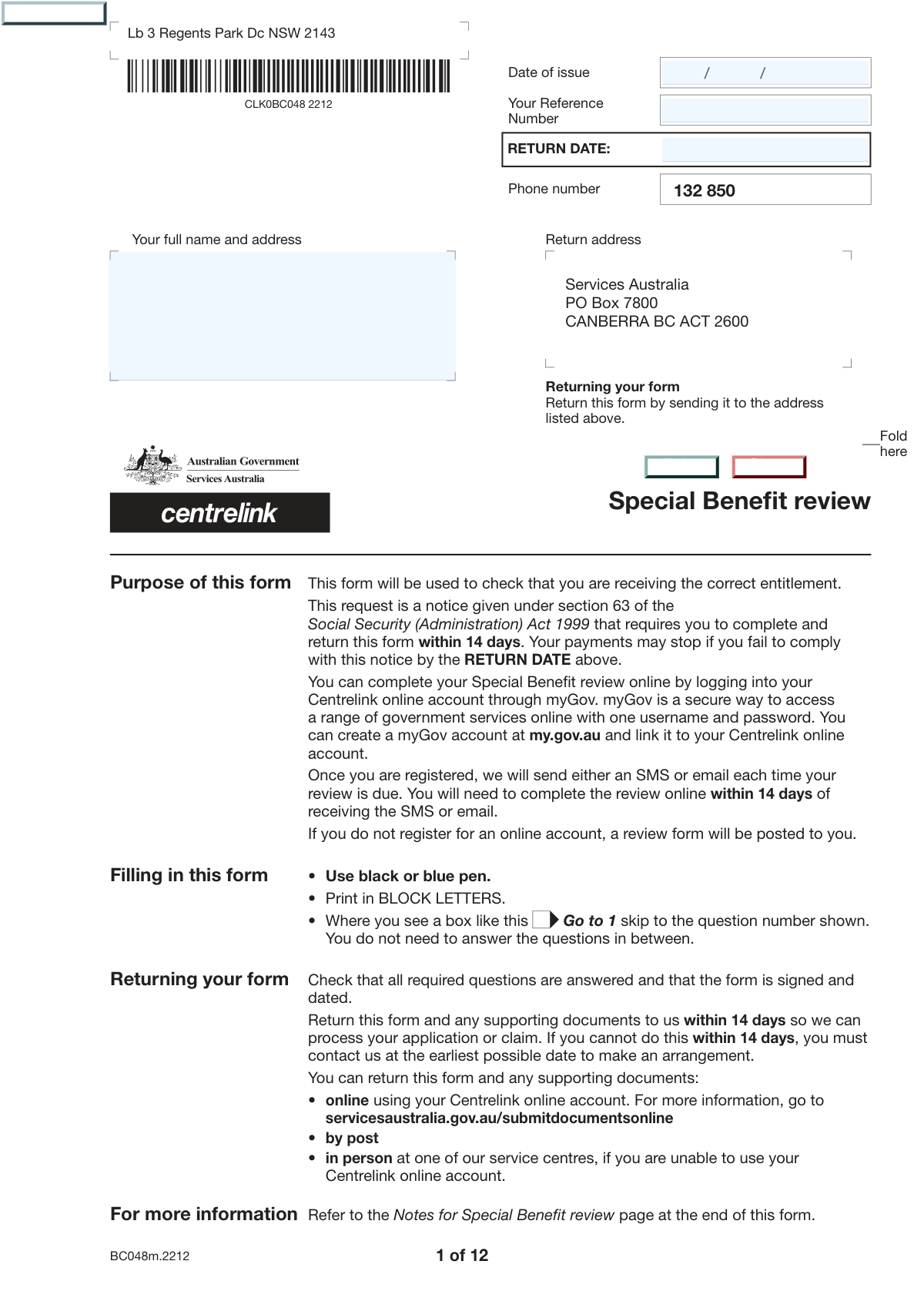
Yes! You can use AI to fill out Centrelink Confirmation of Personal and Study Details

The Centrelink Confirmation of Personal and Study Details form is a document used by the Australian Government to ensure the information they have for benefit recipients is accurate. It requires you to review and confirm your name, contact information, study details, and dependant information, which is crucial for receiving the correct payment amounts. Today, this form can be filled out quickly and accurately using AI-powered services like Instafill.ai, which can also convert non-fillable PDF versions into interactive fillable forms.
Centrelink Details Confirmation is part of the Centrelink forms and ETA forms categories on Instafill.
Our AI automatically handles information lookup, data retrieval, formatting, and form filling.
It takes less than a minute to fill out Centrelink Details Confirmation using our AI form filling.
Securely upload your data. Information is encrypted in transit and deleted immediately after the form is filled out.

Form specifications

Form name: Centrelink Confirmation of Personal and Study Details
Number of fields: 16
Number of pages: 12
Filled form examples: Form Centrelink Details Confirmation Examples
Language: English
main-image

Instafill Demo: How to fill out PDF forms in seconds with AI

How to Fill Out Centrelink Details Confirmation Online for Free in 2026

Are you looking to fill out a CENTRELINK DETAILS CONFIRMATION form online quickly and accurately? Instafill.ai offers the #1 AI-powered PDF filling software of 2026, allowing you to complete your CENTRELINK DETAILS CONFIRMATION form in just 37 seconds or less.
Follow these steps to fill out your CENTRELINK DETAILS CONFIRMATION form online using Instafill.ai:
  1. 1 Navigate to Instafill.ai and upload or select the Centrelink Details Confirmation form.
  2. 2 Enter the current date and your Customer Reference Number (CRN) in the designated fields.
  3. 3 Use the AI-powered service to review the pre-populated sections, including your name, address, and contact details, verifying their accuracy.
  4. 4 Carefully examine the 'Study Information' section to ensure your course and institution details are correct.
  5. 5 Check the 'Dependant Information' section to confirm the details of any dependants you have listed.
  6. 6 Perform a final review of all entered and pre-filled information to ensure everything is correct before submission.
  7. 7 Print the completed form for your records or submit it as instructed by Centrelink.

Our AI-powered system ensures each field is filled out correctly, reducing errors and saving you time.

Why Choose Instafill.ai for Your Fillable Centrelink Details Confirmation Form?

Speed

Complete your Centrelink Details Confirmation in as little as 37 seconds.

Up-to-Date

Always use the latest 2026 Centrelink Details Confirmation form version.

Cost-effective

No need to hire expensive lawyers.

Accuracy

Our AI performs 10 compliance checks to ensure your form is error-free.

Security

Your personal information is protected with bank-level encryption.

Frequently Asked Questions About Form Centrelink Details Confirmation

This form is used to review and confirm your personal, contact, study, and dependant information that is already on file with us. It appears to be a verification document rather than an application.

This form should be completed by existing customers who have a Customer Reference Number (CRN) and have been asked to verify their details. It is not for new applicants.

Most fields on this form are read-only because they are pre-populated with data from our system for you to review. You are only meant to fill in the date, your name, and your CRN.

If you find any errors in the read-only sections, you cannot correct them on the form itself. You must contact our customer support department directly to have your official record updated.

You will need your Customer Reference Number (CRN) and the current date. All other required information about your address, contact details, and dependants should already be filled in for your review.

Your CRN is a unique identifier that can be found on previous correspondence from us, such as letters or emails. It may also be available in your online account portal.

Please enter the date using the Day/Month/Year format, as specified. For example, if the date is October 5, 2024, you should write it as 05/10/24.

Yes, you can use AI-powered services like Instafill.ai to help fill out this form. Such tools can accurately auto-fill fields like your name, date, and CRN, saving you time and preventing typos.

To fill this form out digitally, you can use a tool like Instafill.ai. Simply upload the PDF, and you can type your information directly into the interactive fields before saving or printing the completed document.

If your PDF is a non-fillable 'flat' file, services like Instafill.ai can convert it into an interactive form. The AI technology detects the form fields, allowing you to type in your information easily online.

The 'Print' button will open your computer's print dialog to print the form. The 'Clear' button will erase any data you have entered in the editable fields, allowing you to start over.

After submission, your form will be processed to confirm that the details on record are correct. Please refer to the form's instructions or accompanying documents for specific processing times and next steps.

Compliance Centrelink Details Confirmation
Validation Checks by Instafill.ai

1
Customer Reference Number (CRN) Format
This check validates that the entered Customer Reference Number (CRN) adheres to a predefined format, such as being a specific length or containing a certain combination of letters and numbers. It is important for ensuring that only structurally valid CRNs are processed, which reduces lookup errors. If the format is incorrect, the system should reject the input and prompt the user to enter a valid CRN before attempting a database lookup.
2
CRN Existence and Uniqueness
This validation verifies that the entered Customer Reference Number exists and corresponds to a single, unique customer record in the backend database. This is the most critical check for this form, as all subsequent data is dependent on a successful lookup. If the CRN is not found or maps to multiple records, the system should display an error and prevent the form from populating any read-only data.
3
CRN is a Required Field
This check ensures that the Customer Reference Number field is not left empty upon submission or lookup attempt. Since the CRN is the primary key for retrieving all other customer information on the form, it is mandatory. An attempt to proceed with an empty CRN field should trigger an error message, highlighting the field as required.
4
Date Field Format (DD/MM/YY)
This validation ensures that any date entered on the form strictly follows the DD/MM/YY format as specified in the instructions. This prevents ambiguity and ensures data consistency for storage and processing. If a user enters a date in a different format (e.g., MM/DD/YY or YYYY-MM-DD), the system should reject it and provide feedback on the required format.
5
Date Field Value Validity
Beyond checking the format, this validation confirms that the entered date is a real, valid calendar date. For example, it would flag '32/01/24' or '29/02/23' as invalid. This check prevents the submission of impossible dates, which would cause errors in date-based calculations or record keeping. An invalid date should result in an error message asking the user to correct the day, month, or year.
6
Logical Date Range
This check ensures that the entered date falls within a logical and acceptable range. For instance, a date of application should not be a future date, and a date of birth cannot be in the future or unreasonably far in the past. This validation prevents nonsensical data entry that could compromise record integrity. A date outside the expected range should trigger a warning or error.
7
Customer's Name is a Required Field
This validation ensures the 'Customer's Name' field is not submitted while empty. The customer's name is a fundamental identifier for the record and is essential for verification and communication purposes. If the field is left blank, the form submission should be blocked, and the user should be prompted to enter the name.
8
Customer's Name Character Validation
This check verifies that the 'Customer's Name' field contains only valid characters, such as letters, spaces, hyphens, and apostrophes, and excludes numbers or special symbols. This helps maintain data quality and prevents potential issues with data processing or display. An invalid entry should trigger an error message specifying the allowed character types.
9
Successful Population of Read-Only Data
This is a system-level check that verifies all 'CRNReadOnly' sections (Address, Contact, Study, Dependant) are successfully populated with data after a valid CRN is entered. It confirms that the backend lookup and data retrieval process is working correctly. If any of these sections fail to populate, it indicates a system or integration error that needs to be flagged, potentially showing a message to the user to try again later or contact support.
10
Integrity of Populated Read-Only Data
After data is populated from the CRN lookup, this check ensures that critical fields within the read-only sections are not null or empty. For example, it would verify that the retrieved address has a street and city, or that contact details include a phone number or email. This validation helps identify incomplete or corrupt source records in the database, which might require separate correction.
11
Logical Consistency Between Date Fields
Given there are two date fields on the form, this validation checks for logical consistency between them. For example, if one date is a 'Start Date' and the other is an 'End Date', this check would ensure the start date is not after the end date. This prevents the submission of logically impossible timeframes. A failed check would result in an error explaining the required relationship between the dates.
12
Read-Only Field Integrity
This security validation ensures that fields marked as 'CRNReadOnly' cannot be altered by the user on the client side, for example, by using browser developer tools to change the HTML. The server should re-validate that this data has not been tampered with before processing the form. This is crucial for maintaining data integrity and preventing unauthorized changes to information retrieved from the database.

Common Mistakes in Completing Centrelink Details Confirmation

Entering an Incorrect Customer Reference Number (CRN)

This is the most critical mistake as the CRN is used to auto-populate most of the form. Users often make typos, transpose digits, or misread the number from a source document. An incorrect CRN will either fetch the wrong person's data, leading to a major privacy breach, or fail to populate any data, causing the submission to be rejected. To avoid this, meticulously double-check the CRN against your official records before entering it.

Using the Wrong Date Format

The form explicitly requires the DD/MM/YY format, but many users, especially from the US, habitually enter dates in MM/DD/YY format. This can cause significant confusion; for example, 07/08/24 could be interpreted as either July 8th or August 7th. Such ambiguity leads to processing delays or incorrect records. Always read format instructions carefully. AI-powered tools like Instafill.ai can help by automatically formatting dates to match the form's specific requirements.

Mismatch Between CRN and Customer Name

A user might enter a valid CRN but then manually type a name that does not correspond to that CRN, often due to a copy-paste error or when filling out forms for multiple people. This discrepancy creates a data conflict that will flag the submission for manual review or cause an outright rejection. Always verify that the manually entered name is the one associated with the CRN you have provided.

Attempting to Edit Read-Only Information

When the CRN populates the form, a user might notice that their address or contact details are outdated. They may then waste time trying to edit these non-editable 'CRNReadOnly' fields. This form is likely for a specific transaction, not for updating core profile information. If data is incorrect, you must follow a separate procedure to update your central record before filling out this form again.

Leaving the Customer Reference Number Blank

Some users may not have their CRN readily available and decide to skip the field, intending to fill it in later. However, since the CRN is required to populate critical sections of the form, leaving it blank renders the submission incomplete and useless. The form will be rejected as none of the address, contact, or study information will appear. Always have your CRN ready before you begin.

Using an Incomplete or Abbreviated Name

In the 'Customer's Name' field, users sometimes enter a nickname, an initial, or an abbreviated version of their name (e.g., 'Mike' instead of 'Michael'). This can cause a mismatch when the system tries to verify the name against the record tied to the CRN. Always enter your full legal name exactly as it appears on the official documents associated with your CRN to prevent validation failures.

Ignoring the 'Instructions' Field

Many users skip reading the instructions, assuming they know how to fill out the form. The instructions likely contain crucial information, such as the meaning of the CRN, the required date format, and what to do if auto-populated data is incorrect. Ignoring them is a primary cause of most other errors on this list, leading to wasted time and rejected submissions.

Printing and Manually Filling a Digital Form

Some individuals may be uncomfortable with fillable PDFs and choose to print the blank form to fill it out by hand. This negates the form's primary feature of auto-populating data via the CRN, resulting in an incomplete submission. Furthermore, illegible handwriting can lead to data entry errors by the receiving party. If the form is a flat, non-fillable PDF, tools like Instafill.ai can convert it into an interactive version to enable proper digital completion.

Using Invalid Characters in the CRN Field

A CRN might be written with hyphens or spaces on a source document (e.g., 123-456-789), and a user may enter it that way. However, the system's validation logic might expect a continuous string of characters, causing the lookup to fail. Unless specified otherwise, enter reference numbers without any special characters or spaces. Form-filling assistants can often help by automatically stripping invalid characters to ensure the data matches the required format.
Saved over 80 hours a year

“I was never sure if my IRS forms like W-9 were filled correctly. Now, I can complete the forms accurately without any external help.”

Kevin Martin Green

Your data stays secure with advanced protection from Instafill and our subprocessors

Robust compliance program

Transparent business model

You’re not the product. You always know where your data is and what it is processed for.

ISO 27001, HIPAA, and GDPR

Our subprocesses adhere to multiple compliance standards, including but not limited to ISO 27001, HIPAA, and GDPR.

Security & privacy by design

We consider security and privacy from the initial design phase of any new service or functionality. It’s not an afterthought, it’s built-in, including support for two-factor authentication (2FA) to further protect your account.

Fill out Centrelink Details Confirmation with Instafill.ai

Worried about filling PDFs wrong? Instafill securely fills centrelink-confirmation-of-personal-and-study-details forms, ensuring each field is accurate.