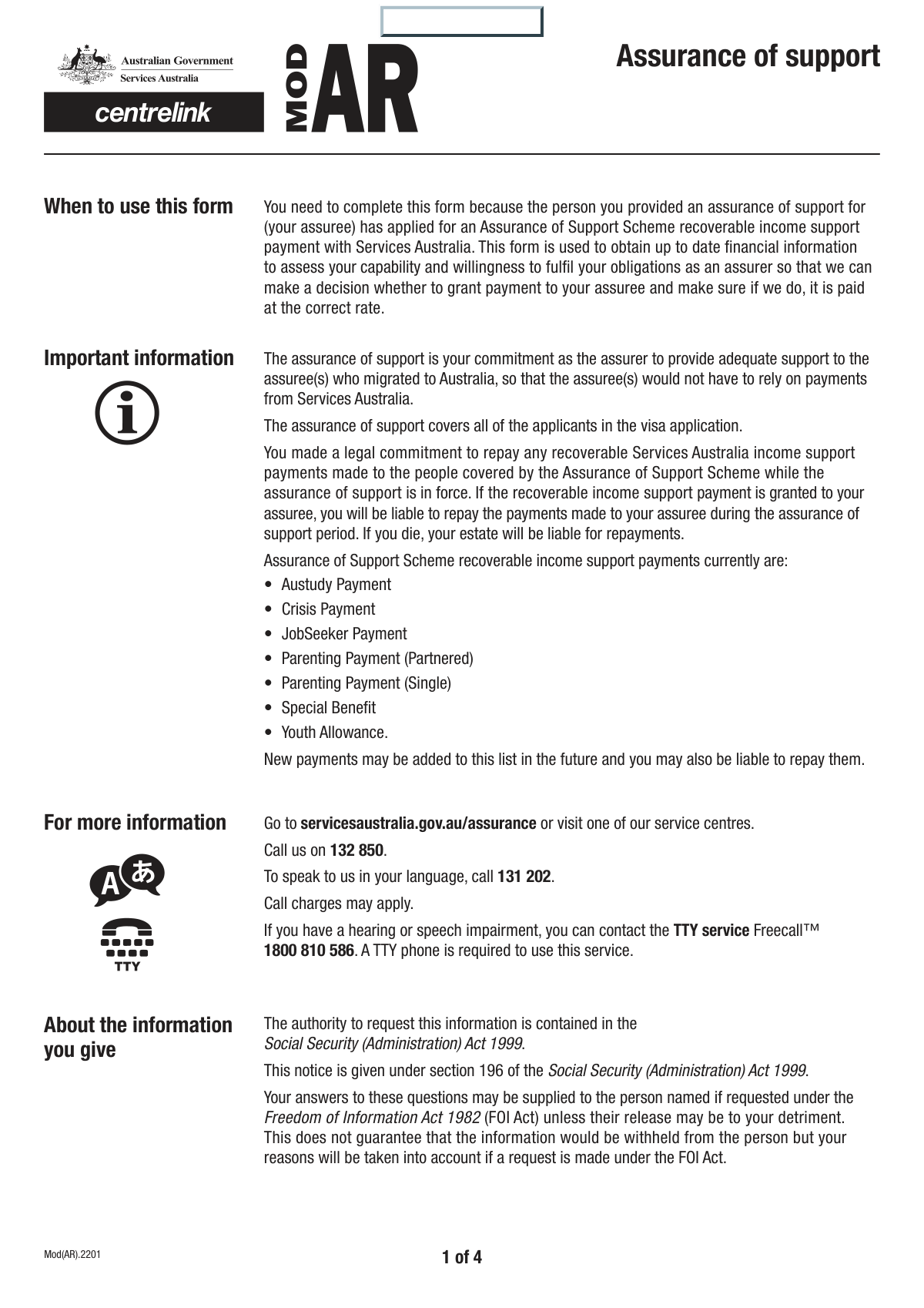
Yes! You can use AI to fill out SU599 Assurer's statement to Centrelink

The SU599, or Assurer's statement to Centrelink, is a mandatory document for individuals in Australia who have given an Assurance of Support (AoS) for a migrant. This form is used by Centrelink to review the assurer's financial capacity and to verify that they are meeting their obligations to support the sponsored person, which is crucial for the assuree's eligibility for certain social security payments. Today, this form can be filled out quickly and accurately using AI-powered services like Instafill.ai, which can also convert non-fillable PDF versions into interactive fillable forms.
SU599 is part of the Centrelink forms, NJ state forms, PA state forms and state ID forms categories on Instafill.
Our AI automatically handles information lookup, data retrieval, formatting, and form filling.
It takes less than a minute to fill out SU599 using our AI form filling.
Securely upload your data. Information is encrypted in transit and deleted immediately after the form is filled out.

Form specifications

Form name: SU599 Assurer's statement to Centrelink
Number of fields: 86
Number of pages: 4
Filled form examples: Form SU599 Examples
Language: English
main-image

Instafill Demo: How to fill out PDF forms in seconds with AI

How to Fill Out SU599 Online for Free in 2026

Are you looking to fill out a SU599 form online quickly and accurately? Instafill.ai offers the #1 AI-powered PDF filling software of 2026, allowing you to complete your SU599 form in just 37 seconds or less.
Follow these steps to fill out your SU599 form online using Instafill.ai:
  1. 1 Navigate to Instafill.ai and upload your SU599 form or select it from the template library.
  2. 2 Use the AI assistant to accurately fill in your personal details and the assuree's information, including names and customer reference numbers.
  3. 3 Detail your complete financial situation by providing information on your employment, property income, other government payments, and any other income sources.
  4. 4 List your financial assets by entering details for all relevant financial institution accounts and their current balances.
  5. 5 Answer the specific questions regarding the financial assistance you are currently providing or are willing to provide to the person you have sponsored.
  6. 6 Carefully review all the auto-filled information for accuracy, then digitally sign and date the declaration section to certify your statement.
  7. 7 Download, print, or directly submit your completed SU599 form as required by Centrelink.

Our AI-powered system ensures each field is filled out correctly, reducing errors and saving you time.

Why Choose Instafill.ai for Your Fillable SU599 Form?

Speed

Complete your SU599 in as little as 37 seconds.

Up-to-Date

Always use the latest 2026 SU599 form version.

Cost-effective

No need to hire expensive lawyers.

Accuracy

Our AI performs 10 compliance checks to ensure your form is error-free.

Security

Your personal information is protected with bank-level encryption.

Frequently Asked Questions About Form SU599

This form appears to be a review or declaration related to an Assurance of Support. It gathers your current financial information to assess your capacity to support the person (the 'assuree') for whom you've provided this assurance.

The 'assuree' is the individual you have sponsored or signed an Assurance of Support for. You are the person filling out the form, providing your own personal and financial details.

The Customer Reference Number is a unique identifier provided by the government department handling your case. You can typically find this number on any letters or official correspondence you have received from them.

Your permanent address is where you physically live, while your postal address is where you receive mail. If you receive mail at your home, these addresses will be the same; if you use a P.O. Box, they will be different.

The form specifies that you should enter your gross weekly earnings and other income 'before tax'. Please ensure you are providing the total amount before any deductions are made.

The form includes 'No' checkboxes for these situations. Simply check the 'No' box for the relevant section, such as 'Employment Details' or 'Property Income Details', and move to the next part of the form.

The form provides space for up to four entries in these sections. You should list your most significant accounts or income sources; if you need to declare more, you may need to attach a separate, clearly labeled sheet with the additional information.

If you are unable to provide support, you should give a clear and honest explanation of your circumstances. This could include a significant change in your financial situation, health problems, or other factors preventing you from fulfilling the assurance.

This form is designed to be filled out, printed, and then physically signed and dated. After signing, you should submit it according to the instructions provided by the department that sent you the form.

Yes, services like Instafill.ai use AI to help you accurately auto-fill form fields with your saved information. This can save you significant time and help reduce errors.

You can upload the PDF of this form to the Instafill.ai platform. It will make the form interactive, allowing you to type directly into the fields and use AI-powered autofill to complete it quickly and easily.

If you have a non-fillable or 'flat' PDF, you can use a service like Instafill.ai. Simply upload the document, and the platform will convert it into an interactive, fillable form that you can complete on your computer.

This section asks whether you are currently providing any financial or other help to the person you signed the Assurance of Support for. If you are, you must check 'Yes' and provide details about the type and amount of assistance.

Compliance SU599
Validation Checks by Instafill.ai

1
Conditional Employment Details Requirement
This check ensures that if the user selects 'Yes' for 'Employment Details', then the 'Weekly Earnings Before Tax', 'Employer Name', and 'Employer Address Line 1' fields are mandatory. This is crucial for verifying the user's financial capacity and employment status as declared. If these fields are empty after selecting 'Yes', the form submission will be blocked with an error message prompting the user to provide the required employment information.
2
Exclusive Selection for Yes/No Questions
Verifies that for each pair of 'Yes' and 'No' options (e.g., Employment Details, Property Income), only one can be selected. This prevents contradictory or ambiguous data entry that would make processing the form impossible. If both or neither are selected for a required question, the user will be prompted to make a single, valid selection before proceeding.
3
Date of Birth Format and Plausibility
Ensures the 'Date of Birth' for both the assuree and the user is entered in a valid format (e.g., DD/MM/YYYY) and represents a realistic date in the past. The validation should also check that the date does not indicate an age younger than a plausible minimum, such as 18 for the user signing the declaration. This prevents data entry errors and ensures the user meets age-related eligibility criteria.
4
Customer Reference Number Completeness
Validates that all four segments of both the 'Assuree's Customer Reference Number' and 'Your Customer Reference Number' are filled in. These numbers are critical identifiers, and incomplete entry would prevent the system from correctly linking this form to the right accounts. If any segment is left blank, an error will be displayed, requiring the user to complete the full reference number.
5
Contact Phone Number Format
Checks that the 'Contact Phone Number' field contains a string that matches a valid phone number format, including an appropriate number of digits. This is crucial for ensuring the organization can contact the user if there are any issues with their submission or for follow-up questions. An invalid format will trigger an error message asking the user to correct the number.
6
Conditional Property Income Details
This rule enforces that if a user checks 'Yes' for receiving 'Property Income Details', the 'Gross Weekly Rent' field must contain a valid, positive numeric value. This ensures that declared income sources are properly quantified for financial assessment. Failure to provide the rent amount after indicating property income will halt submission and require the user to enter a valid monetary value.
7
Conditional Mortgage Details Requirement
Validates that if the user selects 'Yes' for 'Property Mortgage Details', the 'Amount Owing' and 'Interest Rate' fields are mandatory. The 'Interest Rate' should also be validated to be a plausible percentage (e.g., between 0 and 100). This logic ensures that liabilities associated with declared assets are fully disclosed for accurate financial assessment.
8
Paired Income Source and Amount Validation
For the 'Other Income Status' section, this check ensures that if a user enters a 'Source of Income', they must also enter the corresponding 'Weekly Amount Before Tax', and vice-versa. This applies to all four potential income source fields. This prevents partial entries and ensures that every declared income source has a quantified value, which is essential for financial calculations.
9
Paired Financial Institution and Balance Validation
This validation confirms that for each financial account listed, if an 'Institution Name' is provided, a corresponding 'Account Balance' must also be entered. Conversely, if a balance is entered, the institution name is required. This rule prevents incomplete records for financial assets and ensures data integrity for the user's financial statement.
10
Mutually Exclusive Assistance Willingness Logic
This validation enforces a critical logical path: if the user selects 'Yes' for 'Assistance Willingness Status', the 'Willing Assistance Details' field becomes mandatory. Conversely, if the user selects 'No', the 'Reason for Not Providing Assistance' field becomes mandatory. This ensures that a clear justification or plan is provided regardless of the user's willingness to provide support, preventing ambiguous submissions.
11
Postcode Format Validation
Ensures that the 'Postcode' fields for all addresses (permanent, postal, employer) adhere to the expected format for the relevant country (e.g., 4 digits for Australia, 5 digits for the US). This is vital for mail delivery and address verification services. An incorrectly formatted postcode would trigger an error and require correction.
12
Declaration Date Validity
Validates that the 'Date of Declaration' is a valid date and is not set in the future. It should ideally be set to the current date or be within a very recent timeframe. This ensures the declaration is timely and accurately reflects when the form was signed, which is a legal and procedural requirement.
13
Name Field Character Validation
This check ensures that all name fields (e.g., 'Family Name', 'First Given Name') contain only valid characters, such as letters, hyphens, and apostrophes, and do not contain numbers or special symbols. This maintains data quality and prevents errors in systems that process personal identification information. An invalid character would prompt the user to correct the name entry.
14
Weekly Earnings Numeric Validation
Verifies that all weekly earnings and income amount fields ('Weekly Earnings Before Tax', 'Gross Weekly Rent', 'First Weekly Amount Before Tax', etc.) contain only a valid, non-negative numeric or currency value. This prevents users from entering text or symbols, ensuring the data can be used for financial calculations. An invalid entry would result in an error message requesting a proper monetary amount.

Common Mistakes in Completing SU599

Mixing Up 'Assuree's' and 'Your' Reference Numbers

The form requests two separate, multi-part reference numbers for the 'assuree' and the applicant ('you'). Users often get confused and enter their own number in the assuree's section or vice-versa, leading to an immediate data mismatch and rejection. To avoid this, carefully read the section headings and double-check that you are entering the correct number for the specified person before submitting.

Reporting Net Income Instead of Gross

The form explicitly asks for 'Weekly Earnings Before Tax' and 'Gross Weekly Rent,' but people often enter their net (take-home) pay out of habit. This provides an inaccurate financial picture and can lead to an incorrect assessment of eligibility or capacity. Always refer to your payslip or financial statements to find the gross amount before any deductions are made.

Inconsistent Yes/No Selections and Details

A common error is checking 'Yes' to a question (e.g., 'Are you employed?') but failing to fill out the required detail fields that follow. This logical inconsistency can halt processing and lead to delays or rejection. Ensure that for every 'Yes' answer, you provide all the requested details, and for every 'No,' you leave the corresponding detail fields blank.

Entering an Ambiguous Date Format

The 'Date of Birth' field does not specify a format (e.g., DD/MM/YYYY vs. MM/DD/YYYY), which can cause the day and month to be swapped for dates between the 1st and 12th. An incorrect date of birth is a critical error that can cause identity verification to fail. To prevent this, always use a clear and unambiguous format like DD/MM/YYYY, or use an AI form-filler like Instafill.ai which can automatically format dates correctly.

Failing to Distinguish Between Permanent and Postal Addresses

The form has separate sections for permanent and postal addresses, but users sometimes fill in only one or copy the same information for both, even when they differ. This can result in important correspondence being sent to the wrong location, causing significant delays. Carefully enter the full, correct address for each section, and if they are the same, fill out both sections completely rather than leaving one blank.

Forgetting to Sign or Date the Declaration

The signature and date on the declaration are legally required to certify that the information provided is true and correct. Forgetting to sign or date the form is one of the most common reasons for immediate rejection, as it renders the entire submission invalid. Always perform a final review of the form before submitting, paying special attention to the signature and date fields at the end.

Using Nicknames Instead of Full Legal Names

The form asks for names 'as it appears on official documents,' but people may habitually write a nickname or a shortened version (e.g., 'Bill' instead of 'William'). This creates a mismatch with official records and can cause significant delays in identity verification. Always use your full legal name, including any middle names, exactly as it appears on your passport or birth certificate.

Providing Monthly Income for Weekly Fields

Several fields specifically request a 'weekly' amount for earnings and rent, but users often mistakenly enter their more familiar monthly or fortnightly figures without converting them. This drastically skews the financial assessment and will lead to rejection. You must calculate the correct weekly equivalent by dividing your fortnightly income by 2 or your monthly income by 4.33.

Omitting 'Other' Income Sources

When faced with sections like 'Other Income Status,' people may overlook or forget to declare smaller or irregular income streams, such as freelance work, investment dividends, or allowances. Omitting any income source can be seen as a misrepresentation and may lead to penalties or the rejection of the application. It is crucial to carefully consider and declare all forms of income you receive, no matter how small.

Using Estimates for Precise Financial Details

Fields like 'Amount Owing' on a mortgage or bank 'Account Balance' require exact figures for an accurate financial assessment. Users may be tempted to provide a rounded number or an old estimate from memory, which creates discrepancies during verification. To avoid this, consult your most recent bank or mortgage statements to get the precise, up-to-date figures before filling out the form. AI-powered tools like Instafill.ai can help by securely connecting to financial accounts to fetch and fill this data accurately.

Incorrectly Entering Segmented Reference Numbers

The customer reference numbers are broken into four separate fields, which increases the chance of transcription errors. Users might skip a segment, transpose digits, or enter parts of the number in the wrong boxes, which guarantees a lookup failure. To prevent this, enter the number segment by segment and then read the full number across the boxes to verify it matches your source document. If the form is a flat PDF, a tool like Instafill.ai can make it fillable, reducing such errors.
Saved over 80 hours a year

“I was never sure if my IRS forms like W-9 were filled correctly. Now, I can complete the forms accurately without any external help.”

Kevin Martin Green

Your data stays secure with advanced protection from Instafill and our subprocessors

Robust compliance program

Transparent business model

You’re not the product. You always know where your data is and what it is processed for.

ISO 27001, HIPAA, and GDPR

Our subprocesses adhere to multiple compliance standards, including but not limited to ISO 27001, HIPAA, and GDPR.

Security & privacy by design

We consider security and privacy from the initial design phase of any new service or functionality. It’s not an afterthought, it’s built-in, including support for two-factor authentication (2FA) to further protect your account.

Fill out SU599 with Instafill.ai

Worried about filling PDFs wrong? Instafill securely fills su599-assurers-statement-to-centrelink forms, ensuring each field is accurate.