Yes! You can use AI to fill out Centrelink Special Disability Trust Details Form
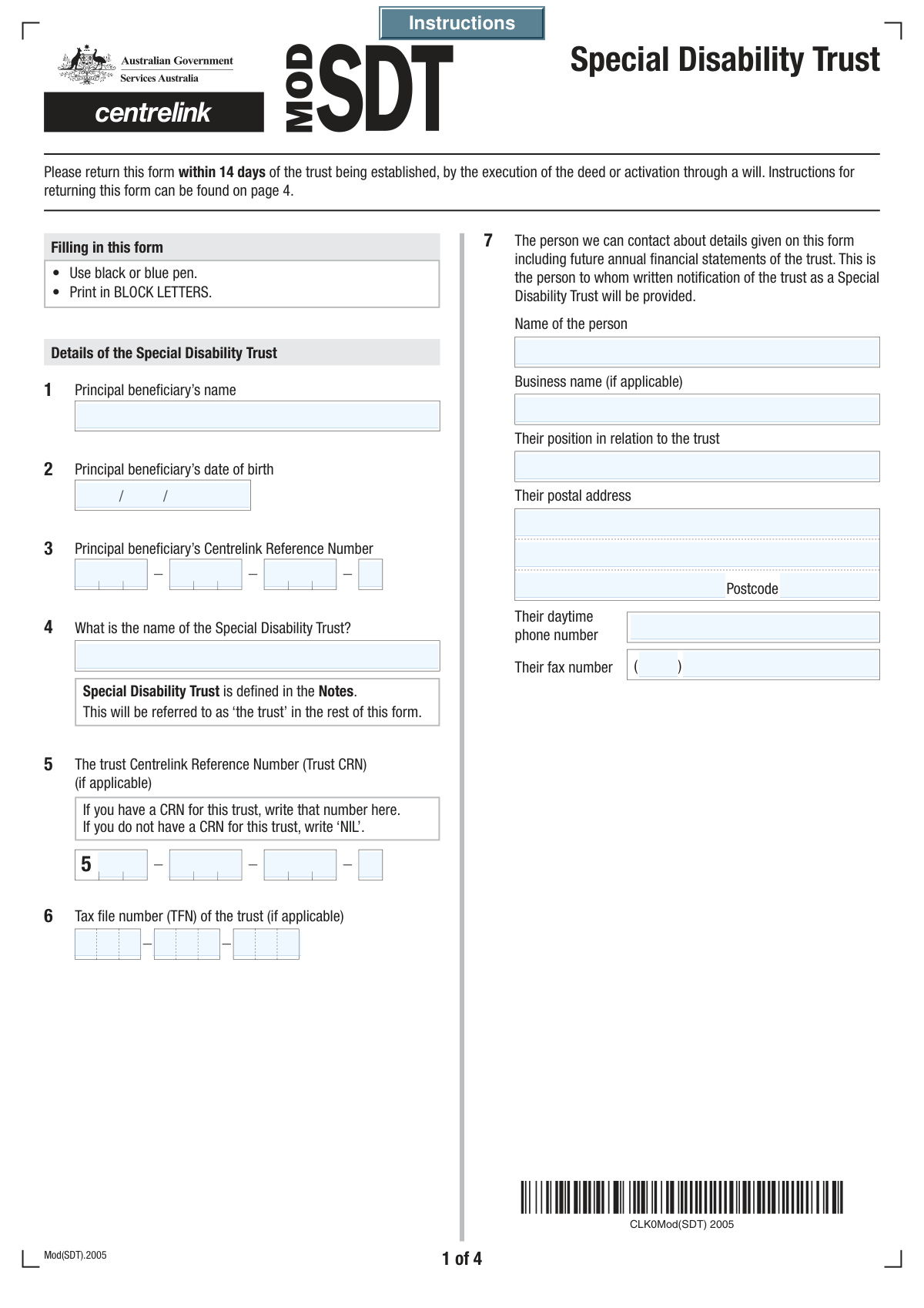
The Centrelink Special Disability Trust Details form (SA475) is a document used to report the specifics of a Special Disability Trust to Services Australia (Centrelink). It is essential for ensuring the trust complies with regulations and that the beneficiary's social security entitlements are correctly assessed by providing details on the trust's structure, assets, and key personnel. Today, this form can be filled out quickly and accurately using AI-powered services like Instafill.ai, which can also convert non-fillable PDF versions into interactive fillable forms.
SA475 is part of the
Centrelink forms, disability forms, ETA forms and trust forms categories on Instafill.
Our AI automatically handles information lookup, data retrieval, formatting, and form filling.
It takes less than a minute to fill out SA475 using our AI form filling.
Securely upload your data. Information is encrypted in transit and deleted immediately after the form is filled out.
Form specifications
| Form name: | Centrelink Special Disability Trust Details Form |
| Number of fields: | 162 |
| Number of pages: | 8 |
| Filled form examples: | Form SA475 Examples |
| Language: | English |
Instafill Demo: How to fill out PDF forms in seconds with AI
How to Fill Out SA475 Online for Free in 2026
Are you looking to fill out a SA475 form online quickly and accurately? Instafill.ai offers the #1 AI-powered PDF filling software of 2026, allowing you to complete your SA475 form in just 37 seconds or less.
Follow these steps to fill out your SA475 form online using Instafill.ai:
- 1 Navigate to Instafill.ai and upload your SA475 form or select it from the template library.
- 2 Use the AI assistant to populate the principal beneficiary's details, including their name, date of birth, and Centrelink Reference Number (CRN).
- 3 Enter the information for the Special Disability Trust, such as its official name, CRN, and Tax File Number (TFN).
- 4 Provide the complete details for all trustees, appointors, and the settlor, including their names, addresses, and relationship to the beneficiary.
- 5 If applicable, detail any contributions made to the trust beyond the initial settled sum, providing information on each contributor and the assets involved.
- 6 Go through the checklist section to confirm which required and applicable documents you will be submitting along with the form.
- 7 Complete the declaration section with your name and signature, then download the finalized form for submission to Centrelink.
Our AI-powered system ensures each field is filled out correctly, reducing errors and saving you time.
Why Choose Instafill.ai for Your Fillable SA475 Form?
Speed
Complete your SA475 in as little as 37 seconds.
Up-to-Date
Always use the latest 2026 SA475 form version.
Cost-effective
No need to hire expensive lawyers.
Accuracy
Our AI performs 10 compliance checks to ensure your form is error-free.
Security
Your personal information is protected with bank-level encryption.
Frequently Asked Questions About Form SA475
This form is used to provide Centrelink with detailed information about a Special Disability Trust, including its beneficiary, trustees, assets, and contributors, for assessment purposes.
The trustee(s) of the Special Disability Trust or their authorized representative, such as a solicitor or accountant, should complete and submit this form.
A CRN is a unique number Centrelink uses to identify individuals. It is required for the beneficiary, trustees, and others to correctly assess the trust's impact on social security entitlements.
If the Special Disability Trust does not have a CRN, you should enter 'NIL' in the fields provided for the Trust Centrelink Reference Number.
No, you only need to fill out the details for the current trustees of the trust. If there are fewer than four trustees, you can leave the remaining sections blank.
A Trustee manages the trust, an Appointor has the power to appoint or remove trustees, and a Settlor is the person who originally established the trust by contributing the initial sum.
You must provide a copy of the trust deed, documentation of the trust's assets (like bank statements), and any other documents listed in the 'Required Documents Checklist' section.
These documents are only required if the trust holds an interest in a business. They help Centrelink assess the income and value of the business asset.
If the trust owns property, you must complete a 'Real estate details (Mod R) form' for each property and provide copies of the title, contract of sale, and council rates notice.
For any contributions made after the trust was established, you must provide the contributor's details, the date and amount of the contribution, and a description of the asset if it was not cash.
Yes, services like Instafill.ai use AI to auto-fill form fields accurately and save time, which is especially helpful for complex forms with repetitive information.
Simply upload the form's PDF to the Instafill.ai platform. It will become an interactive online form that you can type into, save, and complete with help from AI-powered suggestions.
If you have a non-fillable or 'flat' PDF, you can use a service like Instafill.ai to convert it into an interactive, fillable form that you can easily complete on your computer.
Compliance SA475
Validation Checks by Instafill.ai
1
Principal Beneficiary's Date of Birth Validity
This check ensures that the 'Principal Beneficiary's Date of Birth' is a valid date formatted correctly (e.g., DD/MM/YYYY) and is a date in the past. This is crucial for verifying the beneficiary's identity and eligibility. If the date is invalid, in the future, or missing, the form cannot be processed as the beneficiary's age is a key data point.
2
Centrelink Reference Number (CRN) Format
Validates that the combined Centrelink Reference Number fields (for beneficiary, trustees, etc.) conform to the standard format, typically nine digits followed by a letter. This check ensures the CRN is structurally correct, which is essential for accurately identifying individuals within the Centrelink system. A failure would prevent the system from linking the form to the correct person's record, causing processing delays or errors.
3
Trust CRN Conditional 'NIL' Entry
This validation checks the specific instruction for the 'Trust Centrelink Reference Number'. If 'NIL' is entered in the first segment, it verifies that the remaining three segments are empty. Conversely, if the first segment contains a number, it ensures the other segments are also filled to form a complete CRN. This prevents incomplete or ambiguous CRN data for the trust.
4
Tax File Number (TFN) Format Validation
This check ensures the combined 'Tax file number of the trust' segments form a valid 9-digit number. The TFN is a critical identifier for the Australian Taxation Office (ATO) and must be accurate for all tax-related reporting. An invalid TFN format would lead to rejection by the ATO and non-compliance with financial regulations.
5
Australian Postcode Format
Verifies that all postcode fields (for the contact person, trustees, appointors, etc.) contain a valid 4-digit number. Correct postcodes are essential for mail delivery and address verification. An invalid postcode could result in returned mail and significant delays in communication regarding the trust.
6
Contribution Details Requirement
This is a logical check on the 'Contributions Beyond Settled Sum' question. If the 'Yes' box is checked, the system verifies that details for at least one contributor have been provided. If 'No' is checked, it ensures the contributor sections are empty. This maintains form integrity by ensuring that claims of additional contributions are properly substantiated.
7
Contribution Amount Format
This validation ensures that the 'Amount contributed' field for each contributor contains a valid positive numerical or currency value. This is critical for accurate financial accounting and reporting of the trust's assets. Non-numeric or negative values would corrupt financial data and prevent proper assessment of the trust's value.
8
Business Documents Checklist Requirement
This check is triggered if the 'Business name' field is filled. It verifies that the corresponding document checkboxes ('Latest income tax return', 'Profit and loss statement', etc.) are ticked. This ensures that when a business is associated with the trust, all necessary financial documentation is confirmed as being provided, which is a requirement for due diligence.
9
Real Estate Documents Checklist Requirement
If any 'Description of asset contributed' field contains the value 'real estate' (or similar), this validation ensures the 'Completed Real Estate Details (Mod R) Form' checkbox is ticked. This rule enforces the submission of mandatory supplementary forms when specific asset types are involved. Failure to do so would result in an incomplete application that cannot be processed.
10
Declaration Section Completeness
This check verifies that all fields in the final 'Declaration' section (Full Name, Relationship to Trust, Signature, and Date) are completed. The declaration is a legal attestation that the provided information is true and correct. An incomplete declaration invalidates the entire form submission, making it legally non-binding.
11
Signature Date Logical Consistency
Validates that the 'Date of Signature' in the declaration is a valid date that is not in the future. It may also check that the signature date is on or after any other dates on the form, such as contribution dates. This ensures the declaration was signed after all events recorded on the form occurred, which is logically and legally necessary.
12
First Trustee Information Completeness
Ensures that all required details for the 'First Trustee' (Name, Address, Postcode, Date of Birth) are fully provided. The first trustee is a primary responsible party for the trust, and their information is non-negotiable for establishing the trust's legal structure. Missing information for the primary trustee would halt the entire registration and validation process.
13
Date of Contribution Validity
This check ensures that any 'Date of contribution' is a valid date in the past or present, but not in the future. It confirms that the recorded contribution has already occurred. A future date would be illogical and would be rejected, as one cannot report a financial transaction that has not yet happened.
14
Trustee and Beneficiary Non-Identity Check
This logical validation compares the name and/or date of birth of the Principal Beneficiary against the details of each Trustee. It ensures that the beneficiary is not also serving as a trustee for their own Special Disability Trust, which is often a legal requirement to prevent conflicts of interest. A match would flag the submission for legal review or rejection.
Common Mistakes in Completing SA475
The form requires multi-digit numbers like the Centrelink Reference Number (CRN) and Tax File Number (TFN) to be split across several fields. Users often make transcription errors, misalign the segments, or try to enter the entire number in the first box. This leads to data validation failures and requires manual correction, significantly delaying the application process. To avoid this, carefully enter each segment of the number into its corresponding box, double-checking against the source document. AI-powered tools like Instafill.ai can help by automatically parsing and correctly distributing these numbers into the appropriate fields.
The form repeatedly asks for the 'full name' of various individuals, including the beneficiary, trustees, and appointors. A common error is providing a nickname, initials instead of a middle name, or an otherwise incomplete name. This can cause identity verification to fail and may create legal ambiguities regarding the parties to the trust. Always use the full legal name as it appears on official government identification like a passport or birth certificate to ensure the form is processed without issue.
This form requires multiple dates of birth. People frequently enter dates in a format different from what is expected (e.g., using the American MM/DD/YYYY format instead of DD/MM/YYYY). This inconsistency leads to data entry errors and can cause the form to be rejected. Always check for specific format instructions (like 'DD/MM/YYYY') and apply it consistently across all date fields to prevent processing delays.
The form contains numerous conditional sections, such as providing contributor details only if 'Yes' is selected for contributions, or attaching real estate documents only if the trust owns property. Users often miss these instructions, either by filling out sections they should skip or, more critically, by omitting information that is required based on their previous answers. This results in an incomplete or confusing submission. To prevent this, read all instructions carefully, especially those beginning with 'Fill only if...' or 'If Yes...'. An intelligent form filler like Instafill.ai can automatically show or hide these conditional sections based on your answers, ensuring you fill out exactly what is required.
The instructions for the 'Trust Centrelink Reference Number' explicitly state to enter 'NIL' if the trust does not have a CRN. Many people overlook this and simply leave the fields blank. A blank field can be interpreted as missed information, causing the processing agency to flag the form as incomplete and halt the process until clarification is received. To avoid this simple but impactful error, follow the instructions precisely and enter 'NIL' in the first segment if a Trust CRN does not exist.
This form requires details for legally distinct roles: Trustee, Appointor, and Settlor. Individuals unfamiliar with trust structures may confuse these roles, entering the wrong person's information in a section or misstating their relationship. This is a major error that misrepresents the legal structure of the trust, which will lead to rejection of the form and can have serious legal consequences. Before filling out the form, consult the trust deed or a legal professional to clarify who holds each role.
The form includes a detailed checklist of 'Required Documents' and 'Applicable Documents,' such as the trust deed, statutory declarations, and financial statements. A frequent and critical mistake is submitting the form without all the necessary attachments. An application without its supporting documentation is incomplete and cannot be processed, leading to major delays. Use the checklist provided to gather every required document before submission, and double-check that each one is included.
When asked for the 'Relationship to Beneficiary,' users sometimes provide ambiguous answers like 'family' or 'friend.' These descriptions lack the legal or familial specificity needed for official records. This ambiguity can force the processing agency to request clarification, slowing down the application. Always provide a specific relationship, such as 'Parent,' 'Legal Guardian,' 'Sibling,' or 'Court-Appointed Trustee,' to ensure clarity and avoid delays.
If this form is only available as a non-fillable PDF, users may print it and complete it by hand. This often results in illegible handwriting, which can be misread or declared unprocessable by the receiving agency. This leads to data entry errors on their end or outright rejection of the form. To avoid this, it is best to use a digital solution. Tools like Instafill.ai can convert a flat PDF into a fillable version, ensuring all your entries are typed, legible, and perfectly aligned in the correct fields.
The form asks for the contact person's 'Position in relation to trust' (e.g., Trustee, Solicitor). People often leave this field blank, assuming their role is obvious from other parts of the form. This omission can cause communication delays, as the agency may be unable to discuss sensitive trust details without first verifying the contact's authority. Always clearly state the contact's official title to facilitate smooth communication.
The form requests address details across multiple fields (Street, Suburb/City, Postcode), but the structure is inconsistent between sections. Users may try to fit the entire address on one line or forget to include the state or postcode, leading to failed mail delivery. This means you could miss crucial correspondence about your application. Ensure you enter the full, correct address, carefully distributing the information across the provided fields for each address block.
The declaration at the end of the form is where the applicant legally attests to the accuracy of the information. It is very common for people to forget to sign, use a digital signature when a wet-ink one is required, or enter the wrong date. An unsigned or improperly dated form is legally invalid and will be immediately returned for correction, restarting the submission process. Always perform a final check to ensure the declaration is signed, dated correctly, and your name is printed legibly.
Saved over 80 hours a year
“I was never sure if my IRS forms like W-9 were filled correctly. Now, I can complete the forms accurately without any external help.”
Kevin Martin Green
Your data stays secure with advanced protection from Instafill and our subprocessors

Robust compliance program
Transparent business model
You’re not the product. You always know where your data is and what it is processed for.
ISO 27001, HIPAA, and GDPR
Our subprocesses adhere to multiple compliance standards, including but not limited to ISO 27001, HIPAA, and GDPR.
Security & privacy by design
We consider security and privacy from the initial design phase of any new service or functionality. It’s not an afterthought, it’s built-in, including support for two-factor authentication (2FA) to further protect your account.
Fill out SA475 with Instafill.ai
Worried about filling PDFs wrong? Instafill securely fills centrelink-special-disability-trust-details-form forms, ensuring each field is accurate.



