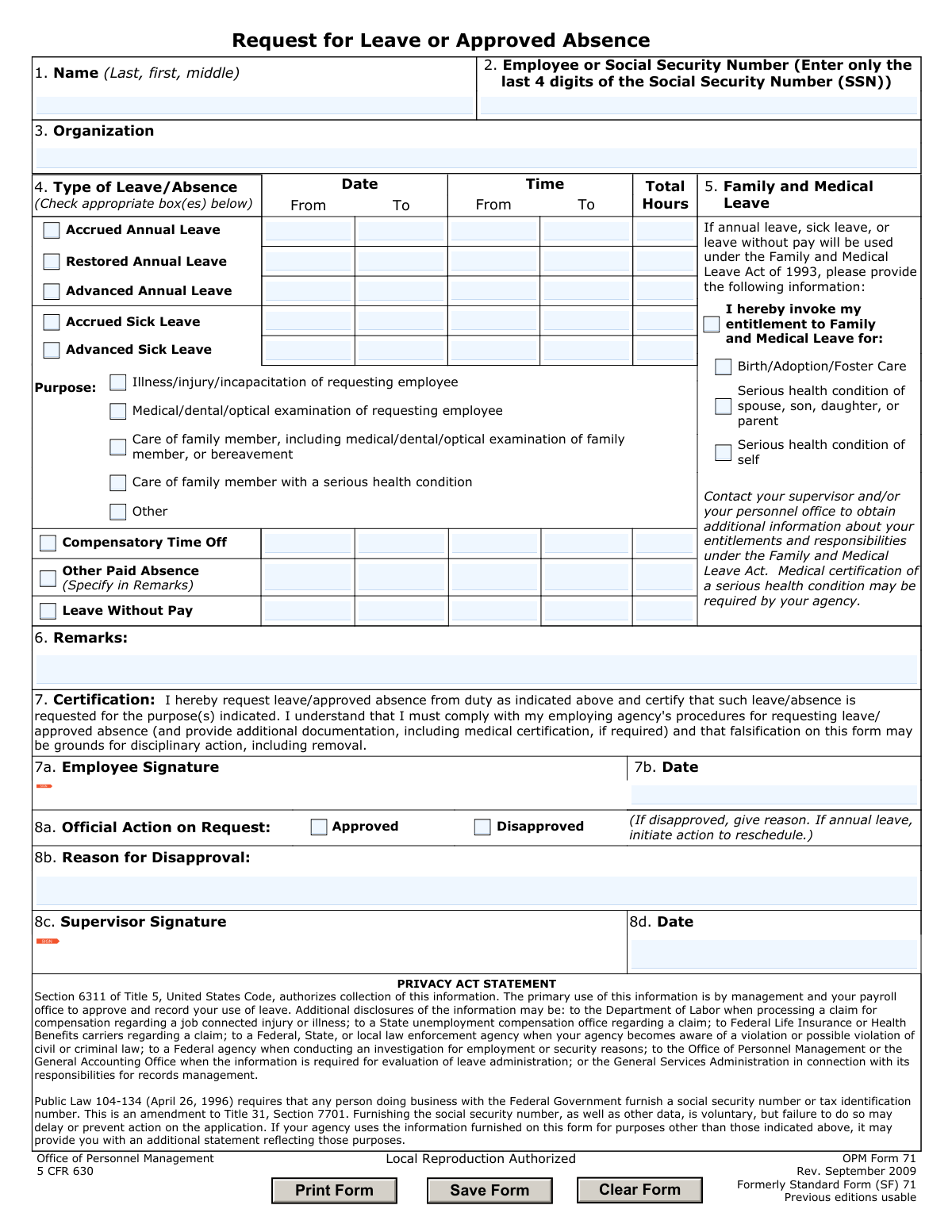
Yes! You can use AI to fill out OPM Form 71, Request for Leave or Approved Absence
OPM Form 71 is the official document used by U.S. federal government employees to request various types of leave, such as annual, sick, or family and medical leave. It provides a formal record for the employee and their agency, ensuring proper tracking of leave balances and compliance with regulations. Today, this form can be filled out quickly and accurately using AI-powered services like Instafill.ai, which can also convert non-fillable PDF versions into interactive fillable forms. Proper completion is essential for obtaining supervisor approval and maintaining accurate employment records.
Our AI automatically handles information lookup, data retrieval, formatting, and form filling.
It takes less than a minute to fill out OPM Form 71 using our AI form filling.
Securely upload your data. Information is encrypted in transit and deleted immediately after the form is filled out.
Form specifications
| Form name: | OPM Form 71, Request for Leave or Approved Absence |
| Number of pages: | 1 |
| Language: | English |
| Categories: | OPM forms, leave forms |
Instafill Demo: How to fill out PDF forms in seconds with AI
How to Fill Out OPM Form 71 Online for Free in 2026
Are you looking to fill out a OPM FORM 71 form online quickly and accurately? Instafill.ai offers the #1 AI-powered PDF filling software of 2026, allowing you to complete your OPM FORM 71 form in just 37 seconds or less.
Follow these steps to fill out your OPM FORM 71 form online using Instafill.ai:
- 1 Navigate to Instafill.ai and upload or select OPM Form 71.
- 2 Enter your personal information, including your full name, employee or social security number, and organization.
- 3 Select the type of leave or absence you are requesting by checking the appropriate boxes, such as 'Accrued Annual Leave' or 'Accrued Sick Leave'.
- 4 Input the specific dates and times for your requested leave period and calculate the total hours.
- 5 If the leave falls under the Family and Medical Leave Act (FMLA), complete the designated section to invoke your entitlement.
- 6 Use the 'Remarks' section to provide any additional context or clarification for your request if needed.
- 7 Review all the information for accuracy, then digitally sign and date the certification section before submitting the form to your supervisor for approval.
Our AI-powered system ensures each field is filled out correctly, reducing errors and saving you time.
Why Choose Instafill.ai for Your Fillable OPM Form 71 Form?
Speed
Complete your OPM Form 71 in as little as 37 seconds.
Up-to-Date
Always use the latest 2026 OPM Form 71 form version.
Cost-effective
No need to hire expensive lawyers.
Accuracy
Our AI performs 10 compliance checks to ensure your form is error-free.
Security
Your personal information is protected with bank-level encryption.
Frequently Asked Questions About Form OPM Form 71
OPM Form 71, titled 'Request for Leave or Approved Absence,' is used by federal employees to formally request time off from work. This includes various types of leave such as annual leave, sick leave, and leave under the Family and Medical Leave Act (FMLA).
Any federal employee who wishes to take an approved absence from their duties must complete this form. It needs to be submitted to their supervisor for official approval.
No, the form only requires you to enter the last 4 digits of your Social Security Number (SSN) or your Employee Number in Section 2.
In Section 5, you must check the box to invoke your entitlement to FMLA and then select the specific reason, such as for a serious health condition or birth of a child. It is recommended to contact your personnel office for more details on your entitlements.
Your agency may require medical certification for a serious health condition, particularly if you are requesting leave under FMLA. You should comply with your employing agency's specific procedures for requesting leave.
The 'Remarks' section (Section 6) is for any additional details or explanations about your leave request. For example, you can use it to specify the purpose if you checked 'Other' for the type of absence.
After you complete and sign the form, you must submit it to your supervisor. Your supervisor will then take official action by approving or disapproving the request in Section 8.
If your request is disapproved, your supervisor must state the reason for disapproval on the form. If the request was for annual leave, they should initiate action to help you reschedule it.
Yes, services like Instafill.ai use AI to auto-fill form fields accurately and save time. This can help ensure your information is entered correctly and efficiently.
You can use a service like Instafill.ai to fill out this form online. Simply upload the PDF, and the platform will allow you to type your information directly into the interactive fields.
If you have a flat, non-fillable PDF, you can use a tool like Instafill.ai to convert it into an interactive, fillable form. This makes it easy to complete, save, and print your request.
By signing the certification, you are confirming that the leave is for the purpose you indicated and that you understand falsifying information may be grounds for disciplinary action, including removal.
Accrued sick leave is time off that you have already earned and accumulated. Advanced sick leave is leave that you have not yet earned but your agency may grant you to use in advance, which you will pay back as you accrue more leave.
Compliance OPM Form 71
Validation Checks by Instafill.ai
1
Ensures Employee Name is Provided
This check verifies that the 'Name (Last, first, middle)' field is not empty. An employee's full name is essential for uniquely identifying the requester and for accurate record-keeping. If this field is left blank, the form submission will be rejected, and the user will be prompted to enter their name.
2
Validates Social Security Number Format
This validation ensures that the 'Employee or Social Security Number' field contains exactly four numeric digits. The form explicitly requests only the last 4 digits of the SSN for identification while protecting sensitive information. A failure in this check, such as entering letters or more/less than four digits, will result in an error message requiring the user to correct the format.
3
Requires At Least One Leave Type Selection
This check confirms that the employee has selected at least one checkbox under 'Type of Leave/Absence' (Section 4). The entire purpose of the form is to request a specific type of leave, so this information is fundamental. If no leave type is selected, the form is considered incomplete and cannot be processed.
4
Validates Leave Date Sequence
This validation ensures that for any selected leave type, the 'From' date is on or before the 'To' date. An end date that occurs before the start date is a logical impossibility and indicates a data entry error. If this validation fails, the user will be notified to correct the date range to proceed.
5
Ensures Leave Request Details are Complete
This check verifies that if a leave type is selected in Section 4, the corresponding 'Date From', 'Date To', and 'Total Hours' fields are filled out. These details are critical for payroll and scheduling to correctly process the absence. A submission with a selected leave type but missing details will be flagged as incomplete.
6
Validates 'Total Hours' is a Positive Number
This check ensures that the value entered in the 'Total Hours' field for any leave request is a valid, positive number. Requesting zero or a negative number of hours is not logical and would cause errors in payroll calculation. The system should reject non-numeric or non-positive values and prompt for a correction.
7
Ensures FMLA Invocation Consistency
This validation checks that if a specific reason for Family and Medical Leave is selected (e.g., 'Serious health condition of self'), the primary 'I hereby invoke my entitlement to Family and Medical Leave' checkbox is also checked. This ensures the employee's intent to use FMLA is explicitly and correctly declared. A mismatch would cause confusion and require clarification before the leave can be approved under FMLA.
8
Requires FMLA Reason if Invoked
Conversely, this check ensures that if the main 'I hereby invoke my entitlement to Family and Medical Leave' box is checked, at least one of the three specific reasons (e.g., 'Birth/Adoption/Foster Care') is also selected. This is necessary for determining eligibility and for proper documentation under the FMLA. An invoked request without a specific reason is incomplete and cannot be processed.
9
Requires Justification for 'Other Paid Absence'
This rule validates that if the 'Other Paid Absence' checkbox is selected in Section 4, the 'Remarks' field (Section 6) is not empty. The 'Remarks' field must be used to specify the nature of the 'Other' leave, which is essential for the supervisor to understand the request and for correct coding in the payroll system. Failure to provide a remark will result in a validation error.
10
Mandatory Employee Signature and Date
This check verifies that the 'Employee Signature' (7a) and 'Date' (7b) fields are both completed. The signature and date certify the employee's request and their understanding of the terms, making it a legal and procedural requirement. A form cannot be officially submitted or considered valid without the employee's signature and the date of the request.
11
Requires Reason for Disapproval
This validation is for the supervisor's section and ensures that if the 'Disapproved' checkbox is marked in 'Official Action on Request' (8a), the 'Reason for Disapproval' field (8b) must be filled out. Providing a reason is crucial for transparency and allows the employee to understand the decision and take necessary follow-up actions, such as rescheduling. An empty reason field on a disapproved request would halt the workflow.
12
Ensures Supervisor Signature Date is Chronological
This check validates that the supervisor's signature date (8d) is on or after the employee's signature date (7b). A supervisor cannot logically approve or disapprove a request before the employee has officially submitted it. This check prevents data entry errors and ensures the timeline of the request process is valid.
Common Mistakes in Completing OPM Form 71
The form explicitly requests only the last 4 digits of the Social Security Number (SSN) in Box 2 for security and privacy. A common mistake is entering the full nine-digit SSN, which disregards clear instructions and creates an unnecessary security risk. This can lead to the form being returned for correction, delaying the leave approval process.
Employees often enter their name in a 'First Name, Last Name' order, contrary to the 'Last, First, Middle' format specified in Box 1. This mismatch with official personnel records can slow down processing as HR or payroll staff must manually search for the employee's file. To avoid this, always follow the exact format requested on the form.
A frequent oversight is failing to fill in the 'Total Hours' column for the requested leave period in Box 4. This figure is absolutely critical for the payroll office to accurately deduct leave from an employee's balance. Submitting a form without the total hours will almost certainly result in it being returned for completion, delaying both approval and processing.
An employee may take leave for a qualifying FMLA reason but only check a standard leave type like 'Accrued Sick Leave' in Box 4, forgetting to also complete Box 5 to invoke FMLA. This is a significant error as it fails to officially designate the leave as FMLA-protected, which can jeopardize the employee's rights and cause incorrect tracking of their entitlement. If the leave qualifies, both Box 4 and Box 5 must be completed.
Forgetting to sign (Box 7a) or date (Box 7b) the certification is one of the most common and critical mistakes. An unsigned or undated form is not a valid request and cannot be processed, effectively nullifying the submission. This simple oversight requires the form to be sent back to the employee, delaying the entire approval workflow.
Users often make errors in the 'Date' and 'Time' fields in Box 4, such as reversing the 'From' and 'To' dates, using an incorrect format, or omitting AM/PM. This ambiguity makes it impossible for a supervisor to know the exact duration of the absence, leading to follow-up questions and processing delays. AI-powered form filling tools like Instafill.ai can help prevent these errors by validating date ranges and ensuring a consistent format.
When an employee selects 'Other Paid Absence', they are required to provide a specific reason in the 'Remarks' section (Box 6). Many people check the box but forget to add the corresponding explanation. This leaves the request incomplete and will prompt a query from the supervisor or HR, halting the approval process until clarification is provided.
In the 'Organization' field (Box 3), employees sometimes use informal team names, acronyms, or outdated department titles instead of their official designation. This can cause confusion and misrouting of the form, especially in large government agencies with complex organizational structures. To ensure the form reaches the correct approver promptly, always use the full, official name of your office or division.
Since this form is often distributed as a non-fillable PDF, employees may print and complete it by hand, which can result in illegible entries for names, dates, or hours. This forces supervisors or payroll staff to guess the information or return the form for clarification, causing significant delays. To avoid this, a tool like Instafill.ai can convert the flat PDF into a digitally fillable version, ensuring all entries are perfectly clear and legible.
Saved over 80 hours a year
“I was never sure if my IRS forms like W-9 were filled correctly. Now, I can complete the forms accurately without any external help.”
Kevin Martin Green
Your data stays secure with advanced protection from Instafill and our subprocessors

Robust compliance program
Transparent business model
You’re not the product. You always know where your data is and what it is processed for.
ISO 27001, HIPAA, and GDPR
Our subprocesses adhere to multiple compliance standards, including but not limited to ISO 27001, HIPAA, and GDPR.
Security & privacy by design
We consider security and privacy from the initial design phase of any new service or functionality. It’s not an afterthought, it’s built-in, including support for two-factor authentication (2FA) to further protect your account.
Fill out OPM Form 71 with Instafill.ai
Worried about filling PDFs wrong? Instafill securely fills opm-form-71-request-for-leave-or-approved-absence forms, ensuring each field is accurate.