Yes! You can use AI to fill out Leave of Absence Request Form - ESI PEO
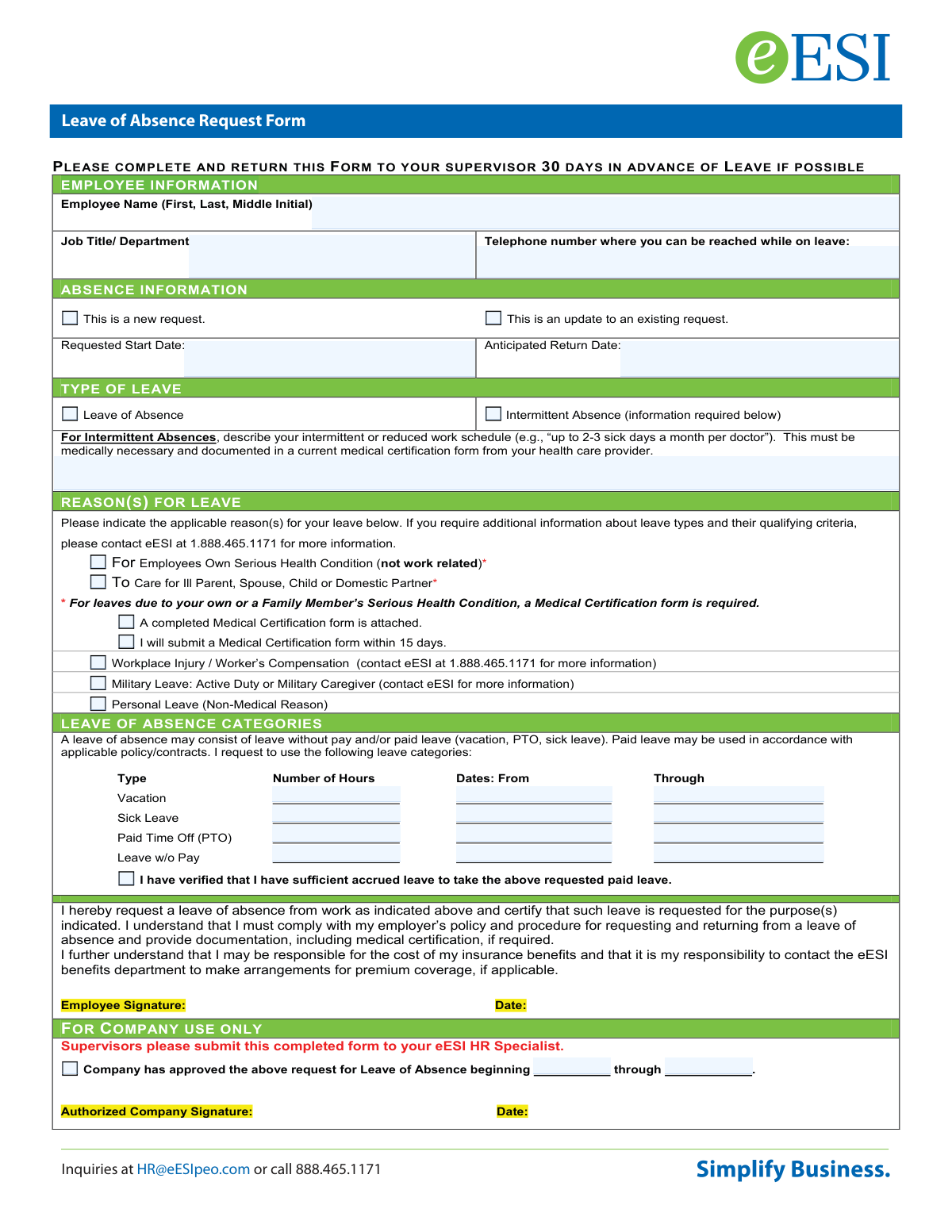
This form is a formal document for an employee to request an approved period of time off from work for various reasons, such as a personal serious health condition, caring for a sick family member, or military service. It is crucial for documenting the request, specifying the type of leave, and ensuring compliance with company and FMLA policies. Today, this form can be filled out quickly and accurately using AI-powered services like Instafill.ai, which can also convert non-fillable PDF versions into interactive fillable forms.
Our AI automatically handles information lookup, data retrieval, formatting, and form filling.
It takes less than a minute to fill out Leave of Absence Request Form using our AI form filling.
Securely upload your data. Information is encrypted in transit and deleted immediately after the form is filled out.
Form specifications
| Form name: | Leave of Absence Request Form - ESI PEO |
| Number of pages: | 1 |
| Language: | English |
| Categories: | leave forms |
Instafill Demo: How to fill out PDF forms in seconds with AI
How to Fill Out Leave of Absence Request Form Online for Free in 2026
Are you looking to fill out a LEAVE OF ABSENCE REQUEST FORM form online quickly and accurately? Instafill.ai offers the #1 AI-powered PDF filling software of 2026, allowing you to complete your LEAVE OF ABSENCE REQUEST FORM form in just 37 seconds or less.
Follow these steps to fill out your LEAVE OF ABSENCE REQUEST FORM form online using Instafill.ai:
- 1 Navigate to Instafill.ai and upload or select the Leave of Absence Request Form.
- 2 Provide your personal details in the Employee Information section, including your name, job title, and contact number.
- 3 Fill out the Absence Information, specifying the requested start and anticipated return dates, and indicating if it's a new or updated request.
- 4 Select the reason for your leave, such as your own health condition or to care for a family member, and note if medical certification is attached or will be submitted.
- 5 Detail how you plan to use any accrued paid leave, like vacation, sick time, or PTO, by entering the hours and dates.
- 6 Review all the information populated by the AI for accuracy, then digitally sign and date the form before submitting it to your supervisor.
Our AI-powered system ensures each field is filled out correctly, reducing errors and saving you time.
Why Choose Instafill.ai for Your Fillable Leave of Absence Request Form Form?
Speed
Complete your Leave of Absence Request Form in as little as 37 seconds.
Up-to-Date
Always use the latest 2026 Leave of Absence Request Form form version.
Cost-effective
No need to hire expensive lawyers.
Accuracy
Our AI performs 10 compliance checks to ensure your form is error-free.
Security
Your personal information is protected with bank-level encryption.
Frequently Asked Questions About Form Leave of Absence Request Form
This form is used to formally request approved time off from work for various reasons, such as your own medical condition, caring for a family member, or military service. It should not be used for work-related injuries.
Any employee who needs to request a leave of absence for a reason other than a work-related injury must complete and submit this form to their supervisor.
You should submit this completed form to your supervisor at least 30 days in advance of your requested leave start date, whenever practical.
Do not use this form for work-related injuries. Instead, you must contact your immediate supervisor or the eESI Risk Department at 888.465.1171 for the correct procedure.
Yes, if your leave is for your own serious health condition or to care for a sick family member, a Medical Certification form is required. You must provide this certification within 15 calendar days of your request.
An intermittent absence is for leave taken in separate, smaller blocks of time, such as for recurring medical appointments. You must describe the schedule as documented by your healthcare provider in the space provided.
Yes, you can request to use your accrued vacation, sick leave, or PTO by filling out the 'Leave of Absence Categories' section. Note that many employers require you to exhaust paid time off before unpaid leave begins.
Your job is only protected if your leave qualifies under the Family and Medical Leave Act (FMLA). If not, job reinstatement is based on company policy and business needs, which you should discuss with your manager.
You are responsible for your insurance premiums while on leave. You should contact the eESI Benefits Department at 888.465.1171 to make arrangements for continuing your coverage.
To request an extension, you must contact your supervisor at least two weeks before your approved leave period ends. Your employer will then determine if an extension can be granted.
Yes, if you were on leave for your own medical condition, a return-to-work notice or a doctor's release is required before you can resume your duties.
Yes, services like Instafill.ai use AI to accurately auto-fill form fields from your saved profile, which can save you time and help prevent errors.
You can use a service like Instafill.ai to fill out the form online. Simply upload the PDF, and the AI will help you complete the required fields before you download it for submission.
If you have a non-fillable PDF, you can upload it to a tool like Instafill.ai. It can convert flat PDFs into interactive, fillable forms that you can easily complete on your computer.
Compliance Leave of Absence Request Form
Validation Checks by Instafill.ai
1
Ensures Contact Phone Number is Valid
This check validates that the 'Telephone number' field contains a properly formatted 10-digit phone number. It is important for ensuring the company can contact the employee during their leave. If the format is incorrect, the form will prompt the user to enter a valid number like (XXX) XXX-XXXX or XXXXXXXXXX.
2
Validates Request Type Selection
This validation ensures that the user has selected exactly one option for the request status, either 'This is a new request' or 'This is an update to an existing request'. This is crucial for correctly routing and processing the request in the HR system. A failure would require the user to make a single, definitive choice.
3
Logical Leave Date Sequence
This check ensures the 'Anticipated Return Date' is on or after the 'Requested Start Date'. This prevents logical impossibilities in the leave request, such as a return date that occurs before the leave begins. If this validation fails, the user will be prompted to correct the dates.
4
Future-Dated Start Date
This validation confirms that the 'Requested Start Date' is not in the past. Leave requests should be for current or future dates to allow for proper planning and approval. Submitting a request for a past date would be an error and the system should reject it, asking the user to input today's date or a future date.
5
Conditional Intermittent Absence Description
This check requires the 'For Intermittent Absences, describe...' text field to be filled out if, and only if, the 'Intermittent Absence' option is selected. This ensures that the necessary details for a non-continuous leave are provided for scheduling and approval. If the condition is not met, the user will be notified that the description is required for an intermittent leave.
6
Requires at Least One Reason for Leave
This validation ensures that the employee has selected at least one checkbox under the 'REASON(S) FOR LEAVE' section. The reason is fundamental to determining eligibility, required documentation, and whether the leave is paid or unpaid. The form cannot be submitted until a reason is provided.
7
Conditional Medical Certification Status
If the reason for leave is 'For Employees Own Serious Health Condition' or 'To Care for Ill Parent...', this check verifies that one of the two subsequent medical certification options is selected. This is critical for compliance and ensuring required FMLA or company policy documentation is tracked. Failure to select an option will prevent submission and prompt the user for a choice.
8
Flags Invalid Workplace Injury Submissions
This check identifies if the 'Workplace Injury / Worker’s Compensation' box is checked. Since the form instructions explicitly state it is not for this purpose, this validation flags the submission as an error and directs the employee to the correct procedure. This prevents incorrect form usage and ensures injury claims are handled by the appropriate Risk Department immediately.
9
Validates Paid Leave Hours Entry
For each row in the 'LEAVE OF ABSENCE CATEGORIES' table (Vacation, Sick Leave, etc.), this check ensures that if a date range is entered, the corresponding 'Number of Hours' field contains a positive number. This prevents incomplete or nonsensical entries for paid leave usage. An error would be shown if hours are missing or are not a positive value.
10
Ensures Logical Paid Leave Date Ranges
In the 'LEAVE OF ABSENCE CATEGORIES' table, this validation confirms that for each row, the 'Through' date is on or after the 'From' date. This maintains logical consistency within the breakdown of leave hours. An invalid range would trigger an error message requiring the user to correct the dates.
11
Verifies Paid Leave Dates are Within Overall Leave Period
This check ensures that all date ranges specified for Vacation, Sick Leave, or PTO fall within the main 'Requested Start Date' and 'Anticipated Return Date'. This prevents employees from scheduling paid time off outside of their approved leave of absence period. A mismatch would result in a validation error.
12
Requires Employee Acknowledgment of Leave Balance
This validation ensures the checkbox 'I have verified that I have sufficient accrued leave...' is checked before submission. This serves as a digital signature confirming the employee has reviewed their leave balances and understands the request. The form cannot be submitted without this acknowledgment.
13
Employee Name and Title Completeness
This check verifies that the 'Employee Name' and 'Job Title/Department' fields are not left blank. These fields are essential for identifying the employee and their role within the organization for processing the request. A submission attempt with these fields empty will be blocked.
14
Validates Leave Type Selection
This check ensures that the user has selected one of the primary leave types: 'Leave of Absence' or 'Intermittent Absence'. This choice is fundamental as it dictates which other fields become relevant, such as the intermittent leave description. The form cannot be processed without this information and will prompt the user to make a selection.
Common Mistakes in Completing Leave of Absence Request Form
A frequent error is submitting this form for a workplace injury. The instructions explicitly state this form is for all reasons *except* work-related injuries and direct the employee to contact their supervisor or the eESI Risk Department. Submitting this form for a worker's compensation claim will lead to significant delays and incorrect processing, as it enters the wrong administrative workflow. To avoid this, carefully read the instructions and follow the specific procedure for work-related incidents.
Employees often list their work desk phone number, forgetting the form asks for a number where they can be reached *while on leave*. This makes it impossible for HR or a supervisor to contact them with important updates about their leave, benefits, or return-to-work plan. To prevent communication breakdowns, always provide a personal cell phone or home number that you will have access to during your absence.
When an employee checks 'Intermittent Absence,' they frequently fail to provide a specific description of the reduced work schedule in the corresponding text box. Vague entries like 'as needed' are insufficient and will require follow-up, delaying approval. The form requires a clear, medically necessary schedule (e.g., 'off every Friday afternoon for appointments' or 'up to 8 hours per week'). Always provide the specific details as documented by your healthcare provider to ensure the request can be processed.
For health-related leaves, employees must indicate the status of their required Medical Certification form, but often forget to check either 'A completed...form is attached' or 'I will submit a...form within 15 days.' This omission leaves the employer uncertain about the documentation, stalling the approval process as they cannot verify the reason for leave. To avoid delays, always select one of the two options to set a clear expectation for when the required paperwork will be provided.
The table for allocating paid and unpaid leave is often filled out incorrectly, with missing hours, date ranges, or entire rows left blank. For example, an employee might request three weeks off but only account for two weeks of vacation time, forgetting to add a line for 'Leave w/o Pay' for the third week. This leads to payroll errors and requires clarification. To avoid this, meticulously map out your entire leave period across the different categories (Vacation, Sick, PTO, Unpaid), ensuring all hours and dates are accounted for.
The form includes a checkbox stating, 'I have verified that I have sufficient accrued leave...' which is easy to overlook. Skipping this step, or checking it without actually confirming PTO balances, can lead to the request being rejected or an unexpected period of unpaid leave if the requested hours exceed what is available. Before submitting, always check your official leave balances with HR or through your employee portal and then check this box to certify your request is accurate.
Employees may enter ambiguous dates like 'end of next month' or use an inconsistent format (e.g., DD-MM-YY) for the 'Requested Start Date' and 'Anticipated Return Date'. This creates confusion and makes it impossible for a manager to plan for coverage. An unclear return date can also jeopardize job protection status. Always use a specific, full date (MM/DD/YYYY) for both fields to ensure clarity. AI-powered tools like Instafill.ai can help by auto-formatting dates correctly to prevent such errors.
An unsigned or undated form is not a valid request and will be immediately returned, halting the entire process. The signature certifies that the information is accurate and that the employee understands their responsibilities regarding company policy and benefits. Forgetting this final step is a common but critical error that delays leave approval. Always double-check that you have signed and dated the form before submitting it to your supervisor.
At the top of the 'Absence Information' section, employees must specify if 'This is a new request' or 'an update to an existing request.' People often forget to check either box, creating administrative confusion. An update might be processed as a duplicate new request, or a new request might be overlooked as a simple modification. To avoid this, always check the correct box to ensure your request is routed and processed correctly from the start.
Some employees assume their name is sufficient and leave the 'Job Title/Department' field blank. In any mid-to-large sized company, this omission makes it difficult to route the form to the correct supervisor and assess the departmental impact of the absence. This can significantly slow down the approval process. To ensure efficient handling, always provide your specific job title and department. If the form is a non-fillable PDF, a tool like Instafill.ai can convert it into a fillable version, making it easier to complete all required fields cleanly.
Saved over 80 hours a year
“I was never sure if my IRS forms like W-9 were filled correctly. Now, I can complete the forms accurately without any external help.”
Kevin Martin Green
Your data stays secure with advanced protection from Instafill and our subprocessors

Robust compliance program
Transparent business model
You’re not the product. You always know where your data is and what it is processed for.
ISO 27001, HIPAA, and GDPR
Our subprocesses adhere to multiple compliance standards, including but not limited to ISO 27001, HIPAA, and GDPR.
Security & privacy by design
We consider security and privacy from the initial design phase of any new service or functionality. It’s not an afterthought, it’s built-in, including support for two-factor authentication (2FA) to further protect your account.
Fill out Leave of Absence Request Form with Instafill.ai
Worried about filling PDFs wrong? Instafill securely fills leave-of-absence-request-form-esi-peo forms, ensuring each field is accurate.