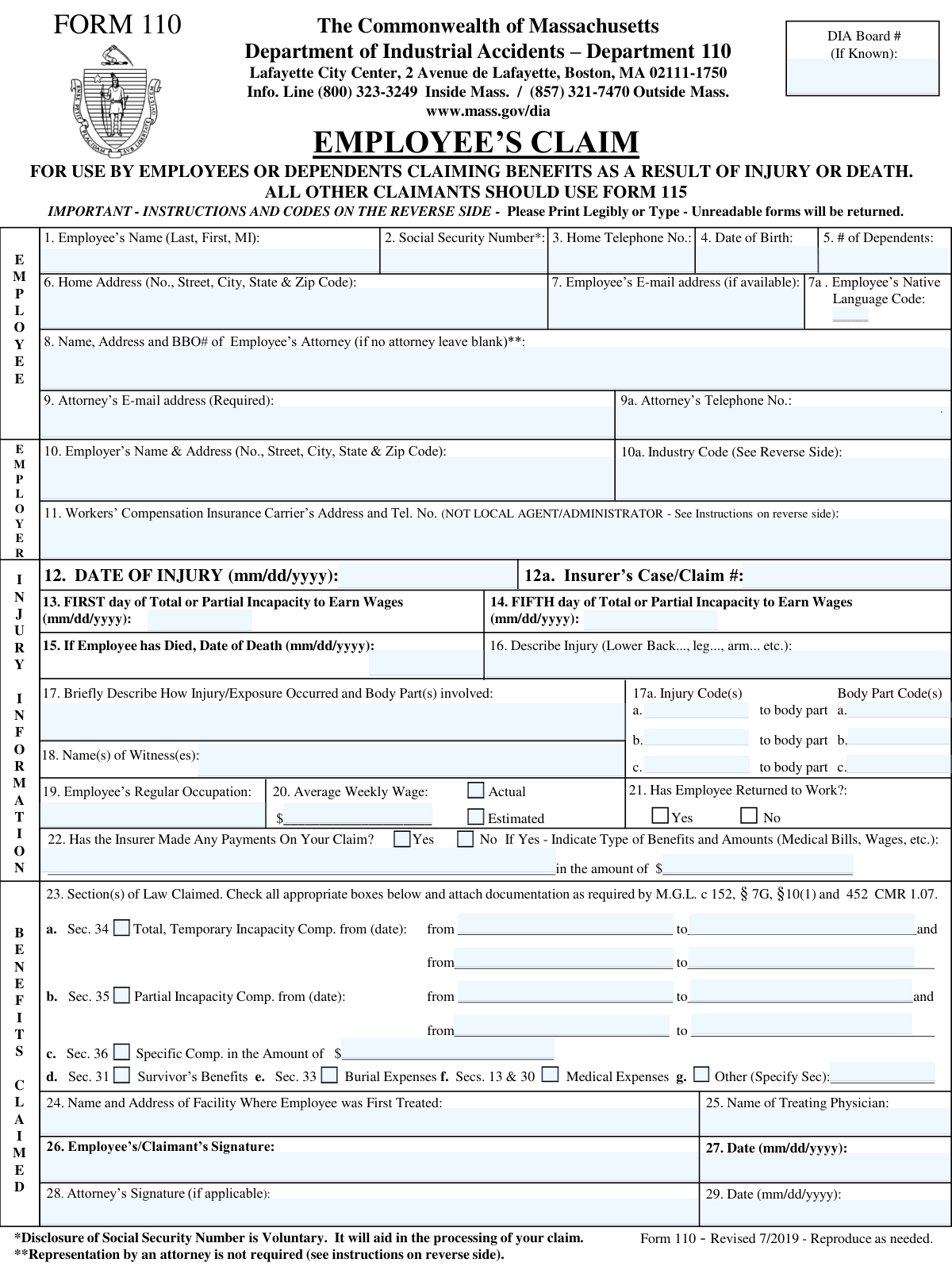
Yes! You can use AI to fill out Commonwealth of Massachusetts Department of Industrial Accidents Form 110, Employee’s Claim

Massachusetts Department of Industrial Accidents (DIA) Form 110, “Employee’s Claim,” is the official form employees or eligible dependents use to initiate a disputed workers’ compensation claim for benefits related to a workplace injury or death. It captures identifying information for the employee, employer, insurer, injury details, wage information, and the specific statutory benefits being claimed (e.g., temporary total/partial incapacity, medical expenses, survivor benefits). Filing it correctly is important because it formally starts the DIA dispute process and helps ensure the claim is processed without delays or rejection for missing/illegible information. Today, this form can be filled out quickly and accurately using AI-powered services like Instafill.ai, which can also convert non-fillable PDF versions into interactive fillable forms.
Our AI automatically handles information lookup, data retrieval, formatting, and form filling.
It takes less than a minute to fill out MA DIA Form 110 using our AI form filling.
Securely upload your data. Information is encrypted in transit and deleted immediately after the form is filled out.

Form specifications

Form name: Commonwealth of Massachusetts Department of Industrial Accidents Form 110, Employee’s Claim
Number of pages: 1
Filled form examples: Form MA DIA Form 110 Examples
Language: English
Categories: workers compensation forms, Massachusetts labor forms, industrial accident forms, VA claim forms, SSA forms
main-image

Instafill Demo: filling out a legal form in seconds

How to Fill Out MA DIA Form 110 Online for Free in 2026

Are you looking to fill out a MA DIA FORM 110 form online quickly and accurately? Instafill.ai offers the #1 AI-powered PDF filling software of 2026, allowing you to complete your MA DIA FORM 110 form in just 37 seconds or less.
Follow these steps to fill out your MA DIA FORM 110 form online using Instafill.ai:
  1. 1 Go to Instafill.ai and upload the Massachusetts DIA Form 110 PDF (or select it from the form library).
  2. 2 Enter or import the employee/claimant details (name, SSN, DOB, contact info, address, dependents, native language code, and DIA Board # if known).
  3. 3 Provide employer and insurer information (employer name/address, industry code, insurer carrier address/phone, and insurer case/claim number).
  4. 4 Complete injury and disability dates and descriptions (date of injury, first/fifth day of incapacity, date of death if applicable, injury description, how it occurred, witnesses, and injury/body-part codes).
  5. 5 Add work and wage details (regular occupation, average weekly wage, and whether the wage is actual or estimated; indicate whether the employee returned to work).
  6. 6 Select benefits claimed under M.G.L. c. 152 (e.g., Sec. 34, Sec. 35, Sec. 36, Sec. 31, Sec. 33, Secs. 13 & 30, or other) and enter any required date ranges/amounts; add treatment facility and treating physician information.
  7. 7 Review for completeness and legibility, then e-sign (and attorney sign if applicable), download the finalized form, and mail the original to the DIA while providing copies to the employer and insurer as instructed.

Our AI-powered system ensures each field is filled out correctly, reducing errors and saving you time.

Why Choose Instafill.ai for Your Fillable MA DIA Form 110 Form?

Speed

Complete your MA DIA Form 110 in as little as 37 seconds.

Up-to-Date

Always use the latest 2026 MA DIA Form 110 form version.

Cost-effective

No need to hire expensive lawyers.

Accuracy

Our AI performs 10 compliance checks to ensure your form is error-free.

Security

Your personal information is protected with bank-level encryption.

Frequently Asked Questions About Form MA DIA Form 110

Form 110 is used by an employee (or dependents in a death claim) to file a disputed workers’ compensation claim with the Massachusetts Department of Industrial Accidents (DIA). It’s typically filed when the workers’ compensation insurer has denied the claim or is disputing benefits you believe you are owed.

Employees or dependents claiming benefits due to an injury or death should use Form 110. The form states that all other types of claimants should use Form 115.

No—representation by an attorney is not required, and you may file “pro se” (self-represented). You can still hire an attorney later even if you start the claim on your own.

You should file when you were injured on the job and the insurer has denied your initial claim and/or is disputing part of your claim and refuses to pay benefits you believe you’re entitled to. The DIA handles disputed workers’ compensation claims.

The original must be mailed to the DIA at the address listed on the form (Lafayette City Center, 2 Avenue de Lafayette, Boston, MA 02111-1750). You must also provide a copy to your employer and the insurer, and it’s recommended you keep a third copy for your records.

If you are represented by an attorney, the form must be sent to the insurer via certified mail. If you are not represented, the form instructions emphasize mailing the original to DIA and providing copies to the employer and insurer.

The instructions state that claims must be accompanied by proper documentation in accordance with M.G.L. c. 152, §7G and 452 CMR 1.07, and certain benefit sections require documentation. If you’re unsure what applies, contact the DIA information line for guidance.

No—disclosure of your Social Security Number is voluntary. However, the form notes it will aid in processing your claim.

No—the form specifically says to list the workers’ compensation insurance carrier (not the local agent/administrator). Use the carrier’s address and telephone number as instructed on the form.

Massachusetts employers are required to carry workers’ compensation insurance and must provide the insurer’s name and address upon request. If the employer refuses or does not carry insurance, the form instructs you to notify the DIA immediately.

In Item 16, briefly describe the injury and body part (e.g., “lower back strain” or “fractured left leg”). In Item 17, explain how it happened; then use Item 17a to enter the appropriate “Nature of Injury” code(s) and matching “Body Part Affected” code(s) from the lists provided.

The “First day” is the first date you were totally or partially unable to earn wages due to the injury. The “Fifth day” is the calendar date that corresponds to the fifth day of that total or partial incapacity.

Check all boxes that apply to the benefits you are requesting (for example, Sec. 34 for total temporary incapacity or Sec. 35 for partial incapacity) and fill in the date ranges where required. If you claim “Other,” specify the section/type of benefit and attach any required documentation.

Yes—AI tools can help you organize your information and auto-fill form fields to reduce errors and save time. Services like Instafill.ai use AI to map your details into the correct fields and help you complete the form more efficiently.

You can upload the Form 110 PDF to Instafill.ai, provide your claim details (injury dates, employer/insurer info, benefits claimed, etc.), and the AI will auto-fill the fields for review before you download. If the PDF is flat/non-fillable, Instafill.ai can convert it into an interactive fillable form so you can complete it electronically.

Compliance MA DIA Form 110
Validation Checks by Instafill.ai

1
Employee Name completeness and structure (Last, First, MI)
Validates that Employee Name is present and follows the expected order: last name, first name, and optional middle initial. The check should reject entries that are only initials, contain only a single token, or include obviously non-name placeholders (e.g., 'N/A', 'Unknown'). If validation fails, the submission should be flagged for correction because the DIA and insurer rely on the legal name to match employment and claim records.
2
Social Security Number (SSN) format and plausibility
Validates that the SSN, if provided (voluntary), is exactly 9 digits with optional hyphens in the standard pattern (XXX-XX-XXXX) and contains only numeric characters aside from hyphens. It should also screen for invalid values such as all zeros in any group (e.g., 000-xx-xxxx) or repeated placeholder patterns (e.g., 123-45-6789). If validation fails, the SSN should be rejected/cleared and the user prompted, since an incorrect SSN can misroute the claim or cause identity mismatches.
3
Phone number format validation (Employee and Attorney)
Validates that Home Telephone Number and Attorney Telephone Number (if applicable) are valid US phone numbers, including area code, and allow common punctuation and optional extensions. The system should normalize to a consistent stored format (e.g., E.164 +1XXXXXXXXXX) while preserving extension data. If validation fails, the form should be returned for correction because the DIA/insurer may need to contact the claimant or counsel promptly.
4
Email address format and conditional requirements (Employee and Attorney)
Validates that any provided email address matches a standard email pattern (local@domain) and does not contain spaces or invalid characters. Attorney Email is required if Attorney Name/Address/BBO# is filled, while Employee Email is optional but must be valid if present. If validation fails, the submission should be blocked or flagged because incorrect emails prevent delivery of time-sensitive claim communications.
5
Home address completeness and Massachusetts-style formatting
Validates that the Home Address includes street number, street name, city, 2-letter state abbreviation, and a 5-digit ZIP (optionally ZIP+4). It should also ensure the state is a valid US state code and that the ZIP is numeric and properly sized. If validation fails, the form should be rejected for correction because mailing address errors can prevent official notices and benefit checks from reaching the claimant.
6
Date fields format (mm/dd/yyyy) and calendar validity
Validates that all date fields (Date of Birth, Date of Injury, First Day of Incapacity, Fifth Day of Incapacity, Date of Death, signature dates, benefit period dates) are in mm/dd/yyyy format and represent real calendar dates. The check should reject impossible dates (e.g., 02/30/2025) and enforce consistent zero-padding rules if required by the system. If validation fails, the submission should be blocked because incorrect dates can change eligibility windows and benefit calculations.
7
Chronological consistency across injury/incapacity/death dates
Validates logical ordering: Date of Birth must be before Date of Injury; Date of Injury must be on or before the First Day of Incapacity (or allow same-day incapacity); Fifth Day of Incapacity must be on/after First Day of Incapacity. If Date of Death is provided, it must be on/after Date of Injury and on/after Date of Birth. If validation fails, the form should be flagged for review because inconsistent timelines can indicate data entry errors or an incorrect claim scenario.
8
Fifth day of incapacity equals first day + 4 days (rule check)
Validates that the Fifth Day of Total/Partial Incapacity corresponds to the fifth day of incapacity relative to the First Day (i.e., First Day + 4 calendar days), unless the business rule explicitly defines a different counting method. This check helps ensure the statutory waiting-period logic is applied consistently. If validation fails, the system should prompt for correction or require an override reason, because an incorrect fifth-day date can affect benefit entitlement and dispute handling.
9
Number of dependents is a non-negative integer
Validates that the Number of Dependents is present (if required by the workflow) and is a whole number (0, 1, 2, 
) with no decimals or negative values. It should also apply a reasonable upper bound (e.g., reject extremely large values that are likely typos). If validation fails, the submission should be flagged because dependent count can affect survivor benefits and related eligibility determinations.
10
Native language code is from the allowed code set
Validates that Employee’s Native Language Code matches one of the form’s allowed values (e.g., 1, 2, 3, 04, 5, 6, 7, 9) and handles leading zeros consistently (e.g., accept both '4' and '04' if the agency treats them equivalently). This ensures the DIA can provide appropriate language access services. If validation fails, the system should request correction or default to '9 – Other' with a prompt, because an invalid code breaks downstream routing and reporting.
11
Industry code (10a) must match published industry list
Validates that the Industry Code is one of the enumerated codes shown on the form (e.g., 01, 02, 15, 20, 
, 99) and is formatted as a two-digit code where applicable. The check should reject non-listed values and non-numeric entries. If validation fails, the submission should be flagged because industry classification is used for reporting, analytics, and sometimes jurisdictional/coverage review.
12
Injury description and occurrence narrative minimum content
Validates that 'Describe Injury (Item 16)' and 'How Injury/Exposure Occurred (Item 17)' are not blank and contain meaningful text beyond a minimal length threshold. The narrative should include at least one body part or injury term and a brief mechanism/context (e.g., 'lifted box', 'slipped on wet floor', 'chemical exposure'). If validation fails, the form should be returned because insufficient descriptions hinder claim adjudication and coding.
13
Injury codes and body part codes must be valid and paired
Validates that each provided Injury Code (a/b/c) is in the allowed injury/illness code list and each Body Part Code (a/b/c) is in the allowed body-part code list. It also enforces pairing: if Injury Code 'b' is filled then Body Part Code 'b' must be filled (and similarly for a/c), and disallows body-part codes without a corresponding injury code. If validation fails, the system should prompt correction because coding drives standardized reporting and can affect claim processing workflows.
14
Average weekly wage amount format and Actual vs Estimated selection
Validates that Average Weekly Wage is a valid currency amount (numeric, non-negative, with up to two decimal places) and is within a reasonable range to catch obvious typos. It also enforces that exactly one of 'Actual' or 'Estimated' is selected when a wage amount is provided (not both, not neither). If validation fails, the submission should be flagged because wage data is central to benefit rate calculations and disputes.
15
Return-to-work and insurer payment questions are single-select and conditionally complete
Validates that for each Yes/No question (Returned to Work; Insurer Made Payments) exactly one option is selected. If 'Insurer Made Payments' is Yes, then Type of Benefits and Amount must be provided and the Amount must be a valid currency value; if No, those fields must be blank. If validation fails, the system should block submission because contradictory or incomplete answers prevent accurate benefit coordination and case evaluation.
16
Benefits claimed (Sections 34/35/36/31/33/13&30/Other) require supporting fields and valid date ranges
Validates that at least one benefit section is selected, and that any selected section has its required companion fields completed (e.g., Sec. 34 and Sec. 35 require 'from'/'to' dates; Sec. 36 requires a dollar amount; 'Other' requires a specified section). It also checks each benefit period for valid date order (From ≀ To) and prevents overlapping or duplicate periods within the same section unless explicitly allowed. If validation fails, the submission should be returned because missing/invalid benefit details make the claim legally and administratively incomplete.
17
Signature and signature date requirements (Employee and Attorney)
Validates that the Employee/Claimant Signature and its Date are both present, since the form instructions state the employee must sign in all cases. If an attorney is listed (Attorney Name/Address/BBO# present), then Attorney Signature and Attorney Signature Date must also be present and the attorney date should not precede the employee signature date without an override. If validation fails, the submission should be rejected because unsigned or improperly signed claims may be invalid and will be returned by the agency.

Common Mistakes in Completing MA DIA Form 110

Using the wrong form (Form 110 vs. Form 115)

People often file Form 110 even when they are not the employee or a dependent (e.g., medical providers or other parties), because they assume “employee claim” applies to any claim. This can lead to the DIA returning the submission or delaying the case while the claimant re-files on the correct form. Confirm you are an employee or dependent claiming benefits due to injury/death; otherwise use Form 115. AI-powered tools like Instafill.ai can prompt the correct form choice based on your role and prevent mis-filing.

Illegible or incomplete identity/contact information

This form explicitly warns that unreadable forms will be returned, yet many submissions have hard-to-read names, missing middle initials, incomplete addresses, or phone numbers without area codes. The consequence is returned mail, missed notices, and processing delays. Print clearly or type, and ensure the address includes street number, city, state abbreviation, and ZIP. If the form is only available as a flat non-fillable PDF, Instafill.ai can convert it into a fillable version and validate that required contact fields are complete.

Incorrect date formats or inconsistent claim timeline

A frequent error is entering dates in the wrong format (not mm/dd/yyyy) or providing a timeline that doesn’t make sense (e.g., incapacity dates before the date of injury, or a “fifth day” that isn’t actually five days after the first day). These inconsistencies can trigger follow-up requests, disputes about eligibility periods, or delays in scheduling conferences/hearings. Use mm/dd/yyyy everywhere and double-check that the first and fifth day of incapacity align logically with the injury date. Instafill.ai can automatically format dates and flag timeline conflicts before submission.

Leaving the insurer information as the local agent/administrator

Item 11 specifically requires the workers’ compensation insurance carrier (not the local agent/administrator), but many people list the employer’s HR contact, a TPA, or an insurance broker. This can cause misdirected notices, failure to properly serve the insurer, and significant delays in dispute processing. Request the actual carrier name and its address/phone, and copy it exactly as provided on claim correspondence. Instafill.ai can help standardize insurer entries and reduce the chance of entering an agent instead of the carrier.

Missing or incorrect codes (Industry, Injury, Body Part, Native Language)

Claimants often skip code fields or enter descriptions instead of the required numeric codes (e.g., writing “construction” instead of “15–17,” or “back” instead of body part code “420”). Incorrect codes can lead to data entry errors, misclassification, and additional DIA follow-up. Use the code lists on the form and enter the numeric code(s) that best match the situation; if multiple injuries/body parts exist, use a/b/c consistently. Instafill.ai can suggest and validate codes based on your narrative and prevent mismatched injury/body-part pairings.

Vague injury description and exposure narrative

Items 16 and 17 are often filled with overly broad statements like “hurt back at work,” without describing the mechanism (lifted, slipped, repetitive motion), the specific body part(s), and what happened. Vague narratives can weaken the claim, create disputes about causation, and require supplemental statements. Provide a concise but specific account: what you were doing, what happened, and which body parts were affected (left/right if relevant). Instafill.ai can guide you with structured prompts to capture the key facts consistently.

Not completing benefit sections after checking boxes (Sec. 34/35 date ranges, Sec. 36 amount, Other section)

A common mistake is checking a benefit box (e.g., Sec. 34 or Sec. 35) but leaving the “from/to” periods blank, or claiming Sec. 36 without entering an amount. This creates an incomplete claim request and can delay adjudication or lead to partial processing. Only check benefits you are claiming and complete every associated field (date ranges and amounts) with clear periods; attach required documentation where indicated. Instafill.ai can enforce conditional logic so that selecting a benefit automatically requires the corresponding dates/amounts.

Average weekly wage entered without selecting Actual vs. Estimated (or using the wrong number)

People frequently enter a wage figure but forget to mark whether it is “Actual” or “Estimated,” or they enter an hourly rate instead of an average weekly wage. This can affect benefit calculations and may prompt the insurer/DIA to request clarification or payroll records. Enter the weekly amount (not hourly), and check the correct box to indicate whether it’s confirmed or an estimate. Instafill.ai can format currency correctly and help convert pay information into an average weekly wage when you provide pay details.

Inconsistent answers about return-to-work and insurer payments

Claimants sometimes check “Returned to Work: Yes” but also claim continuous total incapacity dates, or they check “Insurer made payments: No” while listing payment amounts (or vice versa). These contradictions can undermine credibility and slow processing while the record is reconciled. Ensure your return-to-work status matches the incapacity periods you’re claiming, and only fill the payment type/amount fields if you checked “Yes” for insurer payments. Instafill.ai can cross-check these fields and flag contradictions before you submit.

Attorney section errors (missing BBO#, missing required attorney email, or filling attorney fields when pro se)

When represented, people often omit the attorney’s BBO number or the attorney email (noted as required), or they enter the employee’s email in the attorney email field. Conversely, pro se filers sometimes partially fill attorney fields, creating confusion about representation and service requirements (e.g., certified mail to insurer when represented). If you have an attorney, complete name/address, BBO#, phone, and the attorney email; if you do not, leave attorney fields blank. Instafill.ai can apply representation logic to ensure the correct attorney fields are completed only when applicable.

Missing signatures/dates or using the wrong signer

The instructions emphasize that the employee must sign and date the form in all cases, yet submissions often arrive unsigned, undated, or signed only by the attorney. An unsigned/undated form can be rejected or treated as not properly filed, delaying the claim. Ensure the employee/claimant signs in Box 26 and dates in Box 27; if represented, the attorney signs and dates their boxes as well. Instafill.ai can add completion checks to prevent submission until all required signature/date fields are present.
Saved over 80 hours a year

“I was never sure if my IRS forms like W-9 were filled correctly. Now, I can complete the forms accurately without any external help.”

Kevin Martin Green

Your data stays secure with advanced protection from Instafill and our subprocessors

Robust compliance program

Transparent business model

You’re not the product. You always know where your data is and what it is processed for.

ISO 27001, HIPAA, and GDPR

Our subprocesses adhere to multiple compliance standards, including but not limited to ISO 27001, HIPAA, and GDPR.

Security & privacy by design

We consider security and privacy from the initial design phase of any new service or functionality. It’s not an afterthought, it’s built-in, including support for two-factor authentication (2FA) to further protect your account.

Fill out MA DIA Form 110 with Instafill.ai

Worried about filling PDFs wrong? Instafill securely fills commonwealth-of-massachusetts-department-of-industrial-accidents-form-110-employees-claim forms, ensuring each field is accurate.