Filling Sources: Attachments & Text Input
Attach any document, type what you know, write what you need - the AI reads everything together and fills your form
Overview
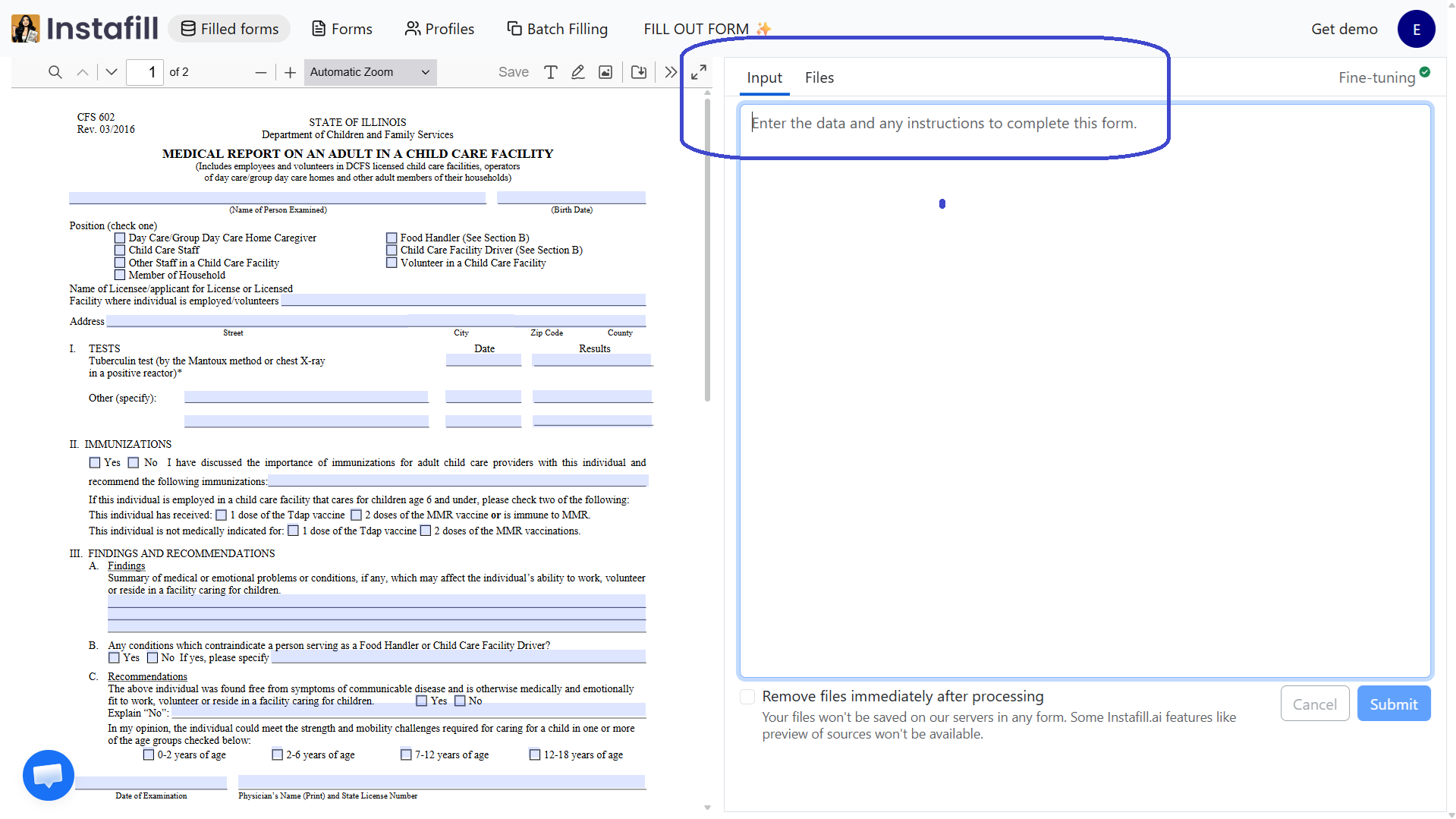
Every form filling session starts with the question: where is the data? Sometimes it's in a PDF. Sometimes it's in a photo of an insurance card. Sometimes you have an Excel export, a scanned contract, and a name you know off the top of your head that isn't in any file. Sometimes you also need to tell the AI something - "skip section 3," "use the business address not the personal one," "write N/A for anything you can't find."
Instafill.ai handles all of this through two input channels that work simultaneously in the same session: file attachments and a text input field. Attach any combination of supported documents. Type anything you know or any instruction you want followed. The AI reads both together - it doesn't separate "here's data" from "here's instructions." One field, one natural language interface, unlimited flexibility.
Both channels feed into the same source pool. When autofill runs, everything - file-extracted text and typed text - is passed to the AI simultaneously. Profile sources selected for the session also merge into the same pool. The AI determines what is a data value to extract and what is an instruction to follow, without you needing to separate them.
Supported File Types
Nine file formats are accepted as source attachments. There is no need to convert files before uploading - each format is handled natively.
Documents
PDF (.pdf)
The system accepts all PDF varieties: fillable PDFs, flat or scanned PDFs, and image-based PDFs where content is embedded as images rather than text. Text is extracted per page, watermarks are removed before extraction, and for long documents the AI is given only the source content most relevant to the section of the form currently being filled - keeping extraction focused and accurate across large files.
Word documents (.docx, .doc)
Both modern and legacy Word formats are supported. Text is extracted cleanly from the document's structure. See Word Document Filling for full details on Word file support.
Plain text (.txt)
Loaded directly. Useful for exporting from systems that produce text output, for pasting structured data into a file, or for any situation where the relevant information is already in plain text.
Spreadsheets and Tabular Data
Excel (.xls, .xlsx)
Both legacy .xls and modern .xlsx formats are supported. Useful for sessions where source data lives in a spreadsheet - attach the file and specify in the text input which row or record to use if there are multiple.
CSV (.csv)
Loaded as delimited text. Common for data exports from CRMs, HR systems, insurance platforms, and government databases. The AI reads column headers alongside values to understand field context.
Images and Scans
PNG, JPG, JPEG (.png, .jpg, .jpeg)
Photos of documents, screenshots, scanned images, and photos taken on a phone are all processed via vision AI. This covers insurance cards photographed at point of service, signed documents scanned to image, ID documents photographed for verification, and any situation where you have a photo rather than a digital file. Image quality affects extraction accuracy - cleaner, higher-resolution images produce better results, but lower-quality images are processed with best-effort extraction.
Text Input: Data and Instructions in the Same Field
The text input is not a search box and not a structured data form. It is a natural language field where you write whatever is relevant to filling the form - data, instructions, or both in the same message - and the AI parses it.
As a Data Channel
Type information you know that isn't in any attached document:
- "The client's date of birth is March 12, 1985. They have two dependents. They are not a US citizen."
- "NPI number is 1234567890. The practice address is 400 Main St, Suite 12, Boston MA 02101."
- "Employee start date: February 3, 2026. Department: Revenue Cycle. Reports to: Sarah Chen."
The AI extracts these values and maps them to the appropriate form fields exactly as it would from an uploaded document. Typed data fills gaps that uploaded files don't cover - the client detail you know from memory, the number from a system you can't export, the piece of information that exists only in your head.
As an Instruction Channel
Type directives for how the AI should handle the fill:
- "Use formal language throughout. Spell out all abbreviations."
- "Leave Section 4 blank - it will be completed by the client."
- "If you cannot find a value, use N/A rather than leaving the field empty."
- "Use the business address, not the personal address, wherever address is requested."
- "Fill dates in DD/MM/YYYY format."
- "The applicant is applying as an individual, not an organization."
These instructions are part of the same source text the AI reads when filling each field. There is no separate "instructions" field and no special syntax required - write them in plain English alongside data, or on their own.
As Both at Once
The most common use is mixed: some sentences are data, some are instructions. The AI handles both:
"Client name: Maria Vasquez. DOB: 07/14/1972. This form is for the 2025 policy year. For any field about prior claims, the answer is No. Use the mailing address from the attached PDF, not the property address."
The AI extracts "Maria Vasquez" as a name value, "07/14/1972" as a date, "2025" as the policy year, "No" as the prior claims value, and follows the address instruction - all from a single block of text that required no structuring or formatting from the user.
How Sources Are Processed Together
All inputs - file attachments, typed text, and any selected profile sources - merge into a single combined source pool before the fill runs. When autofill processes each section of the form, it draws from the full pool. There is no hierarchy between typed text and uploaded files - both are read together for every field.
Typed text input is always included in full with every part of the fill, since instructions and supplementary data apply across the entire form. For large uploaded files, the AI is given the portions of the document most relevant to the section being filled at any moment, keeping extraction accurate even across long multi-part documents.
Use Cases
Intake and onboarding with mixed document types
A healthcare intake coordinator opens a patient's prior visit records (PDF), their insurance card photo (JPEG), and types: "Patient prefers not to be contacted by phone. Primary language: Spanish. Referring physician is Dr. R. Patel, NPI 9876543210." The AI fills the intake form using all three sources simultaneously - clinical data from the PDF, insurance details from the photo, and preferences and referral information from the typed text.
Legal forms with instructions for sensitive fields
A paralegal fills a court-filing form by attaching the client matter file (PDF) and typing: "Do not include the client's home address - use the firm's address for all address fields. Leave the case number blank, it will be assigned at filing. Describe the matter as 'breach of contract' throughout." The PDF provides party names, dates, and facts; the text input provides the address instruction and the matter description.
Insurance applications with spreadsheet data
A commercial lines broker attaches an Excel export from the agency management system and types: "Use row 3 - that's the primary location. The business has no prior losses. Coverage effective date is April 1, 2026." The Excel file provides location, payroll, and classification data for the application; the typed text supplies the context the spreadsheet doesn't contain.
Government forms with partial documents
An immigration paralegal has the client's passport scan (JPEG) and a prior application PDF, but knows two fields from memory that don't appear in either document. They attach both files and type the additional values directly. The AI fills the entire form from all three sources without the paralegal needing to match each piece of data to a specific field manually.
HR onboarding with instructions
An HR coordinator fills a new hire packet (W-4, I-9, direct deposit authorization) from the employee's offer letter PDF and types: "Employee is exempt from state withholding. Use single filing status. Bank account details will be provided separately - leave direct deposit fields blank." The offer letter fills name, address, start date, and salary; the typed text handles the exceptions.
Benefits
- No conversion needed Nine file formats accepted natively - PDFs, Word docs, Excel files, CSVs, and images upload and process without any preparation
- Type what you can't upload Data you know from memory, numbers from a system you can't export, or context the AI needs - all go in the same text field
- Instructions in plain English Tell the AI to skip a section, prefer one address over another, or use a specific format - no special syntax, just write what you mean
- Everything read together Typed text and attached files are not processed separately - the AI reads all sources simultaneously for every field fill
- Photos work Insurance cards, scanned IDs, and photographed documents are readable via vision AI without converting to PDF first
Common Questions
Is there a limit on how many files I can attach to one session?
You can attach multiple files in a single session - there is no documented per-session file count limit. All attached files are read together as a combined source pool. If you find a particular session needs a large number of recurring documents, consider saving them to your source library so they are available without re-uploading each time.
Does the order I attach files matter?
No. All attached files and any typed text are merged into a single source pool before the fill runs. The AI draws from the combined pool for each field - it does not process sources in attachment order or give priority to one file over another. If two sources contain conflicting values for the same field, the conflict is flagged in the visual editor for you to resolve.
Can I mix typed text with file attachments in the same session?
Yes - this is the intended use. Attach whatever files you have and type anything that isn't in them. Data you type goes into the same source pool as your uploaded files. The AI treats a value typed in the text field the same way it treats a value extracted from a document.
What if my image is low quality or handwritten?
Images go through vision AI processing regardless of quality. Printed text in photos extracts reliably even at moderate resolution. Handwritten content is processed with best-effort accuracy - clean, legible handwriting extracts well; difficult handwriting may produce errors that need correction in the visual editor. If accuracy matters for a specific handwritten document, reviewing the filled fields for that source is worthwhile.
Can I save source documents for reuse across sessions?
Yes. Add documents to your source library and they are available to attach to any future session without re-uploading. For structured client or employee data that appears across many different forms, profiles store that information as a named record you can select in any session.