PDF Utilities & Tools
Flatten filled PDFs, rotate pages, split documents, detect fields, and preview forms in the browser - all within the Instafill.ai platform.
Overview
PDF Utilities covers the document-level operations that sit alongside the form-filling workflow. After a form filling session completes, you may need to lock the output before sending it to a court portal, fix a page that came in sideways from a scanner, or split a large scanned batch into individual files before processing each one.
These operations are available inside the platform without needing a separate PDF editor. For details on the fill-layer operations that produce a completed PDF from field data - overlay rendering, font sizing, checkbox rendering, and whiteout support - see PDF Manipulation and Editing.
What You Can Do
| Operation | What it does |
|---|---|
| Flatten | Convert filled interactive form fields into static page content so the document cannot be edited |
| Rotate pages | Correct page orientation for 0, 90, 180, and 270 degree rotations, with field coordinate remapping |
| Split PDF | Extract a page range, individual pages, or split every N pages into a separate file |
| Overlay generation | Write filled field values onto pages with text auto-sized to fit each field's bounds |
| Field detection | Extract form fields and their positions from uploaded PDFs |
| Browser rendering | Preview and interact with filled PDFs directly in the Instafill.ai interface |
How Each Operation Works
Flatten
After a form is filled, it still contains interactive AcroForm fields with values sitting above the page layer. Flatten removes all field annotations and locks the content permanently into the page. The result is a static document that cannot be modified in any PDF editor.
This is the step to take before submitting to a government agency, compliance portal, or court system that rejects fillable PDFs, or before archiving a completed document that must stay exactly as finalized.
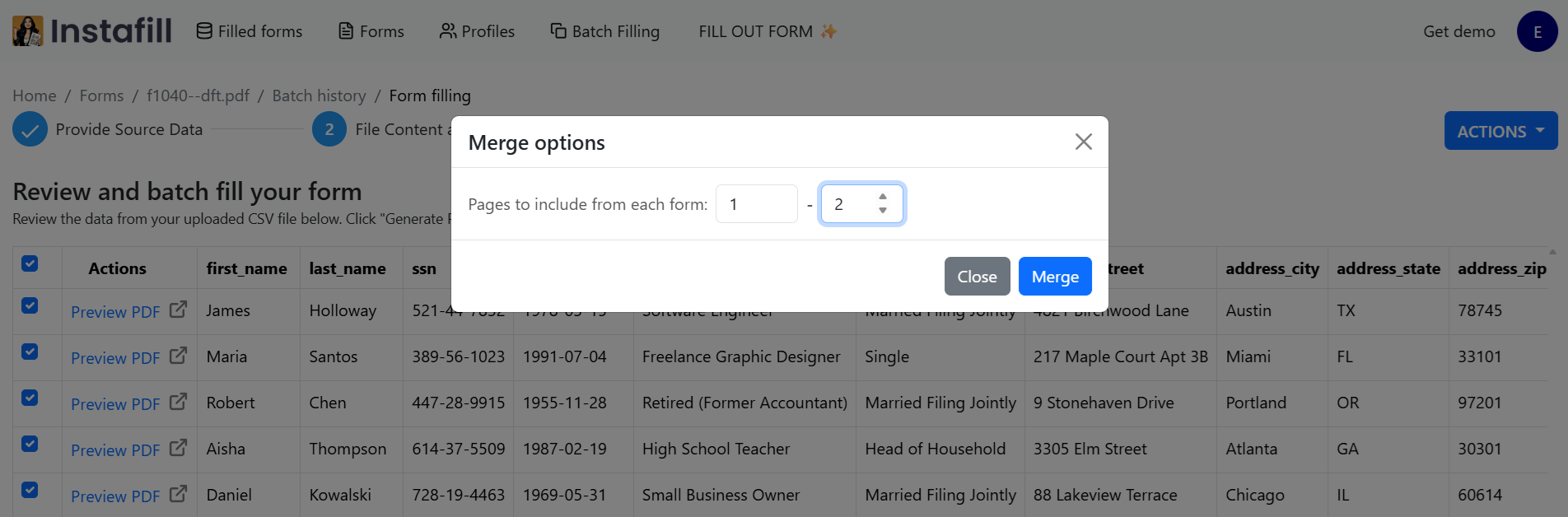
When using batch processing, you can select completed forms after a batch run and merge them into a single flat PDF in one step - all fields are flattened automatically as part of that merge. See 3 Updates to Instafill.ai Batch Filling for how this works in practice.
For a full explanation of flat PDF vs editable PDF output and when to use each, see Output Format Export.
After flattening and merging a batch, you can sign the resulting document directly inside Instafill.ai - type, draw, or upload your signature. See How to e-Sign PDF Documents with Instafill.ai.
Rotate Pages
Upload a PDF with incorrectly oriented pages, select the affected pages and rotation angle - 90, 180, or 270 degrees clockwise - and Instafill.ai corrects the orientation. Field coordinate positions are remapped to match the new rotation before the change is applied, so any filled values land in the correct location on the rotated page rather than appearing misaligned.
This is a common issue with scanned forms received in landscape orientation that should be portrait.
Split PDF
Specify your split method - a page range, individual page extraction, or split every N pages - and Instafill.ai saves the extracted pages as a new document. This is useful for large scanned batches where you need to process each page individually as a source document for AI data extraction.
Overlay Generation
When a form filling session is finalized, filled field values are written onto the PDF pages through an overlay process. The system creates a canvas sized to match each page's dimensions, renders each field value at a font size derived from the field's height, and composites the result onto the source document. If a page has a non-zero rotation, field coordinates are remapped before positioning so text lands correctly.
Field Detection
Upload any PDF and Instafill.ai extracts the form fields it contains - their names, types, and positions on each page. This is the first step in the form-filling pipeline and is also available as a standalone operation. For more on how field detection works, see PDF Field Extraction and Detection.
If your PDF has no fields at all - a scanned flat document with no interactive layer - see Flat-to-Fillable PDF Conversion instead.
Browser Rendering
Filled PDFs can be previewed and interacted with directly in the Instafill.ai interface without downloading. You can review field values, check layout, and make edits in the visual editor before exporting.
Use Cases
| Who | How |
|---|---|
| Legal teams | Flatten filled court and contract PDFs to produce tamper-evident documents before filing |
| Healthcare providers | Rotate scanned patient forms that came in sideways before processing them as source documents |
| Any team using batch processing | After a batch run, merge all completed forms into one flat PDF for a compliance portal that accepts only a single file |
| Development teams | Use field detection as a pipeline step before filling to extract field structure from uploaded PDFs |
Security
All operations are workspace-scoped. Files from other workspaces are never accessible. Flatten permanently removes interactive field annotations from finalized documents, preventing any downstream editing. All data is stored in Azure Blob Storage under your workspace scope.
For more on Instafill.ai's infrastructure and data handling, see the Security overview.
Common Questions
What does flattening actually do to a PDF?
Flattening removes all interactive form field annotations from a filled PDF and renders the filled values as permanent page content. The result looks identical to the filled form but has no editable fields - you cannot click into a text box, check a checkbox, or extract field data from the PDF structure.
This is the standard step before submitting to government agencies, compliance portals, and court systems that reject fillable PDFs. For a detailed explanation, see Output Format Export.
What happens to filled fields when I rotate a page?
Field coordinate positions are remapped from visual space into the correct PDF coordinates for the target rotation before the rotation is applied. This ensures filled values appear in the correct location on the rotated page rather than ending up misaligned.
Can I split a PDF and then use the parts as source documents?
Yes. Split the PDF into individual pages or page ranges, then upload the resulting files as source documents in a fill session. The AI will extract data from each file and use it to fill your form fields.
How does the merge into flat PDF work in batch processing?
After a batch run completes, select the filled forms you need and click "Merge into flat PDF." Choose page ranges if needed, then download a single non-editable document. This was built specifically for compliance portals and submission systems that only accept one file. All fields are flattened during the merge - nothing can be changed in the output. See 3 Updates to Instafill.ai Batch Filling for a full walkthrough.