Yes! You can use AI to fill out Integrated Assessment Tool (IAT) Offline Form 2506

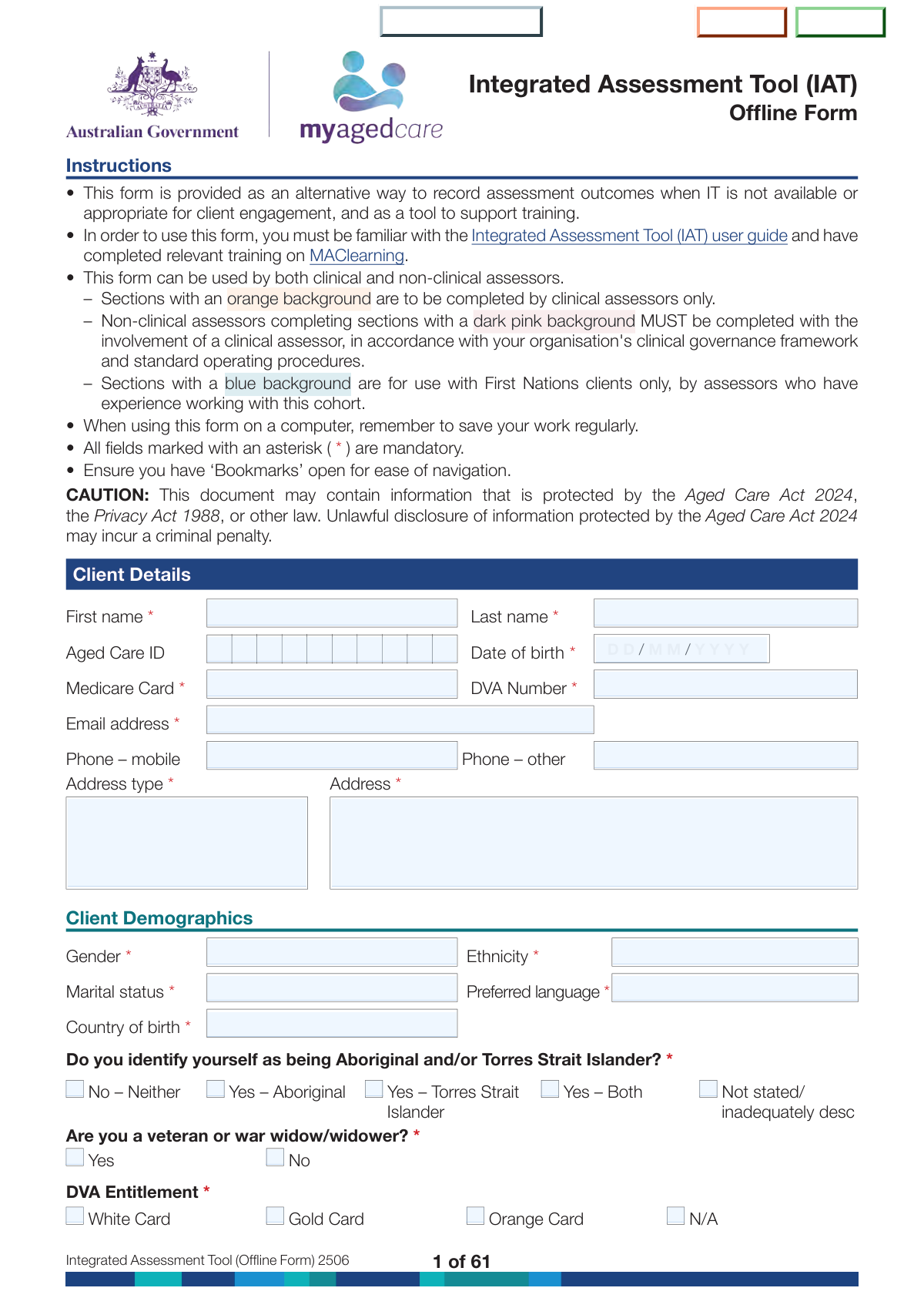
The Integrated Assessment Tool (IAT) Offline Form 2506 is a comprehensive aged care assessment document used by clinical and non-clinical assessors to capture client details, triage information, functional status, health conditions, cognition, psychosocial factors, safety risks, and support needs. It supports consistent decision-making about assessment urgency, service needs, and care planning, and includes validated supplementary tools (e.g., GPCog, GDS, RUIS/RFIS, DEMMI, and First Nations-specific tools such as GSGL and KICA). Because it contains sensitive personal and health information, it must be handled in line with privacy and aged care legislation and organisational governance requirements. Today, this form can be filled out quickly and accurately using AI-powered services like Instafill.ai, which can also convert non-fillable PDF versions into interactive fillable forms.
Our AI automatically handles information lookup, data retrieval, formatting, and form filling.
It takes less than a minute to fill out IAT Offline Form 2506 using our AI form filling.
Securely upload your data. Information is encrypted in transit and deleted immediately after the form is filled out.

Form specifications

Form name: Integrated Assessment Tool (IAT) Offline Form 2506
Number of pages: 71
Language: English
main-image

Instafill Demo: filling out a legal form in seconds

How to Fill Out IAT Offline Form 2506 Online for Free in 2026

Are you looking to fill out a IAT OFFLINE FORM 2506 form online quickly and accurately? Instafill.ai offers the #1 AI-powered PDF filling software of 2026, allowing you to complete your IAT OFFLINE FORM 2506 form in just 37 seconds or less.
Follow these steps to fill out your IAT OFFLINE FORM 2506 form online using Instafill.ai:
  1. 1 Go to Instafill.ai and upload the Integrated Assessment Tool (IAT) Offline Form 2506 PDF (or select it from the form library).
  2. 2 Use AI extraction to pre-fill known client demographics and identifiers (e.g., name, DOB, Aged Care ID, Medicare/DVA details) from existing notes or documents, then verify accuracy.
  3. 3 Complete the Client Details, Demographics, living arrangements, communication needs, and emergency contact/GP sections, attaching or referencing supporting information where required.
  4. 4 Fill in the Triage section (consent, triggers, current services, function and general health screening, urgency/priority recommendations) and add assessor notes where prompted.
  5. 5 Complete the Assessment domains (function, medical/medications, physical/personal health and frailty, social supports, cognition/behaviour/psychological, home and personal safety, and financial/legal), ensuring clinical-only sections are completed by an appropriately trained clinical assessor.
  6. 6 If applicable, use Instafill.ai to guide and populate supplementary validated tools (e.g., GPCog steps, GDS, RUIS/RFIS, DEMMI, GSGL/KICA for First Nations clients) and ensure scoring/selection fields are consistent with narrative notes.
  7. 7 Run an AI validation check for mandatory fields, internal consistency, and character limits; then export/save the completed form, print if needed, and store/share securely according to privacy and clinical governance requirements.

Our AI-powered system ensures each field is filled out correctly, reducing errors and saving you time.

Why Choose Instafill.ai for Your Fillable IAT Offline Form 2506 Form?

Speed

Complete your IAT Offline Form 2506 in as little as 37 seconds.

Up-to-Date

Always use the latest 2026 IAT Offline Form 2506 form version.

Cost-effective

No need to hire expensive lawyers.

Accuracy

Our AI performs 10 compliance checks to ensure your form is error-free.

Security

Your personal information is protected with bank-level encryption.

Frequently Asked Questions About Form IAT Offline Form 2506

It’s an offline version of the Integrated Assessment Tool used to record assessment outcomes when IT systems aren’t available or aren’t appropriate for client engagement. It can also be used as a training support tool alongside the IAT user guide.

Both clinical and non-clinical assessors can use the form, but you must be familiar with the IAT user guide and have completed relevant training on MAClearning. Some sections are restricted to clinical assessors or require clinical involvement under your organisation’s governance framework.

Orange sections are for clinical assessors only. Dark pink sections can be completed by non-clinical assessors only with the involvement of a clinical assessor, and blue sections are for First Nations clients only and should be used by assessors experienced with this cohort.

Any field marked with an asterisk (*) is mandatory and should be completed to avoid missing required information. If you leave mandatory fields blank, the assessment record may be incomplete and could delay follow-up actions or data entry later.

At minimum, be ready with the client’s name, date of birth, contact details, address, and Medicare card number. If applicable, also collect Aged Care ID, DVA number/entitlement, emergency contact details, and GP details.

Yes— the form states you must ensure the client has given informed consent for triage before completing it. If you are collecting information from someone other than the client, consent should also be obtained and documented in the relevant “Details” fields.

First indicate whether the client ever needs help to communicate; if “Yes,” select the type of difficulty (e.g., hearing, language, cognitive). Then record whether a Translation/Interpreter Service (TIS) is required and whether NRS is required, based on the client’s communication needs.

Select the main trigger that led the client/representative to seek assessment (e.g., falls, hospital discharge, change in care needs) and add brief supporting comments if needed. Then choose the timeframe (recent acute event, gradual increase, long-term disability, or other) and specify details if “Other” is selected.

Use the “Current Approvals” table to list care type, date approved, end date, and whether it was an emergency approval. Use “Current Services In Place” to note what services the client is currently receiving (or record “Not sure” in triage if unclear).

Clinical involvement is required for any clinical-only sections (orange) and for dark pink sections when completed by a non-clinical assessor, as stated in the form. Examples include advanced medical assessment, some continence scales (RUIS/RFIS) when required, GPCog Step 2, extended cognition/behaviour assessments, and GDS completion where indicated.

The DEMMI is required if the assessor indicates residential respite care is likely to be recommended. It must only be completed by clinical assessors who have completed DEMMI-modified training.

Complete the identification question in Client Demographics, and use the First Nations-specific tools where appropriate (blue sections), such as the Good Spirit Good Life Tool and/or KICA-COG/KICA Carer if culturally appropriate. The form notes these tools should be used by assessors with relevant cultural safety training and experience.

Treat the form as confidential and only share it according to your legal and organisational requirements, as it may be protected under the Aged Care Act 2024, the Privacy Act 1988, or other laws. Unlawful disclosure may incur criminal penalties, so store and transmit it securely.

Yes—AI tools can help you draft responses, organise information, and reduce manual data entry, as long as you follow your organisation’s privacy, consent, and clinical governance requirements. Services like Instafill.ai use AI to auto-fill form fields accurately and save time, but you should always review for correctness and appropriateness.

Upload the PDF to Instafill.ai, then provide the client’s details (or connect your source information) so the AI can map and auto-fill the form fields. If the PDF is flat/non-fillable, Instafill.ai can convert it into an interactive fillable form first, then you can review, edit, and export the completed version for printing or secure submission.

Compliance IAT Offline Form 2506
Validation Checks by Instafill.ai

1
Mandatory Client Identity Fields Completed (Name, DOB, Contact, Address, Demographics)
Validates that all fields marked as mandatory in Client Details and Client Demographics are present (e.g., First name, Last name, Date of birth, Medicare card, Email address, Address type, Address, Gender, Marital status, Country of birth, Ethnicity, Preferred language, ATSI identification, Veteran status). This is essential to uniquely identify the client and enable lawful contact and service coordination. If any required field is missing, the submission should be rejected or routed back for completion with a clear list of missing fields.
2
Date Format and Valid Calendar Date Validation (DD/MM/YYYY)
Checks that all date fields (e.g., Date of birth, Date of triage, Date of assessment, Date of informant interview, approval dates/end dates) follow the required DD/MM/YYYY format and represent real calendar dates (including leap years). This prevents downstream parsing errors and incorrect clinical/administrative timelines. If validation fails, the system should block submission and prompt for correction, highlighting the specific invalid date field(s).
3
Chronological Consistency of Key Dates (DOB < Triage ≤ Assessment)
Ensures the client’s Date of birth is earlier than Date of triage and Date of assessment, and that triage does not occur after the assessment date (unless the workflow explicitly allows it). This protects data integrity for eligibility, reporting, and audit trails. If inconsistent, the record should be flagged as invalid and require user confirmation/correction before acceptance.
4
Medicare Card Number Structure and Length Validation
Validates that the Medicare card number matches expected Australian Medicare formatting rules (typically 10 digits plus optional reference/IRN and/or expiry where captured) and contains only allowed characters (digits, and any permitted separators). Correct Medicare details are critical for identity matching and billing/eligibility processes. If the number fails format checks, the system should prevent submission and request re-entry exactly as shown on the card.
5
DVA Number and DVA Entitlement Logical Consistency
Checks that if the client indicates they are a veteran/war widow/widower or selects a DVA entitlement card (White/Gold/Orange), a DVA number is provided and is in an acceptable format. Also validates that selecting 'N/A' for DVA entitlement is not combined with selecting a DVA card type. If inconsistent, the system should require correction (either provide DVA number/card details or set entitlement to N/A appropriately).
6
Email Address Format Validation (Client, Emergency Contact, GP)
Validates that any provided email address fields conform to a standard email pattern (local-part@domain) and do not contain spaces or invalid characters. Email is used for client communication and sharing assessment outcomes, so malformed addresses cause delivery failures and privacy risks (misdirected messages). If invalid, the system should block submission for mandatory email fields and warn (or block, per policy) for optional email fields.
7
Australian Phone Number Validation (Mobile and Other)
Validates that phone numbers contain only permitted characters and match expected Australian patterns (e.g., mobile starting with 04 or +614, landline with area codes 02/03/07/08, reasonable length). This ensures assessors and services can contact the client/emergency contact/GP reliably. If invalid, the system should prompt for correction and require at least one valid contact number where policy requires it (e.g., emergency contact phone).
8
Address Completeness and Postcode/State Consistency
Ensures the Address field includes minimum components (street/address line, suburb/locality, state/territory, postcode) and validates postcode format (4 digits) and basic state-postcode consistency rules where feasible. Accurate addresses are required for service delivery, regional eligibility, and safety checks (home visits). If incomplete or inconsistent, the submission should be blocked or flagged for manual review depending on severity.
9
Single-Select Enforcement for Mutually Exclusive Yes/No and Category Questions
Validates that fields presented as mutually exclusive options (e.g., Veteran Yes/No, Communication help needed Yes/No, In hospital Yes/No, many domain Yes/No questions) have exactly one selection and not both/neither. This prevents ambiguous clinical interpretation and incorrect branching logic. If violated, the system should reject the submission and require the user to select exactly one option.
10
ATSI Identification Selection Integrity (Exactly One Option)
Ensures the Aboriginal and/or Torres Strait Islander identification question has exactly one valid selection among: No–Neither, Yes–Aboriginal, Yes–Torres Strait Islander, Yes–Both, or Not stated/inadequately described. This is important for culturally appropriate pathways and validated tool selection (e.g., GSGL/KICA). If multiple or none are selected, the system should block submission and request a single definitive response.
11
Conditional 'Other' Text Required When 'Other' Option Selected
For any question offering an 'Other' option (e.g., registration info source, reason for assessment, time period, relationship types, support types, alcohol/smoking details, diversity 'Other'), validates that the corresponding 'If Other, please specify' text field is populated. This ensures the selected option is interpretable and auditable. If 'Other' is selected without details, the system should require completion of the associated free-text field before submission.
12
Character Limit Enforcement for Free-Text Fields
Validates that all narrative fields respect their stated maximum lengths (e.g., 100/250/300/500/1000/1500 characters depending on the field). This prevents truncation, storage errors, and loss of clinically relevant information. If a limit is exceeded, the system should block submission and show the current character count and required reduction.
13
Communication Assistance Branching Rules (Difficulty Type, TIS, NRS)
If 'Communication help needed' is 'Yes', validates that at least one 'Type of difficulty' is selected and that TIS required and NRS required are explicitly answered (Yes/No). If 'Communication help needed' is 'No', validates that difficulty type/TIS/NRS fields are not populated (or are auto-cleared) to avoid contradictory data. If branching rules fail, the system should prompt the user to complete or clear dependent fields accordingly.
14
Carer Details Required When Client Receives Help From a Carer
If the client is receiving help from a carer (Assessment.Carer = Yes), validates that carer Name, Telephone, Relationship to client, and 'Does the person helping live with the client?' are completed, and that at least one 'Types of support provided' checkbox is selected. This is critical for care planning, risk assessment, and respite/emergency planning. If missing, the system should block submission or mark the assessment incomplete until carer details are provided.
15
Carer Hours Per Day Range and Numeric Validation (0–24)
Validates that each day’s 'Typical hours per day carer provides help' entry is numeric (integer or allowed decimal per design) and within 0–24 inclusive. This prevents impossible schedules and supports accurate workload and risk calculations. If out of range or non-numeric, the system should reject the value and require correction before submission.
16
Incontinence Tool Completion Logic (RUIS/RFIS vs Severity)
For bladder/bowel sections, validates that if the client is not managing incontinence and indicates willingness to complete RUIS/RFIS, then all required RUIS/RFIS items are answered; if they are unwilling/unable, then a severity level (Occasional/Mild/Moderate/Severe) is selected instead. This ensures consistent scoring and appropriate clinical follow-up. If neither tool responses nor severity is provided when required, the system should block submission and prompt completion of the correct pathway.

Common Mistakes in Completing IAT Offline Form 2506

Leaving mandatory (*) fields blank or partially completed

This form has many required fields across Client Details, Triage, Assessment, and multiple domains, and people often miss asterisks when moving quickly or jumping between sections. Missing mandatory items can make the assessment record invalid or require follow-up, delaying triage decisions and service provision. Before finalising, do a pass specifically for all “*” fields and ensure each has a clear response (not just notes). AI-powered tools like Instafill.ai can help by flagging missing mandatory fields and preventing submission until required items are completed.

Incorrect date format (DD/MM/YYYY) or inconsistent dates across triage/assessment

Users frequently enter dates in the wrong order (MM/DD/YYYY), use text like “today,” or omit leading zeros, especially on offline/printed forms. Inconsistent dates (e.g., triage date after assessment date) can create audit issues and confusion about timelines, urgency, and eligibility. Always use the specified DD/MM/YYYY format and cross-check that triage, assessment, and informant interview dates follow a logical sequence. Instafill.ai can automatically format dates correctly and validate that date sequences make sense.

Medicare/DVA identifiers entered incorrectly or in the wrong field

Medicare card numbers and DVA numbers are commonly mistyped, truncated, or entered without the required reference numbers/letters because people copy from memory or a partial document. Incorrect identifiers can prevent record matching, cause billing/entitlement errors, and trigger time-consuming verification. Enter the numbers exactly as shown on the card/document and confirm whether DVA details are actually applicable before completing entitlement fields. Instafill.ai can reduce these errors by validating expected identifier patterns and ensuring the right value goes into the right field.

Selecting conflicting options in Yes/No and multi-select questions

Because many questions are presented as checkboxes (not always mutually exclusive radio buttons), people sometimes tick both “Yes” and “No,” or select multiple incompatible options (e.g., multiple DVA entitlements plus N/A). Conflicting responses undermine clinical interpretation and can force reassessment or clarification calls. Treat these as single-choice unless the question explicitly says “select all that apply,” and do a quick conflict scan before saving/printing. Instafill.ai can detect contradictory selections and prompt corrections.

Not completing conditional follow-up fields after a trigger answer

A frequent issue is answering a gateway question (e.g., “Communication help needed—Yes,” “Allergies—Yes,” “Falls—Yes,” “Currently receiving services—Yes”) but leaving the required follow-up details blank (type, who helps, need met, notes, severity scales). This results in incomplete clinical context and can lead to inappropriate urgency ratings or missed risk factors. After any “Yes/Some help/Unable/Other” response, immediately complete the linked detail boxes and scales while the information is fresh. Instafill.ai can guide users through conditional logic so required follow-ups aren’t missed.

Using 'Other' without specifying details (or exceeding character limits)

The form repeatedly offers “Other” with a required free-text explanation and strict character limits (100/250/500/1500). People often tick “Other” and forget to specify, or paste long narratives that exceed limits, causing truncation and loss of key information. The consequence is ambiguous records and potential governance/audit issues if rationale is missing. Only choose “Other” when necessary, write a concise, specific description, and keep within the stated character limit. Instafill.ai can help by enforcing character limits and prompting for required “Other” explanations.

Mixing up client vs carer/representative contact details

With repeated fields for client, emergency contact, GP, informants, and carers, it’s common to accidentally enter a carer’s phone/email into the client’s section (or vice versa). This can lead to privacy breaches, missed communications, and consent problems—especially when contacting the wrong person about sensitive health information. Clearly label your source documents and confirm whose details you are entering at each section (client, emergency contact, GP, informant). Instafill.ai can help map data to the correct entity fields and reduce copy/paste mix-ups.

Not documenting consent and information source clearly in triage/assessment

The triage section explicitly requires informed consent before completion and asks who provided registration/assessment information, but users often skip or vaguely complete these items. Poor documentation can create compliance risk and makes it unclear whether information was client-reported, carer-reported, or clinician-reported—affecting reliability and follow-up. Always record the information source(s), and when it’s not the client, include names/relationship/contact details and note that consent was obtained. Instafill.ai can prompt for consent/source fields and ensure required context is captured.

Completing clinical-only sections without appropriate clinical involvement

This form has clear governance rules: orange sections are clinical-only, and some dark pink sections require clinical involvement for non-clinical assessors (e.g., advanced medical/psychological assessments, RUIS/RFIS support, GPCog Step 2, DEMMI). People sometimes complete these sections anyway to “finish the form,” which can breach organisational policy and compromise clinical safety. Follow the colour-coding rules and document the supervising clinical assessor where required (e.g., “Triage supervised by”). Instafill.ai can help by role-restricting sections and warning when a non-clinical user attempts to complete clinical-only content.

Inconsistent functional ratings vs 'who helps/need met' details

Users often select “With some help” or “Completely unable” for a function item but then choose “No one” under “Who helps,” or mark “Client does not require assistance,” creating internal contradictions. These inconsistencies can distort the picture of unmet need and lead to incorrect service recommendations. After selecting a functional level, ensure the helper and “need being met” fields logically align, and use the “Any additional details” box to explain exceptions (e.g., client refuses help). Instafill.ai can automatically check for logical consistency between functional status and support fields.

Not completing First Nations–specific tools appropriately (or completing them when not applicable)

The form includes First Nations–specific sections/tools (blue background) such as Good Spirit Good Life and KICA-COG variants, with guidance about cultural appropriateness and assessor experience. A common mistake is skipping these when the client identifies as Aboriginal and/or Torres Strait Islander, or completing them for non-First Nations clients, which can be culturally unsafe and clinically invalid. Confirm the client’s identification status early, then follow the tool selection guidance and document suitability decisions. Instafill.ai can help by showing/hiding cohort-specific sections based on the client’s identification and ensuring the correct tool pathway is followed.
Saved over 80 hours a year

“I was never sure if my IRS forms like W-9 were filled correctly. Now, I can complete the forms accurately without any external help.”

Kevin Martin Green

Your data stays secure with advanced protection from Instafill and our subprocessors

Robust compliance program

Transparent business model

You’re not the product. You always know where your data is and what it is processed for.

ISO 27001, HIPAA, and GDPR

Our subprocesses adhere to multiple compliance standards, including but not limited to ISO 27001, HIPAA, and GDPR.

Security & privacy by design

We consider security and privacy from the initial design phase of any new service or functionality. It’s not an afterthought, it’s built-in, including support for two-factor authentication (2FA) to further protect your account.

Fill out IAT Offline Form 2506 with Instafill.ai

Worried about filling PDFs wrong? Instafill securely fills integrated-assessment-tool-iat-offline-form-2506 forms, ensuring each field is accurate.