Yes! You can use AI to fill out Fidelity Transfer/Rollover/Exchange Form

This form, officially known as the Fidelity Transfer/Rollover/Exchange Form, facilitates the movement of assets from various retirement accounts—such as a 403(b), 401(k), or IRA—into a Fidelity employer-sponsored retirement plan. It is crucial for consolidating retirement savings, potentially simplifying management and oversight of your investments. Today, this form can be filled out quickly and accurately using AI-powered services like Instafill.ai, which can also convert non-fillable PDF versions into interactive fillable forms.
Our AI automatically handles information lookup, data retrieval, formatting, and form filling.
It takes less than a minute to fill out 022380001 using our AI form filling.
Securely upload your data. Information is encrypted in transit and deleted immediately after the form is filled out.

Form specifications

Form name: Fidelity Transfer/Rollover/Exchange Form
Number of pages: 6
Language: English
main-image

Instafill Demo: How to fill out PDF forms in seconds with AI

How to Fill Out 022380001 Online for Free in 2026

Are you looking to fill out a 022380001 form online quickly and accurately? Instafill.ai offers the #1 AI-powered PDF filling software of 2026, allowing you to complete your 022380001 form in just 37 seconds or less.
Follow these steps to fill out your 022380001 form online using Instafill.ai:
  1. 1 Navigate to Instafill.ai and upload the Fidelity Transfer/Rollover/Exchange Form or select it from their template library.
  2. 2 Use the AI assistant to accurately fill in your personal details in Section 1, including your name, address, and Social Security Number.
  3. 3 Provide information about the investment provider you are moving money from (Section 2) and specify the account(s) or contract(s) to be moved, including account numbers and liquidation amounts (Section 3).
  4. 4 Enter your Fidelity account information in Section 4, specifying the employer-sponsored plan that will receive the assets.
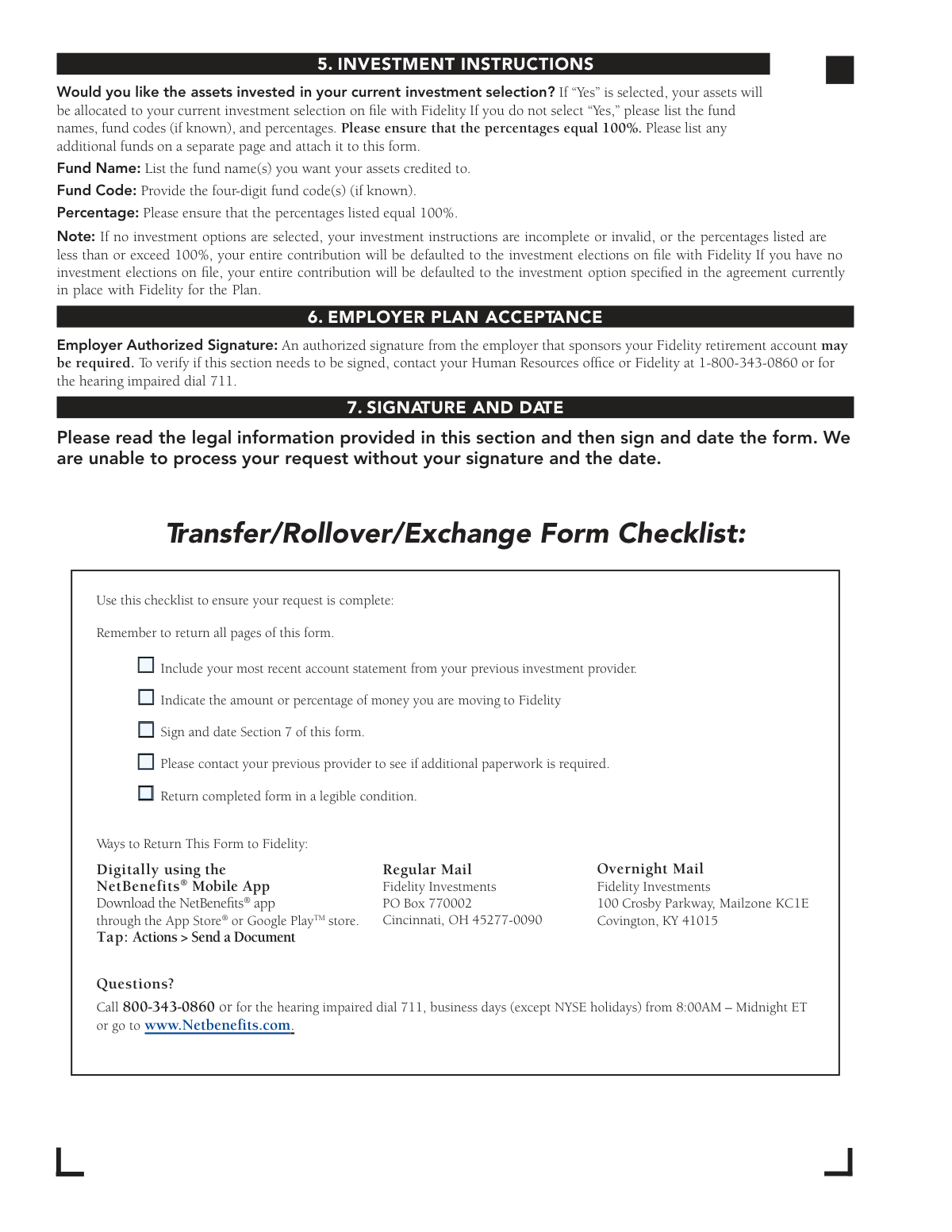
  5. 5 Complete Section 5 by providing investment instructions for the transferred assets, either by selecting your current allocation or specifying new funds and percentages.
  6. 6 If required by your plan, obtain an authorized signature from your employer in Section 6.
  7. 7 Carefully review all entered information, then digitally sign and date the form in Section 7 before submitting it to Fidelity as per the instructions.

Our AI-powered system ensures each field is filled out correctly, reducing errors and saving you time.

Why Choose Instafill.ai for Your Fillable 022380001 Form?

Speed

Complete your 022380001 in as little as 37 seconds.

Up-to-Date

Always use the latest 2026 022380001 form version.

Cost-effective

No need to hire expensive lawyers.

Accuracy

Our AI performs 10 compliance checks to ensure your form is error-free.

Security

Your personal information is protected with bank-level encryption.

Frequently Asked Questions About Form 022380001

This form is used to move assets from a retirement account at a previous investment provider into your current employer-sponsored retirement account with Fidelity. It can also be used to consolidate multiple retirement accounts that are already at Fidelity.

You should complete this form if you want to move funds from a previous employer's retirement plan (like a 401(k) or 403(b)) or an IRA into your current retirement plan administered by Fidelity.

You must include a copy of your most recent account statement from the investment provider you are moving the money from. It is also recommended to contact your previous provider to see if they require any additional paperwork.

Your account number should be on your statement from the previous provider. If you cannot find it or do not provide it, Fidelity will use your Social Security Number to request the assets from your old provider.

If you do not specify whether to move the full balance or a partial amount, Fidelity will default to requesting a full liquidation, meaning 100% of your account balance will be moved.

An authorized signature from your employer may be required depending on your plan's rules. You should contact your Human Resources office or Fidelity to verify if this signature is necessary for your request.

You can submit the form digitally via the NetBenefits mobile app, or by sending all pages of the completed form via regular or overnight mail to the Fidelity address listed in the instructions.

You must first enroll in your employer's retirement plan with Fidelity before you can move assets into it. You can contact Fidelity for assistance with the enrollment process.

If you leave the investment instructions blank or incomplete, the incoming funds will be invested according to your current elections on file with Fidelity. If you have no elections on file, the funds will go into your plan's default investment option.

No, you must complete a separate Transfer/Rollover/Exchange Form for each investment provider you are moving money from.

Yes, services like Instafill.ai use AI to accurately auto-fill form fields, which can save you time and help prevent common errors. This is especially helpful for entering personal information correctly.

To use Instafill.ai, you upload a digital copy of the form to its platform. The AI will identify the fields, allowing you to enter your information once and have it automatically and accurately placed throughout the document.

If you have a non-fillable PDF, you can use a service like Instafill.ai to convert it into an interactive, fillable form. This allows you to easily type your information into the fields before printing and signing.

Compliance 022380001
Validation Checks by Instafill.ai

1
Validates Social Security or Tax ID Number Format
This check ensures the Social Security Number or Tax ID Number field contains exactly 9 digits and no other characters. This number is the primary identifier for the individual for tax reporting and account matching. If the format is incorrect, the system cannot process the request, and it will be rejected pending correction.
2
Confirms User Signature and Date are Present
This validation verifies that the signature and date fields in Section 7 have been filled out. The user's signature provides legal authorization for Fidelity to act on their behalf, and the date establishes when the authorization was given. The form explicitly states that the request cannot be processed without a signature and date.
3
Validates Investment Allocation Percentages Sum to 100%
If the user selects 'No' for using current investment selections in Section 5, this check ensures the sum of all specified fund percentages equals exactly 100%. This is critical for allocating the entire transferred amount without ambiguity. If the total is not 100% or the instructions are incomplete, the form states the funds will be defaulted to the elections on file, overriding the user's specific but incomplete instructions.
4
Requires Previous Employer Name when 'A Previous Employer' is Selected
This check is triggered if the user selects 'A Previous Employer' in Section 3. It verifies that the 'Previous Employer Name' field has been filled out. This information is necessary for the rollover process to correctly identify the source plan. Failure to provide the name will result in an incomplete request and processing delays until the information is supplied.
5
Ensures Specific Amount is Provided for Partial Liquidation
When 'Partial Liquidation' is selected in Section 3, this validation verifies that either a percentage OR a dollar amount is entered, but not both. This prevents ambiguity in the liquidation instruction. If the 'Partial Liquidation' box is checked but no amount or percentage is specified, the request is considered incomplete and may be rejected or delayed.
6
Verifies at Least One Account Type is Selected
This validation confirms that for each account being moved (Section 3A and 3B), at least one 'Type' checkbox (e.g., 403(b), 401(a)/(k), IRA) has been selected. This information is fundamental for determining the nature of the transfer and ensuring compliance with IRS rules. Without an account type, Fidelity cannot correctly process the transaction.
7
Validates Roth Balance Selection Consistency
This check ensures that if a 'Include Roth...' checkbox is selected (e.g., 'Include Roth 403(b) balance'), the corresponding primary account type checkbox (e.g., '403(b)') is also selected. A Roth balance cannot exist independently of its parent account type. An inconsistent selection would lead to an invalid request that requires clarification from the user.
8
Cross-Validates Source and Destination Plan Type Compatibility
This validation checks for logical consistency between the source account type in Section 3 (e.g., 457(b) governmental) and the destination Fidelity plan type in Section 4. The form explicitly states that governmental 457(b) assets must be moved into a governmental 457(b) plan. A mismatch would violate plan rules or tax laws, causing the transaction to be rejected.
9
Ensures Fidelity Account Information is Provided for Second Account
This check verifies that if any information is entered in Section 3B for a second account/contract, then the corresponding Fidelity account information in Section 4B must also be completed. Moving a second account requires specifying its destination within Fidelity. Missing destination information for the second account will cause that part of the request to fail or be delayed.
10
Validates Completeness of Previous Investment Provider Information
This check ensures that the name and address of the investment provider in Section 2 are fully completed. This information is essential for Fidelity to know where to send the transfer request paperwork. Incomplete or missing provider details will make it impossible to initiate the asset movement, causing the entire request to be put on hold.
11
Ensures Date of Birth is a Valid and Reasonable Date
This validation confirms that the Date of Birth is a real calendar date (e.g., not 02/30/1980) and that the calculated age is within a reasonable range for holding a retirement account (e.g., over 18). An invalid or nonsensical date can cause identity verification to fail and halt the transaction.
12
Validates Email Address Format
This validation ensures the email address provided in Section 1 follows the standard '[email protected]' format. A valid email is a primary channel for status updates, confirmations, and electronic communication regarding the transfer. An invalid email address would prevent the user from receiving important notifications about their transaction.

Common Mistakes in Completing 022380001

Forgetting to Include the Previous Provider's Account Statement

The form and its checklist explicitly require a copy of your most recent account statement from the provider you are moving money from. People often forget this attachment, assuming the information on the form is sufficient. Without the statement, Fidelity cannot verify the account details, and the entire request will be put on hold or rejected, forcing you to resubmit everything.

Entering Incomplete or Incorrect 'From' Provider Details

Users often guess or use an outdated name and address for the investment provider in Section 2, especially if they don't have a recent statement handy. Incorrect provider details will cause Fidelity's request to be rejected by the other institution, significantly delaying the transfer process. Always refer to your most recent account statement for the exact provider name and address to ensure the request is sent correctly.

Confusing Account Types and Transaction Rules in Section 3

Section 3 requires correctly identifying both the account type (e.g., 401k, IRA) and its origin (e.g., 'Previous Employer'). This is a complex area, and selecting the wrong combination can lead to incorrect tax treatment or rejection of the transfer. For example, misclassifying a transfer as a rollover has different processing requirements, and failing to check the 'Include Roth' box can leave funds behind. Carefully review your statement and the form's instructions to ensure accuracy.

Providing Ambiguous or Incomplete Liquidation Instructions

When selecting 'Partial Liquidation,' users sometimes forget to specify a clear dollar amount or percentage, or they might enter both, creating confusion. The form defaults to 100% liquidation if this section is left blank, which may not be the user's intent. This can result in either the entire account being moved against your wishes or the form being delayed for clarification.

Entering Incorrect Destination Fidelity Plan Information

In Section 4, users must specify the correct Fidelity plan type (e.g., 403(b), 401(k)) and plan number. People may guess or select the wrong plan if they have multiple accounts. This error could cause funds to be credited to the wrong retirement plan, creating a complicated and time-consuming issue to resolve with potential tax consequences. Always verify your Fidelity plan details on your statement or by contacting Fidelity before filling out this section.

Submitting Investment Instructions That Don't Total 100%

In Section 5, users must allocate their funds across different investments with percentages that sum to exactly 100%. A common mistake is a simple math error or leaving the section incomplete. The form states that if instructions are invalid, the entire contribution will be defaulted to a pre-selected option, which may not align with your investment strategy.

Skipping the Required Employer Plan Acceptance Signature

Section 6 may require a signature from an authorized person at your employer, but the form leaves it to you to verify if it's needed. Many people will skip this section to save time, assuming it's not required. If the signature is indeed necessary, its absence will cause the form to be rejected, halting the entire process until a correctly signed form is resubmitted.

Forgetting to Sign and Date the Form in Section 7

This is one of the most common and easily avoidable mistakes. Users get focused on the complex financial details and simply overlook the final signature and date fields. An unsigned or undated form is legally invalid and cannot be processed, resulting in an immediate rejection and requiring you to start the process over.

Submitting the Form Without an Active Fidelity Account

Users sometimes assume this form will create a new Fidelity account for them, but it is only for moving assets into an existing or simultaneously created account. The instructions state that enrollment must be completed if an account doesn't exist. Submitting this form alone will result in rejection, as there is no destination for the funds.

Using Illegible Handwriting or an Incorrect Pen

The form instructs users to print clearly in CAPITAL LETTERS with a black pen, but many fill it out quickly with poor handwriting. If numbers (like account numbers or SSN) or names are unreadable, the form cannot be processed correctly, leading to data entry errors or rejection. AI-powered form filling tools like Instafill.ai prevent this by populating fields with clear, typed text and can even convert non-fillable PDFs like this one into a fillable version.
Saved over 80 hours a year

“I was never sure if my IRS forms like W-9 were filled correctly. Now, I can complete the forms accurately without any external help.”

Kevin Martin Green

Your data stays secure with advanced protection from Instafill and our subprocessors

Robust compliance program

Transparent business model

You’re not the product. You always know where your data is and what it is processed for.

ISO 27001, HIPAA, and GDPR

Our subprocesses adhere to multiple compliance standards, including but not limited to ISO 27001, HIPAA, and GDPR.

Security & privacy by design

We consider security and privacy from the initial design phase of any new service or functionality. It’s not an afterthought, it’s built-in, including support for two-factor authentication (2FA) to further protect your account.

Fill out 022380001 with Instafill.ai

Worried about filling PDFs wrong? Instafill securely fills fidelity-transferrolloverexchange-form-1 forms, ensuring each field is accurate.