Yes! You can use AI to fill out John Hancock Independent Care Provider Service Reimbursement

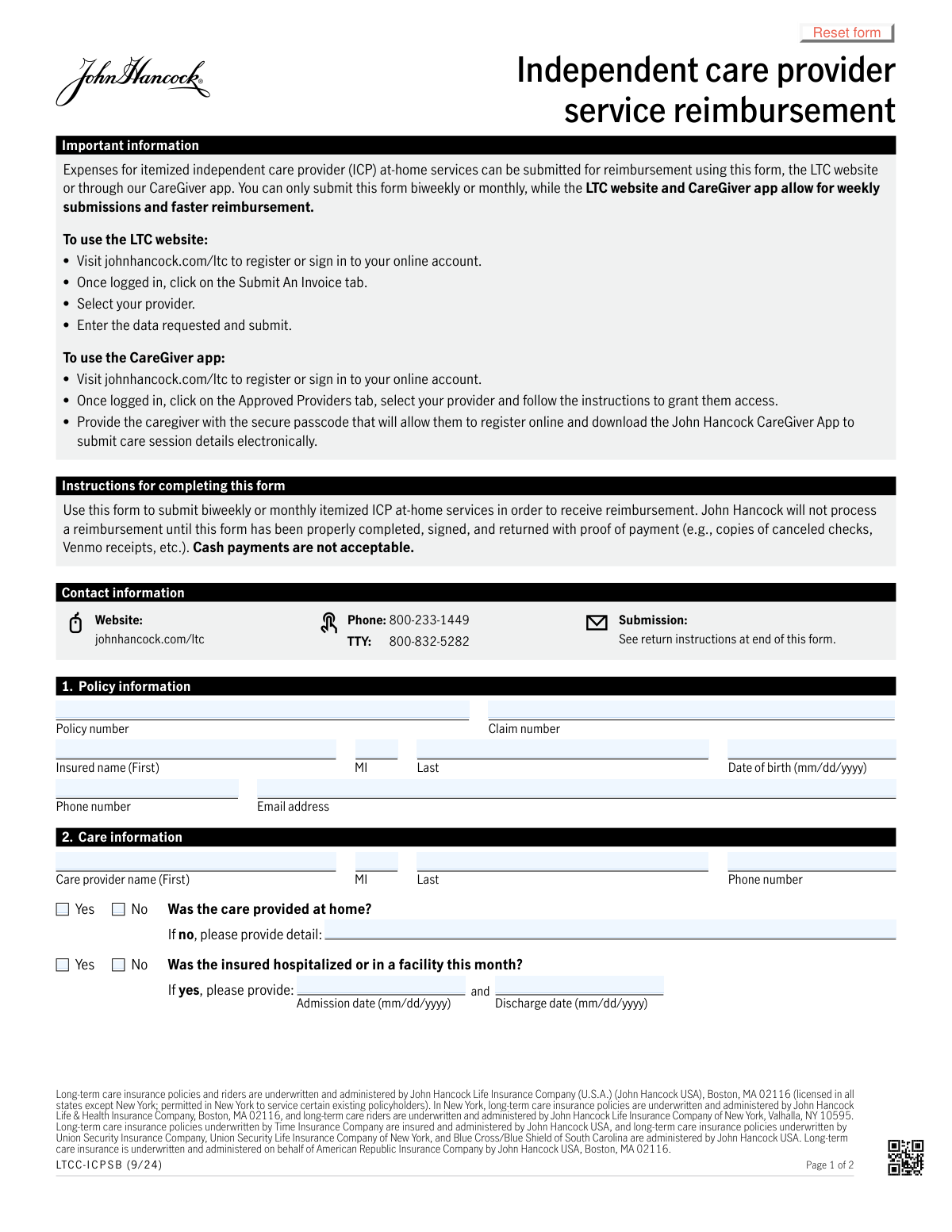
This form is used by John Hancock long-term care insurance policyholders to request reimbursement for services received from an independent care provider. It requires detailed information about the policyholder, the care provider, and an itemized list of services, including dates, times, and costs. Today, this form can be filled out quickly and accurately using AI-powered services like Instafill.ai, which can also convert non-fillable PDF versions into interactive fillable forms.
Our AI automatically handles information lookup, data retrieval, formatting, and form filling.
It takes less than a minute to fill out LTCC-IC P S B using our AI form filling.
Securely upload your data. Information is encrypted in transit and deleted immediately after the form is filled out.

Form specifications

Form name: John Hancock Independent Care Provider Service Reimbursement
Number of pages: 2
Language: English
Categories: CAR forms, L.A. Care forms
main-image

Instafill Demo: How to fill out PDF forms in seconds with AI

How to Fill Out LTCC-IC P S B Online for Free in 2026

Are you looking to fill out a LTCC-IC P S B form online quickly and accurately? Instafill.ai offers the #1 AI-powered PDF filling software of 2026, allowing you to complete your LTCC-IC P S B form in just 37 seconds or less.
Follow these steps to fill out your LTCC-IC P S B form online using Instafill.ai:
  1. 1 Navigate to Instafill.ai and upload or select the John Hancock Independent Care Provider Service Reimbursement form.
  2. 2 Provide the policyholder's information, including policy number, claim number, name, and date of birth.
  3. 3 Enter the care provider's name and contact details, and specify where the care was provided.
  4. 4 Use the AI assistant to accurately itemize each day of care, including the date, hours, hourly rate, total daily charge, and the specific services provided (e.g., bathing, dressing, supervision).
  5. 5 Attach required proof of payment, such as copies of canceled checks or digital payment receipts.
  6. 6 Review all entered information for accuracy, then electronically sign the form as the insured or fiduciary and request the care provider's signature.
  7. 7 Submit the completed and signed form directly through the platform or download it for mailing as per the form's instructions.

Our AI-powered system ensures each field is filled out correctly, reducing errors and saving you time.

Why Choose Instafill.ai for Your Fillable LTCC-IC P S B Form?

Speed

Complete your LTCC-IC P S B in as little as 37 seconds.

Up-to-Date

Always use the latest 2026 LTCC-IC P S B form version.

Cost-effective

No need to hire expensive lawyers.

Accuracy

Our AI performs 10 compliance checks to ensure your form is error-free.

Security

Your personal information is protected with bank-level encryption.

Frequently Asked Questions About Form LTCC-IC P S B

This form is used to submit a claim for reimbursement for at-home services you received from an Independent Care Provider (ICP) under your John Hancock long-term care insurance policy.

This paper form can only be submitted biweekly or monthly. For faster reimbursement, you can submit claims weekly through the John Hancock LTC website or the CareGiver app.

You must attach proof of payment, such as copies of canceled checks or Venmo receipts. John Hancock will not process reimbursements for cash payments.

The form requires two signatures: one from the insured person (or their legal fiduciary, like a Power of Attorney) and one from the care provider. Both signatures are required to process the claim.

You can submit the completed and signed form by uploading it to your online account at johnhancock.com/ltc or by mailing it to John Hancock LTC Claims, PO Box 55231, Boston, MA 02205.

For each day of service, you must provide the date, time in and out, total hours, hourly charge, and total daily charge. You also need to check the boxes for the specific types of care provided.

If a service is not listed, you can check the 'Other' box for that day and write a brief description of the service in the space provided below the itemized services grid.

Sign your name on the 'Signature of insured (or fiduciary)' line, date it, and check the 'Power of Attorney' box. You must also include supporting documentation to prove your authority to sign.

Yes, the form states that using the LTC website (johnhancock.com/ltc) or the CareGiver app allows for weekly submissions and faster reimbursement compared to this biweekly or monthly paper form.

Missing information like your policy or claim number can delay the processing of your reimbursement. Ensure these numbers are filled in correctly on both pages of the form before submitting.

Yes, services like Instafill.ai use AI to help you accurately auto-fill form fields, which can save time and help prevent common errors.

To fill this form online, you can upload the PDF to Instafill.ai. The platform's AI will make the fields interactive, allowing you to type your information, save your progress, and easily complete the form.

If you have a non-fillable PDF, you can use a tool like Instafill.ai. It can convert flat PDFs into interactive, fillable forms so you can easily type your information before printing and signing.

Compliance LTCC-IC P S B
Validation Checks by Instafill.ai

1
Policy and Claim Number Completeness
Verifies that both the 'Policy number' and 'Claim number' fields in Section 1 are filled. These numbers are the primary identifiers for routing and processing the reimbursement request. If either is missing, the system cannot associate the form with the correct insured person or active claim, leading to rejection or significant processing delays.
2
Date Format Validation (MM/DD/YYYY)
Ensures that all date fields ('Date of birth', 'Admission date', 'Discharge date', all service dates, and signature dates) strictly follow the 'mm/dd/yyyy' format. This is critical for preventing data entry errors and ensuring the system can correctly parse and interpret the dates for processing. A failure would prompt the user to correct the format before submission.
3
Conditional Hospitalization Date Requirement
If the 'Yes' box for 'Was the insured hospitalized or in a facility this month?' is checked, this validation confirms that both the 'Admission date' and 'Discharge date' fields are populated. This information is essential for benefit coordination, as policy terms may change or be suspended during a facility stay. An incomplete entry would require manual follow-up.
4
Hospitalization Date Logic
This check ensures the 'Discharge date' is on or after the 'Admission date' when hospitalization information is provided. This is a logical validation to prevent impossible date ranges from being entered. An invalid range would indicate a data entry error that must be corrected to accurately reflect the hospitalization period.
5
Itemized Row Calculation Accuracy
For each populated row in the 'Itemized care services' grid, this check validates that 'Total hours' multiplied by 'Hourly charge' equals the 'Total daily charge'. This is a crucial cross-field validation to ensure the financial data is mathematically sound. If a row's calculation is incorrect, the form will be flagged for manual review to correct the error before payment is calculated.
6
Grand Total Calculation Accuracy
This validation sums all individual 'Total daily charge' values from the itemized grid and verifies that the result matches the amount entered in the final 'Total charges' field. This ensures the overall claim amount is correct and prevents over or underpayment due to manual calculation errors. A mismatch would halt automated processing and require correction.
7
Service Time Chronology
For every itemized service row, this validation ensures the 'Time out' is later than the 'Time in'. This is a fundamental logical check to prevent impossible time entries, such as a service ending before it began. An invalid time sequence indicates a data entry error that must be fixed for the service hours to be considered valid.
8
Calculated vs. Entered Total Hours
This check calculates the duration between 'Time in' and 'Time out' for each service row and compares it to the value entered in the 'Total hours' field. This helps catch manual entry errors where the user might miscalculate the duration. A discrepancy would flag the row for review to ensure the hours claimed are accurate.
9
Itemized Service Row Completeness
For any row in the itemized services grid where a date is entered, this check ensures all other fields in that row are complete (Time in/out, Total hours, Hourly charge, and at least one service checkbox). This prevents the submission of partial service records which cannot be processed. Incomplete rows will be flagged, requiring the user to provide all necessary information for that service entry.
10
Conditional 'Other' Service Detail
This validation ensures that if the 'Other' checkbox is selected for any itemized service row, the 'If you selected other above, please provide detail' text field is not empty. This is important for verifying that the 'Other' services are covered under the policy. Without a description, the claim for those specific services cannot be adjudicated and may be denied.
11
Dual Signature Requirement
This check verifies that both the 'Signature of insured (or fiduciary)' and 'Signature of care provider' fields have been signed. These signatures are a legal attestation that the services were provided as described and that the information is accurate. Missing signatures will result in the immediate rejection of the form as legally incomplete.
12
Signature Date Validity
This validation confirms that both 'Date signed' fields are on or after the latest service date listed in the 'Itemized care services' grid. This ensures the form was signed after all services for the claim period were completed, which is a standard requirement for attestation. A signature date preceding the final service date would invalidate the claim.
13
Conditional Fiduciary Title
This check verifies that if the 'Other' checkbox is selected in the 'Title' section under the insured's signature, the adjacent text field specifying the title is filled in. This is necessary to establish the legal authority of the person signing on behalf of the insured. Without this information, the signature's validity cannot be confirmed, and the claim cannot be processed.

Common Mistakes in Completing LTCC-IC P S B

Forgetting to Attach Proof of Payment

The form explicitly requires proof of payment (e.g., copies of canceled checks, Venmo receipts) to be submitted for reimbursement, and cash payments are not accepted. Users often forget to include these crucial attachments, which results in an automatic rejection or delay of the claim. To avoid this, always gather and include all payment documentation with the form before submission.

Mathematical Errors in Itemized Service Charges

Section 3 requires manual calculations for 'Total Hours', 'Total Daily Charge', and the final 'Total Charges'. These calculations are a common source of error, leading to incorrect reimbursement amounts and processing delays while the insurer clarifies the discrepancies. To prevent this, carefully double-check all math. AI-powered form filling tools like Instafill.ai can prevent this by performing calculations automatically, ensuring accuracy.

Missing Signatures or Signature Dates

The form is invalid without dated signatures from both the insured (or their fiduciary) and the care provider. It is a frequent mistake for one party to forget to sign or date their section, especially when the form is passed between them. This oversight will cause the claim to be rejected, forcing a restart of the signature and submission process. Always confirm both signatures and dates are present before sending.

Failure to Provide Fiduciary Documentation

If a Power of Attorney (POA) or Guardian signs for the insured, they must check the appropriate box and submit supporting legal documents to prove their authority. A common error is checking the box but failing to attach the required POA or guardianship papers. Without this proof, the signature is invalid, and the claim will be returned with a request for the missing documentation, causing significant delays.

Inconsistent Policy and Claim Numbers

The Policy and Claim numbers must be entered at the top of both page 1 and page 2. Users may forget to fill out the fields on the second page or accidentally write a different number, creating a data mismatch. This can cause processing delays as the claims department works to match the pages to the correct file. To avoid this, fill out both pages completely; tools like Instafill.ai can auto-populate repeated fields to ensure consistency.

Incorrect Date and Time Formatting

The form requires dates in 'mm/dd/yyyy' format and times with an 'a.m./p.m.' indicator. Users often enter dates in other formats (e.g., 'Jan 1, 2024') or use 24-hour time, which can lead to data entry errors and require clarification from the processor. This slows down reimbursement. Always adhere to the specified format. AI form-filling tools can automatically validate and format this data correctly.

No Service Type Selected for a Billed Day

For each day of service listed in the itemized grid, the user must check at least one box to specify the type of care provided (Bathing, Dressing, etc.). It is easy to fill in the hours and charges but forget to check a service box for that row. Without a specified service, the insurer cannot verify that a covered activity was performed, which is a requirement for reimbursement and will cause the claim for that day to be denied or delayed.

Checking 'Other' Without Providing Details

When a user checks the 'Other' box in the service grid, they must also write a description of that service in the designated detail box at the end of Section 3. A frequent oversight is checking the box but forgetting to provide the explanation. This leaves the claim incomplete, as the insurer cannot reimburse for undocumented services and will have to request more information.

Incomplete Hospitalization Information

If the insured was hospitalized, the user must check 'Yes' in Section 2 and provide the specific admission and discharge dates. People often check 'Yes' but leave the date fields blank. This information is critical for determining benefit eligibility and its absence will halt the claim until the details are provided. Always complete the date fields if selecting 'Yes' for hospitalization.

Submitting a Non-Fillable PDF Without Conversion

This form is often distributed as a flat, non-fillable PDF, forcing users to print it and fill it out by hand, which increases the risk of illegible handwriting and calculation errors. This can lead to processing delays or rejections if the information cannot be read correctly. To avoid this, use a tool like Instafill.ai, which can convert non-fillable PDFs into interactive, fillable forms, allowing for clean, typed entries and automated calculations.
Saved over 80 hours a year

“I was never sure if my IRS forms like W-9 were filled correctly. Now, I can complete the forms accurately without any external help.”

Kevin Martin Green

Your data stays secure with advanced protection from Instafill and our subprocessors

Robust compliance program

Transparent business model

You’re not the product. You always know where your data is and what it is processed for.

ISO 27001, HIPAA, and GDPR

Our subprocesses adhere to multiple compliance standards, including but not limited to ISO 27001, HIPAA, and GDPR.

Security & privacy by design

We consider security and privacy from the initial design phase of any new service or functionality. It’s not an afterthought, it’s built-in, including support for two-factor authentication (2FA) to further protect your account.

Fill out LTCC-IC P S B with Instafill.ai

Worried about filling PDFs wrong? Instafill securely fills john-hancock-independent-care-provider-service-reimbursement-1 forms, ensuring each field is accurate.