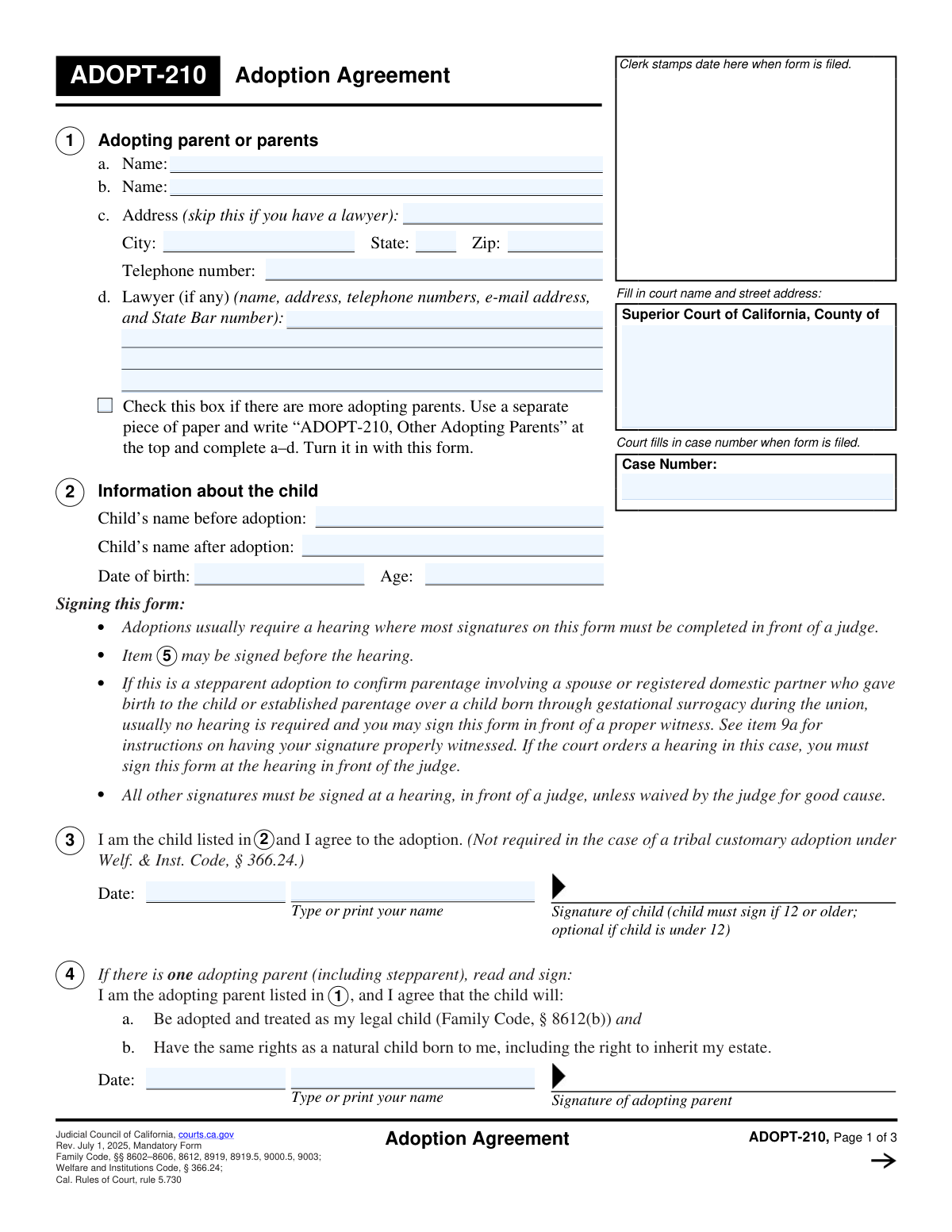
Yes! You can use AI to fill out Judicial Council of California Form ADOPT-210, Adoption Agreement

ADOPT-210, Adoption Agreement, is a mandatory California Judicial Council form used in adoption proceedings to record the adopting parent(s)’ agreement to adopt and to capture required consents (such as the child’s consent if age 12 or older, a spouse/domestic partner consent in certain cases, and stepparent/legal parent consent when applicable). The form also documents how the agreement was executed—at a hearing before a judicial officer, remotely with judicial acknowledgment, or outside a hearing with a proper witness/notarization when allowed. It is important because it creates a clear, court-acceptable record of the parties’ legal commitments and helps the court confirm statutory requirements under the Family Code and related rules. Today, this form can be filled out quickly and accurately using AI-powered services like Instafill.ai, which can also convert non-fillable PDF versions into interactive fillable forms.
Our AI automatically handles information lookup, data retrieval, formatting, and form filling.
It takes less than a minute to fill out ADOPT-210 using our AI form filling.
Securely upload your data. Information is encrypted in transit and deleted immediately after the form is filled out.

Form specifications

Form name: Judicial Council of California Form ADOPT-210, Adoption Agreement
Number of pages: 3
Language: English
Categories: California court forms, Judicial Council forms, family law forms, California judicial forms, adoption forms
main-image

Instafill Demo: filling out a legal form in seconds

How to Fill Out ADOPT-210 Online for Free in 2026

Are you looking to fill out a ADOPT-210 form online quickly and accurately? Instafill.ai offers the #1 AI-powered PDF filling software of 2026, allowing you to complete your ADOPT-210 form in just 37 seconds or less.
Follow these steps to fill out your ADOPT-210 form online using Instafill.ai:
  1. 1 Go to Instafill.ai and upload the ADOPT-210 PDF (or search/select “ADOPT-210 Adoption Agreement” from the form library).
  2. 2 Enter the court information and case details (Superior Court county, court address, and the adoption case number if already assigned).
  3. 3 Provide adopting parent(s) information (names, and either mailing address/phone if self-represented or attorney details if represented; add an attachment for additional adopting parents if needed).
  4. 4 Complete the child’s information (name before adoption, name after adoption, date of birth, and age) and confirm whether the child’s signature is required (generally required if the child is 12 or older).
  5. 5 Select and complete the correct agreement/consent sections based on your situation (single adopting parent, multiple adopting parents, spouse/domestic partner consent, stepparent adoption consent, and/or tribal customary adoption details including attached order date).
  6. 6 Complete the execution section (Item 9) by choosing whether signatures will be done at a hearing, remotely with judicial acknowledgment, or outside a hearing with the correct witness/notary details, then generate a final, court-ready copy for printing/signing and filing.

Our AI-powered system ensures each field is filled out correctly, reducing errors and saving you time.

Why Choose Instafill.ai for Your Fillable ADOPT-210 Form?

Speed

Complete your ADOPT-210 in as little as 37 seconds.

Up-to-Date

Always use the latest 2026 ADOPT-210 form version.

Cost-effective

No need to hire expensive lawyers.

Accuracy

Our AI performs 10 compliance checks to ensure your form is error-free.

Security

Your personal information is protected with bank-level encryption.

Frequently Asked Questions About Form ADOPT-210

ADOPT-210 is the California Judicial Council form used to record the required agreements and consents for an adoption, including the adopting parent(s)’ agreement and (when required) the child’s and spouse’s consents. It is filed in the adoption case with the Superior Court.

The adopting parent or parents must complete the form and sign the appropriate section (one parent in item 4, multiple parents in item 7, or tribal customary adoption in item 8). Depending on the case, the child (item 3), the adopting parent’s spouse/registered domestic partner (item 5), and the child’s legal parent in a stepparent adoption (item 6) may also need to sign.

Usually, most signatures must be completed at a hearing in front of a judge. Item 5 (spouse/partner consent) may be signed before the hearing, and some stepparent parentage-confirmation cases or cases with a court waiver may be signed outside a hearing with a proper witness (see item 9a).

The child must sign if they are age 12 or older; it is optional if the child is under 12. The child’s signature is not required for a tribal customary adoption under Welfare & Institutions Code section 366.24.

If there is one adopting parent (including a stepparent), sign item 4. If the adopting parent is married and not separated, the spouse/registered domestic partner may also need to sign item 5.

If there is more than one adopting parent, use item 7 and each adopting parent signs their line agreeing to the adoption and to the other parent(s)’ adoption. If there are more adopting parents than the form provides, attach a separate sheet labeled “ADOPT-210, Item 7” with each additional parent’s name, signature, and date.

If the adopting parent is married and not separated, the spouse’s consent is required under Family Code section 8603, even if the spouse is not a party to the adoption. Item 5 can be signed before the hearing.

Item 6 is for stepparent adoptions only and is signed by the child’s legal parent who is married to or in a registered domestic partnership with the adopting stepparent. It confirms the legal parent agrees to the stepparent adoption.

Enter the child’s full legal name before adoption exactly as it currently appears on legal records, and enter the full name the child will have after the adoption is finalized. Make sure the “after adoption” name matches what you want reflected in the adoption order and related paperwork.

If you have a lawyer, the form instructs you to skip the adopting parent address fields and instead provide the lawyer’s name and full contact details (including State Bar number). If you do not have a lawyer, provide your mailing address and telephone number.

Item 9 explains how the form was signed: outside a hearing with a proper witness (9a), at an in-person hearing before a judicial officer (9b), or acknowledged during a remote hearing (9c). Choose the option that matches how the court is handling your signatures and follow the witness/notary attachment requirements if signing outside a hearing.

If signed in California, acceptable witnesses include a notary (attach the notary acknowledgment), court clerk, probation officer, qualified court investigator, licensed adoption agency representative, or county welfare department staff. If signed outside California, use a notary (attach acknowledgment) or other authorized notarial officer (attach proof), or a licensed adoption agency representative in that state/country, and complete the witness location and witness information fields.

If a notary is used, attach the notary acknowledgment (or proof of notarization if outside California). For a tribal customary adoption (item 8), attach a copy of the tribal customary adoption order and include its order date on the form.

Processing time varies by county and case type, and the court may require a hearing unless it is waived or not required for certain parentage-confirmation stepparent cases. For timing specific to your case, check with your Superior Court clerk or your attorney.

Yes—AI tools can help you enter information accurately and save time; services like Instafill.ai can auto-fill form fields based on the details you provide. Typically, you upload the ADOPT-210 PDF to Instafill.ai, answer a guided set of questions (names, case number, signing method, etc.), and the tool populates the correct fields for you to review before printing/saving for filing.

If the PDF isn’t fillable, you can still complete it by printing and handwriting, or use a tool that converts flat PDFs into fillable forms. Instafill.ai can convert non-fillable PDFs into interactive fillable forms and then help auto-fill the fields for review and signature.

Compliance ADOPT-210
Validation Checks by Instafill.ai

1
Court Name, County, and Street Address Completeness
Validates that the court name includes the required jurisdiction (e.g., “Superior Court of California, County of ___”) and that a street address is provided, not just a city/county. This is important because filings must be tied to the correct venue and physical court location for processing and service. If missing or incomplete, the submission should be rejected or routed to a correction queue because the clerk cannot reliably file the document.
2
Case Number Presence and Format
Ensures the case number is present and matches the county’s expected case-number pattern (e.g., allowed characters, length, separators) and is not a placeholder like “TBD” or blank. The case number is the primary key for docketing and associating the agreement with the correct adoption matter. If validation fails, the form should be flagged as unfileable and returned for correction to prevent misfiling into the wrong case.
3
Adopting Parent Name(s) Required and Non-Placeholder
Checks that at least one adopting parent name is provided and that each provided name appears to be a real full name (not initials-only, “N/A,” or a business/agency name). Accurate legal names are required for the adoption order and for matching to other case documents. If invalid, the system should block submission or require correction because the agreement cannot be enforced or recorded correctly.
4
Adopting Parent Count Consistency (Single vs. Multiple Parent Sections)
Validates that the form’s signature section aligns with the number of adopting parents entered (e.g., if Adopting Parent 2 is filled, Item 7 signatures must be used; if only one parent is listed, Item 4 must be used). This prevents contradictory execution where the wrong consent language is signed. If inconsistent, the submission should be flagged for review and the filer prompted to complete the correct section(s).
5
Address vs. Lawyer Information Conditional Requirement
Enforces the rule: if a lawyer is listed, the adopting parent address/phone fields should be blank or optional; if no lawyer is listed, the adopting parent address, city, state, ZIP, and telephone must be completed. This is important for proper notice, contact, and service routing. If both are missing (or both are filled when the form expects one path), the system should require correction before acceptance.
6
Telephone Number Format Validation (Adopting Parent Contact)
Checks that the telephone number contains a valid structure (e.g., 10 digits for US numbers, allows parentheses/dashes/spaces, optional extension) and is not alphabetic or too short. Reliable phone contact is often needed for scheduling hearings, resolving filing issues, or contacting parties. If invalid, the system should prompt for a corrected number or require attorney contact details instead.
7
Lawyer Details Completeness and State Bar Number Format
If a lawyer name is provided, validates that the lawyer’s address, phone, email, and State Bar number are present and that the State Bar number is numeric and within a reasonable length range. This ensures the court can verify counsel and send notices to the correct representative. If incomplete or malformed, the submission should be flagged and the filer required to correct counsel information or remove the attorney designation.
8
Child Identity Fields Required (Before/After Name, DOB, Age)
Ensures the child’s name before adoption, name after adoption, date of birth, and age are all provided and not placeholders. These fields are essential for the amended birth record and for confirming statutory requirements (e.g., child consent thresholds). If missing, the form should be rejected as incomplete because the agreement cannot be tied to the correct child or recorded properly.
9
Date of Birth Format and Valid Calendar Date
Validates that the child’s date of birth is a real date (MM/DD/YYYY or other accepted court format), not in the future, and not an impossible date (e.g., 02/30). Correct DOB is critical for identity matching and for determining whether child consent is required. If invalid, the system should block submission and request correction.
10
Age Consistency with Date of Birth
Checks that the stated age is consistent with the date of birth as of the signature date(s) or filing date (within a reasonable tolerance), and that age is non-negative and plausible. This prevents errors that could cause the wrong consent rules to be applied (e.g., whether the child must sign at age 12+). If inconsistent, the submission should be flagged for correction or manual review.
11
Child Signature Requirement Based on Age (12 or Older)
If the child’s age is 12 or older, validates that the child printed name, signature, and signature date are present; if under 12, ensures the system does not require these fields and optionally warns if they are provided. This is important because the form states the child must sign if 12 or older (except certain tribal customary adoption contexts). If required child signature data is missing, the submission should be rejected or routed for correction.
12
Spouse/Registered Domestic Partner Consent Trigger and Completion
If the adopting parent indicates they are married/registered domestic partner and not separated (or if the workflow captures that status), validates that Item 5 is completed with date, printed name, and signature. This consent is statutorily required in many cases and missing it can invalidate the adoption agreement. If the trigger condition is met but Item 5 is incomplete, the system should block submission and request the missing consent.
13
Stepparent Adoption Legal Parent Consent (Item 6) Conditional Check
When the case type is stepparent adoption (or the filer selects that scenario), validates that the legal parent/spouse/registered domestic partner consent section (Item 6) includes date, printed name, and signature. This ensures the existing legal parent acknowledges and agrees to the stepparent adoption as required by the form’s instructions. If the case is stepparent and Item 6 is missing, the submission should be flagged as incomplete.
14
Execution Method Selection (Item 9) Mutually Exclusive and Complete
Validates that exactly one execution option is selected: signed outside a hearing (9a), signed at a hearing (9b), or signed/acknowledged in a remote hearing (9c). This is important because each path has different witnessing/judicial requirements and affects whether attachments (e.g., notary acknowledgment) are required. If multiple or none are selected, the system should prevent submission until corrected.
15
Outside-of-Hearing Witnessing Requirements and Attachment Enforcement
If Item 9a is selected, validates that the signer location is specified (California vs. outside California), that exactly one witness type is selected for the chosen location, and that witness information fields (county/state/country, witness name, witness signature, witness date) are completed. If “Notary public” or “other person authorized to perform notarial acts” is selected, the system should require an attached notary acknowledgment/proof of notarization. If any required witness data or attachments are missing, the submission should be rejected or held for correction because execution may be legally defective.
16
Tribal Customary Adoption Order Date and Attachment Requirement (Item 8)
If the tribal customary adoption section (Item 8) is used, validates that the tribal customary adoption order date is provided and that the referenced order is attached. This is necessary because the agreement incorporates rights and duties from that order and the court must be able to review it. If the date is missing or the attachment is not provided, the system should flag the submission as incomplete and require the missing documentation.

Common Mistakes in Completing ADOPT-210

Leaving the court address or county incomplete

People often write only “Superior Court” or only the county, and forget the full court name and street address where the case is filed. This can cause the clerk to reject the filing or delay processing because the form can’t be matched to the correct courthouse location. Copy the court name, county, and street address exactly from your petition/notice or the court’s website. AI-powered tools like Instafill.ai can help by auto-formatting the court caption fields and flagging missing address components.

Using the wrong case number (or leaving it blank)

A frequent error is entering a different family law case number (or a prior adoption/guardianship number) instead of the adoption case number assigned for this matter. If the case number is wrong or missing, the document may not be filed into the correct case, leading to continuances or requests to refile. Always use the case number exactly as shown on the court’s filed-stamped documents (including any letters/dashes). Instafill.ai can validate the case-number format and ensure it matches the rest of your packet.

Filling both adopting parent address and lawyer information (or skipping both)

Item 1 instructs you to provide the adopting parent’s address only if you do not have a lawyer, but many people either complete both sections or leave both blank. This creates confusion about where the court should send notices and can result in missed deadlines or returned mail. If you have counsel, complete the lawyer section fully (including State Bar number) and leave the self-address fields blank; if you do not, complete your mailing address and phone. Instafill.ai can enforce conditional logic so only the correct section is completed.

Name mismatches across sections (legal names vs preferred names)

People often use nicknames, omit middle names, or change the order of names between Item 1 (adopting parents), Item 2 (child), and the signature blocks. In adoption paperwork, inconsistent legal names can trigger clerk rejections, require corrected filings, or create problems with the final adoption order and amended birth certificate. Use full legal names exactly as they appear on government ID and existing court documents, and ensure the printed name under each signature matches the name listed above. Instafill.ai can standardize names across fields to prevent inconsistencies.

Incorrect child “before adoption” vs “after adoption” entries

A common misunderstanding is swapping the child’s current legal name and the requested new name, or entering the same name in both fields without intending to. This can lead to an adoption order that does not reflect the intended name change, requiring additional court steps to correct. Enter the child’s current legal name in “before adoption” and the exact new legal name (spelling, hyphens, suffixes) in “after adoption.” Instafill.ai can prompt you to confirm the name-change intent and catch obvious duplicates or swaps.

DOB and age errors (format, wrong age, or not updating)

People frequently use inconsistent date formats (e.g., 7/1/25 vs 01-07-2025), transpose numbers, or calculate the child’s age incorrectly—especially if time has passed since the packet was prepared. Incorrect DOB/age can cause credibility issues, delays, or requests for amended forms because the court relies on these identifiers. Use the child’s DOB exactly as on the birth certificate and compute age as of the signing date (use months for infants if appropriate). Instafill.ai can auto-calculate age from DOB and enforce a consistent date format.

Missing the child’s consent/signature when the child is 12 or older

Item 3 requires the child’s signature if the child is 12 or older (except certain tribal customary adoption situations), but filers often overlook this or assume a parent can sign for the child. Missing required consent can stop the adoption from being finalized and may require a continued hearing. Confirm the child’s age at signing and have the child type/print their name, date, and sign in the correct section. Instafill.ai can flag when the entered age triggers a required child signature block.

Signing the wrong adopting-parent section (Item 4 vs Item 7) or signing both

When there are two adopting parents, some people sign Item 4 (one adopting parent) instead of Item 7 (more than one adopting parent), or they sign both, creating conflicting statements. This can lead to clerk questions, judicial confusion, and requests to correct the form before approval. If there is only one adopting parent, complete Item 4; if there are two or more adopting parents, complete Item 7 and ensure each adopting parent signs their own line. Instafill.ai can route you to the correct signature section based on how many adopting parents you entered.

Forgetting spouse/registered domestic partner consent when required (Item 5)

If the adopting parent is married and not separated, the spouse/registered domestic partner must consent, but many filers assume it’s unnecessary if the spouse is not adopting. Missing Item 5 can delay the case, require additional signatures, or result in a continued hearing. Confirm marital/partnership status and separation status, and have the spouse/partner sign and print their name in Item 5 (this one may be signed before the hearing). Instafill.ai can prompt for Item 5 when marital status indicates it’s required.

Stepparent adoption confusion: legal parent signature omitted or placed in the wrong spot (Item 6)

In stepparent adoptions, the child’s legal parent who is married/partnered to the adopting stepparent must sign Item 6, but people often think Item 5 covers it or they sign in the wrong capacity. Missing or misapplied consent can cause the court to reject the agreement or require re-execution at a hearing. Use Item 6 specifically for the legal parent’s consent in stepparent adoptions, and ensure the signer is the legal parent of the child listed in Item 2. Instafill.ai can help distinguish spouse consent (Item 5) from legal-parent consent (Item 6) and prevent mis-signing.

Incorrect execution method in Item 9 (hearing vs outside hearing vs remote) and missing witness/notary attachments

People frequently check the wrong execution option or sign outside a hearing without the required witness type, and they often forget to attach the notary acknowledgment/proof of notarization when selecting notary options. This can invalidate the execution of the agreement and force re-signing in front of the judge, delaying finalization. Carefully follow the instructions: most signatures must be completed at a hearing unless the court waived appearance or it’s a qualifying parentage-confirmation stepparent adoption; if signed outside a hearing, select the correct witness category and complete witness location and signature, and attach required notarization pages. Instafill.ai can guide the correct Item 9 pathway and ensure required attachments and witness fields are not missed; if you only have a flat non-fillable PDF, Instafill.ai can convert it into a fillable version to reduce execution errors.
Saved over 80 hours a year

“I was never sure if my IRS forms like W-9 were filled correctly. Now, I can complete the forms accurately without any external help.”

Kevin Martin Green

Your data stays secure with advanced protection from Instafill and our subprocessors

Robust compliance program

Transparent business model

You’re not the product. You always know where your data is and what it is processed for.

ISO 27001, HIPAA, and GDPR

Our subprocesses adhere to multiple compliance standards, including but not limited to ISO 27001, HIPAA, and GDPR.

Security & privacy by design

We consider security and privacy from the initial design phase of any new service or functionality. It’s not an afterthought, it’s built-in, including support for two-factor authentication (2FA) to further protect your account.

Fill out ADOPT-210 with Instafill.ai

Worried about filling PDFs wrong? Instafill securely fills judicial-council-of-california-form-adopt-210-adoption-agreement forms, ensuring each field is accurate.