Yes! You can use AI to fill out Signature authorization form - Empower

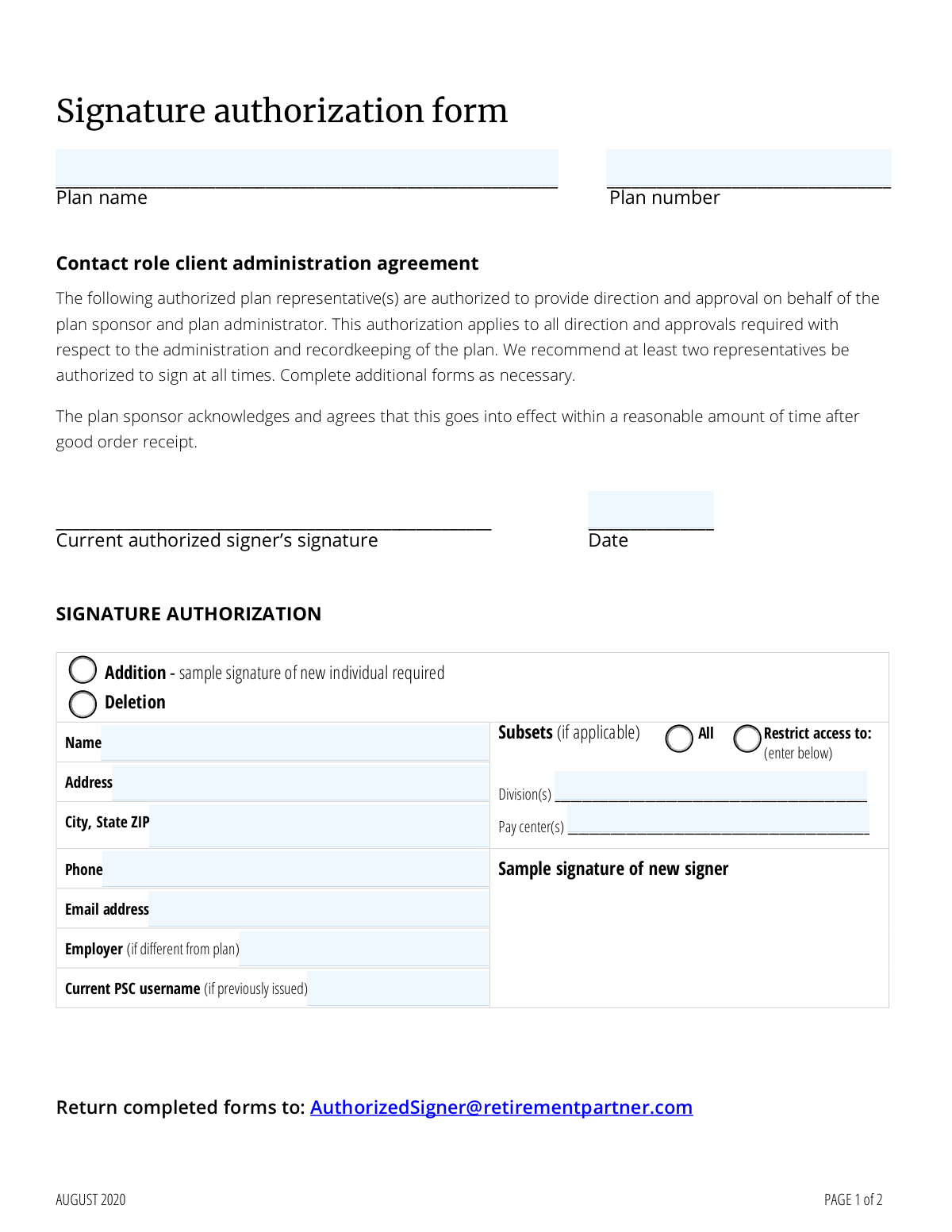
This form allows a plan sponsor to authorize or remove individuals who can act as representatives for their retirement plan's administration with Empower. It is a critical document for maintaining control over who can make decisions and give approvals regarding the plan's recordkeeping and administration. Today, this form can be filled out quickly and accurately using AI-powered services like Instafill.ai, which can also convert non-fillable PDF versions into interactive fillable forms.
Our AI automatically handles information lookup, data retrieval, formatting, and form filling.
It takes less than a minute to fill out Empower Signature Authorization Form using our AI form filling.
Securely upload your data. Information is encrypted in transit and deleted immediately after the form is filled out.

Form specifications

Form name: Signature authorization form - Empower
Number of pages: 1
Language: English
main-image

Instafill Demo: How to fill out PDF forms in seconds with AI

How to Fill Out Empower Signature Authorization Form Online for Free in 2026

Are you looking to fill out a EMPOWER SIGNATURE AUTHORIZATION FORM form online quickly and accurately? Instafill.ai offers the #1 AI-powered PDF filling software of 2026, allowing you to complete your EMPOWER SIGNATURE AUTHORIZATION FORM form in just 37 seconds or less.
Follow these steps to fill out your EMPOWER SIGNATURE AUTHORIZATION FORM form online using Instafill.ai:
  1. 1 Navigate to Instafill.ai and upload the Empower Signature Authorization Form or select it from their template library.
  2. 2 Use the AI assistant to automatically fill in the Plan Name and Plan Number at the top of the form.
  3. 3 For each individual, specify whether you are adding or deleting their authorization.
  4. 4 Enter the full name, address, phone number, and email for each representative being added or removed.
  5. 5 If applicable, define specific access restrictions by listing divisions or pay centers.
  6. 6 Have a currently authorized signer provide their signature and the date to validate the form.
  7. 7 Review all entered information for accuracy before downloading the completed form and submitting it to [email protected].

Our AI-powered system ensures each field is filled out correctly, reducing errors and saving you time.

Why Choose Instafill.ai for Your Fillable Empower Signature Authorization Form Form?

Speed

Complete your Empower Signature Authorization Form in as little as 37 seconds.

Up-to-Date

Always use the latest 2026 Empower Signature Authorization Form form version.

Cost-effective

No need to hire expensive lawyers.

Accuracy

Our AI performs 10 compliance checks to ensure your form is error-free.

Security

Your personal information is protected with bank-level encryption.

Frequently Asked Questions About Form Empower Signature Authorization Form

This form is used by a plan sponsor or administrator to grant or revoke authority for specific individuals to provide direction and approval on matters related to the plan's administration and recordkeeping.

A currently authorized signer for the plan must complete and sign this form to validate the addition or deletion of other authorized representatives.

Empower recommends that you authorize at least two representatives at all times to ensure someone is always available to provide direction and approval.

To add a new signer, you must provide their name, address, phone number, email address, and a sample of their signature. You must also indicate if their access should be restricted.

In the 'SIGNATURE AUTHORIZATION' section for the individual, check the 'Addition' box to add them or the 'Deletion' box to remove them from the authorized list.

This section allows you to restrict a representative's access to specific parts of the plan, such as certain divisions or pay centers, rather than granting them full access.

This form has space for three individuals. If you need to add or remove more, you should complete and submit additional copies of the form as necessary.

Once completed and signed, the form should be returned via email to [email protected].

The changes specified on the form will go into effect within a reasonable amount of time after the form is received in good order by Empower.

A sample signature is required to verify the identity of the new representative when they provide future direction or approvals for the plan, ensuring security and proper authorization.

Yes, you can use services like Instafill.ai, which leverage AI to accurately auto-fill form fields from your saved information, saving time and helping to prevent errors.

Upload the PDF to the Instafill.ai platform, and its AI will make the fields interactive. You can then click to fill them with your saved profile data or type your information directly.

If you have a non-fillable PDF, you can use a tool like Instafill.ai. It can convert flat PDFs into interactive, fillable forms that you can easily complete and sign online.

A PSC (Plan Service Center) username is the login for Empower's online portal. You only need to provide this if the individual being added has been previously issued a username.

Compliance Empower Signature Authorization Form
Validation Checks by Instafill.ai

1
Ensures Plan Name is Provided
This check verifies that the 'Plan name' field is not empty. The plan name is a primary identifier for the account and is essential for correctly routing and processing the authorization request. A submission without a plan name will be rejected as it cannot be associated with a specific plan.
2
Validates Plan Number Format and Presence
This validation ensures the 'Plan number' field is filled and conforms to an expected format (e.g., a specific number of digits or an alphanumeric pattern). The plan number is a unique key used to look up the plan in the system. An incorrect or missing plan number will lead to processing failure and requires manual correction.
3
Requires Current Authorized Signer's Signature and Date
This check confirms that both the 'Current authorized signer’s signature' and the 'Date' fields at the top of the form are completed. This signature validates the entire request on behalf of the plan sponsor, making it a critical requirement for the form's legal and administrative validity. Submissions lacking this signature or date are considered incomplete and will be rejected.
4
Validates Date Format
This validation ensures the 'Date' field contains a valid date in a recognized format (e.g., MM/DD/YYYY). An accurate date is required to establish when the authorization was signed and became effective. An invalid or nonsensical date will cause the form to be rejected for correction.
5
Verifies Action Selection for Each Authorization Entry
For each 'Signature Authorization' section that is used, this validation ensures that either the 'Addition' or 'Deletion' option is selected. This choice defines the action to be taken for the named individual. A form with an entry that lacks a selected action is ambiguous and cannot be processed, requiring clarification from the submitter.
6
Mandates Signature for New Authorized Signers
This check enforces that if 'Addition' is selected for a new representative, a sample signature must be provided in the 'Sample signature of new signer' field. This signature is used for future verification of the representative's identity and authority. A missing signature for an addition request makes the authorization incomplete and invalid.
7
Ensures Completeness of New Signer's Information
When adding a new authorized signer ('Addition' is checked), this validation verifies that the 'Name', 'Address', 'City, State ZIP', 'Phone', and 'Email address' fields are all filled out. This contact information is crucial for communication and identity verification. Incomplete records for new signers will be rejected to ensure data quality and proper setup.
8
Validates Email Address Format
This check inspects the 'Email address' field to ensure it follows a standard email format (e.g., '[email protected]'). A valid email is essential for system communications, notifications, and online account access for the authorized signer. An invalid format would prevent successful communication and must be corrected.
9
Validates Phone Number Format
This validation ensures the 'Phone' number field adheres to a standard North American format, such as 10 digits with optional formatting characters. A valid phone number is a key piece of contact information for identity verification and direct communication. Incorrectly formatted numbers will fail validation to prevent data entry errors.
10
Validates City, State, and ZIP Structure
This check verifies that the 'City, State ZIP' field contains distinct components for a city, a state, and a ZIP code. The ZIP code portion must be a valid 5-digit or 9-digit numeric format. An accurate and well-structured address is critical for mail delivery and address verification, and malformed entries will be flagged.
11
Enforces Subset Restriction Logic
This validation checks the logic related to access subsets. If the 'Restrict access to' option is chosen, the form is only considered valid if information is provided in either the 'Division(s)' or 'Pay center(s)' field. This ensures that when a user intends to restrict access, they specify the actual restrictions, preventing ambiguous permissions.
12
Ensures At Least One Authorization Change is Requested
This check verifies that at least one of the three 'Signature Authorization' sections has been filled out to either add or delete a representative. A form submitted with only the plan information but no requested changes serves no purpose. Such submissions will be flagged as empty or incomplete to avoid unnecessary processing.
13
Requires Name for Deletion Requests
If the 'Deletion' option is selected for an authorized signer, this check ensures that the 'Name' field for that section is filled out. The name is the minimum information required to identify and remove the correct individual's authorization from the plan. A deletion request without a name is impossible to process and will be rejected.

Common Mistakes in Completing Empower Signature Authorization Form

Missing New Signer's Sample Signature

When adding a new authorized representative, the form explicitly requires a 'Sample signature of new signer'. This is frequently missed because the new individual may not be present when the form is being completed. Without this sample signature, the processing office cannot verify the new person's signature on future documents, rendering the addition invalid and causing the form to be rejected.

Incomplete Access Restriction Details

Users often select the 'Restrict access' option but then fail to specify the 'Division(s)' or 'Pay center(s)' to which the access should be limited. This creates ambiguity, as the system doesn't know how to apply the restriction, leading to processing delays or incorrect permissions being assigned. To avoid this, always provide specific details in the corresponding fields whenever you choose to restrict access instead of granting 'All' access.

Forgetting to Specify 'Addition' or 'Deletion'

For each representative listed, the user must check either the 'Addition' or 'Deletion' box to indicate the intended action. It's a common oversight to fill in a person's details but forget to check either box, leaving the request ambiguous. This forces the processor to either guess the intent or, more likely, reject the form, requiring a corrected resubmission.

Missing or Invalid Authorizing Signature

The form requires the signature of a 'Current authorized signer' to validate the requested changes. This field is sometimes left blank or is signed by an individual who is not currently on the list of authorized signers for the plan. An invalid or missing signature makes the entire form void, as there is no proof of authorization, and it will be immediately rejected.

Omitting Plan Name or Plan Number

The 'Plan name' and 'Plan number' fields at the top of the form are critical for identifying the correct account. People sometimes overlook these fields, assuming the recipient will know which plan it's for. Submitting a form without these unique identifiers will result in rejection, as the changes cannot be applied to any specific plan.

Illegible Handwriting on a Printed Form

Since this form is a non-fillable PDF, it is often printed and filled out by hand, leading to illegible handwriting for names, addresses, and numbers. This can cause significant data entry errors, such as misspelling a new signer's name or assigning them to the wrong pay center. To prevent this, it's best to use a tool like Instafill.ai, which can convert flat PDFs into digitally fillable forms, ensuring all entries are clear and legible.

Using Personal Instead of Business Contact Information

When filling out the address, phone, and email fields for a new authorized signer, individuals sometimes provide their personal contact details instead of their official business information. This can lead to compliance issues and communication breakdowns, as all plan-related correspondence should be directed to a business contact point. Always use the representative's official work email, phone number, and office address.

Forgetting the Authorization Date

Next to the 'Current authorized signer’s signature' is a field for the 'Date'. This date is crucial for recordkeeping and establishing a timeline for when the authorization was granted. Omitting the date can cause processing delays or lead to the form being returned for completion, as it lacks a key piece of validation information.

Incorrectly Splitting City, State, and ZIP

The form has a single line for 'City, State ZIP', which can lead to formatting errors. Users might forget the comma, use the wrong state abbreviation, or enter an incorrect ZIP code. These errors can cause mail to be returned and delay important communications. Using an AI-powered form filler like Instafill.ai can help prevent this by auto-completing and validating address information in the correct format.

Misunderstanding the 'Employer (if different from plan)' Field

This conditional field is often a source of confusion. Users may fill it out unnecessarily when the authorized signer works directly for the plan sponsor, or they may forget to complete it when the signer is a third-party administrator (TPA) or from a different corporate entity. This mistake can lead to incorrect records about the signer's affiliation, so it's important to only fill this field if the signer's direct employer is not the same entity as the plan sponsor.
Saved over 80 hours a year

“I was never sure if my IRS forms like W-9 were filled correctly. Now, I can complete the forms accurately without any external help.”

Kevin Martin Green

Your data stays secure with advanced protection from Instafill and our subprocessors

Robust compliance program

Transparent business model

You’re not the product. You always know where your data is and what it is processed for.

ISO 27001, HIPAA, and GDPR

Our subprocesses adhere to multiple compliance standards, including but not limited to ISO 27001, HIPAA, and GDPR.

Security & privacy by design

We consider security and privacy from the initial design phase of any new service or functionality. It’s not an afterthought, it’s built-in, including support for two-factor authentication (2FA) to further protect your account.

Fill out Empower Signature Authorization Form with Instafill.ai

Worried about filling PDFs wrong? Instafill securely fills signature-authorization-form-empower forms, ensuring each field is accurate.