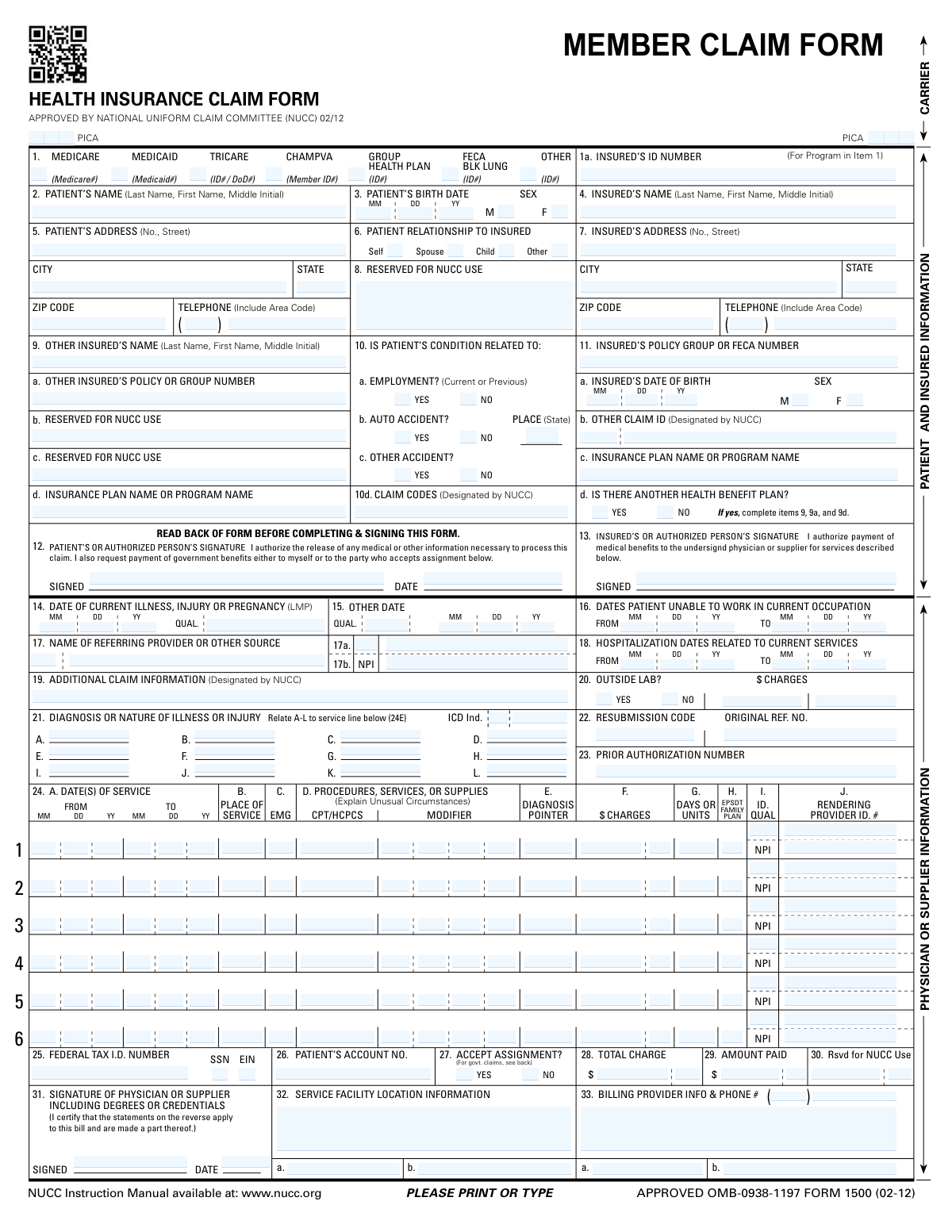
Yes! You can use AI to fill out CMS-1500 (02-12), Health Insurance Claim Form (NUCC Approved) (OMB 0938-1197)

The CMS-1500 (also known as NUCC Form 1500) is a nationally standardized health insurance claim form used to submit professional (non-institutional) medical claims, including patient/insured details, diagnoses (ICD), procedures (CPT/HCPCS), charges, and provider identifiers (NPI/Tax ID). It is important because payers rely on its required fields and coding structure to determine coverage, coordinate benefits, and process payment accurately and compliantly. Incorrect or incomplete entries can delay reimbursement or trigger denials, audits, or resubmission requirements. Today, this form can be filled out quickly and accurately using AI-powered services like Instafill.ai, which can also convert non-fillable PDF versions into interactive fillable forms.
Our AI automatically handles information lookup, data retrieval, formatting, and form filling.
It takes less than a minute to fill out CMS-1500 using our AI form filling.
Securely upload your data. Information is encrypted in transit and deleted immediately after the form is filled out.

Form specifications

Form name: CMS-1500 (02-12), Health Insurance Claim Form (NUCC Approved) (OMB 0938-1197)
Number of pages: 1
Language: English
Categories: healthcare forms, insurance claim forms, health insurance forms, medical claim forms, CMS forms
main-image

Instafill Demo: filling out a legal form in seconds

How to Fill Out CMS-1500 Online for Free in 2026

Are you looking to fill out a CMS-1500 form online quickly and accurately? Instafill.ai offers the #1 AI-powered PDF filling software of 2026, allowing you to complete your CMS-1500 form in just 37 seconds or less.
Follow these steps to fill out your CMS-1500 form online using Instafill.ai:
  1. 1 Go to Instafill.ai and upload the CMS-1500 (02-12) PDF (or select it from the form library).
  2. 2 Use AI extraction to import patient demographics and insurance details (Items 1–13), then review and correct names, IDs, addresses, DOB, sex, and relationship fields.
  3. 3 Enter claim context details (Items 10–23), including accident/employment indicators, other coverage information, claim codes, diagnosis codes (A–L), resubmission/original reference numbers, and prior authorization if required.
  4. 4 Add service line information (Item 24) for each date of service: place of service, CPT/HCPCS codes and modifiers, diagnosis pointers, charges, units, and rendering provider identifiers (NPI/qualifiers).
  5. 5 Complete provider and billing sections (Items 25–33), including tax ID type (SSN/EIN), patient account number, assignment of benefits, totals/amount paid, service facility location, and billing provider name/NPI/phone.
  6. 6 Run Instafill.ai validation to check required fields, formatting (dates, NPIs, ZIP codes), code consistency (ICD vs diagnosis pointers), and payer-specific rules, then fix any flagged issues.
  7. 7 E-sign where applicable (patient/insured/provider signatures and dates), export the finalized form, and submit it according to the payer’s instructions (print/mail or attach for electronic submission workflows as permitted).

Our AI-powered system ensures each field is filled out correctly, reducing errors and saving you time.

Why Choose Instafill.ai for Your Fillable CMS-1500 Form?

Speed

Complete your CMS-1500 in as little as 37 seconds.

Up-to-Date

Always use the latest 2026 CMS-1500 form version.

Cost-effective

No need to hire expensive lawyers.

Accuracy

Our AI performs 10 compliance checks to ensure your form is error-free.

Security

Your personal information is protected with bank-level encryption.

Frequently Asked Questions About Form CMS-1500

This form is used to bill health insurance programs for medical services and supplies. It includes patient/insured details, diagnosis codes, procedure codes, charges, and provider information needed to process a claim.

Typically, the provider (or billing office) completes most of the claim details (diagnosis, procedure codes, charges, NPI, tax ID). The patient/insured usually provides demographic/insurance information and signs the authorizations in Items 12 and 13 when required.

Check the box that matches the patient’s primary coverage for the services being billed (e.g., Medicare, Medicaid, TRICARE, CHAMPVA, Group Health Plan, FECA/Black Lung, or Other). Enter the insured ID number in Item 1a exactly as it appears on the insurance card.

You’ll generally need the patient’s name, date of birth, sex, address/phone, the insured’s information (if different), the insurance member/ID number, and any other coverage details. Providers also need diagnosis codes (Item 21), procedure codes and service dates (Item 24), and NPI/tax ID information.

Item 6 indicates whether the patient is the insured person or related to the insured (Self, Spouse, Child, or Other). Choose the option that matches whose insurance policy is being billed.

Complete Item 11d as “Yes” if the patient has additional health coverage besides the plan in Item 1. If “Yes,” fill in Item 9 and related fields (other insured’s name, policy/group number, and plan/program name) to support coordination of benefits.

Mark “Yes” only if the condition is related to employment, an auto accident, or another accident. If it’s an auto accident, include the state where it occurred in the “Place (State)” field.

Item 12 is the patient (or authorized person) authorization to release information and request payment of benefits. Item 13 is the insured (or authorized person) authorization for payment to the provider; signatures and dates should be completed as required by the payer and situation.

Enter the ICD diagnosis codes in Item 21 (A–L). In Item 24E for each service line, enter the diagnosis pointer letter(s) (A–L) that correspond to the diagnosis code(s) supporting that specific service.

Item 24 lists each billed service with dates of service (24A), place of service (24B), procedure code (CPT/HCPCS) and modifiers (24D), diagnosis pointer (24E), charges (24F), units (24G), and rendering provider ID/NPI (24J). Common mistakes include mismatched diagnosis pointers, incorrect dates, missing units, or using the wrong place-of-service code.

Mark Item 20 “Yes” if testing was performed by an outside laboratory rather than the billing provider. If “Yes,” include the outside lab charges in the charges field for Item 20 as applicable.

Use Item 22 when you are resubmitting or correcting a previously submitted claim. Enter the appropriate resubmission code and the original claim reference number so the payer can match the new submission to the prior claim.

Provider identifiers appear in multiple places: rendering provider NPI/ID is typically in Item 24J, service facility information is in Item 32, and billing provider information and phone number are in Item 33. The federal tax ID (SSN or EIN) is entered in Item 25, and the physician/supplier signs in Item 31.

Processing time varies by payer (Medicare, Medicaid, TRICARE, or private insurers) and whether the claim is clean or needs additional information. Send the completed form to the specific payer/claims address or electronic submission channel provided by the applicable program—do not mail it to the CMS address listed for comments.

Yes—AI tools like Instafill.ai can help auto-fill form fields accurately from your information and save time. If your PDF is flat/non-fillable, Instafill.ai can convert it into an interactive fillable form and then guide you through completing and exporting the finished claim.

Compliance CMS-1500
Validation Checks by Instafill.ai

1
Insurance Type Selection and Carrier Requirement
Validate that exactly one primary insurance type checkbox in Item 1 (e.g., Medicare, Medicaid, TRICARE, CHAMPVA, Group Health Plan, FECA/Black Lung, Other) is selected for the claim. If any insurance type is selected, require the Carrier Name/Code to be present and non-placeholder (not blank, 'N/A', or 'unknown'). If validation fails, the claim should be rejected or routed to manual review because payer routing and downstream edits depend on a single, unambiguous program selection.
2
Insured ID Number (Item 1a) Format and Presence
Require Insured’s ID Number (Item 1a) when any coverage type is selected, and validate it matches expected character rules (trim spaces, allow alphanumeric and limited symbols like hyphen, disallow all-zero or obviously invalid values). For Medicare/Medicaid/TRICARE/CHAMPVA, enforce payer-specific length/pattern rules if configured (e.g., Medicare MBI format vs. legacy HICN). If validation fails, the claim should be blocked because member matching and eligibility checks will likely fail.
3
Patient Name Completeness and Character Validation
Validate Patient Name includes at minimum a last name and first name, and that the middle initial (if provided) is a single alphabetic character. Disallow numeric-only names and remove/flag invalid characters that commonly arise from OCR (e.g., repeated punctuation or stray symbols). If validation fails, the submission should be rejected or queued for correction because patient identification and coordination of benefits rely on accurate demographics.
4
Patient Date of Birth Valid Date and Reasonable Range
Validate Patient Birth Month/Day/Year form a real calendar date (including leap-year rules) and that the date is not in the future. Apply a reasonable age range check (e.g., 0–120 years) to catch transposed digits or OCR errors. If validation fails, the claim should be stopped because DOB is a key matching field for eligibility and payer adjudication.
5
Patient Sex Single-Selection and Allowed Values
Ensure exactly one of Patient Sex (Male/Female) is selected, and if the system supports an 'Other' option, ensure it is mutually exclusive with Male/Female. Reject cases where multiple boxes are checked or none are checked when required by the payer. If validation fails, route to correction because many payers apply edits based on sex-specific coverage rules and code validation.
6
Patient Address and ZIP/State Format Validation
Require Patient Street Address, City, State, and ZIP Code, and validate State is a valid two-letter USPS abbreviation (or configured jurisdiction list). Validate ZIP is 5 digits or ZIP+4 (##### or #####-####) and not all zeros; optionally cross-check ZIP/state consistency if reference data is available. If validation fails, the claim should be flagged because address is used for patient contact, payer requirements, and sometimes jurisdictional processing.
7
Telephone Number Format (Patient and Insured)
If a telephone number is provided, validate area code is 3 digits and the local number is 7 digits (or accept standard formatted variants while normalizing to digits). Reject clearly invalid values (e.g., 000 area code, repeated single digit, too short/long). If validation fails, do not necessarily reject the claim, but flag for cleanup because incorrect contact data impedes follow-up for medical records or coordination of benefits.
8
Patient Relationship to Insured Consistency
Validate exactly one relationship checkbox (Self/Spouse/Child/Other) is selected. If 'Self' is selected, require Insured’s Name to match Patient Name (allowing minor formatting differences) and optionally require Insured address to match Patient address unless explicitly different. If validation fails, route to manual review because relationship drives which insured fields must be populated and affects coordination of benefits.
9
Insured Demographics Required When Patient Is Not Self
If relationship is Spouse/Child/Other, require Insured’s Name and Insured’s Address (street/city/state/ZIP) to be present, and require Insured DOB and sex if the payer/program requires Item 11a. This prevents incomplete insured records that cause eligibility mismatches. If validation fails, reject or pend the claim because the insured is the subscriber for coverage and must be identifiable.
10
Other Health Benefit Plan Conditional Section Enforcement (Items 9–9d)
If 'Is there another health benefit plan?' is Yes, require Other Insured’s Name, Other Insured’s Policy/Group Number, and the other Insurance Plan/Program Name to be completed. If the indicator is No, ensure those fields are blank (or ignore but flag) to avoid contradictory coordination-of-benefits data. If validation fails, pend the claim because COB errors commonly lead to denials or incorrect payer sequencing.
11
Accident/Employment Indicators and Accident State Requirement
Ensure each of Items 10a/10b/10c has exactly one of Yes/No selected (no double-checks and no blanks). If Auto Accident is Yes, require Accident Place (State) and validate it as a valid state code; if Auto Accident is No, Accident Place should be blank. If validation fails, route to correction because liability/coordination rules and payer responsibility depend on these indicators.
12
Signature Presence and Signature Date Validity (Items 12, 13, 31)
Require Patient/Authorized Person Signature (Item 12) and date, and require Physician/Supplier Signature (Item 31) and date; require Insured signature (Item 13) when payer rules or assignment/payment authorization requires it. Validate signature dates are valid calendar dates and not in the future, and that provider signature date is on/after the latest date of service (or within an allowed window). If validation fails, reject or pend because missing/invalid attestations can make the claim non-payable and non-compliant.
13
Clinical and Work/Hospitalization Date Logical Consistency
Validate Item 14 (date of current illness/injury/pregnancy) is a valid date and is not after the earliest date of service unless payer rules allow. Validate Item 16 (unable to work) and Item 18 (hospitalization) ranges have FROM <= TO and do not extend into the future; if only one endpoint is provided, require the other or flag as incomplete. If validation fails, pend the claim because inconsistent timelines trigger payer edits and can indicate data entry/OCR errors.
14
NPI Format and Check-Digit Validation (Referring, Rendering, Facility, Billing)
Validate all NPI fields (e.g., Referring Provider NPI 17b, Rendering Provider NPI in 24J, Service Facility NPI 32, Billing Provider NPI 33) are exactly 10 digits and pass the Luhn check-digit algorithm for NPI. Ensure NPIs are not all zeros and are present where required (e.g., billing provider NPI typically required). If validation fails, reject or pend because invalid NPIs prevent provider identification and will commonly cause payer rejections.
15
Diagnosis Coding and ICD Indicator Alignment (Item 21 and ICD Ind.)
Require at least one diagnosis code (A–L) and validate each code matches the ICD version indicated by the ICD Indicator (e.g., ICD-10 format when indicator specifies ICD-10). Enforce allowed characters, correct placement of decimal (if present), and disallow obviously invalid placeholders (e.g., 'XXXX', '000.0'). If validation fails, reject because diagnosis codes justify medical necessity and are required for adjudication.
16
Service Line Integrity: Dates, Procedure Codes, Charges, Units, and Diagnosis Pointers
For each populated service line (24A–24J), require a valid FROM/TO date range (FROM <= TO), a valid CPT/HCPCS code format (5 characters for CPT, HCPCS alphanumeric allowed), a non-negative charge amount, and units/days as a positive number when charges are present. Validate diagnosis pointers reference only existing diagnoses (A–L) and are not empty when a procedure is billed. If validation fails, reject or pend because incomplete or mismatched service lines are a primary cause of claim rejections.

Common Mistakes in Completing CMS-1500

Checking the wrong insurance type in Item 1 (or checking multiple when only one is primary)

People often check the plan they “have” rather than the plan that is primary for this claim, or they mark multiple boxes because the patient has more than one coverage. This can route the claim to the wrong payer, trigger coordination-of-benefits delays, or cause an outright denial for “incorrect payer.” To avoid it, confirm which coverage is primary for the date of service and check only the appropriate box; if there is secondary coverage, complete the “other health benefit plan” section instead. AI-powered tools like Instafill.ai can help by validating payer selection logic and prompting for secondary-plan fields only when needed.

Entering an incorrect Insured’s ID Number (Item 1a) or using the wrong member’s ID

A very common error is copying the wrong number from the insurance card (e.g., group number instead of member ID) or entering the patient’s ID when the insured is a spouse/parent. Even a single transposed digit can cause eligibility mismatches and claim rejections. Always enter the insured member ID exactly as shown on the card for the selected payer type, including any prefixes/suffixes, and double-check against the insured’s name in Item 4. Instafill.ai can reduce these errors by formatting IDs consistently and flagging IDs that don’t match expected patterns.

Name mismatches between Patient (Item 2) and Insured (Item 4)

Users frequently put the patient’s name in both fields, reverse first/last name order, or omit the middle initial even when the payer file includes it. Name mismatches can lead to failed member matching, delayed processing, and requests for corrected claims. Follow the form’s required order (Last, First, Middle Initial) and ensure the insured’s name matches the policyholder on the insurance card, not necessarily the patient. Instafill.ai can help standardize name formatting and catch inconsistencies across fields.

Incorrect date formats or incomplete dates (DOB, illness date, service dates)

This form expects dates in MM/DD/YY (or separated month/day/year boxes), but people often write MM/DD/YYYY, leave out leading zeros, or fill only part of the date. Incorrect or incomplete dates can cause denials (e.g., invalid DOB, service date outside coverage, or missing onset date for certain claims). Use the exact format shown on the form and ensure every date field has all components completed where required (month, day, year). Instafill.ai can automatically format dates correctly and validate that “FROM” dates are not after “TO” dates.

Leaving relationship-to-insured (Item 6) blank or selecting the wrong relationship

When the patient is not the policyholder, people often forget to mark Spouse/Child/Other or mistakenly mark Self. This can break coordination with the insured’s information and cause payer confusion about whose benefits apply. Always confirm whether the patient is the insured; if not, select the correct relationship and ensure Items 4 and 7 reflect the actual insured’s details. Instafill.ai can prompt for relationship confirmation when patient and insured names differ.

Address and phone formatting issues (Items 5 and 7) including missing ZIP or area code

Common problems include missing apartment/suite numbers, using non-standard state formats (not the two-letter abbreviation), leaving ZIP incomplete, or forgetting the telephone area code. These errors can delay payer correspondence, cause returned mail, or trigger manual review when contact details are incomplete. Enter full mailing addresses, use the two-letter state abbreviation, provide a 5-digit ZIP (or ZIP+4 if required), and include area code in the phone fields. Instafill.ai can normalize address/phone formats and flag missing components.

Not completing secondary insurance details when “another health benefit plan” is Yes (Item 11d / Items 9–9d)

People often check “Yes” for another plan but fail to fill the other insured’s name, policy/group number, and plan name—or they fill them even when “No” is selected. This leads to coordination-of-benefits delays, payer requests for additional information, or denials for missing COB data. Only complete Items 9–9d when another plan exists, and ensure the secondary plan information matches the secondary insurance card. Instafill.ai can conditionally require these fields and prevent contradictory selections.

Accident/employment questions answered inconsistently (Items 10a–10c and accident state)

A frequent mistake is marking “Yes” for auto accident but leaving the accident state blank, or marking “No” while later including accident-related diagnosis details. Inconsistent accident/employment indicators can cause liability/worker’s comp coordination issues and claim denials pending investigation. If any condition is related to employment or an accident, answer “Yes” and complete the required supporting fields (including the state for auto accidents). Instafill.ai can detect missing dependent fields (like accident state) when “Yes” is selected.

Diagnosis coding errors: missing ICD indicator or invalid/unsupported ICD codes (Item 21)

Users sometimes omit the ICD indicator, use outdated ICD-9 codes when ICD-10 is required, or enter diagnosis descriptions instead of codes. This can result in claim rejection for invalid diagnosis coding or failure to establish medical necessity. Enter valid ICD codes in the A–L slots and ensure the ICD indicator matches the code set required by the payer/date of service. Instafill.ai can validate ICD formatting and help ensure the indicator aligns with the diagnosis code set.

Service line linkage mistakes: diagnosis pointers, units, charges, and date ranges (Item 24)

Common errors include using numbers instead of the required A–L diagnosis pointer letters, leaving units blank, entering charges without cents/incorrect decimal placement, or using a “TO” date earlier than the “FROM” date. These issues can cause line-level denials, under/overpayment, or requests for corrected claims. For each service line, ensure the diagnosis pointer references the correct letter(s) from Item 21, units reflect what was actually provided, and charges are entered as currency with correct decimals. Instafill.ai can cross-check pointers against entered diagnoses and validate numeric formats and date logic.

Provider identifier problems: missing/incorrect NPI or mixing billing vs rendering vs facility NPIs (Items 17b, 24J, 32, 33)

People often enter the billing provider NPI where the rendering provider NPI is required, omit the service facility NPI, or enter an NPI with the wrong number of digits. Incorrect provider identifiers can cause payer rejections, misdirected payments, or credentialing edits. Verify which NPI belongs in each block (referring, rendering, service facility, billing) and ensure each NPI is 10 digits. Instafill.ai can validate NPI length/check-digit patterns and help map the correct provider ID to the correct field.

Missing signatures/dates or inconsistent assignment selection (Items 12, 13, 27, 31)

A surprisingly common issue is leaving the patient/insured signature or signature date blank, or selecting “Accept Assignment” inconsistently with the provider’s intent and payer rules. Missing authorizations can delay processing, and incorrect assignment can affect who gets paid and whether the claim is accepted. Ensure Items 12 and 13 are signed and dated as required, and confirm Item 27 reflects the provider’s assignment policy for that payer. Instafill.ai can flag missing signature/date fields and highlight conflicts between assignment selection and payer/program requirements.
Saved over 80 hours a year

“I was never sure if my IRS forms like W-9 were filled correctly. Now, I can complete the forms accurately without any external help.”

Kevin Martin Green

Your data stays secure with advanced protection from Instafill and our subprocessors

Robust compliance program

Transparent business model

You’re not the product. You always know where your data is and what it is processed for.

ISO 27001, HIPAA, and GDPR

Our subprocesses adhere to multiple compliance standards, including but not limited to ISO 27001, HIPAA, and GDPR.

Security & privacy by design

We consider security and privacy from the initial design phase of any new service or functionality. It’s not an afterthought, it’s built-in, including support for two-factor authentication (2FA) to further protect your account.

Fill out CMS-1500 with Instafill.ai

Worried about filling PDFs wrong? Instafill securely fills cms-1500-02-12-health-insurance-claim-form-nucc-approved-omb-0938-1197 forms, ensuring each field is accurate.