Yes! You can use AI to fill out Fidelity NetBenefits Send a Document Form
The Fidelity NetBenefits Send a Document feature is a secure mobile tool that enables NetBenefits account holders to electronically submit critical financial documents—such as loan applications, withdrawal forms, and consolidation paperwork—directly to Fidelity without mailing physical copies. This feature is accessible through the NetBenefits Mobile App and supports both photo capture and file uploads, making document submission fast and convenient. Availability may vary based on individual plan rules. Today, users can leverage AI-powered services like Instafill.ai to accurately fill out their required forms before uploading, and Instafill.ai can even convert non-fillable PDF versions of Fidelity documents into interactive fillable forms.
NetBenefits Send a Document is part of the
benefit forms, Fidelity forms and NetBenefits forms categories on Instafill.
Rather not fill this in by hand? Instafill is an online form filler that completes PDF forms automatically — upload the blank form, answer a few questions, and the AI fills every field.
Form specifications
| Form name: | Fidelity NetBenefits Send a Document Form |
| Number of pages: | 1 |
| Field instructions: | NetBenefits Send a Document Instructions |
| Filled form examples: | NetBenefits Send a Document Examples |
| Language: | English |
Our AI automatically handles information lookup, data retrieval, formatting, and form filling.
It takes less than a minute to fill out NetBenefits Send a Document using our AI form filling.
Securely upload your data. Information is encrypted in transit and deleted immediately after the form is filled out.
Instafill Demo: How to fill out PDF forms in seconds with AI
How to Fill Out NetBenefits Send a Document Online for Free in 2026
Are you looking to fill out a NETBENEFITS SEND A DOCUMENT form online quickly and accurately? Instafill.ai offers the #1 AI-powered PDF filling software of 2026, allowing you to complete your NETBENEFITS SEND A DOCUMENT form in just 37 seconds or less.
Follow these steps to fill out your NETBENEFITS SEND A DOCUMENT form online using Instafill.ai:
- 1 Navigate to Instafill.ai and upload or select the relevant Fidelity form (such as a loan application, withdrawal form, or consolidation form) to fill it out accurately using AI-powered assistance.
- 2 Complete and review your form on Instafill.ai, ensuring all required fields are filled in correctly, then download the finalized document to your device.
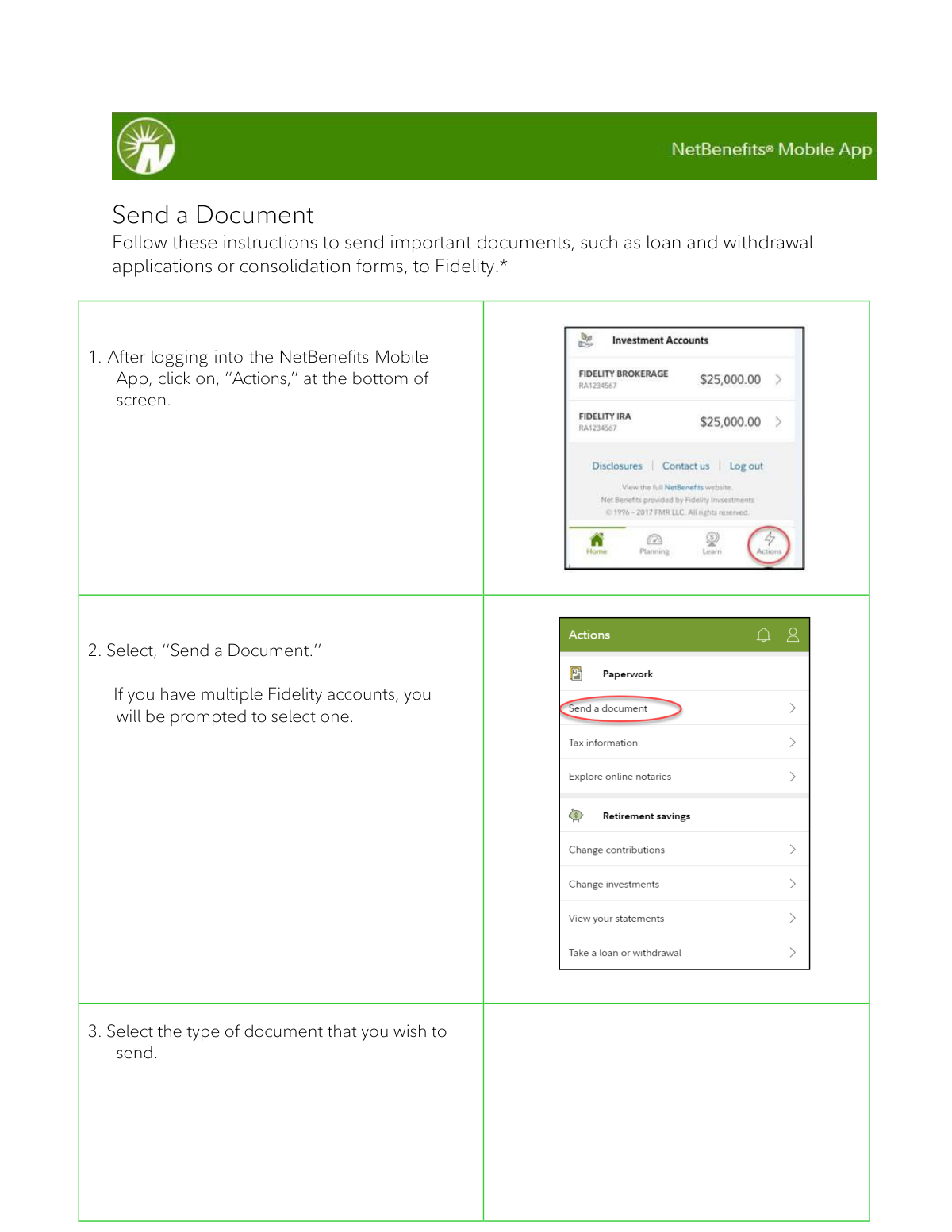
- 3 Log into the Fidelity NetBenefits Mobile App and tap 'Actions' at the bottom of the screen.
- 4 Select 'Send a Document' from the menu, and if you have multiple Fidelity accounts, choose the appropriate account when prompted.
- 5 Select the type of document you wish to send from the available document categories.
- 6 Choose 'Take a Photo' to capture your document using your device's camera (centering it on a dark surface in a well-lit area and waiting for the guides to turn green), or select 'Upload a Document' to browse your device's file system or photo gallery for the completed form.
- 7 Review your uploaded document(s) on the confirmation screen, add additional pages if needed, then tap 'Submit' and select 'Done' once you receive the on-screen confirmation that your documents have been sent.
Our AI-powered system ensures each field is filled out correctly, reducing errors and saving you time.
Why Choose Instafill.ai for Your Fillable NetBenefits Send a Document Form?
Speed
Complete your NetBenefits Send a Document in as little as 37 seconds.
Up-to-Date
Always use the latest 2026 NetBenefits Send a Document form version.
Cost-effective
No need to hire expensive lawyers.
Accuracy
Our AI performs 10 compliance checks to ensure your form is error-free.
Security
Your personal information is protected with bank-level encryption.
Frequently Asked Questions About NetBenefits Send a Document
The 'Send a Document' feature on the NetBenefits Mobile App allows you to securely send important documents to Fidelity, such as loan and withdrawal applications or consolidation forms. It lets you either take a photo of your document or upload an existing file directly from your device.
You can send important financial documents such as loan applications, withdrawal applications, and consolidation forms to Fidelity. The app will prompt you to select the specific type of document you are submitting during the process.
After logging into the NetBenefits Mobile App, tap 'Actions' at the bottom of the screen, then select 'Send a Document.' If you have multiple Fidelity accounts, you will be prompted to choose the relevant one before proceeding.
You can either take a photo of your document using your device's camera or upload an existing document from your device's file manager or photo gallery. Both options are available after selecting the document type.
Place your document flat on a dark surface in a well-lit area, and use the on-screen photo guides to center it. Take the photo when the guides turn green to ensure a clear, properly framed image.
If you are unsatisfied with your image, tap 'Retake Photo' in the top left-hand corner to try again. You can retake the photo as many times as needed until you are satisfied with the result.
After photographing the first side of your document, select 'Add Another' to take a photo of the other side. Once both sides are captured and you are satisfied, tap 'I'm Finished' to proceed.
Yes, on the review screen before submitting, you can add additional documents by selecting 'Take a Photo' or 'Upload Document.' Once all documents are added and reviewed, tap 'Submit' to send them all at once.
After submitting, a confirmation screen will appear confirming that your documents have been successfully sent to Fidelity. Simply tap 'Done' to complete the process.
The app requires access to your device's camera to use the photo capture feature. If you have not previously granted this permission, you will receive a notification to do so — without granting camera access, you will not be able to use the 'Send a Document' feature.
Availability of this feature may vary based on your specific plan rules. If you do not see the option in your app, it may not be available under your current plan — contact Fidelity for more information.
Yes, by selecting 'Upload a Document,' you can choose 'Photo Gallery' to select an existing image from your device's gallery, or 'Browse File' to locate a document in your device's file system.
Yes, services like Instafill.ai use AI to auto-fill form fields accurately, saving you time when completing loan applications, withdrawal forms, or consolidation documents. Once your form is filled out, you can then use the NetBenefits 'Send a Document' feature to submit it to Fidelity.
Yes, Instafill.ai can convert flat, non-fillable PDFs into interactive fillable forms, allowing you to complete them digitally before submission. After filling out the form, you can upload and send it to Fidelity through the NetBenefits Mobile App.
After capturing or uploading your documents, a review screen will appear where you can verify all uploaded files before submitting. It is important to carefully review your documents on this screen to ensure everything is correct before tapping 'Submit.'
Compliance NetBenefits Send a Document
Validation Checks by Instafill.ai
1
User Authentication and Login Verification
Validates that the user is fully authenticated and logged into the NetBenefits Mobile App before allowing access to the Send a Document feature. This ensures that sensitive financial documents are only submitted by authorized account holders. If authentication fails or the session has expired, the user should be redirected to the login screen and the document submission process should be blocked entirely.
2
Document Type Selection Completeness Check
Ensures that the user has selected a valid document type from the available options before proceeding to the upload or photo capture step. Submitting a document without a designated type would prevent Fidelity from routing it to the correct processing team. If no document type is selected, the system should display an error message and prevent progression to the next step.
3
Account Selection Validation for Multi-Account Users
Verifies that users with multiple Fidelity accounts have explicitly selected the correct account to associate with the submitted document. Associating a document with the wrong account could result in misrouted loan applications, withdrawal requests, or consolidation forms. If no account is selected or the selection is ambiguous, the system must prompt the user to make a clear choice before continuing.
4
Camera Permission Authorization Check
Confirms that the app has been granted permission to access the device's camera before the 'Take a Photo' option is made available to the user. Without camera permission, the photo capture workflow cannot function, and attempting to proceed would result in a failed or incomplete document submission. The system should detect permission status in advance and display a clear notification prompting the user to grant access if it has not already been provided.
5
Image Quality and Clarity Validation
Checks that the captured photo meets minimum quality standards, including sufficient resolution, focus, and lighting, before allowing the user to proceed. Poor image quality can render document text illegible, causing processing delays or rejection by Fidelity's document handling team. The system should use the green guide indicator as a baseline quality signal and warn the user if the image does not meet acceptable standards, prompting a retake.
6
Document Flatness and Alignment Verification
Validates that the document is properly centered and aligned within the photo guides before the image is accepted. A skewed, partially cropped, or misaligned document may obscure critical information such as signatures, account numbers, or form fields. The system should use the guide-turning-green mechanism as a confirmation trigger and prevent submission if the document falls outside acceptable alignment boundaries.
7
Two-Sided Document Completeness Check
Ensures that both sides of a two-sided document are captured and included before the user finalizes the submission. Submitting only one side of a document that requires both sides, such as a signed form with instructions on the reverse, could result in an incomplete or invalid submission. The system should prompt the user to confirm whether the document is single- or double-sided and enforce capture of both sides when applicable.
8
Uploaded File Format Validation
Verifies that files selected through the device's file manager or photo gallery are in an accepted format, such as PDF, JPEG, or PNG, before allowing them to be added to the submission queue. Unsupported file formats may be unreadable by Fidelity's document processing systems, causing delays or rejection. If an incompatible file type is detected, the system should display a clear error message specifying the accepted formats and prevent the file from being added.
9
Uploaded File Size Limit Check
Confirms that each uploaded or photographed document does not exceed the maximum allowable file size for transmission through the NetBenefits platform. Oversized files can cause upload failures, timeouts, or processing errors on the receiving end. The system should evaluate file size prior to submission and notify the user if a file exceeds the limit, providing guidance on how to reduce file size or split the document.
10
Minimum Document Submission Requirement
Ensures that at least one document has been successfully captured or uploaded before the 'Submit' button becomes active. Submitting an empty or blank document package would create a null transaction that wastes processing resources and confuses Fidelity's intake team. The system should disable the Submit button until at least one valid document is present in the review queue and display a prompt if the user attempts to submit without any documents.
11
Pre-Submission Review Confirmation Check
Validates that the user has been presented with and had the opportunity to review all uploaded documents on the review screen before final submission. Skipping the review step increases the risk of submitting incorrect, incomplete, or unintended documents to Fidelity. The system should require the user to actively pass through the review screen and should not allow direct submission without displaying the document preview.
12
Document Legibility and Content Visibility Check
Assesses whether the submitted document images contain visible, readable content rather than blank pages, fully dark images, or heavily obscured text. Illegible documents cannot be processed by Fidelity and will result in delays or requests for resubmission. The system should perform a basic content detection check and alert the user if a submitted image appears blank or unreadable before finalizing the submission.
13
Plan Eligibility and Feature Availability Validation
Verifies that the Send a Document feature is available under the user's specific plan rules before allowing the submission workflow to proceed. As noted in the instructions, feature availability may vary based on plan rules, meaning some users may not have access to this functionality. If the feature is not available for the user's plan, the system should display an informative message explaining the restriction and directing the user to alternative submission methods.
14
Submission Confirmation Receipt Validation
Confirms that a successful confirmation screen is displayed to the user after documents have been transmitted to Fidelity, verifying that the submission was received by the system. Without a confirmation, the user has no assurance that their documents were successfully delivered, which is especially critical for time-sensitive submissions like loan or withdrawal applications. If the confirmation screen fails to appear due to a network or system error, the system should notify the user of the failure and provide instructions for resubmission.
15
Multiple Document Consistency and Completeness Check
When multiple documents are uploaded as part of a single submission, validates that all documents belong to the same account and document type category to prevent mismatched or conflicting submissions. Mixing documents from different accounts or of different types in a single submission could cause processing errors or misrouting at Fidelity. The system should flag any inconsistencies detected across multiple uploaded documents and prompt the user to verify their submission before proceeding.
16
Session Timeout and Data Persistence Validation
Monitors the user's session activity during the document capture and upload process to ensure the session remains active and that partially completed submissions are not lost due to timeout. A session expiration mid-submission could result in documents being uploaded but not formally submitted, leaving the user unaware that their request was not received. The system should warn the user of an impending session timeout, preserve document upload progress where possible, and clearly communicate if a resubmission is required after a session expires.
Common Mistakes in Completing NetBenefits Send a Document
Many users skip or deny the camera permission prompt when first setting up the app, not realizing it is required for the 'Send a Document' feature. When permission is denied, the camera feature becomes completely inaccessible, blocking the entire document submission process. To avoid this, proactively grant camera access in your device's app settings before attempting to use the feature. If you previously denied permission, go to your device's Settings > Apps > NetBenefits and enable camera access manually.
Users often take photos of documents on white tables, beds, or cluttered surfaces, which makes it difficult for the app to detect document edges and produce a clear, readable image. This can result in rejected or unprocessable submissions, causing delays in loan approvals, withdrawals, or consolidations. The instructions specifically advise placing the document flat on a dark surface in a well-lit area to maximize contrast and clarity. Always use a dark, solid-colored background and ensure adequate lighting before snapping the photo.
Some users take the photo before the on-screen guides turn green, which indicates the document is not yet properly aligned or detected by the app. Submitting a misaligned or blurry photo can result in illegible documents that Fidelity cannot process, leading to delays or requests to resubmit. Always wait until the photo guides turn green before capturing the image, as this confirms the document is correctly positioned and in focus. If the guides do not turn green, adjust the document's position or improve the lighting.
Users frequently submit only the front side of two-sided documents such as signed forms or applications, assuming one side is sufficient. This results in incomplete submissions that Fidelity may reject or be unable to process, causing significant delays. The app provides an 'Add Another' option specifically for capturing the reverse side of a document. Always check whether your document has relevant information on both sides and use 'Add Another' to include the back before clicking 'I'm Finished.'
When prompted to select the type of document being sent, users sometimes choose an incorrect category, such as selecting 'withdrawal' when submitting a loan application. Misclassifying a document can route it to the wrong processing team, causing significant delays or the document being overlooked entirely. Carefully read each document type option and match it to the specific form you are submitting. If you are unsure of the correct category, consult Fidelity's support resources or review your form's title before proceeding.
Users with multiple Fidelity accounts sometimes select the wrong account when the app prompts them to choose one, sending the document to an unintended account. This can result in the document being processed under the wrong plan, causing errors in loan balances, withdrawal amounts, or consolidation records. Before selecting an account, verify the account number or plan name associated with the document you are submitting. Double-check your selection on the review screen before hitting 'Submit.'
Many users rush through the process and click 'Submit' without carefully reviewing the uploaded documents on the review screen in Step 7. This can result in submitting blurry, incomplete, or incorrect documents that Fidelity cannot process, leading to delays and the need to resubmit. Always take time on the review screen to zoom in and verify that all pages are legible, correctly oriented, and complete. If anything looks wrong, use the 'Take a Photo' or 'Upload Document' options to replace or add pages before submitting.
When using the 'Upload a Document' option, users sometimes accidentally select an old version of a form, a similar-looking file, or an unrelated document from their device's gallery or file system. Submitting the wrong file can cause processing errors, delays, or compliance issues with Fidelity. Before uploading, ensure the file is clearly named and is the most current, completed version of the required document. Review the uploaded file on the review screen to confirm it is the correct document before submitting.
Users sometimes attempt to use the 'Send a Document' feature without realizing that its availability depends on their specific employer plan rules, leading to confusion when the option does not appear. This can cause users to waste time troubleshooting or assume the app is malfunctioning. The instructions note that availability may vary based on plan rules, so users should contact their plan administrator or Fidelity support to confirm whether this feature is enabled for their plan. If the feature is unavailable, ask about alternative submission methods such as mail or fax.
Some users look for the 'Send a Document' feature in the wrong section of the app, such as within account details or settings menus, rather than through the 'Actions' button at the bottom of the screen. This leads to frustration and wasted time, and users may incorrectly conclude the feature does not exist. Always start by tapping 'Actions' at the bottom navigation bar after logging into the NetBenefits Mobile App, then select 'Send a Document' from the menu. Ensure your app is updated to the latest version, as older versions may have a different interface.
Users sometimes close the app or navigate away immediately after hitting 'Submit,' assuming the document has been sent, without waiting for the confirmation screen to appear. Without seeing the confirmation, there is no assurance the document was successfully transmitted, and users may miss error messages indicating a failed submission. Always wait for the on-screen confirmation message before selecting 'Done' and closing the app. If no confirmation appears, check your internet connection and attempt the submission again.
Users frequently attempt to photograph documents in dimly lit rooms or under harsh direct light that creates glare, resulting in images that are too dark, washed out, or contain reflections that obscure text. Fidelity may be unable to process illegible documents, causing delays in time-sensitive requests like loan applications or withdrawals. The instructions emphasize using a well-lit area, so position yourself near natural light or a bright lamp, and avoid direct overhead lighting that causes glare on glossy paper. Review the image carefully on the review screen to confirm all text is clearly readable before submitting.
Saved over 80 hours a year
“I was never sure if my IRS forms like W-9 were filled correctly. Now, I can complete the forms accurately without any external help.”
Kevin Martin Green
Your data stays secure with advanced protection from Instafill and our subprocessors




Robust compliance program
Transparent business model
You’re not the product. You always know where your data is and what it is processed for.
ISO 27001, HIPAA, and GDPR
Our subprocesses adhere to multiple compliance standards, including but not limited to ISO 27001, HIPAA, and GDPR.
Security & privacy by design
We consider security and privacy from the initial design phase of any new service or functionality. It’s not an afterthought, it’s built-in, including support for two-factor authentication (2FA) to further protect your account.
Fill out NetBenefits Send a Document with Instafill.ai
Worried about filling PDFs wrong? Instafill securely fills fidelity-netbenefits-send-a-document-form forms, ensuring each field is accurate.
