Yes! You can use AI to fill out Fidelity Trusted Contact Authorization Form
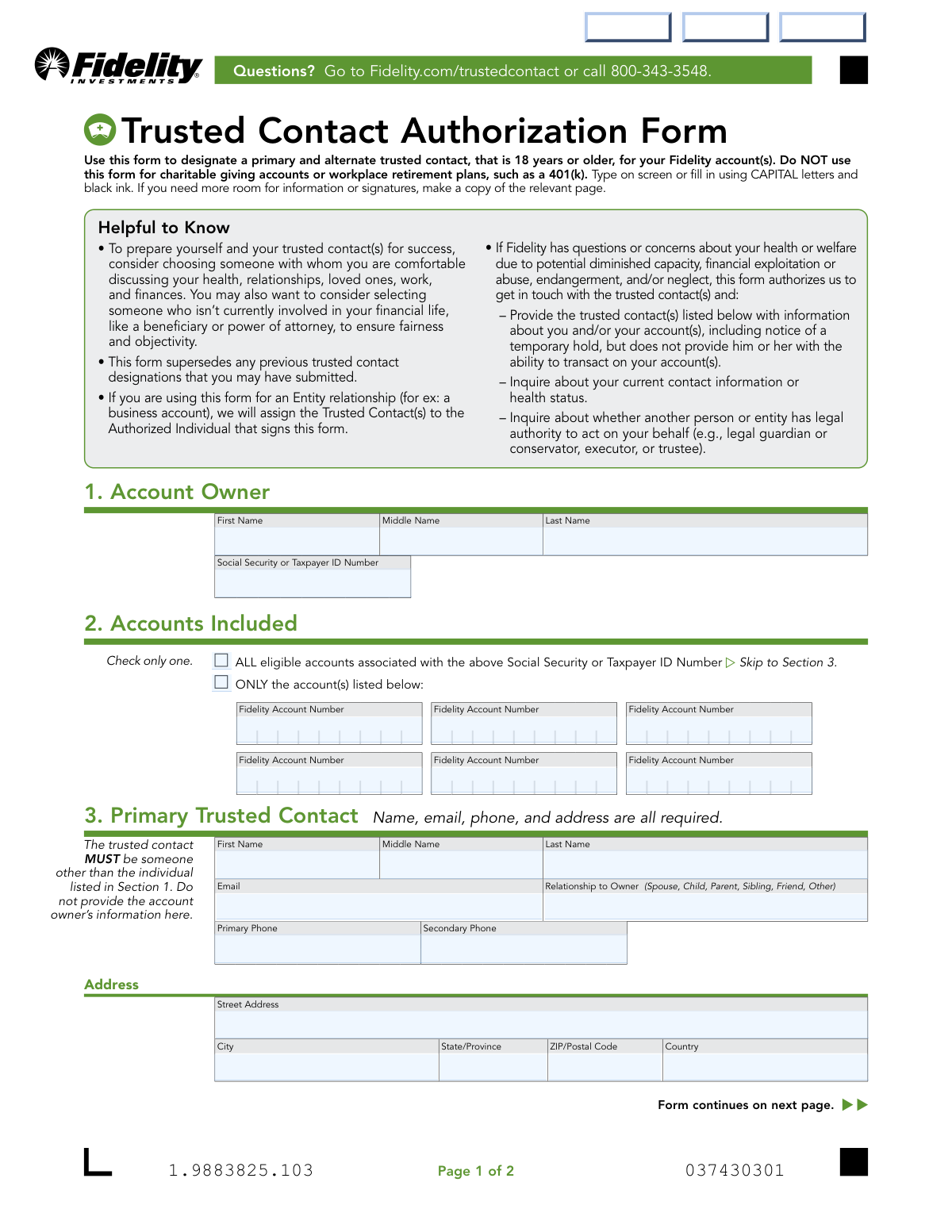
The Fidelity Trusted Contact Authorization Form is an official document used by Fidelity Brokerage Services LLC that enables account owners to designate up to two trusted contacts—a primary and an alternate—who Fidelity may reach out to in situations involving potential financial exploitation, diminished capacity, or concerns about the account holder's health and welfare. The form authorizes Fidelity to share limited account information with the designated contacts but does not grant those contacts any ability to access or transact on the account. It supersedes any previously submitted trusted contact designations and applies to all eligible accounts or specific accounts as chosen by the owner. Today, this form can be filled out quickly and accurately using AI-powered services like Instafill.ai, which can also convert non-fillable PDF versions into interactive fillable forms.
Our AI automatically handles information lookup, data retrieval, formatting, and form filling.
It takes less than a minute to fill out Fidelity Trusted Contact Form using our AI form filling.
Securely upload your data. Information is encrypted in transit and deleted immediately after the form is filled out.
Form specifications
| Form name: | Fidelity Trusted Contact Authorization Form |
| Number of pages: | 1 |
| Filled form examples: | Form Fidelity Trusted Contact Form Examples |
| Language: | English |
Instafill Demo: filling out a legal form in seconds
How to Fill Out Fidelity Trusted Contact Form Online for Free in 2026
Are you looking to fill out a FIDELITY TRUSTED CONTACT FORM form online quickly and accurately? Instafill.ai offers the #1 AI-powered PDF filling software of 2026, allowing you to complete your FIDELITY TRUSTED CONTACT FORM form in just 37 seconds or less.
Follow these steps to fill out your FIDELITY TRUSTED CONTACT FORM form online using Instafill.ai:
- 1 Navigate to Instafill.ai and upload the Fidelity Trusted Contact Authorization Form PDF or select it from the available form library to begin filling it out online.
- 2 Complete Section 1 by entering the account owner's full name (first, middle, and last) and Social Security or Taxpayer ID Number.
- 3 Complete Section 2 by selecting whether the trusted contact designation applies to ALL eligible accounts associated with your SSN/TIN or only specific Fidelity account numbers, entering those account numbers if applicable.
- 4 Complete Section 3 with the Primary Trusted Contact's full name, email address, relationship to the account owner, primary and secondary phone numbers, and full mailing address.
- 5 Complete Section 4 with the Alternate Trusted Contact's full name, email address, relationship to the account owner, primary and secondary phone numbers, and full mailing address, ensuring this person is different from both the account owner and the primary trusted contact.
- 6 Review all entered information for accuracy, then print your name and provide your signature along with the current date in Section 5 to authorize the form.
- 7 Submit the completed and signed form by scanning or photographing it and uploading it via Fidelity.com/upload-Trusted-Contact, or mail it to the appropriate Fidelity mailing address found at Fidelity.com/customer-service/mailing-address.
Our AI-powered system ensures each field is filled out correctly, reducing errors and saving you time.
Why Choose Instafill.ai for Your Fillable Fidelity Trusted Contact Form Form?
Speed
Complete your Fidelity Trusted Contact Form in as little as 37 seconds.
Up-to-Date
Always use the latest 2026 Fidelity Trusted Contact Form form version.
Cost-effective
No need to hire expensive lawyers.
Accuracy
Our AI performs 10 compliance checks to ensure your form is error-free.
Security
Your personal information is protected with bank-level encryption.
Frequently Asked Questions About Form Fidelity Trusted Contact Form
This form allows you to designate a primary and an alternate trusted contact for your Fidelity account(s). Fidelity may reach out to your trusted contact if they have concerns about your health, welfare, potential financial exploitation, or diminished capacity — but the trusted contact cannot access or make transactions on your account.
You should choose someone you are comfortable discussing your health, relationships, and finances with, and who is 18 years of age or older. Fidelity recommends considering someone who is not already involved in your financial life, such as a beneficiary or power of attorney holder, to ensure fairness and objectivity.
No. Designating a trusted contact does not give them the ability to access, view, or transact on your account(s). Fidelity can only share limited information with them to address concerns about your health, welfare, or contact information.
You can choose to apply the trusted contact designation to ALL eligible accounts associated with your Social Security or Taxpayer ID Number, or you can specify only certain Fidelity account numbers. Note that this form cannot be used for charitable giving accounts or workplace retirement plans such as a 401(k).
You must provide your name and Social Security or Taxpayer ID Number, and for each trusted contact (primary and alternate), you must supply their full name, email address, phone number(s), mailing address, and their relationship to you. All fields for each trusted contact are required.
Yes. This form allows you to designate both a primary trusted contact and an alternate trusted contact, as long as both individuals are 18 years of age or older and are different from the account owner.
Yes. Submitting this form supersedes any previous trusted contact designations you may have submitted to Fidelity. If you want to update your trusted contacts in the future, simply complete and submit a new form.
Yes. The trusted contact designation is completely optional and can be withdrawn at any time by notifying Fidelity in writing. You can also update your trusted contacts at any time by completing and submitting a new Trusted Contact Authorization Form. Additionally, Fidelity reserves the right to remove any trusted contact at any time.
For faster processing, complete and sign the form, then scan or photograph the entire form and upload it at Fidelity.com/upload-Trusted-Contact or by scanning the QR code on the form. If you are unable to use the digital upload process, visit Fidelity.com/customer-service/mailing-address for mailing instructions.
If you are using this form for an entity relationship (such as a business account), Fidelity will assign the trusted contact(s) to the Authorized Individual who signs the form, not to the entity itself.
Yes. The form cannot be processed without your signature and date in Section 5. By signing, you authorize Fidelity to communicate with your trusted contact(s) and certify that all information provided is true, accurate, and complete.
Yes. Services like Instafill.ai use AI to automatically fill in form fields accurately, saving you time and reducing errors. You can upload the Fidelity Trusted Contact Authorization Form to Instafill.ai and have it pre-populated with your information before you review, sign, and submit.
Simply go to Instafill.ai, upload the Fidelity Trusted Contact Authorization Form PDF, and the AI will guide you through filling in all required fields — including account owner details, trusted contact information, and account numbers. Once completed, you can download the filled form, sign it, and submit it to Fidelity via their digital upload portal.
If your PDF is not interactive or fillable, Instafill.ai can convert it into a fillable form so you can type directly into the fields. This eliminates the need to print and handwrite your information, making the process faster and more accurate.
For questions about the Trusted Contact Authorization Form, you can visit Fidelity.com/trustedcontact or call Fidelity directly at 800-343-3548. Fidelity representatives can guide you through the form and answer any specific questions about your account.
Compliance Fidelity Trusted Contact Form
Validation Checks by Instafill.ai
1
Account Owner SSN/Taxpayer ID Format Validation
Validates that the Social Security or Taxpayer ID Number field is populated and follows the correct format (SSN: XXX-XX-XXXX with 9 digits, or EIN: XX-XXXXXXX for business accounts). This field is critical for linking the trusted contact designation to the correct Fidelity account(s). If this field is missing or improperly formatted, the form cannot be processed and the trusted contact designation cannot be applied to any accounts.
2
Account Owner Full Name Completeness Check
Ensures that at minimum the Account Owner's First Name and Last Name fields are populated, as these are required to identify the account holder. The Middle Name field is optional but should be validated to contain only alphabetic characters if provided. Missing owner name fields will prevent Fidelity from matching the form to the correct account holder, resulting in processing failure.
3
Account Selection Completeness Check
Validates that the 'Accounts Included' section has a selection made — either 'ALL eligible accounts' or 'ONLY the account(s) listed below' — and that if the latter is chosen, at least one valid Fidelity Account Number is entered. Leaving this section blank creates ambiguity about which accounts the trusted contact designation applies to. If no selection is made, the form cannot be processed correctly.
4
Fidelity Account Number Format Validation
When specific accounts are listed in Section 2, each entered Fidelity Account Number must conform to Fidelity's standard account number format (typically numeric and of a consistent length). Blank account number fields should be ignored, but any populated field must not contain special characters, letters, or invalid lengths. Invalid account numbers will result in the trusted contact not being properly assigned to the intended accounts.
5
Primary Trusted Contact Required Fields Completeness Check
Validates that all required fields for the Primary Trusted Contact in Section 3 are populated, including First Name, Last Name, Email, Primary Phone, Street Address, City, State/Province, ZIP/Postal Code, and Country. The form explicitly states that name, email, phone, and address are all required for this section. Any missing required field will prevent the form from being processed and the primary trusted contact from being designated.
6
Primary Trusted Contact Email Format Validation
Ensures that the Email field for the Primary Trusted Contact contains a properly formatted email address, following the standard pattern of [email protected] (e.g., [email protected]). An invalid or malformed email address would prevent Fidelity from being able to contact the trusted contact in situations involving potential financial exploitation or health concerns. The field must not be left blank and must not contain spaces or invalid characters.
7
Primary Trusted Contact Phone Number Format Validation
Validates that the Primary Phone field for the Primary Trusted Contact is populated and follows a valid phone number format, such as (XXX) XXX-XXXX or XXX-XXX-XXXX for domestic numbers, or an appropriate international format. The Secondary Phone field, if populated, must also conform to a valid phone number format. An invalid or missing primary phone number would hinder Fidelity's ability to reach the trusted contact in urgent situations.
8
Primary Trusted Contact Relationship Field Validation
Ensures that the Relationship to Owner field for the Primary Trusted Contact is populated with one of the accepted values: Spouse, Child, Parent, Sibling, Friend, or Other. This field provides important context for the nature of the relationship between the account owner and the trusted contact. If left blank or populated with an unrecognized value, it may cause processing delays or require follow-up from Fidelity.
9
Primary Trusted Contact Is Not the Account Owner Check
Validates that the name and identifying information entered for the Primary Trusted Contact in Section 3 does not match the Account Owner's information entered in Section 1. The form explicitly states that the trusted contact must be someone other than the individual listed in Section 1. If the same person is listed as both the account owner and the primary trusted contact, the designation is invalid and the form cannot be processed.
10
Alternate Trusted Contact Required Fields Completeness Check
Validates that if any field in the Alternate Trusted Contact section (Section 4) is populated, then all required fields — First Name, Last Name, Email, Primary Phone, Street Address, City, State/Province, ZIP/Postal Code, and Country — must also be completed. The form states that name, email, phone, and address are all required for the alternate contact. Partial completion of the alternate contact section will result in the alternate designation being rejected or the form being returned for correction.
11
Alternate Trusted Contact Is Not the Account Owner or Primary Contact Check
Validates that the Alternate Trusted Contact's information does not match either the Account Owner's information from Section 1 or the Primary Trusted Contact's information from Section 3. The form explicitly states the alternate trusted contact must be someone other than the individuals listed in Sections 1 and 3. Designating the same individual in multiple roles undermines the purpose of having distinct trusted contacts and will result in form rejection.
12
Alternate Trusted Contact Email Format Validation
If the Alternate Trusted Contact section is completed, the Email field must contain a properly formatted email address following the standard pattern of [email protected]. An invalid email format would prevent Fidelity from being able to contact the alternate trusted contact when needed. This check should only trigger if the alternate contact section has been at least partially filled out, indicating the submitter intends to designate an alternate contact.
13
Alternate Trusted Contact Phone Number Format Validation
If the Alternate Trusted Contact section is completed, validates that the Primary Phone field contains a properly formatted domestic or international phone number. The Secondary Phone field for the alternate contact, if populated, must also follow a valid phone number format. An invalid phone number for the alternate contact would prevent Fidelity from reaching them in situations where the primary trusted contact is unavailable.
14
Owner/Authorized Individual Signature Presence Check
Validates that the Owner/Authorized Individual Signature field has been signed, as the form explicitly states it cannot be processed without a signature. The signature authorizes Fidelity to communicate with the designated trusted contacts and disclose account information under specified circumstances. A missing signature renders the entire form invalid and will result in it being returned without processing.
15
Signature Date Format and Validity Check
Ensures that the Date field accompanying the signature is populated and follows the required MM/DD/YYYY format as specified on the form. The date must also represent a valid calendar date (e.g., not 13/45/2024) and should not be a future date, as the form must be signed on or before the date of submission. An incorrectly formatted or missing date may cause the form to be rejected, as it is required alongside the signature for the form to be legally valid.
16
Printed Owner/Authorized Individual Name Completeness Check
Validates that the 'PRINT OWNER/AUTHORIZED INDIVIDUAL NAME' field is populated with the account owner's or authorized individual's full printed name, which should correspond to the name provided in Section 1. This printed name serves as a legible reference to accompany the signature and helps confirm the identity of the signer. A missing or mismatched printed name may raise questions about the authenticity of the signature and could delay processing.
Common Mistakes in Completing Fidelity Trusted Contact Form
A surprisingly common error is entering the account owner's own name and contact details in Section 3 (Primary Trusted Contact) or Section 4 (Alternate Trusted Contact). This defeats the entire purpose of the form, as the trusted contact must be a different individual. The form explicitly warns against this, but people sometimes misread the instructions. Always ensure the trusted contact is a separate person from the account owner listed in Section 1, and that the alternate contact in Section 4 is also different from both the owner and the primary contact.
Some account owners designate a younger family member, such as a teenager, as a trusted contact without realizing the form requires all trusted contacts to be at least 18 years of age. This will cause the form to be rejected or the designation to be invalid. Before submitting, confirm the age of both the primary and alternate trusted contacts. Tools like Instafill.ai can flag this requirement during form completion to prevent the error.
Sections 3 and 4 explicitly state that name, email, phone, and address are ALL required for each trusted contact. Many people fill in only partial information — for example, omitting the email address or secondary phone — assuming some fields are optional. Incomplete information will delay or prevent processing of the form. Double-check that every required field for both the primary and alternate trusted contacts is fully completed before submission.
The form clearly states it should NOT be used for charitable giving accounts or workplace retirement plans such as a 401(k). People who manage multiple account types at Fidelity sometimes submit this form for all accounts without checking eligibility. Using this form for excluded account types will result in the designation being ignored for those accounts. Review your account types carefully and use the appropriate form or process for workplace retirement plans and charitable accounts.
Section 5 explicitly states the form cannot be processed without a signature and date, yet many people forget to sign, omit the date, or provide the date in an incorrect format (e.g., writing 'July 25, 2025' instead of '07/25/2025'). An unsigned or undated form will be rejected entirely, causing significant delays. Always sign in the designated signature field and enter the date in the required MM/DD/YYYY format. AI-powered tools like Instafill.ai can remind users to complete the signature and date fields before submission.
Section 5 requires both a printed name (PRINT OWNER/AUTHORIZED INDIVIDUAL NAME) and a separate signature. Many people only provide a signature and skip the printed name field, or they write their signature in both fields. The printed name is a distinct requirement and its omission can cause processing issues. Make sure to clearly print your full legal name in the print field and provide your actual signature separately in the signature field.
Errors in the Social Security Number (SSN) or Taxpayer ID Number (TIN) are among the most consequential mistakes on this form, as this number is used to identify the account owner and link the trusted contact designation to the correct accounts. Common errors include transposing digits, omitting digits, or entering an ITIN when an SSN is expected (or vice versa). Always double-check this number carefully before submission. Instafill.ai can help validate the format of SSN/TIN entries to catch formatting errors automatically.
In Section 2, account owners must choose between applying the trusted contact designation to ALL eligible accounts or only specific listed accounts. Many people skip this section entirely, or they select 'ALL eligible accounts' when they intended to limit the designation to specific accounts, or vice versa. This can result in the trusted contact having broader or narrower access than intended. Carefully read both options and, if selecting specific accounts, ensure all relevant Fidelity account numbers are entered correctly.
When selecting specific accounts in Section 2, people frequently enter account numbers with errors such as missing digits, added spaces, or transposed numbers. Fidelity account numbers have a specific format, and any discrepancy can result in the designation not being applied to the intended account. Always copy account numbers directly from your Fidelity statements or online account portal rather than relying on memory. Instafill.ai can help auto-populate account numbers accurately to avoid transcription errors.
The form's 'Helpful to Know' section advises against selecting someone already involved in your financial life, such as a beneficiary or power of attorney, to ensure fairness and objectivity. Many people default to naming their primary beneficiary or their power of attorney as their trusted contact without considering the potential conflict of interest. This can undermine the protective purpose of the trusted contact designation. Consider choosing a trusted friend, sibling, or other individual who is not already a financial stakeholder in your accounts.
Email is a required field for both the primary and alternate trusted contacts, and entering an incorrect, outdated, or misspelled email address means Fidelity may be unable to reach the trusted contact in a time-sensitive situation. People often enter email addresses from memory and make typos, or they use an old email address the contact no longer monitors. Always confirm the trusted contact's current, active email address directly with them before completing the form.
The form explicitly instructs users to 'Type on screen or fill in using CAPITAL letters and black ink.' Handwritten submissions in lowercase or with non-black ink (e.g., blue or pencil) may be harder to scan and process, potentially causing delays or rejection. Additionally, using mixed-case handwriting can lead to misreading of names and addresses. When completing the form by hand, use a black pen and write all information in clear capital letters; when completing digitally, use a tool like Instafill.ai to ensure proper formatting throughout.
Saved over 80 hours a year
“I was never sure if my IRS forms like W-9 were filled correctly. Now, I can complete the forms accurately without any external help.”
Kevin Martin Green
Your data stays secure with advanced protection from Instafill and our subprocessors
Robust compliance program
Transparent business model
You’re not the product. You always know where your data is and what it is processed for.
ISO 27001, HIPAA, and GDPR
Our subprocesses adhere to multiple compliance standards, including but not limited to ISO 27001, HIPAA, and GDPR.
Security & privacy by design
We consider security and privacy from the initial design phase of any new service or functionality. It’s not an afterthought, it’s built-in, including support for two-factor authentication (2FA) to further protect your account.
Fill out Fidelity Trusted Contact Form with Instafill.ai
Worried about filling PDFs wrong? Instafill securely fills fidelity-trusted-contact-authorization-form forms, ensuring each field is accurate.