
Yes! You can use AI to fill out Form W-2, Wage and Tax Statement (2025)
Don't type 266 fields by hand. Tell our AI about yourself, or upload your W-2 or last year's return, and it fills every field in seconds. You check it, then download, print or sign.
The AI does the filling. You just check it.
No typing into boxes, nothing to install.
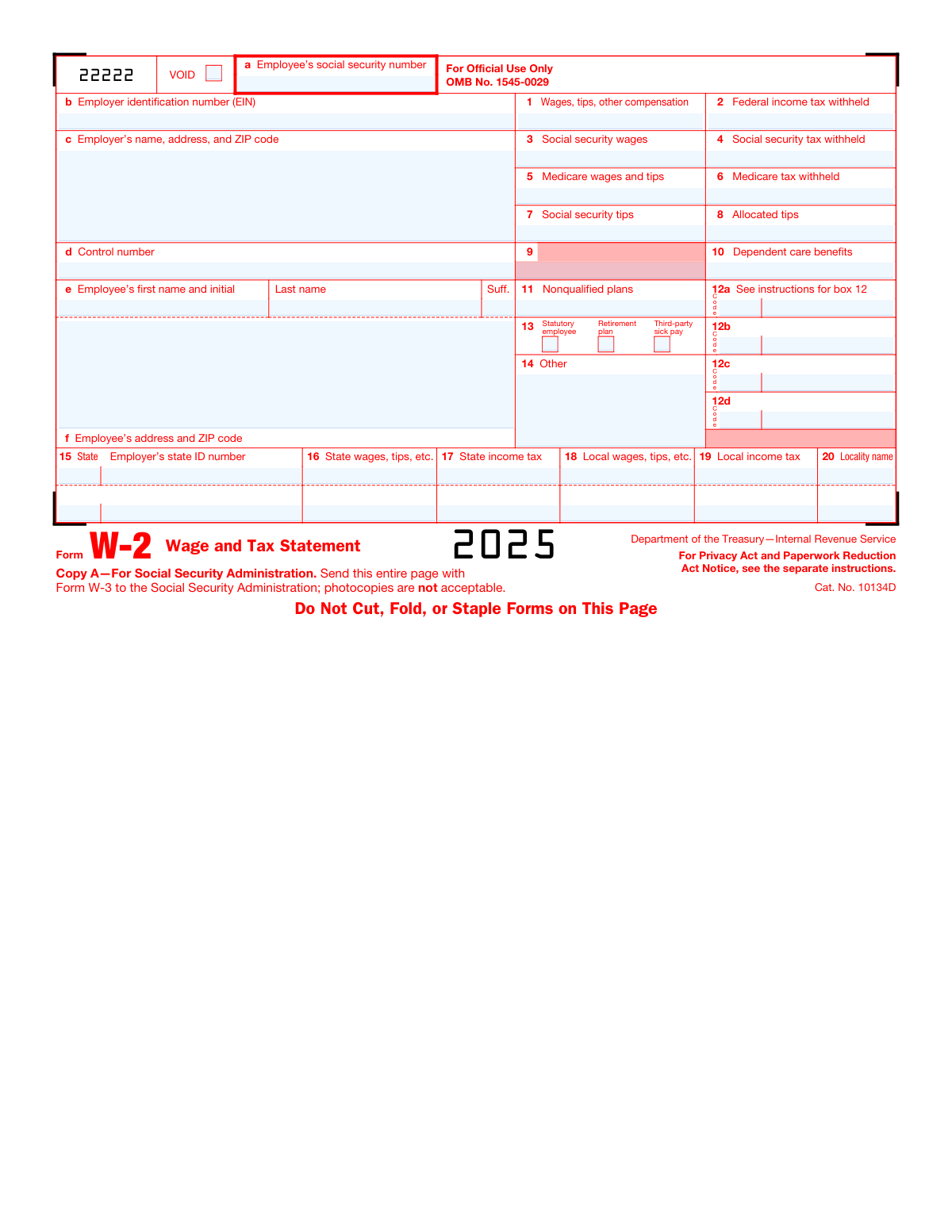
What this form asks for
The AI fills all of it, from your answers or your documents.
The AI checks your answers before you download
15 checks built for this form, so a wrong date or a missing answer is caught before anyone else sees it.
Validate that the employee Social Security number is present (unless explicitly allowed to be masked on employee copies) and matches the required 9-digit SSN format (either "#########" or "###-##-####"). Reject known invalid patterns (e.g., all zeros in any group, 000-##-####, ###-00-####, ###-##-0000) and non-numeric characters beyond hyphens. This is critical because SSA/IRS matching relies on a valid SSN; if validation fails, the submission should be blocked and the user prompted to correct the SSN.
Ensure the Employer Identification Number is provided and is exactly 9 digits, optionally formatted as "##-#######". Disallow all-zero values and non-numeric characters beyond a single hyphen. EIN accuracy is required for IRS/SSA identification of the filer; if invalid, the form should fail validation and require correction before acceptance.
Check that employer legal name is present and that address includes street (or PO Box), city, state, and ZIP code. Validate that ZIP is either 5 digits or ZIP+4 ("#####" or "#####-####") and that state is a valid USPS two-letter code. Missing or malformed address data can cause delivery issues and filing mismatches; if validation fails, require completion/correction of the missing components.
Verify that employee first name and last name are present, and that middle initial/suffix (if provided) conforms to expected patterns (e.g., single letter for initial; suffix like Jr, Sr, II, III). Disallow numerals and unsupported special characters that commonly indicate OCR/entry errors. Correct name data is essential for SSA wage crediting; if invalid, the system should stop submission and request corrected name fields.
Require employee address line plus city, state, and ZIP, and validate ZIP format (5-digit or ZIP+4) and state code. Optionally flag obviously invalid addresses (e.g., missing city/state, ZIP not matching allowed patterns). Accurate employee address is needed for distribution and recordkeeping; if validation fails, prevent finalization until corrected.
Confirm the W-2 tax year is explicitly set to 2025 and that the submission is not mixing data intended for another year (e.g., user-selected year differs from the form year). This prevents misreporting wages/withholding to the wrong tax year, which can trigger IRS/SSA discrepancies. If the year is inconsistent, block submission and require the user to select/confirm the correct tax year.
And 9 more checks
- Monetary fields numeric format and non-negative constraints (Boxes 1–12, 14, 16–19)
- Withholding cannot exceed corresponding wage bases (Boxes 2, 4, 6 vs. Boxes 1, 3, 5)
- Social Security tax calculation and wage base cap validation (Boxes 3 and 4)
- Medicare tax calculation and Additional Medicare Tax reasonableness (Boxes 5 and 6)
- Tips and allocated tips logical consistency (Boxes 1, 7, 8)
- Dependent care benefits limit and inclusion rule check (Box 10 vs. Box 1)
- Box 12 code/value pair validation (12a–12d)
- Box 13 checkbox dependency checks (Statutory employee / Retirement plan / Third-party sick pay)
- State and local tax section completeness when any state/local amount is present (Boxes 15–20)
Let AI fill out your W-2
No typing. Every field filled in seconds, checked, ready to sign.
How to Fill Out W-2 Online for Free in 2026
What the AI walks you through.
- Select the correct tax year (2025) and choose the appropriate W-2 copy/output for your purpose (employee copies vs. employer/SSA filing).
- Enter employer details: EIN, employer legal name, and complete address/ZIP; add a control number if your payroll system uses one.
- Enter employee details: full name (including suffix if applicable), address/ZIP, and Social Security number (SSN).
- Input wage and withholding amounts for boxes 1–11 (wages/tips, federal withholding, Social Security/Medicare wages and taxes, tips, dependent care benefits, and nonqualified plans) based on payroll records.
- Complete box 12 items by selecting the correct codes (e.g., D, W, DD) and entering the corresponding amounts; repeat for 12a–12d as needed.
- Check applicable box 13 checkboxes (Statutory employee, Retirement plan, Third-party sick pay) and complete box 14 “Other” entries if required by your payroll/benefits reporting.
- Add state and local information in boxes 15–20 (state, employer state ID, state wages/tax, local wages/tax, locality name), then review totals and generate/print the correct copies or e-file through SSA as required.
Common Mistakes in Completing W-2
The ones the AI is built to catch.
Printing and filing the non-scannable online Copy A with SSA
Sending photocopies of Copy A (or not sending the entire page) to SSA
Cutting, folding, stapling, or otherwise damaging the scannable page
Using the wrong copy for the wrong recipient (SSA vs employee vs state/local)
Entering an incorrect or incomplete employee SSN
Name fields not matching SSA format (first/initial/last/suffix errors)
Employer EIN mistakes (using SSN, wrong EIN, or formatting errors)
Incorrect employer name/address/ZIP (or using a trade name inconsistently)
Misreporting wages and taxes across boxes 1, 3, 5 and boxes 2, 4, 6
Box 12 code/amount errors (wrong code, missing code, or combining multiple items)
Incorrectly checking Box 13 (Retirement plan / Statutory employee / Third-party sick pay)
State/local section mistakes (Boxes 15–20: missing IDs, wrong locality, or mismatched wages)
Frequently Asked Questions About W-2
Is it really free for 7 days?
Can I fill other forms too?
How do I cancel?
How does the AI fill out W-2?
What happens to my information?
How complex is W-2 to fill out?
What is Form W-2 (Wage and Tax Statement) used for?
Who is responsible for filling out and filing Form W-2?
What are the different W-2 copies (Copy A, B, C, 1, 2, D) for?
Can I print Copy A from IRS.gov and mail it to the SSA?
How can employers file W-2s electronically with the SSA?
If I e-file W-2s, do I still need to file Form W-3?
When are W-2 forms due to employees and to the SSA for tax year 2025?
When is electronic filing required for W-2s?
What information is required at the top of the W-2 (boxes a–f)?
What do Boxes 1 and 2 mean for employees?
Why are Boxes 3–6 (Social Security and Medicare wages/taxes) different from Box 1 sometimes?
What should I do if my name, SSN, or address is wrong on my W-2?
What are Box 12 codes (like DD, D, W), and do they affect my taxes?
What does it mean if the “Retirement plan” box in Box 13 is checked?
How do I get official scannable W-2 and W-3 forms for paper filing?
Get your W-2 filled out by AI
$0 today. Cancel before Nov 2 and you pay nothing.
Other forms like this one
tax forms: W-9, Request for Taxpayer Identification Number and Certification, Form W-2, Wage and Tax Statement, Form 1040-X, Amended U.S. Individual Income Tax Return, Form 130, Taxpayer's Notice to Initiate an Appeal, Form 1040-C, U.S. Departing Alien Income Tax Return, Form 940, Employer’s Annual FUTA Tax Return, Form 720, Quarterly Federal Excise Tax Return, Form 982, Reduction of Tax Attributes, Form 4137, Social Security and Medicare Tax on Unreported Tip Income, Form 911, Request for Taxpayer Advocate Service Assistance, Form 8960, Net Investment Income Tax, Form 8959, Additional Medicare Tax, Form 8919, Uncollected Social Security and Medicare Tax, Form 8801, Credit for Prior Year Minimum Tax, Form 990-T, Exempt Org Business Income Tax Return, Form 945, Annual Return of Withheld Federal Income Tax, Form 5330, Return of Excise Taxes, Form FTB 3514, California Earned Income Tax Credit, Form 100, CA Corp Tax Return, Form 8288, U.S. Withholding Tax Return
state tax forms: Form W-2, Wage and Tax Statement, Form W-8IMY (Rev. October 2021), Certificate of Foreign Intermediary, Foreign Flow-Through Entity, or Certain U.S. Branches for United States Tax Withholding and Reporting, Dealer’s Heavy Equipment Inventory Tax Statement (Form 50-266), Form W-8BEN-E, Certificate of Status of Beneficial Owner for United States Tax Withholding and Reporting (Entities), Colorado Form DR 0026, Tax Statement for Leased Motor Vehicle, Form W-2, Wage and Tax Statement, Form 706-NA, United States Estate (and Generation-Skipping Transfer) Tax Return Estate of Nonresident Not a Citizen of the United States, Form W-2, Wage and Tax Statement, Form 1310, Statement of Person Claiming Refund Due a Deceased Taxpayer, Form ST-120, New York State and Local Sales and Use Tax Resale Certificate, Form 1120-REIT, U.S. Income Tax Return for Real Estate Investment Trusts, State of Michigan, Form MC 52, Request and Writ for Garnishment (Income Tax Refund/Credit), Tax Court of New Jersey, State Tax Complaint, State Tax Case Information Statement (CIS-State), Form CN 10328, State Tax Complaint Packet, Tax Court of New Jersey Case Information Statement - Correction of Error in Assessment, Form 1041, U.S. Income Tax Return for Estates and Trusts (2023), Form 1041, U.S. Income Tax Return for Estates and Trusts (2025), Form 3911, Taxpayer Statement Regarding Refund (Rev. 10-2022), Form 3911, Taxpayer Statement Regarding Refund (Rev. 1-2018)
PA state forms: Form 1095-A, Health Insurance Marketplace Statement, Form W-2, Wage and Tax Statement, Form 593, Real Estate Withholding, Form 8938, Statement of Specified Foreign Financial Assets, Form CMS-2567, Statement of Deficiencies, Form 1098, Mortgage Interest Statement, Form 1098-T, Tuition Statement, Form 1099-S, Proceeds From Real Estate Transactions, Form 1098-E, Student Loan Interest Statement, Form DS-3053, Statement of Consent, Form DS-86, Statement of Non-Receipt of a U.S. Passport, Form DS-86, Statement of Non-Receipt of a U.S. Passport, Form 108, Statement of Intention, Form 107, Statement of Financial Affairs, Form 121, Statement About Your SSNs, Form 122A-1, Chapter 7 Statement of Current Monthly Income, Center for Infertility & Reproductive Surgery – New Patient Questionnaire and Patient/Guarantor Statement (Brigham and Women’s Hospital, Department of Obstetrics and Gynecology), Adult Travel Document Application for Stateless and Protected Persons in Canada (16 years of age or over) (PPTC 190), Form W-8IMY (Rev. October 2021), Certificate of Foreign Intermediary, Foreign Flow-Through Entity, or Certain U.S. Branches for United States Tax Withholding and Reporting, State of New Mexico Workers’ Compensation Administration — Workers' Compensation Complaint (Rev. 8/22) (11.4.4.9 NMAC)
NJ state forms: Form 1095-A, Health Insurance Marketplace Statement, Form W-2, Wage and Tax Statement, Form 593, Real Estate Withholding, Form 8938, Statement of Specified Foreign Financial Assets, Form CMS-2567, Statement of Deficiencies, Form 1098, Mortgage Interest Statement, Form 1098-T, Tuition Statement, Form 1099-S, Proceeds From Real Estate Transactions, Form 1098-E, Student Loan Interest Statement, Form DS-3053, Statement of Consent, Form DS-86, Statement of Non-Receipt of a U.S. Passport, Form DS-86, Statement of Non-Receipt of a U.S. Passport, Form 108, Statement of Intention, Form 107, Statement of Financial Affairs, Form 121, Statement About Your SSNs, Form 122A-1, Chapter 7 Statement of Current Monthly Income, Center for Infertility & Reproductive Surgery – New Patient Questionnaire and Patient/Guarantor Statement (Brigham and Women’s Hospital, Department of Obstetrics and Gynecology), Adult Travel Document Application for Stateless and Protected Persons in Canada (16 years of age or over) (PPTC 190), Form W-8IMY (Rev. October 2021), Certificate of Foreign Intermediary, Foreign Flow-Through Entity, or Certain U.S. Branches for United States Tax Withholding and Reporting, State of New Mexico Workers’ Compensation Administration — Workers' Compensation Complaint (Rev. 8/22) (11.4.4.9 NMAC)
state ID forms: Application for Renewal or Duplicate of Alabama Driver License or ID card, Form 1095-A, Health Insurance Marketplace Statement, Form W-2, Wage and Tax Statement, Form 593, Real Estate Withholding, Form 8938, Statement of Specified Foreign Financial Assets, Form CMS-2567, Statement of Deficiencies, Form 1098, Mortgage Interest Statement, Form 1098-T, Tuition Statement, Form 1099-S, Proceeds From Real Estate Transactions, Form 1098-E, Student Loan Interest Statement, Form DS-3053, Statement of Consent, Form DS-86, Statement of Non-Receipt of a U.S. Passport, Form 108, Statement of Intention, Form 107, Statement of Financial Affairs, Form 121, Statement About Your SSNs, Form 122A-1, Chapter 7 Statement of Current Monthly Income, Center for Infertility & Reproductive Surgery – New Patient Questionnaire and Patient/Guarantor Statement (Brigham and Women’s Hospital, Department of Obstetrics and Gynecology), Adult Travel Document Application for Stateless and Protected Persons in Canada (16 years of age or over) (PPTC 190), Form W-8IMY (Rev. October 2021), Certificate of Foreign Intermediary, Foreign Flow-Through Entity, or Certain U.S. Branches for United States Tax Withholding and Reporting, State of New Mexico Workers’ Compensation Administration — Workers' Compensation Complaint (Rev. 8/22) (11.4.4.9 NMAC)
wage forms: Form W-2, Wage and Tax Statement, Form WH-226, Application for Authority to Employ Workers with Disabilities at Subminimum Wages, Form 8919, Uncollected Social Security and Medicare Tax on Wages, Form W-2, Wage and Tax Statement, Minimum Wage Ordinance (MWO) Complaint Intake Form, Form 433-A (OIC), Collection Information Statement for Wage Earners and Self-Employed Individuals, Form DEP 4015, Application for Construction Permit, Onsite Sewage Treatment and Disposal System (OSTDS), Form DEP 4015, Application for Construction Permit for an Onsite Sewage Treatment and Disposal System (OSTDS), Form DEP 4015, Onsite Sewage Treatment and Disposal System Site Evaluation and System Specifications, Form DFS-F2-DWC-1a, Wage Statement, Form W-2, Wage and Tax Statement, Form 4852, Substitute for Form W-2 or 1099-R
Let AI fill out your W-2
Your trial starts once a card is added. You pay nothing before Nov 2.
Our AI already knows this form, all 266 fields of it. Skip the typing: tell it about yourself, or upload what you have, and it fills the whole form in seconds.
- AI fills every field on all 10 pages, tables and checkboxes included
- No typing into boxes: answer a few questions, or upload your W-2 or last year's return, an old copy of this form, a photo of a document
- The AI checks the answers; you review and change anything before you download
- Download the finished PDF, print it, or sign it online
- Encrypted, and never used to train AI
Cancel before Nov 2 and you pay nothing.
A card is needed to start the trial. Cancel in two clicks from your account.
Terms · Privacy