Yes! You can use AI to fill out Providence Health Plan Out-of-Area Dependent Enrollment Form

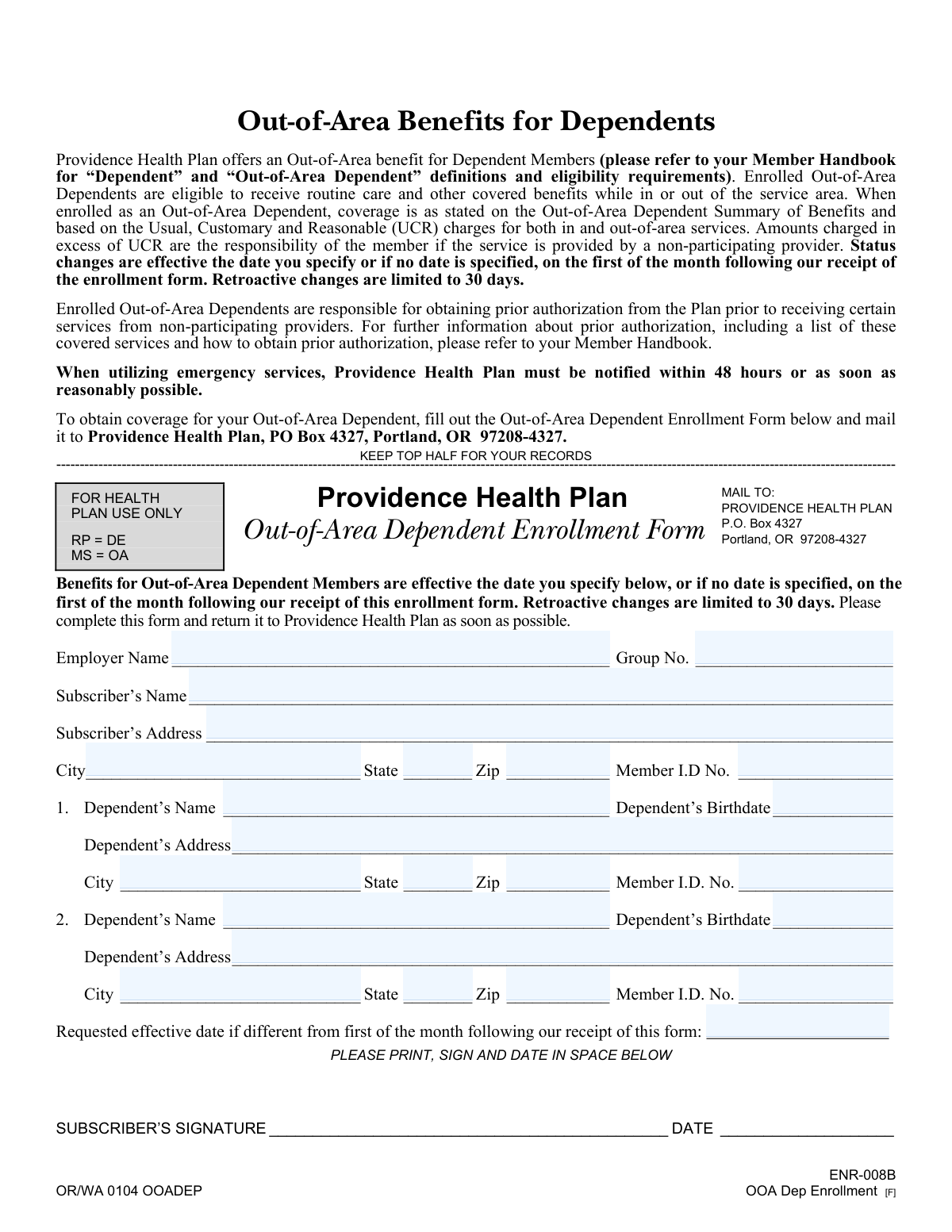
The Providence Health Plan Out-of-Area Dependent Enrollment Form is an enrollment request that allows a subscriber to add one or more dependents as “Out-of-Area Dependents,” enabling access to covered benefits when the dependent lives in or receives care outside the plan’s service area. The form captures employer/group details, subscriber information, dependent demographics/addresses, member ID numbers, and an optional requested effective date. Submitting it helps ensure the dependent’s coverage is administered correctly, including effective-date rules and UCR-based reimbursement considerations. Today, this form can be filled out quickly and accurately using AI-powered services like Instafill.ai, which can also convert non-fillable PDF versions into interactive fillable forms.
Our AI automatically handles information lookup, data retrieval, formatting, and form filling.
It takes less than a minute to fill out ENR-008B (OOA Dep Enrollment) using our AI form filling.
Securely upload your data. Information is encrypted in transit and deleted immediately after the form is filled out.

Form specifications

Form name: Providence Health Plan Out-of-Area Dependent Enrollment Form
Number of pages: 1
Filled form examples: Form ENR-008B (OOA Dep Enrollment) Examples
Language: English
main-image

Instafill Demo: filling out a legal form in seconds

How to Fill Out ENR-008B (OOA Dep Enrollment) Online for Free in 2026

Are you looking to fill out a ENR-008B (OOA DEP ENROLLMENT) form online quickly and accurately? Instafill.ai offers the #1 AI-powered PDF filling software of 2026, allowing you to complete your ENR-008B (OOA DEP ENROLLMENT) form in just 37 seconds or less.
Follow these steps to fill out your ENR-008B (OOA DEP ENROLLMENT) form online using Instafill.ai:
  1. 1 Go to Instafill.ai and upload the Providence Health Plan Out-of-Area Dependent Enrollment Form (or select it from the form library).
  2. 2 Let the AI detect and map the fields, then confirm the form version (ENR-008B / OOA Dep Enrollment) and any required sections.
  3. 3 Enter employer and plan details, including Employer Name and Group Number.
  4. 4 Fill in subscriber information: name, address (city/state/zip), and Subscriber Member ID number.
  5. 5 Add dependent information for each out-of-area dependent (up to two on this form): name, birthdate, address (city/state/zip), and dependent Member ID number.
  6. 6 Specify a requested effective date if different from the default (first of the month following receipt), then review for completeness and accuracy.
  7. 7 E-sign (if supported) or print, sign, and date the form, then download and mail it to Providence Health Plan at P.O. Box 4327, Portland, OR 97208-4327.

Our AI-powered system ensures each field is filled out correctly, reducing errors and saving you time.

Why Choose Instafill.ai for Your Fillable ENR-008B (OOA Dep Enrollment) Form?

Speed

Complete your ENR-008B (OOA Dep Enrollment) in as little as 37 seconds.

Up-to-Date

Always use the latest 2026 ENR-008B (OOA Dep Enrollment) form version.

Cost-effective

No need to hire expensive lawyers.

Accuracy

Our AI performs 10 compliance checks to ensure your form is error-free.

Security

Your personal information is protected with bank-level encryption.

Frequently Asked Questions About Form ENR-008B (OOA Dep Enrollment)

This form enrolls an eligible dependent as an “Out-of-Area Dependent” under Providence Health Plan so they can receive routine care and other covered benefits while in or out of the plan’s service area.

The subscriber (the primary member on the plan) should complete the form and must sign and date it to request Out-of-Area status for a dependent.

Eligibility depends on Providence Health Plan’s definitions of “Dependent” and “Out-of-Area Dependent” and the plan’s requirements. Check your Member Handbook for the specific eligibility rules before submitting the form.

Coverage is effective on the date you specify, or if you don’t specify a date, it starts on the first day of the month after Providence Health Plan receives the form.

Yes, but retroactive changes are limited to 30 days. If you need an earlier date than 30 days, it generally won’t be allowed under the form’s rules.

Mail it to Providence Health Plan, P.O. Box 4327, Portland, OR 97208-4327.

You’ll need your employer name, group number, subscriber name, subscriber address, city/state/ZIP, and the subscriber’s Member ID number.

For each dependent, provide their full name, birthdate, address (street/city/state/ZIP), and their Member ID number.

This form provides space for two dependents. If you need to enroll more, you may need to submit an additional form or contact Providence Health Plan for instructions.

Out-of-area services are covered based on the Out-of-Area Dependent Summary of Benefits and are paid using Usual, Customary, and Reasonable (UCR) charges. If a non-participating provider bills more than UCR, the member may be responsible for the amount above UCR.

Yes, for certain covered services received from non-participating providers, prior authorization is required. Refer to the Member Handbook for the list of services and the steps to obtain authorization.

Providence Health Plan must be notified within 48 hours of emergency services, or as soon as reasonably possible. This helps ensure the claim is handled correctly under your plan rules.

The form itself doesn’t list required attachments, but your plan may require supporting information in some situations. If you’re unsure, check the Member Handbook or contact Providence Health Plan before mailing.

Yes. Tools like Instafill.ai can use AI to auto-fill form fields from your information, helping reduce errors and save time—especially for addresses, member IDs, and effective dates.

Upload the PDF to Instafill.ai, provide or import your subscriber/dependent details, and let the AI map your information into the correct fields. Then review for accuracy, download the completed form, sign/date it, and mail it to the address listed on the form.

Instafill.ai can convert flat, non-fillable PDFs into interactive fillable forms so you can type directly into the fields. After converting and completing it, you can download, sign, and mail the form.

Compliance ENR-008B (OOA Dep Enrollment)
Validation Checks by Instafill.ai

1
Employer Name is present and appears to be a full legal entity name
Validate that Employer Name is not blank and contains a plausible organization name (not just initials, a single word like "Company", or placeholder text such as "N/A"). This is important to correctly associate the request with the correct employer plan and avoid misrouting or delays. If validation fails, the submission should be rejected or routed to manual review with a request for the full employer name.
2
Group Number is present and matches expected group number format
Check that Group Number is provided and conforms to the plan’s expected format (e.g., numeric-only or alphanumeric with a defined length/range). This ensures the enrollment is applied to the correct group contract and benefits configuration. If the group number is missing or malformed, the form should fail validation and prompt the submitter to correct it.
3
Subscriber Name completeness and character validation
Ensure Subscriber’s Name is present and includes at least a first and last name, using valid characters (letters, spaces, hyphens, apostrophes) and not containing numbers or obvious placeholders. Accurate subscriber identification is critical for linking dependents to the correct subscriber record. If invalid, the submission should be rejected or flagged for manual verification.
4
Subscriber address fields are complete and structurally valid
Validate that Subscriber’s Address, City, State, and Zip Code are all present and meet basic formatting rules (street address not empty, city not numeric, state is a valid two-letter US abbreviation, zip is 5 digits or ZIP+4). This is important for eligibility, correspondence, and confirming service area vs out-of-area context. If any component is missing or invalid, the form should not be accepted until corrected.
5
Subscriber Member ID is present and matches member ID format
Check that Subscriber Member ID No. is provided and matches the plan’s member ID pattern (length, allowed characters, and any required prefixes). This is the primary key used to locate the subscriber in enrollment systems and prevents misapplication to the wrong account. If the ID is missing or does not match format, validation should fail and require correction.
6
At least one dependent section is meaningfully completed
Confirm that at least one dependent (Dependent 1 or Dependent 2) has the minimum required fields completed (name, birthdate, and address or member ID as required by business rules). This prevents submissions that contain only subscriber/employer information without any dependent to enroll. If neither dependent section is completed, the form should be rejected with an error indicating a dependent must be provided.
7
Dependent name validation (for each dependent provided)
For each dependent entry that is started, validate the dependent’s name is present, includes at least first and last name, and contains only valid characters (no digits or placeholder values). Correct dependent naming is essential for matching to existing dependent records and avoiding duplicate or incorrect enrollments. If invalid, the dependent entry should be rejected and the user prompted to correct the name.
8
Dependent birthdate format and plausibility validation
Validate each dependent birthdate is present (when the dependent is provided), is a valid date, and is not in the future; also apply reasonable bounds (e.g., not older than a plausible dependent age threshold). Birthdate is commonly used for eligibility and identity matching, and invalid dates can cause enrollment failures downstream. If validation fails, the submission should be blocked until a valid birthdate is entered.
9
Dependent address completeness and US state/ZIP format validation
For each dependent provided, validate Dependent Address, City, State, and Zip are complete and properly formatted (state is a valid two-letter abbreviation; ZIP is 5 digits or ZIP+4). This is important because the benefit is specifically for out-of-area dependents and address is a key indicator for out-of-area status and correspondence. If any address component is missing or malformed, the dependent record should fail validation and require correction.
10
Dependent Member ID format validation (when provided/required)
Validate each dependent’s Member ID No. matches the plan’s member ID format and is not an obvious placeholder. Member ID is used to uniquely identify the dependent and reduce ambiguity when multiple dependents share similar names. If the ID is required by the workflow and missing/invalid, the form should be rejected; if optional, it should be flagged for manual review when absent.
11
No duplicate dependent entries (same person entered twice)
Check that Dependent 1 and Dependent 2 are not duplicates by comparing combinations of name + birthdate and/or member ID. Duplicate entries can cause double enrollment actions, billing issues, or conflicting records. If a duplicate is detected, validation should fail and instruct the submitter to remove or correct the duplicate dependent.
12
Subscriber Member ID must not equal any dependent Member ID
Validate that the Subscriber Member ID is different from each dependent’s Member ID (when dependent IDs are provided). This prevents misclassification of the subscriber as a dependent and avoids corrupting enrollment relationships. If a match is found, the submission should be rejected and require corrected IDs.
13
Requested Effective Date format and calendar validity
If a Requested Effective Date is provided, validate it is a valid date in an accepted format and not an impossible calendar date. Effective date drives coverage start and must be machine-readable to avoid incorrect activation timing. If invalid, the form should be rejected or the effective date ignored only with explicit user confirmation per business policy.
14
Requested Effective Date retroactivity limit (30-day rule)
Validate that any requested effective date is not more than 30 days prior to the form receipt date (or submission timestamp), consistent with the stated retroactive change limitation. This prevents requests that cannot be honored under plan rules and reduces rework and member dissatisfaction. If the date exceeds the retroactive limit, validation should fail and prompt the user to select an allowable date.
15
Signature and signature date presence and consistency
Ensure the Subscriber’s Signature is present and the DATE field is completed, and validate the date is a valid date not in the future. A signed and dated request is typically required for authorization and auditability of enrollment changes. If missing or invalid, the submission should be rejected as incomplete and require signature/date before processing.

Common Mistakes in Completing ENR-008B (OOA Dep Enrollment)

Leaving the requested effective date blank (or assuming it will be retroactive)

People often skip the effective date field thinking coverage will start immediately or be backdated automatically. If you don’t specify a date, the plan defaults to the first of the month following receipt, and retroactive changes are limited to 30 days—this can leave a dependent uncovered for services already received. To avoid this, enter the exact effective date you need (within the retroactive limit) and confirm it aligns with the dependent’s out-of-area start date; AI tools like Instafill.ai can prompt for missing dates and validate date rules.

Using the wrong Member ID number (subscriber vs. dependent)

A very common error is entering the subscriber’s Member ID in the dependent Member ID field (or vice versa), especially when cards list multiple identifiers. This can cause enrollment to be applied to the wrong person or delayed while the plan verifies identities. To avoid it, copy the subscriber Member ID into the subscriber section only, and use each dependent’s specific Member ID (if issued); Instafill.ai can map IDs to the correct person and flag duplicates.

Incomplete employer information (Employer Name and Group Number)

Members frequently enter a shortened employer name, a payroll vendor name, or leave the Group Number blank because they don’t know where to find it. Missing or incorrect employer/group details can prevent the plan from matching the request to the correct group benefits and may delay processing. Use the exact employer name as shown on plan materials and enter the full Group Number from your ID card or benefits portal; Instafill.ai can standardize employer names and validate group number formats.

Not printing clearly or using non-standard characters

Because this is a mail-in form, illegible handwriting, cursive, or stray marks often lead to misread names, addresses, or ID numbers. That can result in returned mail, incorrect enrollment, or requests for clarification that slow approval. Print in block letters, use black ink, and avoid cross-outs; if the form is a flat non-fillable PDF, Instafill.ai can convert it into a fillable version to reduce handwriting errors.

Entering an incomplete dependent address (missing apartment/unit or using a temporary address)

People often omit apartment/unit numbers or list a short-term school address without ensuring it’s the dependent’s actual out-of-area residence. Incomplete addresses can cause issues with eligibility verification, correspondence delivery, and claims routing for out-of-area care. Provide the full street address including unit number and ensure it reflects where the dependent primarily resides; Instafill.ai can validate address completeness and formatting (e.g., USPS-style).

State and ZIP formatting errors (wrong state abbreviation or ZIP length)

Applicants sometimes write the full state name, use an incorrect two-letter abbreviation, or enter a 4-digit ZIP/incorrect ZIP+4. These small formatting issues can cause mail delivery problems and may trigger manual review if the address doesn’t validate. Use the two-letter state code (e.g., OR, WA) and a 5-digit ZIP (or ZIP+4 if known); Instafill.ai can auto-format state/ZIP fields and flag mismatches.

Birthdate mistakes (wrong person, wrong format, or transposed numbers)

Birthdates are frequently entered in inconsistent formats (MM/DD/YYYY vs. DD/MM/YYYY) or with transposed digits, especially when copying from other documents. An incorrect birthdate can prevent the plan from matching the dependent to existing enrollment records and may delay or deny the out-of-area designation. Always use the plan’s expected MM/DD/YYYY format and double-check against official records; Instafill.ai can enforce date formatting and detect improbable dates.

Listing a dependent who doesn’t meet ‘Dependent’ or ‘Out-of-Area Dependent’ eligibility

Some members submit the form for someone who is not an eligible dependent under the handbook definitions (e.g., age/status rules, residency requirements). This leads to denials, rework, and potential gaps in coverage if the member assumes approval. Before submitting, confirm eligibility in the Member Handbook and ensure the dependent’s out-of-area situation qualifies; Instafill.ai can add eligibility check prompts so you don’t submit an ineligible request.

Forgetting to sign and date the form

Signatures and dates are commonly missed because they appear at the bottom and people focus on the dependent details. An unsigned or undated form is typically considered incomplete and will be returned or held, delaying the effective date. Always sign and date in the designated area before mailing; Instafill.ai can highlight required signature/date fields and prevent submission until they’re completed.

Assuming out-of-area coverage means ‘in-network’ pricing everywhere (ignoring UCR and non-participating provider costs)

Members often misunderstand that out-of-area benefits are based on Usual, Customary, and Reasonable (UCR) charges and that amounts above UCR are the member’s responsibility with non-participating providers. This misunderstanding can lead to unexpected balance bills and disputes after care is received. To avoid surprises, review the Out-of-Area Dependent Summary of Benefits, ask providers if they participate, and request estimates; Instafill.ai can surface key plan reminders during form completion so expectations match the benefit rules.

Not planning for prior authorization and emergency notification requirements

People frequently enroll the dependent but overlook that certain services from non-participating providers require prior authorization, and emergency services require notification within 48 hours (or as soon as reasonably possible). Missing these steps can result in reduced coverage or claim denials even if the dependent is properly enrolled. Read the handbook’s prior authorization list and set reminders for emergency notification; Instafill.ai can provide workflow prompts and checklists tied to these requirements.
Saved over 80 hours a year

“I was never sure if my IRS forms like W-9 were filled correctly. Now, I can complete the forms accurately without any external help.”

Kevin Martin Green

Your data stays secure with advanced protection from Instafill and our subprocessors

Robust compliance program

Transparent business model

You’re not the product. You always know where your data is and what it is processed for.

ISO 27001, HIPAA, and GDPR

Our subprocesses adhere to multiple compliance standards, including but not limited to ISO 27001, HIPAA, and GDPR.

Security & privacy by design

We consider security and privacy from the initial design phase of any new service or functionality. It’s not an afterthought, it’s built-in, including support for two-factor authentication (2FA) to further protect your account.

Fill out ENR-008B (OOA Dep Enrollment) with Instafill.ai

Worried about filling PDFs wrong? Instafill securely fills providence-health-plan-out-of-area-dependent-enrollment-form forms, ensuring each field is accurate.