Yes! You can use AI to fill out Brotherhood Mutual Insurance Company Ministry Driver Screening Form (A99)

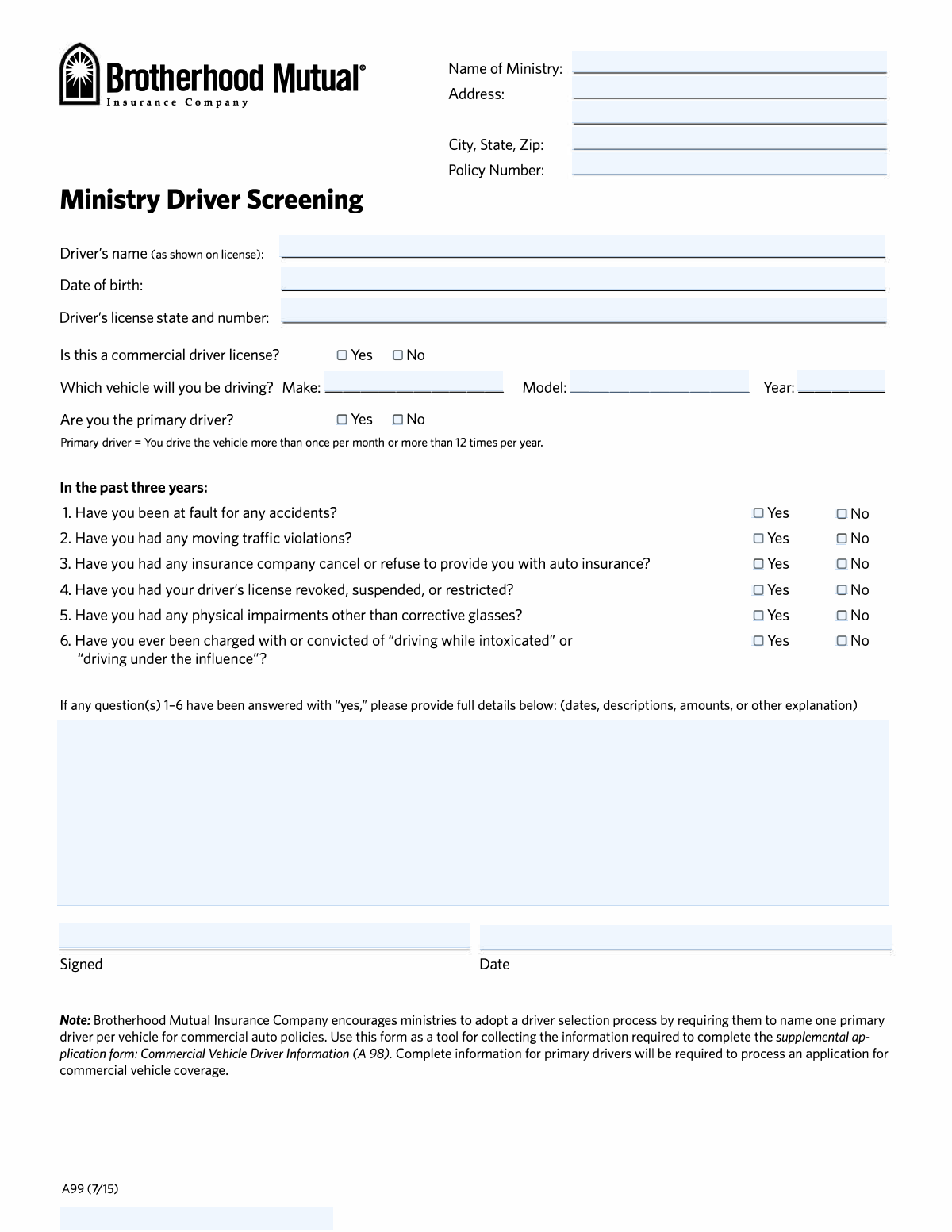
The Brotherhood Mutual Ministry Driver Screening Form (A99) is a driver information and risk-screening questionnaire used by ministries to document who will drive a specific vehicle, whether the driver is primary, and whether there are recent incidents such as accidents, violations, license actions, impairments, or DUI/DWI history. The information helps the ministry and insurer evaluate driver eligibility and supports completion of related commercial auto supplemental applications (referenced as Commercial Vehicle Driver Information (A 98)). Accurate answers are important because they affect underwriting decisions and the processing of commercial vehicle coverage. Today, this form can be filled out quickly and accurately using AI-powered services like Instafill.ai, which can also convert non-fillable PDF versions into interactive fillable forms.
Our AI automatically handles information lookup, data retrieval, formatting, and form filling.
It takes less than a minute to fill out A99 using our AI form filling.
Securely upload your data. Information is encrypted in transit and deleted immediately after the form is filled out.

Form specifications

Form name: Brotherhood Mutual Insurance Company Ministry Driver Screening Form (A99)
Number of pages: 1
Filled form examples: Form A99 Examples
Language: English
Categories: insurance forms, accident insurance forms, Brotherhood Mutual forms, church insurance forms, driver screening forms
main-image

Instafill Demo: filling out a legal form in seconds

How to Fill Out A99 Online for Free in 2026

Are you looking to fill out a A99 form online quickly and accurately? Instafill.ai offers the #1 AI-powered PDF filling software of 2026, allowing you to complete your A99 form in just 37 seconds or less.
Follow these steps to fill out your A99 form online using Instafill.ai:
  1. 1 Go to Instafill.ai and upload the Brotherhood Mutual Ministry Driver Screening Form (A99) PDF (or select it from the form library, if available).
  2. 2 Enter the ministry information: ministry name, address lines, city/state/ZIP, and the policy number.
  3. 3 Provide driver identification details exactly as shown on the license: driver name, date of birth, and driver’s license state and number; indicate whether it is a commercial driver license (CDL).
  4. 4 Enter the vehicle details for the vehicle the driver will be driving: year, make, and model; indicate whether the driver is the primary driver based on the form’s definition.
  5. 5 Answer the six “In the past three years” screening questions by selecting Yes/No for each (accidents, moving violations, insurance cancellation/refusal, license revocation/suspension/restriction, physical impairments, DUI/DWI).
  6. 6 If any answers are “Yes,” use Instafill.ai to generate and complete the required incident details section (dates, descriptions, amounts, and explanations) and review for completeness and consistency.
  7. 7 Add the signature and date signed, then download, print, or securely share the completed form as required by the ministry or Brotherhood Mutual.

Our AI-powered system ensures each field is filled out correctly, reducing errors and saving you time.

Why Choose Instafill.ai for Your Fillable A99 Form?

Speed

Complete your A99 in as little as 37 seconds.

Up-to-Date

Always use the latest 2026 A99 form version.

Cost-effective

No need to hire expensive lawyers.

Accuracy

Our AI performs 10 compliance checks to ensure your form is error-free.

Security

Your personal information is protected with bank-level encryption.

Frequently Asked Questions About Form A99

This form is used to collect driver and vehicle information for a ministry’s commercial auto insurance screening process. It helps the insurer evaluate driver eligibility and supports the supplemental application (Commercial Vehicle Driver Information, A98).

Each person who will drive a ministry vehicle—especially the primary driver for a vehicle on a commercial auto policy—should complete a form. Ministries often complete one form per driver per vehicle.

A primary driver is someone who drives the vehicle more than once per month or more than 12 times per year. If that definition fits you, check “Yes” for primary driver.

Have the ministry’s name, address, and policy number ready, plus the driver’s license (name exactly as shown, date of birth, issuing state, and license number). You’ll also need the vehicle year, make, and model from the registration or vehicle records.

Enter the driver’s full name exactly as it appears on the driver’s license, including middle name or initial if shown. Matching the license helps avoid processing delays.

Enter the two-letter state abbreviation for the issuing state followed by the license number exactly as printed on the license. Double-check spacing and any leading zeros if applicable.

Check “Yes” only if the driver’s license is a CDL (commercial driver license). If the driver has a standard non-commercial license, check “No.”

You must provide the vehicle year, make, and model for the vehicle the driver will be driving. This information is typically on the vehicle registration, title, or the ministry’s vehicle list.

You must answer Yes/No for at-fault accidents, moving violations, insurance cancellation/refusal, license suspension/revocation/restriction, physical impairments (other than corrective glasses), and DUI/DWI charges or convictions. If any are “Yes,” you must provide details (dates, descriptions, amounts, and explanations).

Moving violations generally include citations like speeding, running a red light, reckless driving, or improper lane changes. If you’re unsure whether something qualifies, it’s safer to disclose it and explain in the details section.

Provide complete information for each “Yes,” including the date(s), what happened, location (if known), amounts (such as damages or fines), and the outcome. Clear details help the ministry and insurer review the driver without follow-up delays.

Yes—signing and dating certifies that the information you provided is accurate, even if there are no incidents to report. Unsigned forms are commonly considered incomplete.

Submission is typically handled by your ministry or insurance agent (for example, by uploading to a portal or emailing/faxing per their instructions). Processing time varies, but incomplete driver details or missing signatures are common reasons for delays.

Yes—AI form-filling tools can help reduce errors and save time by auto-filling fields from your provided information. Services like Instafill.ai can map your details to the correct fields and help you review before signing.

Upload the PDF to Instafill.ai, provide the ministry/driver/vehicle details, and the AI will auto-fill the form fields for you to review and export. If the PDF is flat or non-fillable, Instafill.ai can convert it into an interactive fillable form before completing it.

Compliance A99
Validation Checks by Instafill.ai

1
Ministry Name is present and uses an official/legal format
Validates that the Ministry Name field is not blank and contains a plausible organization name (not just initials, a single word, or placeholder text like “N/A”). This is important because the insurer must match the submission to the correct insured entity and policy records. If validation fails, the submission should be flagged as incomplete and prevented from routing to underwriting until corrected.
2
Ministry address completeness (Address Line 1 + City/State/ZIP required)
Checks that Address Line 1 and City/State/ZIP are provided, while Address Line 2 remains optional. A complete address is required for policy administration, correspondence, and record matching. If any required address component is missing, the form should be rejected or returned for completion.
3
City, State, ZIP format validation
Validates that the City/State/ZIP field follows the expected pattern (e.g., "City, ST, 12345" or "City, ST 12345") with a two-letter state abbreviation and a 5-digit ZIP (optionally ZIP+4 if your system supports it). This reduces downstream parsing errors and ensures consistent data storage. If the format is invalid, prompt the user to correct the state abbreviation and ZIP formatting before submission.
4
Policy Number required and conforms to allowed character rules
Ensures the Policy Number is present and matches the insurer’s expected character set (commonly alphanumeric with limited punctuation such as hyphens). This is critical to link the driver screening to the correct policy and avoid misfiling. If validation fails, the submission should be held and the user asked to re-enter the policy number exactly as shown on policy documents.
5
Driver name completeness and plausibility (as shown on license)
Checks that the Driver’s Name is not blank and includes at least a first and last name, avoiding numeric characters and obvious placeholders. The name must be usable for license verification and underwriting review. If validation fails, the form should be marked incomplete and require correction before acceptance.
6
Date of Birth format and realistic range validation
Validates that Date of Birth is a valid date in an accepted format (e.g., MM/DD/YYYY) and is not in the future. It should also enforce a reasonable age range for drivers (e.g., at least 14/16 depending on business rules, and not implausibly old such as >100+ unless explicitly allowed). If validation fails, block submission and request a corrected DOB.
7
Driver’s license state abbreviation validation
Ensures the license state is a valid two-letter US state/territory abbreviation (e.g., OH, TX, PR) and is present. This is important because license number formats and verification rules often depend on the issuing jurisdiction. If validation fails, require a valid state abbreviation before proceeding.
8
Driver’s license number presence and character/length constraints
Checks that the license number portion is not blank and meets basic constraints (no illegal characters, reasonable length such as 4–20 characters, depending on your system rules). This prevents unusable identifiers that cannot be verified or matched. If validation fails, the user must re-enter the license number exactly as shown on the license.
9
Commercial Driver License (CDL) Yes/No exclusivity
Validates that exactly one of the CDL options (Yes or No) is selected, and not both or neither. This is important because CDL status can affect underwriting requirements and driver eligibility. If validation fails, the form should not submit and should prompt the user to select one option.
10
Primary Driver Yes/No exclusivity
Validates that exactly one of the Primary Driver options (Yes or No) is selected. This matters because the form notes that complete information for primary drivers is required for processing commercial vehicle coverage, and workflows may differ based on this selection. If validation fails, prevent submission and require a single selection.
11
Vehicle identification completeness (Year/Make/Model required)
Ensures Vehicle Year, Make, and Model are all provided and not placeholders. Underwriting and driver assignment depend on identifying the specific vehicle being driven. If any of these fields are missing, the submission should be flagged as incomplete and returned for correction.
12
Vehicle Year is a valid 4-digit year within an acceptable range
Validates that Vehicle Year is a 4-digit number and falls within a reasonable range (e.g., 1980 through next calendar year, or per insurer rules). This prevents typos like “220” or “3025” that break rating and vehicle matching. If validation fails, require correction before the form can be finalized.
13
Past 3 Years questions 1–6 require a single Yes/No answer each
For each of the six questions, validates that exactly one checkbox (Yes or No) is selected. This is essential for risk assessment and ensures the applicant did not skip a question or select conflicting answers. If validation fails, the form should be blocked and the user directed to complete the missing/ambiguous responses.
14
Details required when any Past 3 Years answer is Yes
If any of questions 1–6 are answered “Yes,” validates that the Details for Yes Answers field is populated with meaningful content (not blank, not “see above,” and ideally includes at least a date and description). This is important because underwriting needs context (dates, descriptions, amounts) to evaluate risk. If validation fails, require the user to provide sufficient details before submission.
15
Details must be empty or explicitly allowed when all Past 3 Years answers are No
If all questions 1–6 are answered “No,” checks that the Details for Yes Answers field is empty (or, if your process allows, contains a clear statement like “N/A”). This prevents contradictory records where incidents are described but all risk questions are marked “No.” If validation fails, prompt the user to either clear the details or correct the relevant Yes/No answers.
16
Signature and Date Signed required; Date Signed not in the future
Validates that the Signature field is present and the Date Signed is provided in a valid date format and is not a future date. This is important for attestation and auditability, confirming the information was certified at a specific time. If validation fails, the submission should be considered unsigned and not accepted for processing.

Common Mistakes in Completing A99

Using a nickname or mismatching the driver’s legal name

People often enter a preferred name (e.g., “Mike” instead of “Michael”) or omit a middle name/initial even though the form asks for the name exactly as shown on the license. This can cause identity mismatches when the insurer runs MVR (motor vehicle record) checks, delaying underwriting or triggering follow-up requests. Copy the name directly from the driver’s license, including suffixes (Jr., III) and middle name/initial if present; AI tools like Instafill.ai can help standardize and validate name formatting against stored identity data.

Incorrect date of birth format or transposed numbers

DOB is frequently entered in the wrong format (MM/DD vs DD/MM) or with swapped digits, especially when handwriting or typing quickly. An incorrect DOB can prevent accurate record pulls and may be treated as inconsistent information, slowing approval. Always use a clear numeric format (e.g., MM/DD/YYYY) and double-check against the license; Instafill.ai can auto-format dates and flag impossible or inconsistent DOB entries.

Entering the driver’s license number without the issuing state (or using the wrong state abbreviation)

Applicants sometimes provide only the license number, spell out the state name, or use a nonstandard abbreviation, even though the form expects the state abbreviation plus the number. This can lead to failed MVR lookups or requests for clarification. Use the two-letter state code (e.g., OH) exactly as issued and then the full license number as printed; Instafill.ai can validate state abbreviations and ensure the license field is complete.

Misunderstanding the CDL question

Many drivers check “Yes” because they drive a large van/bus, or check “No” because they don’t drive commercially, confusing vehicle use with license class. A wrong CDL answer can affect eligibility, rating, and underwriting requirements. Confirm whether the license itself is a Commercial Driver License (CDL) as indicated on the license, not whether the driving is for ministry purposes; Instafill.ai can prompt for confirmation when vehicle type and CDL selection appear inconsistent.

Leaving vehicle details incomplete or using trim/package instead of model

People often fill in only the make, skip the model/year, or enter a trim level (e.g., “XLT”) where the model is required (e.g., “F-150”). Incomplete or inconsistent vehicle identification can delay matching to registration records and slow policy processing. Use the registration to enter the 4-digit year, manufacturer (make), and model name/designation; Instafill.ai can format the year correctly and help keep make/model entries consistent.

Answering the Primary Driver question incorrectly

The form defines “primary driver” as driving more than once per month or more than 12 times per year, but many people answer based on job title, ownership, or who “usually” drives. Misclassification can cause underwriting issues because the insurer expects one named primary driver per vehicle for commercial auto policies. Use the form’s frequency definition and estimate actual driving frequency over a year; Instafill.ai can guide users with the definition and reduce misinterpretation.

Checking both Yes and No (or neither) for the past-3-years questions

With paired checkboxes, it’s common to accidentally mark both options, skip a line, or misalign answers when completing quickly. Conflicting or missing responses typically trigger follow-up and can stall processing until corrected. For each question 1–6, select exactly one box (Yes or No) and review the row before moving on; Instafill.ai can enforce single-choice logic and prevent contradictory selections.

Not providing details after a “Yes” answer (or providing vague details)

Applicants often check “Yes” but leave the details section blank, or write “see record” without dates, amounts, or descriptions. Missing details can lead to underwriting delays, additional documentation requests, or an inability to evaluate risk properly. If any of questions 1–6 are “Yes,” include dates, what happened, location/jurisdiction, amounts (if applicable), and outcome; Instafill.ai can prompt for required incident details and ensure the explanation is complete.

Misinterpreting the “past three years” timeframe

People sometimes report incidents older than three years, or exclude incidents that occurred within three years because they think it means “last three calendar years.” This can create inconsistencies with MVR/CLUE reports and may be treated as inaccurate disclosure. Use a rolling 36-month window from today (or from the signing date) and include any incidents within that period; Instafill.ai can help calculate the correct window and flag dates that fall outside it.

Omitting or mis-formatting ministry address fields (City/State/ZIP and Address Line 2)

A frequent issue is putting the full address into one line, forgetting the ZIP, using a nonstandard state format, or ignoring Address Line 2 for suite/unit information. Incorrect address data can cause correspondence problems and mismatches with insurer records. Enter street/PO box in Address Line 1, suite/unit/building in Address Line 2, and City + two-letter state + ZIP in the specified format; Instafill.ai can validate postal formatting and standardize addresses.

Missing policy number or using the wrong identifier

Applicants sometimes leave the policy number blank, enter an internal ministry reference, or copy a number from the wrong document. This can prevent the insurer from linking the screening form to the correct account, delaying processing. Use the policy number exactly as shown on the policy documents and verify it matches the ministry name; Instafill.ai can help pull and validate the correct policy number from stored records or prior submissions.

Forgetting to sign and date (or using an inconsistent signing date)

Signatures and dates are commonly missed, especially when the form is printed/scanned or completed in a hurry. An unsigned or undated form may be considered incomplete and can’t be relied upon for certification, leading to resubmission requests. Ensure the signer provides a full signature and enters the date signed (matching the actual completion date); if the form is a flat non-fillable PDF, Instafill.ai can convert it into a fillable version and help ensure signature/date fields aren’t overlooked.
Saved over 80 hours a year

“I was never sure if my IRS forms like W-9 were filled correctly. Now, I can complete the forms accurately without any external help.”

Kevin Martin Green

Your data stays secure with advanced protection from Instafill and our subprocessors

Robust compliance program

Transparent business model

You’re not the product. You always know where your data is and what it is processed for.

ISO 27001, HIPAA, and GDPR

Our subprocesses adhere to multiple compliance standards, including but not limited to ISO 27001, HIPAA, and GDPR.

Security & privacy by design

We consider security and privacy from the initial design phase of any new service or functionality. It’s not an afterthought, it’s built-in, including support for two-factor authentication (2FA) to further protect your account.

Fill out A99 with Instafill.ai

Worried about filling PDFs wrong? Instafill securely fills brotherhood-mutual-insurance-company-ministry-driver-screening-form-a99 forms, ensuring each field is accurate.