Yes! You can use AI to fill out Empower Plan Service Center Authorization Form (PSC Plan Sponsor Username Request Form)

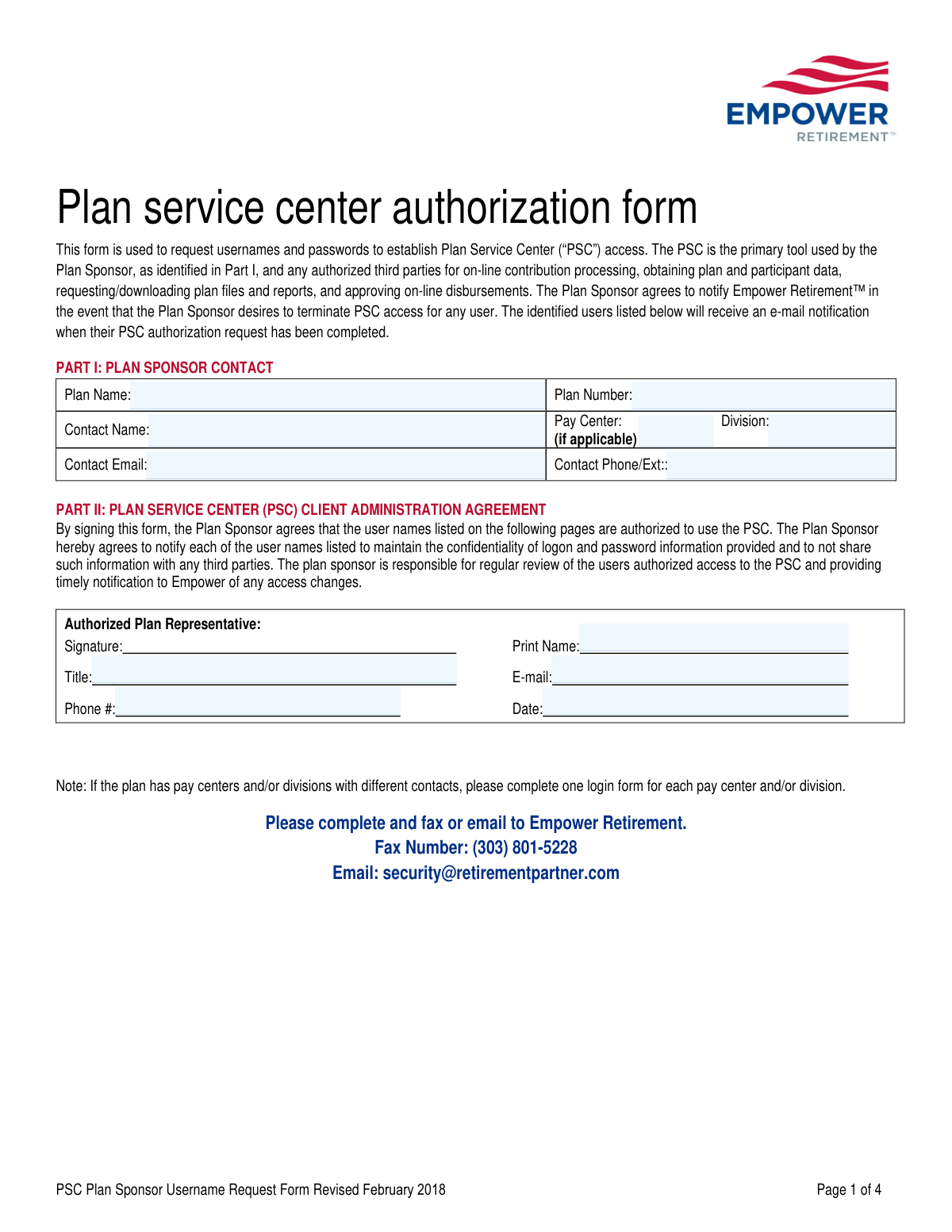
This form is used to authorize individuals, such as plan sponsors and third parties, to gain access to the Empower Retirement™ Plan Service Center (PSC). This access is essential for managing retirement plans, including online contribution processing, obtaining plan and participant data, and approving disbursements. Today, this form can be filled out quickly and accurately using AI-powered services like Instafill.ai, which can also convert non-fillable PDF versions into interactive fillable forms.
Our AI automatically handles information lookup, data retrieval, formatting, and form filling.
It takes less than a minute to fill out PSC Plan Sponsor Username Request Form using our AI form filling.
Securely upload your data. Information is encrypted in transit and deleted immediately after the form is filled out.

Form specifications

Form name: Empower Plan Service Center Authorization Form (PSC Plan Sponsor Username Request Form)
Number of pages: 1
Language: English
main-image

Instafill Demo: How to fill out PDF forms in seconds with AI

How to Fill Out PSC Plan Sponsor Username Request Form Online for Free in 2026

Are you looking to fill out a PSC PLAN SPONSOR USERNAME REQUEST FORM form online quickly and accurately? Instafill.ai offers the #1 AI-powered PDF filling software of 2026, allowing you to complete your PSC PLAN SPONSOR USERNAME REQUEST FORM form in just 37 seconds or less.
Follow these steps to fill out your PSC PLAN SPONSOR USERNAME REQUEST FORM form online using Instafill.ai:
  1. 1 Navigate to Instafill.ai and upload or select the Empower Plan Service Center Authorization Form.
  2. 2 Use the AI assistant to accurately fill in Part I with the Plan Sponsor's contact information, including Plan Name and Number.
  3. 3 Complete Part II by having the Authorized Plan Representative provide their signature, printed name, title, and contact details.
  4. 4 In Part III, enter the required information for each user requesting PSC access, such as their name, email, and user type.
  5. 5 For each user in Part III, carefully select the specific access levels for participant data, compliance, file sharing, and other functions by checking the appropriate boxes.
  6. 6 Review all the information entered on the form for accuracy and completeness.
  7. 7 Download the completed form and submit it to Empower Retirement via the specified fax number or email address.

Our AI-powered system ensures each field is filled out correctly, reducing errors and saving you time.

Why Choose Instafill.ai for Your Fillable PSC Plan Sponsor Username Request Form Form?

Speed

Complete your PSC Plan Sponsor Username Request Form in as little as 37 seconds.

Up-to-Date

Always use the latest 2026 PSC Plan Sponsor Username Request Form form version.

Cost-effective

No need to hire expensive lawyers.

Accuracy

Our AI performs 10 compliance checks to ensure your form is error-free.

Security

Your personal information is protected with bank-level encryption.

Frequently Asked Questions About Form PSC Plan Sponsor Username Request Form

This form is used by Plan Sponsors to request usernames and passwords for individuals who need to access the Empower Plan Service Center (PSC), the online portal for managing your company's retirement plan.

An Authorized Plan Representative for the Plan Sponsor must complete and sign the form. This individual is responsible for approving and managing who has access to the plan's sensitive data.

You can submit the completed and signed form to Empower Retirement by faxing it to (303) 801-5228 or by emailing it to [email protected].

Once the authorization request has been completed, each new user listed on the form will receive an email notification directly from Empower confirming their access is ready.

Yes, if your plan has different contacts for various pay centers or divisions, you must complete a separate authorization form for each one.

If no selection is made, the user will typically be granted no access for that specific function. All users receive 'Default Plan Access' automatically, but specific permissions for participant data, compliance, and other areas must be explicitly checked.

As the Plan Sponsor, you are responsible for promptly notifying Empower Retirement to terminate PSC access for any user who is no longer authorized.

The form has space to request logins for two users. If you need to request access for more people, you can attach addendums with the required information for each additional user.

Default Plan Access is the basic level of access given to all users. It provides the ability to view general plan information and order plan-level reports but does not include access to individual participant data.

Yes, services like Instafill.ai use AI to accurately auto-fill form fields. This can save you time and help reduce errors when completing repetitive information.

Simply upload the Plan Service Center Authorization Form PDF to the Instafill.ai platform. The AI will make the fields interactive, allowing you to type in your information, save, and print the completed document for submission.

You can use a tool like Instafill.ai to make the form interactive. It can convert flat, non-fillable PDFs into fillable forms, so you can easily type your information before printing and signing.

An Authorized Plan Representative must sign, print their name, and date Part II. This signature legally confirms that the plan sponsor approves the access requests and understands their responsibilities.

Select 'Plan Employee' for individuals directly employed by your company. Select 'Other' for authorized third parties, such as an external accountant, consultant, or Third Party Administrator (TPA) who requires access.

Compliance PSC Plan Sponsor Username Request Form
Validation Checks by Instafill.ai

1
Plan Identification Verification
This check validates that the 'Plan Name' and 'Plan Number' provided in Part I correspond to an active and valid plan within the Empower system. It is crucial for ensuring that user access is being requested for the correct retirement plan. If the plan cannot be found or is inactive, the entire form submission will be rejected to prevent misconfiguration.
2
Authorized Representative Completeness
This validation ensures that all fields in Part II for the 'Authorized Plan Representative' (Signature, Print Name, Title, E-mail, Phone #, and Date) are fully completed. A missing signature or contact information invalidates the authorization, as it's impossible to confirm who approved the request. Incomplete forms will be returned for completion.
3
Date Field Format and Plausibility
This check verifies that the 'Date' field in Part II is entered in a valid format (e.g., MM/DD/YYYY) and represents a plausible date (i.e., not a future date or a date far in the past). This is important for audit trails and establishing when the authorization was granted. An invalid date format or an illogical date will cause a validation failure.
4
Email Address Syntax Validation
This check ensures that all email address fields on the form ('Contact Email', 'E-mail' in Part II, and 'E-Mail Address' in Part III) adhere to the standard email format (e.g., '[email protected]'). Since email is used for notifications and login setup, a valid address is essential for communication. An incorrectly formatted email will prevent the user from receiving their credentials and notifications.
5
Phone Number Format Consistency
This validation verifies that all phone number fields ('Contact Phone/Ext', 'Phone #', 'Phone') contain a valid number of digits, typically 10, and follow a consistent format. This ensures that the contact information is usable if manual follow-up is required. Submissions with invalid phone numbers may be flagged for manual review or rejected.
6
Minimum User Request Requirement
This check ensures that at least one user login request in a Part III section has been filled out. The purpose of the form is to request user access, so a submission with no requested users is considered incomplete and serves no purpose. The form will be rejected if no user details are provided.
7
Required User Information Check
For each user requested in Part III, this validation confirms that the 'Name', 'E-Mail Address', 'Phone', and 'User Type' fields are all completed. This information is the minimum required to create a user profile and assign permissions. If any of these core fields are missing for a user, that specific user request will fail.
8
Exclusive Access Option Selection
In Part III, for each access category (e.g., 'Participant Data Access', 'Compliance Access'), the form instructs to 'Select only one option'. This validation enforces that rule, ensuring that mutually exclusive permissions are not selected simultaneously. If more than one option is checked in a single category, the form will be rejected for correction.
9
Conditional 'Other' User Type Field
This check validates the 'User Type' field in Part III. If the 'Other' checkbox is selected, the adjacent text field must be filled in with a description of the user's role. This context is necessary for security and administration purposes. If 'Other' is checked and the text field is empty, the submission will be flagged as incomplete.
10
File Sharing Permission Integrity
This validation examines the 'File Sharing' section in Part III. For each individual folder category (e.g., 'Auditor Folder', 'Compliance Folder'), it ensures that exactly one permission level has been selected. This prevents ambiguity and ensures that the correct, specific level of file access is granted for each folder. A failure occurs if zero or multiple options are selected for any single folder.
11
Existing PSC Username Cross-Reference
If a 'Current PSC Username' is provided in Part III for a user, this check attempts to match it against the existing user database. This helps identify if the request is for a new user or an update to an existing one. If the username is found, the system can also cross-reference the name and email to ensure the request is for the correct person, preventing accidental modification of the wrong account.
12
Authorization Verification Check
This is a high-level security check that verifies the identity of the 'Authorized Plan Representative' from Part II. It cross-references the signer's name and plan number against an internal database of individuals authorized to make administrative changes for that specific plan. This critical step prevents unauthorized persons from granting or modifying system access, which would be a major security breach.

Common Mistakes in Completing PSC Plan Sponsor Username Request Form

Missing Authorized Representative Signature

Part II of the form requires the signature, printed name, title, and date from an Authorized Plan Representative. It is very common for this section to be left incomplete or signed by an individual who is not authorized. Since this signature legally authorizes user access to sensitive plan data, any omission or incorrect signatory will cause the form to be rejected immediately, delaying the entire process.

Incorrectly Handling Multiple Pay Centers

A note at the bottom of Part II specifies that a separate form must be completed for each pay center or division with different contacts. Users often miss this instruction and attempt to request access for multiple divisions on a single form. This leads to processing delays and confusion, as the request cannot be fulfilled as submitted and will require clarification and resubmission.

Selecting Multiple Options in Single-Choice Sections

In Part III, many access categories like 'Participant Data Access' and 'Compliance Access' explicitly state 'Select only one option'. A frequent error is checking multiple boxes, which creates ambiguity for the processor. This forces them to either reject the form or make an assumption about the intended access level, often resulting in the user receiving incorrect permissions.

Leaving Required Access Selections Blank

While some sections may have a default setting, many critical ones, such as 'Participant Data Access' and 'File Sharing', explicitly state that 'access will not be provided if a selection is not made.' Users often overlook this and leave sections blank, assuming a basic level of access will be granted. This results in a user account that lacks the necessary permissions to perform their job, requiring a new form to be submitted to correct the access levels.

Granting Inappropriate Access Levels Without Consulting Appendix A

Users often fail to read Appendix A, which details the specific functions of each access level. This leads to guessing which permissions are needed, resulting in two potential problems: granting insufficient access which hinders the user's work, or granting excessive permissions (e.g., authority to process payroll and update ACH info). Granting overly broad access creates a significant security and financial risk for the plan sponsor.

Submitting an Illegible Form

This form is a non-fillable PDF, meaning it must be printed and completed by hand. Illegible handwriting is a major source of errors, especially for critical information like email addresses, plan numbers, and names. A single misread character in an email address will prevent the user from receiving their login credentials, causing significant delays and frustration. AI-powered tools like Instafill.ai can convert such PDFs into fillable forms, eliminating handwriting issues entirely.

Missing or Incorrect User Email Address

Part III requires the email address for each user being granted access, as this is how they receive their login credentials and notifications. A common mistake is omitting the email address or entering it with a typo. Without a correct and legible email address, the setup process cannot be completed, and the user will not be notified, leading to support calls and resubmissions.

Incorrectly Configuring File Sharing Permissions

The grid format for 'File Sharing' in Part III is prone to check-box errors. It is easy to accidentally check a box in the wrong row or column, for instance, granting 'View, upload, and delete files' access when only 'View files' was intended. Such mistakes can compromise data integrity and security. It is crucial to carefully review each folder's permissions before submission.

Using Incorrect Plan Name or Number

In Part I, users may enter an informal plan name or transpose digits in the Plan Number. This fundamental data entry error can cause the entire form to be rejected or misrouted, as the processor cannot match the request to the correct plan in their system. Always use the exact Plan Name and Number as they appear on official plan documents to ensure the request is processed correctly.

Incomplete 'User Type' Specification

In Part III, if a user is not a direct 'Plan Employee,' the 'Other' box must be checked and their role (e.g., 'TPA,' 'Auditor') must be written on the line provided. Fillers often check 'Other' but leave the description blank. This lack of information requires the processing team to follow up for clarification, delaying the request until the user's relationship to the plan is understood.
Saved over 80 hours a year

“I was never sure if my IRS forms like W-9 were filled correctly. Now, I can complete the forms accurately without any external help.”

Kevin Martin Green

Your data stays secure with advanced protection from Instafill and our subprocessors

Robust compliance program

Transparent business model

You’re not the product. You always know where your data is and what it is processed for.

ISO 27001, HIPAA, and GDPR

Our subprocesses adhere to multiple compliance standards, including but not limited to ISO 27001, HIPAA, and GDPR.

Security & privacy by design

We consider security and privacy from the initial design phase of any new service or functionality. It’s not an afterthought, it’s built-in, including support for two-factor authentication (2FA) to further protect your account.

Fill out PSC Plan Sponsor Username Request Form with Instafill.ai

Worried about filling PDFs wrong? Instafill securely fills empower-plan-service-center-authorization-form-psc-plan-sponsor-username-request-form forms, ensuring each field is accurate.