Yes! You can use AI to fill out Transfer Between Existing Fidelity Accounts Form

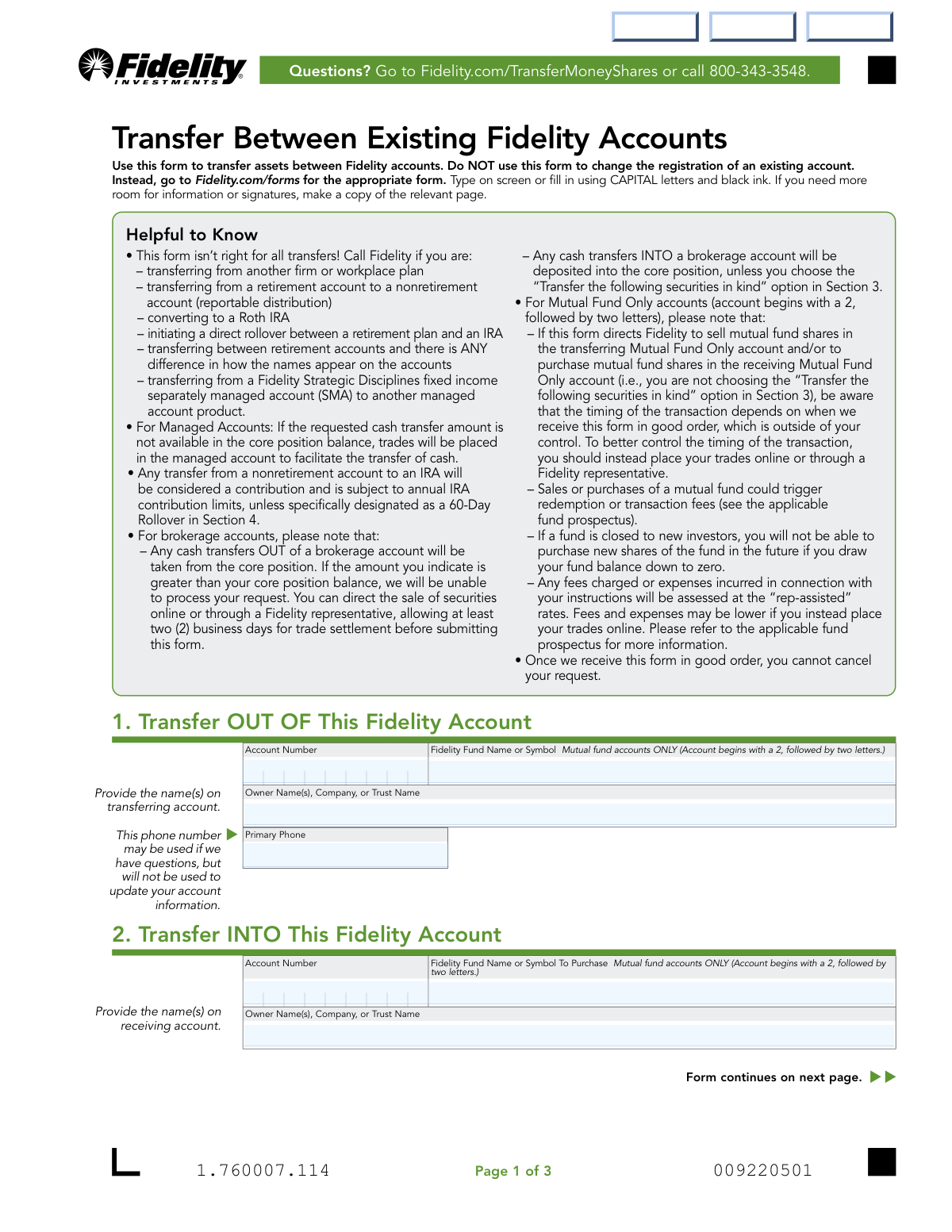
The Transfer Between Existing Fidelity Accounts form is an official Fidelity document used to move cash, mutual fund shares, or other securities from one Fidelity account to another, including transfers between brokerage accounts, IRA accounts, and Mutual Fund Only accounts. It supports full or partial transfers, in-kind security transfers, and designations such as IRA contributions, 60-Day Rollovers, or gift/non-gift transfers between accounts with different tax identification numbers. This form is important because it ensures assets are moved correctly while complying with IRS rules and Fidelity's account policies. Today, this form can be filled out quickly and accurately using AI-powered services like Instafill.ai, which can also convert non-fillable PDF versions into interactive fillable forms.
Our AI automatically handles information lookup, data retrieval, formatting, and form filling.
It takes less than a minute to fill out Fidelity Transfer Between Accounts using our AI form filling.
Securely upload your data. Information is encrypted in transit and deleted immediately after the form is filled out.

Form specifications

Form name: Transfer Between Existing Fidelity Accounts Form
Number of pages: 1
Filled form examples: Form Fidelity Transfer Between Accounts Examples
Language: English
main-image

Instafill Demo: filling out a legal form in seconds

How to Fill Out Fidelity Transfer Between Accounts Online for Free in 2026

Are you looking to fill out a FIDELITY TRANSFER BETWEEN ACCOUNTS form online quickly and accurately? Instafill.ai offers the #1 AI-powered PDF filling software of 2026, allowing you to complete your FIDELITY TRANSFER BETWEEN ACCOUNTS form in just 37 seconds or less.
Follow these steps to fill out your FIDELITY TRANSFER BETWEEN ACCOUNTS form online using Instafill.ai:
  1. 1 Navigate to Instafill.ai and upload the Fidelity Transfer Between Existing Fidelity Accounts form or select it from the available form library.
  2. 2 Enter the account number, owner name(s), and primary phone number for the Fidelity account you are transferring assets OUT OF in Section 1.
  3. 3 Enter the account number and owner name(s) for the Fidelity account you are transferring assets INTO in Section 2, including any specific mutual fund name or symbol if applicable.
  4. 4 Select the transfer amount in Section 3 — choose a full account transfer, a specific cash amount from your core position, or specify individual securities to transfer in kind, including CUSIP/symbol, number of shares, and lot acquisition details.
  5. 5 Indicate the reason for the transfer in Section 4, such as a nonretirement-to-IRA contribution, 60-Day Rollover, nonretirement-to-nonretirement transfer (gift or non-gift), or an IRA-to-IRA consolidation.
  6. 6 Review all entered information for accuracy, ensuring account numbers, transfer amounts, and ownership details are correct before finalizing.
  7. 7 Print the completed form, obtain any required Medallion signature guarantee if applicable, sign and date in Section 5, then submit via Fidelity's digital upload portal at Fidelity.com/upload-Transfer or mail to the appropriate Fidelity address.

Our AI-powered system ensures each field is filled out correctly, reducing errors and saving you time.

Why Choose Instafill.ai for Your Fillable Fidelity Transfer Between Accounts Form?

Speed

Complete your Fidelity Transfer Between Accounts in as little as 37 seconds.

Up-to-Date

Always use the latest 2026 Fidelity Transfer Between Accounts form version.

Cost-effective

No need to hire expensive lawyers.

Accuracy

Our AI performs 10 compliance checks to ensure your form is error-free.

Security

Your personal information is protected with bank-level encryption.

Frequently Asked Questions About Form Fidelity Transfer Between Accounts

This form is used to transfer assets (cash or securities) between two existing Fidelity accounts. It is specifically for transfers within Fidelity and cannot be used to transfer assets from another financial firm, workplace plan, or to change the registration of an existing account.

Do not use this form if you are transferring from another firm or workplace plan, converting to a Roth IRA, initiating a direct rollover between a retirement plan and an IRA, transferring from a retirement account to a nonretirement account (reportable distribution), or if the names on the retirement accounts differ in any way. Call Fidelity at 800-343-3548 for assistance with these situations.

You will need the account numbers for both the transferring (source) and receiving (destination) Fidelity accounts, the owner name(s) on both accounts, a primary phone number, and details about the transfer amount or specific securities to be transferred. For in-kind security transfers, you'll also need the investment name, CUSIP or symbol, and number of shares.

Yes, you can select the 'FULL transfer of the entire account' option in Section 3, which will transfer all assets and close the account by default. If you want to keep the account open after the full transfer, check the 'Do NOT close the account' box.

Cash transfers out of a brokerage account are taken from the core position balance only. If the amount you request exceeds your core position balance, Fidelity will be unable to process the request. You should sell securities online or through a Fidelity representative first and allow at least two business days for trade settlement before submitting this form.

Yes, any transfer from a nonretirement account to an IRA is treated as a contribution and is subject to annual IRA contribution limits. The only exception is if you specifically designate it as a 60-Day Rollover in Section 4 of the form.

A Medallion signature guarantee is required when the receiving account has a different owner than the transferring account AND the value of the transfer is greater than $19,000. Note that a notary seal or stamp is not a substitute for a Medallion signature guarantee, which can be obtained at most banks, credit unions, or financial institutions.

The account owner(s) of the transferring account must sign and date the form. For most accounts, one authorized signature is sufficient. However, for Mutual Fund Only accounts (account numbers beginning with a '2' followed by two letters), all owners of the transferring account must sign.

For faster processing, complete and sign the form, then scan or photograph the entire form and upload it at Fidelity.com/upload-Transfer or by scanning the QR code on the form. If you cannot use the digital upload process, visit Fidelity.com/customer-service/mailing-address for mailing instructions.

No, once Fidelity receives your form in good order, you cannot cancel your request. Make sure all information is accurate and complete before submitting the form.

Transfers between nonretirement accounts with different tax identification numbers are coded as a gift by default. If the transfer is not a gift, you must select 'Non-Gift' in Section 4 and provide a brief explanation for the reason of the non-gift transfer.

Yes, AI-powered services like Instafill.ai can help you accurately auto-fill this form, saving you time and reducing the risk of errors. If you have a flat, non-fillable PDF version of the form, Instafill.ai can also convert it into an interactive fillable form so you can complete it digitally.

Visit Instafill.ai, upload the Transfer Between Existing Fidelity Accounts PDF, and the AI will guide you through filling in each field — including account numbers, owner names, transfer amounts, and security details. Once complete, you can download the filled form, sign it, and submit it to Fidelity via their digital upload portal at Fidelity.com/upload-Transfer.

If you need to list more securities than the form allows, you can make a copy of the relevant page or attach a separate sheet with the same information (investment name, CUSIP or symbol, number of shares, lot acquisition date, and cost). Any attachment must be signed and dated.

Yes, sales or purchases of mutual funds may trigger redemption or transaction fees — refer to the applicable fund prospectus for details. Additionally, any fees charged through this form will be assessed at 'rep-assisted' rates, which may be higher than if you placed trades online directly.

Compliance Fidelity Transfer Between Accounts
Validation Checks by Instafill.ai

1
Transferring Account Number Format and Presence Validation
Validates that the 'Transfer OUT OF' account number (AccountNumber field) is present and conforms to Fidelity's account number format. Fidelity account numbers follow specific patterns, and an absent or malformed account number makes it impossible to identify the source account. If this field is missing or incorrectly formatted, the transfer cannot be initiated and the form must be returned as not in good order.
2
Receiving Account Number Format and Presence Validation
Validates that the 'Transfer INTO' account number (AccountNumber2 field) is present and conforms to Fidelity's account number format. The receiving account must be clearly identified to ensure assets are directed to the correct destination. If this field is missing or malformed, the transfer cannot be completed and the form will be rejected.
3
Transferring and Receiving Account Numbers Are Not Identical
Checks that the account number in the 'Transfer OUT OF' section (AccountNumber) is not the same as the account number in the 'Transfer INTO' section (AccountNumber2). Transferring assets from an account to itself is a logical error that would result in no net change and could cause processing errors. If both account numbers are identical, the form should be flagged as invalid and returned to the submitter.
4
Mutual Fund Account Number Format Consistency with Fund Name Field
Validates that if either account number begins with '2' followed by two letters (indicating a Mutual Fund Only account), the corresponding Fidelity Fund Name or Symbol field (Fund_Name or Fund_Name2) is populated. Mutual Fund Only accounts require a fund name or symbol to direct the transaction, and omitting this information makes the instruction incomplete. Failure to provide this information when required will result in the form being returned as not in good order.
5
Transferring Account Owner Name Presence Validation
Validates that the Owner Name(s), Company, or Trust Name field for the transferring account (Owner_Name) is populated with a non-empty value. The owner name is required to verify account ownership and match against account records. If this field is blank, the form cannot be processed and will be considered incomplete.
6
Receiving Account Owner Name Presence Validation
Validates that the Owner Name(s), Company, or Trust Name field for the receiving account (Owner_Name21) is populated with a non-empty value. The receiving account owner name is necessary to confirm the destination account and assess whether a Medallion signature guarantee is required. An absent owner name renders the form incomplete and unprocessable.
7
Transfer Amount Section — Exactly One Option Selected
Validates that exactly one transfer type option is selected in Section 3: either 'Full transfer' (Full), 'Only the following amount of cash' (Only), or 'Transfer the following securities in kind' (Transfer). Selecting no option leaves the transfer instruction ambiguous, while selecting multiple options creates conflicting instructions. If zero or more than one option is checked, the form must be returned as not in good order.
8
Specified Dollar Amount Presence and Numeric Format When 'Specified Amount' Is Selected
Validates that when the 'Specified amount' sub-option under the cash transfer option is chosen, the Dollar Amount field (Amount5) is populated with a valid positive numeric value greater than zero. A missing, zero, or non-numeric dollar amount makes it impossible to determine how much cash to transfer. If the amount is absent or invalid, the form cannot be processed and will be rejected.
9
Securities In-Kind Transfer Fields Completeness Validation
Validates that when the 'Transfer the following securities in kind' option is selected, at least one investment entry is fully completed with an Investment Name and either a CUSIP/Symbol or a Number of Shares (or the 'ALL' checkbox marked). Selecting the in-kind transfer option without specifying any securities provides no actionable instruction. If no securities are listed, the form is incomplete and must be returned to the submitter.
10
Lot Acquisition Date Format Validation for In-Kind Securities
Validates that any Lot Acquisition Date fields (2_LotAcquistionDate_1, 2_LotAcquistionDate_2, 2_LotAcquistionDate_3) that are populated conform to the MM DD YYYY format and represent a valid calendar date. An incorrectly formatted or invalid date prevents proper specific share identification, which can have tax implications for the account owner. Additionally, the lot acquisition date must not be later than the date of the transfer, as required by the form instructions.
11
Lot Acquisition Cost Numeric Format Validation
Validates that any Lot Acquisition Cost fields (2_LotAcquistionCost_1, 2_LotAcquistionCost_2, 2_LotAcquistionCost_3) that are populated contain a valid non-negative numeric dollar value. An invalid or negative cost basis entry could corrupt tax records and specific share identification instructions. If a lot acquisition date is provided, a corresponding cost should also be present to ensure complete lot identification.
12
Reason for Transfer Section — Exactly One Option Selected
Validates that exactly one reason for transfer is selected in Section 4 (e.g., nonretirement to IRA annual contribution, 60-Day Rollover, nonretirement to nonretirement, or IRA to IRA consolidation). Selecting no reason leaves the tax treatment and processing rules undefined, while selecting multiple reasons creates conflicting instructions. If zero or more than one option is selected, the form must be returned as not in good order.
13
IRA Contribution Year Format and Validity When Annual Contribution Is Selected
Validates that when the 'Traditional, Roth, or SEP IRA annual contribution' option is selected, the Contribution Year field (Year) is populated with a valid four-digit year in YYYY format. The contribution year determines the tax year to which the contribution is applied, and an invalid or missing year will result in incorrect tax coding. Prior year contributions received after the tax-filing deadline will be automatically coded as the current year, so the year provided must be either the current or immediately preceding tax year.
14
Non-Gift Transfer Reason Explanation Presence Validation
Validates that when the 'Non-Gift' option is selected for a nonretirement-to-nonretirement transfer between accounts with different tax identification numbers, the Reason for Non-Gift Transfer field (Reason) is populated with a non-empty explanation. Without a stated reason, Fidelity cannot override the default 'gift' coding for the transaction. If the Non-Gift option is checked but no explanation is provided, the form is incomplete and the transfer will default to gift treatment.
15
Signature(s) Presence and Date Format Validation
Validates that at least one owner signature is present and that the corresponding Today's Date field is populated in MM/DD/YYYY format with a valid, non-future calendar date. For Mutual Fund Only accounts, all owners of the transferring account must sign, so the number of signatures must match the number of account owners. A missing signature or invalid date renders the authorization incomplete, and the form cannot be processed without a valid, dated signature.
16
Medallion Signature Guarantee Requirement Check
Validates that when the receiving account owner name differs from the transferring account owner name and the transfer value exceeds $19,000, the Medallion Signature Guarantee field is completed. A Medallion signature guarantee is a regulatory safeguard to prevent unauthorized transfers of high-value assets to different owners. If this guarantee is absent under the qualifying conditions and the form was not completed at a Fidelity Investor Center with all signers present, the form must be rejected and returned for proper guarantee.

Common Mistakes in Completing Fidelity Transfer Between Accounts

Using this form for ineligible transfer types

Many people use this form for transfers that require a different process, such as transferring from another firm, converting to a Roth IRA, initiating a direct rollover between a retirement plan and an IRA, or transferring from a retirement account to a nonretirement account. These situations require calling Fidelity or using a different form entirely. Always review the 'Helpful to Know' section before completing the form to confirm your transfer type is eligible. AI-powered tools like Instafill.ai can help flag these ineligible scenarios before you invest time filling out the form.

Entering incorrect or mismatched account numbers

People frequently transpose digits or enter the wrong account number in the 'Transfer OUT OF' or 'Transfer INTO' fields, which can result in funds being sent to the wrong account or the request being rejected. Account numbers must be entered exactly as they appear on your Fidelity statements. Double-check both account numbers carefully before submitting, and note that Mutual Fund Only accounts begin with a '2' followed by two letters, which is a distinct format. Instafill.ai can help validate account number formats to reduce entry errors.

Failing to provide the Fidelity Fund Name or Symbol for Mutual Fund Only accounts

For accounts that begin with a '2' followed by two letters (Mutual Fund Only accounts), the Fidelity Fund Name or Symbol field is required but is often left blank. Omitting this information means Fidelity cannot process the transaction correctly, leading to delays or rejection. Make sure to look up the exact fund name or ticker symbol from your account statement or Fidelity.com before completing this field.

Requesting a cash transfer amount exceeding the core position balance

A very common mistake is specifying a cash transfer amount from a brokerage account that is greater than the available core position balance. Fidelity will be unable to process the request in this case, causing delays. If you need to transfer more than your core balance, you must first sell securities online or through a Fidelity representative and wait at least two business days for trade settlement before submitting this form. Always verify your core position balance before entering a dollar amount.

Not designating a nonretirement-to-IRA transfer as a 60-Day Rollover when applicable

When transferring from a nonretirement account to an IRA, the default treatment is an annual IRA contribution, which is subject to annual contribution limits. If the transfer is actually a 60-Day Rollover, failing to check that specific option in Section 4 can result in the funds being incorrectly coded, potentially causing tax complications and excess contribution penalties. Always carefully select the correct reason for transfer in Section 4 and consult a tax advisor if unsure. Instafill.ai can prompt users to confirm their selection matches their intent.

Omitting the contribution year for IRA annual contributions

When making a prior-year IRA contribution, people often forget to specify the contribution year in the 'Contribution Year (YYYY)' field. If left blank, Fidelity will code the contribution as the current year by default, which could result in an incorrect tax year designation and potential IRS reporting issues. Always enter the four-digit contribution year explicitly, especially if submitting the form before the tax-filing deadline for a prior year.

Not selecting 'Non-Gift' for legitimate non-gift transfers between different tax IDs

When transferring between nonretirement accounts with different tax identification numbers, the default coding is 'Gift' if nothing is selected. Many people overlook this and fail to check 'Non-Gift' and provide an explanation, even when the transfer is not intended as a gift. This can have unintended tax and gift-reporting consequences. Always review Section 4 carefully and select the appropriate option along with a written explanation if the transfer is not a gift.

Providing incomplete or incorrect securities information for in-kind transfers

When choosing to transfer specific securities in kind, people often leave the CUSIP or Symbol field blank, enter an incorrect number of shares, or fail to provide lot acquisition dates and costs for specific share identification. Incomplete information will cause the request to be rejected or processed incorrectly. Ensure you have the exact CUSIP or ticker symbol, the precise number of shares (or check 'ALL'), and the correct lot acquisition date and cost from your account records before completing Section 3.

Attempting to transfer non-Fidelity mutual funds into a Mutual Fund Only account

When transferring from a brokerage account into a Mutual Fund Only account (account beginning with '2' followed by two letters), only Fidelity mutual funds are eligible to be transferred in kind. People often assume all securities can be moved, but non-Fidelity securities will remain in the original account. Review your holdings carefully before selecting the in-kind transfer option, and be prepared for non-eligible securities to stay behind in the transferring account.

Missing or obtaining an invalid Medallion Signature Guarantee

When the receiving account has a different owner AND the transfer value exceeds $19,000, a Medallion Signature Guarantee is required. Many people either forget this requirement entirely or mistakenly submit a notary seal/stamp, which is explicitly not accepted as a substitute. A Medallion Signature Guarantee must be obtained from a bank, credit union, or other qualified financial institution. Submitting the form without the proper guarantee will result in rejection and significant delays.

Only one owner signing for a Mutual Fund Only account

For standard brokerage accounts, only one authorized signature is required, but for Mutual Fund Only accounts (account number begins with '2' followed by two letters), all owners of the transferring account must sign. People with joint Mutual Fund Only accounts frequently submit the form with only one signature, causing the request to be rejected. Carefully read the signature requirements in Section 5 and ensure all required owners sign and date the form before submission.

Submitting the form without verifying account owner names match exactly

When transferring between retirement accounts, the account holder's name and SSN must be identical on both accounts. Even minor differences in how names appear (e.g., middle name included on one account but not the other) will disqualify the use of this form and require calling Fidelity instead. Always compare the exact registered names on both accounts before submitting. Instafill.ai can help users cross-check name fields to catch discrepancies before submission.
Saved over 80 hours a year

“I was never sure if my IRS forms like W-9 were filled correctly. Now, I can complete the forms accurately without any external help.”

Kevin Martin Green

Your data stays secure with advanced protection from Instafill and our subprocessors

Robust compliance program

Transparent business model

You’re not the product. You always know where your data is and what it is processed for.

ISO 27001, HIPAA, and GDPR

Our subprocesses adhere to multiple compliance standards, including but not limited to ISO 27001, HIPAA, and GDPR.

Security & privacy by design

We consider security and privacy from the initial design phase of any new service or functionality. It’s not an afterthought, it’s built-in, including support for two-factor authentication (2FA) to further protect your account.

Fill out Fidelity Transfer Between Accounts with Instafill.ai

Worried about filling PDFs wrong? Instafill securely fills transfer-between-existing-fidelity-accounts-form forms, ensuring each field is accurate.