
Yes! You can use AI to fill out Form T101, Statement of Resource Expenses
Don't type 117 fields by hand. Tell our AI about yourself, or upload a document you already have, and it fills every field in seconds. You check it, then download, print or sign.
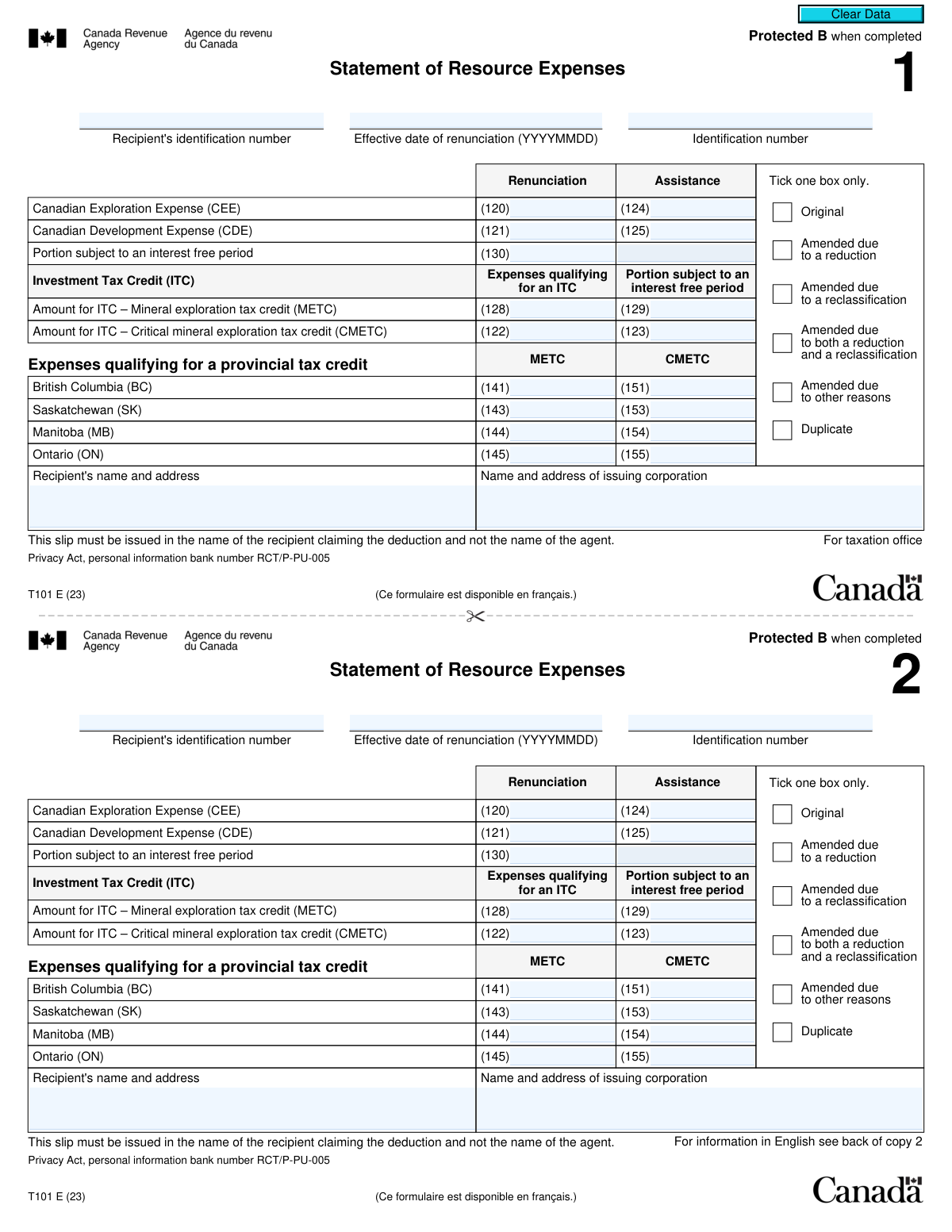
The AI does the filling. You just check it.
No typing into boxes, nothing to install.
What this form asks for
The AI fills all of it, from your answers or your documents.
The AI checks your answers before you download
13 checks built for this form, so a wrong date or a missing answer is caught before anyone else sees it.
Checks that the 'Effective date of renunciation' is entered in the strict YYYYMMDD format. This ensures date consistency for processing and proper application of tax rules based on the correct year. A failure would prevent the system from accurately determining the tax period to which the renunciation applies.
Verifies that only one checkbox is selected from the 'Original', 'Amended...', and 'Duplicate' options, as instructed by 'Tick one box only'. Selecting multiple statuses creates ambiguity about the slip's purpose, which can lead to incorrect processing, such as double-counting expenses or misapplying amendments. If validation fails, the user must correct the selection to proceed.
Confirms that the 'Recipient's identification number' field is not empty. This number (such as a SIN or Business Number) is the primary key for linking the resource expenses to the correct taxpayer's account with the tax authority. Without it, the slip cannot be processed, and the recipient will not receive the intended tax deductions or credits.
Ensures that the 'Recipient's name and address' field contains data. This information is mandatory for legal and identification purposes, confirming the identity of the person or entity receiving the tax benefit. Incomplete information can lead to processing delays or rejection of the slip.
Checks that the 'Name and address of issuing corporation' field is populated. This identifies the entity renouncing the expenses and is crucial for audit trails and verifying the legitimacy of the flow-through share agreement. Missing issuer information would render the slip invalid.
This validation ensures that if any 'Amended' reason is selected, the 'Original' and 'Duplicate' boxes are not also selected. A slip can be an amendment or an original, but not both simultaneously. This prevents logical contradictions that would halt automated processing and require manual intervention to clarify the filer's intent.
And 7 more checks
- ITC Interest-Free Portion Consistency Check
- Validates All Monetary Fields are Numeric
- Requires at Least One Financial Entry
- Provincial Credit Dependency on Federal Expenses
- Renunciation Interest-Free Portion Consistency Check
- Validates Recipient Identification Number Format
- Cross-Field Summation for ITC Expenses
Let AI fill out your T101
No typing. Every field filled in seconds, checked, ready to sign.
How to Fill Out T101 Online for Free in 2026
What the AI walks you through.
- Navigate to Instafill.ai and upload your T101 PDF or select it from the template library.
- Provide the recipient's and issuing corporation's identification details, including names, addresses, and ID numbers. The AI can assist by auto-filling from your saved profile.
- Enter the renunciation and assistance amounts for Canadian Exploration Expense (CEE) and Canadian Development Expense (CDE) in the corresponding boxes (e.g., 120, 121, 124, 125).
- Input the figures for federal Investment Tax Credits (ITC), specifying amounts for the Mineral Exploration Tax Credit (METC) and the Critical Mineral Exploration Tax Credit (CMETC).
- Fill in the provincial tax credit sections if applicable, entering the qualifying expenses for provinces like British Columbia, Saskatchewan, Manitoba, and Ontario.
- Indicate the status of the slip by checking the appropriate box, such as 'Original,' 'Amended,' or 'Duplicate.'
- Review all the information populated by the AI for accuracy, then download, print, or submit the completed T101 slips as required for filing with the CRA.
Common Mistakes in Completing T101
The ones the AI is built to catch.
Incorrectly Formatting the Renunciation Date
Issuing the Slip in the Agent's Name
Improper Checkbox Selection for Slip Status
Confusing Renunciation and Assistance Amounts
Failing to Transfer Data to Summary Forms
Using an Incorrect Recipient Identification Number
Misallocating METC and CMETC Amounts
Omitting Provincial Tax Credit Information
Incorrectly Handling Amended Slips
Ignoring Complex 'Interest-Free Period' Boxes
Frequently Asked Questions About T101
Is it really free for 7 days?
Can I fill other forms too?
How do I cancel?
How does the AI fill out T101?
What happens to my information?
How complex is T101 to fill out?
What is the purpose of the T101 Statement of Resource Expenses slip?
Who receives a T101 slip?
I received a T101 slip. What do I do with it?
What do the amounts in Box 120 (CEE) and Box 121 (CDE) represent?
What are the tax credits in Box 122 (CMETC) and Box 128 (METC)?
My T101 has amounts for provincial tax credits. How do I claim them?
I received an 'Amended' T101 slip. What does this mean?
The slip is in my name, but my agent handled the investment. Is this correct?
My Social Insurance Number (SIN) is missing from the T101 slip. What should I do?
How do I report information if I have multiple T101 slips?
Can AI tools help me use the information from my T101 slip?
How can I fill out this form online using Instafill.ai?
What should I do if my T101 slip is a non-fillable PDF?
Get your T101 filled out by AI
$0 today. Cancel before Nov 3 and you pay nothing.
Other forms like this one
tax forms: W-9, Request for Taxpayer Identification Number and Certification, Form W-2, Wage and Tax Statement, Form 1040-X, Amended U.S. Individual Income Tax Return, Form 130, Taxpayer's Notice to Initiate an Appeal, Form 1040-C, U.S. Departing Alien Income Tax Return, Form 940, Employer’s Annual FUTA Tax Return, Form 720, Quarterly Federal Excise Tax Return, Form 982, Reduction of Tax Attributes, Form 4137, Social Security and Medicare Tax on Unreported Tip Income, Form 911, Request for Taxpayer Advocate Service Assistance, Form 8960, Net Investment Income Tax, Form 8959, Additional Medicare Tax, Form 8919, Uncollected Social Security and Medicare Tax, Form 8801, Credit for Prior Year Minimum Tax, Form 990-T, Exempt Org Business Income Tax Return, Form 945, Annual Return of Withheld Federal Income Tax, Form 5330, Return of Excise Taxes, Form FTB 3514, California Earned Income Tax Credit, Form 100, CA Corp Tax Return, Form 8288, U.S. Withholding Tax Return
PA state forms: Form 1095-A, Health Insurance Marketplace Statement, Form W-2, Wage and Tax Statement, Form 593, Real Estate Withholding, Form 8938, Statement of Specified Foreign Financial Assets, Form CMS-2567, Statement of Deficiencies, Form 1098, Mortgage Interest Statement, Form 1098-T, Tuition Statement, Form 1099-S, Proceeds From Real Estate Transactions, Form 1098-E, Student Loan Interest Statement, Form DS-3053, Statement of Consent, Form DS-86, Statement of Non-Receipt of a U.S. Passport, Form DS-86, Statement of Non-Receipt of a U.S. Passport, Form 108, Statement of Intention, Form 107, Statement of Financial Affairs, Form 121, Statement About Your SSNs, Form 122A-1, Chapter 7 Statement of Current Monthly Income, Center for Infertility & Reproductive Surgery – New Patient Questionnaire and Patient/Guarantor Statement (Brigham and Women’s Hospital, Department of Obstetrics and Gynecology), Adult Travel Document Application for Stateless and Protected Persons in Canada (16 years of age or over) (PPTC 190), Form W-8IMY (Rev. October 2021), Certificate of Foreign Intermediary, Foreign Flow-Through Entity, or Certain U.S. Branches for United States Tax Withholding and Reporting, Form W-2, Wage and Tax Statement (2025)
income tax forms: Form 1040-X, Amended U.S. Individual Income Tax Return, Form 1040-C, U.S. Departing Alien Income Tax Return, Form 4137, Social Security and Medicare Tax on Unreported Tip Income, Form 8960, Net Investment Income Tax, Form 990-T, Exempt Org Business Income Tax Return, Form 945, Annual Return of Withheld Federal Income Tax, Form FTB 3514, California Earned Income Tax Credit, Form 1120-S, U.S. Income Tax Return for an S Corporation, Form 1040, U.S. Individual Income Tax Return, Arizona Form 285-I, Individual Income Tax Disclosure/Representation Authorization Form, Form 1120-S (2025), U.S. Income Tax Return for an S Corporation, Form 1120 (2025), U.S. Corporation Income Tax Return, 2023 Schedule IL-E/EIC, Illinois Exemption and Earned Income Tax Credit (Illinois Department of Revenue), 2023 Form IL-1040-X, Amended Individual Income Tax Return (Illinois Department of Revenue), Form APL-505, Taxpayer’s Earned Income Tax Credit Protest, Form 1120-H, U.S. Income Tax Return for Homeowners Associations, Form 1040, U.S. Individual Income Tax Return (2025), T2 Corporation Income Tax Return, Form 1040-X, Amended U.S. Individual Income Tax Return, Form TC-40, Utah Individual Income Tax Return
NJ state forms: Form 1095-A, Health Insurance Marketplace Statement, Form W-2, Wage and Tax Statement, Form 593, Real Estate Withholding, Form 8938, Statement of Specified Foreign Financial Assets, Form CMS-2567, Statement of Deficiencies, Form 1098, Mortgage Interest Statement, Form 1098-T, Tuition Statement, Form 1099-S, Proceeds From Real Estate Transactions, Form 1098-E, Student Loan Interest Statement, Form DS-3053, Statement of Consent, Form DS-86, Statement of Non-Receipt of a U.S. Passport, Form DS-86, Statement of Non-Receipt of a U.S. Passport, Form 108, Statement of Intention, Form 107, Statement of Financial Affairs, Form 121, Statement About Your SSNs, Form 122A-1, Chapter 7 Statement of Current Monthly Income, Center for Infertility & Reproductive Surgery – New Patient Questionnaire and Patient/Guarantor Statement (Brigham and Women’s Hospital, Department of Obstetrics and Gynecology), Adult Travel Document Application for Stateless and Protected Persons in Canada (16 years of age or over) (PPTC 190), Form W-8IMY (Rev. October 2021), Certificate of Foreign Intermediary, Foreign Flow-Through Entity, or Certain U.S. Branches for United States Tax Withholding and Reporting, Form W-2, Wage and Tax Statement (2025)
CRA forms: Charles Schwab PCRA Self-Directed Brokerage Account, Schwab Personal Choice Retirement Account® (PCRA) Limited Power of Attorney (LPOA) Form For a Participant
Let AI fill out your T101
Your trial starts once a card is added. You pay nothing before Nov 3.
Our AI already knows this form, all 117 fields of it. Skip the typing: tell it about yourself, or upload what you have, and it fills the whole form in seconds.
- AI fills every field on all 4 pages, tables and checkboxes included
- No typing into boxes: answer a few questions, or upload a document you already have, an old copy of this form, a photo of a document
- The AI checks the answers; you review and change anything before you download
- Download the finished PDF, print it, or sign it online
- Encrypted, and never used to train AI
Cancel before Nov 3 and you pay nothing.
A card is needed to start the trial. Cancel in two clicks from your account.
Terms · Privacy