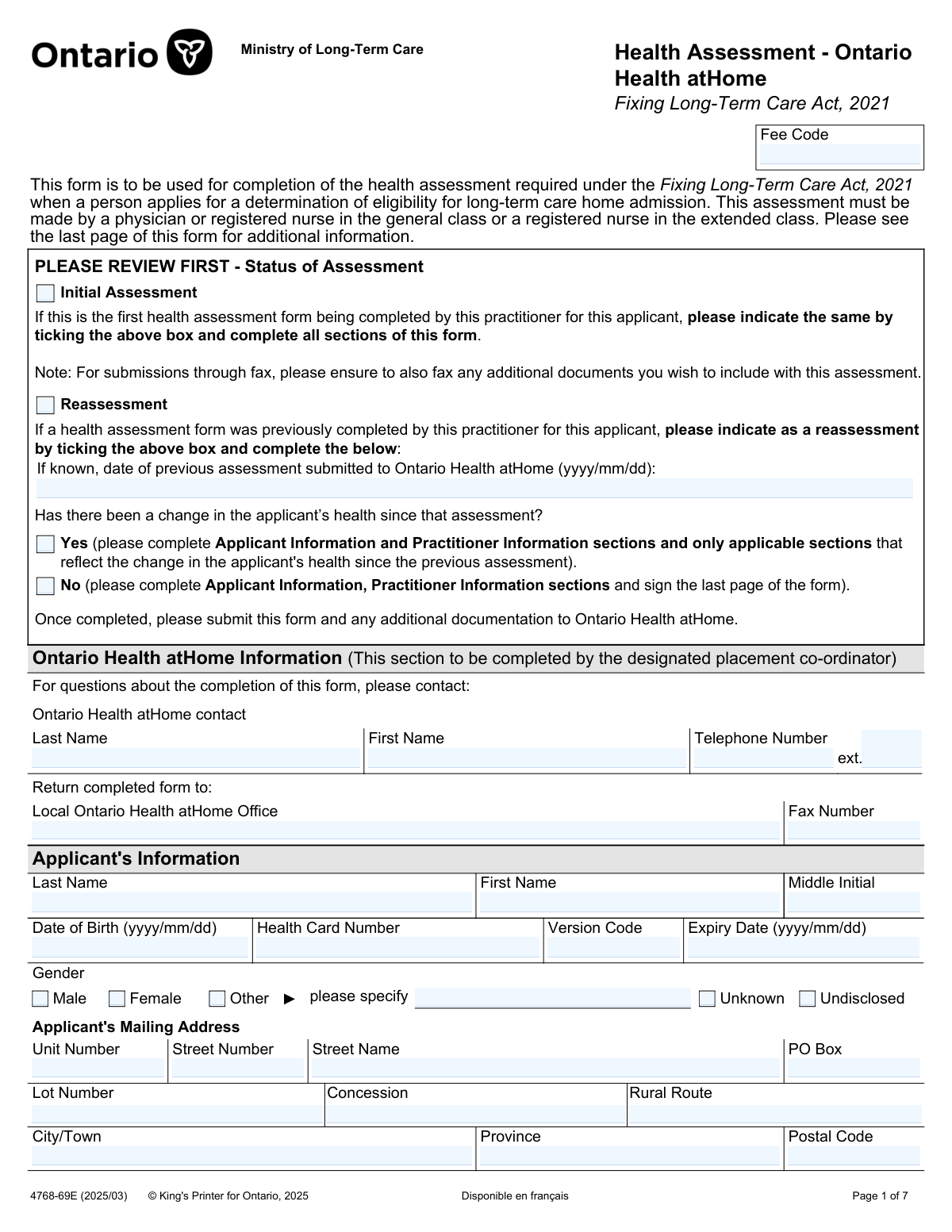
Yes! You can use AI to fill out Health Assessment - Ontario Health atHome (Fixing Long-Term Care Act, 2021) — Form 4768-69E

The Health Assessment - Ontario Health atHome (Form 4768-69E) is a Ministry of Long-Term Care form required under the Fixing Long-Term Care Act, 2021 to support a determination of eligibility for admission to a long-term care home in Ontario. It captures key clinical information such as diagnoses, medications, allergies, vaccinations, substance use considerations, responsive behaviours, wounds, TB/ARO screening, and medical/assistive devices, along with practitioner details and signature. The completed assessment is submitted to Ontario Health atHome and may be shared with selected long-term care homes to help determine whether the home can safely meet the applicant’s care requirements, so completeness and accuracy are essential to avoid delays. Today, this form can be filled out quickly and accurately using AI-powered services like Instafill.ai, which can also convert non-fillable PDF versions into interactive fillable forms.
Our AI automatically handles information lookup, data retrieval, formatting, and form filling.
It takes less than a minute to fill out 4768-69E using our AI form filling.
Securely upload your data. Information is encrypted in transit and deleted immediately after the form is filled out.

Form specifications

Form name: Health Assessment - Ontario Health atHome (Fixing Long-Term Care Act, 2021) — Form 4768-69E
Number of pages: 7
Filled form examples: Form 4768-69E Examples
Language: English
Categories: CAR forms
main-image

Instafill Demo: filling out a legal form in seconds

How to Fill Out 4768-69E Online for Free in 2026

Are you looking to fill out a 4768-69E form online quickly and accurately? Instafill.ai offers the #1 AI-powered PDF filling software of 2026, allowing you to complete your 4768-69E form in just 37 seconds or less.
Follow these steps to fill out your 4768-69E form online using Instafill.ai:
  1. 1 Go to Instafill.ai and upload the Health Assessment - Ontario Health atHome form (4768-69E) or select it from the form library.
  2. 2 Choose the assessment type (Initial Assessment or Reassessment) and, if reassessment, enter the prior assessment date and indicate whether the applicant’s health has changed.
  3. 3 Enter applicant identification details (name, date of birth, Ontario health card number/version/expiry, gender) and complete the mailing address fields.
  4. 4 Use Instafill.ai to populate clinical sections from available records/attachments (cumulative patient profile, diagnoses, advance care planning, medications/oxygen details, allergies, vaccination dates, and any recently discontinued drugs).
  5. 5 Complete risk and care-needs sections (substance use disorder details, responsive behaviours, wounds and wound care specialist info, TB symptom/risk screening and chest x-ray notes if required, ARO screening results/actions, and medical/assistive devices).
  6. 6 Fill in practitioner information (designation, primary care provider status, contact details, address), then review the AI validation checks for missing fields, date formats (yyyy/mm/dd), and internal consistency.
  7. 7 Electronically sign and date the form, download/save the completed PDF, and submit it to the appropriate Ontario Health atHome office (e.g., by fax) along with any supporting attachments.

Our AI-powered system ensures each field is filled out correctly, reducing errors and saving you time.

Why Choose Instafill.ai for Your Fillable 4768-69E Form?

Speed

Complete your 4768-69E in as little as 37 seconds.

Up-to-Date

Always use the latest 2026 4768-69E form version.

Cost-effective

No need to hire expensive lawyers.

Accuracy

Our AI performs 10 compliance checks to ensure your form is error-free.

Security

Your personal information is protected with bank-level encryption.

Frequently Asked Questions About Form 4768-69E

This form documents the health assessment required under the Fixing Long-Term Care Act, 2021 when someone applies to be determined eligible for admission to a long-term care home. Ontario Health atHome uses it to help decide eligibility and to share relevant care needs with the selected long-term care home(s).

The assessment must be completed by a physician or a registered nurse in the general class, or a registered nurse in the extended class. The practitioner must sign and date the last page.

Most sections are intended to be completed by the assessing practitioner, not the applicant. Applicants and families can help by providing accurate medical history, medication lists, and supporting documents for the practitioner to include.

Choose “Initial Assessment” if this is the first time this practitioner is completing the form for the applicant. Choose “Reassessment” if the same practitioner previously submitted an assessment and is updating it based on whether the applicant’s health has changed.

If there is no change, complete the Applicant Information and Practitioner Information sections and sign the last page. You do not need to re-complete the clinical sections if nothing has changed.

You must provide the applicant’s name, date of birth, Ontario health card number (including version code and expiry), gender, and mailing address. This information helps match the assessment to the correct applicant and supports the placement process.

If available, attach a cumulative patient profile and any relevant clinical documents such as specialist consult notes, hospital discharge summaries, therapy assessments, swallowing assessments, social work notes, GAIN assessment, and goals of care. If you do not attach a profile, list active and relevant historical diagnoses directly on the form.

Provide a comprehensive list of all current medications, including prescriptions, non-prescription drugs, and supplements (where known), or attach a medication list/cumulative patient profile. The form specifically emphasizes noting priority medications like benzodiazepines, antipsychotics/psychotropics, opioids, diuretics, and antiglycemics.

Indicate whether oxygen is used and specify the source (tank, concentrator, or unknown). If known, include whether it is continuous or as-needed/with exertion and the flow rate in L/min.

For allergies, indicate whether severe allergies are known and describe the reaction and required treatment (e.g., EpiPen) if applicable. For vaccinations, enter dates “where known” and use the cumulative patient profile attachment option if that information is recorded elsewhere.

A chest x-ray is required only if the applicant has new or worsening TB-related symptoms (e.g., cough lasting 3+ weeks, fever, weight loss, night sweats). If symptomatic, attach the x-ray results and note any actions taken; if not symptomatic, proceed to the TB risk factor screen.

For responsive behaviours, indicate any behaviours in the last 12 months (e.g., wandering, physical, verbal, sexual) and add details such as frequency, triggers, and interventions. For wounds, indicate whether wounds exist, the type (e.g., pressure ulcer, diabetic ulcer), whether VAC is used, whether there is a wound care specialist, and any required supplies or treatment details.

Submit the completed form and any additional documentation to the local Ontario Health atHome office listed on the form (often by fax, using the provided fax number). If submitting by fax, fax any additional documents you want included along with the assessment.

Yes—AI tools can help organize information and auto-fill form fields to save time, as long as the practitioner reviews for accuracy and signs the form. Services like Instafill.ai use AI to auto-fill form fields accurately and reduce manual data entry.

You can upload the PDF to Instafill.ai, map or confirm the fields, and let the AI populate entries from your provided information (e.g., demographics, diagnoses, medications, attachments list). If the PDF is flat/non-fillable, Instafill.ai can convert it into an interactive fillable form before auto-filling, then you can download, review, and submit it to Ontario Health atHome.

Compliance 4768-69E
Validation Checks by Instafill.ai

1
Validates Status of Assessment selection and reassessment dependencies
Ensures exactly one of "Initial Assessment" or "Reassessment" is selected. If "Reassessment" is selected, the form must also capture whether there has been a change in health (Yes/No), and the previous assessment date should be provided when known. If these conditions are not met, the submission should be rejected or routed back for correction because downstream processing depends on the correct assessment type and reassessment context.
2
Validates Previous Assessment Date format and logical range (Reassessment only)
Checks that the "Date of Previous Assessment" is in yyyy/mm/dd format and represents a real calendar date. Also validates that it is not in the future and is not after the practitioner signature date (if present), since a previous assessment cannot occur after the current assessment is signed. If invalid, the system should flag the field and require correction to prevent incorrect reassessment timelines.
3
Ensures required Applicant identity fields are complete and consistent across pages
Verifies that Applicant Last Name, First Name, Date of Birth, and Health Card Number are present (and not placeholder text) because they are core identifiers for eligibility determination and record matching. Also checks that repeated header fields (Applicant name and Health Card Number shown on multiple pages) match exactly across the submission to prevent page-mix or mis-association errors. If missing or inconsistent, the submission should be blocked and returned for correction.
4
Validates Date of Birth format and plausible age range
Checks that Date of Birth is in yyyy/mm/dd format, is a valid date, and is not in the future. Applies a plausibility rule (e.g., applicant age between 0 and 120) to catch data entry errors such as swapped month/day or wrong century. If validation fails, the system should require correction because DOB is used for identity verification and clinical context.
5
Validates Ontario Health Card Number, Version Code, and Expiry Date rules
Ensures the Health Card Number follows Ontario formatting expectations (commonly 10 digits, numeric only) and that the Version Code is exactly two letters (A–Z) when provided. Validates Expiry Date is in yyyy/mm/dd format and is a real date; optionally flags if expired as a warning for administrative follow-up. If any of these fail, the submission should be flagged for correction because incorrect health card details can prevent matching to provincial records.
6
Validates Gender selection exclusivity and 'Other' specification requirement
Ensures only one gender option is selected among Male, Female, Other, Unknown, and Undisclosed. If "Other" is selected, requires the "please specify" field to be non-empty and reasonably formatted (not just punctuation/whitespace). If the rule fails, the system should prompt for correction to maintain clean demographic data and avoid ambiguous entries.
7
Validates Applicant mailing address completeness and Canadian postal code format
Checks that City/Town, Province, and Postal Code are provided, and that the Province is a valid Canadian province/territory value (e.g., ON, QC, etc., depending on allowed format). Validates Postal Code against Canadian format (A1A 1A1, allowing optional space) and rejects clearly invalid strings. If invalid or incomplete, the submission should be flagged because placement coordination and correspondence depend on a deliverable address.
8
Validates telephone and fax number formats (contacts, practitioner, pharmacy, specialists)
Ensures all phone/fax fields contain valid North American numbering patterns (10 digits) and allow common separators, with optional extension limited to digits and a reasonable length (e.g., 1–6). Applies to Ontario Health atHome contact phone, fax number, practitioner phone, prescribing physician phone, pharmacy phone, and wound specialist phone. If validation fails, the system should flag the specific field because incorrect contact numbers prevent follow-up and care coordination.
9
Validates Practitioner designation, identity, and signature/date completion
Ensures exactly one practitioner designation is selected (Physician, Registered Nurse, or Registered Nurse (Extended Class)) and that practitioner first/last name and telephone number are provided. Requires practitioner signature and signature date in yyyy/mm/dd format for a complete submission, since the form is a legislative health assessment. If missing/invalid, the submission should be rejected because an unsigned assessment is not valid for eligibility determination.
10
Validates Primary Care Provider (PCP) logic and required PCP details when applicable
Checks that exactly one option is selected for whether the completing practitioner is the applicant’s primary care provider (Yes/No/No primary care provider). If "No" is selected, requires PCP first and last name when known, and requires a selection for willingness to continue care (Yes/No/Not known). If these dependencies are not satisfied, the system should flag the submission because PCP continuity affects care planning and follow-up.
11
Validates Medical Diagnoses section completeness based on attachment indicator
If "Cumulative patient profile is attached" is not checked, requires the "Historical Medical Diagnoses" field to contain at least one diagnosis entry (not empty/whitespace). If the attachment box is checked, the diagnoses text may be optional but should be allowed as supplemental information. If validation fails, the system should request completion because diagnoses are essential to determine care needs and LTC home suitability.
12
Validates Current Medications section completeness based on attachment indicators
Ensures that at least one of the following is true: medication information is included in the attached cumulative profile, a medication list is attached, or the "Current Medications List" text field is populated. This prevents submissions with no medication information, which is critical for continuity of care and medication reconciliation. If none are provided, the submission should be blocked and returned for completion.
13
Validates Oxygen usage dependencies and numeric flow rate constraints
Ensures exactly one of Oxygen Yes/No is selected. If Oxygen is "Yes", requires at least one oxygen source selection (Tank/Concentrator/Unknown) and requires valid numeric flow rates (L/min) for any selected delivery mode (Continuous and/or With Exertion/As Required), with reasonable bounds (e.g., >0 and not excessively high). If dependencies or numeric validations fail, the system should flag the record because oxygen requirements directly impact admission planning and equipment needs.
14
Validates Allergies selection and requires details when severe allergies are present
Ensures exactly one option is selected for severe allergies (Yes/No/Not known). If "Yes" is selected, requires the Allergy Details field to be populated with at least the allergen and reaction/severity information (and EpiPen requirement if applicable). If missing or inconsistent, the submission should be rejected or flagged because allergy omissions can create immediate safety risks in medication and dietary management.
15
Validates vaccination date formats and prevents future dates
For each vaccination date provided (Td, Tdap, pneumococcal, COVID-19, flu, RSV), validates yyyy/mm/dd format and that the date is not in the future. Allows blanks when unknown, especially if "Information is included in the cumulative patient profile" is checked, but still enforces correctness for any entered values. If invalid, the system should flag the specific date field to prevent inaccurate immunization histories.
16
Validates TB screening workflow consistency (symptom screen, x-ray details, risk factor screen)
Ensures a coherent TB screening record: symptom screen status must be selected (Completed/Not Completed), and if symptoms are marked "Yes", the chest x-ray results/action details must be provided and/or an attachment indicator captured by the system. Also requires that the risk factor screen status is selected (Completed or Unknown/Not Completed) and that if risk factors are marked "Yes", details are provided. If these checks fail, the submission should be flagged because TB screening drives infection control actions and admission readiness.

Common Mistakes in Completing 4768-69E

Selecting the wrong assessment status (Initial vs Reassessment)

People often tick “Reassessment” because the applicant has been assessed before, even if it’s the first time this specific practitioner is completing the form, or they forget to tick any status at all. This can lead to missing required sections (for an Initial) or unnecessary duplication (for a Reassessment), causing Ontario Health atHome to request clarification and delay eligibility determination. To avoid this, confirm whether this practitioner previously submitted a health assessment for this applicant and then follow the reassessment instructions (complete all sections vs only changed sections). AI-powered tools like Instafill.ai can prompt the correct pathway and ensure the right sections are completed based on the status selected.

Reassessment logic errors (missing previous date / change-in-health mismatch)

On reassessments, a common mistake is leaving the “date of previous assessment” blank, using the wrong date format, or selecting “No change” but still editing clinical sections (or selecting “Yes change” and failing to complete the changed sections). These inconsistencies create review issues and can result in the form being returned for correction. Avoid this by entering the prior submission date in yyyy/mm/dd and ensuring the “change in health” answer matches what you complete (only changed sections for “Yes,” minimal sections + signature for “No”). Instafill.ai can validate date formats and flag contradictory selections before submission.

Incomplete or incorrectly formatted applicant identifiers (DOB and health card details)

Applicants’ Date of Birth, Health Card Number, Version Code, and Expiry Date are frequently mistyped, incomplete, or entered in the wrong format (e.g., dd/mm/yyyy instead of yyyy/mm/dd). Even small errors can prevent matching to the correct client record and trigger follow-up requests, delaying placement steps. To avoid this, copy directly from the health card, include the two-letter version code, and use the required yyyy/mm/dd format for dates. Instafill.ai can automatically format dates and validate common Ontario health card field patterns to reduce rejections.

Gender selection conflicts (multiple boxes checked or “Other” without specifying)

It’s common to check more than one gender option, or to select “Other” but leave the “please specify” field blank. This creates ambiguity in the record and may require administrative clarification. To avoid this, select exactly one option (Male/Female/Other/Unknown/Undisclosed) and provide a clear specification when “Other” is chosen. Instafill.ai can enforce single-choice logic and require the “Other” detail when applicable.

Mailing address entered in the wrong fields (unit/street/PO box/rural route mix-ups)

Because the address section includes many optional components (Unit, Street Number, Street Name, PO Box, Lot/Concession, Rural Route), people often put the full address into one line, swap street number/name, or omit postal code/province. Incorrect addressing can cause communication issues and delays in coordinating documents and follow-ups. To avoid this, enter each component in its matching field and ensure City/Town, Province, and Postal Code are complete and correctly formatted. Instafill.ai can standardize Canadian address formatting and catch missing required components.

Attachment checkboxes marked without actually attaching documents (or missing consent assumptions)

A frequent issue is checking “Cumulative patient profile is attached,” “Medication list is attached,” or “Advance care planning information is attached,” but not including the attachment—especially when faxing. This results in an incomplete clinical picture for the long-term care home and often triggers resubmission requests. To avoid this, only tick attachment boxes when the documents are included, and when faxing, ensure all pages and supporting reports are sent together; also ensure consent requirements are met for shared attachments (e.g., psychiatric assessments). Instafill.ai can generate a submission checklist and help ensure referenced attachments are included; if the form is a flat non-fillable PDF, Instafill.ai can convert it into a fillable version to reduce missed fields.

Medical diagnoses section too vague or left blank when no profile is attached

When the cumulative patient profile isn’t attached, practitioners sometimes write non-specific terms (e.g., “dementia,” “frail,” “arthritis”) without key details, or leave the diagnoses area empty. This can lead to underestimation of care needs and delays while the placement coordinator requests more information. To avoid this, list active and relevant historical diagnoses with enough specificity to inform care planning (e.g., type/stage, major comorbidities, significant past events). Instafill.ai can prompt for missing clinical detail when “profile not attached” is selected.

Incomplete medication list (missing OTC/supplements, doses, or priority medication context)

People often provide only a partial medication list (prescriptions only) and omit non-prescription drugs, supplements, or recently discontinued medications, and they may not note the purpose of priority medications (benzodiazepines, antipsychotics, other psychotropics, opioids, diuretics/antiglycemics). Missing medication details can create safety risks and disrupt continuity of care at admission. To avoid this, include all current meds (name, dose/route/frequency where known), indicate purpose for priority meds, and list any drugs discontinued in the past 3 months. Instafill.ai can help structure medication entries consistently and flag when priority medication categories are mentioned without purpose/context.

Oxygen section errors (Yes checked but missing source/rates, or L/min not provided)

A common mistake is selecting “Oxygen: Yes” but not specifying whether it’s a tank or concentrator, and leaving continuous/as-required flow rates blank or without units. This can lead to incorrect equipment planning and delays in confirming whether the long-term care home can meet respiratory needs. To avoid this, specify the oxygen source and provide flow rates in L/min for continuous and/or exertion/as-required use, or mark “Unknown” when truly not known. Instafill.ai can require dependent fields (source and rates) when oxygen is marked “Yes” and ensure units are captured.

Allergy and vaccination details missing despite “Yes/known” selections

Users often check “Yes” for severe allergies but fail to describe the allergen, reaction type/severity, and whether an EpiPen is required; similarly, vaccination dates are frequently left blank or entered in the wrong format. Missing allergy detail can create serious safety risks, and incomplete immunization history can affect infection prevention planning. To avoid this, provide clear allergy specifics and enter vaccine dates in yyyy/mm/dd (or indicate where information is included in an attached profile). Instafill.ai can validate date formats and prompt for required allergy details when “Yes” is selected.

TB screening workflow mistakes (screen not completed, chest x-ray not attached when symptomatic)

The TB section is often completed inconsistently—e.g., not indicating whether the symptom screen was completed, selecting “Yes” to symptoms but not attaching chest x-ray results, or skipping the risk factor screen for asymptomatic individuals. These errors can cause infection control concerns and lead to follow-up requests before placement proceeds. To avoid this, clearly mark symptom screen completion, attach chest x-ray results when symptoms are present, and complete the risk factor screen where possible (or mark unknown/not completed). Instafill.ai can guide the conditional workflow and flag missing attachments when “Chest x-ray required” is selected.

Missing practitioner designation, signature, or signature date (and primary care provider details when required)

Forms are frequently submitted without selecting the practitioner’s designation (Physician/RN/RN(EC)), without a signature, or without the signature date in yyyy/mm/dd; when the assessor is not the primary care provider, the primary care provider name is often left blank. Unsigned or improperly completed practitioner sections can invalidate the submission and force resubmission, delaying eligibility determination. To avoid this, complete all practitioner identity fields, select the correct designation, provide primary care provider details when applicable, and ensure the form is signed and dated. Instafill.ai can prevent submission until signature/date fields and required conditional fields are complete and correctly formatted.
Saved over 80 hours a year

“I was never sure if my IRS forms like W-9 were filled correctly. Now, I can complete the forms accurately without any external help.”

Kevin Martin Green

Your data stays secure with advanced protection from Instafill and our subprocessors

Robust compliance program

Transparent business model

You’re not the product. You always know where your data is and what it is processed for.

ISO 27001, HIPAA, and GDPR

Our subprocesses adhere to multiple compliance standards, including but not limited to ISO 27001, HIPAA, and GDPR.

Security & privacy by design

We consider security and privacy from the initial design phase of any new service or functionality. It’s not an afterthought, it’s built-in, including support for two-factor authentication (2FA) to further protect your account.

Fill out 4768-69E with Instafill.ai

Worried about filling PDFs wrong? Instafill securely fills health-assessment-ontario-health-athome-fixing-long-term-care-act-2021-form-4768-69e-1 forms, ensuring each field is accurate.