
Yes! You can use AI to fill out Prudential Group Disability Insurance – Education and Employment History Form (GL.2009.009, Ed. 06/2017)
Don't type 180 fields by hand. Tell our AI about yourself, or upload a document you already have, and it fills every field in seconds. You check it, then download, print or sign.
The AI does the filling. You just check it.
No typing into boxes, nothing to install.
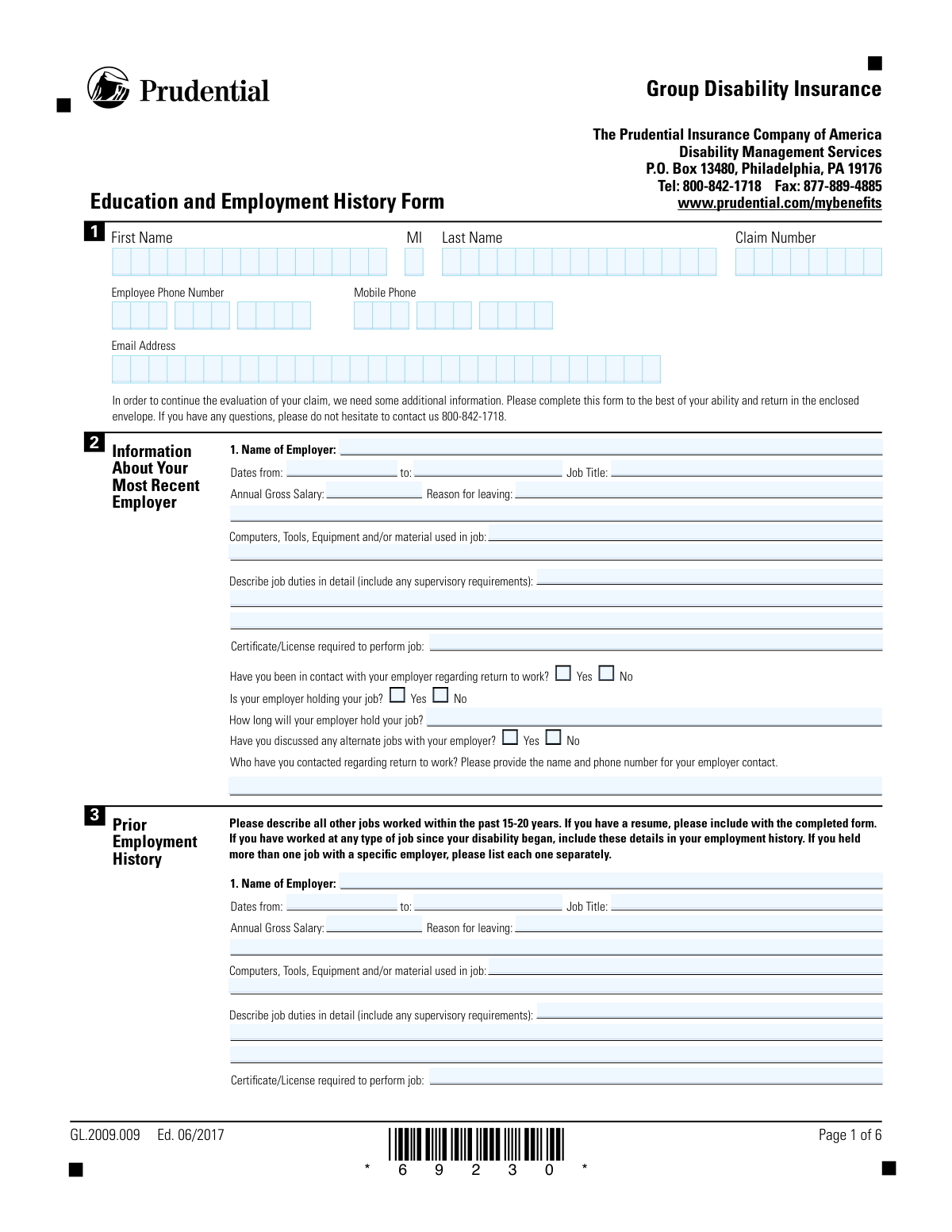
What this form asks for
The AI fills all of it, from your answers or your documents.
The AI checks your answers before you download
16 checks built for this form, so a wrong date or a missing answer is caught before anyone else sees it.
Checks that First Name, MI (if provided), Last Name, and Claim Number are completed and are not left blank or filled with non-data placeholders (e.g., repeated asterisks or form markers like “*69230*”). This is important to correctly associate the form with the right claimant and claim file. If validation fails, the submission should be rejected or routed to manual review because it cannot be reliably matched to a claim.
Ensures the Claim Number follows the expected insurer format (e.g., allowed length/characters) and is consistent wherever it appears on the form (multiple pages show the field). This prevents misfiling and reduces downstream reconciliation errors. If the claim number is missing, malformed, or inconsistent, the system should flag the submission and require correction before processing.
Checks that the Email Address, when entered, matches a standard email pattern (local-part@domain) and does not contain spaces or invalid characters. Email is often used for follow-up and return-to-work coordination, so invalid addresses cause communication failures. If invalid, the system should prompt the claimant to correct it or allow submission only if email is optional and another contact method is valid.
Ensures Employee Phone Number and Mobile Phone (if provided) contain valid digits and formatting (e.g., 10-digit US numbers, optional country code, valid separators) and are not obviously incomplete (e.g., fewer than 10 digits). Accurate phone numbers are critical for claim evaluation and employer/claimant contact. If validation fails, the form should be flagged for correction or manual outreach.
If the claimant answers “Yes” to being in contact with the employer regarding return to work, the form must include the name and phone number of the employer contact in the “Who have you contacted…” field. This ensures the carrier can verify return-to-work discussions and coordinate accommodations. If “Yes” is selected but contact details are missing or invalid, the submission should be considered incomplete.
If “Is your employer holding your job?” is answered “Yes,” then “How long will your employer hold your job?” must be completed with a valid duration (e.g., a number of weeks/months or a specific date, per system rules). This information affects return-to-work planning and benefit management. If the holding-job answer is “Yes” but the duration is blank or nonsensical, the system should require correction.
And 10 more checks
- Validates Most Recent Employer Entry Completeness
- Validates Employment Date Ranges and Chronology
- Validates Annual Gross Salary Is Numeric and Reasonable
- Validates Prior Employment History Entries Are Structured and Complete Per Job
- Validates Certificate/License Requirement Fields and Expiration Logic
- Validates Education Section: Highest Grade, Graduation Date, and GED Conditional Fields
- Validates Training Entries Have Required Subfields When Selected
- Validates Computer Skills Section Yes/No Dependencies
- Validates Job-Seeking Section Completeness When Indicated
- Validates Fraud Notice Acknowledgment, Signature Presence, and Date Signed Format
Let AI fill out your GL.2009.009
No typing. Every field filled in seconds, checked, ready to sign.
How to Fill Out GL.2009.009 Online for Free in 2026
What the AI walks you through.
- Enter claimant identification details (first name, last name, middle initial, claim number, email address, and phone numbers) as shown on your Prudential claim materials.
- Complete the “Most Recent Employer” section: provide employer name, job title, dates worked, annual gross salary, reason for leaving, tools/equipment used, detailed job duties (including supervisory duties), and whether you have discussed return-to-work or alternate jobs with the employer.
- Fill out the “Prior Employment History” for all other jobs in the past 15–20 years (list each job separately, even with the same employer): employer name, dates, job title, salary, reason for leaving, duties, tools/equipment, and any required certificates/licenses; attach a resume and add pages if needed.
- Provide your “Education/Training” information: highest grade completed, high school/GED details, college and vocational training, military training, areas of concentration, degrees, and any certificates/licenses (including expiration dates and how you keep them active).
- Complete the “Computer Skills” section: indicate device/internet access, typing ability and speed, programs used (e.g., Word/Excel/PowerPoint/email/databases), proprietary software, social media use, IT certifications, and how you use technology at work and at home.
- If applicable, complete the “Recent/Current Job-Seeking” section: length of job search, responses received, resources used (e.g., state employment service, vocational rehabilitation, friends, want ads), positions sought, and whether you want assistance locating suitable employment.
- Read the fraud notice, certify the statements are true, then sign and date the form; submit it to Prudential using the provided return method (e.g., enclosed envelope or as instructed by your claim representative).
Common Mistakes in Completing GL.2009.009
The ones the AI is built to catch.
Leaving identifying information blank or inconsistent (name/MI/claim number)
Providing unreachable contact details (email/phone) or mixing up phone fields
Not answering the employer return-to-work questions (Yes/No) or leaving them ambiguous
Omitting employer contact person details for return-to-work discussions
Using incomplete employment dates or incorrect date formats
Not listing all jobs in the past 15–20 years (or excluding post-disability work)
Failing to separate multiple positions held with the same employer
Providing vague job duty descriptions instead of detailed, functional tasks
Leaving salary and reason-for-leaving fields incomplete or using unclear terms
Skipping tools/equipment/software and certification/license details
Incomplete education/training section (GED, graduation dates, degree type, years completed)
Missing signature and date (or not using the requested date format)
Frequently Asked Questions About GL.2009.009
Is it really free for 7 days?
Can I fill other forms too?
How do I cancel?
How does the AI fill out GL.2009.009?
What happens to my information?
How complex is GL.2009.009 to fill out?
What is the Prudential Education and Employment History Form used for?
Who needs to complete this form?
How far back should I list my employment history?
What if I had more than one position with the same employer?
What information do I need for my most recent employer section?
What should I write in the 'Describe job duties in detail' section?
Do I need to include certificates or licenses required for my jobs?
Can I submit my resume instead of filling out the employment history?
What if I can’t fit all my jobs on the form?
What education and training details are they asking for?
Why does the form ask about computer skills and internet use?
Do I have to complete the job-seeking section?
Where do I send the completed form, and how can I contact Prudential with questions?
What is the fraud notice and why do I have to sign it?
What if I’m not sure of exact dates, salary amounts, or other details?
Get your GL.2009.009 filled out by AI
$0 today. Cancel before Nov 2 and you pay nothing.
Other forms like this one
insurance forms: Form 1095-A, Health Insurance Marketplace Statement, Form SSA-4-BK, Application for Child's Insurance Benefits, Form SSA-10, Application for Widow's or Widower's Insurance Benefits, Form 1095-C, Employer-Provided Health Insurance Offer and Coverage, National Integrity Life Insurance Company Ownership Change Request Form (NI-77-0039-2505), Record of Advice and Needs Analysis (Non-Life Insurance — Personal and Commercial Lines), Form 7206 (2025), Self-Employed Health Insurance Deduction, Continental American Insurance Company (CAIC) / Aflac Group Critical Illness Claim Form (with Attending Physician’s Statement, HIPAA Authorization to Obtain Information, and Electronic Funds Transaction Authorization), acord-25-201603-certificate-of-liability-insurance-1, Brotherhood Mutual Insurance Company Ministry Driver Screening Form (A99), Assurity Life Insurance Company Disability Claim Form — Attending Physician’s Statement, Amateur Sports / Activities Accident Insurance Quote Request Form (Philadelphia Insurance Companies), Martial Arts Studio General Liability and Property Application (Fitness and Wellness Insurance / Philadelphia Insurance Companies) (03/2011), The Prudential Insurance Company of America Group Disability Insurance – Education and Employment History Form (GL.2009.009, Ed. 06/2017), VA Form 29-357, Claim for Disability Insurance Benefits (Government Life Insurance), CMS-1500 (02-12), Health Insurance Claim Form (NUCC Approved) (OMB 0938-1197), Prudential Group Disability Insurance – Education and Employment History Form (GL.2009.009, Ed. 06/2017), HDFC ERGO General Insurance Company Limited – Request for Cashless Hospitalisation for Health Insurance (Policy Part – C), Beneficiary Designation/Change - Principal Life Insurance Company, Principal Life Insurance Company UCTIE INTERNATIONAL UNION 401(K) SAVINGS PLAN Enrollment Form
disability forms: Form SSA-3368-BK, Disability Report - Adult, Form SSA-16, Application for Disability Benefits, Form SSA-3820-BK, Disability Report - Child, Form SSA-454-BK, Continuing Disability Review, Form 21-526EZ, Application for Disability Compensation, Form N-648, Medical Certification for Disability Exceptions, Form DBQ, Knee and Lower Leg Disability Benefits, Form DBQ, Heart Conditions Disability Benefits, Form DBQ, Hypertension Disability Benefits, Form DBQ, Scars/Disfigurement Disability Benefits, Form DBQ, Diabetes Mellitus Disability Benefits Questionnaire, Form DBQ, Endocrine Diseases Disability Benefits, Form DBQ, Diabetes Mellitus Disability Benefits Questionnaire, Back (Thoracolumbar Spine) Conditions Disability Benefits Questionnaire, Ankle Conditions Disability Benefits Questionnaire, Back (Thoracolumbar Spine) Conditions Disability Benefits Questionnaire, Elbow and Forearm Conditions Disability Benefits Questionnaire, Foot Conditions, Including Flatfoot (Pes Planus) Disability Benefits Questionnaire, Hip and Thigh Conditions Disability Benefits Questionnaire, Knee and Lower Leg Disability Benefits Questionnaire
employment forms: Form I-765, Application for Employment Authorization, Form CMS L564, Request for Employment Info, Form OF-306, Declaration for Federal Employment, Form NYS DHR, Employment Complaint Form, Form AO 78, Application for Employment, Illinois State Board of Education (ISBE) Application for Employment (ISBE 61-08), HR-Pol-Rec&Res-04 Employment Application Form (Recruitment of Permanent Employees), City of Carlinville Application for Employment (An Equal Opportunity Employer), U.S. Equal Employment Opportunity Commission (EEOC) Form 453, Recommendation for Recognition, The Prudential Insurance Company of America Group Disability Insurance – Education and Employment History Form (GL.2009.009, Ed. 06/2017), St. Paul’s Hospital Application for Employment (職位申請表) – SPHF-HRD-035, U.S. Equal Employment Opportunity Commission (EEOC) Form 453, Recommendation for Recognition, Prudential Group Disability Insurance – Education and Employment History Form (GL.2009.009, Ed. 06/2017), Claim for Special Employment Advance (SU514), New York State Employment Application: Part 1 – Pre-Interview (Form #S1000), New York State Employment Application Form, Sidney Sussex College Cambridge, Application for Employment, Z83, Application for Employment in the Republic of South Africa Government Department, ENVIRONMENTAL MONITORING LABORATORY, LLC Employment Application, Vanguard 403(b)(7) ERISA Retirement Plan Distribution Request (Retirement / Severance from Employment / Disability)
education forms: Form 1099-Q, Payments From Qualified Education Programs, Illinois State Board of Education (ISBE) Application for Employment (ISBE 61-08), Income-Driven Repayment (IDR) Plan Request (PAYE, IBR, and ICR) — William D. Ford Federal Direct Loan (Direct Loan) Program and Federal Family Education Loan (FFEL) Programs (OMB No. 1845-0102), The Prudential Insurance Company of America Group Disability Insurance – Education and Employment History Form (GL.2009.009, Ed. 06/2017), Prudential Group Disability Insurance – Education and Employment History Form (GL.2009.009, Ed. 06/2017), Melbourne City College Australia Education Agent Application Form, Leaders Institute of Training and Education (LITE) Application for Enrolment, Loan Rehabilitation: Income and Expense Information, William D. Ford Federal Direct Loan (Direct Loan) Program/Federal Family Education Loan (FFEL) Program, Confirmation of Teaching Evidence, Form K-908-2085-E, Designation of Education Decision-Maker, Blue Shield of California Promise Health Plan Health Education Referral Form, Form 2, Certification of Professional Education, Form SY029 - Claim for Pensioner Education Supplement, Claim for Pensioner Education Supplement, Education Course Costs and Student Details Claim Form, CFS 431-1, Summary of the Child's Educational and Developmental Status, CFS 912, Referral Form for Life Skills/Financial Literacy Education
Prudential forms: The Prudential Insurance Company of America Group Disability Insurance – Education and Employment History Form (GL.2009.009, Ed. 06/2017), Prudential Group Disability Insurance – Education and Employment History Form (GL.2009.009, Ed. 06/2017), PruLife Private Placement VUL and Private Placement Variable Annuity Purchaser Questionnaire and Agreement
disability insurance forms: Assurity Life Insurance Company Disability Claim Form — Attending Physician’s Statement, The Prudential Insurance Company of America Group Disability Insurance – Education and Employment History Form (GL.2009.009, Ed. 06/2017), VA Form 29-357, Claim for Disability Insurance Benefits (Government Life Insurance), Prudential Group Disability Insurance – Education and Employment History Form (GL.2009.009, Ed. 06/2017), Principal Group Disability Insurance Options (Forms GC 3000-2, GC 4000-2, GP53705-05), Form SSA-16, Application for Disability Insurance Benefits
Prudential insurance forms: Prudential Group Disability Insurance – Education and Employment History Form (GL.2009.009, Ed. 06/2017), The Prudential Insurance Company of America Group Disability Insurance – Education and Employment History Form (GL.2009.009, Ed. 06/2017)
group insurance forms: Principal Group Disability Insurance Options (Forms GC 3000-2, GC 4000-2, GP53705-05), Continental American Insurance Company (CAIC) / Aflac Group Critical Illness Claim Form (with Attending Physician’s Statement, HIPAA Authorization to Obtain Information, and Electronic Funds Transaction Authorization), The Prudential Insurance Company of America Group Disability Insurance – Education and Employment History Form (GL.2009.009, Ed. 06/2017), Prudential Group Disability Insurance – Education and Employment History Form (GL.2009.009, Ed. 06/2017)
Let AI fill out your GL.2009.009
Your trial starts once a card is added. You pay nothing before Nov 2.
Our AI already knows this form, all 180 fields of it. Skip the typing: tell it about yourself, or upload what you have, and it fills the whole form in seconds.
- AI fills every field on all 4 pages, tables and checkboxes included
- No typing into boxes: answer a few questions, or upload a document you already have, an old copy of this form, a photo of a document
- The AI checks the answers; you review and change anything before you download
- Download the finished PDF, print it, or sign it online
- Encrypted, and never used to train AI
Cancel before Nov 2 and you pay nothing.
A card is needed to start the trial. Cancel in two clicks from your account.
Terms · Privacy