Yes! You can use AI to fill out Prudential Group Disability Insurance – Education and Employment History Form (GL.2009.009, Ed. 06/2017)

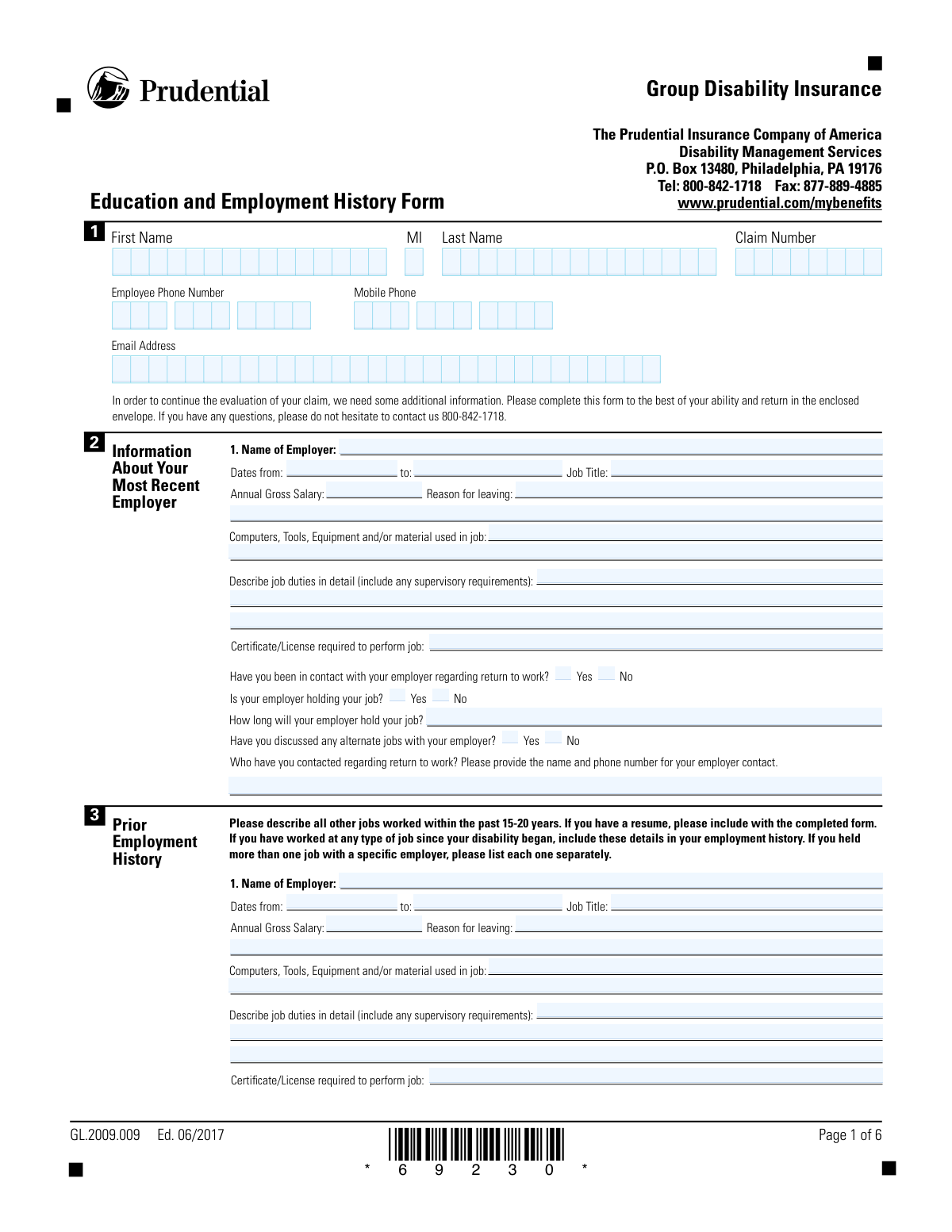
The Prudential Group Disability Insurance Education and Employment History Form (GL.2009.009) is a claimant questionnaire used by Prudential Disability Management Services to gather detailed information about your most recent job, prior employment over the past 15–20 years, education and training, computer skills, and any return-to-work/job-seeking efforts. Insurers use this information to assess occupational demands, transferable skills, and potential return-to-work options as part of ongoing disability claim evaluation. The form also includes a fraud notice and requires the claimant’s certification and signature, making accuracy and completeness important. Today, this form can be filled out quickly and accurately using AI-powered services like Instafill.ai, which can also convert non-fillable PDF versions into interactive fillable forms.
Our AI automatically handles information lookup, data retrieval, formatting, and form filling.
It takes less than a minute to fill out GL.2009.009 using our AI form filling.
Securely upload your data. Information is encrypted in transit and deleted immediately after the form is filled out.

Form specifications

Form name: Prudential Group Disability Insurance – Education and Employment History Form (GL.2009.009, Ed. 06/2017)
Number of pages: 4
Language: English
Categories: insurance claim forms, Prudential forms, disability insurance forms, Prudential insurance forms
main-image

Instafill Demo: filling out a legal form in seconds

How to Fill Out GL.2009.009 Online for Free in 2026

Are you looking to fill out a GL.2009.009 form online quickly and accurately? Instafill.ai offers the #1 AI-powered PDF filling software of 2026, allowing you to complete your GL.2009.009 form in just 37 seconds or less.
Follow these steps to fill out your GL.2009.009 form online using Instafill.ai:
  1. 1 Go to Instafill.ai and upload the Prudential Education and Employment History Form (GL.2009.009) or select it from the form library.
  2. 2 Enter claimant identifiers and contact details (name, claim number, phone numbers, and email) so the form can be matched to your disability claim.
  3. 3 Complete the “Most Recent Employer” section, including dates worked, job title, salary, reason for leaving, tools/equipment used, detailed job duties, and any required certificates/licenses, plus return-to-work contact questions.
  4. 4 Add your prior employment history for the past 15–20 years (each employer separately), including dates, titles, salary, reasons for leaving, equipment used, job duties, and any required licenses/certifications; attach a resume if available.
  5. 5 Fill in education and training details (high school/GED, college, vocational and military training), and list certificates/licenses with expiration status and how you keep them active.
  6. 6 Complete computer skills and (if applicable) recent/current job-seeking information, including resources used, positions sought, responses received, and whether you want employment assistance.
  7. 7 Review the fraud notice and certification, e-sign and date the form, then download and submit it to Prudential via the instructed return method (e.g., mail/fax) while keeping a copy for your records.

Our AI-powered system ensures each field is filled out correctly, reducing errors and saving you time.

Why Choose Instafill.ai for Your Fillable GL.2009.009 Form?

Speed

Complete your GL.2009.009 in as little as 37 seconds.

Up-to-Date

Always use the latest 2026 GL.2009.009 form version.

Cost-effective

No need to hire expensive lawyers.

Accuracy

Our AI performs 10 compliance checks to ensure your form is error-free.

Security

Your personal information is protected with bank-level encryption.

Frequently Asked Questions About Form GL.2009.009

This form helps Prudential gather your education, training, computer skills, and work history so they can continue evaluating your group disability claim. It provides details about your most recent job, prior jobs, and any return-to-work efforts.

The claimant (the person applying for disability benefits) should complete this form. Prudential requests it when they need additional background information to evaluate the claim.

Have your claim number, contact information, your most recent employer details, and a list of jobs from the past 15–20 years. If you have a resume, the form asks you to include it with your submission.

List all jobs worked within the past 15–20 years, as requested on the form. If you worked any job after your disability began, include that work as well.

List each job separately, even if they were with the same employer. This helps Prudential understand changes in duties, tools used, and physical/skill requirements over time.

Describe your day-to-day tasks, physical activities (lifting, standing, driving, etc.), and any supervisory responsibilities. Include the main tools, equipment, or systems you used so the job demands are clear.

List the key items you used to do the job, such as machinery, hand tools, vehicles, medical equipment, or software (e.g., Excel, proprietary systems). Be specific when possible because it helps clarify the skill and task requirements.

Yes, if a certificate or license was required to perform the job, list it in the “Certificate/License required” field. If you have licenses or certifications that expired, the education/training section also asks for expiration details and how you kept them active.

Check Yes/No for whether you’ve contacted your employer about returning to work and whether they are holding your job. If you have a contact person, provide their name and phone number and indicate how long the job will be held, if known.

Only complete that section if you have been exploring returning to work in some capacity. If you have not been job-seeking, you can leave that section blank.

Enter the highest grade completed and indicate whether you obtained a GED, including the date if applicable. Then list any college, vocational, military, or other training, plus any certificates or licenses you earned.

The form instructs you to add pages if you held more than the listed number of jobs in the past 20 years. Attach additional sheets in the same format (employer, dates, title, salary, duties, tools, and reason for leaving).

Return the completed form using the enclosed envelope (as the form instructs). If you need help, you can call Prudential Disability Management Services at 800-842-1718 or fax documents to 877-889-4885.

The form does not list a specific processing time, and it can vary based on what Prudential still needs to evaluate your claim. Submitting complete job and education details (and a resume if available) can help avoid delays.

Yes—AI tools can help organize your work history, training, and skills and then auto-fill the form fields. Services like Instafill.ai use AI to auto-fill form fields accurately and save time, especially when you have a resume or prior records to reference.

Upload the PDF to Instafill.ai, then provide your details (or upload a resume) so the AI can map your information into the correct fields (employers, dates, duties, education, and signatures where allowed). Review every field for accuracy, then download and submit the completed form to Prudential using the form’s instructions.

If the PDF is flat/non-fillable, Instafill.ai can convert it into an interactive fillable form so you can type directly into the fields. After conversion, you can auto-fill and then export a completed version for submission.

Compliance GL.2009.009
Validation Checks by Instafill.ai

1
Claimant name fields are present and contain valid characters
Validates that Claimant First Name and Claimant Last Name are provided and contain only reasonable name characters (letters, spaces, hyphens, apostrophes) and are not placeholder text (e.g., 'N/A'). Middle Initial, if provided, must be exactly one alphabetic character. This is important for identity matching to the claim record and downstream correspondence. If validation fails, the submission should be rejected or routed to manual review with a request for corrected claimant identification.
2
Claim Number required and matches expected format
Ensures the Claim Number is present and conforms to the organization’s expected pattern/length (e.g., numeric-only or alphanumeric, no embedded spaces), and is not the printed barcode marker (e.g., '*69230*') mistakenly entered. Correct claim number formatting is critical to attach the form to the correct claim and avoid misfiling. If validation fails, block submission or flag as high severity and require correction before intake.
3
Email address format validation (if provided)
Checks that Email Address, when entered, matches a standard email pattern (local-part@domain) and does not contain spaces or invalid characters. Email is often used for follow-up and missing/invalid emails can delay claim evaluation communications. If validation fails, prompt the user to correct the email or allow blank if email is optional per business rules.
4
Employee phone number parts are complete and valid NANP values
Validates that Area Code, Prefix, and Line Number are all present when any part is provided, are numeric, and have lengths 3-3-4 respectively. Also checks basic NANP constraints (e.g., area code and prefix not starting with 0/1, not all zeros) to reduce obviously invalid numbers. Accurate phone numbers are essential for return-to-work coordination and claim follow-up. If validation fails, require correction or mark the phone as unusable and route for outreach via alternate contact method.
5
Mobile phone number parts are complete and valid NANP values
Ensures Mobile Phone Number Part 1/2/3 are either all blank or all completed, numeric, and 3-3-4 digits, with basic NANP plausibility checks. This prevents partial numbers from being stored and used for SMS/calls. If validation fails, prompt for completion/correction or clear the mobile number field set to avoid partial data ingestion.
6
Mutually exclusive Yes/No selections enforced for all binary questions
Checks that for each Yes/No pair (e.g., contacted employer, employer holding job, discussed alternate jobs, GED obtained, certification expired, device ownership, internet navigation, home internet access, social media usage, typing skills, work computer usage, employment assistance request), exactly one option is selected. This prevents contradictory states and ensures consistent downstream logic. If validation fails, block submission and require the user to select a single answer for each binary question that is answered.
7
Most recent employer section completeness when any field is populated
If any Most Recent Employer Information field is entered (employer name, dates, job title, salary, duties, etc.), validates that the minimum required set is complete: Employer Name, Employment Start Date, Employment End Date (or an explicit indicator of 'current' if supported), Job Title, and Reason for Leaving. This is important because partial employer records are difficult to interpret and can stall vocational/eligibility review. If validation fails, require completion of missing required fields or allow the user to remove the partial entry.
8
Employment date fields use valid dates and correct mm dd yyyy structure
Validates that all date inputs (employment dates, graduation dates, GED award date, expiration date, signed date) are real calendar dates and match the required structure (mm dd yyyy) or the system’s canonical date format. This prevents impossible dates (e.g., 02/30) and parsing errors in downstream systems. If validation fails, reject the date field and prompt for correction with an example of the accepted format.
9
Employment date ranges are logically consistent (start <= end) and not in the future
Checks that for each employer entry, the start date is not after the end date, and that dates are not unreasonably in the future relative to the submission date (unless explicitly allowed for planned return-to-work). Logical date ranges are essential for calculating work history duration and assessing claim timelines. If validation fails, flag the specific employer row and require corrected dates before acceptance.
10
Annual gross salary is numeric, non-negative, and within reasonable bounds
Ensures Annual Gross Salary fields (most recent and prior employers) contain a valid currency amount (digits with optional commas/decimal), are greater than or equal to zero, and fall within configurable sanity limits (e.g., not $0 when full-time employment is indicated, not excessively large due to extra zeros). Salary is used in benefit calculations and vocational assessment, so incorrect values can materially impact claim outcomes. If validation fails, prompt for correction and optionally require confirmation for outlier values.
11
Return-to-work contact details required when claimant indicates employer contact
If 'Have you been in contact with your employer regarding return to work?' is Yes, validates that 'Most Recent Return to Work Contact' includes at least a contact name and a phone number in a recognizable format. This ensures the disability management team can verify job status and coordinate accommodations. If validation fails, require the contact details or change the answer to No.
12
Job hold duration required and interpretable when employer is holding the job
If 'Is your employer holding your job?' is Yes, validates that 'Most Recent Job Hold Duration' is provided and is interpretable (e.g., a number plus unit like days/weeks/months, or a specific date if the system supports it). This information affects return-to-work planning and claim management decisions. If validation fails, prompt for a clear duration/date and prevent submission until clarified.
13
Prior employment entries are complete per row when an employer name is provided
For each prior employer block (1–5), if the Employer Name is provided, validates that Dates From/To, Job Title, and Reason for Leaving are also provided, and that duties/equipment fields are not left entirely blank when required by business rules. This prevents incomplete work history records that undermine vocational evaluation. If validation fails, highlight the specific prior employer entry and require completion or removal of that entry.
14
GED logic consistency with highest grade and graduation date
If the claimant indicates they are not a high school graduate (implied by GED question usage), validates that either GED = Yes with a GED Award Date, or GED = No with no GED date provided. Also checks that a High School Graduation Date is not provided when GED is the only completion path, unless the claimant also indicates graduation. This consistency is important for accurate education level determination. If validation fails, require the claimant to correct the GED selection/date and any conflicting graduation information.
15
Certification/license expiration logic and expiration date requirement
If 'Has this certification or license expired?' is Yes, validates that an Expiration Date (month/day/year) is fully provided and forms a valid date; if No, ensures the expiration date is blank or, if provided, is in the future and treated as 'expires on' rather than 'expired'. This prevents contradictory credential status and supports accurate job qualification assessment. If validation fails, prompt to correct the expired flag and/or expiration date fields.
16
Signature and signed date required for attestation
Validates that Claimant Signature is present (captured signature/typed attestation per system design) and that Date Signed is fully completed and a valid date. The fraud notice certification requires an executed attestation for the form to be legally and operationally usable. If validation fails, the form should not be accepted as complete and must be returned for signature/date completion.

Common Mistakes in Completing GL.2009.009

Missing or inconsistent Claim Number across pages

People often enter the claim number on page 1 but forget to repeat it on subsequent pages (or write a different number), especially when printing and completing by hand. This can cause the form to be separated from the correct claim file, delaying review or triggering follow-up requests. Always copy the exact claim number onto every page/field where it appears and double-check it matches Prudential’s correspondence. AI-powered tools like Instafill.ai can auto-populate repeated identifiers consistently across all pages and validate the format.

Phone numbers entered in the wrong split-field format

This form splits phone numbers into area code, prefix, and line number, and many claimants either write the full number in one box, include dashes/parentheses, or shift digits into the wrong segment. The consequence is failed contact attempts or the insurer having to call/write for clarification. Enter exactly three digits in the first two fields and four digits in the last field (e.g., 215 / 555 / 1234) and confirm the mobile number is also correctly segmented. Instafill.ai can format phone numbers into the correct parts automatically and flag missing digits.

Invalid or mistyped email address

A common error is leaving off part of the email (e.g., “.com”), misspelling the domain, or using an old email that is no longer monitored. This can prevent Prudential from sending time-sensitive requests and can slow claim evaluation. Use an email you check regularly and verify spelling character-by-character before submitting. Instafill.ai can validate email formatting and reduce typos during entry.

Employment dates incomplete, reversed, or not in a consistent date format

Claimants frequently provide only years (not month/day), reverse “from/to” dates, or use mixed formats that are hard to interpret. Incomplete or unclear dates can create gaps in the 15–20 year work history and may lead to additional documentation requests. Provide the most precise dates you can (month/year at minimum) and ensure the start date is earlier than the end date for each job. AI tools like Instafill.ai can standardize dates and catch obvious inconsistencies before submission.

Not listing all jobs in the past 15–20 years (or omitting post-disability work)

Many people list only their most recent job and one or two prior roles, forgetting short-term, part-time, seasonal, self-employment, or any work performed after disability began. Missing jobs can affect vocational assessment and may be viewed as an incomplete submission, delaying the claim review. Include every job within the requested timeframe and explicitly include any work performed after the disability onset, even if limited or unsuccessful. If the PDF is flat/non-fillable, Instafill.ai can convert it into a fillable version and help ensure no employment-history sections are skipped.

Combining multiple positions at the same employer instead of listing each separately

The instructions state that if you held more than one job with a specific employer, each position should be listed separately, but claimants often merge promotions/role changes into one entry. This can obscure changes in duties, physical demands, supervisory responsibilities, and required skills—key factors in disability and vocational evaluation. Create separate entries for each distinct job title/time period at the same employer, with its own dates, duties, and tools used. Instafill.ai can help duplicate employer details while keeping each role as a separate, complete record.

Vague job duties that don’t describe functional demands or supervision

People often write brief descriptions like “office work” or “managed team,” without detailing lifting, standing/walking, typing volume, driving, customer interaction, or supervisory requirements. Insufficient detail can lead to follow-up questionnaires or an inaccurate assessment of occupational demands. Describe duties in measurable terms (e.g., “typed 6 hours/day,” “lifted 30 lbs daily,” “supervised 8 employees,” “stood 4 hours/shift”). Instafill.ai can prompt for missing functional details and help structure longer descriptions across the “continued” lines.

Leaving ‘Computers/Tools/Equipment used’ blank or listing only generic items

Claimants frequently skip this field or write overly broad terms (e.g., “computer”) without naming key software, machinery, vehicles, or specialized tools. This information is used to understand transferable skills and the technical requirements of prior work; missing details can weaken vocational analysis. List specific tools and systems (e.g., “SAP,” “QuickBooks,” “forklift,” “CNC machine,” “Epic EMR,” “hand tools,” “PPE used”). Instafill.ai can help standardize and expand tool/software lists based on your job title and prior entries.

Return-to-work questions answered inconsistently or missing employer contact details

It’s common to check “Yes” for being in contact about return to work but then leave the contact name/phone blank, or to say the employer is holding the job without stating how long. These inconsistencies trigger follow-up calls and can delay decisions about return-to-work services. If you answer “Yes,” provide the specific contact person’s name and phone number and clearly state the job-hold duration (e.g., “through 03/31/2026” or “unknown—HR did not specify”). Instafill.ai can enforce conditional logic so required follow-up fields are completed when a “Yes” box is selected.

Education/training section contradictions (HS vs GED vs graduation date)

People often enter a high school graduation date while also indicating they are not a high school graduate, or they check GED “Yes” but omit the GED award date. Contradictions can create confusion about qualifications and may require clarification for vocational review. If you graduated high school, provide the graduation date and highest grade completed; if you did not, mark GED status accurately and include the GED date if applicable. Instafill.ai can flag conflicting selections and missing dependent fields before you submit.

License/certification details missing expiration status or dates

Claimants frequently list a certificate/license but forget to indicate whether it is expired, omit the expiration date, or provide a date in the wrong format (the form requests mm dd yyyy). Missing or incorrect license status can affect employability and return-to-work planning. For each credential, state whether it is active or expired, provide the expiration date in mm dd yyyy, and describe what you’ve done to keep it active (CEUs, renewals, etc.). Instafill.ai can format dates correctly and remind you to complete the expiration and maintenance fields.

Unsigned form or missing signature date

A very common submission issue is forgetting to sign the certification/fraud notice section or leaving the date blank (or not using the requested mm dd yyyy format). An unsigned or undated form may be treated as incomplete and can delay claim processing until a corrected version is received. Sign exactly where indicated and enter the signed date with month, day, and year. If the form is a flat non-fillable PDF, Instafill.ai can convert it into a fillable version so signatures/dates are less likely to be missed and fields can be validated before sending.
Saved over 80 hours a year

“I was never sure if my IRS forms like W-9 were filled correctly. Now, I can complete the forms accurately without any external help.”

Kevin Martin Green

Your data stays secure with advanced protection from Instafill and our subprocessors

Robust compliance program

Transparent business model

You’re not the product. You always know where your data is and what it is processed for.

ISO 27001, HIPAA, and GDPR

Our subprocesses adhere to multiple compliance standards, including but not limited to ISO 27001, HIPAA, and GDPR.

Security & privacy by design

We consider security and privacy from the initial design phase of any new service or functionality. It’s not an afterthought, it’s built-in, including support for two-factor authentication (2FA) to further protect your account.

Fill out GL.2009.009 with Instafill.ai

Worried about filling PDFs wrong? Instafill securely fills prudential-group-disability-insurance-education-and-employment-history-form-gl2009009-ed-062017 forms, ensuring each field is accurate.