
Yes! You can use AI to fill out Rollover/Transfer Request — ABLE Account
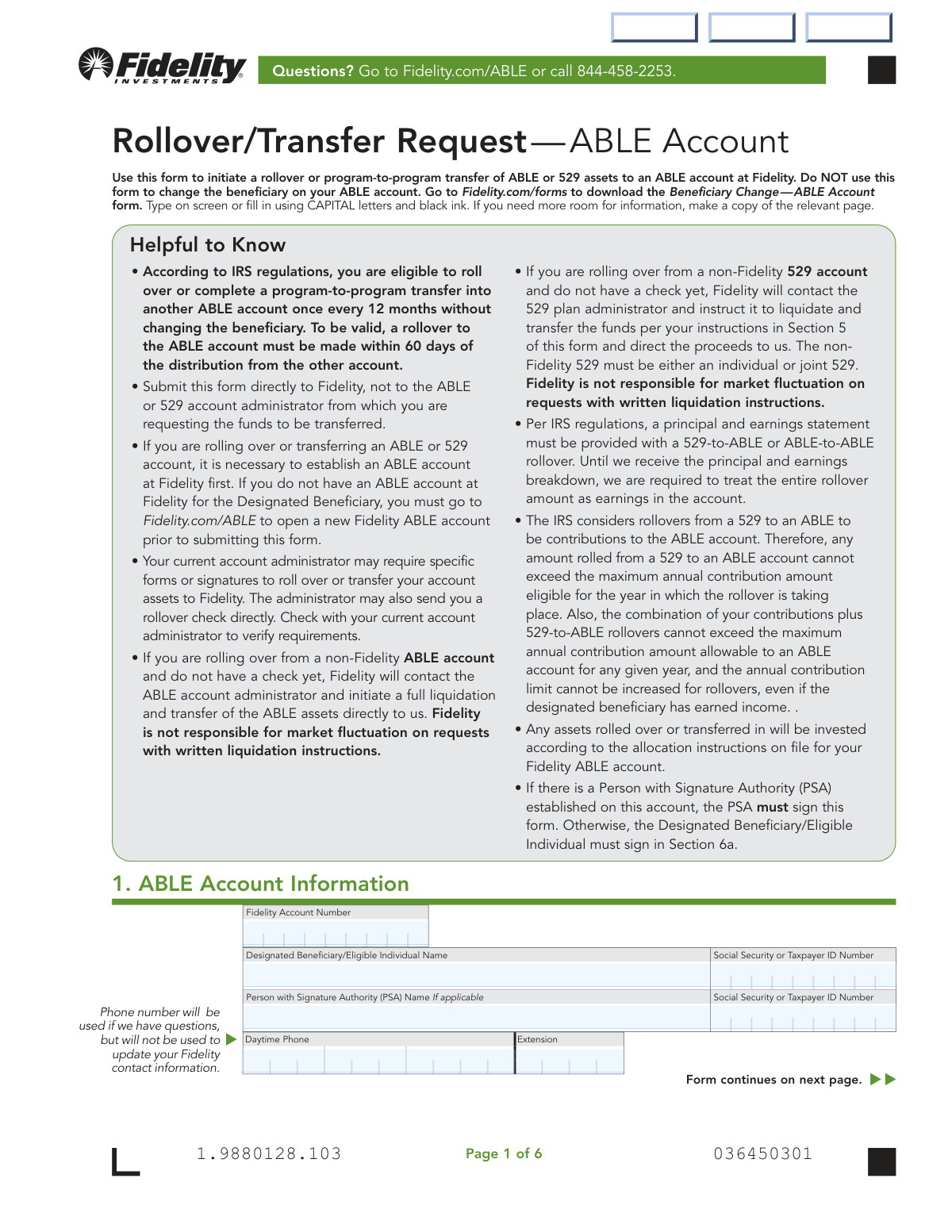
Don't type 76 fields by hand. Tell our AI about yourself, or upload a document you already have, and it fills every field in seconds. You check it, then download, print or sign.
The AI does the filling. You just check it.
No typing into boxes, nothing to install.
What this form asks for
The AI fills all of it, from your answers or your documents.
The AI checks your answers before you download
12 checks built for this form, so a wrong date or a missing answer is caught before anyone else sees it.
This check ensures that only one of the primary transaction sections (Section 2, 3, 4, or 5) is completed on the form. Since a single form can only be used for one type of rollover or transfer, completing multiple sections creates ambiguity. If this validation fails, the form processing will be halted, and the user will be asked to resubmit separate forms for each intended transaction.
This validation verifies that all Social Security Number (SSN) and Taxpayer ID Number (TIN) fields are entered in a valid 9-digit format (e.g., XXX-XX-XXXX or XXXXXXXXX). Correctly formatted identification numbers are essential for tax reporting and identity verification with financial institutions. An invalid format will prevent the system from matching individuals to accounts and will cause the submission to be rejected.
This check validates that the signature in Section 6a is from the correct individual. If a Person with Signature Authority (PSA) is listed in Section 1, that person must sign; otherwise, the Designated Beneficiary must sign. This is critical for ensuring the transaction is properly authorized and legally binding, and failure to comply will result in the rejection of the form.
This validation ensures that if a rollover from a 529 account is requested (Section 4 or 5 is completed), all required 529 account participants have signed in Section 6b. For joint accounts, this may require multiple signatures. Missing signatures from any account participant will render the transfer request invalid and halt the process until all authorizations are obtained.
This check verifies that the 'Fidelity Account Number' provided in Section 1 corresponds to an active and valid Fidelity ABLE account. The form requires an ABLE account to be established before a rollover can be initiated. If the account number is invalid or does not exist, the transfer cannot proceed and the form will be rejected.
This validation compares the Designated Beneficiary's name and SSN/TIN between Section 1 and Section 3 (if completed). The information must match exactly to ensure the program-to-program transfer is directed to the correct beneficiary's account. A mismatch indicates a potential error and will require clarification before the transfer can be processed.
And 6 more checks
- Partial Liquidation Summation Check
- Conditional Joint Participant Information
- Transferring Firm Information Completeness
- Signature Date Validity
- Portfolio Instruction Ambiguity Check
- Conditional Medallion Signature Guarantee
Let AI fill out your Fidelity ABLE Rollover/Transfer Request
No typing. Every field filled in seconds, checked, ready to sign.
How to Fill Out Fidelity ABLE Rollover/Transfer Request Online for Free in 2026
What the AI walks you through.
- Navigate to Instafill.ai and upload or select the Fidelity 'Rollover/Transfer Request — ABLE Account' form.
- Provide your existing Fidelity ABLE Account information in Section 1, including the account number and beneficiary details.
- Select the type of transaction you are performing by completing the appropriate section: Section 2 for a 60-Day Rollover, Section 3 for a program-to-program transfer from another ABLE account, or Sections 4/5 for a rollover from a 529 plan.
- Use the AI tool to accurately input details of the transferring account, including firm names, account numbers, and specific liquidation instructions for full or partial transfers.
- Carefully review all auto-filled information for accuracy, paying close attention to account numbers, dollar amounts, and personal identification details.
- Electronically sign and date the form in Section 6. Ensure all required parties, such as the Person with Signature Authority (PSA) or 529 account participants, provide their signatures.
- Download the completed form and submit it to Fidelity according to the instructions, along with any required documentation like a rollover check or account statements.
Common Mistakes in Completing Fidelity ABLE Rollover/Transfer Request
The ones the AI is built to catch.
Missing or Incorrect Signatures
Using a Notary Instead of a Medallion Signature Guarantee
Submitting Form Before Opening a Fidelity ABLE Account
Requesting a Rollover Exceeding Annual Contribution Limits
Failing to Provide a Principal and Earnings Statement
Completing the Wrong Transfer/Rollover Section
Providing Incomplete Transferring Firm Details
Confusing Beneficiary and PSA Information
Sending the Form to the Wrong Institution
Providing Ambiguous Partial Rollover Instructions
Frequently Asked Questions About Fidelity ABLE Rollover/Transfer Request
Is it really free for 7 days?
Can I fill other forms too?
How do I cancel?
How does the AI fill out Fidelity ABLE Rollover/Transfer Request?
What happens to my information?
How complex is Fidelity ABLE Rollover/Transfer Request to fill out?
What is the purpose of the Rollover/Transfer Request — ABLE Account form?
Who needs to fill out this form?
Where should I send the completed form?
How often can I perform a rollover into my ABLE account?
Do rollovers from a 529 account count towards my annual ABLE contribution limit?
What is a 60-Day Rollover?
What documents are required for a rollover?
Who is required to sign the form in Section 6?
When do I need a Medallion Signature Guarantee?
Can I transfer only a portion of my old 529 account?
Can AI tools help me fill out this form?
How can I fill out this ABLE Rollover form online?
The PDF form I have is not fillable. What should I do?
Get your Fidelity ABLE Rollover/Transfer Request filled out by AI
$0 today. Cancel before Oct 31 and you pay nothing.
Other forms like this one
rollover forms: Fidelity Investments Transfer/Rollover/Exchange Form, Rollover Request — 529 College Savings Plan, Fidelity Investments Transfer/Rollover Form, Fidelity Advisor IRA Distribution Request for Automatic Rollover Accounts, Special Tax Notice: Your Rollover Options - Fidelity Investments, Rollover Contribution Instructions & Application, A Place for Mom 401(k) Plan Request for Rollover Contribution Form, 401(k) Program Rollover Certification, New York State Deferred Compensation Plan Outgoing Rollover, Rollover Valet™ Request Form, Special Tax Notice: Your Rollover Options, New York State Deferred Compensation Plan Direct Rollover to a Roth IRA, WTIA 401(k) Plan Rollover Contribution Employee Certification, Fidelity Plan-to-Plan Direct Rollover Form, Fidelity Distribution—Rollover, Plan-to-Plan Direct Rollover Form, Rollover Valet™ Request Form, Vanguard Direct Rollover IRA Adoption Agreement, The Vanguard 529 College Savings Plan Direct Rollover Out to Roth IRA Form, Your guide to completing a rollover - Vanguard
Fidelity forms: Fidelity Funds Account Transfer of Assets Form, Fidelity Stock Plan Services (SPS) Transfer Request Form, How to Transfer Assets from Morgan Stanley to Fidelity Investments (Fidelity Stock Plan Services Guide), Fidelity Investments Transfer/Rollover/Exchange Form, Fidelity Investments Standing Transfer Instructions Form, Fidelity Charitable 144/145 Contribution Form, One-Time Withdrawal – IRA, Fidelity Investments, Fidelity Investments Transfer/Rollover Form, Fidelity Advisor 403(b) Distribution Request Form, Fidelity Advisor IRA Distribution Request for Automatic Rollover Accounts, Special Tax Notice: Your Rollover Options - Fidelity Investments, Fidelity Charitable Letter of Authorization, Fidelity Advisor Trading Authorization and Indemnification, Fidelity Investment-Only (Non-Prototype) Retirement Account Application, Fidelity NetBenefits Send a Document Form, Fidelity NetBenefits Auditor's Guide: An Overview of Fidelity's 2024 Plan Year Reporting Package, Fidelity NetBenefits Distribution - Recurring Payments, Fidelity Investments® Beneficiary Distribution Form, Fidelity Investments Distribution Form, Fidelity One-Time Withdrawal Form — Nonretirement
ABLE account forms: Transfer of Assets Out - Partial Account or Charitable Gift Transfers, Contribute to a Charitable Gift Account, Rollover/Transfer Request — ABLE Account, Request for a Qualified Charitable Distribution (QCD) from a Brokerage Individual Retirement Account (IRA), Request for qualified charitable distribution from individual retirement account, Request for a Charitable Distribution from an Individual Retirement Account (IRA), Letter of Authorization to Change Account Title to a Grantor Revocable Trust, Individual Retirement Account (IRA) — Qualified Charitable Distribution Form, Vanguard Charitable Open a Philanthropic Account, Form CMS-588, Electronic Funds Transfer (EFT) Authorization Agreement for Accountable Care Organizations, ACORD 145, Accounts Receivable / Valuable Papers
account transfer forms: Fidelity Funds Account Transfer of Assets Form, Group Transfer Form Fidelity Health Savings Account (HSA), Form APP13017-29, Transfer Your Account to Schwab, Transfer of Assets Out - Partial Account or Charitable Gift Transfers, Charles Schwab & Co., Inc. Account Transfer Form, HSA Bank Investment Account Transfer Form, Schwab Health Savings Brokerage Account (HSBA) to HSA Invest Choice Account Transfer Form, Retirement Transfer Between Existing Vanguard Accounts, The Vanguard 529 College Savings Plan Transfer Due to Death of Account Owner Form, Vanguard Brokerage Account CREST Transfer Form, Account Transfer Authorization (ACATS) Form, AbbVie Savings Plan 401(k) Account Transfer Notice, Transfer Between Existing Fidelity Accounts, Rollover/Transfer Request — ABLE Account, TIAA Brokerage Incoming Account Transfer Form, TIAA Brokerage Joint Transfer on Death Account Agreement, TIAA Brokerage Incoming Managed Account Transfer Form (F11319), Health Savings Account (HSA) Transfer Request, Client Account Transfer Form to Merrill Lynch, Pierce, Fenner & Smith Incorporated, Authorization to transfer funds from a bank retirement account
transfer forms: Form REG 227, Application for Replacement or Transfer of Title, City of Harvey Real Estate Transfer Declaration & Application (with Certificate for Exemption), DBPR ABT-6002 – Application for Transfer of Ownership of an Alcoholic Beverage License, DBPR ABT-6002, Division of Alcoholic Beverages and Tobacco Application for Transfer of Ownership of an Alcoholic Beverage License, Request for Transfer of Records (Adelaide Health Care) – AHC-0013-05-PS (Version 2), DBPR Form ABT-6002, Division of Alcoholic Beverages and Tobacco Application for Transfer of Ownership of an Alcoholic Beverage License, Pfändungs- und Überweisungsbeschluss (Garnishment and Transfer Order) – German Civil Enforcement Court Form, Fidelity Funds Account Transfer of Assets Form, Fidelity Stock Plan Services (SPS) Transfer Request Form, How to Transfer Assets from Morgan Stanley to Fidelity Investments (Fidelity Stock Plan Services Guide), Transfer Due to Divorce — IRA/HSA/529, Fidelity Investments Transfer/Rollover/Exchange Form, Fidelity Investments Standing Transfer Instructions Form, Fidelity Investments Transfer/Rollover Form, Group Transfer Form Fidelity Health Savings Account (HSA), Plan–to-Plan Transfer, Plan Exchange, or Service Credit Authorization Form, Beneficiaries — Nonretirement Transfer on Death, Transfer Shares as a Gift — Nonretirement, Form APP13017-29, Transfer Your Account to Schwab, Transfer of Assets Out - Partial Account or Charitable Gift Transfers
transfer request forms: Securities Transfer Request and Notification Form, Request for Transfer of Records (Adelaide Health Care) – AHC-0013-05-PS (Version 2), Fidelity Stock Plan Services (SPS) Transfer Request Form, 401(k) Program Request for Transfer, Vanguard VRPA Transfer Request Form, Oklahoma Pathfinder 457 Plan Incoming Transfer/Rollover Request Governmental 457(b) Plan, Rollover/Transfer Request — ABLE Account, Transamerica Transfer of Ownership Request Form (OWN-CCC 12/13), 1035 Exchange, Rollover or Transfer Request Form - Transamerica, TIAA Trust, N.A. Private Asset Management, Request for a Direct Transfer From IRA Contracts, Form F10983, Request For A Direct Transfer, Health Savings Account (HSA) Transfer Request, FS Form 5511, TreasuryDirect® Transfer Request, Computershare Alternative Investment Product Transfer Request, FS Form 5179, Legacy Treasury Direct Security Transfer Request, J.P. Morgan Securities LLC Account Transfer Request, Form REC-001(R), Request for Transfer or Extension of Time for Retention of Superior Court Records, Notice of Hearing on Request for Transfer or Extension of Time for Retention of Superior Court Records; Court Order; Release and Receipt of Superior Court Records
Let AI fill out your Fidelity ABLE Rollover/Transfer Request
Your trial starts once a card is added. You pay nothing before Oct 31.
Our AI already knows this form, all 76 fields of it. Skip the typing: tell it about yourself, or upload what you have, and it fills the whole form in seconds.
- AI fills every field on all 6 pages, checkboxes included
- No typing into boxes: answer a few questions, or upload a document you already have, an old copy of this form, a photo of a document
- The AI checks the answers; you review and change anything before you download
- Download the finished PDF, print it, or sign it online
- Encrypted, and never used to train AI
Cancel before Oct 31 and you pay nothing.
A card is needed to start the trial. Cancel in two clicks from your account.
Terms · Privacy