Yes! You can use AI to fill out Fidelity Investments Transfer/Rollover/Exchange Form
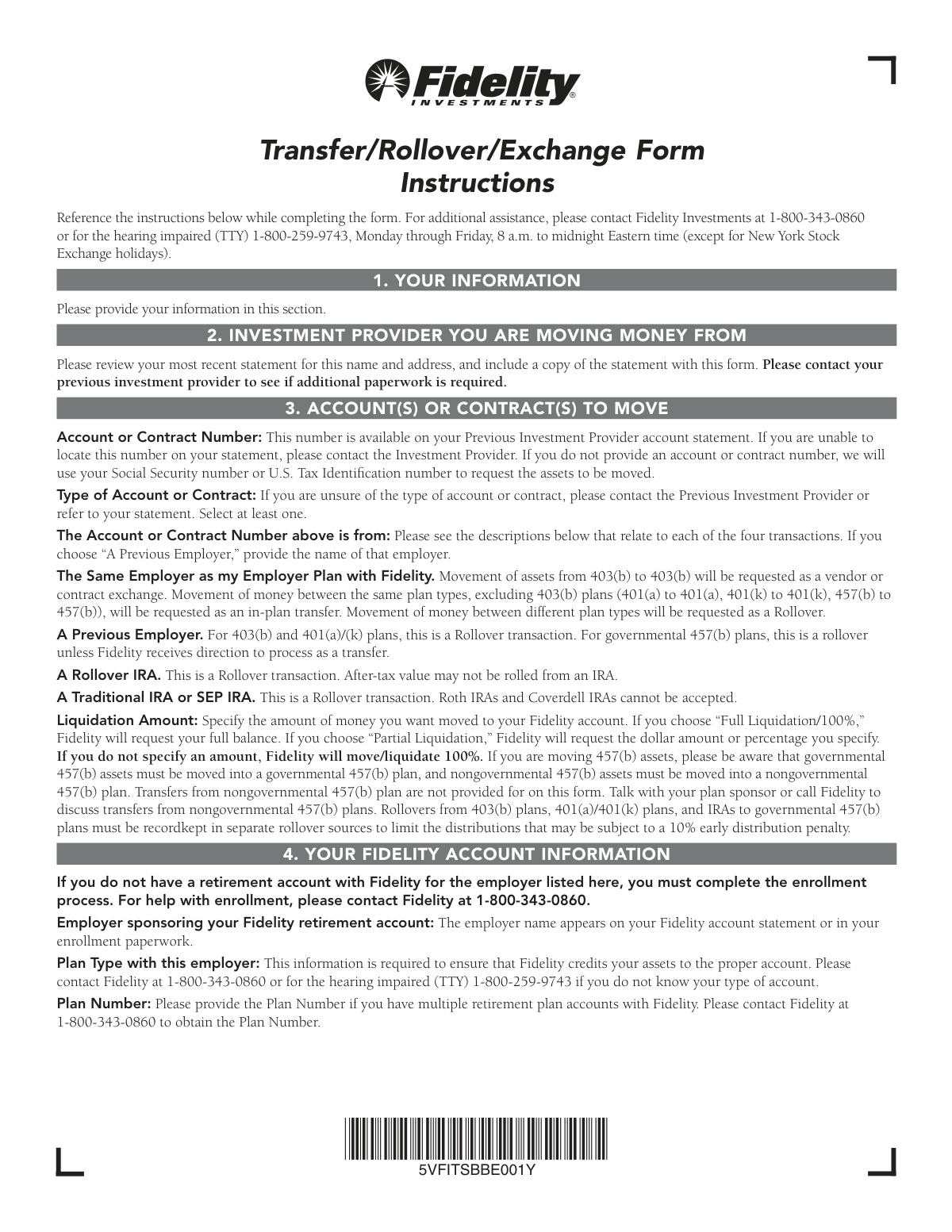
The Fidelity Transfer/Rollover/Exchange Form is an official document that allows individuals to transfer, roll over, or exchange retirement plan assets—such as 403(b), 401(a)/(k), 457(b), or IRA accounts—from a previous investment provider into a Fidelity employer-sponsored retirement account. It is a critical form for consolidating retirement savings, ensuring assets are properly credited to the correct plan type, and complying with IRS rules governing rollovers and transfers. Completing this form accurately is essential to avoid delays, tax complications, or misdirected funds. Today, this form can be filled out quickly and accurately using AI-powered services like Instafill.ai, which can also convert non-fillable PDF versions into interactive fillable forms.
Fidelity Transfer/Rollover/Exchange Form is part of the
investment forms, rollover forms, investment transfer forms, Fidelity forms, transfer forms and UK investment forms categories on Instafill.
Rather not fill this in by hand? Instafill is an online form filler that completes PDF forms automatically — upload the blank form, answer a few questions, and the AI fills every field.
Form specifications
| Form name: | Fidelity Investments Transfer/Rollover/Exchange Form |
| Number of pages: | 1 |
| Field instructions: | Fidelity Transfer/Rollover/Exchange Form Instructions |
| Filled form examples: | Fidelity Transfer/Rollover/Exchange Form Examples |
| Language: | English |
Our AI automatically handles information lookup, data retrieval, formatting, and form filling.
It takes less than a minute to fill out Fidelity Transfer/Rollover/Exchange Form using our AI form filling.
Securely upload your data. Information is encrypted in transit and deleted immediately after the form is filled out.
Instafill Demo: How to fill out PDF forms in seconds with AI
How to Fill Out Fidelity Transfer/Rollover/Exchange Form Online for Free in 2026
Are you looking to fill out a FIDELITY TRANSFER/ROLLOVER/EXCHANGE FORM form online quickly and accurately? Instafill.ai offers the #1 AI-powered PDF filling software of 2026, allowing you to complete your FIDELITY TRANSFER/ROLLOVER/EXCHANGE FORM form in just 37 seconds or less.
Follow these steps to fill out your FIDELITY TRANSFER/ROLLOVER/EXCHANGE FORM form online using Instafill.ai:
- 1 Navigate to Instafill.ai and upload the Fidelity Transfer/Rollover/Exchange Form PDF or select it from the available form library to begin filling it out online.
- 2 Complete Section 1 (Your Information) by entering your Social Security number, date of birth, full name, mailing address, phone numbers, and email address.
- 3 Fill in Section 2 (Investment Provider You Are Moving Money From) with the name, address, and phone number of your previous investment provider, and attach a copy of your most recent account statement.
- 4 Complete Section 3 (Account(s) or Contract(s) to Move) by providing your account or contract number, selecting the account type (403(b), 401(a)/(k), 457(b), or IRA), indicating the source of the account, and specifying the liquidation amount (full or partial).
- 5 Enter your Fidelity account details in Section 4, including the name of the employer sponsoring your Fidelity retirement account, the plan type, and the plan number if applicable.
- 6 Specify your investment instructions in Section 5 by either confirming your current investment selection or listing the fund names, fund codes, and percentages for how you want your assets allocated.
- 7 Obtain the required Employer Authorized Signature in Section 6 (if applicable), sign and date Section 7 (Your Signature), and submit the completed form to Fidelity via the postage-paid envelope or overnight delivery address provided.
Our AI-powered system ensures each field is filled out correctly, reducing errors and saving you time.
Why Choose Instafill.ai for Your Fillable Fidelity Transfer/Rollover/Exchange Form Form?
Speed
Complete your Fidelity Transfer/Rollover/Exchange Form in as little as 37 seconds.
Up-to-Date
Always use the latest 2026 Fidelity Transfer/Rollover/Exchange Form form version.
Cost-effective
No need to hire expensive lawyers.
Accuracy
Our AI performs 10 compliance checks to ensure your form is error-free.
Security
Your personal information is protected with bank-level encryption.
Frequently Asked Questions About Fidelity Transfer/Rollover/Exchange Form
This form is used to move retirement assets to your Fidelity employer-sponsored retirement account from a previous investment provider. You can also use it to consolidate multiple employer-sponsored retirement accounts currently held at Fidelity.
Anyone who wants to transfer, roll over, or exchange retirement assets from a previous investment provider (such as VALIC, TIAA-CREF, Vanguard, ING, or Lincoln) into a Fidelity employer-sponsored retirement account needs to complete this form. If you don't yet have a Fidelity retirement account, you must also complete an Account Application/Enrollment Form or enroll online at www.mysavingsatwork.com.
You must include a copy of your most recent account statement from your previous investment provider. Additionally, contact your previous investment provider to find out if any additional paperwork is required on their end before the transfer can be processed.
No, you must use a separate form for each investment provider you are moving money from. However, the form does allow you to move up to two accounts or contracts from the same provider by completing both Section 3A and Section 3B.
This form supports transfers and rollovers from 403(b), 401(a)/(k), governmental 457(b), Rollover IRA, Traditional IRA, and SEP IRA accounts. Note that Roth IRAs, Coverdell IRAs, and nongovernmental 457(b) plans cannot be processed using this form.
An employer authorized signature may be required depending on your plan. To verify whether Section 6 needs to be signed, contact your Human Resources office or call Fidelity at 1-800-343-0860. The form cannot be fully processed without all required signatures.
If you do not specify a liquidation amount, Fidelity will default to moving 100% of your account balance from the previous investment provider. You can choose either a full liquidation (100%) or a partial liquidation by specifying a dollar amount or percentage.
If your investment instructions are incomplete, unclear, or the percentages exceed 100%, your entire contribution will be defaulted to the investment option specified in the agreement currently in place with Fidelity for your Plan. Make sure all fund percentages total exactly 100% to avoid this default.
Yes, AI-powered services like Instafill.ai can help you accurately auto-fill this form, saving you time and reducing the risk of errors. These tools guide you through each section and ensure all required fields are completed correctly before submission.
You can upload the Transfer/Rollover/Exchange Form PDF to Instafill.ai, and the AI will automatically populate the fields with your information. Simply review the pre-filled form, make any necessary corrections, and then print or download it for submission to Fidelity.
If you have a flat, non-fillable PDF version of this form, Instafill.ai can convert it into an interactive fillable form so you can type your information directly into the fields. This eliminates the need to print and handwrite your responses.
You can return the form using the enclosed postage-paid envelope to Fidelity Investments, P.O. Box 770002, Cincinnati, OH 45277-0090. For overnight delivery, send it to Fidelity Investments, 100 Crosby Parkway, Mailzone KC1E, Covington, KY 41015. Unless your employer instructs otherwise, do not send it directly to your HR office.
Governmental 457(b) assets must be moved into a governmental 457(b) plan, and nongovernmental 457(b) assets must be moved into a nongovernmental 457(b) plan. Transfers from nongovernmental 457(b) plans are not supported by this form — contact your plan sponsor or Fidelity directly to handle those.
When exchanging from a 403(b)(1) annuity to a 403(b)(7) custodial account, your withdrawal options may become more restrictive. Additionally, if you exchange a contribution source not allowed by the Plan, the value associated with that source will be returned to your previous investment provider.
You can contact Fidelity Investments at 1-800-343-0860, Monday through Friday, 8 a.m. to midnight Eastern time (except New York Stock Exchange holidays). For the hearing impaired, the TTY number is 1-800-259-9743.
Compliance Fidelity Transfer/Rollover/Exchange Form
Validation Checks by Instafill.ai
1
Social Security Number Format and Completeness Validation
Validates that the Social Security Number (SSN) provided in Section 1 is exactly 9 digits, follows the standard XXX-XX-XXXX format, and contains no letters or special characters beyond the expected dashes. This field is critical because the SSN is used as a fallback identifier to request asset transfers when no account or contract number is provided, and is also certified under penalty of perjury in Section 7. If the SSN is missing, malformed, or contains invalid characters, the form cannot be processed and the transfer request will be delayed or rejected.
2
Date of Birth Format and Logical Range Validation
Validates that the Date of Birth in Section 1 is provided in a recognizable date format (MM/DD/YYYY), contains a valid calendar date, and falls within a logical range for a retirement plan participant (e.g., the applicant must be at least 18 years old and no older than 120 years). The date of birth is essential for identity verification and for determining eligibility for certain plan distributions, including whether early withdrawal penalties may apply. An invalid or missing date of birth may cause processing delays or misidentification of the account holder.
3
Required Personal Information Completeness Check
Validates that all required personal information fields in Section 1 are populated, including First Name, Last Name, Mailing Address, City, State, Zip Code, and at least one phone number (Daytime or Evening). These fields are necessary to identify the account holder, communicate about the transfer, and deliver any correspondence related to the transaction. If any of these required fields are blank, the form is considered incomplete and processing will be delayed until the missing information is obtained.
4
Zip Code Format Validation for Participant and Provider Addresses
Validates that all Zip Code fields — both in Section 1 (participant's mailing address) and Section 2 (investment provider's address) — contain exactly 5 numeric digits, or optionally a valid ZIP+4 format (XXXXX-XXXX). Incorrect or incomplete zip codes can result in misdirected mail, failed correspondence, and inability to contact the previous investment provider. If a zip code is missing or improperly formatted, the form should be flagged for correction before submission.
5
Previous Investment Provider Name and Address Completeness Validation
Validates that Section 2 is fully completed, including the Name of the investment provider, Street Address, City, State, Zip Code, and Provider Phone Number. This information is required for Fidelity to contact the previous provider and initiate the transfer or rollover request. If the provider's name or contact information is missing or incomplete, Fidelity cannot process the request, and the form instructions explicitly require a copy of the most recent account statement to accompany the form as supporting documentation.
6
Account or Contract Number Presence and Format Validation
Validates that at least one Account or Contract Number is provided in Section 3A, and if a second account is being moved, that Section 3B also contains a valid account or contract number. While the instructions note that the SSN may be used as a fallback, the account number is the preferred and most reliable identifier for initiating the transfer. If no account number is provided and no SSN is present, the form cannot be processed, and the absence of an account number should trigger a warning prompting the user to verify with their previous provider.
7
Account Type Selection Validation (At Least One Must Be Selected)
Validates that exactly one account or contract type is selected for each account listed in Sections 3A and 3B, choosing from 403(b), 401(a)/(k), 457(b) governmental, or IRA. The account type directly determines how the transaction will be classified and processed (e.g., vendor exchange, in-plan transfer, or rollover), and selecting the wrong type or leaving it blank can result in incorrect tax treatment or processing errors. If no type is selected, the form is incomplete and must be returned for correction.
8
Transaction Source Selection Completeness and Previous Employer Name Validation
Validates that one transaction source is selected for each account in Sections 3A and 3B (Same Employer, Previous Employer, Rollover IRA, or Traditional/SEP IRA), and that if 'A Previous Employer' is selected, the Previous Employer Name field is populated with a non-blank value. The source selection determines the transaction type and applicable IRS rules, and the employer name is required to properly route and document the rollover. If 'A Previous Employer' is selected but no employer name is provided, the form is incomplete and processing will be delayed.
9
Liquidation Amount Specification and Partial Amount Validity Check
Validates that a liquidation amount selection is made for each account in Sections 3A and 3B — either 'Full Liquidation/100%' or 'Partial Liquidation' — and that if 'Partial Liquidation' is chosen, either a valid percentage (between 1% and 99%) or a positive dollar amount greater than zero is provided, but not both simultaneously. Leaving the liquidation amount unspecified defaults to 100%, which may not reflect the participant's intent, and an invalid partial amount (e.g., 0%, negative value, or non-numeric entry) would prevent accurate processing of the transfer request.
10
457(b) Asset Compatibility and Plan Type Matching Validation
Validates that when a 457(b) governmental account type is selected in Section 3, the corresponding Fidelity destination plan type in Section 4 is also 457(b) governmental, ensuring compliance with the rule that governmental 457(b) assets must be moved into a governmental 457(b) plan and nongovernmental 457(b) assets must be moved into a nongovernmental 457(b) plan. Mismatching plan types for 457(b) assets can result in prohibited transactions, tax penalties, and regulatory violations. If a mismatch is detected, the form should be flagged and the participant directed to contact Fidelity for guidance.
11
Fidelity Employer Name and Plan Type Completeness Validation
Validates that Section 4 contains the full name of the employer sponsoring the Fidelity retirement account, the City and State of the employer, the employment status (Yes/No), and the applicable plan type (403(b), 401(a)/(k), or 457(b) governmental) for each account being transferred. This information is required to ensure assets are credited to the correct Fidelity account and plan. Missing or incomplete employer information will prevent Fidelity from identifying the destination account and will result in processing delays.
12
Investment Instructions Completeness and Percentage Total Validation
Validates that if the participant does not select 'Yes' for using their current investment selection in Section 5, at least one Fund Name is provided and the sum of all listed investment percentages equals exactly 100%. Percentages that total less than or more than 100% will cause the entire contribution to be defaulted to the plan's default investment option, which may not align with the participant's intentions. Each individual percentage entry should also be validated as a positive numeric value, and fund codes, if provided, should be exactly four digits.
13
Roth Balance Inclusion Consistency Check
Validates that if the 'Include Roth 403(b) balance' or 'Include Roth 401(k) balance' checkbox is selected, the corresponding account type selected is 403(b) or 401(a)/(k) respectively, since Roth balances are only applicable to these plan types. Additionally, the form instructions note that Roth IRAs and Coverdell IRAs cannot be accepted, so if an IRA account type is selected, no Roth inclusion option should be checked. Inconsistent Roth selections could result in incorrect tax treatment of the transferred funds or rejection of the transfer by the receiving plan.
14
Participant Signature and Date Presence Validation
Validates that Section 7 contains a participant signature and a corresponding signature date, as the form explicitly states it cannot be processed without the participant's signature. The signature date should be in a valid date format (MM/DD/YYYY), must not be a future date, and should be reasonably recent (e.g., within the past 180 days) to ensure the form reflects the participant's current intent. A missing signature, missing date, or a date that is in the future or excessively old should cause the form to be flagged as incomplete or potentially stale.
15
Employer Authorized Signature and Date Validation When Required
Validates that if an Employer Authorized Signature is required (as determined by the employer's plan requirements noted in Section 6), both the authorized signature and the corresponding date are present, and that the Employer Authorized Printed Name field is also completed. An unsigned or undated employer authorization section when required will render the form incomplete and prevent processing. The date on the employer signature should also be validated as a real calendar date in a standard format and should not postdate the participant's own signature date.
16
Separate Form Requirement for Multiple Investment Providers Validation
Validates that the form contains information for only one previous investment provider in Section 2, as the instructions explicitly state that a separate form must be used for each investment provider. If fields suggest multiple providers are being listed on a single form (e.g., conflicting provider names or addresses), the submission should be flagged and the participant directed to complete additional forms. Combining multiple providers on one form can lead to processing errors, misdirected transfer requests, and delays in crediting assets to the correct Fidelity account.
Common Mistakes in Completing Fidelity Transfer/Rollover/Exchange Form
People often transpose digits, leave fields partially blank, or forget to include their SSN entirely when completing Section 1. Since the SSN is used to verify identity and, if no account/contract number is provided, to request the asset transfer, an error here can cause significant processing delays or misdirected funds. Always double-check your SSN against your Social Security card before submitting. Tools like Instafill.ai can auto-populate and validate your SSN format to prevent transcription errors.
One of the most common reasons this form is returned unprocessed is the absence of the required account statement from the previous investment provider. The statement is needed to verify account details, provider address, and balances. Many people overlook this requirement because it is mentioned in the instructions rather than on the form itself. Always attach a copy of your most recent statement before submitting the form, as noted in the checklist.
People frequently enter a nickname, abbreviation, or outdated name for their previous investment provider instead of the exact legal name and full mailing address as it appears on their account statement. An incorrect provider name or address can result in Fidelity being unable to contact the provider to initiate the transfer. Always copy the provider's name and address directly from your most recent account statement, and include the provider's phone number and extension if available.
Choosing the incorrect account type (e.g., selecting 401(k) instead of 403(b), or confusing a governmental 457(b) with a nongovernmental 457(b)) is a frequent mistake that directly affects how the transaction is processed and whether it is treated as a rollover, in-plan transfer, or vendor exchange. This error can result in tax complications or the transfer being rejected. If you are unsure of your account type, contact your previous investment provider or review your account statement before completing this section.
Many people select the wrong source box in Section 3, such as checking 'The Same Employer' when the assets are actually from a previous employer, or vice versa. This selection dictates how Fidelity processes the transaction—as a rollover, in-plan transfer, or vendor/contract exchange—and an incorrect choice can trigger unintended tax consequences or cause the request to be rejected. Carefully read the descriptions for each option in the instructions and match them to your specific situation before making a selection.
When the 'A Previous Employer' box is checked in Section 3, the form requires the name of that employer to be written in the designated field. People frequently check the box but leave the employer name blank, which can delay or prevent processing. This is especially common when people are in a hurry or overlook the sub-field beneath the checkbox. Always ensure that if you select 'A Previous Employer,' you fill in the full name of that employer in the space provided.
Some people leave the liquidation amount blank, enter both a percentage and a dollar amount, or specify a partial amount without clearly indicating whether it is a percentage or dollar figure. If no amount is specified, Fidelity defaults to a full 100% liquidation, which may not be the user's intent. For partial liquidations, clearly mark either the percentage or the dollar amount—not both—and ensure the value is legible. AI-powered tools like Instafill.ai can help ensure this field is completed correctly and unambiguously.
A very common error in Section 5 is listing fund allocations that add up to more or less than 100%, or leaving the investment instructions blank when 'Yes' for current investment selection was not checked. If percentages exceed 100% or are incomplete, the entire amount is defaulted to the plan's default investment option, which may not align with the investor's goals. Carefully add up all percentages before submitting, and if you are unsure of fund codes, leave that field blank rather than guessing.
This form explicitly does not support rollovers from Roth IRAs, Coverdell IRAs, or transfers from nongovernmental 457(b) plans, yet people frequently attempt to use it for these account types. Submitting the form for an ineligible account type will result in the request being rejected and cause delays. If you have one of these account types, contact Fidelity directly at 1-800-343-0860 to determine the correct process and paperwork required.
Many people submit the form without obtaining the required employer authorized signature in Section 6, not realizing it may be mandatory depending on their plan. This is one of the most common reasons forms are returned unprocessed. The instructions advise contacting your Human Resources office or Fidelity to verify whether this signature is required before submitting. Always check this requirement in advance to avoid delays, especially since obtaining an authorized signature can take additional time.
The form explicitly states it cannot be processed without the applicant's signature in Section 7, yet people frequently forget to sign, date, or both. This is especially common when the form is filled out digitally and printed, as the signature step may be overlooked. Always review the completed form before mailing to confirm that Section 7 contains both your original signature and the current date. Instafill.ai can flag unsigned or undated signature fields before submission.
The instructions clearly state that a separate form must be used for each investment provider, but people often try to list multiple providers on a single form or attach additional pages. This causes processing errors because each provider requires its own transfer request. If you are consolidating accounts from more than one provider, complete and submit a separate Transfer/Rollover/Exchange Form for each one, and include the corresponding account statement for each provider.
Saved over 80 hours a year
“I was never sure if my IRS forms like W-9 were filled correctly. Now, I can complete the forms accurately without any external help.”
Kevin Martin Green
Your data stays secure with advanced protection from Instafill and our subprocessors




Robust compliance program
Transparent business model
You’re not the product. You always know where your data is and what it is processed for.
ISO 27001, HIPAA, and GDPR
Our subprocesses adhere to multiple compliance standards, including but not limited to ISO 27001, HIPAA, and GDPR.
Security & privacy by design
We consider security and privacy from the initial design phase of any new service or functionality. It’s not an afterthought, it’s built-in, including support for two-factor authentication (2FA) to further protect your account.
Fill out Fidelity Transfer/Rollover/Exchange Form with Instafill.ai
Worried about filling PDFs wrong? Instafill securely fills fidelity-investments-transferrolloverexchange-form-1 forms, ensuring each field is accurate.
