
Yes! You can use AI to fill out Fidelity Transfer/Rollover/Exchange Form
Don't type 89 fields by hand. Tell our AI about yourself, or upload a document you already have, and it fills every field in seconds. You check it, then download, print or sign.
The AI does the filling. You just check it.
No typing into boxes, nothing to install.
What this form asks for
The AI fills all of it, from your answers or your documents.
The AI checks your answers before you download
12 checks built for this form, so a wrong date or a missing answer is caught before anyone else sees it.
This check ensures the Social Security Number or Tax ID Number field contains exactly 9 digits and no other characters. This number is the primary identifier for the individual for tax reporting and account matching. If the format is incorrect, the system cannot process the request, and it will be rejected pending correction.
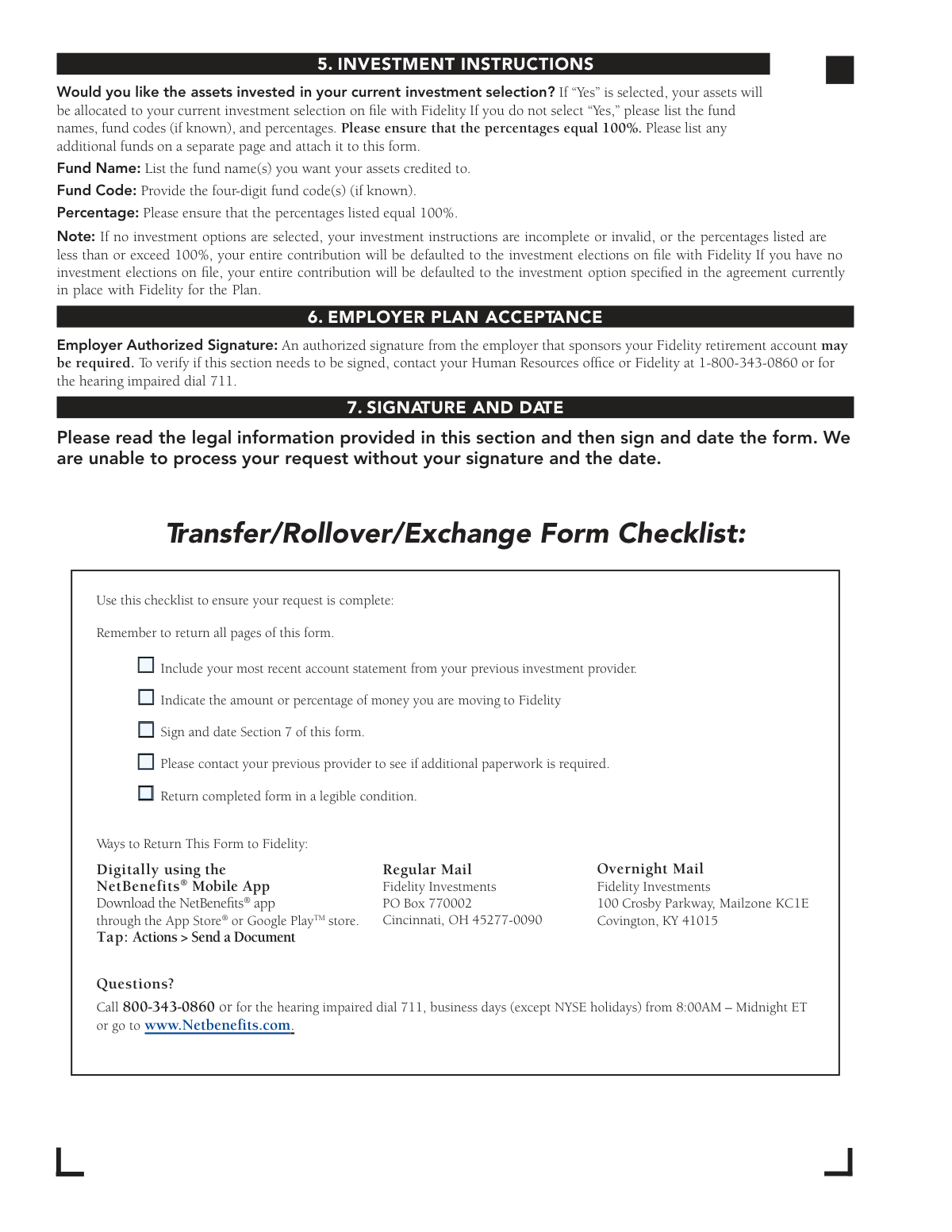
This validation verifies that the signature and date fields in Section 7 have been filled out. The user's signature provides legal authorization for Fidelity to act on their behalf, and the date establishes when the authorization was given. The form explicitly states that the request cannot be processed without a signature and date.
If the user selects 'No' for using current investment selections in Section 5, this check ensures the sum of all specified fund percentages equals exactly 100%. This is critical for allocating the entire transferred amount without ambiguity. If the total is not 100% or the instructions are incomplete, the form states the funds will be defaulted to the elections on file, overriding the user's specific but incomplete instructions.
This check is triggered if the user selects 'A Previous Employer' in Section 3. It verifies that the 'Previous Employer Name' field has been filled out. This information is necessary for the rollover process to correctly identify the source plan. Failure to provide the name will result in an incomplete request and processing delays until the information is supplied.
When 'Partial Liquidation' is selected in Section 3, this validation verifies that either a percentage OR a dollar amount is entered, but not both. This prevents ambiguity in the liquidation instruction. If the 'Partial Liquidation' box is checked but no amount or percentage is specified, the request is considered incomplete and may be rejected or delayed.
This validation confirms that for each account being moved (Section 3A and 3B), at least one 'Type' checkbox (e.g., 403(b), 401(a)/(k), IRA) has been selected. This information is fundamental for determining the nature of the transfer and ensuring compliance with IRS rules. Without an account type, Fidelity cannot correctly process the transaction.
And 6 more checks
- Validates Roth Balance Selection Consistency
- Cross-Validates Source and Destination Plan Type Compatibility
- Ensures Fidelity Account Information is Provided for Second Account
- Validates Completeness of Previous Investment Provider Information
- Ensures Date of Birth is a Valid and Reasonable Date
- Validates Email Address Format
Let AI fill out your 022380001
No typing. Every field filled in seconds, checked, ready to sign.
How to Fill Out 022380001 Online for Free in 2026
What the AI walks you through.
- Navigate to Instafill.ai and upload the Fidelity Transfer/Rollover/Exchange Form or select it from their template library.
- Use the AI assistant to accurately fill in your personal details in Section 1, including your name, address, and Social Security Number.
- Provide information about the investment provider you are moving money from (Section 2) and specify the account(s) or contract(s) to be moved, including account numbers and liquidation amounts (Section 3).
- Enter your Fidelity account information in Section 4, specifying the employer-sponsored plan that will receive the assets.
- Complete Section 5 by providing investment instructions for the transferred assets, either by selecting your current allocation or specifying new funds and percentages.
- If required by your plan, obtain an authorized signature from your employer in Section 6.
- Carefully review all entered information, then digitally sign and date the form in Section 7 before submitting it to Fidelity as per the instructions.
Common Mistakes in Completing 022380001
The ones the AI is built to catch.
Forgetting to Include the Previous Provider's Account Statement
Entering Incomplete or Incorrect 'From' Provider Details
Confusing Account Types and Transaction Rules in Section 3
Providing Ambiguous or Incomplete Liquidation Instructions
Entering Incorrect Destination Fidelity Plan Information
Submitting Investment Instructions That Don't Total 100%
Skipping the Required Employer Plan Acceptance Signature
Forgetting to Sign and Date the Form in Section 7
Submitting the Form Without an Active Fidelity Account
Using Illegible Handwriting or an Incorrect Pen
Frequently Asked Questions About 022380001
Is it really free for 7 days?
Can I fill other forms too?
How do I cancel?
How does the AI fill out 022380001?
What happens to my information?
How complex is 022380001 to fill out?
What is the purpose of the Fidelity Transfer/Rollover/Exchange Form?
Who needs to fill out this form?
What documents do I need to submit with this form?
What if I can't find my old account number for Section 3?
What happens if I don't specify a liquidation amount in Section 3?
Does my employer need to sign this form in Section 6?
How do I submit the completed form?
What if I don't have a Fidelity retirement account with my employer yet?
What should I do if I don't fill out the Investment Instructions in Section 5?
I'm moving money from two different companies. Can I use one form?
Can AI tools help me fill out this form?
How can I use Instafill.ai to fill this form online?
The PDF form I have is not fillable. What can I do?
Get your 022380001 filled out by AI
$0 today. Cancel before Oct 31 and you pay nothing.
Other forms like this one
investment forms: Form 3468, Investment Credit, Form 8960, Net Investment Income Tax, How to Transfer Assets from Morgan Stanley to Fidelity Investments (Fidelity Stock Plan Services Guide), Fidelity Investments Transfer/Rollover/Exchange Form, Fidelity Investments Standing Transfer Instructions Form, One-Time Withdrawal – IRA, Fidelity Investments, Fidelity Investments Transfer/Rollover Form, Special Tax Notice: Your Rollover Options - Fidelity Investments, Fidelity Investment-Only (Non-Prototype) Retirement Account Application, Fidelity Investments® Beneficiary Distribution Form, Fidelity Investments Distribution Form, One-Time Withdrawal – Investment-Only (Non-Prototype) Retirement Account, Fidelity Investments Withdrawal — One-Time, Fidelity Investments Withdrawals—529 College Savings Plan, Fidelity Investments Change of Account Ownership — Mutual Fund Only Accounts, Fidelity Investments 403(b) Beneficiary Designation, Fidelity Investments Qualified Plan Beneficiary Designation, Fidelity Investments 403(b)/401(a) Beneficiary Designation, Fidelity Investments Qualified Plan Beneficiary Designation, Fidelity Investments Earnings Automatic Withdrawal Plan — IRA
rollover forms: Fidelity Investments Transfer/Rollover/Exchange Form, Rollover Request — 529 College Savings Plan, Fidelity Investments Transfer/Rollover Form, Fidelity Advisor IRA Distribution Request for Automatic Rollover Accounts, Special Tax Notice: Your Rollover Options - Fidelity Investments, Rollover Contribution Instructions & Application, A Place for Mom 401(k) Plan Request for Rollover Contribution Form, 401(k) Program Rollover Certification, New York State Deferred Compensation Plan Outgoing Rollover, Rollover Valet™ Request Form, Special Tax Notice: Your Rollover Options, New York State Deferred Compensation Plan Direct Rollover to a Roth IRA, WTIA 401(k) Plan Rollover Contribution Employee Certification, Fidelity Plan-to-Plan Direct Rollover Form, Fidelity Distribution—Rollover, Plan-to-Plan Direct Rollover Form, Rollover/Transfer Request — ABLE Account, Rollover Valet™ Request Form, Vanguard Direct Rollover IRA Adoption Agreement, The Vanguard 529 College Savings Plan Direct Rollover Out to Roth IRA Form
investment transfer forms: How to Transfer Assets from Morgan Stanley to Fidelity Investments (Fidelity Stock Plan Services Guide), Fidelity Investments Transfer/Rollover/Exchange Form, Fidelity Investments Standing Transfer Instructions Form, Fidelity Investments Transfer/Rollover Form, HSA Bank Investment Account Transfer Form, TIAA 1035 Exchange Authorization to Alternate Investment Company Transfer Payout Annuity for ATRA, U.S. Bancorp Investments Account Transfer Form, Computershare Alternative Investment Product Transfer Request, Pershing LLC Account Transfer Form, Thrivent Funds Transfer of Assets, Form MF11502, Electronic Funds Transfer (EFT) Authorization, Fidelity Transfer/Rollover/Exchange Form
Fidelity forms: Fidelity Funds Account Transfer of Assets Form, Fidelity Stock Plan Services (SPS) Transfer Request Form, How to Transfer Assets from Morgan Stanley to Fidelity Investments (Fidelity Stock Plan Services Guide), Fidelity Investments Transfer/Rollover/Exchange Form, Fidelity Investments Standing Transfer Instructions Form, Fidelity Charitable 144/145 Contribution Form, One-Time Withdrawal – IRA, Fidelity Investments, Fidelity Investments Transfer/Rollover Form, Fidelity Advisor 403(b) Distribution Request Form, Fidelity Advisor IRA Distribution Request for Automatic Rollover Accounts, Special Tax Notice: Your Rollover Options - Fidelity Investments, Fidelity Charitable Letter of Authorization, Fidelity Advisor Trading Authorization and Indemnification, Fidelity Investment-Only (Non-Prototype) Retirement Account Application, Fidelity NetBenefits Send a Document Form, Fidelity NetBenefits Auditor's Guide: An Overview of Fidelity's 2024 Plan Year Reporting Package, Fidelity NetBenefits Distribution - Recurring Payments, Fidelity Investments® Beneficiary Distribution Form, Fidelity Investments Distribution Form, Fidelity One-Time Withdrawal Form — Nonretirement
transfer forms: Form REG 227, Application for Replacement or Transfer of Title, City of Harvey Real Estate Transfer Declaration & Application (with Certificate for Exemption), DBPR ABT-6002 – Application for Transfer of Ownership of an Alcoholic Beverage License, DBPR ABT-6002, Division of Alcoholic Beverages and Tobacco Application for Transfer of Ownership of an Alcoholic Beverage License, Request for Transfer of Records (Adelaide Health Care) – AHC-0013-05-PS (Version 2), DBPR Form ABT-6002, Division of Alcoholic Beverages and Tobacco Application for Transfer of Ownership of an Alcoholic Beverage License, Pfändungs- und Überweisungsbeschluss (Garnishment and Transfer Order) – German Civil Enforcement Court Form, Fidelity Funds Account Transfer of Assets Form, Fidelity Stock Plan Services (SPS) Transfer Request Form, How to Transfer Assets from Morgan Stanley to Fidelity Investments (Fidelity Stock Plan Services Guide), Transfer Due to Divorce — IRA/HSA/529, Fidelity Investments Transfer/Rollover/Exchange Form, Fidelity Investments Standing Transfer Instructions Form, Fidelity Investments Transfer/Rollover Form, Group Transfer Form Fidelity Health Savings Account (HSA), Plan–to-Plan Transfer, Plan Exchange, or Service Credit Authorization Form, Beneficiaries — Nonretirement Transfer on Death, Transfer Shares as a Gift — Nonretirement, Form APP13017-29, Transfer Your Account to Schwab, Transfer of Assets Out - Partial Account or Charitable Gift Transfers
UK investment forms: Triple Point Venture VCT plc | Investor Application Form, Form 3468, Investment Credit, Form 8960, Net Investment Income Tax, How to Transfer Assets from Morgan Stanley to Fidelity Investments (Fidelity Stock Plan Services Guide), Fidelity Investments Transfer/Rollover/Exchange Form, Fidelity Investments Standing Transfer Instructions Form, One-Time Withdrawal – IRA, Fidelity Investments, Fidelity Investments Transfer/Rollover Form, Special Tax Notice: Your Rollover Options - Fidelity Investments, Fidelity Investment-Only (Non-Prototype) Retirement Account Application, Fidelity Investments® Beneficiary Distribution Form, Fidelity Investments Distribution Form, One-Time Withdrawal – Investment-Only (Non-Prototype) Retirement Account, Fidelity Investments Withdrawal — One-Time, Fidelity Investments Withdrawals—529 College Savings Plan, Fidelity Investments Change of Account Ownership — Mutual Fund Only Accounts, Fidelity Investments 403(b) Beneficiary Designation, Fidelity Investments Qualified Plan Beneficiary Designation, Fidelity Investments 403(b)/401(a) Beneficiary Designation, Fidelity Investments Qualified Plan Beneficiary Designation
Let AI fill out your 022380001
Your trial starts once a card is added. You pay nothing before Oct 31.
Our AI already knows this form, all 89 fields of it. Skip the typing: tell it about yourself, or upload what you have, and it fills the whole form in seconds.
- AI fills every field on all 6 pages, checkboxes included
- No typing into boxes: answer a few questions, or upload a document you already have, an old copy of this form, a photo of a document
- The AI checks the answers; you review and change anything before you download
- Download the finished PDF, print it, or sign it online
- Encrypted, and never used to train AI
Cancel before Oct 31 and you pay nothing.
A card is needed to start the trial. Cancel in two clicks from your account.
Terms · Privacy