Yes! You can use AI to fill out HMRC Tax Information and Reference Form

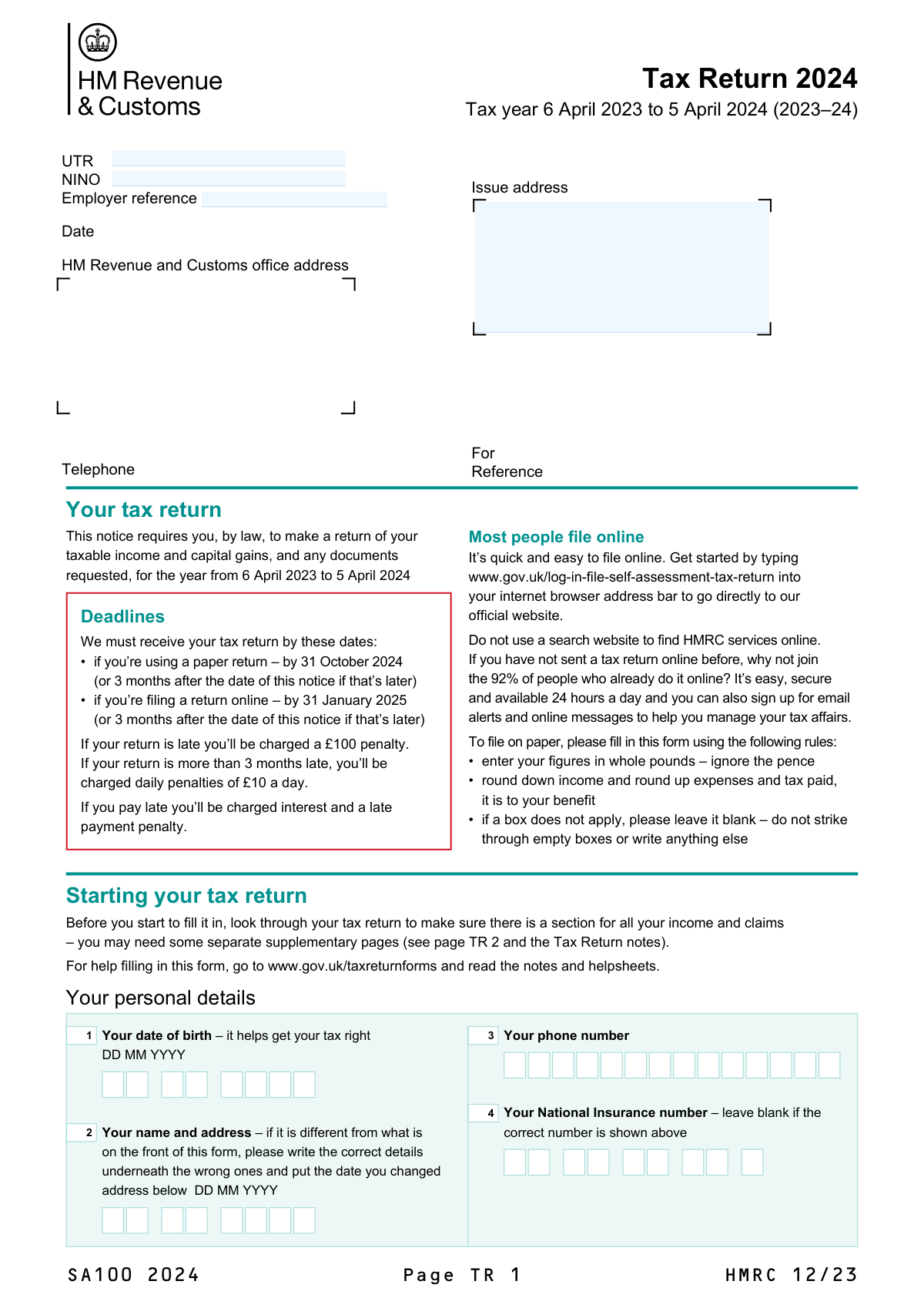
This form is a crucial document for UK taxpayers to communicate essential identification details to HM Revenue & Customs (HMRC). It requires your Unique Taxpayer Reference (UTR), National Insurance number (NINO), and employer details to ensure your tax records are correctly identified and updated. Properly filling out this form is vital for accurate tax assessment and compliance with UK tax law. Today, this form can be filled out quickly and accurately using AI-powered services like Instafill.ai, which can also convert non-fillable PDF versions into interactive fillable forms.
Our AI automatically handles information lookup, data retrieval, formatting, and form filling.
It takes less than a minute to fill out HMRC Tax Information Form using our AI form filling.
Securely upload your data. Information is encrypted in transit and deleted immediately after the form is filled out.

Form specifications

Form name: HMRC Tax Information and Reference Form
Number of fields: 4
Number of pages: 3
Language: English
Categories: tax forms
main-image

Instafill Demo: How to fill out PDF forms in seconds with AI

How to Fill Out HMRC Tax Information Form Online for Free in 2026

Are you looking to fill out a HMRC TAX INFORMATION FORM form online quickly and accurately? Instafill.ai offers the #1 AI-powered PDF filling software of 2026, allowing you to complete your HMRC TAX INFORMATION FORM form in just 37 seconds or less.
Follow these steps to fill out your HMRC TAX INFORMATION FORM form online using Instafill.ai:
  1. 1 Navigate to Instafill.ai and upload or select the HMRC Tax Information Form.
  2. 2 Use the AI assistant to automatically locate and label fields like UTR, National Insurance Number, and Employer Reference.
  3. 3 Securely provide your personal tax information, allowing the AI to populate the corresponding fields accurately.
  4. 4 Enter the specific HMRC office address or reference number as indicated on your notice.
  5. 5 Review all the auto-filled information for correctness, making any necessary adjustments with a simple click.
  6. 6 Sign the form electronically if required, and download the completed document for your records or submission to HMRC.

Our AI-powered system ensures each field is filled out correctly, reducing errors and saving you time.

Why Choose Instafill.ai for Your Fillable HMRC Tax Information Form Form?

Speed

Complete your HMRC Tax Information Form in as little as 37 seconds.

Up-to-Date

Always use the latest 2026 HMRC Tax Information Form form version.

Cost-effective

No need to hire expensive lawyers.

Accuracy

Our AI performs 10 compliance checks to ensure your form is error-free.

Security

Your personal information is protected with bank-level encryption.

Frequently Asked Questions About Form HMRC Tax Information Form

This form is used to provide HM Revenue & Customs (HMRC) with key identification details, such as your UTR and NINO, for matters related to your tax affairs.

Individuals or businesses who have been instructed by HMRC to provide or update their tax information will need to complete this form.

A UTR is a 10-digit number that identifies you for tax purposes. You can find it on previous tax returns, payment reminders from HMRC, or in your personal tax account online.

Your NINO is on documents like your National Insurance card, payslips, P60, or letters about tax and benefits. It typically looks like AB123456C.

This is your employer's PAYE reference number, which you can find on your payslip, P45, or P60. If you are not an employee, you may not need to fill this in.

Enter the full postal address of the HMRC office that sent you the notice or form. This address should be printed on the correspondence you received.

If you have never been registered for Self Assessment, you may not have a UTR. Check the form's guidance or contact HMRC to see if you need to register for one.

Submission instructions are typically included with the notice you received from HMRC. Usually, you will mail the completed form to the specified 'Issue address'.

Yes, services like Instafill.ai use AI to accurately auto-fill form fields with your saved information, which can save time and help prevent errors.

Upload the form to Instafill.ai, and its AI will make the fields interactive. You can then click to fill them with your securely stored information or type directly into the form.

You can use a service like Instafill.ai, which automatically converts flat, non-fillable PDFs into interactive forms that you can easily complete and sign on your computer.

Submitting incorrect information, especially for your UTR or NINO, can cause significant delays in processing your form. Always double-check all details for accuracy before submission.

Compliance HMRC Tax Information Form
Validation Checks by Instafill.ai

1
UTR 10-Digit Format Validation
This check verifies that the Unique Taxpayer Reference (UTR) consists of exactly 10 numeric digits. UTRs are issued by HMRC with this specific length, so any other format is incorrect. This validation prevents data entry errors and ensures the reference can be successfully looked up in HMRC systems, avoiding processing delays or rejections.
2
UTR Required Field Check
This validation ensures that the Unique Taxpayer Reference (UTR) field is not left empty. The UTR is a primary identifier for tax purposes, making it essential for processing the form correctly. If the UTR is missing, the form cannot be associated with the correct taxpayer account and the submission will be rejected until the field is completed.
3
National Insurance Number (NINO) Structural Integrity
This validation ensures the National Insurance number adheres to the standard UK format, typically two letters, followed by six digits, and ending with a single letter (A, B, C, or D). It uses a pattern match (e.g., regex) to confirm this structure. Enforcing the correct format is critical for accurately identifying the taxpayer and linking the form to their official records; failure results in an immediate rejection of the form.
4
NINO Invalid Prefix Validation
This check verifies that the first two letters of the National Insurance number are not from an invalid set of prefixes (e.g., D, F, I, Q, U, V are not used). While the overall structure may be correct, certain letter combinations are never issued by HMRC. This check adds an extra layer of validation to catch more sophisticated errors and prevent the submission of a number that cannot possibly be valid.
5
NINO Required Field Check
This validation confirms that the National Insurance number field has been filled out. The NINO is a fundamental personal identifier for the UK tax and benefits system. Submitting a form without a NINO would make it impossible to process against an individual's record, leading to an error message requiring the user to provide it.
6
Employer PAYE Reference Format Check
This check validates that the Employer PAYE reference follows the standard format, which is typically a 3-digit tax office number followed by a slash and then a unique employer reference string (e.g., 123/AB45678). This structure is essential for HMRC to correctly identify the specific employer and the associated payroll scheme. An incorrectly formatted reference would prevent the system from linking the submission to the correct employer account, causing processing failure.
7
Employer Reference Required Field Check
This validation ensures the employer reference field is not empty, as it is required to link the submission to a specific employment. Without this reference, HMRC cannot process employment-related information or queries correctly. If the field is left blank, the form submission will be halted with a message indicating the field is mandatory.
8
UK Postcode Format Validation
This validation confirms that the postcode entered in the 'Issue address' field matches a valid UK postcode format (e.g., SW1A 0AA, M1 1AE). UK postcodes have a complex structure, and this check prevents typos and incorrectly formatted entries. A valid postcode is crucial for mail delivery and for verifying the address against official databases, and failure would require the user to correct the entry before submission.
9
Address Completeness Check
This check ensures that the 'Issue address' contains at least one line for the street address and a value for the town/city, in addition to the postcode. A 'full postal address' requires these core components for it to be considered complete and deliverable. If any of these components are missing, the submission will be flagged as incomplete, preventing potential communication failures.
10
Postcode Required in Address
This validation specifically ensures that the postcode field within the 'Issue address' is not left empty. The postcode is the most critical part of a UK address for sorting and routing mail and for system-based address lookups. A missing postcode would render the address invalid for most official purposes and will result in a validation error.
11
UTR Checksum Validation
This advanced check calculates and verifies the checksum digit of the 10-digit UTR to ensure its internal validity. While not all UTRs have a checksum, for those that do (like Self Assessment UTRs), this provides a strong guarantee against transposition errors or fabricated numbers. A failed checksum indicates a high probability of an incorrect UTR, even if the format is 10 digits, and should prompt the user to double-check their entry.
12
Logical Consistency between UTR and NINO
This validation performs a backend check to ensure the provided UTR and NINO belong to the same taxpayer record within HMRC's database. This is a critical cross-field validation that prevents identity mix-ups and fraud. If the identifiers do not match the same person, the submission is rejected with a security or data mismatch error, requiring the user to verify all personal details.

Common Mistakes in Completing HMRC Tax Information Form

Entering an Incorrectly Formatted UTR

Users often enter the 10-digit Unique Taxpayer Reference (UTR) with incorrect formatting, such as adding spaces, hyphens, or letters. This happens when they copy it from different sources or guess the format. An incorrectly formatted UTR will fail validation and can lead to the form being rejected, causing significant processing delays. Always enter the UTR as a continuous 10-digit number found on official HMRC correspondence, and double-check for typos. AI-powered tools like Instafill.ai can help by automatically validating the format to ensure it meets the 10-digit requirement before submission.

Confusing UTR with National Insurance Number

A frequent error is entering the National Insurance number (NINO) in the UTR field, or vice-versa. People mix up these two unique identifiers because both are issued for tax and government purposes. This mistake leads to an immediate data mismatch and rejection of the form, as the systems for UTR and NINO are separate. To avoid this, carefully check the label of each field and match it with the number on your official documents; the UTR is 10 digits, while the NINO has a letter-and-number format.

Incorrect National Insurance Number (NINO) Format

The NINO has a specific format (e.g., AB123456C), but people often make mistakes like using lowercase letters, omitting the prefix or suffix letters, or adding spaces. This error prevents the system from identifying the individual correctly, leading to processing failure. Always enter your NINO exactly as it appears on your NINO card, payslip, or HMRC letter. Using a form-filling tool like Instafill.ai can help prevent this by formatting the entry correctly and flagging potential errors.

Transposing Digits or Letters in the NINO

A simple typographical error, such as swapping two numbers or letters in the National Insurance number, is very common but has serious consequences. Because the NINO is a unique identifier, even a small mistake will cause the record to not be found, leading to the form's rejection. This often happens due to fast typing or not double-checking the entry. To prevent this, slowly type the NINO and then read it back, comparing it carefully against your official document.

Using an Employee ID Instead of the Employer PAYE Reference

Many people mistakenly enter their personal employee or payroll number in the 'Employer reference' field. This field requires the employer's PAYE reference number (e.g., 123/AB456), which identifies the company to HMRC, not the individual employee. Using the wrong number means HMRC cannot link the submission to the correct employer scheme, causing the form to be returned. The correct PAYE reference can be found on your payslip or P60, and it is distinctly different from your employee ID.

Entering an Incomplete Employer PAYE Reference

The Employer PAYE reference often consists of two parts, typically separated by a slash (e.g., a 3-digit tax office number and a multi-character reference). A common mistake is to enter only one part of this reference. This incomplete data makes it impossible for HMRC to identify the specific employer scheme, resulting in processing delays or rejection. Ensure you enter the full reference exactly as it appears on your payslip or other employer correspondence.

Entering a Personal Address in the 'Issue Address' Field

A critical and frequent misunderstanding is entering one's own home or business address in the 'Issue address' field. This field is specifically for the address of the HMRC office that issued the notice or form. Entering the wrong address can misdirect correspondence and cause critical delays in processing the form. To avoid this, copy the full address of the HMRC office, including the postcode, directly from the letter or notice you received.

Leaving Critical Identifier Fields Blank

Individuals who cannot immediately find their UTR, NINO, or Employer Reference may be tempted to leave the fields blank, assuming they are optional. These identifiers are mandatory for processing the form and linking it to the correct records. A submission with blank mandatory fields will be automatically rejected. If you cannot find these details, check your payslips, P60, or previous correspondence from HMRC before filling out the form. If the form is a non-fillable PDF, a tool like Instafill.ai can convert it into a fillable version, making it easier to see which fields are required.

Omitting the Postcode from the HMRC Issue Address

When filling in the 'Issue address' for the HMRC office, people sometimes write the street and town but forget to include the postcode. The postcode is essential for routing mail correctly and for internal HMRC systems to identify the specific office. A missing postcode can lead to significant mail delays or the form being returned as undeliverable. Always ensure you copy the full address, including the complete and accurate postcode, from the source document.
Saved over 80 hours a year

“I was never sure if my IRS forms like W-9 were filled correctly. Now, I can complete the forms accurately without any external help.”

Kevin Martin Green

Your data stays secure with advanced protection from Instafill and our subprocessors

Robust compliance program

Transparent business model

You’re not the product. You always know where your data is and what it is processed for.

ISO 27001, HIPAA, and GDPR

Our subprocesses adhere to multiple compliance standards, including but not limited to ISO 27001, HIPAA, and GDPR.

Security & privacy by design

We consider security and privacy from the initial design phase of any new service or functionality. It’s not an afterthought, it’s built-in, including support for two-factor authentication (2FA) to further protect your account.

Fill out HMRC Tax Information Form with Instafill.ai

Worried about filling PDFs wrong? Instafill securely fills hmrc-tax-information-and-reference-form forms, ensuring each field is accurate.