
Yes! You can use AI to fill out Blue Cross and Blue Shield of Texas Average Employee Count Form
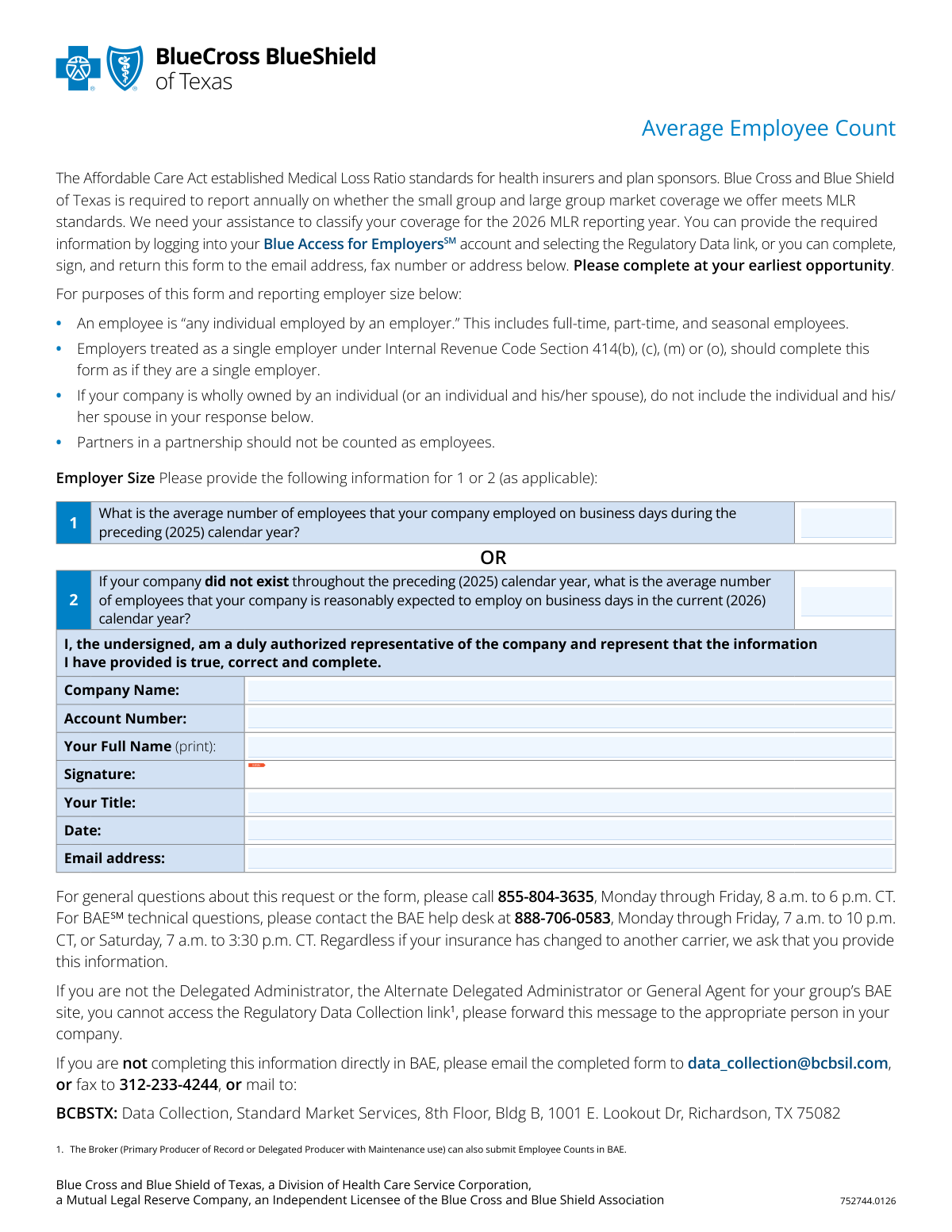
Don't type 9 fields by hand. Tell our AI about yourself, or upload a document you already have, and it fills every field in seconds. You check it, then download, print or sign.
The AI does the filling. You just check it.
No typing into boxes, nothing to install.
What this form asks for
The AI fills all of it, from your answers or your documents.
The AI checks your answers before you download
13 checks built for this form, so a wrong date or a missing answer is caught before anyone else sees it.
This validation checks that either the 'Average employees (2025)' field or the 'Expected average employees (2026)' field is filled. The form requires one of these two values to correctly classify the employer's size for Medical Loss Ratio (MLR) reporting. If neither field is completed, the submission is considered incomplete and cannot be processed.
This check validates that only one of the two employee count fields is populated. The form logic dictates that the 2025 average is for existing companies, while the 2026 estimate is for new companies. Submitting both creates ambiguity, so the form should be rejected with a message asking the user to provide only the applicable value.
This validation ensures that the value entered into either employee count field is a positive integer. Employee counts cannot be fractional, negative, or contain text. This is critical for accurate data aggregation and classification, and any non-compliant entry will be rejected.
This check verifies that the 'Company Name' field is not left blank. The company name is a primary identifier required to associate the submitted data with the correct employer group. A submission without a company name is unidentifiable and will be rejected.
This validation ensures that the 'Account Number' field is populated. The account number is a unique key used to locate the employer's record in the system. Without it, the form cannot be processed automatically and would require manual intervention, delaying the update.
This is a database cross-reference check to confirm that the submitted Account Number and Company Name match an existing client record. This validation is crucial for data integrity, preventing data from being misapplied to the wrong account. A mismatch would result in an error, prompting the user to review and correct the information.
And 7 more checks
- Ensures the Authorized Representative's Full Name is provided
- Ensures the Authorized Representative's Title is provided
- Verifies the form has been signed
- Validates the Signature Date is present and in a valid format
- Ensures the Signature Date is not in the future
- Validates the format of the Authorized Representative's Email
- Checks if the employee count is within a reasonable range
Let AI fill out your BCBSTX Average Employee Count
No typing. Every field filled in seconds, checked, ready to sign.
How to Fill Out BCBSTX Average Employee Count Online for Free in 2026
What the AI walks you through.
- Navigate to Instafill.ai and upload or select the BCBSTX Average Employee Count form.
- Provide the average number of employees for the applicable year as requested in either section 1 or 2.
- Enter your company's legal name and the BCBSTX account number.
- Input the personal details of the authorized representative, including their full name, title, and email address.
- The authorized representative must digitally sign and date the form to certify that the provided information is true and correct.
- Review all the information populated by the AI to ensure accuracy and completeness before finalizing.
- Submit the completed form as instructed, either by email, fax, mail, or through the Blue Access for Employers (BAE) portal.
Common Mistakes in Completing BCBSTX Average Employee Count
The ones the AI is built to catch.
Incorrectly Calculating the Average Employee Count
Filling Out Both Employee Count Sections
Entering an Incomplete or Incorrect Account Number
Using a DBA or Abbreviated Company Name
Forgetting to Sign the Form
Having an Unauthorized Person Sign the Form
Leaving the Authorized Representative's Title Blank
Submitting a Poorly Scanned or Illegible Form
Providing Data for the Wrong Calendar Year
Using a Personal Instead of a Business Email Address
Frequently Asked Questions About BCBSTX Average Employee Count
Is it really free for 7 days?
Can I fill other forms too?
How do I cancel?
How does the AI fill out BCBSTX Average Employee Count?
What happens to my information?
How complex is BCBSTX Average Employee Count to fill out?
What is the purpose of this Average Employee Count form?
Who needs to fill out this form?
How do I count my employees for this form? Does it include part-time staff?
Are there any individuals I should not include in the employee count?
My company is new and wasn't in business for all of 2025. How do I answer?
How can I submit this form?
We are no longer insured by BCBSTX. Do we still need to submit this form?
Who should I contact if I have questions about the form?
I'm not the right person to fill this out. What should I do?
My company is part of a larger group of affiliated companies. How do we report our employee count?
Can my insurance broker submit this information on our behalf?
Can I use an AI tool to help me fill out this form?
How can I fill out this form online using Instafill.ai?
The PDF version of this form I have is not fillable. What can I do?
Get your BCBSTX Average Employee Count filled out by AI
$0 today. Cancel before Nov 4 and you pay nothing.
Other forms like this one
Blue Cross Blue Shield forms: Applied Behavior Analysis (ABA) Initial Assessment Request and Clinical Service Request Form – Blue Cross and Blue Shield of Illinois (BCBSIL), Horizon Blue Cross Blue Shield of New Jersey Applied Behavior Analysis Supplemental Information Form, Blue Cross and Blue Shield of Texas Group Enrollment Application/Change Form
employee forms: Form 1099-NEC, Nonemployee Compensation, Form W-4, Employee's Withholding Certificate, Form CA-1, Federal Employee's Notice of Traumatic Injury, Form 5884-A, Employee Retention Credit, Form 1099-NEC, Nonemployee Compensation, Form 1099-NEC, Nonemployee Compensation, Form 1099-NEC, Nonemployee Compensation, HR-Pol-Rec&Res-04 Employment Application Form (Recruitment of Permanent Employees), Commonwealth of Massachusetts Department of Industrial Accidents Form 110, Employee’s Claim, Commonwealth of Massachusetts Department of Industrial Accidents (DIA) Form 110, Employee’s Claim, Form 1099-NEC, Nonemployee Compensation, WTIA 401(k) Plan Rollover Contribution Employee Certification, BNSF Investment and Retirement Plan [401(k) Plan for Salaried Employees], Form 5500, Annual Return/Report of Employee Benefit Plan, Form 5500, Annual Return/Report of Employee Benefit Plan, The Principal Pension Plan Summary Plan Description: Cash Balance Formula for Employees and Individual Field, The Principal Pension Plan Summary Plan Description: Traditional and Cash Balance Formulas for Employees and Individual Field, Sensus USA Inc. 401(k) Plan Summary Plan Description (For Non-Union Employees), Paychex Retirement Services Employee Rollover Form, Employee’s Frequently Asked Questions: Leave of Absence
Blue Shield forms: Blue Shield of California Network Participation Letter of Intent, Blue Shield of California Prior Authorization Request Form for Applied Behavioral Analysis (ABA) – Commercial Products, Applied Behavior Analysis (ABA) Initial Assessment Request and Clinical Service Request Form – Blue Cross and Blue Shield of Illinois (BCBSIL), Horizon Blue Cross Blue Shield of New Jersey Applied Behavior Analysis Supplemental Information Form, Blue Shield of California Prior Authorization Request Form, Blue Shield of California Urgent Request for Prior Authorization, Blue Cross and Blue Shield of Texas Group Enrollment Application/Change Form, Blue Shield Promise Durable Medical Equipment (DME) Treatment Authorization Request Form, Blue Shield Promise Universal Prior Authorization Form, Blue Shield of California Promise Health Plan Long Term Care Treatment Authorization Request Form, Blue Shield Promise Community Health Worker (CHW) Services Recommendation Form, Blue Shield Promise Treatment Authorization Request Form, Blue Shield of California Servicing Provider Change Request Form, Blue Shield of California Promise Health Plan Referral Form, Blue Shield of California Community Supports (CS) Request Form, Blue Shield of California Promise Health Plan Health Education Referral Form, Blue Shield of California Palliative Care Program Eligibility Screening Tool, Blue Shield Promise Continuity of Care Request Form, Blue Shield of California Promise Health Plan Medi-Cal Group Doula Provider Quality Check Form
Let AI fill out your BCBSTX Average Employee Count
Your trial starts once a card is added. You pay nothing before Nov 4.
Our AI already knows this form, all 9 fields of it. Skip the typing: tell it about yourself, or upload what you have, and it fills the whole form in seconds.
- AI fills every field on the form, checkboxes included
- No typing into boxes: answer a few questions, or upload a document you already have, an old copy of this form, a photo of a document
- The AI checks the answers; you review and change anything before you download
- Download the finished PDF, print it, or sign it online
- Encrypted, and never used to train AI
Cancel before Nov 4 and you pay nothing.
A card is needed to start the trial. Cancel in two clicks from your account.
Terms · Privacy