How to answer the Agent's questions while it fills
This guide shows what to do when the Agent stops in the middle of a run and asks you something. It asks only when a fact is missing from the source files, so that it does not guess. You answer, and the run carries on from where it stopped. For the whole path from a blank form to a finished file, start with How to fill any form with the Agent.
What you need before you start
| You need | What that means |
|---|---|
| A run that has stopped to ask | The package shows Waiting for your answers, and the questions open on their own. |
| A file, for some questions | Some answers need a document, such as a certificate. The question says so on that answer. |
1. Read the questions
When the Agent needs something, a panel opens over the record of its work. The record stays visible behind it, so you can read what the Agent found before you answer. The box where you normally write to the Agent is put away until the questions are answered.
The Agent can ask several questions in one stop. Each question has its own tab, numbered in the order asked, and the top of the panel counts how many are answered. A tab opens when the question before it has an answer. A tick on a tab means that question is answered.
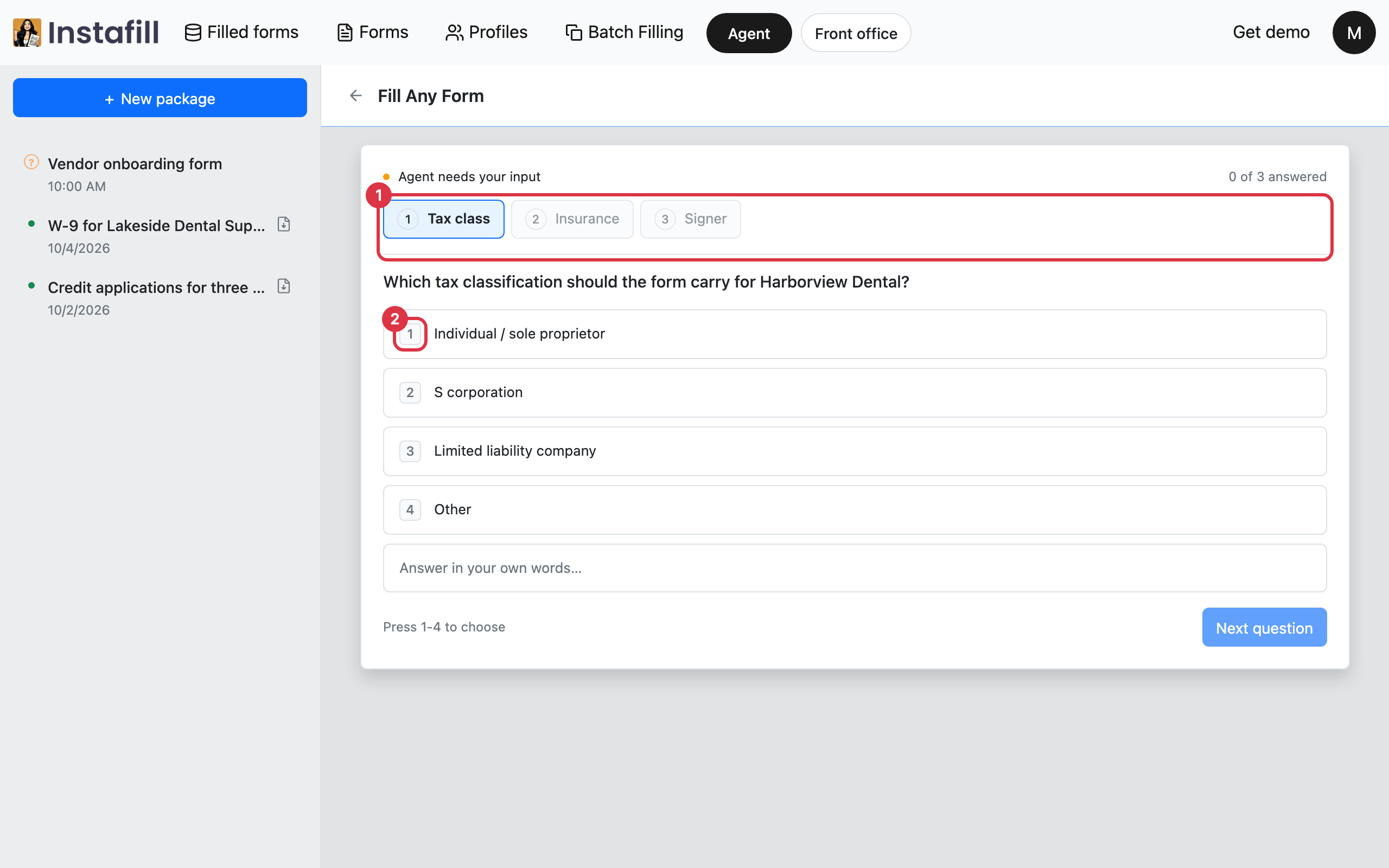
If you leave the page, the questions are still there when you open the package again.
2. Choose an answer or write your own
Under each question the Agent offers suggested answers. Choose one in either of two ways:
- Click the row: The row is marked as your answer.
- Press its number: Each suggested answer shows a number. Press that key to choose the row, which works anywhere on the page except while you are typing in a field. The panel's hint line says which keys to press.
Where the question allows it, the last row is Answer in your own words…. Choose it and type the answer. Press Enter to move on, or Shift + Enter to start a new line. A question that offers no suggested answers goes straight to the field.
You can only give one answer to a question. Choosing a row puts down what you typed, and typing puts down the chosen row.
3. Attach a file when an answer needs one
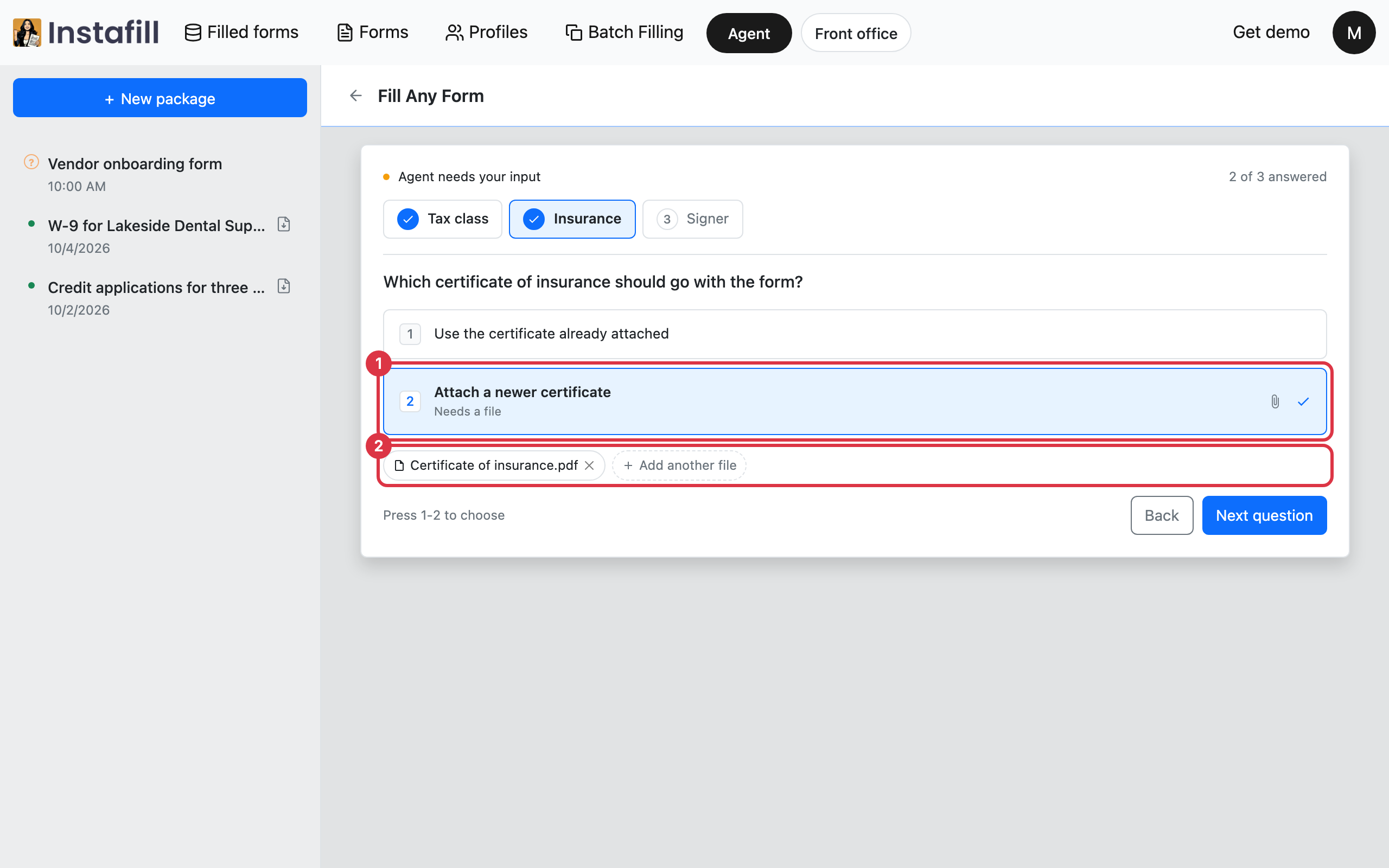
Some suggested answers need a document to go with them. Those rows are marked Needs a file. Choose the row and your computer's file picker opens. Pick the file.
The file appears under the rows. Press Add another file to attach more, or the cross beside a file to remove it. Before a file is attached, the same place offers Attach a file. Until a file is attached, the panel says Attach a file to continue and the button stays off.
4. Move through the tabs and send the answers
Press Next question to go to the next tab, or Enter when a suggested answer is chosen. From the second tab on, Back returns to the one before, and what you chose is still there.
On the last tab the button changes to Send answer, Send both answers or Send all answers, depending on how many are going. Press it. Files go up first, then the answers, so the Agent finds each document when it resumes. Nothing is sent until you press this button on the last tab.
The run carries on from where it stopped. If the Agent has already said a follow-up question is coming, the button on the last tab still reads Next question, and pressing it sends the answers.
5. Wait for a follow-up question, if one comes
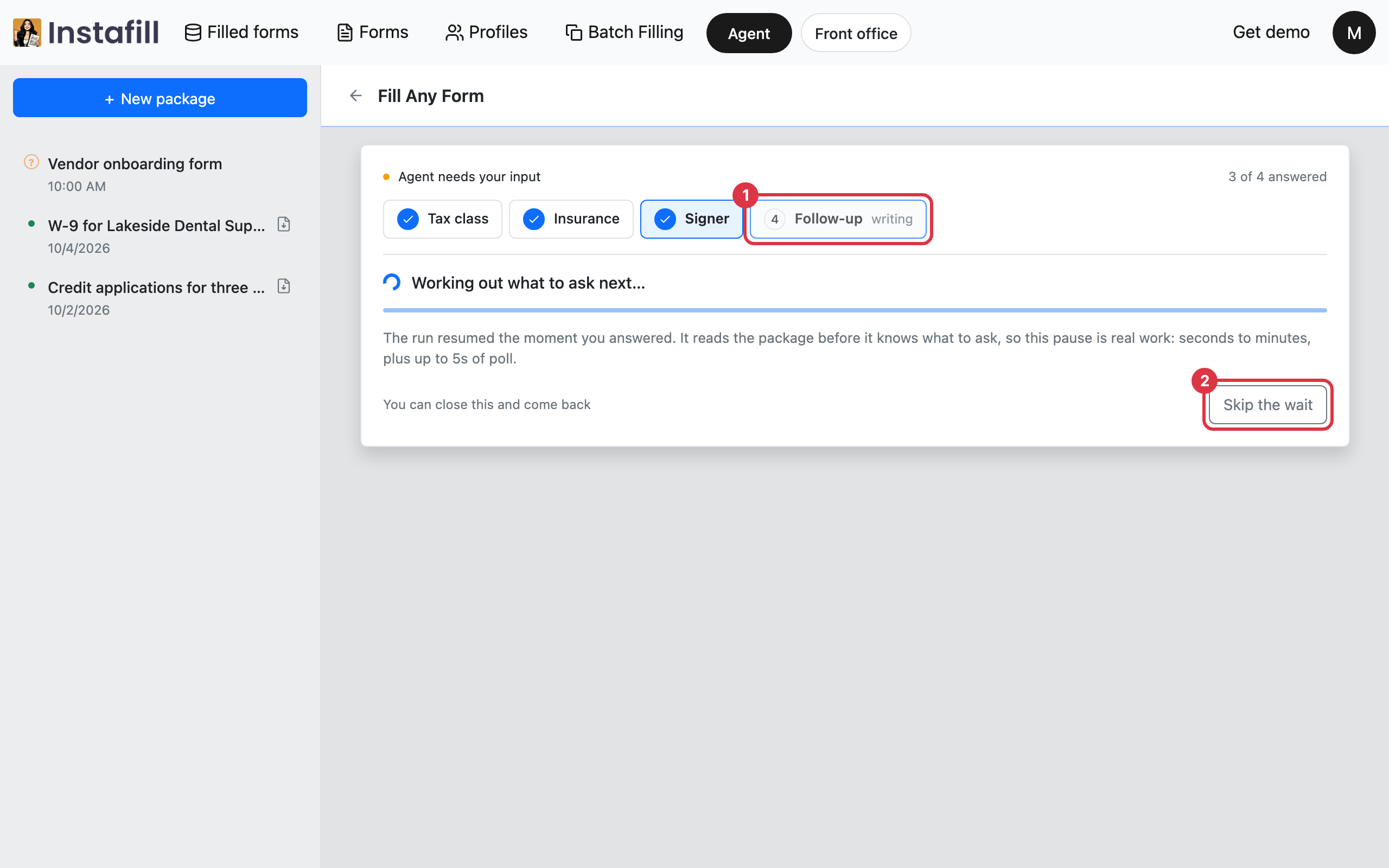
Sometimes your answers decide what else the Agent needs to know. The panel then shows one more tab, Follow-up, marked writing while the Agent works out the question and locked until it is ready.
While it works, the panel says Working out what to ask next…. This takes a little while, because the Agent reads the package again first. You have two choices:
- Wait: The follow-up question opens in the same panel as soon as it is ready, and your earlier answers stay on their ticked tabs.
- Skip the wait: Press Skip the wait to close the panel and go back to reading the record. You can close it and come back, and the question is there when it is ready.
Answer the follow-up the same way as the first questions.
What else is possible
- Answering later: A question stays open until it is answered, so you can leave the page and pick it up when you open the package again.
- Reading the record first: The record of the Agent's work stays visible behind the panel, and often shows why the Agent is asking.