How to require two-factor authentication for your organization
This guide shows how to make every sign-in to your organization a two-step one. After the password or the usual sign-in, each person also enters a code that Instafill.ai sends to their phone by text message. You turn it on once, for everyone in the organization.
What you need before you start
| You need | What that means |
|---|---|
| The Owner or Admin role | Only an Owner or an Admin of the organization sees the setting. |
| A phone that receives text messages | Each person in the organization needs one to sign in once the setting is on. |
1. Open Authentication security
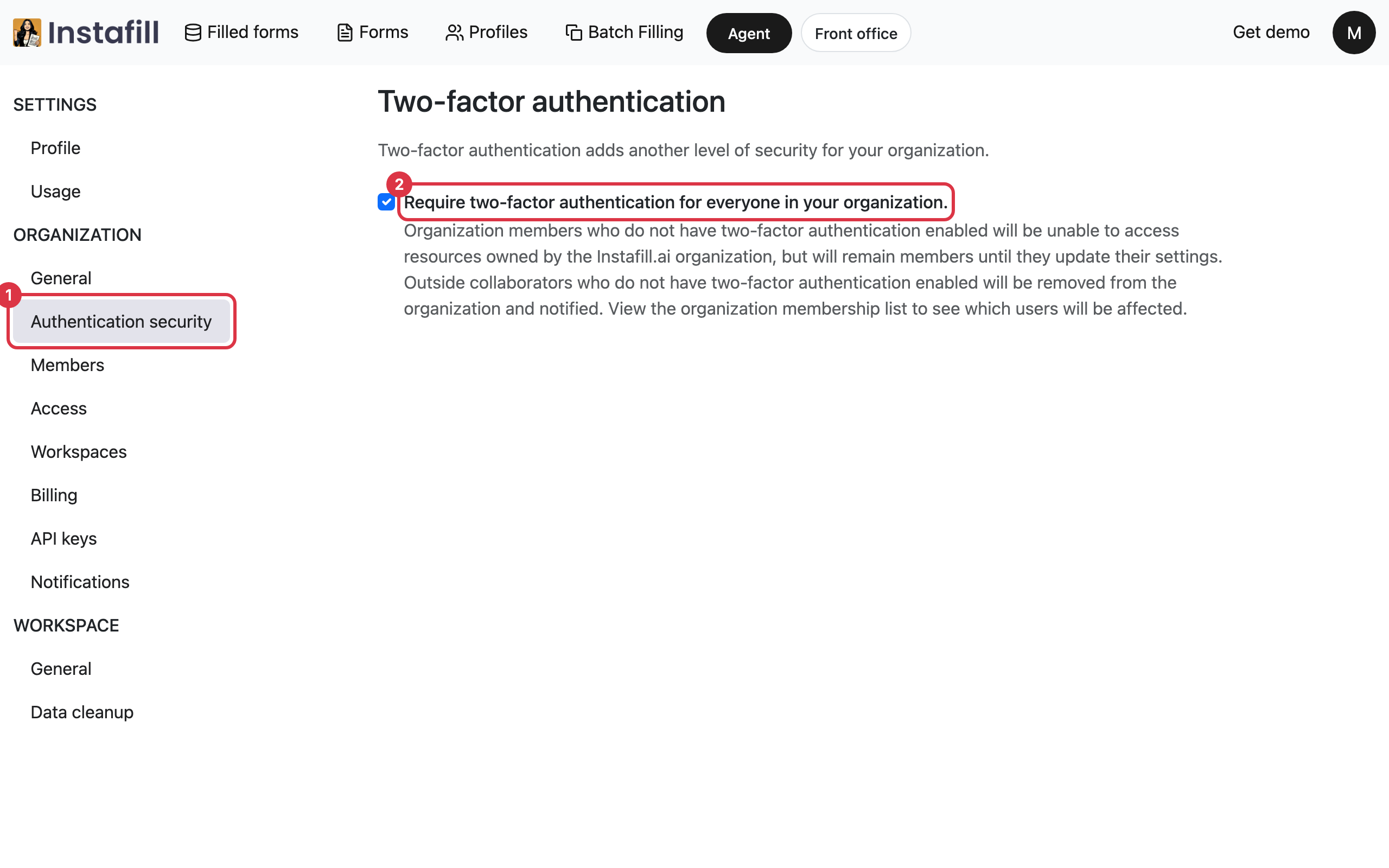
Click your initial in the top right corner and choose Profile. In the list on the left, under Organization, click Authentication security.
2. Require two-factor authentication
Tick Require two-factor authentication for everyone in your organization. The change is saved at once. There is no Save button.
From then on, everyone working in your organization is asked for a code each time they sign in, you included. A person who is already signed in is asked for a code before they continue, and may be asked to sign in again first.
3. Add a phone number the first time
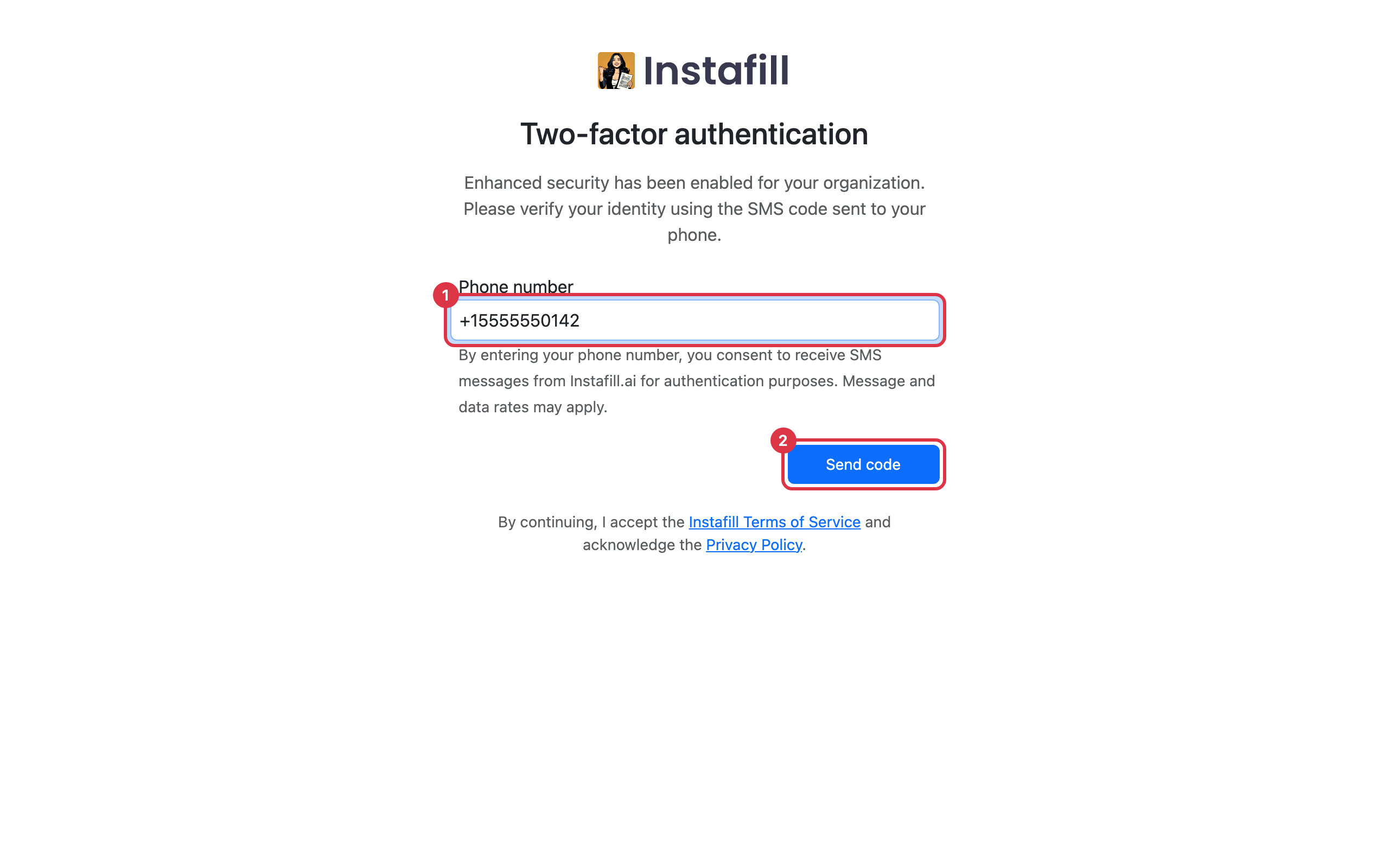
The first time a person signs in after the setting is on, the Two-factor authentication screen asks for a phone number.
- The number: Type it with a plus sign and the country code first, as the box shows.
- The code: Press Send code. The number is kept for the next sign-ins.
4. Enter the code from the text message
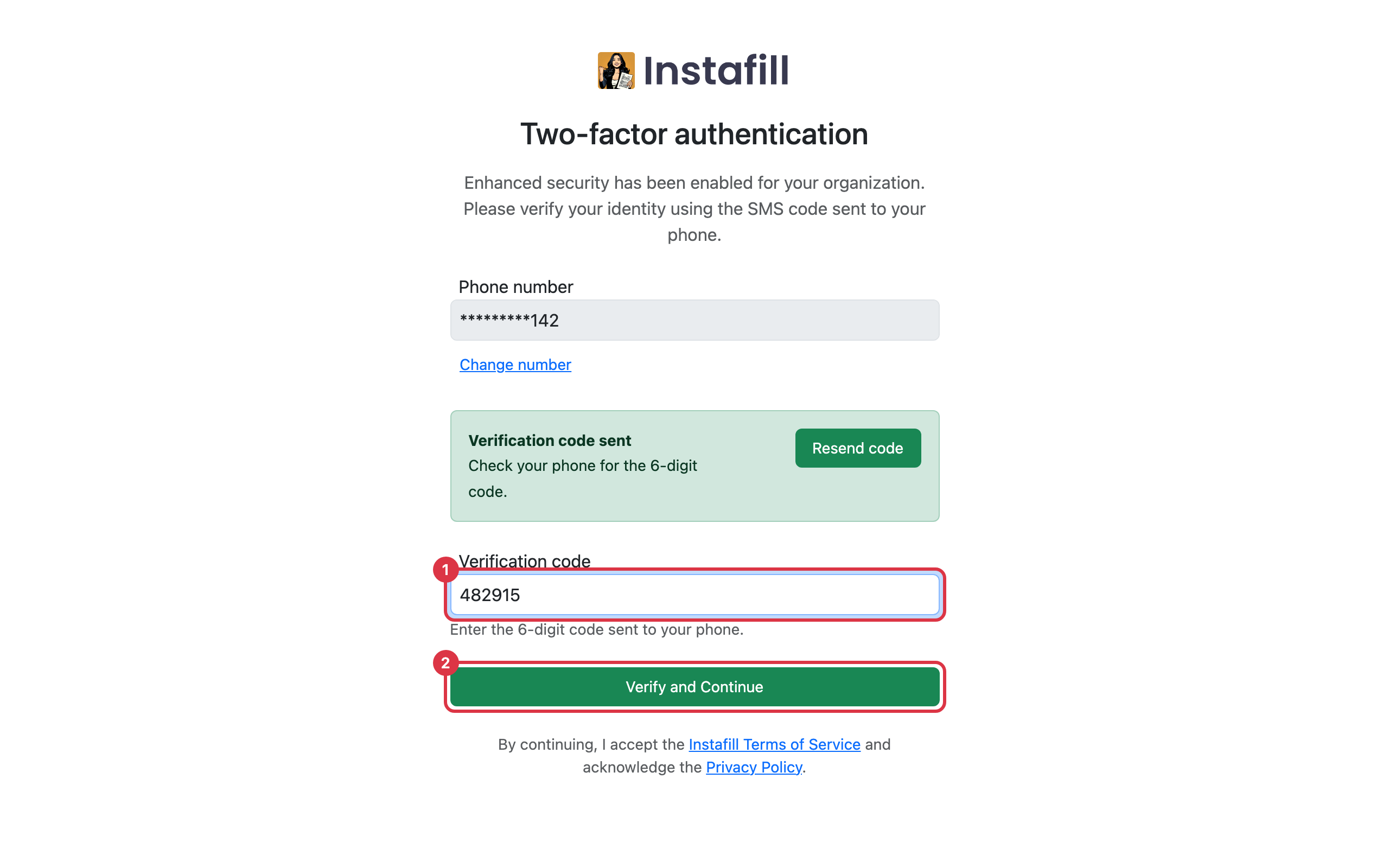
A text message from Instafill.ai brings the code. Type it under Verification code and press Verify and Continue. The app opens.
On later sign-ins the screen shows the saved number with only its last digits visible. Press Send code, then enter the code as before.
- No message arrived: Press Resend code for a new code. If the screen asks you to wait, press it again a little later.
- A new phone: Press Change number under the saved number and type the new one.
- Enter the code soon after signing in: If more than 5 minutes pass, you are asked to sign in again.
Turn it off again
Open Authentication security and clear the tick. From then on, nobody in the organization is asked for a code.
People who belong to several organizations
The setting applies while a person works in your organization. If they switch to another organization that does not require it, they are not asked for a code there.