How to fill a form from a saved profile
This guide shows how to keep the files and details of a person or a company as a profile, such as a supplier you send the same forms to every year. You set up the profile once. After that, you fill any form from it in a few clicks, without uploading the same files again.
What you need before you start
| You need | What that means |
|---|---|
| A paid plan | Profiles come with a paid plan. |
| The files that hold your data | Documents about the person or company, such as a letter with their address and tax details. |
| A form in your forms library | The form to fill from the profile. |
1. Create a profile
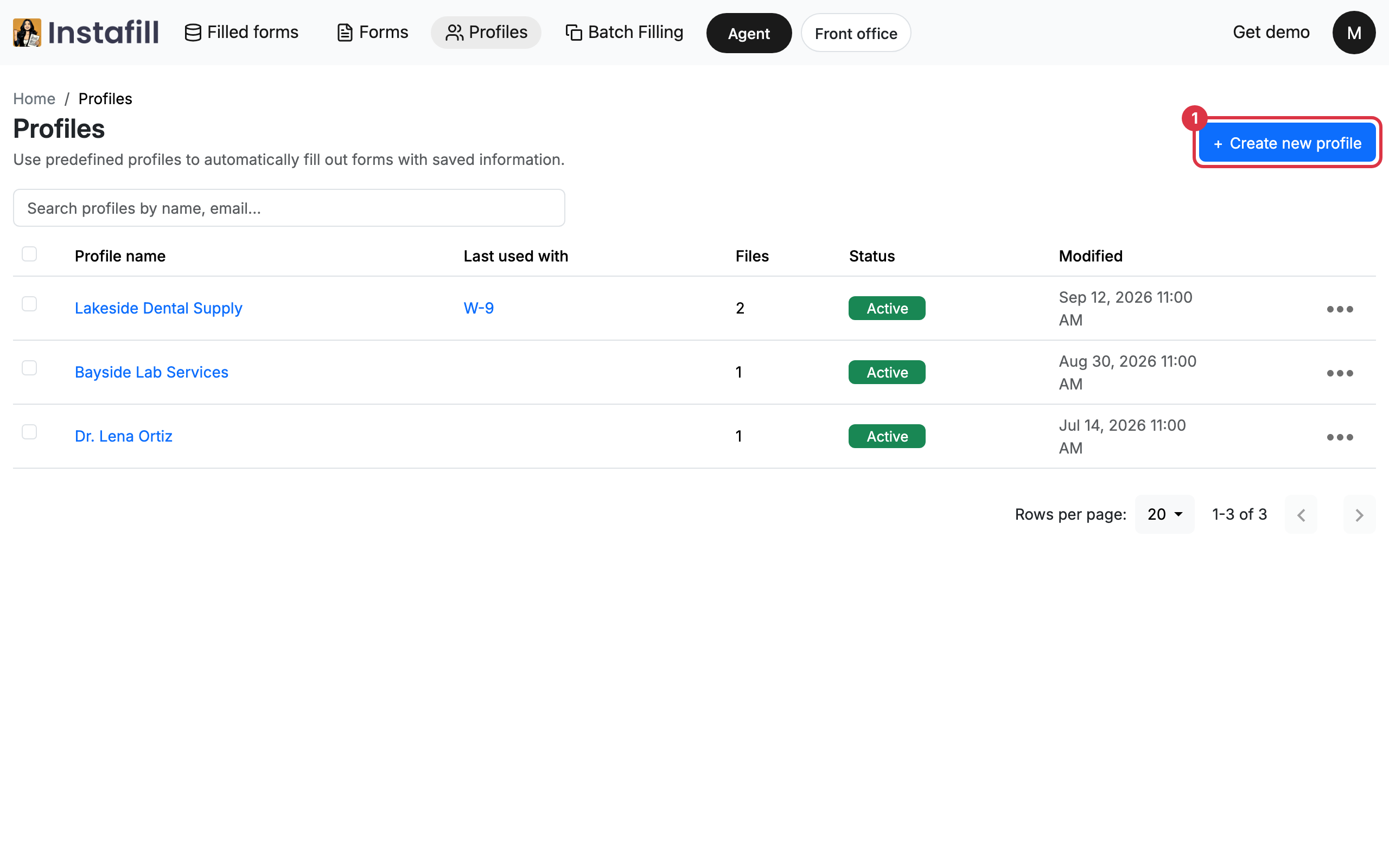
Open Profiles in the top bar and press Create new profile. The new profile opens.
Profiles belong to the workspace you are working in. Everyone who works in that workspace can see and use them.
2. Add the files and details
- Files: Press Upload files and choose the documents about the person or company. You can add up to 10 files at a time, and each file can be up to 10 MB.
- Profile information: Type anything the files do not say, then press Save.
- Profile name: Type a name, or leave it. A profile still called New profile is named after its files once the first one is added.
When the profile has a file or some typed information, it shows Profile is ready to use.
3. Open the form and choose Fill out form with profiles
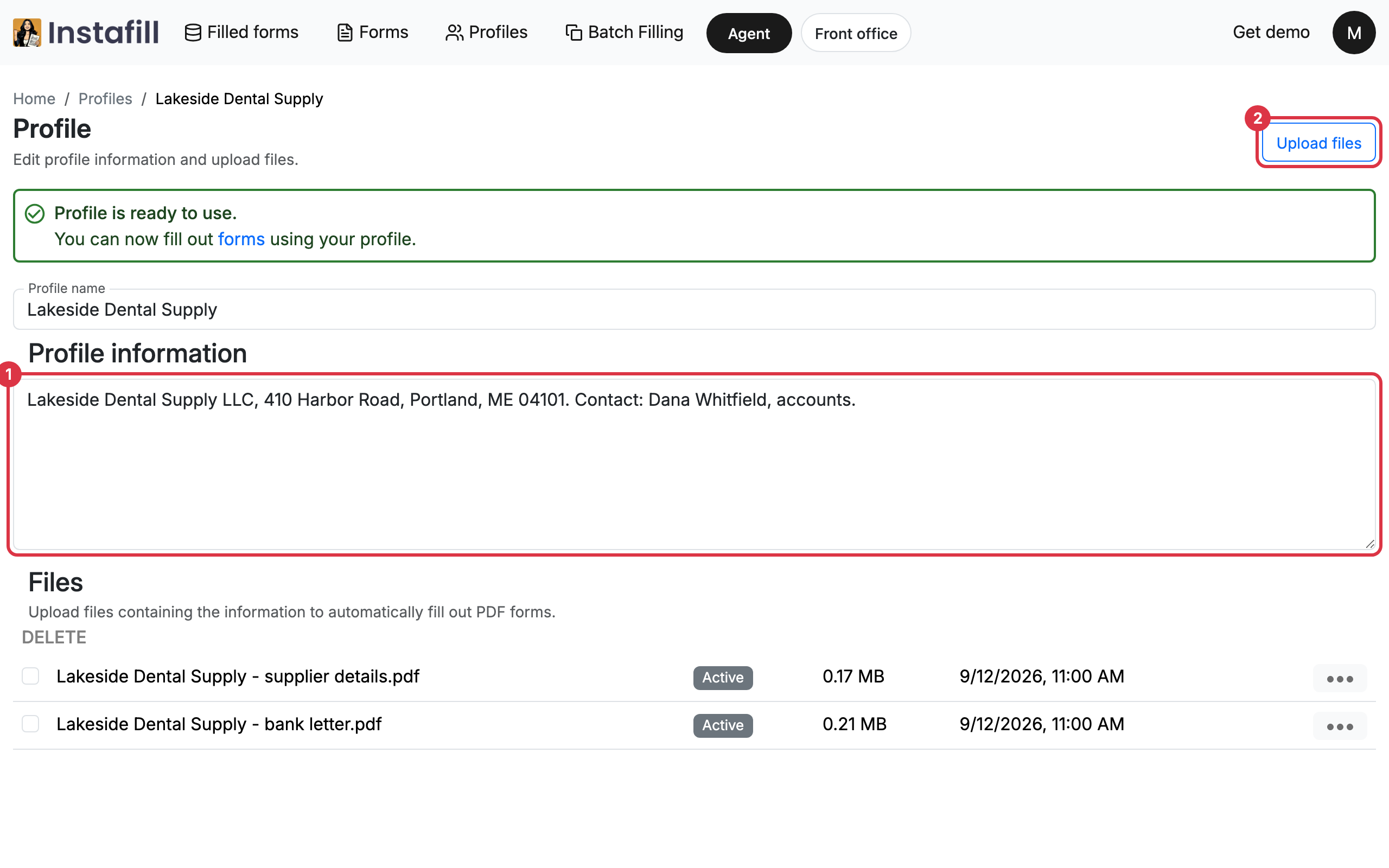
Open Forms in the top bar and click the form's name. On the form's page, open the menu beside Complete form and choose Fill out form with profiles.
4. Pick the profiles
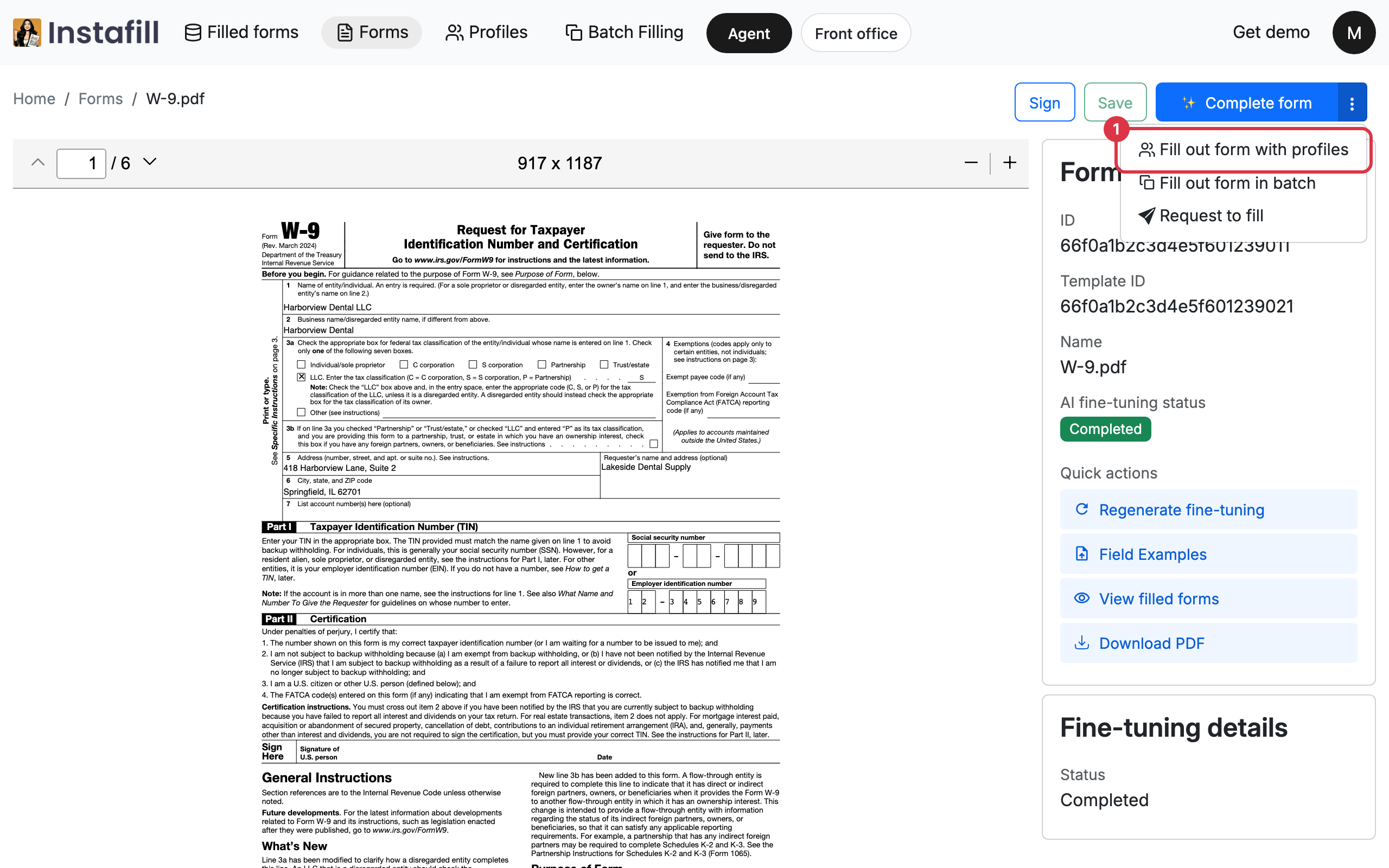
Tick the profile to fill the form from. You can pick up to 2 profiles. A profile already used for this form is marked Used before to fill this form.
Press Continue.
5. Check and start the fill
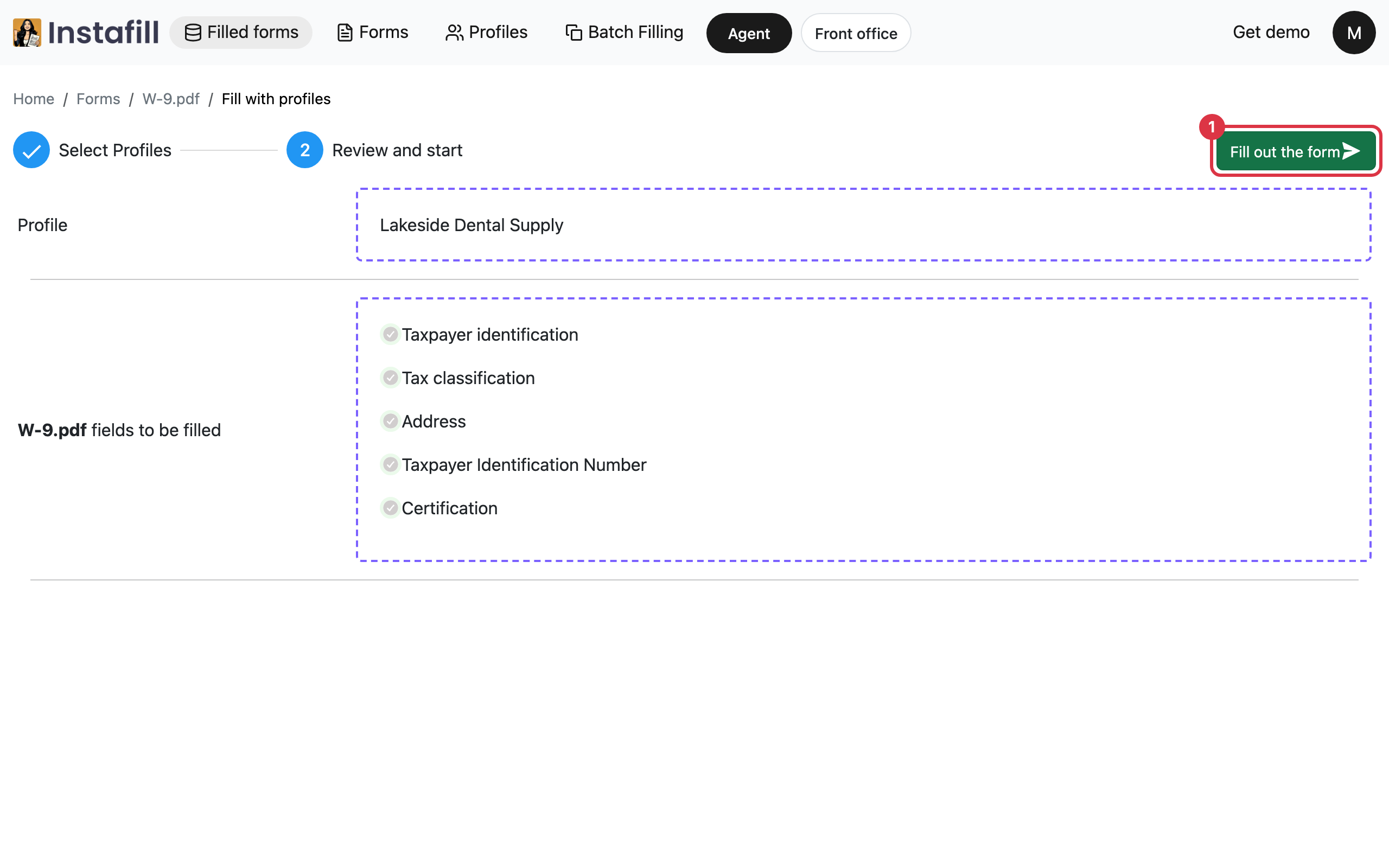
Review and start shows the profiles you picked and the parts of the form that will be filled. Press Fill out the form.
The form opens and is filled from the profile's files and information. Check it and download it there, as with any filled form. Each filled form uses a fill credit.
Fill several forms from the same profiles
In Forms, tick the forms you need and press Fill out forms with profiles. Pick the profiles as in step 4, press Continue, then Fill out the forms. Each form is filled on its own and appears in Filled forms.
Fill a form again from the Profiles list
In Profiles, the menu of a profile that was used before offers Fill out form with the name of the last form it filled. It opens step 4 with that profile already picked.
Update or remove a profile
Click a profile's name to add or remove files and change its information. Forms you filled before keep what they were filled with. To remove a profile, open its menu in Profiles and choose Delete.