How to save values that never change into a form
This guide shows how to save the details that are the same on every copy of a form, such as your company's name, its address and its tax number. You type them into the form once and save them. Every later fill of that form starts with them, and the AI leaves them exactly as you typed them.
What you need before you start
| You need | What that means |
|---|---|
| A fillable form in your forms library | The form you fill again and again, such as the tax form your practice sends to every new supplier. |
| The values that never change | The details that stay the same on every copy. Leave anything that changes from fill to fill for the AI. |
1. Open the form
Open Forms in the top bar and click the form's name. The form's page shows the form with its fillable fields.
2. Type the values into the form
Click a field on the form and type its value. Tick a checkbox that should always be ticked.
- Only what you fill is saved: Fields you leave empty stay for the AI to fill each time.
- Checkboxes: Only a ticked box is saved. A box that should stay empty does not need saving.
As soon as you change a value, the Save button above the form becomes available.
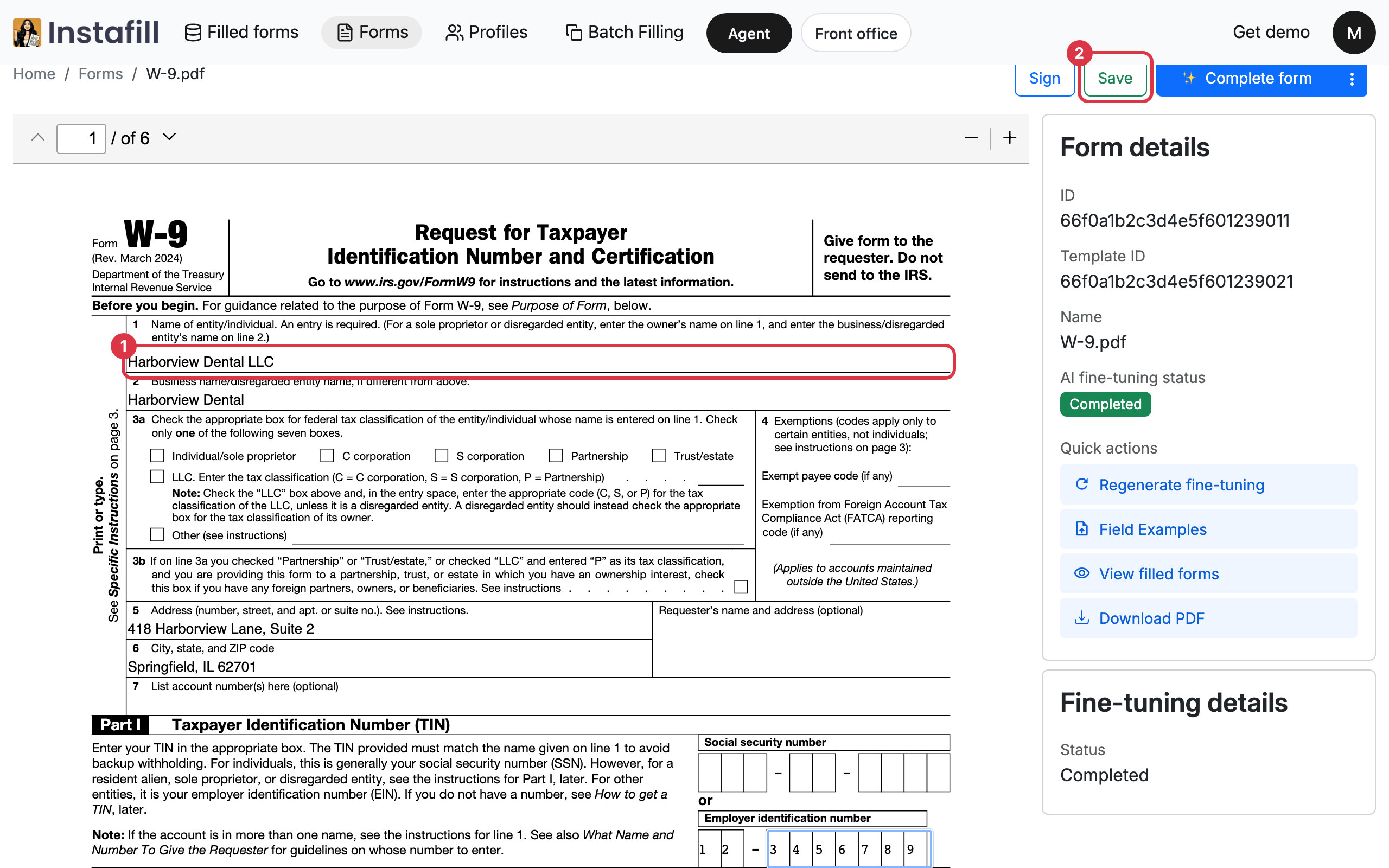
3. Save them
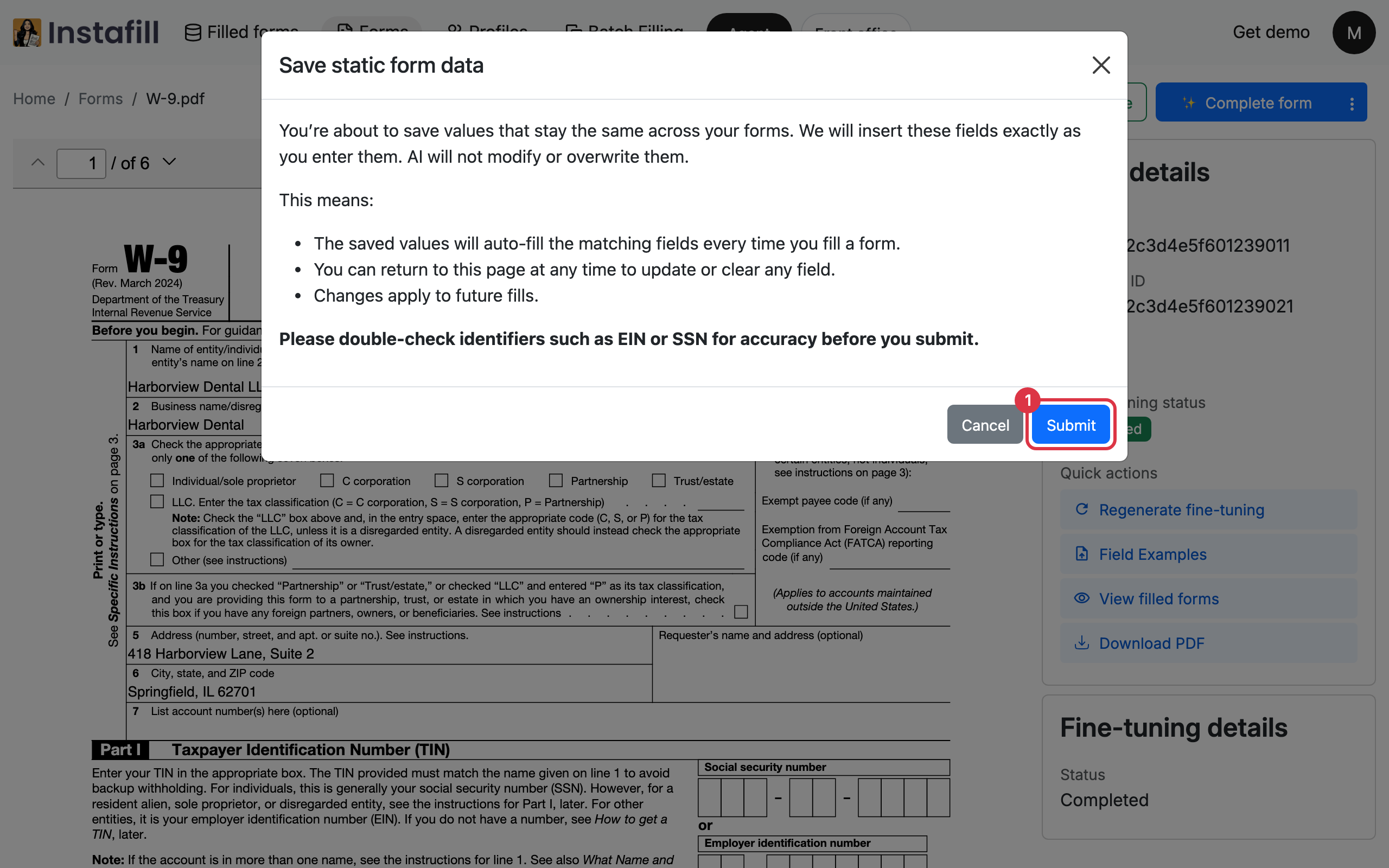
Press Save. The Save static form data dialog explains what happens next:
- Every fill: The saved values fill the matching fields every time you fill the form.
- Untouched by AI: They are inserted exactly as you typed them, and the AI does not modify or overwrite them.
- From now on: Changes apply to fills you start after saving.
Check identifiers such as an EIN or SSN carefully, then press Submit. A message confirms that the values were saved.
4. Fill the form as usual
Every fill of this form now starts with the saved values, whether you fill it yourself, with the Agent or in a batch. The AI fills only the remaining fields.
Everyone in your workspace who fills the form gets the same saved values.
5. Update or clear a value later
Open the form's page again. Change the value in the field, or empty it, then press Save and Submit. Fills you start afterwards use the new values.
Values already in an uploaded form are kept
If a PDF you upload already has values typed into its fields, those values are saved into the form for you. You can update or clear them the same way.